Drip Mode in HighLevel’s Reviews AI helps you automatically reply to large backlogs of historical, unreplied reviews at a natural, human-like pace. Configure daily limits, time windows, and AI tone so responses align with your brand and business hours. This guide explains what Drip Mode is, how it works, and how to set it up with best practices, FAQs, and links to related resources.
TABLE OF CONTENTS
- What is Drip Mode in Reviews AI?
- Key Benefits of Drip Mode
- Campaign Management Controls
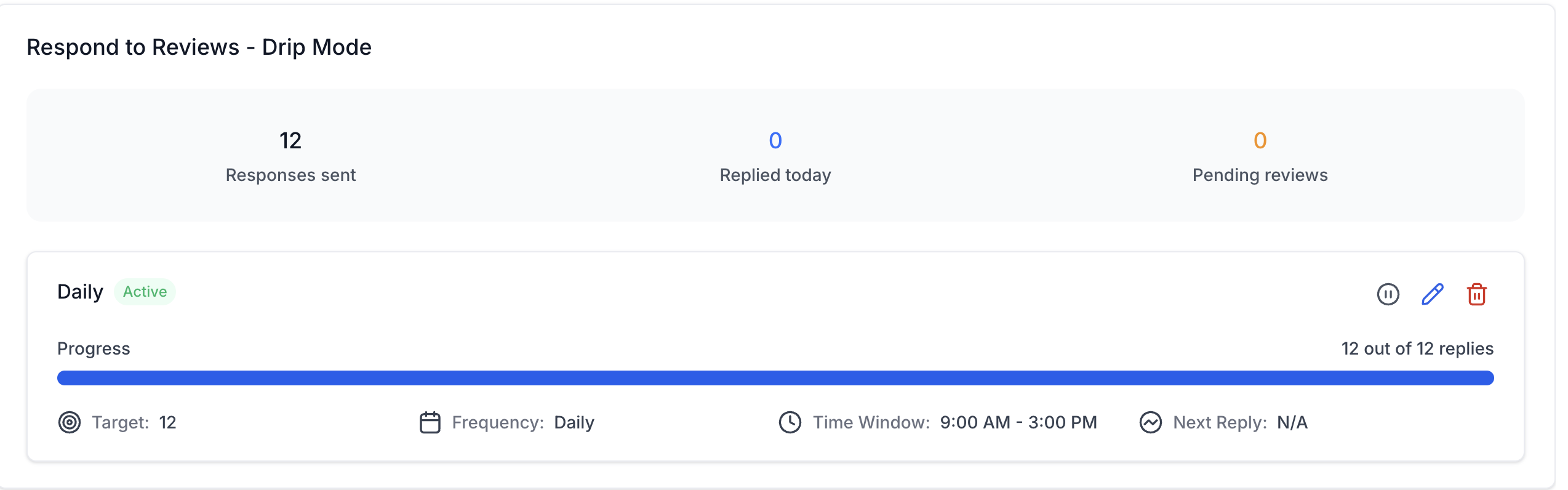
- Monitoring & Reporting
- Limitations & Notes
- How To Setup Drip Mode
- Frequently Asked Questions
What is Drip Mode in Reviews AI?
Drip Mode applies pacing to automated review replies so historical reviews receive thoughtful, on-brand responses over time rather than all at once. By controlling cadence, windows, and eligibility rules, teams can safely catch up on backlogs without triggering spam-like activity.
Drip Mode is a configurable campaign inside Reviews AI that targets older, unreplied reviews and schedules AI-generated responses over a defined cadence and time window. Campaigns can be paused, edited, or deleted at any time.
Key Benefits of Drip Mode
Understanding the benefits clarifies when to use Drip Mode and how it advances your reputation strategy beyond one-off replies.
- Backlog Cleanup: Address weeks, months, or years of unanswered reviews without manual effort.
- Human-like Pacing: Avoid sudden bursts by setting daily caps, cadences, and allowed send windows.
- Brand Consistency: Use Reviews AI agents and tone settings for contextual, on-brand replies.
- Operational Control: Pause, edit, or delete campaigns while preserving sent history.
- Improved Trust & Response Rates: Increase reply coverage without appearing automated or spammy.
Campaign Management Controls
Lifecycle controls let you adapt to changing priorities without losing historical context or sent history.
- Edit Campaign: Update configuration (age, caps, cadence, windows, agent). Changes apply to future scheduled replies and do not alter already-sent responses.
- Pause Campaign: Temporarily stop future replies while keeping settings intact for later resumption.
- Delete Campaign: Cancel all pending replies and permanently remove the campaign. Sent replies remain in history.
Monitoring & Reporting
Visibility into scheduled and sent replies ensures accountability, helps forecast backlog clearance, and supports QA.
- Scheduled Queue: Review upcoming replies, counts remaining for the day, and next send window.
- Sent History: Track which reviews were replied to, timestamps, and response content.
- Backlog Progress: Monitor how many eligible reviews remain and estimated days to completion based on caps.
- Failures & Retries: Identify any failed sends and take corrective action where available.
- Failures & Retries: Identify failed sends and take corrective action where available. If Google or Facebook deletes a review included in a Drip Mode campaign, HighLevel does not repeatedly retry the deleted review or generate additional billable AI responses for it.
Limitations & Notes
Knowing the boundaries helps you plan realistic timelines and avoid unexpected behavior.
- Drip Mode targets historical reviews based on your minimum age setting and unreplied filter.
- Edits affect only future scheduled replies. Already-sent replies remain unchanged.
- Pausing halts future sends until resumed; deleting removes pending items.
- Actual send timing depends on your cadence, time windows, and daily caps.
How To Setup Drip Mode
A clear, step‑by‑step setup ensures your campaign starts cleanly, respects business hours, and aligns with brand tone.
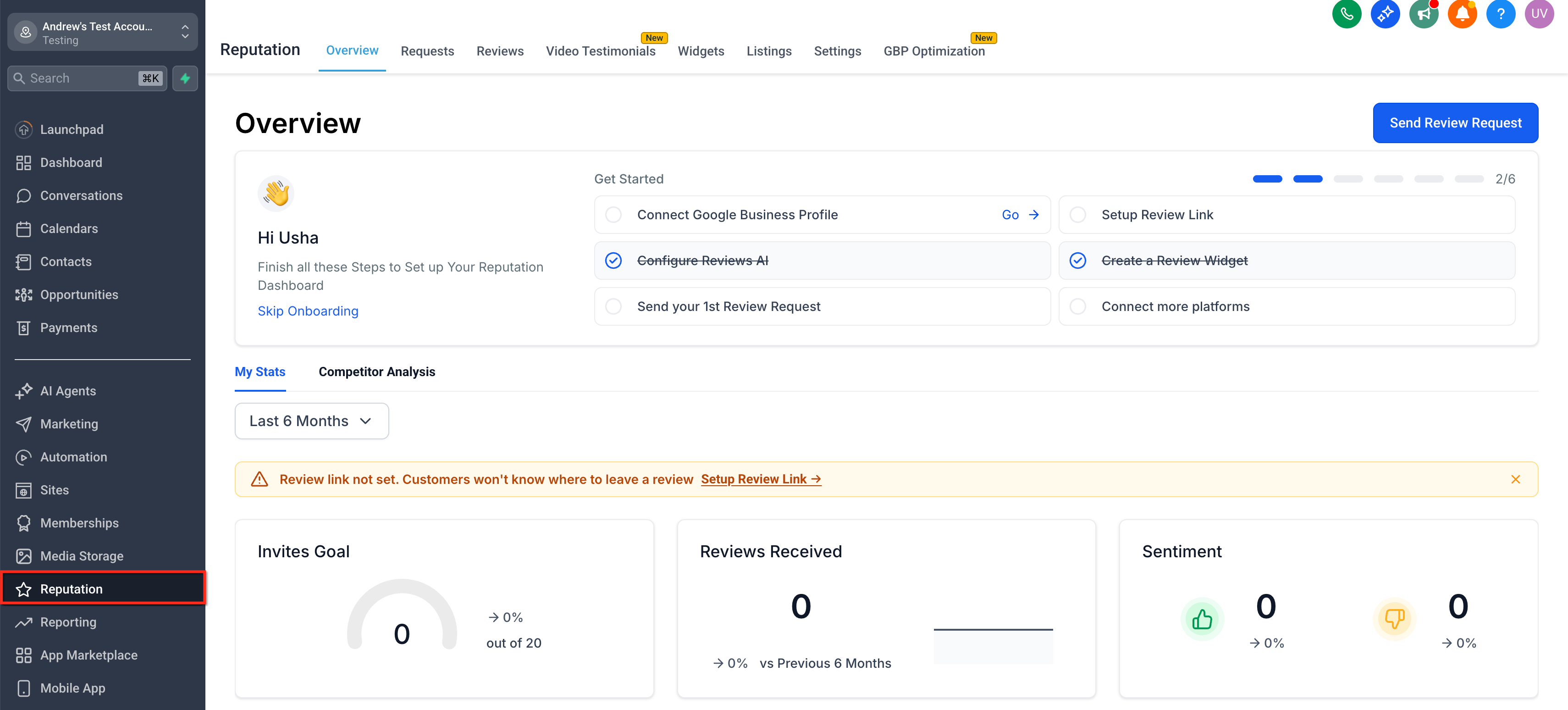
- Open Reputation. Confirm Reviews AI is enabled for the location/account.
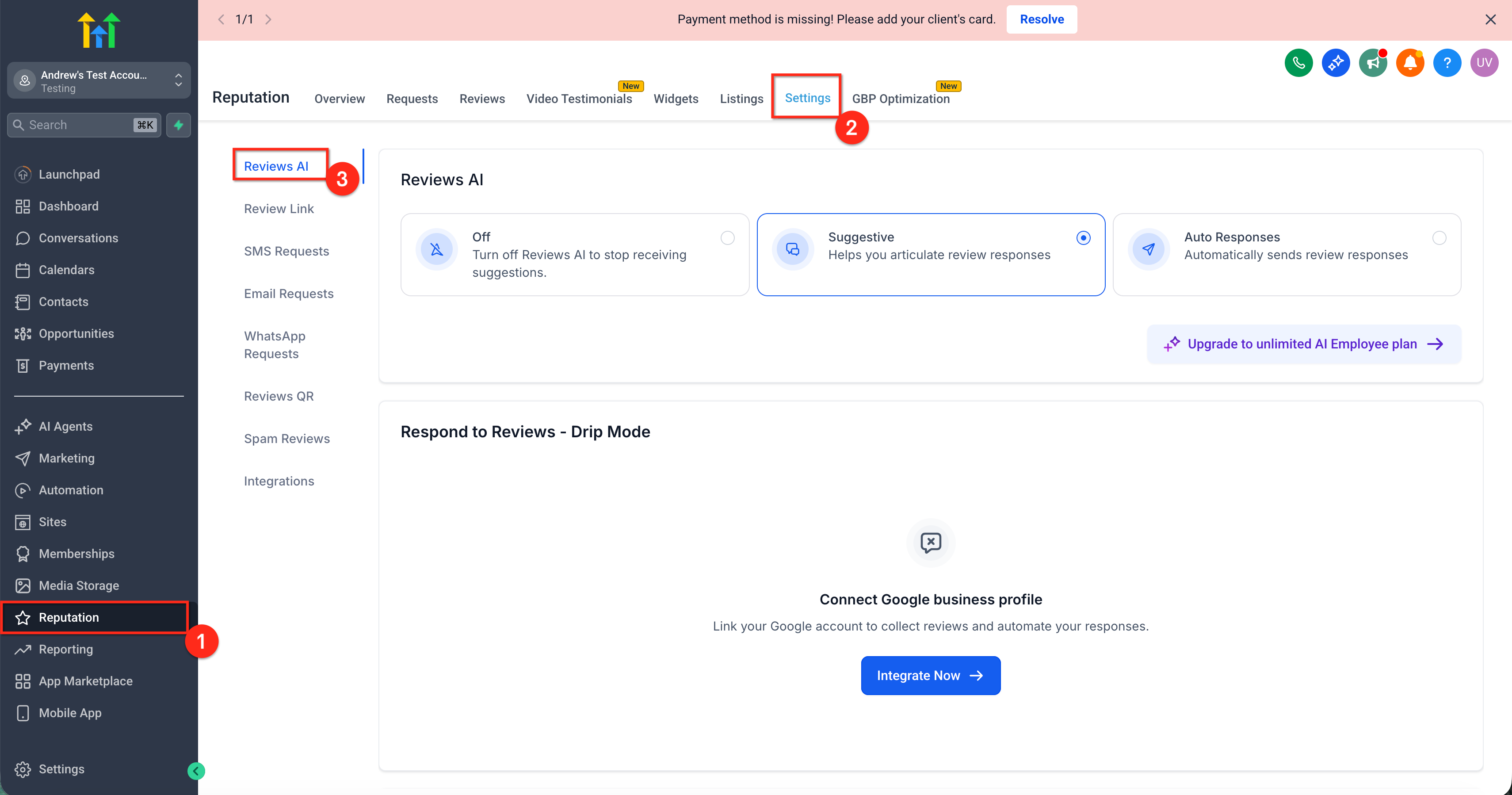
- Navigate to the Settings Tab and ReviewsAI.
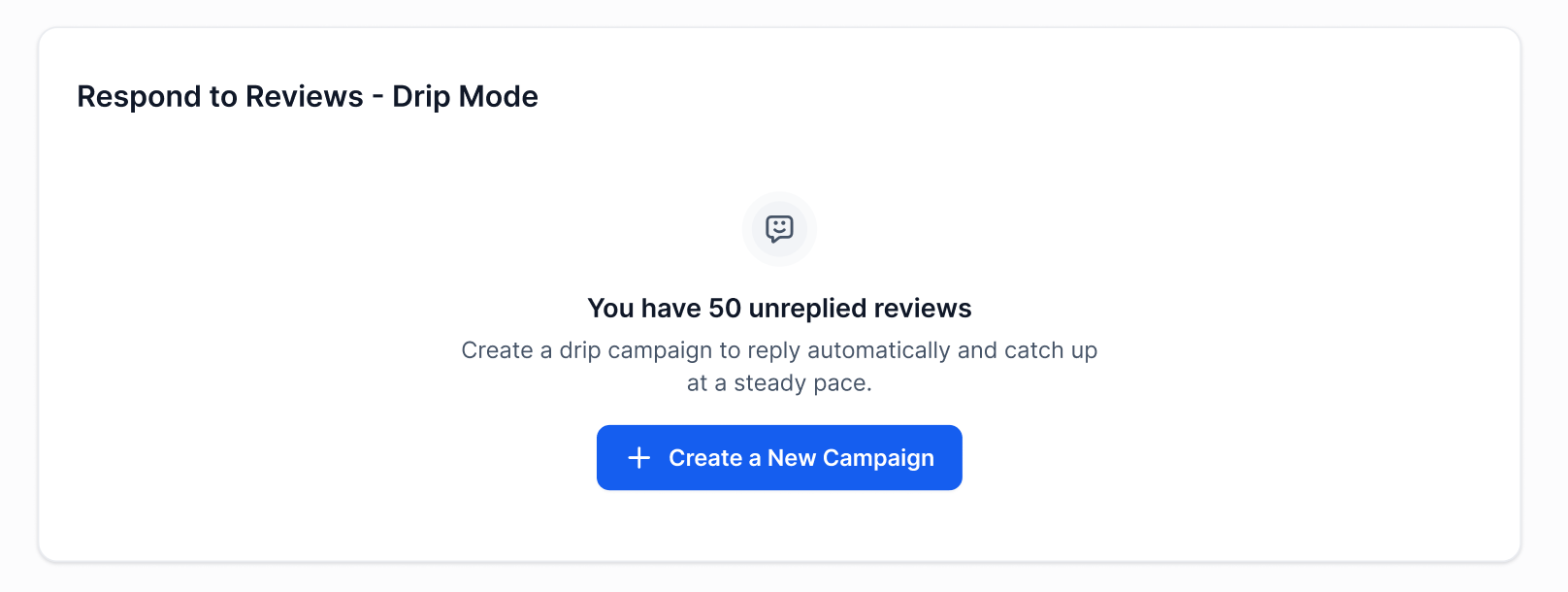
- Create a Drip Mode Campaign. Click Create Campaign (or New Drip Campaign).
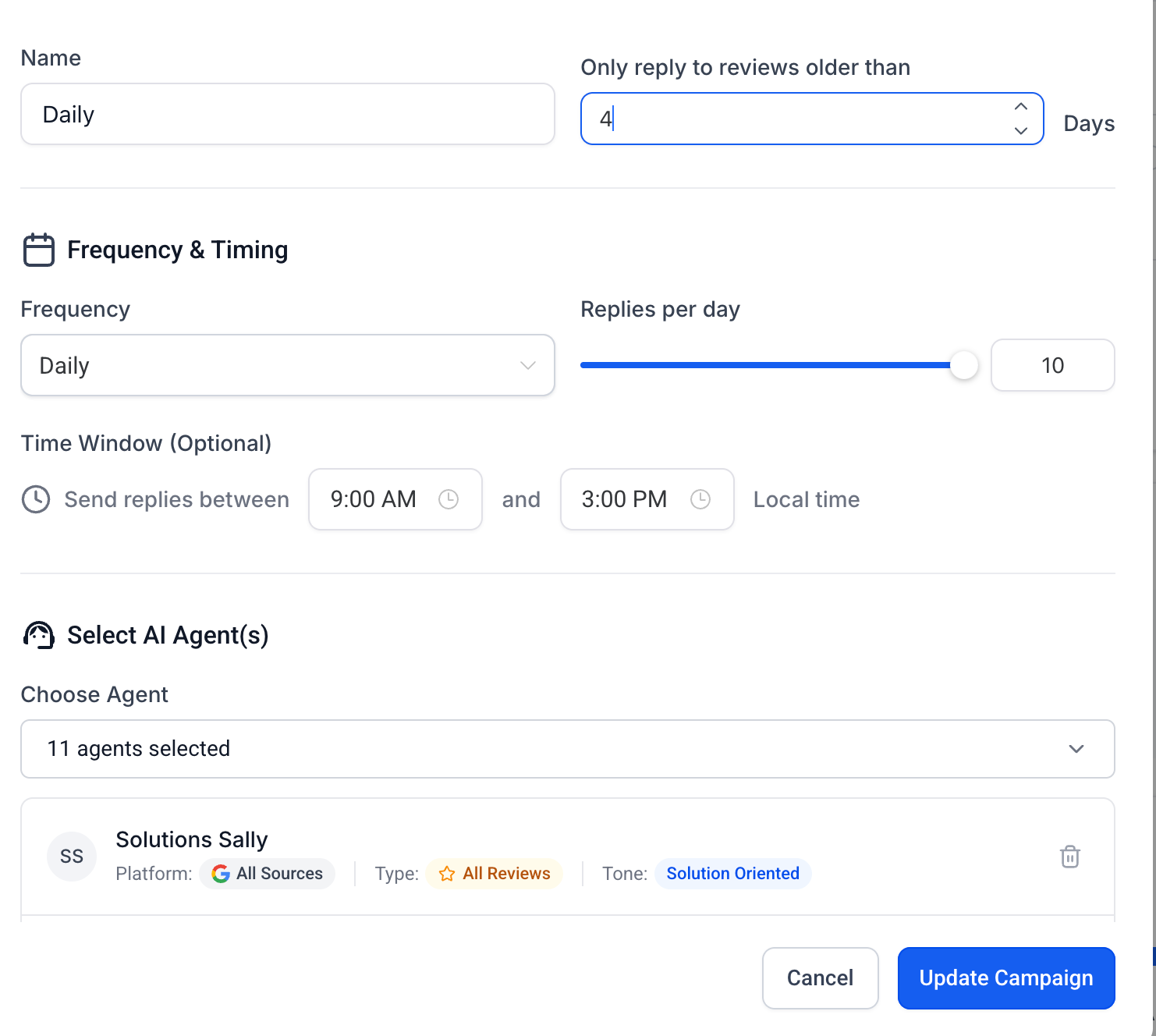
- Set Eligibility Rules.
- Name: Choose daily/weekly/monthly based on your workflow.
- Only Reply to Reviews Older Than: Choose the threshold for “older” reviews.
- Name: Choose daily/weekly/monthly based on your workflow.
- Configure Pace & Timing.
- Replies Per Day: Set the daily cap.
- Frequency: Choose daily/weekly/monthly based on your workflow.
- Time Window: Select business hours for sending.
- Replies Per Day: Set the daily cap.
- Choose AI Agent & Tone.
- Select an agent/persona and tone that fits your brand.
- Select an agent/persona and tone that fits your brand.
- Confirm summary details (eligible review count, estimated days to clear based on caps). Click Start to activate the campaign.
Frequently Asked Questions
Q: Can I run more than one Drip Mode campaign at the same time?
Yes, if supported by your account/location setup. Ensure campaigns target distinct review sets to avoid overlap.
Q: How are historical reviews selected for reply?
Eligible reviews meet your minimum age and unreplied-only filters. They’re added to a schedule and sent according to your cadence and time window.
Q: What happens when the daily cap is reached?
Remaining eligible reviews queue to the next available send window based on your cadence.
Q: Do edits affect already-sent replies?
No. Edits only change future scheduled replies.
Q: Can I pause the campaign without losing my settings?
Yes. Pausing preserves configuration and halts future sends until you resume.
Q: What’s the best way to avoid replies sounding repetitive?
Use appropriate tone settings, include brand context, and periodically review samples from the Sent history to refine agent/tone.
Q: How do I avoid conflicts with auto-replies for new reviews?
Keep Drip Mode focused on older reviews and ensure your new-review automation remains separate.
Q: Can I restrict replies to certain hours or days?
Yes. Use Allowed Time Window and your chosen cadence to keep replies within business hours.
Q: Does Drip Mode handle negative reviews differently?
Tone and agent selection can emphasize empathy and resolution language, helping address sensitive feedback professionally.
Q: Where do I see failures or retry items?
Use the monitoring views to check for failed sends and take corrective action if options are available in your account.
Q: What happens if Google or Facebook deletes a review in an active Drip Mode campaign?
HighLevel does not repeatedly retry a review that has been deleted at its source. The campaign also does not generate additional billable AI responses for that deleted review
Related Articles
- Getting Started with Reviews AI Agents
- Maximizing Customer Engagement with Reviews AI: A Guide to Suggestive and Auto-Pilot Modes
- Reputation - Breaking Down the Reputation Overview Dashboard
- Understand Customer Sentiment with AI-Powered Review Summaries
- How to Address Negative Reviews and Manage Reputation with HighLevel
- Sending Review Requests — increase review volume to improve coverage
Was this article helpful?
That’s Great!
Thank you for your feedback
Sorry! We couldn't be helpful
Thank you for your feedback
Feedback sent
We appreciate your effort and will try to fix the article