HighLevel's Wallet & Transactions area gives agency administrators a centralized way to review wallet spending across sub-accounts. Use Usage Overview to monitor spending trends, By Sub-Account, By Activity, and By Source to identify cost sources, and Transactions to investigate individual charges. This guide explains how to navigate these spending views and review your agency's wallet activity.
TABLE OF CONTENTS
- What Is the Agency Wallet Usage Overview?
- Key Benefits of the Agency Wallet Usage Overview
- Spending Views in Wallet & Transactions
- How to Review Agency Wallet Spending
- Frequently Asked Questions
- Related Articles
What Is the Agency Wallet Usage Overview?
The Agency Wallet Usage Overview provides an agency-level dashboard for monitoring wallet spending. It displays spending information and cost drivers, helping administrators understand where wallet funds are being used before investigating individual transactions.
Access agency wallet spending from Agency View → Settings → Billing → Wallet & Transactions. This is an agency-level reporting feature. The Billing Dashboard inside an individual sub-account is separate and does not provide agency-wide wallet spending reports.
Key Benefits of the Agency Wallet Usage Overview
Centralized spending information helps agencies monitor wallet usage, identify potential billing concerns, and review individual charges more efficiently.
- Centralized Spending Visibility: Review agency wallet usage from one location.
- Sub-Account Analysis: Identify which sub-accounts contribute to wallet spending.
- Activity-Based Insights: Review the activities generating wallet costs.
- Transaction Transparency: Locate individual wallet charges when more detailed information is needed.
Spending Views in Wallet & Transactions
The Spending area provides four reporting views for analyzing wallet usage. Each view helps administrators understand agency costs from a different perspective.
Usage Overview
Displays overall wallet spending, month-over-month changes, top spenders, spending trends, and top cost drivers.
By Sub-Account
Organizes wallet spending by sub-account, helping administrators identify which locations contribute to agency expenses.
By Activity
Organizes wallet spending by activity to help identify which types of usage contribute to wallet costs.
By Source
Provides a source-based view of wallet spending, helping administrators examine costs by source.
For individual charge details, select Transactions under Billing.
How to Review Agency Wallet Spending
Reviewing wallet spending starts with the agency-level overview. From there, you can investigate individual sub-accounts, review spending by activity or source, or locate specific transactions.
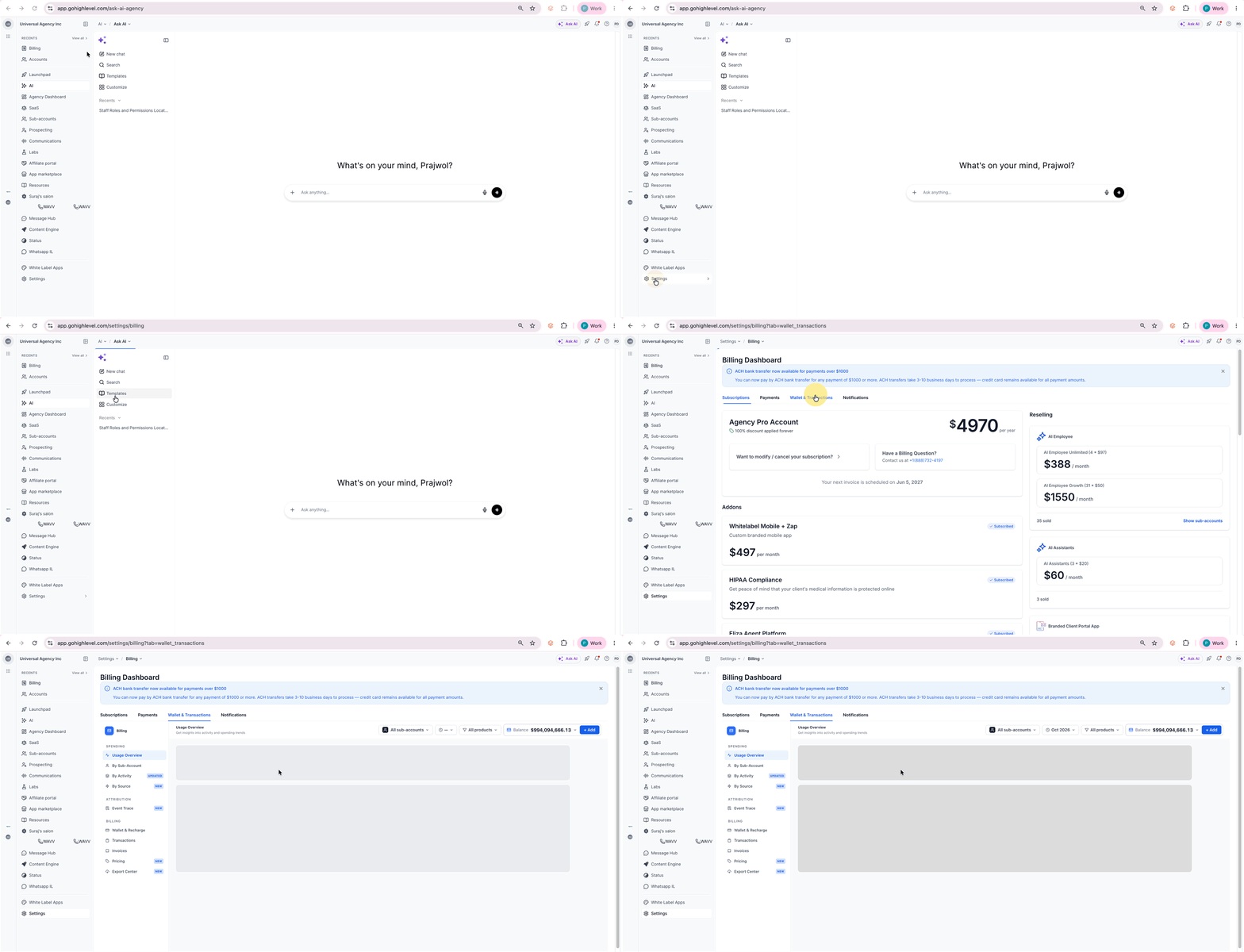
Step 1: Open Wallet & Transactions
- Switch to Agency View.
- Select Settings.
- Select Billing.
- Open Wallet & Transactions.
Step 2: Review Usage Overview
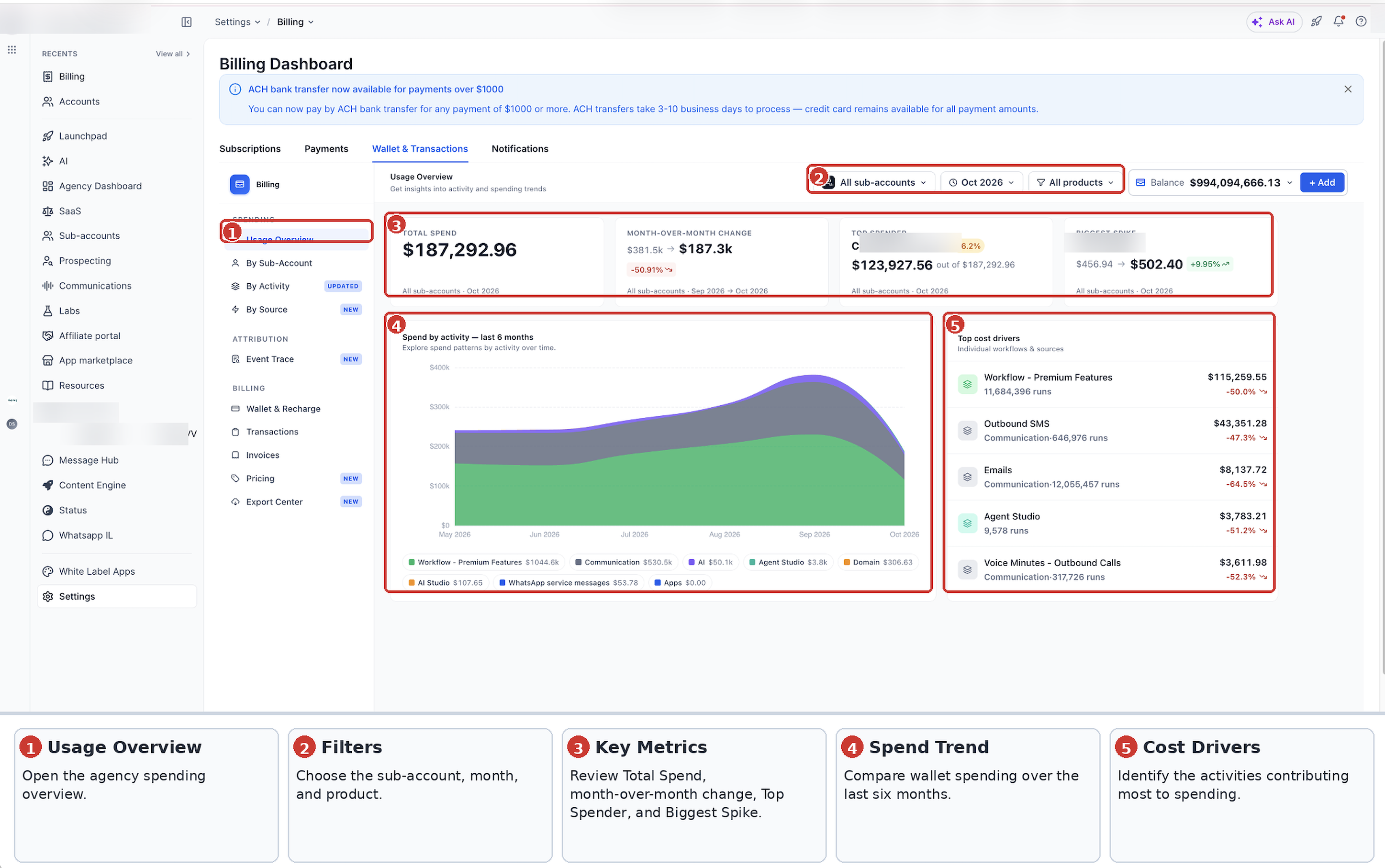
Under Spending, select Usage Overview.
Use the sub-account, reporting month, and product filters to select the spending information you want to review.
The dashboard displays four key spending metrics:
- Total Spend: Shows total wallet spending across the selected sub-accounts for the reporting period.
- Month-over-Month Change: Compares spending with the previous month, including the percentage increase or decrease.
- Top Spender: Identifies the sub-account with the highest spending and its contribution to total spend.
- Biggest Spike: Highlights the sub-account with the largest month-over-month spending increase.
Review the Spend by activity — last 6 months chart to compare spending trends over time.
Use Top cost drivers to identify the services and activities contributing most to wallet expenses.
Step 3: Review Spending by Sub-Account
While remaining in Agency View, select By Sub-Account under Spending.
Review the spending information for individual sub-accounts to identify which locations contribute to agency wallet expenses.
You do not need to switch into an individual sub-account to review its agency-level wallet spending information.
Step 4: Review Spending by Activity
Under Spending, select By Activity.
Review the activity-based spending information to identify which activities are contributing to wallet expenses.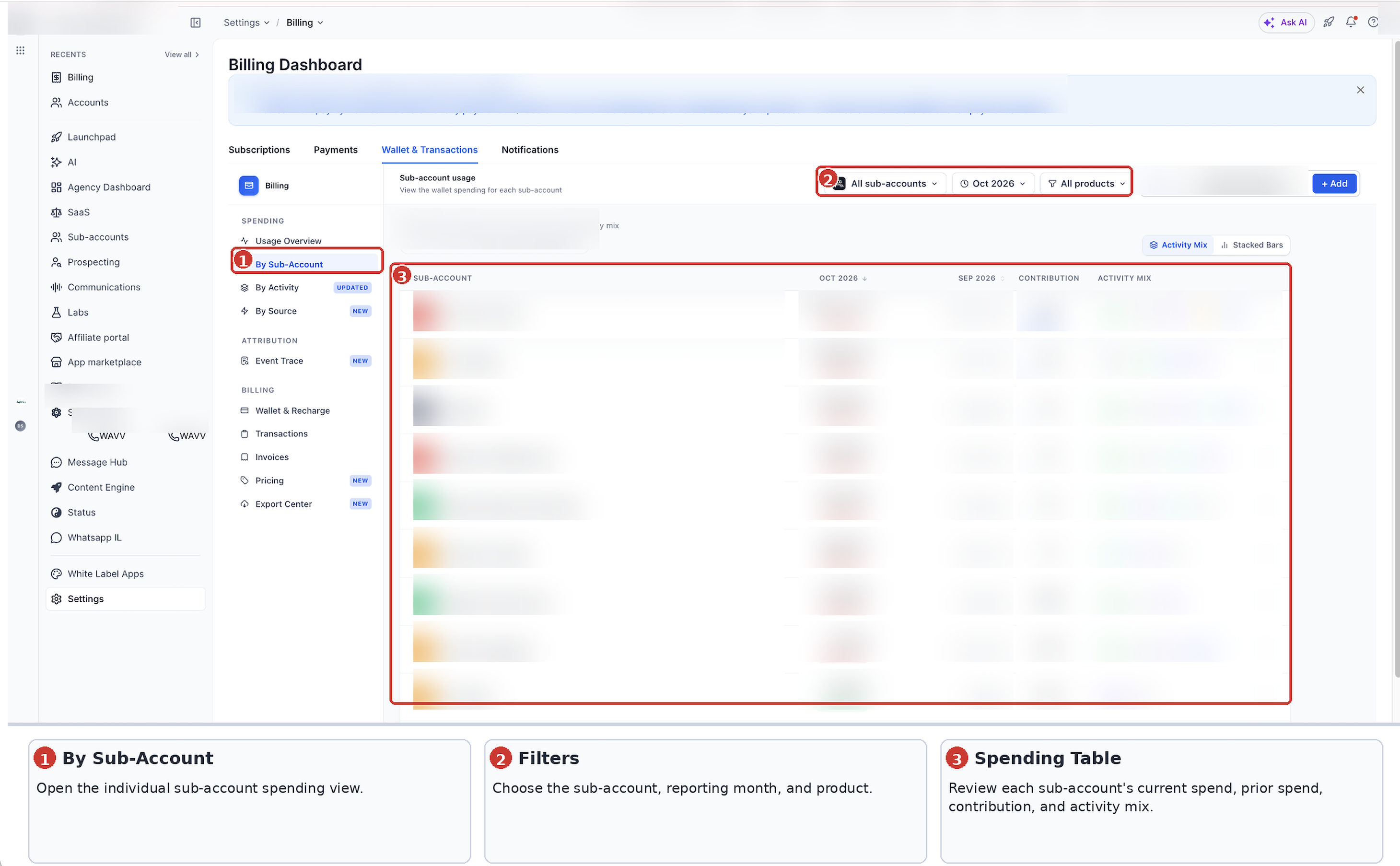
Step 5: Review Individual Transactions
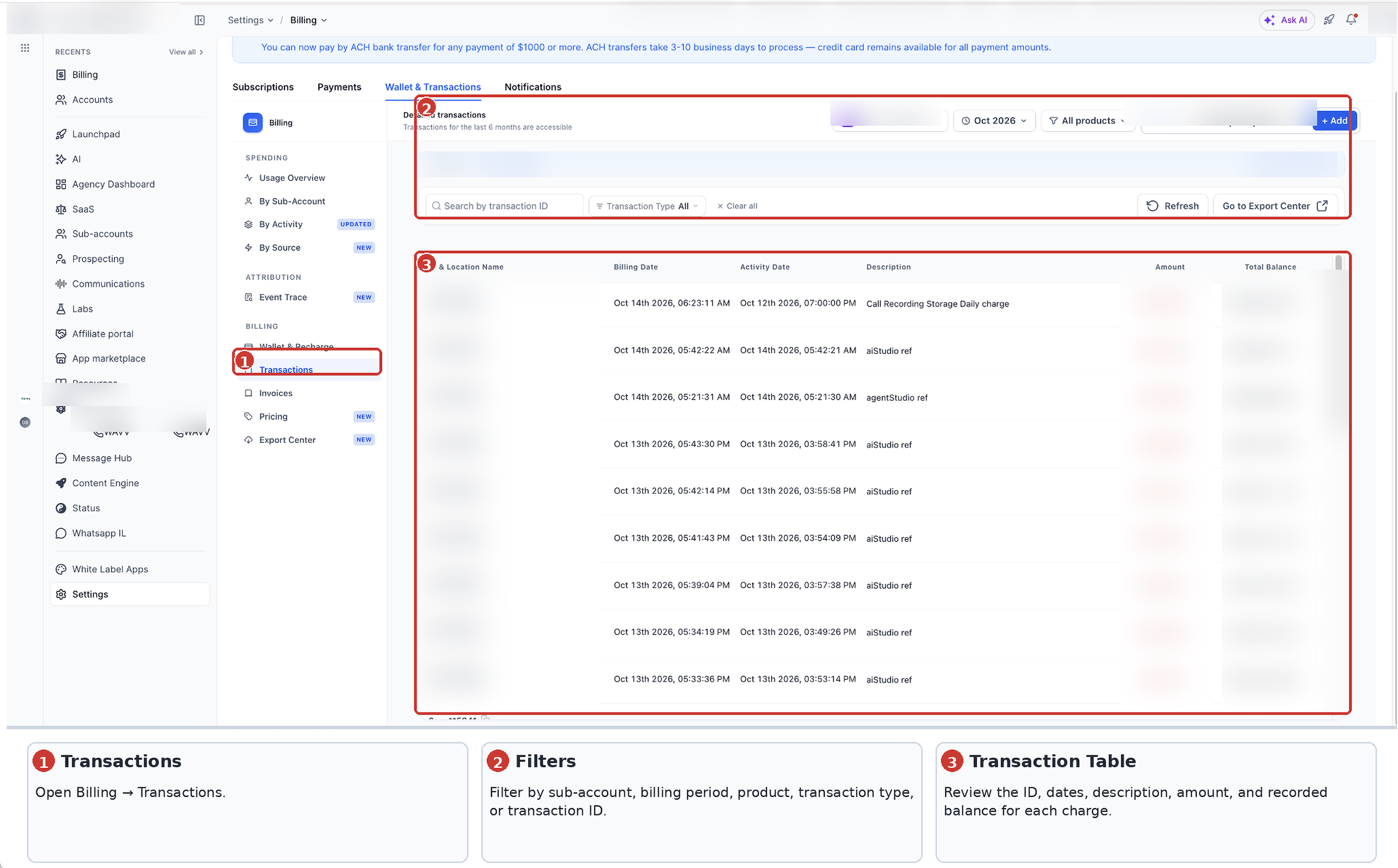
Under Billing, select Transactions.
Use the available filters to locate specific wallet charges.
Transaction Filters:
- Sub-account: Select a specific sub-account or view all sub-accounts.
- Billing Period: Select the month you want to review.
- Product: Filter transactions by product.
- Transaction Type: Filter transactions by the available transaction types.
- Transaction ID: Search for a specific transaction using its ID.
The transaction table displays the following information:
| Column | Description |
|---|---|
| ID & Location Name | Transaction ID and associated sub-account. |
| Billing Date | Date the charge was billed. |
| Activity Date | Date the activity occurred. |
| Description | Service or activity associated with the charge. |
| Amount | Transaction amount. |
| Total Balance | Wallet balance recorded for the transaction. |
Review the transaction description, dates, and amount to investigate individual wallet charges.
Frequently Asked Questions
Q: Where can I review my agency's overall wallet spending?
Go to Agency View → Settings → Billing → Wallet & Transactions → Usage Overview to review overall agency wallet spending.
Q: Why can't I find agency-wide wallet spending information inside a sub-account?
Agency-wide wallet spending reports are available under Agency View → Settings → Billing → Wallet & Transactions.
The Billing Dashboard inside an individual sub-account manages that location's billing information. To review wallet spending across sub-accounts, switch to Agency View and open Usage Overview.
Q: Is wallet spending the same as a wallet recharge?
No. Wallet spending represents usage-based charges deducted from the Agency Wallet. A wallet recharge adds funds to the available balance.
Q: Is Agency Wallet spending the same as client rebilling?
No. HighLevel deducts eligible usage charges from the Agency Wallet. Client rebilling is a separate process that allows agencies to recover supported costs from sub-accounts.
Q: Can I export my agency's wallet transactions?
Yes. Go to Agency View → Settings → Billing → Wallet & Transactions → Export Center.
Export Center supports one-time and scheduled transaction exports.
Related Articles
Was this article helpful?
That’s Great!
Thank you for your feedback
Sorry! We couldn't be helpful
Thank you for your feedback
Feedback sent
We appreciate your effort and will try to fix the article