LaunchPad provides a guided, interactive onboarding experience at both the agency and sub-account (location) levels. It centralizes first-step tasks, video walkthroughs, and progress tracking so teams can get productive faster. This article explains how LaunchPad works, how it adapts to roles and permissions, and how to access it anytime for ongoing setup.
TABLE OF CONTENTS
- What is the Subaccount Launchpad?
- Key Benefits of the Subaccount LaunchPad
- Availability and Rollout
- Outcome‑Oriented Setup Actions
- Guided Onboarding Videos
- How Agency Sub-Account supports onboarding tracking
- Product Tour Guide in LaunchPad Actions
- Progress Tracking & Auto‑Completion
- Accessibility in LaunchPad
- How to use the Subaccount LaunchPad
- Frequently Asked Questions
What is the Subaccount Launchpad?
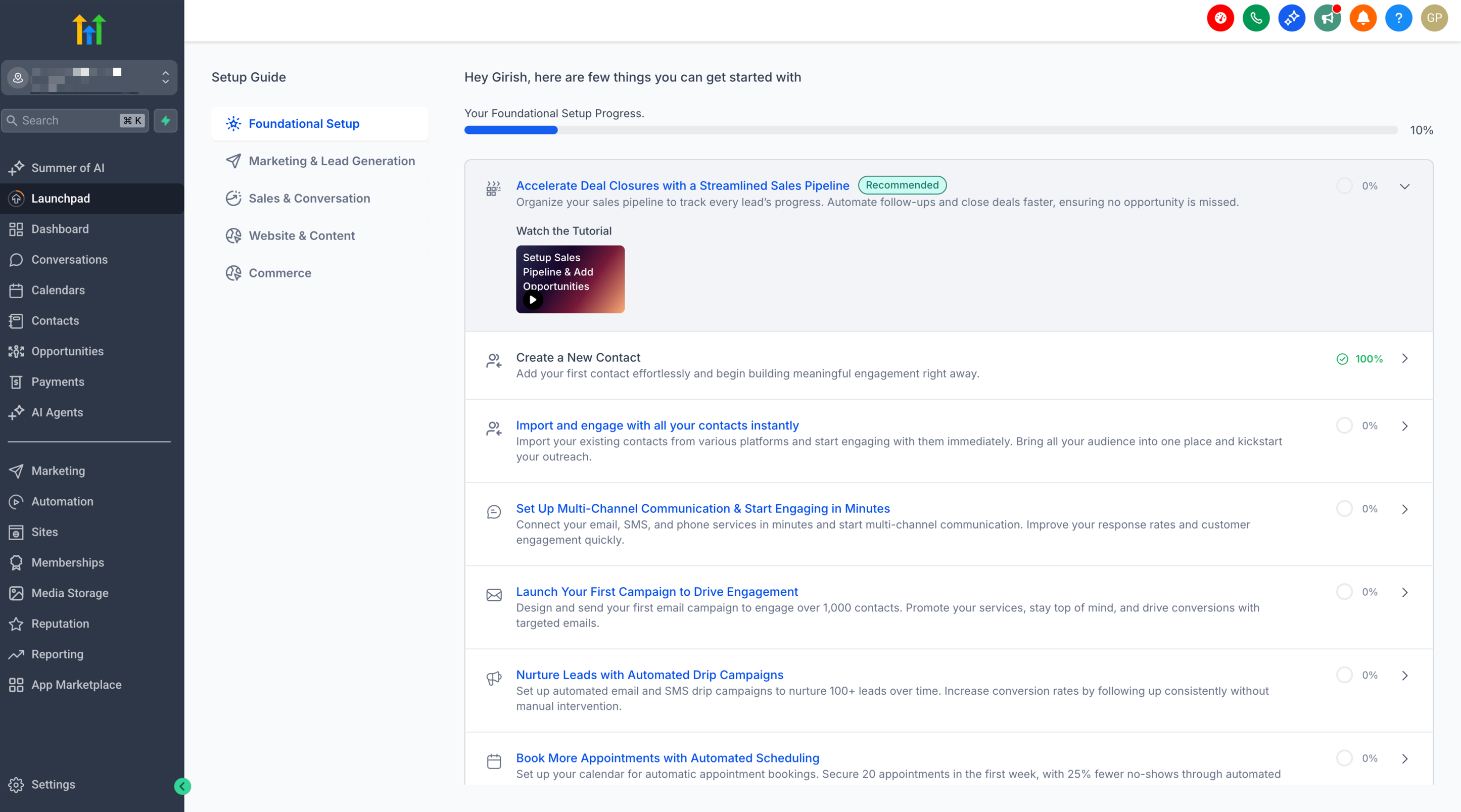
LaunchPad is an onboarding workspace that assembles essential tasks, videos, and shortcuts in one place. It guides users through the most impactful setup actions for their role so they can configure HighLevel confidently and efficiently.
LaunchPad appears for eligible users and can be reopened later from within the app. The content adjusts based on the user’s role, permissions, and available features so each user sees relevant onboarding steps.
For the current Sub-Account LaunchPad rollout, eligibility also depends on when the agency joined HighLevel and whether the agency is included in the active rollout group.
Key Benefits of the Subaccount LaunchPad
Understanding the outcomes LaunchPad drives helps teams align onboarding efforts with business goals. The benefits below focus on faster time-to-value, fewer handoffs, and clearer accountability.
Streamlined onboarding: Guided checklists and videos reduce time spent figuring out where to begin.
- Role-aware experience: Agency Owners, Admins, and Users see tasks and tips matched to their permissions.
Clear progress tracking: Visual indicators help users track what’s done and what’s next.
Consistent training: A standardized path ensures every new team member learns the same core workflows.
Reduced support load: In-app help and links prevent common missteps and repeat questions.
Availability and Rollout
Sub-Account LaunchPad availability depends on the agency’s signup timing, plan, permissions, and current rollout group. These conditions determine whether users within the agency receive the new guided onboarding experience.
- Expanded plan access: The new Sub-Account LaunchPad expands access from the $97 plan to eligible $297 and $497 plan customers.
- New agencies only: The current rollout applies to eligible agencies joining HighLevel from the launch forward and their sub-accounts.
- Existing agencies remain unchanged: Existing agencies do not receive the new Sub-Account LaunchPad through this rollout, even if they create a new sub-account.
- A/B rollout: HighLevel is testing the new experience with 50% of eligible customers receiving the new LaunchPad and 50% remaining outside the test group.
- Personalized guidance: Tutorial videos and relevant setup actions are tailored to the customer’s plan and the user’s permission level.
- Role-aware routing: Users are directed to the Agency LaunchPad or Sub-Account LaunchPad based on their role and persona.
Outcome‑Oriented Setup Actions
LaunchPad groups first‑time setup around the business outcomes that matter most, helping teams understand the “why” behind each step and reach go‑live faster.
Foundational Setup: Create or import contacts, set business details/branding/hours, and configure calendars to establish your workspace.
Marketing & Lead Generation: Launch funnels/forms and first campaigns to capture leads and start engagement.
Sales & Conversations: Enable email, SMS, and phone, and set up pipelines to manage conversations and move deals forward.
Website & Monetization: Connect a domain, publish sites/funnels, and configure payments and memberships.
E-commerce: Configure products, checkout, taxes, and fulfillment to sell online.
Guided Onboarding Videos
Every available LaunchPad action includes guidance that helps users learn while completing setup. The guidance shown depends on the user’s available LaunchPad experience, plan, permissions, and supported actions.
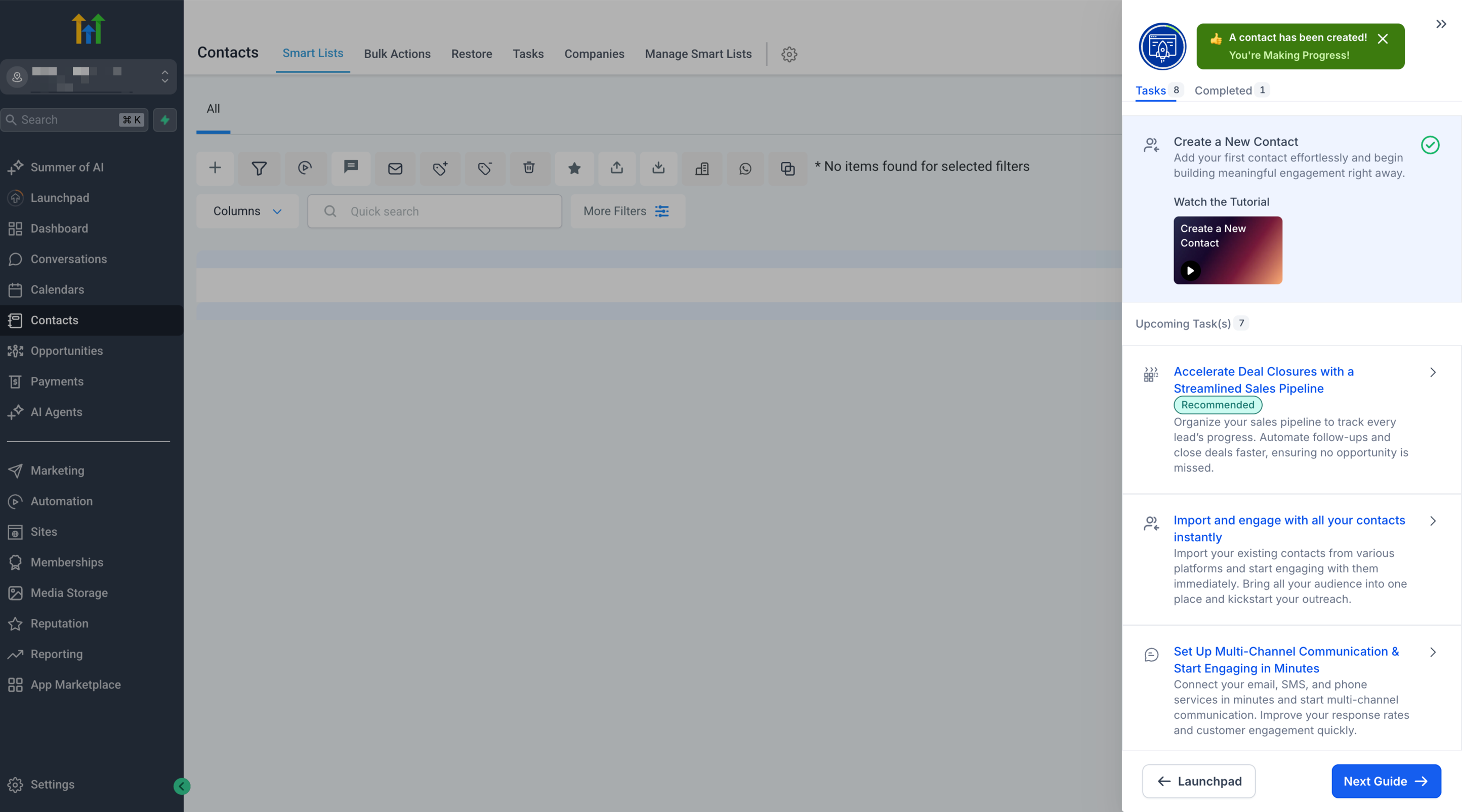
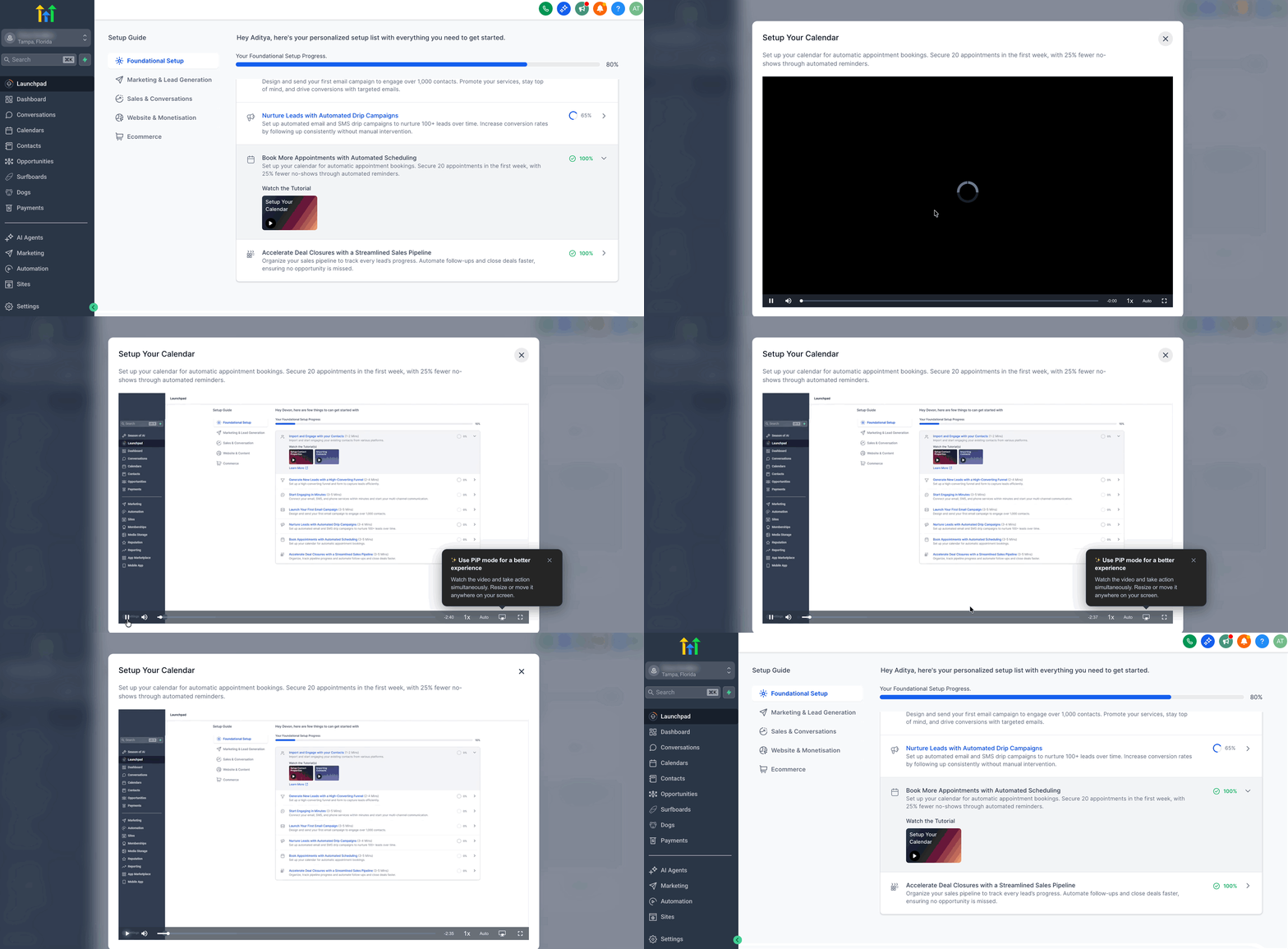
Video tutorials: Short, focused explanations; enable PiP so the video floats while you work.
Product Tour Guide: Contextual pointers guide the exact clicks needed to finish a task.
Relevant guidance: Available LaunchPad actions provide onboarding guidance based on the user’s plan, permissions, and supported features.
How Agency Sub-Account supports onboarding tracking
A clearly designated Agency Sub-Account helps keep onboarding workflows aligned around one primary sub-account. This makes it easier to track LaunchPad progress and setup completion without relying on manual assumptions about which account should represent the onboarding journey.
When an Agency Sub-Account is defined, teams can use that designation as the primary reference point for onboarding and configuration workflows.
The exact setup or management location for Agency Sub-Account status may vary by account context. Review your sub-account management settings if the designation is available in your plan.
Product Tour Guide in LaunchPad Actions
Product Tour Guide is an in‑app, click‑by‑click walkthrough that opens from a LaunchPad action and leads users through the exact steps to complete setup. It overlays guidance directly on the screen, validates each step, and marks the action complete upon finishing—so new users can succeed without leaving the page.
On‑screen highlights & prompts: Guides the next click, fields to fill, and buttons to submit.
Action completion: When the tour ends successfully, the LaunchPad action is automatically marked Complete.
Replay & reset: Users can restart a tour at any time to review or correct a configuration.
Works with your permissions: Tours run within the user’s current role and access—if a user can’t perform a step due to permissions, the tour will surface an error or prevent progress until access is granted.
Eligibility-aware guidance: Product Tour Guide is available within supported LaunchPad actions when the user has access to the applicable guided experience.
Video + tour harmony: Some actions use a short video with Picture‑in‑Picture, others use Product Tour Guide. Both are part of the same guided experience.
Best Practices for Agencies
Encourage users to finish the entire tour before navigating away, so the action can be marked complete.
If a tour references a prerequisite (e.g., a domain or phone number), ensure those items are available in the sub‑account first.
Use LaunchPad in training calls; screen‑share + tour creates a repeatable onboarding playbook.
Progress Tracking & Auto‑Completion
LaunchPad helps users stay focused by showing what’s done and what’s next. When an action’s guided flow is finished, the checklist updates accordingly.
Actions are marked complete once the underlying setup is finished (e.g., connecting payments).
Return to LaunchPad any time to see the updated status and select the next step.
Accessibility in LaunchPad
LaunchPad includes improvements that help users complete guided actions with screen readers and keyboard-only navigation.
Screen reader support
- Announces step progress as users move through the flow.
- Provides clearer modal context to help users understand where they are.
- Communicates form validation feedback to support error recovery.
Keyboard-only navigation
- Supports tabbing through interactive elements in the experience.
- Supports Enter/Space activation where available (for example, supported tutorial video controls).
- Supports Escape to close supported modals.
- Improves focus visibility and focus behavior across guided steps.
Language and localization
Accessibility labels, announcements, and alt text are translated across 13 locales, including English, Spanish, French, and German, to improve screen reader pronunciation and comprehension.
How to use the Subaccount LaunchPad
These steps help teams get value immediately—learn in the flow of work, complete a task, and move to the next outcome.
Note: The new Sub-Account LaunchPad is currently limited to eligible agencies in the rollout. Existing agencies are not moved to the new experience simply by creating a new sub-account.
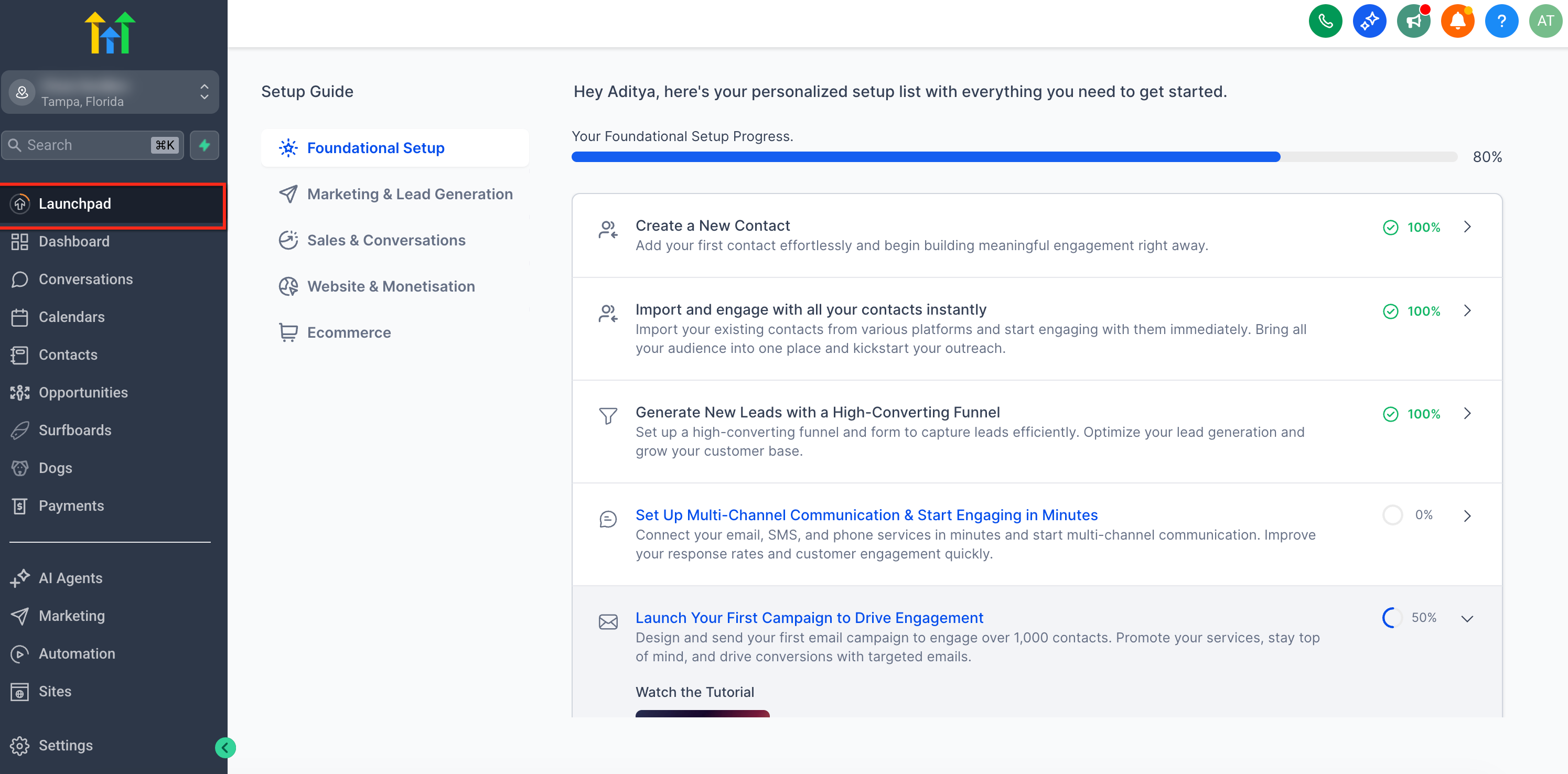
1. Open your sub‑account and click LaunchPad in the left menu.
2. Choose the most relevant action (e.g., connect payments, set up calendars).
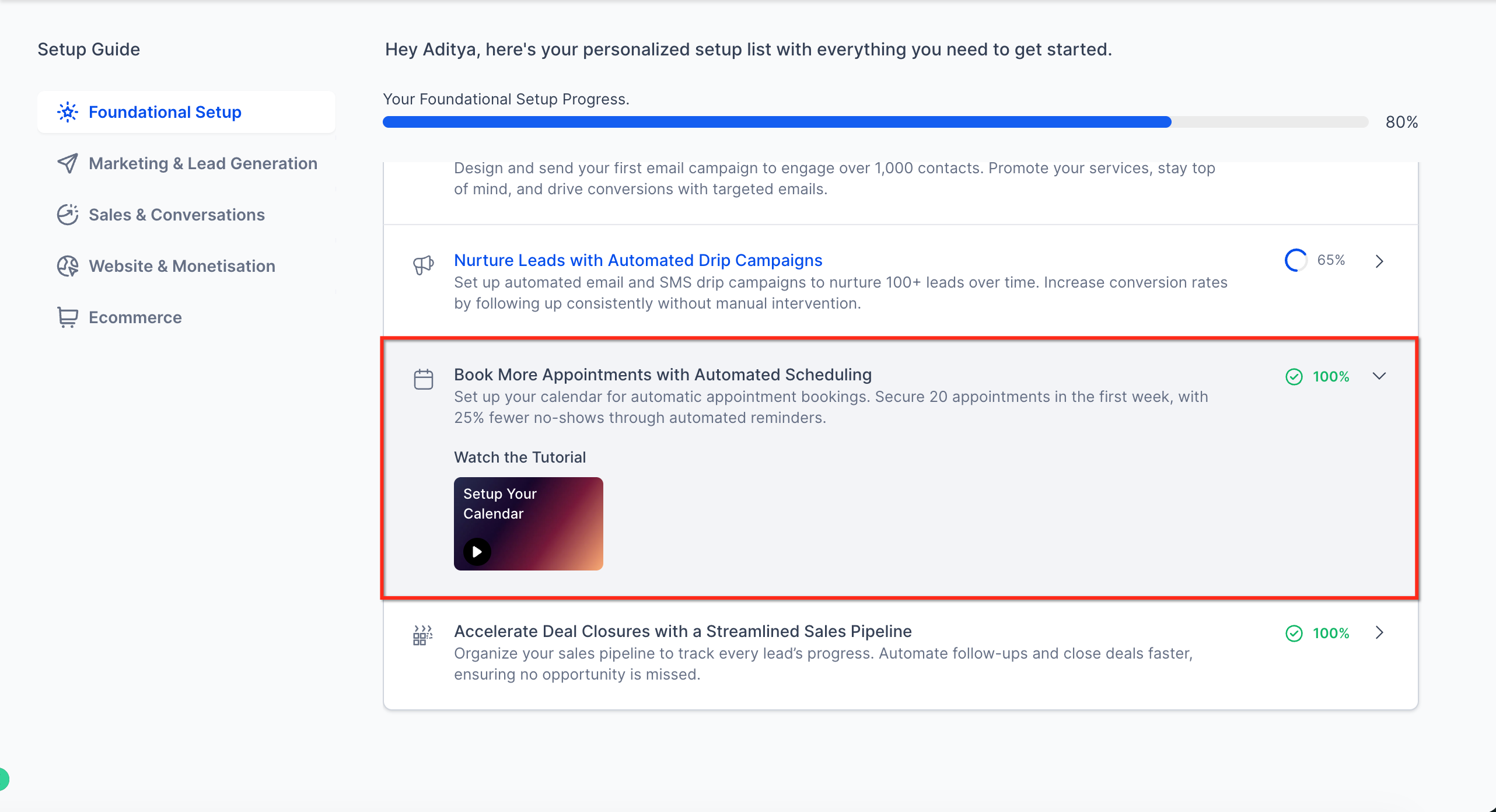
3. Follow the in‑action guidance presented:
Video: Play the tutorial and optionally enable PiP to keep it visible while you work.
4. Product Tour Guide: Follow the highlighted steps until the walkthrough completes.
5. Return to LaunchPad to review progress and pick the next action.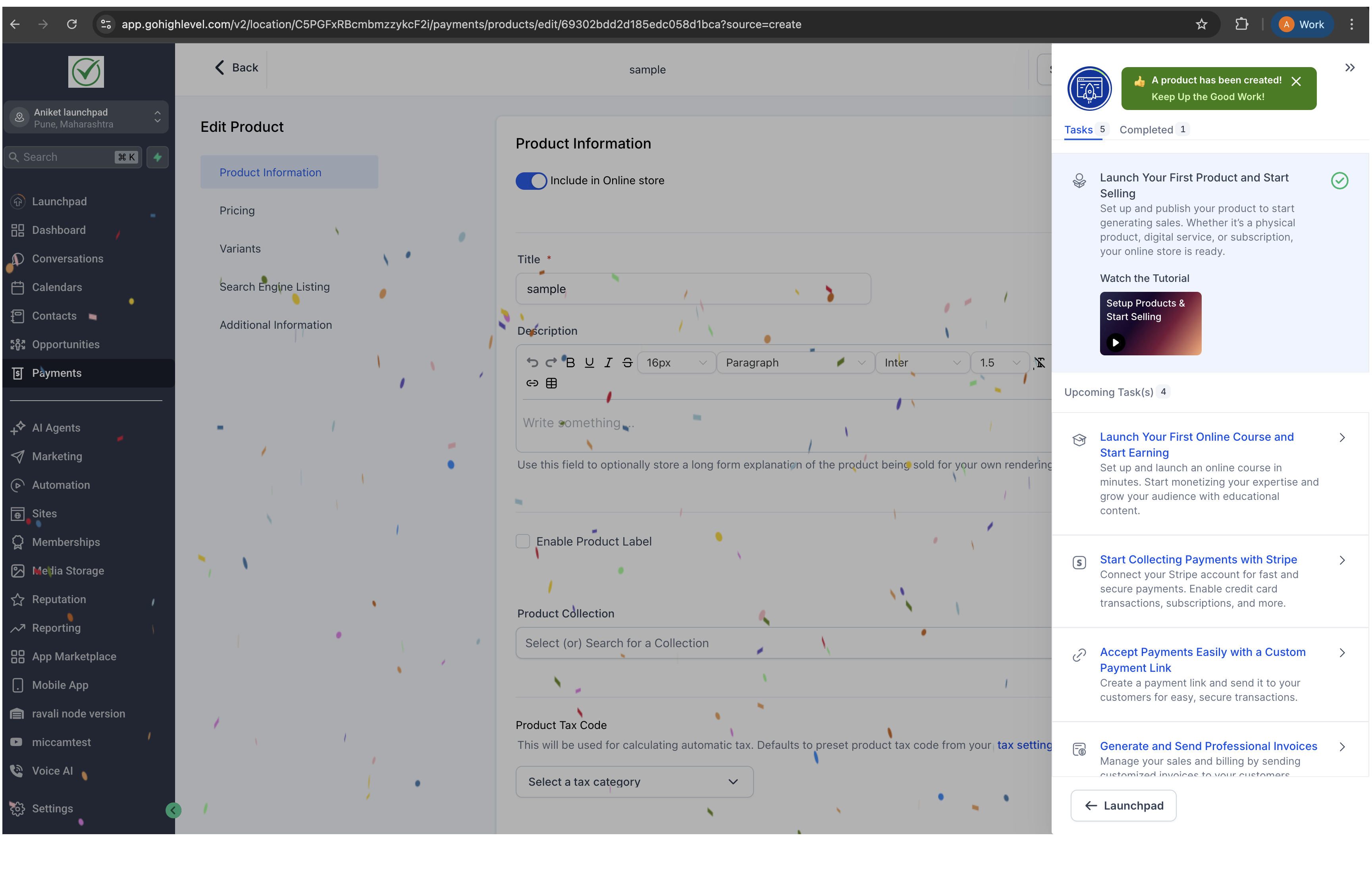
Frequently Asked Questions
Q: I don’t see the new Sub-Account LaunchPad. How can I access it?
First confirm that your agency is eligible for the current rollout. Existing agencies are not moved to the new experience, even when they create a new sub-account. For eligible agencies, LaunchPad availability can also depend on the current rollout group and user permissions. If the agency is eligible but LaunchPad is unavailable, check the applicable LaunchPad and user permissions.
Q: Can I customize LaunchPad content for my team?
Branding may reflect your agency settings. Content updates and deeper customization options vary; consult your account settings and training resources for what’s supported.
Q: Which roles can complete admin setup tasks?
Admin-level tasks require admin permissions. Users without the required permissions will not see or cannot complete those items.
Q: Can I dismiss LaunchPad and bring it back later?
Yes. You can close it during a session and reopen it later from the app navigation.
Q: How is progress tracked?
LaunchPad visually tracks completed items per user. Some configurations also reflect completion once the underlying setting is saved.
Q: Does LaunchPad affect existing workflows or automations?
No. LaunchPad provides guidance and shortcuts; it does not modify your automations unless you choose to make changes while completing tasks.
Q: Is there a difference between Agency and Sub-Account LaunchPads?
Yes. The Agency view focuses on agency-level configuration and management, while the Sub-Account view focuses on operational setup within a specific location.
Q: Is LaunchPad available on mobile?
Core guidance can be accessed on a desktop for the best experience. Availability on mobile may vary by task.
Q: Which plans are included in the expanded Sub-Account LaunchPad rollout?
The rollout expands the new Sub-Account LaunchPad beyond the $97 plan to eligible customers on the $297 and $497 plans.
Q: Will creating a new sub-account give an existing agency the new LaunchPad?
No. Existing agencies are not included in this rollout, even when they create a new sub-account.
Q: Who can receive the new Sub-Account LaunchPad?
The current rollout applies to eligible agencies joining HighLevel from the launch forward and their sub-accounts.
Q: Why might two otherwise eligible agencies have different LaunchPad experiences?
The release currently uses a 50/50 A/B test. Half of eligible customers receive the new LaunchPad while the other half remain outside the test group.
Was this article helpful?
That’s Great!
Thank you for your feedback
Sorry! We couldn't be helpful
Thank you for your feedback
Feedback sent
We appreciate your effort and will try to fix the article