TABLE OF CONTENTS
How To Configure Reviews AI Agent
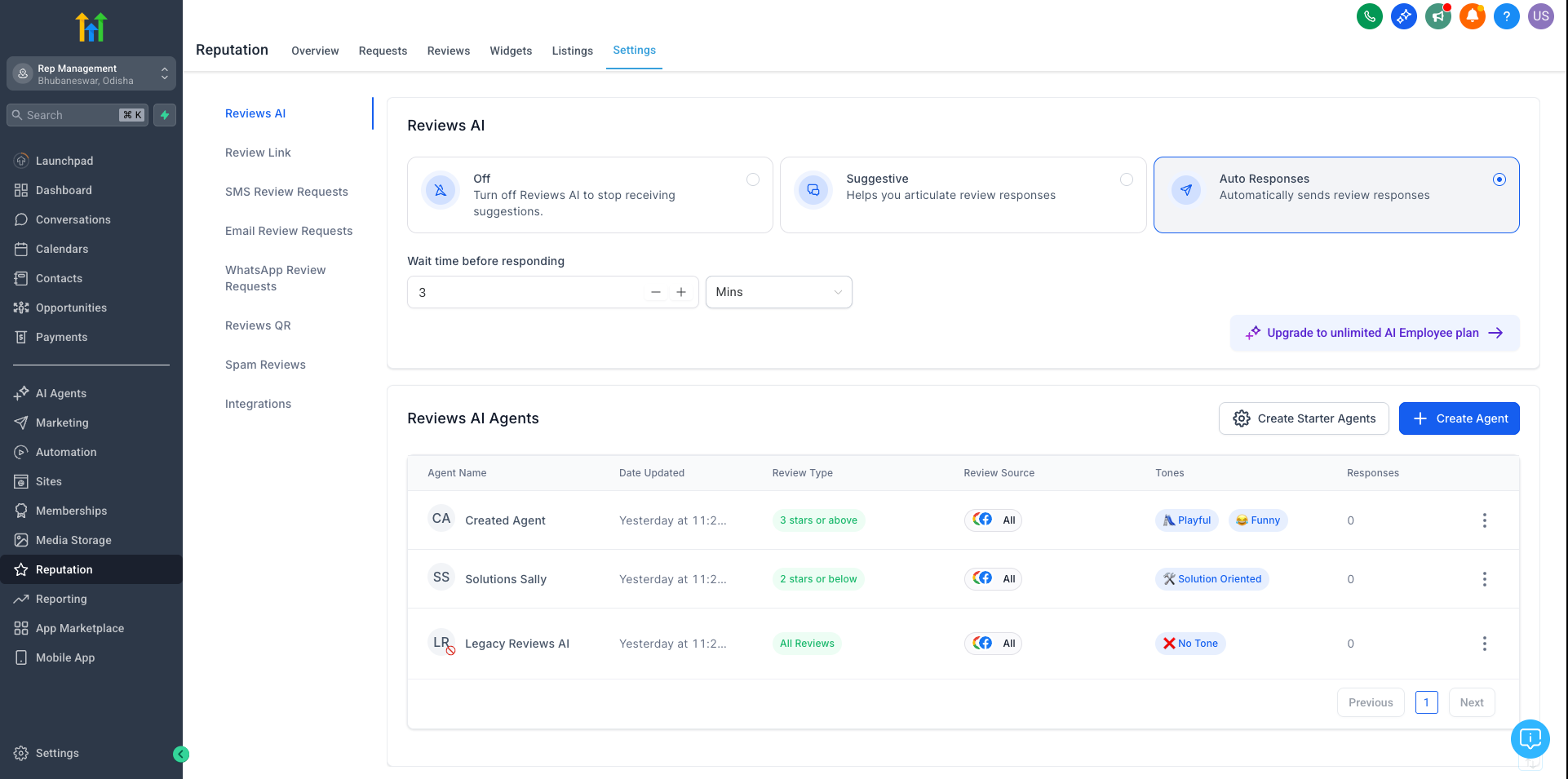
Step 1: Access the Reviews AI Settings
- Go to the Reputation Management module inside your account.
- Click on Settings.
- Navigate to the Reviews AI tab.
- Here you will find the section to create and manage your AI Agents.
Step 2: Create or Select an AI Agent
- Click Create Agent.
- You can either create from scratch by setting tone, style, and traits manually or use a ready-made template
- Available settings include:
Agent Name - Keep a friendly name to your agent. Helps you track performance/ review quality.
Tone - Friendly, Professional, Empathetic, etc.
Prompt - Give a concise prompt to your Agent
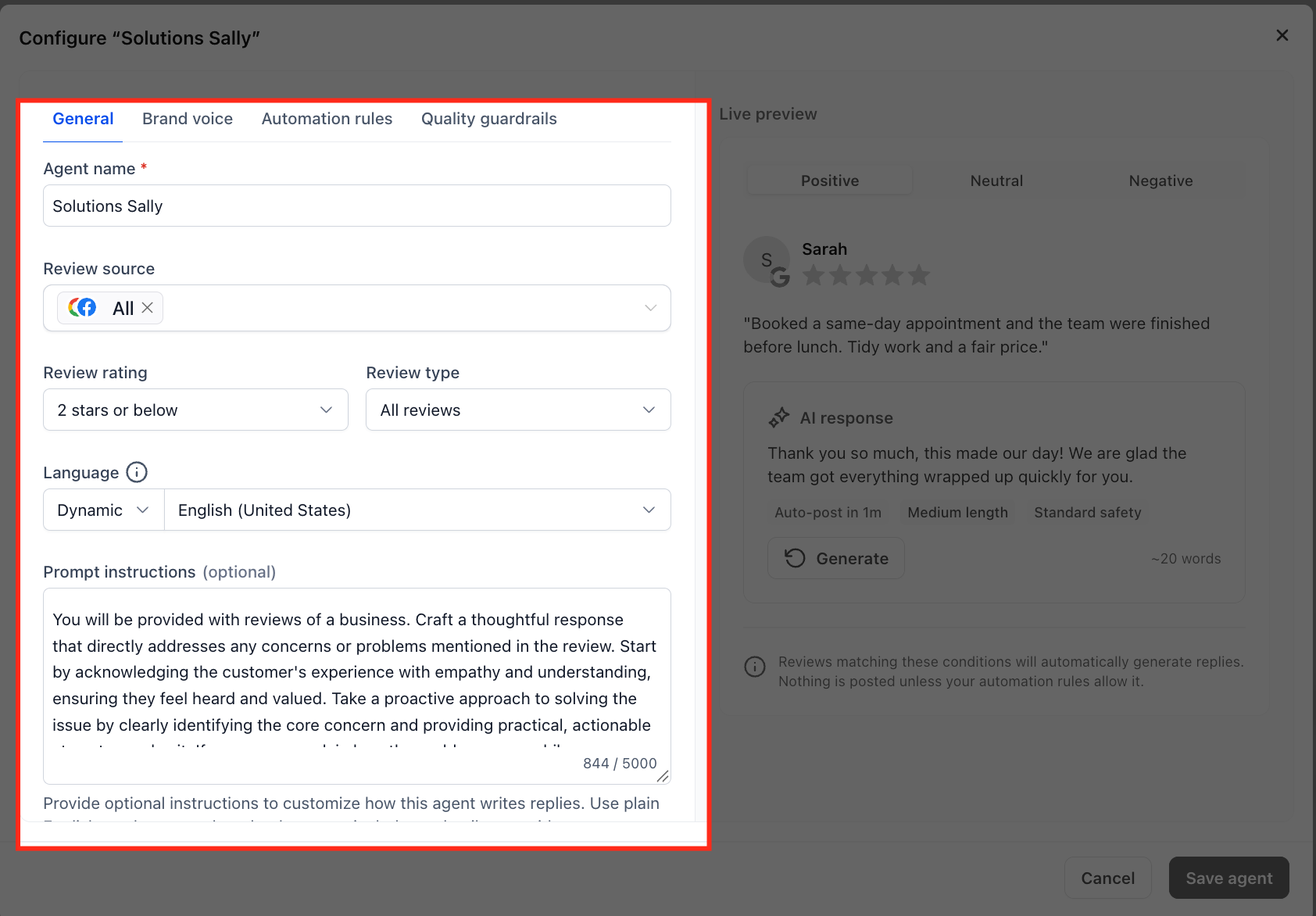
You can quickly enable all pre-built AI Agents by selecting "Create Starter Agents", allowing you to start using templated personalities without building them individually.Step 3: Set Assignment Rules for AI Agents
- Assign AI Agents based on Review Sentiment (Positive, Neutral, Negative).
- Enable Round Robin Assignment if you want different agents to rotate automatically for variety.
Step 4: Configure Language Detection
AI automatically detects the review’s language.
Set a Fallback Language in case the review language cannot be detected.
Step 5: Select Google Business Pages (Optional)
Assign AI Agents to specific Google Business Pages.
Useful for managing responses across multiple brands or locations
Step 6: Manage and Test AI Agents
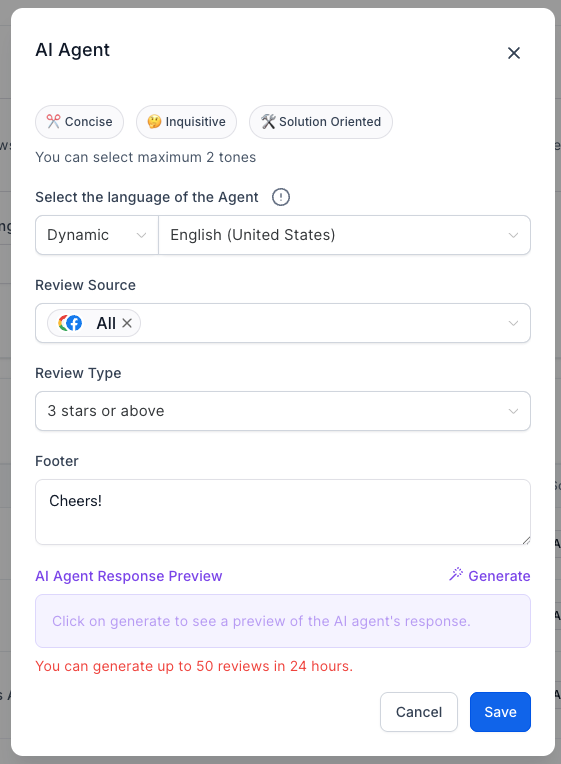
You can Edit, Clone, or Delete AI Agents anytime.
Preview AI-generated responses before publishing.
Easily view which Agent crafted each review reply inside the Reputation Management view.
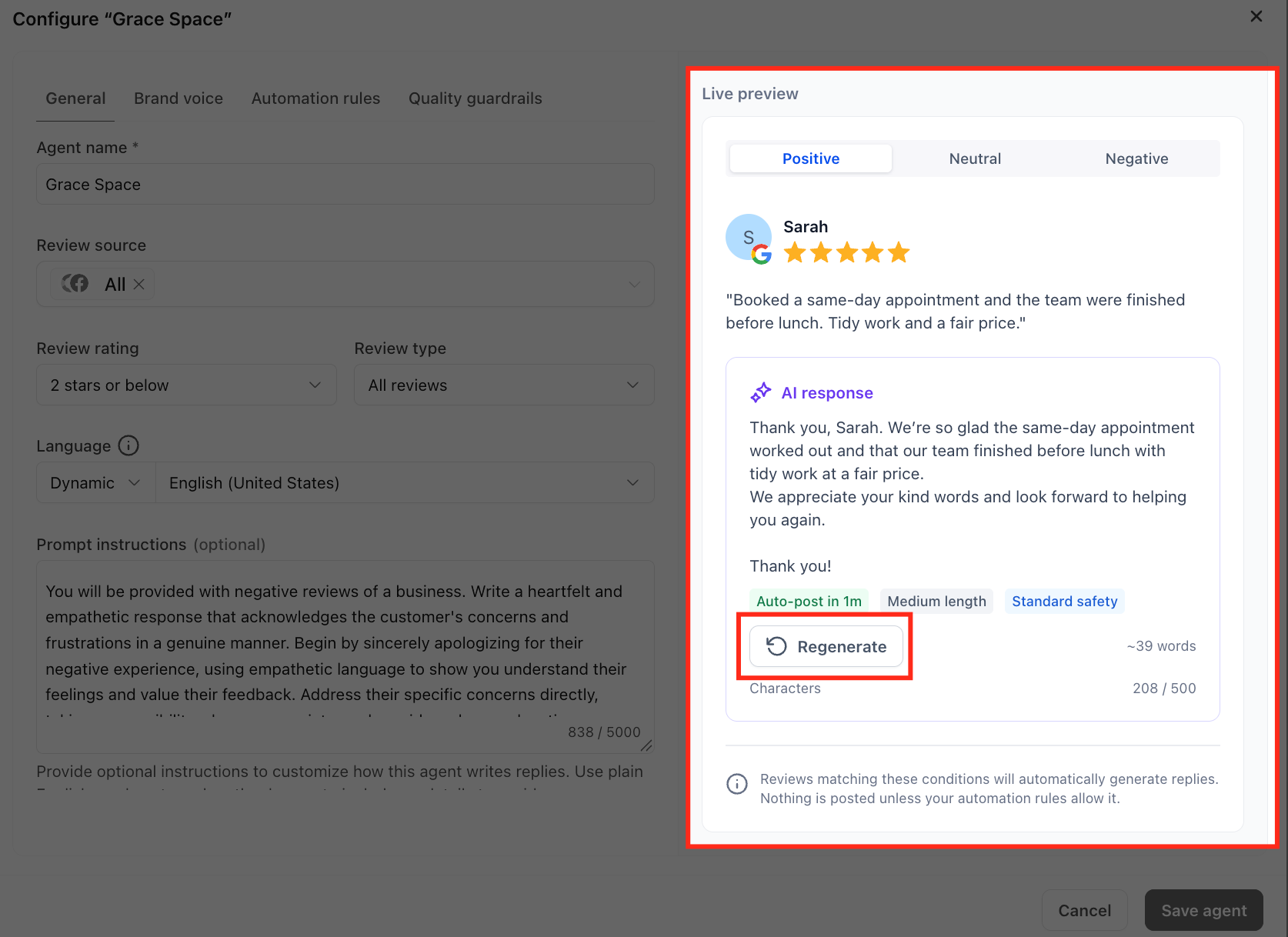
Preview AI Responses Before Saving
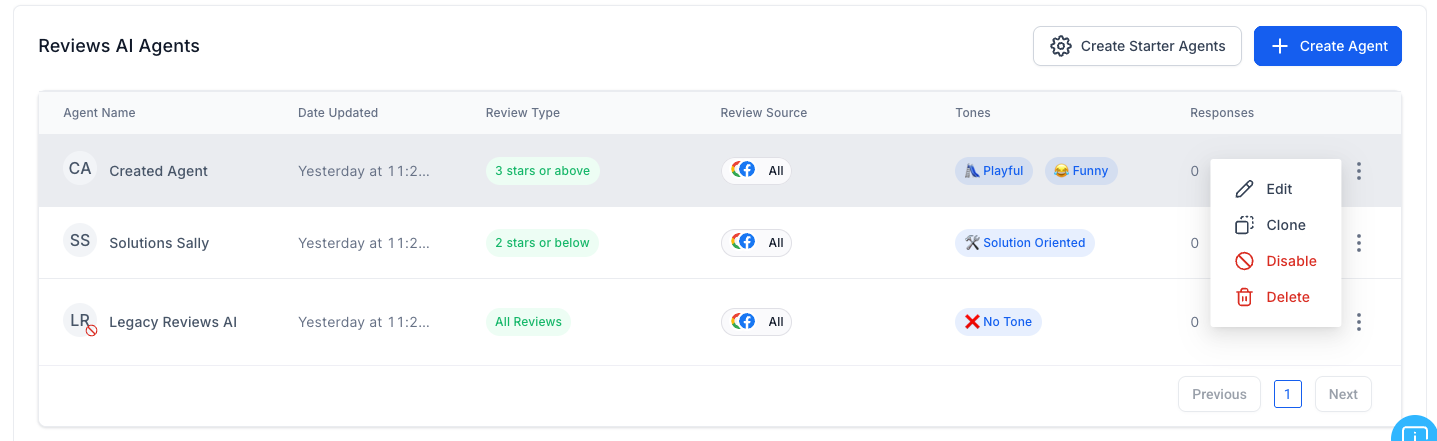
Use the live response preview to review how the AI Agent may respond before you save your configuration. Preview examples are available for:
- Positive reviews
- Neutral reviews
- Negative reviews
Regenerate the preview as you adjust the agent’s tone, prompt, Brand Voice, and other supported settings. This helps you review response style and consistency before using the configuration for customer review responses.
[Screenshot: Reviews AI Agent Live Response Preview showing positive, neutral, and negative review examples.]
Best Practices for Using Reviews AI Agents
Set clear tone and style to match your brand voice.
Differentiate sentiment handling for positive, neutral, and negative reviews.
Keep response instructions simple and specific.
Personalize responses with business names or locations if applicable.
Preview responses regularly to ensure tone and content match expectations.
Configure Brand Voice before publishing: Set the response perspective, business name, tone, length, and sign-off preferences so generated replies stay consistent with your brand.
- Use Quality Guardrails for safer responses: Enable the available controls to reduce repeated openings and potentially risky language.
- Preview different review sentiments: Review positive, neutral, and negative response examples before saving the agent configuration.
- Use human review for sensitive situations: Enable sensitive-review holds when you want additional oversight before higher-risk responses are published.
You’re now ready to create and manage your Reviews AI Agents for more personalized, consistent, and automated review responses.
Note: Reviews AI Agents are available based on user permissions. If you don’t see options to create or edit agents, ask an admin to enable the Manage Reviews AI Agents permission for your role.
Was this article helpful?
That’s Great!
Thank you for your feedback
Sorry! We couldn't be helpful
Thank you for your feedback
Feedback sent
We appreciate your effort and will try to fix the article