HighLevel Labs gives users early access to new and evolving features, so you can test changes, share feedback, and prepare teams before features reach general availability. This guide explains where to find Labs, how toggles work, who can enable them, how to assign sub-accounts, and how to submit feedback.
TABLE OF CONTENTS
- What is Labs?
- Key Benefits of Labs
- Agency Labs vs Sub-Account Labs
- How to Interpret Labs Features
- Visibility vs Enablement Controls (Sub-Account Labs features)
- How To Use Labs
- Submit Feedback
- Labs Changes Are Auditable
- Frequently Asked Questions
- Related Articles
What is Labs?
Labs is HighLevel’s early-access program where selected features can be turned on before they’re released to everyone. Features in Labs may change as development continues, and your feedback helps shape final behavior and timelines. Labs includes items that apply to Agency accounts and items that apply to sub-accounts.
Understanding Labs helps you evaluate upcoming changes in a controlled way. By enabling features in a test environment, validating impact, and sending feedback, you reduce risk during rollouts and influence product direction.
Key Benefits of Labs
These benefits focus on how Labs improves your day-to-day operations, speeding up your ability to adopt improvements while safeguarding production sub-accounts.
- Early Access: Try upcoming features before general release to plan processes and training.
- Targeted Rollout: Enable only for selected sub-accounts to run controlled pilots.
- Faster Feedback Loops: Send direct feedback (with screenshots/video) to inform product improvements.
- Change Readiness: Update SOPs and assets ahead of General Availability to minimize disruption.
- Risk Reduction: Validate behavior, performance, and compatibility before enabling for all clients.
Agency Labs vs Sub-Account Labs
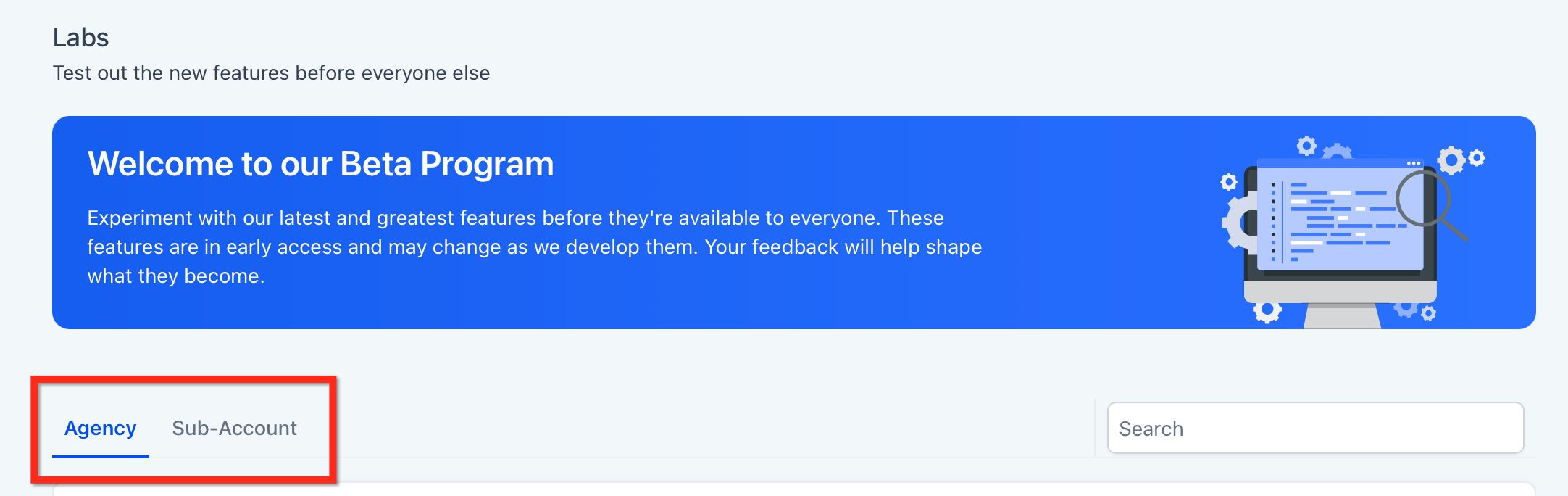
| Agency Labs | Sub-Account Labs | |
|---|---|---|
| What does it affect? | Agency-level features and, when applicable, features assigned to selected sub-accounts. | Only the current sub-account. Other sub-accounts are not affected. |
| Who can enable it? | Agency Owners and Agency Admins. | Sub-Account Admins and Agency users with the appropriate access while working inside the sub-account. |
| Where do I find it? | Agency View → Settings → Labs. Use the Agency or Sub-account tab depending on the feature. | Sub-Account View → Settings → Labs. |
| How is the feature enabled? | Agency-only features can be toggled on from the Agency tab. For assignable sub-account features, use the Sub-account tab and Manage to select the applicable sub-accounts. | Supported features can be toggled on directly within the current sub-account. Some features may first require access or visibility to be granted by the Agency. |
| Can I control which sub-accounts receive a feature? | Yes. For supported sub-account Labs features, Agency Owners/Admins can use Manage to control visibility and/or enablement for selected sub-accounts. | No. Changes made here apply only to the sub-account you are currently viewing. |
| When should I use it? | Best for centralized control, testing a feature across selected sub-accounts, and managing broader rollouts. | Best for testing or enabling a feature for one specific sub-account without affecting others. |
How to Interpret Labs Features
Every Labs feature appears as a “card.” Knowing each element helps you enable features confidently and communicate timelines to stakeholders.
Each card commonly includes:
- Title: Feature name.
- Description: What changes or capabilities the feature provides.
- Live in X Days: Estimated days until general availability (subject to change).
- Toggle ON/OFF: Enable/disable the feature in the current context.
- Submit Feedback: Send comments, issues, or requests directly to the product team.
- Change Log URL: Access release details.
- Support Doc URL: Help and documentation on the feature.
- Media URLs: Visuals, demos, or walkthroughs
Note: Labs features are still being tested and refined, so their functionality, design, availability, or release timeline may change. If a feature card shows Live in X Days, it indicates the estimated time remaining before the feature is expected to become generally available. This timeline is an estimate and may change.

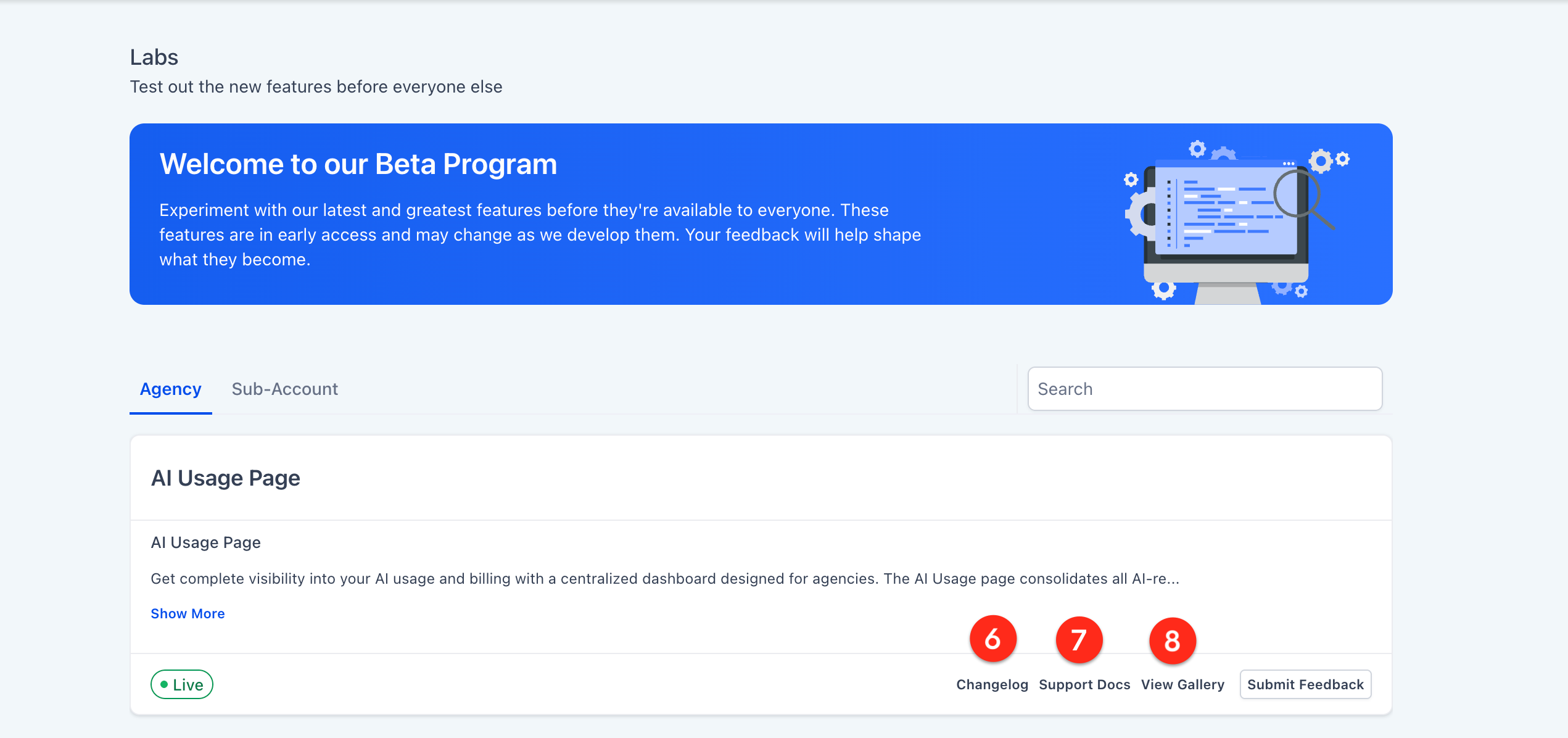
Agency Labs Exclusive
- Manage: (Agency → Sub-account tab only, when applicable) – Assign the feature to specific sub-accounts.

Visibility vs Enablement Controls (Sub-Account Labs features)
Labs controls use two different settings:
- Visibility: Whether a Labs feature appears in Sub-account view → Settings → Labs.
- Enabled: Whether the feature is turned ON for that sub-account.
Important: Unlimited and Pro Plans support visibility and enablement defaults and per-sub-account visibility and enablement management.
Starter Plan keeps Labs features visible by default and does not show visibility or enablement controls.
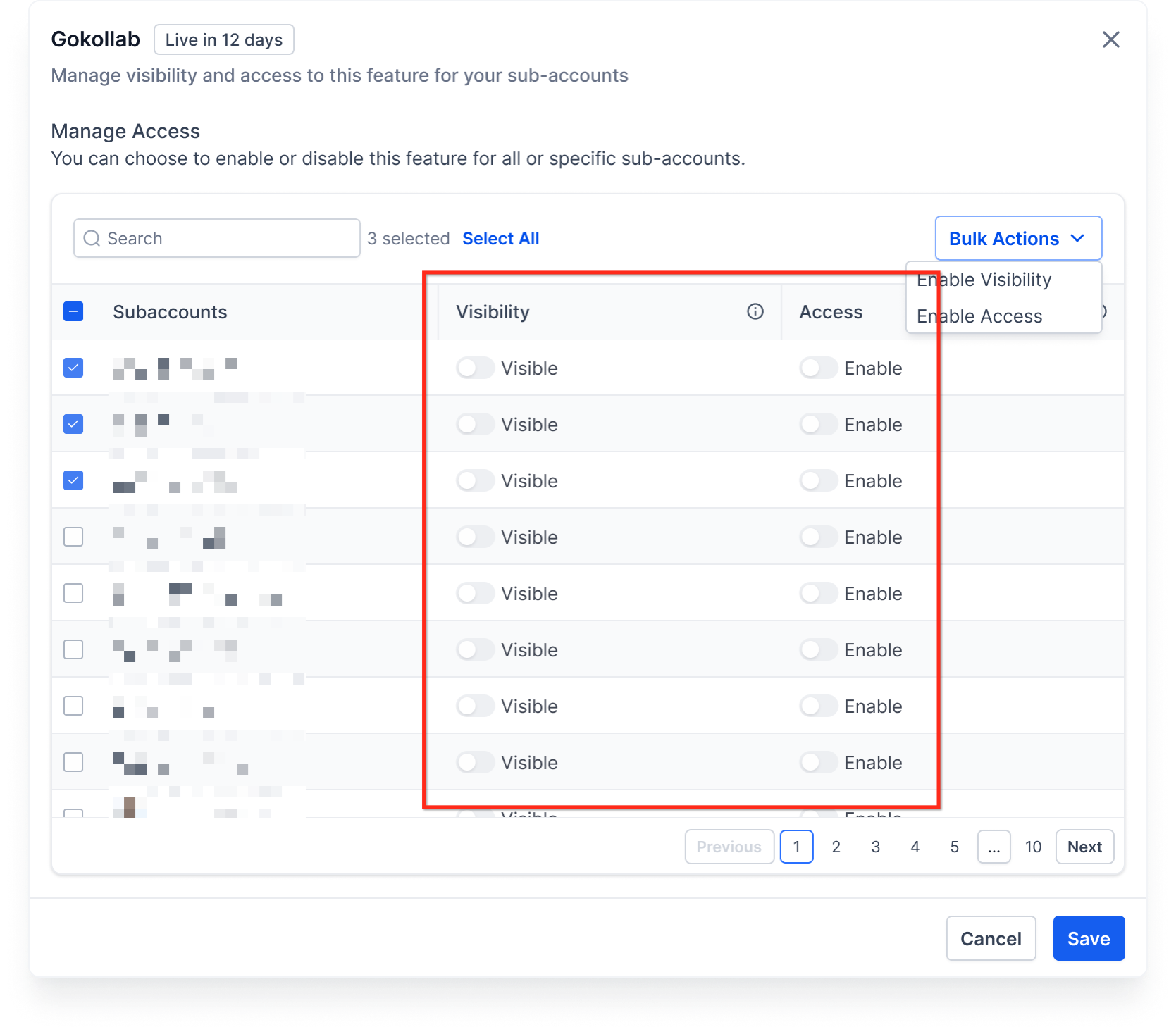
A feature can be visible but not enabled. This helps you introduce features for discovery without activating them.
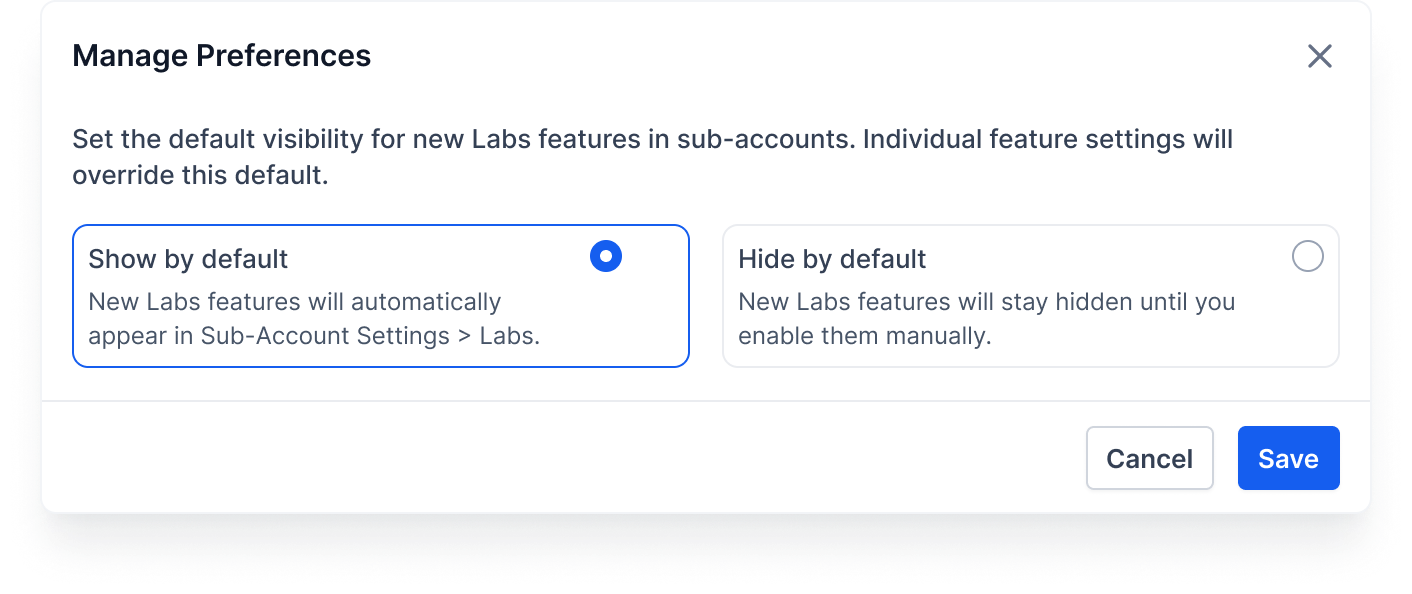
Default visibility and overrides (Agency view)
On eligible plans, agency admins can:
- Set the default visibility for new Labs features (Visible or Hidden).
- Override visibility per sub-account when needed.
How To Use Labs
Using Labs in the correct workspace is essential. Agency view exposes Agency-level features and tools for assigning sub-account features, while sub-account view shows features you can enable locally.
1: Enable an Agency‑only feature (Agency view)
- Login to your Agency account.
- Navigate to Settings → Labs → Agency tab.
- Locate the feature card and review the Description and Release Timeline.
- Toggle ON.

2: Enable a Sub‑account feature via Agency assignment
Note: Some sub-account features must be granted by the Agency before they can be used. The Manage control lets Agency Admins/Owners choose which sub-accounts get early access.- Login to your Agency account.
- Go to Settings → Labs → Sub-account tab.
- Locate the feature card and review the Description and Release Timeline.
- Click Manage and select the sub-account(s) to give access for Visibility and/or Enable.
- Click Save.
- Switch to the assigned sub-account(s) and refresh the relevant area to confirm the feature appears and/or is Enabled.
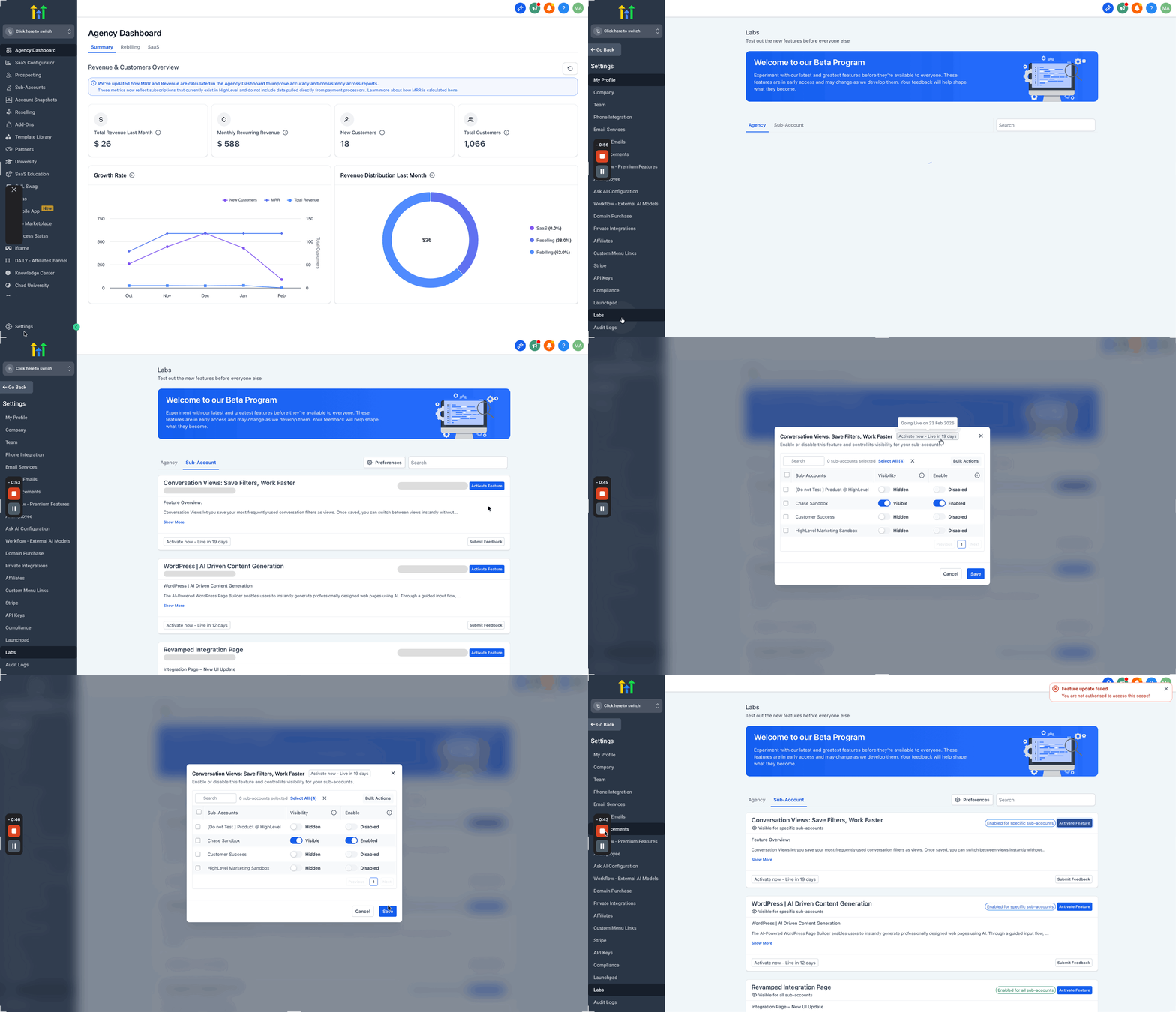
3: Enable a Sub‑account feature directly
Some sub-account features can be enabled directly within the sub-account without Agency assignment.
- In the target sub-account, open Settings → Labs.
- Find the feature card and toggle ON.
- Refresh or re-open the relevant module (builder, CRM, etc.) to see changes.

Submit Feedback
Feedback provided from Labs goes straight to the product team, helping prioritize fixes and improvements. High-quality feedback accelerates outcomes for everyone.
To submit feedback:
- Click on Settings (Agency or sub-account).

- Click on Labs.
- On the relevant feature card, click Submit Feedback.

- Add a Subject and a clear Message.
- Optionally upload screenshots or videos to illustrate your use case or issue.
- Click Submit.

Labs Changes Are Auditable
Changes to Labs feature flags are now recorded in Audit Logs. This includes updates made at the company level, location level, and through Support Portal tools.
Use Audit Logs when you need to confirm when a Labs feature was changed, who changed it, or whether the update came from Support Portal.
Frequently Asked Questions
Q: Who can access Labs?
All Agency Admins and Sub-account Admins, plus any users who have the View & Manage Settings permission.
Q: I don’t see Labs—what should I check?
Verify you’re in the correct context (Agency vs. sub-account) and that your role has permission to access Settings. If you still don’t see Labs, contact your account admin.
Q: Can I disable a Labs feature later?
Yes, you can just toggle Off the feature from where it was enabled.
Q: What does “Live in X days” actually mean?
It’s an estimated timeline to general availability and can change based on feedback and development.
Q: Where should I report bugs vs. feature requests?
Use Submit Feedback on the card for product input and small issues. For urgent support needs that block your team, follow your standard support/ticket workflow.
Q: Why don’t I see a specific Labs feature in a sub-account?
A: On eligible plans, your agency may have set the feature to Hidden (visibility). Ask an Agency Owner/Admin to change the feature’s visibility, then refresh the sub-account.
Q: Do all plans have visibility controls?
A: No. Unlimited and Pro support visibility defaults and per-sub-account visibility management. Starter keeps Labs features visible by default and does not show visibility controls.
Related Articles
Was this article helpful?
That’s Great!
Thank you for your feedback
Sorry! We couldn't be helpful
Thank you for your feedback
Feedback sent
We appreciate your effort and will try to fix the article