In this article, you’ll learn how to use the “Send Email” action in your workflow to automate and personalize email communication with your contacts. We’ll guide you through the key benefits of this action, provide a step-by-step process for setting it up, and share a practical example to help you get started. By the end of this article, you’ll be equipped to enhance your email automation and improve customer engagement.
TABLE OF CONTENTS
- What is the “Send Email” Workflow Action?
- Key Benefits of Using the “Send Email” Action
- Step-by-Step Process for Using the “Send Email” Workflow Action
- Example: Booking confirmation email
- Troubleshooting
- Tips and best practices
- Related actions
- FAQs
- Related articles
What is the “Send Email” Workflow Action?
The “Send Email” action in your automation workflow allows you to send personalized and automated emails to your contacts at the right time. This action is a vital component of marketing, customer service, and follow-up processes, ensuring that your communication is timely, effective, and personalized. Whether you’re confirming bookings, sending promotional offers, or notifying customers about updates, the “Send Email” action helps streamline your communication.
Key Benefits of Using the “Send Email” Action
- Timely Communication: Automates the sending of emails, ensuring your contacts receive messages at the most appropriate moments without manual effort.
- Personalization: You can customize the email’s content using dynamic fields, such as the recipient’s first name, appointment details, or purchase history, to make each message more engaging.
- Improved Customer Experience: By automatically sending confirmation emails, reminders, or follow-ups, you improve customer satisfaction and reduce the chances of miscommunication.
- Time-Saving: By setting up email templates and automated workflows, you reduce the need for manual email sending, saving time and ensuring consistency.
- Flexibility: You can attach files, use custom templates, and modify email content to suit your business needs.
Step-by-Step Process for Using the “Send Email” Workflow Action
1. Add the “Send Email” Action to Your Workflow
Open your workflow editor and drag the “Send Email” action into your workflow at the appropriate point (e.g., after a trigger like a booking or form submission).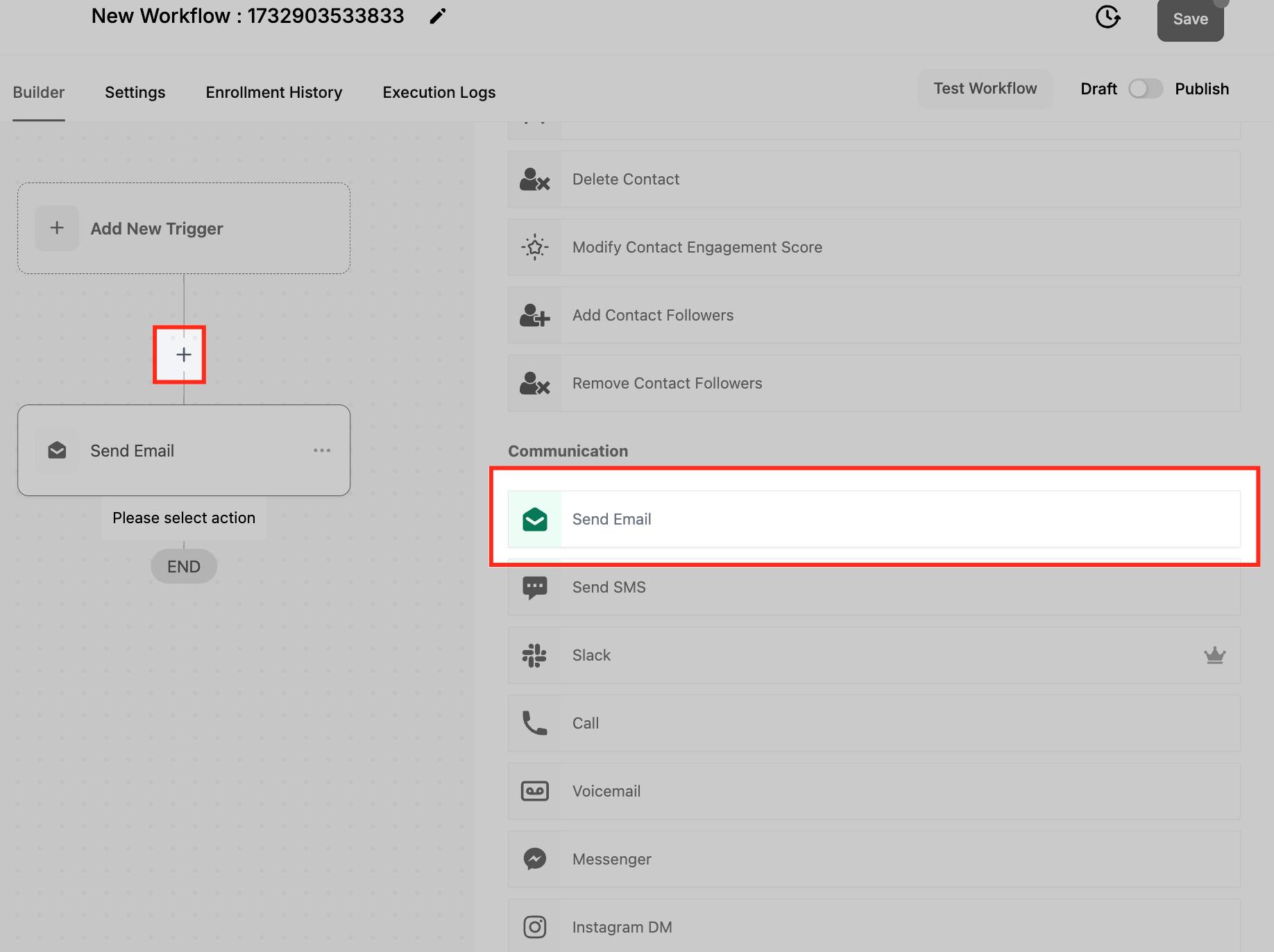
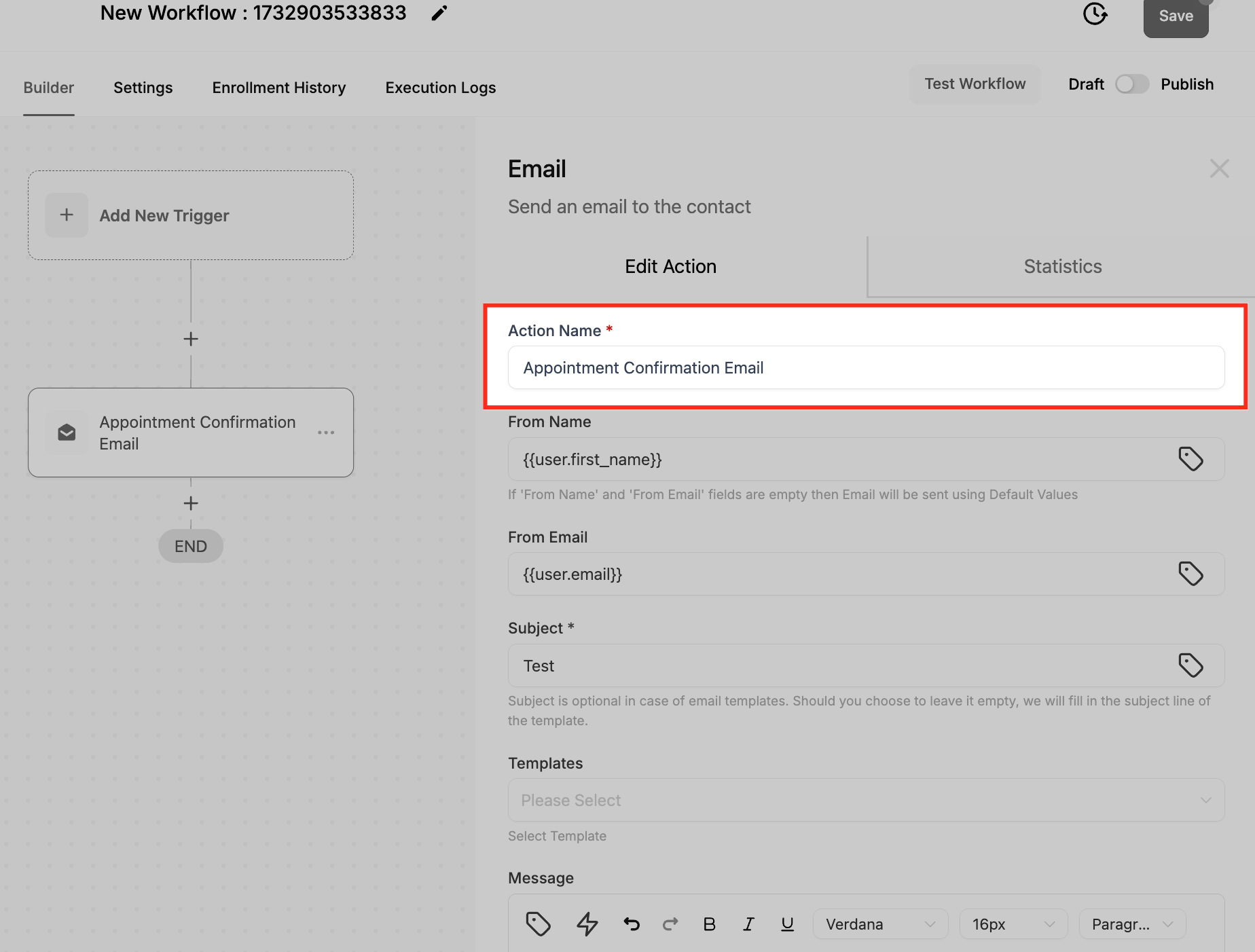
2. Configure the Action Name
Assign a clear, descriptive name for the action (e.g., “Booking Confirmation Email”). This helps you easily identify the action in the workflow.
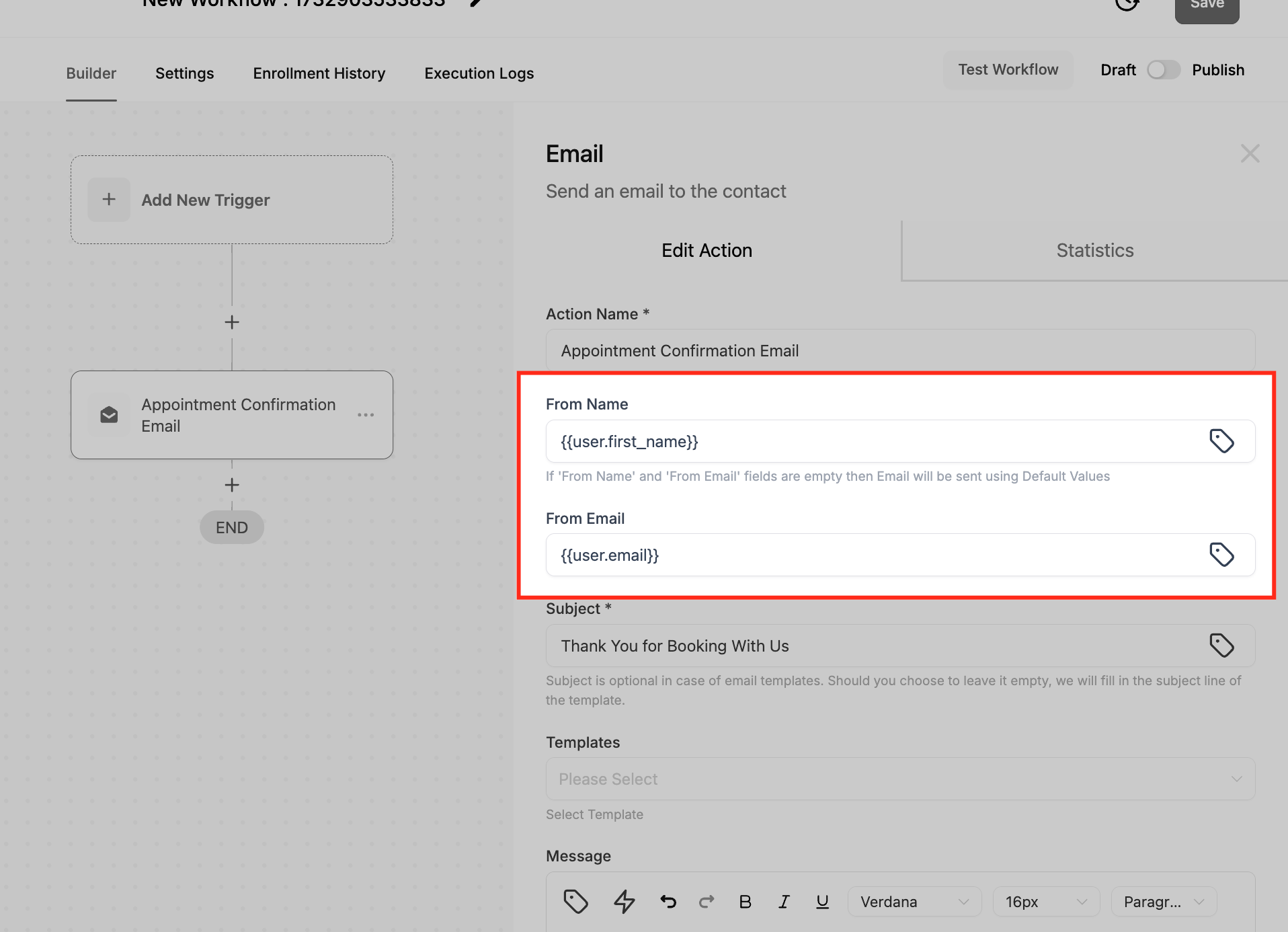
3. Fill in Sender Details
- From Name: Enter the name that will appear as the sender (e.g., “My Company”).
- From Email: Input the email address from which the email will be sent (e.g., “mycompany@email.com”).
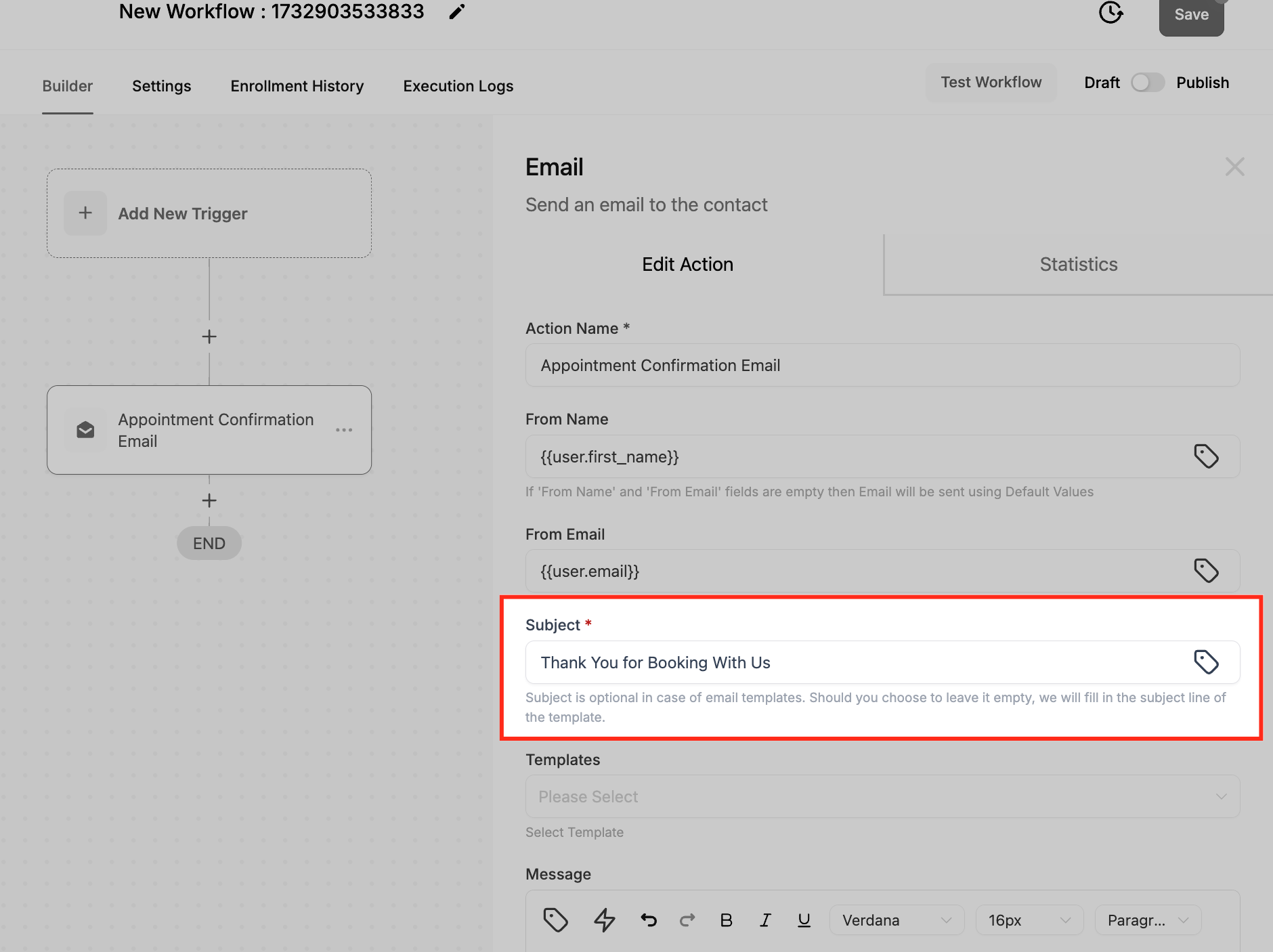
4.Create the Subject Line
- Enter a relevant subject line that gives the recipient an idea of the email content (e.g., “Thank You for Booking with Us!”).
5. Choose or Create the Email Body
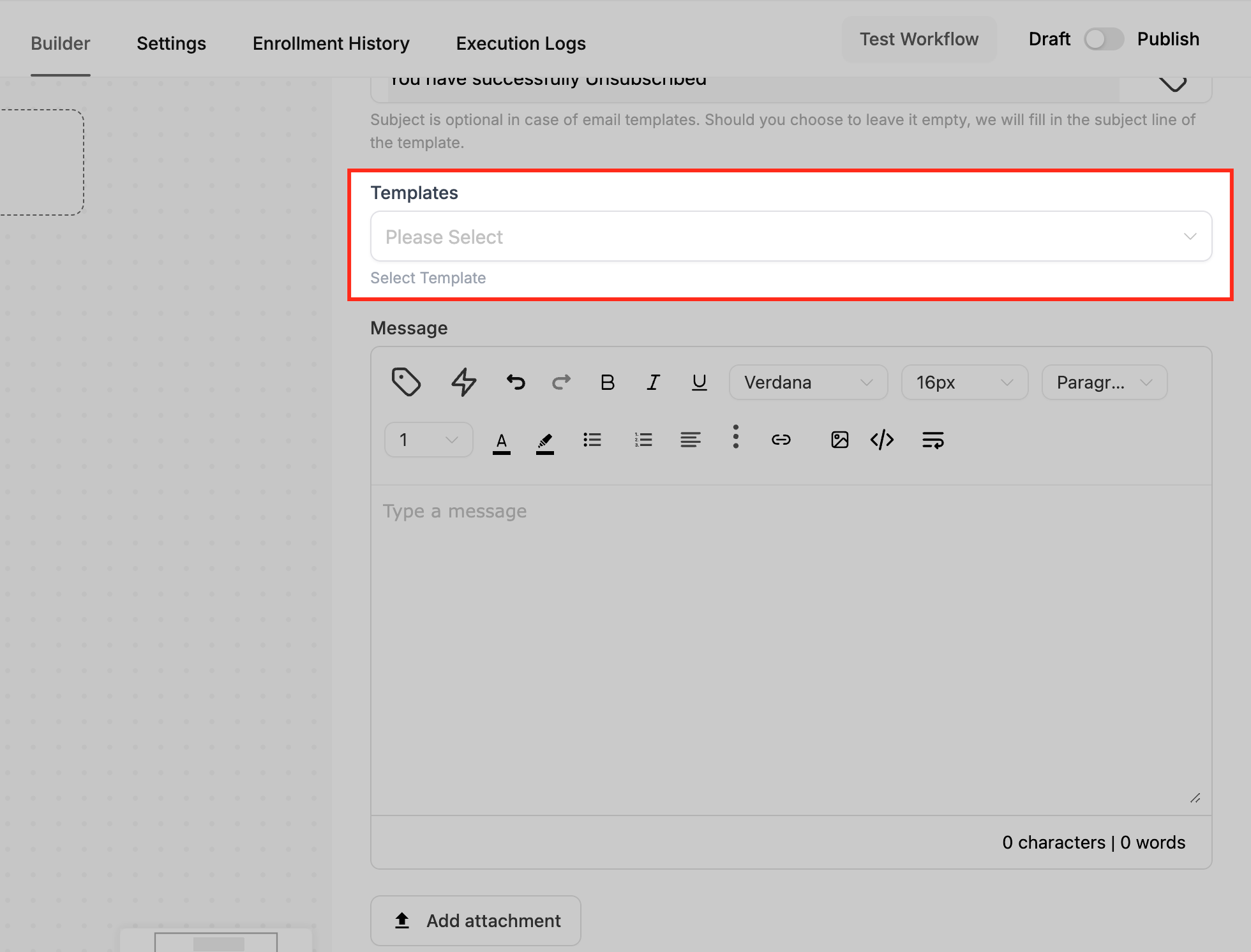
- Templates: Select an email template from the dropdown (optional). If no template is available, you can write a custom message in the Email Body field.
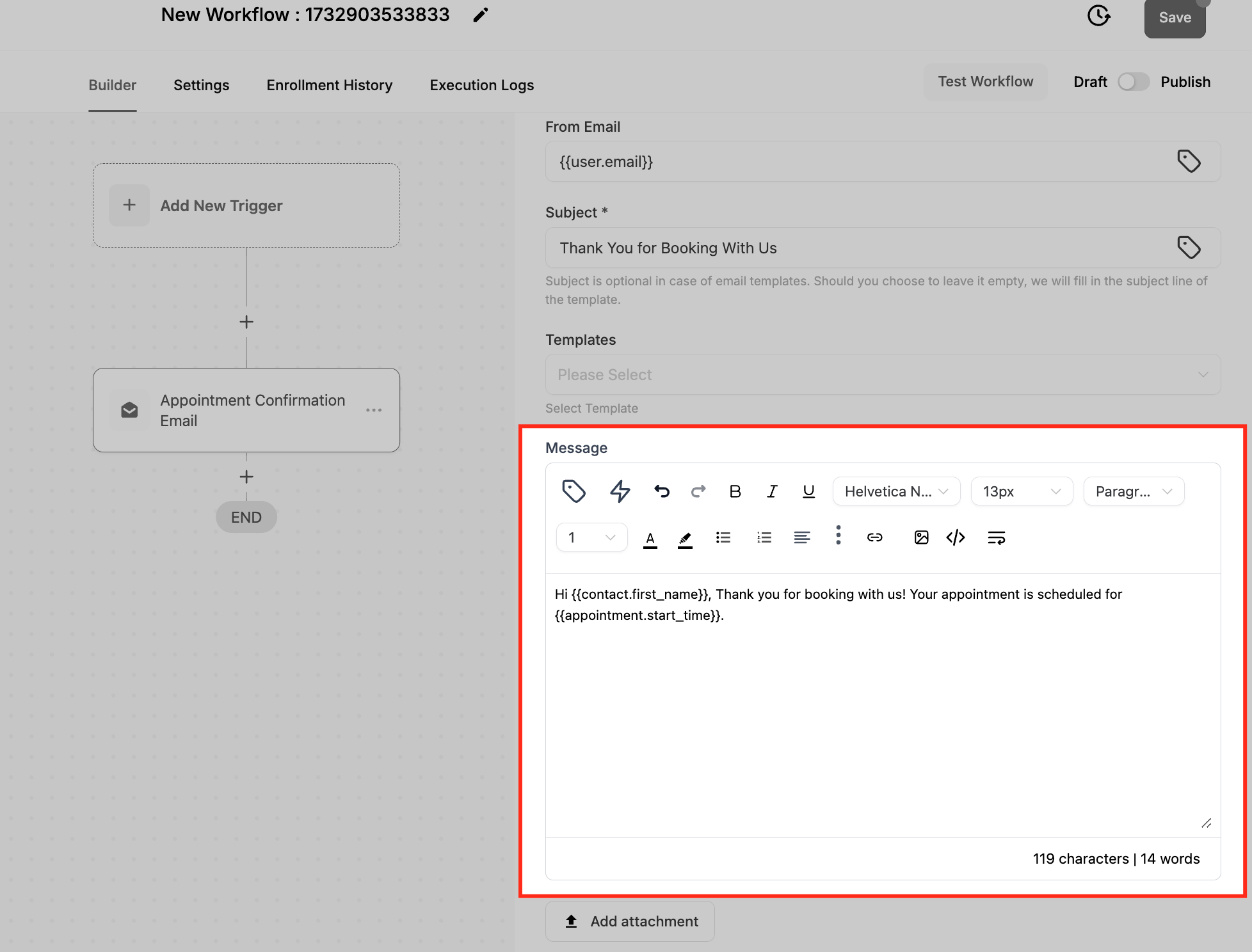
Email Body : Create your email body here. Use custom values to personalize the message. For example:
Hi {{contact.first_name}}, Thank you for booking with us! Your appointment is scheduled for {{appointment.start_time}}.
If you select an existing template, you may see a **Sync Edits to Template** checkbox. When sync is ON, changes in the workflow email and the original template update each other. When sync is OFF, they stay independent.
6. Add Attachments (Optional)
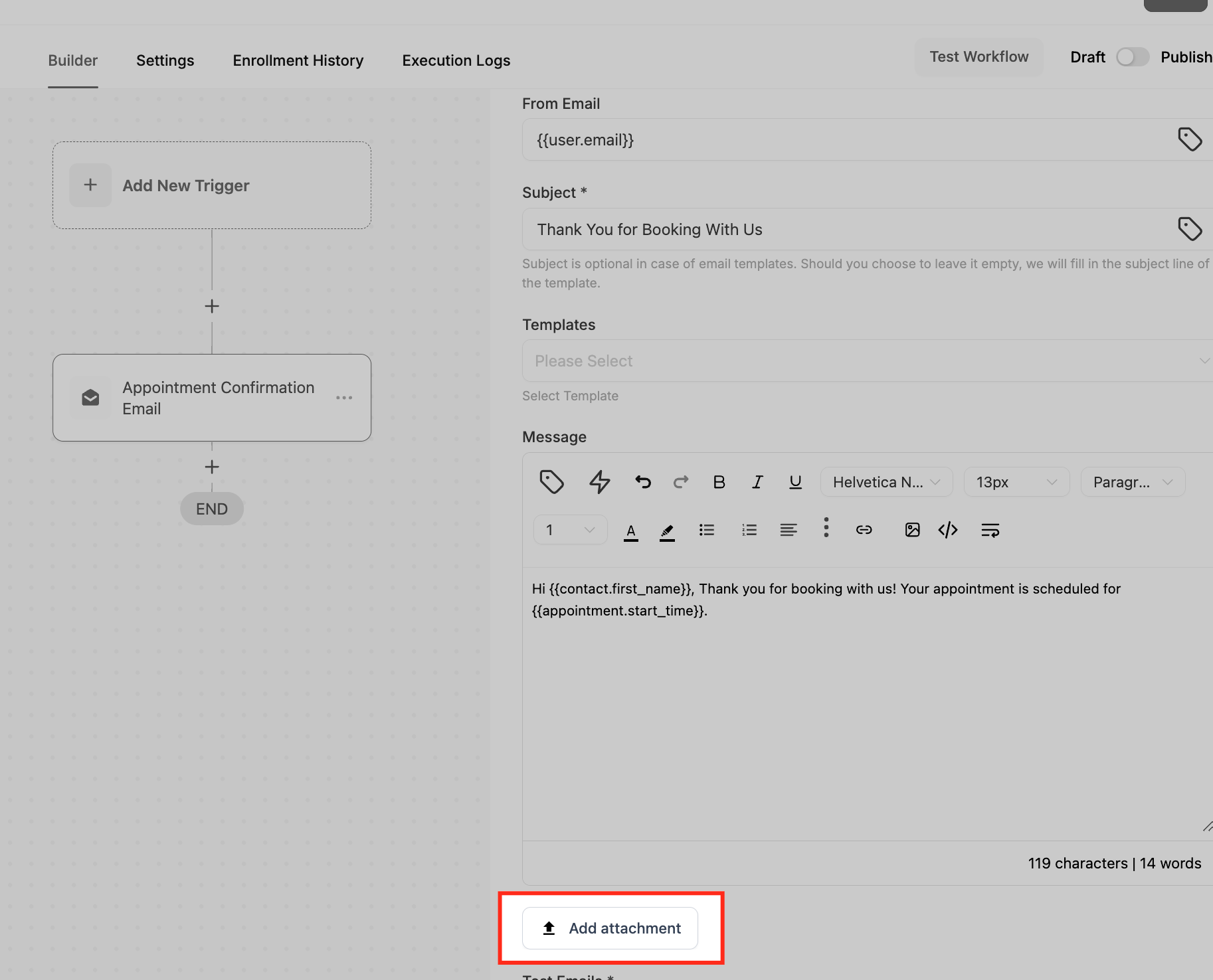
If necessary, you can attach files to the email, such as booking confirmations, product details, or invoices.
7. Test the Email
Before finalizing, it’s a good idea to send a test email. Enter an email address in the Test Emails field and click Send Test Mail to ensure the content and formatting are correct.

8. Save and Activate the Action
Once you’re satisfied with the configuration, click Save Action. The email will now be sent automatically when the workflow reaches this step.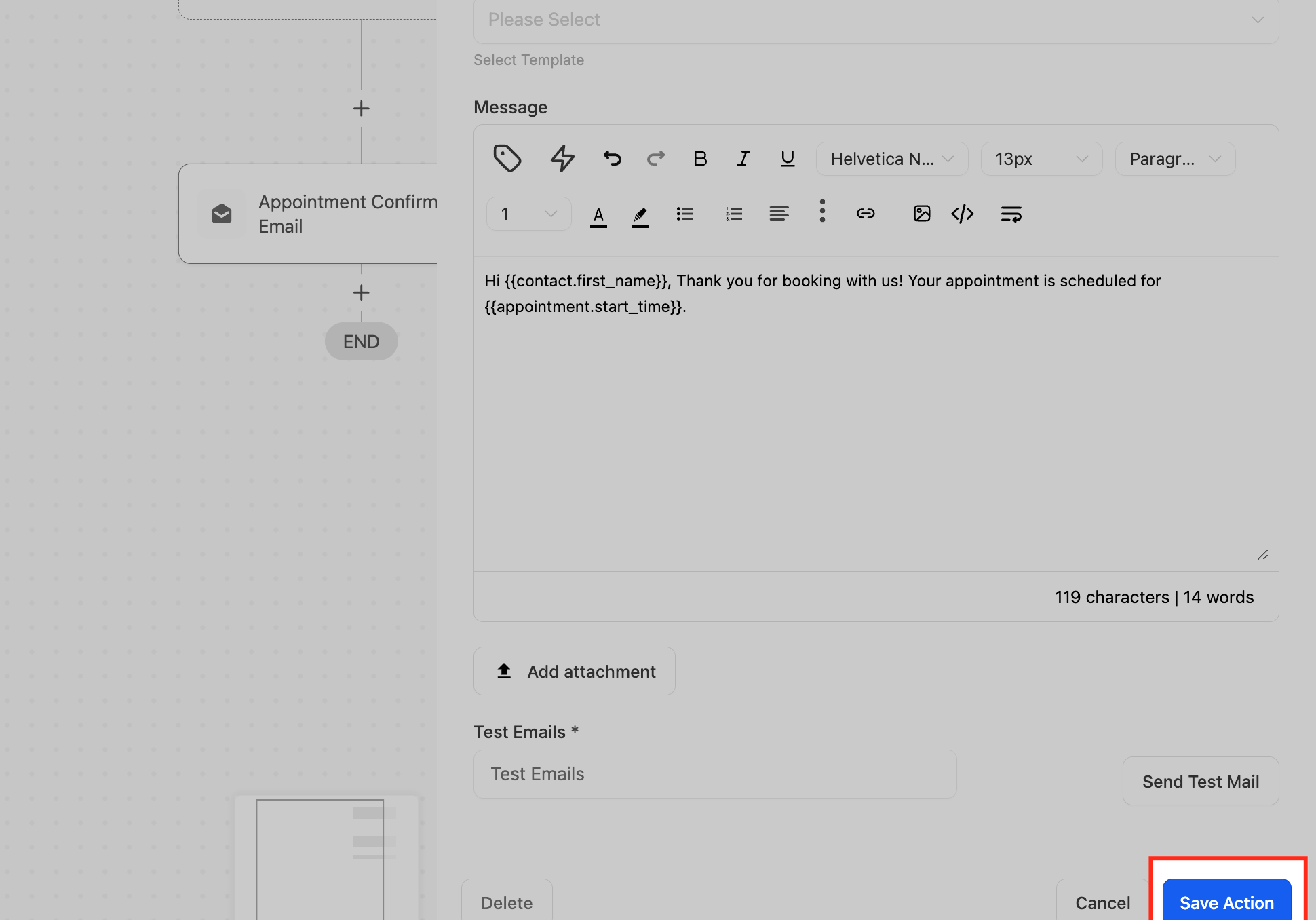
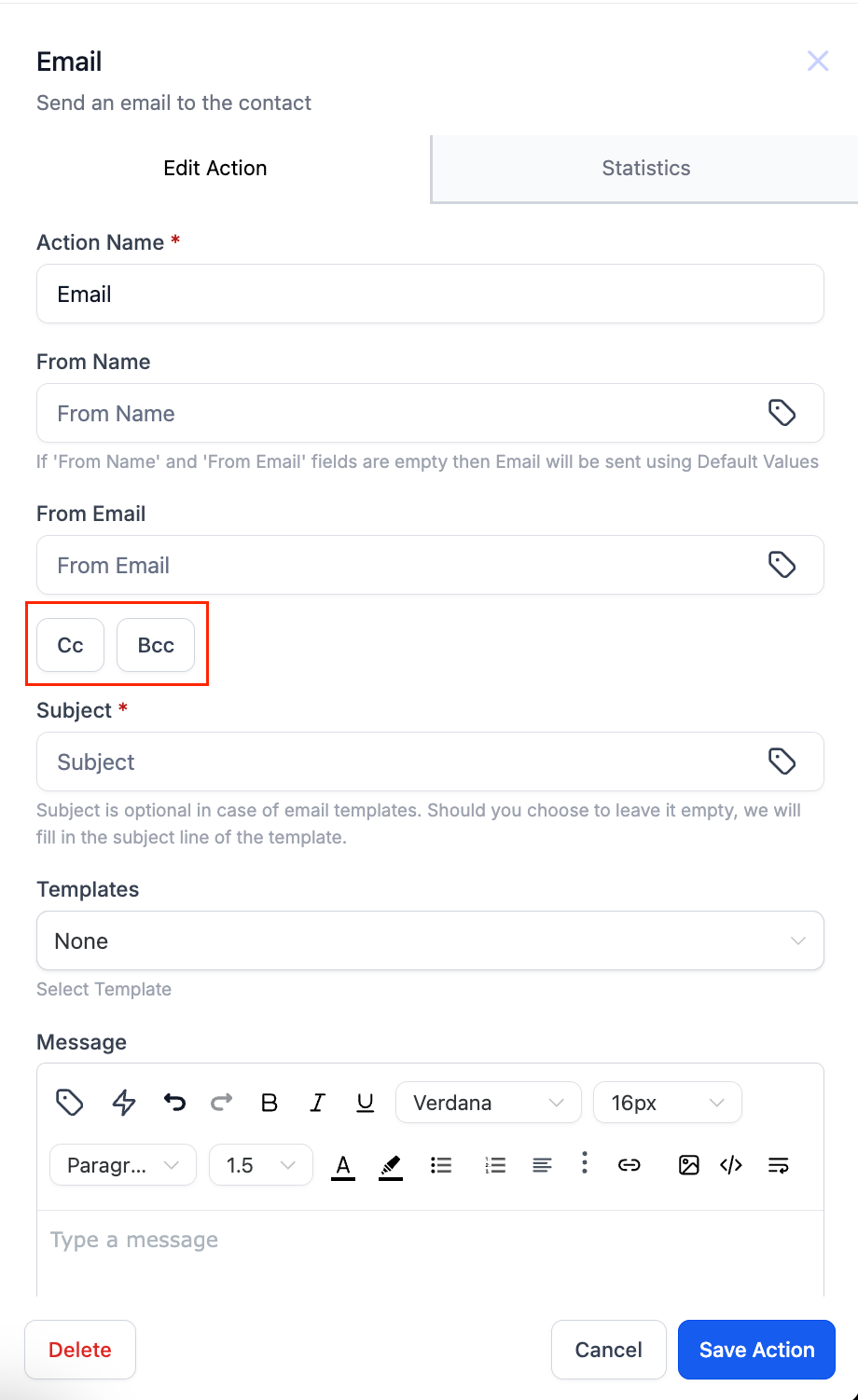
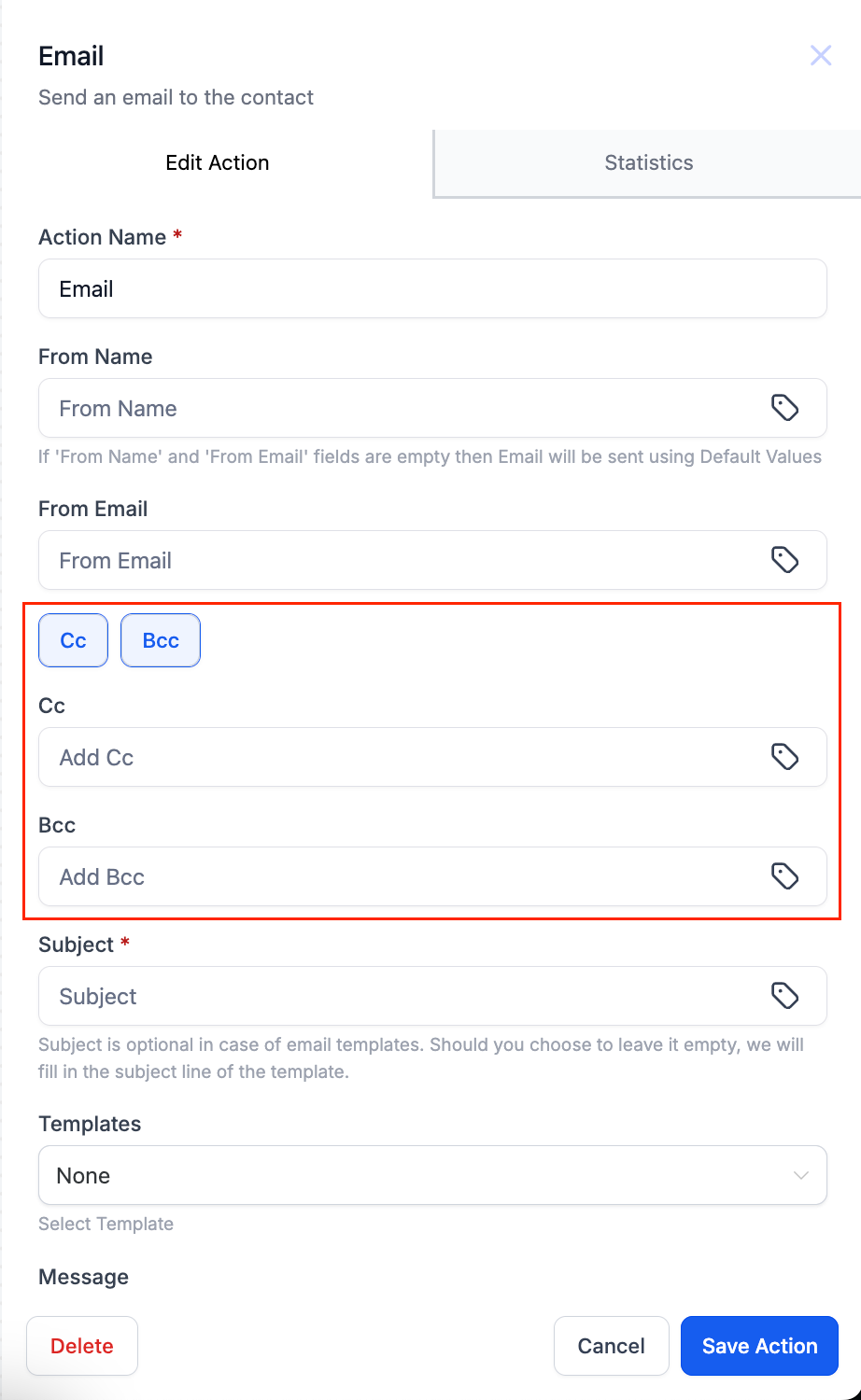
9. Cc/Bcc in Email Action
- Add cc/bcc fields in the email action by clicking on the cc/bcc buttons.
- When you click on the button the respective fields will populate.
Example: Booking confirmation email
Goal: Send an email when a contact books an appointment.
Workflow setup
Trigger: Appointment booked
Action: Send Email
Action Name: Booking Confirmation Email
From Name: My Company
From Email: mycompany@email.com
Subject: Thanks for booking with us!
Body:
Hi {{contact.first_name}},
Thank you for booking with us! Your appointment is scheduled for {{appointment.start_time}} on {{appointment.only_start_date}}.
We look forward to seeing you soon!
(Optional) Add an attachment URL for an appointment details PDF.
Send a test email.
Save the action.
Troubleshooting
Email didn’t send: Confirm the contact has a valid email address and that your sender email/domain is set up correctly.
Merge fields showing as blank: Ensure the contact/trigger provides those values (e.g., appointment fields require an appointment-related trigger).
Formatting looks off: Use a test email to validate spacing, links, and templates across email clients.
Tips and best practices
Keep subject lines short and specific.
Use templates for consistency across teams.
Personalize with merge fields, but avoid relying on fields that may not exist for every trigger.
If adding multiple CC/BCC emails, double-check comma separation.
Related actions
Send SMS
Internal Notification
AI Powered Email Generation in Workflow Action
FAQs
Can I use templates with this action?
Yes. You can select an existing email template, or write a custom email directly in the editor.
Can I personalize the email?
Yes. Use custom values (merge fields) like {{contact.first_name}} to personalize the subject and body.
Do CC/BCC recipients appear in workflow email stats?
No. CC/BCC recipients do not appear in Email Stats. Workflow send success/failure is determined by the primary contact email.
Does “Send Test Mail” validate CC/BCC delivery?
No. Test emails are for validating formatting/content; they do not confirm CC/BCC delivery.
What happens if a CC/BCC email address is invalid?
Invalid CC/BCC addresses are skipped. Valid CC/BCC recipients (and the primary contact) can still receive the email.
Can I add attachments?
Yes. In the Send Email action, you can attach files by selecting an existing file from the Media Library or uploading a new file from your device.
Why are merge fields blank in my test or live email?
Merge fields can be blank if the workflow trigger/action context doesn’t provide that data (for example, appointment fields require an appointment-related trigger), or if the contact record is missing values.
Why did my email land in spam or not deliver?
Deliverability depends on proper sender setup and domain configuration. Verify your sending configuration and test with multiple inbox providers.
Related articles
Was this article helpful?
That’s Great!
Thank you for your feedback
Sorry! We couldn't be helpful
Thank you for your feedback
Feedback sent
We appreciate your effort and will try to fix the article