The Send SMS action enables direct communication with your contacts through text messages. This guide provides step-by-step instructions for configuring the action, along with real-life examples demonstrating its benefits for appointment reminders, promotional campaigns, and more.
TABLE OF CONTENTS
- What Is the “Send SMS” Action?
- When Should You Use the “Send SMS” Action?
- Step-by-Step: Configuring the “Send SMS” Action
- Real-Life Example of the “Send SMS” Action
- Frequently Asked Questions
What Is the “Send SMS” Action?
The Send SMS action is a powerful tool that allows you to send personalized text messages as part of an automated workflow. This feature helps ensure timely communication by triggering messages based on conditions, triggers, or schedules. You can customize SMS content with dynamic fields like contact names and even include attachments via URLs for enhanced communication.
When Should You Use the “Send SMS” Action?
The Send SMS action is perfect for scenarios requiring timely and targeted communication, such as:
• Appointment Reminders: Minimize no-shows with automated reminders.
• Promotional Campaigns: Inform customers about offers directly on their phones.
• Order Updates: Notify customers when their orders are shipped.
• Event Notifications: Update attendees about changes or cancellations.
Step-by-Step: Configuring the “Send SMS” Action
Step 1: Add the “Send SMS” Action
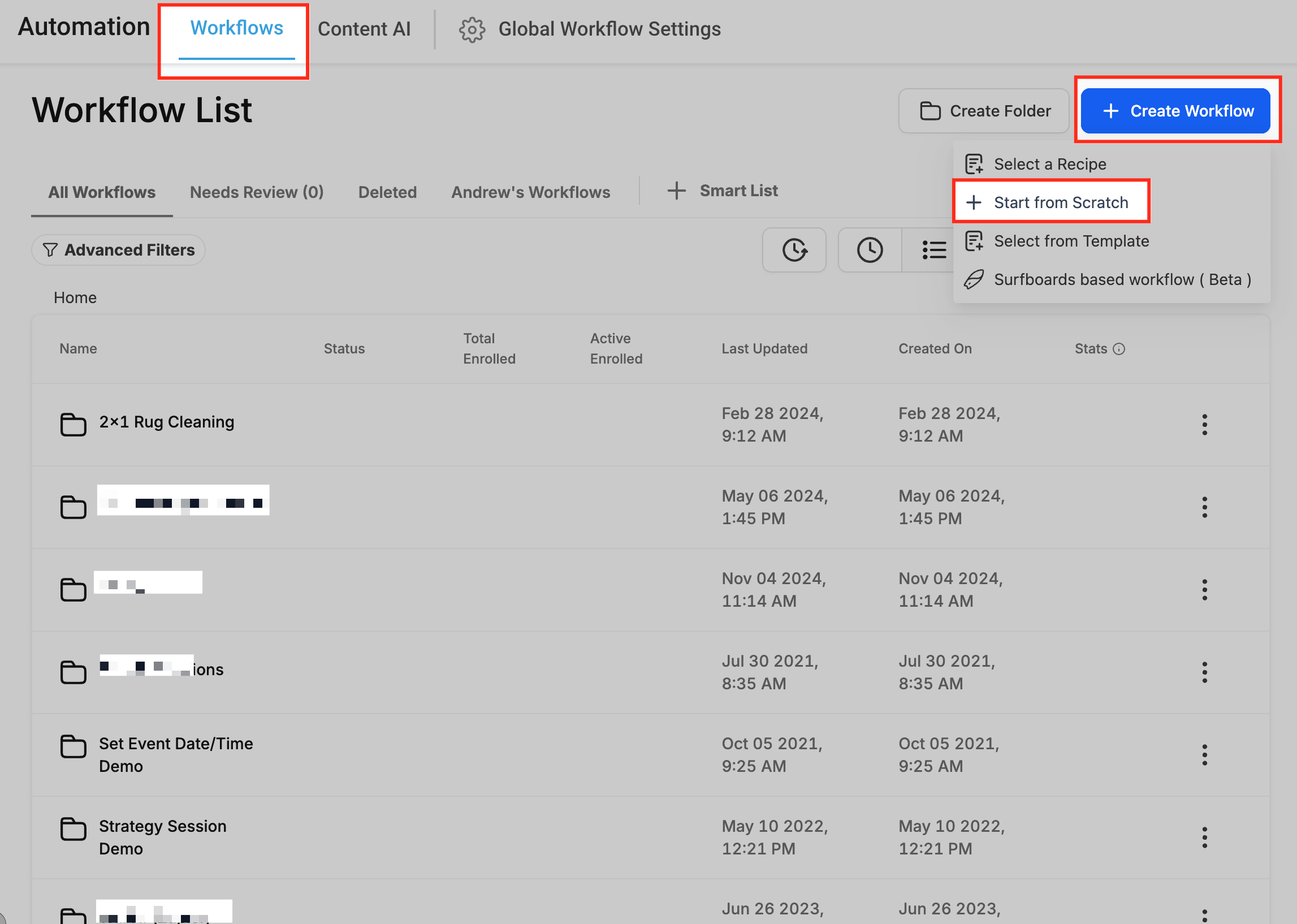
1. Open the workflow editor. You can create a new workflow or select the existing workflow for the purpose of understanding.
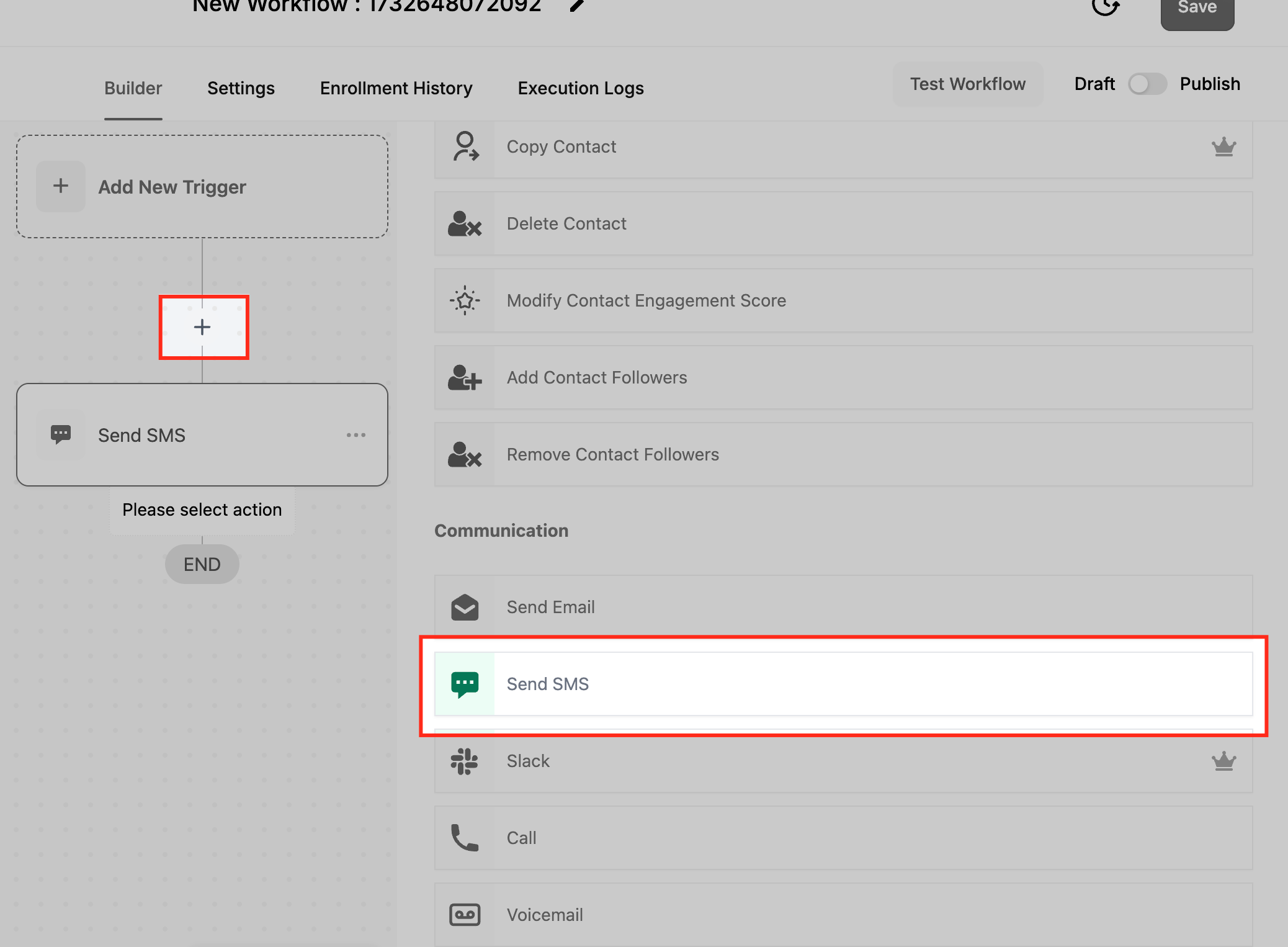
2. Drag and drop the “Send SMS” action into the workflow after the desired trigger or condition.
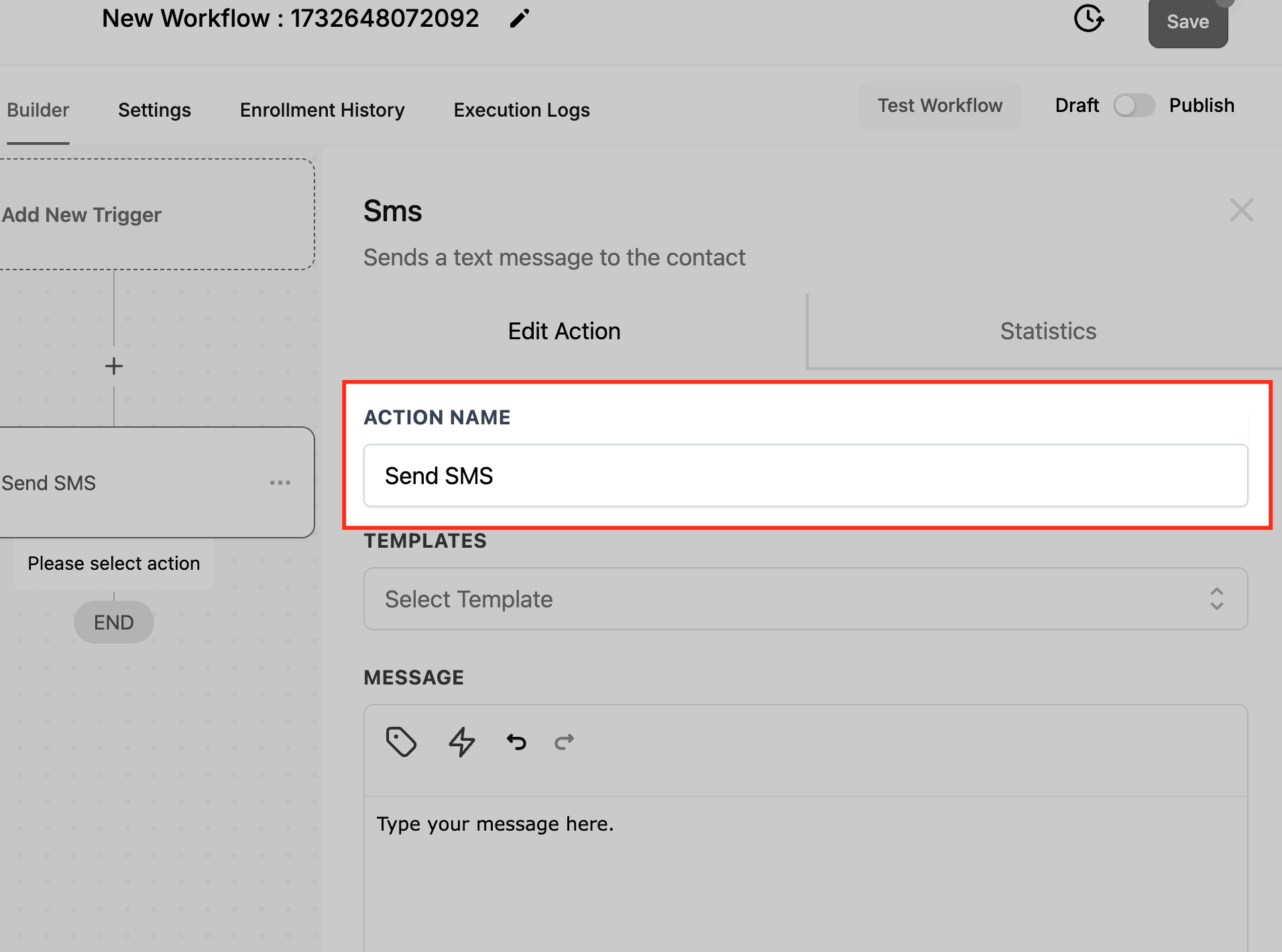
Step 2: Name the Action
• Assign a descriptive name, like “Appointment Reminder SMS,” to identify it easily in your workflow.
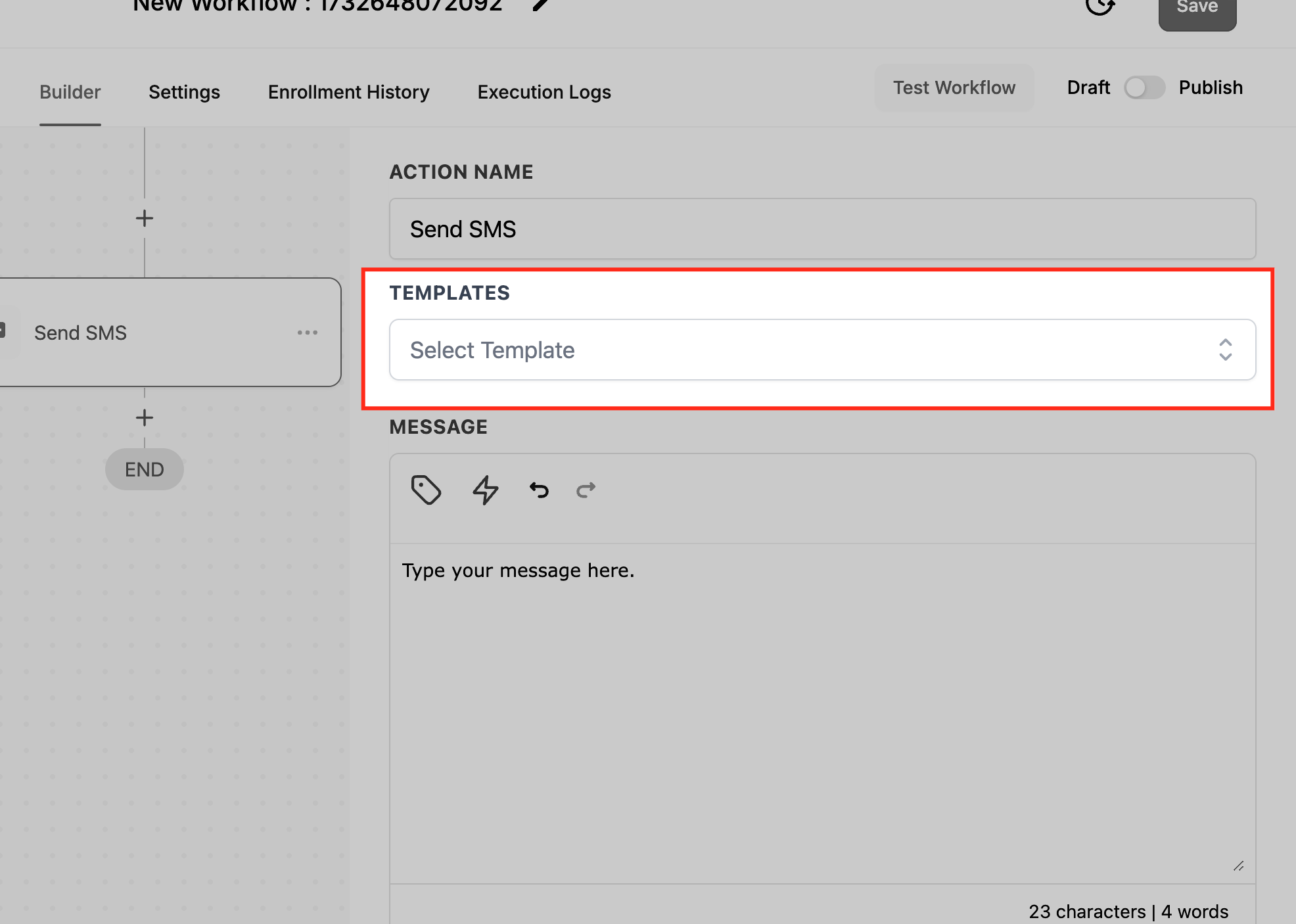
Step 3: Compose the Message
• Message: Write the content of your SMS. Use dynamic fields like {{contact.first_name}} for personalization.
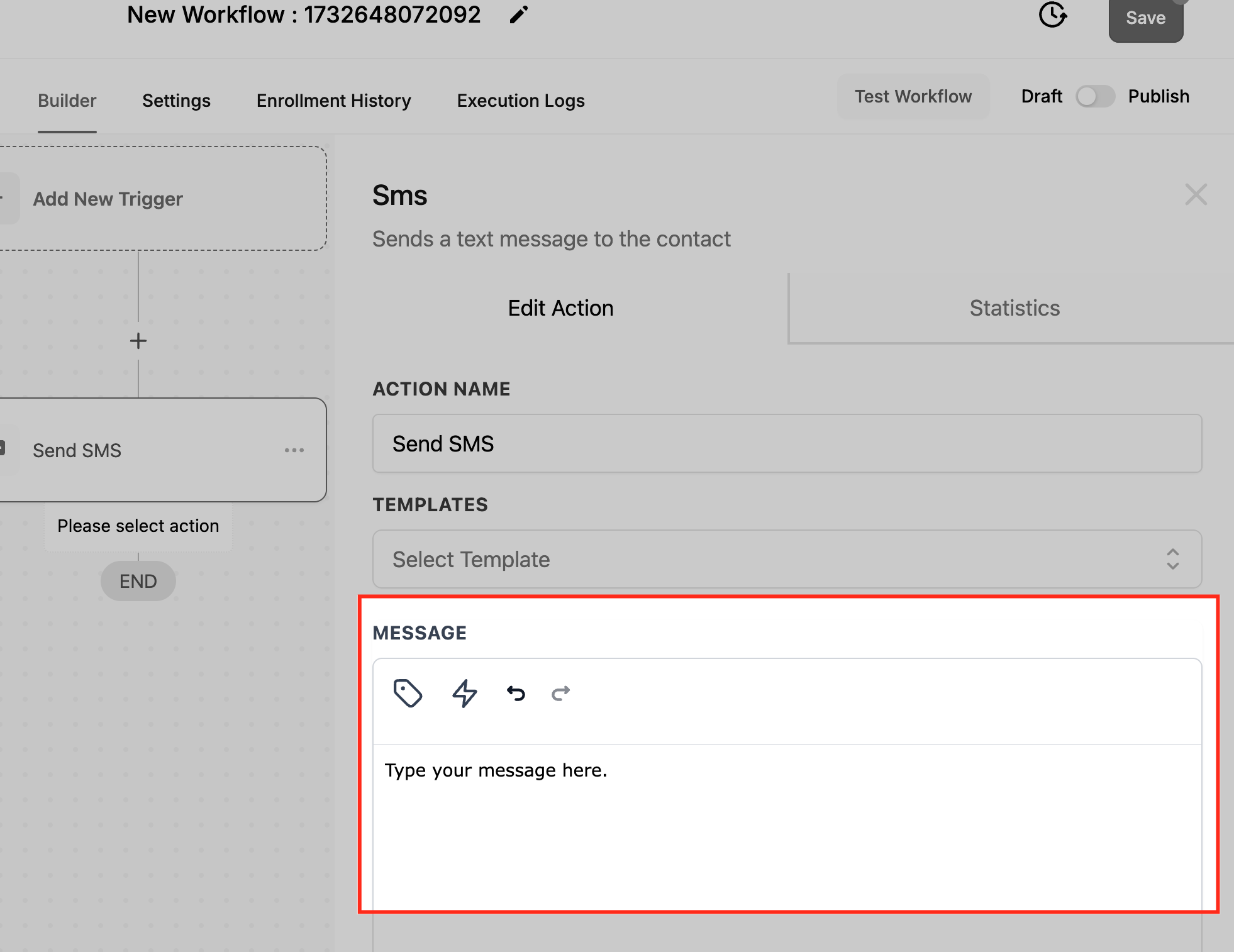
• Templates: Select pre-designed templates, if available, to save time.
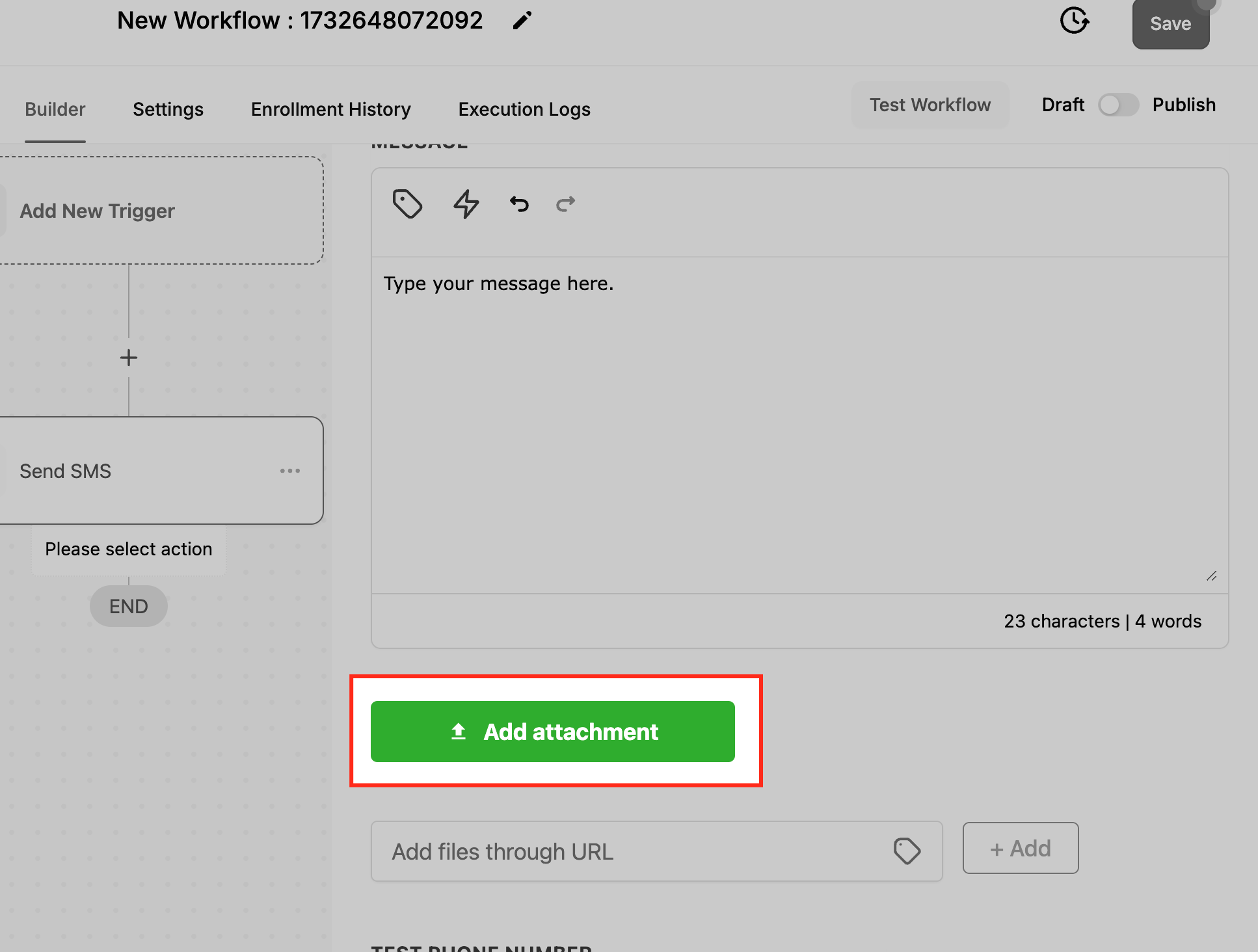
Step 4: Add Attachments (Optional)
• Attach files or resources using URLs (e.g., maps, tickets, or instructions).
Step 5: Test the SMS
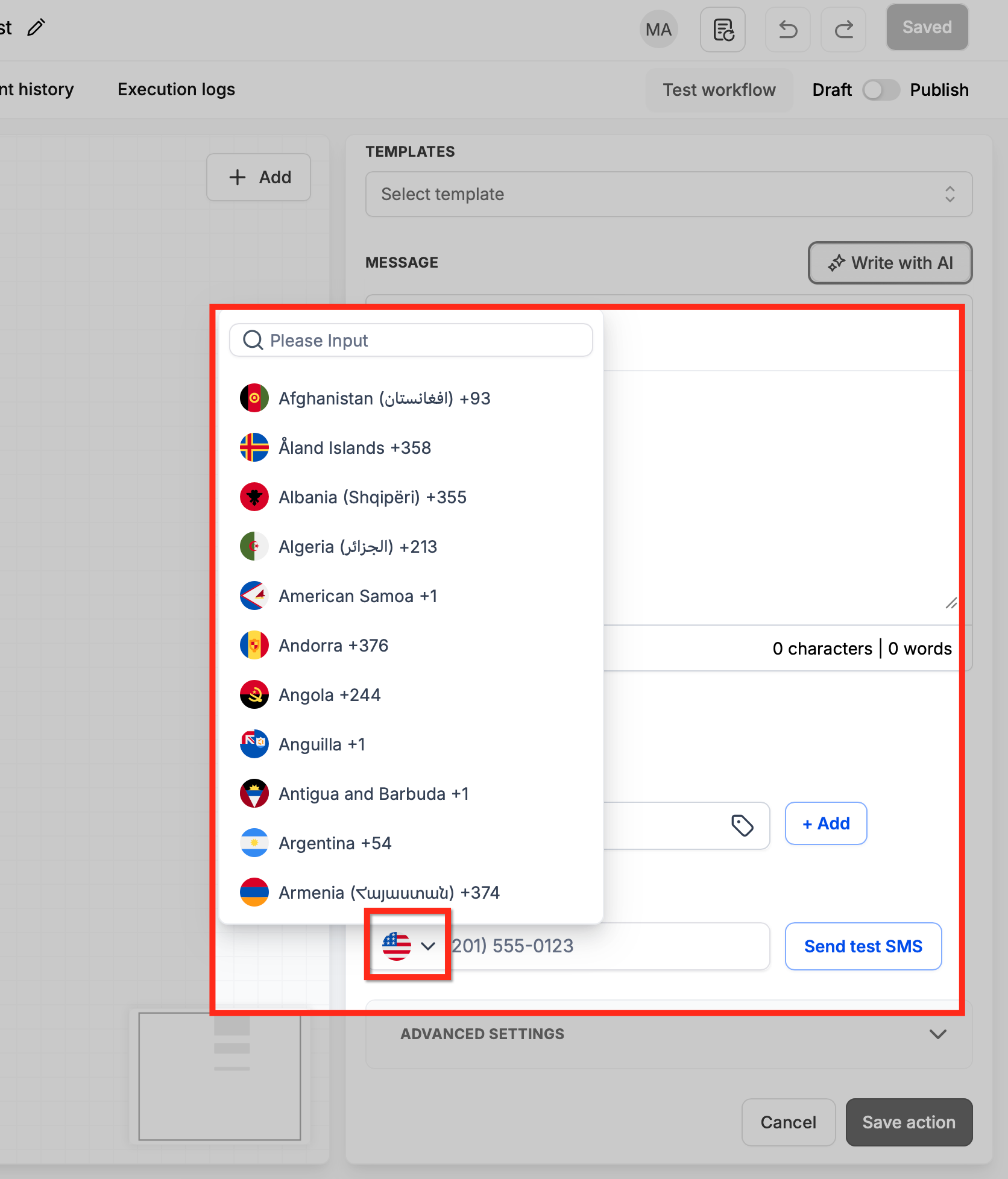
Use the Test Phone Number field to preview and test your message before activating the workflow.
1. Check the country flag next to the Test Phone Number field. It defaults to your sub-account's country.
2. To use a different country, click the flag and search by country name or dialing code.
3. Enter the phone number in local format for the selected country and Click Send test SMS.
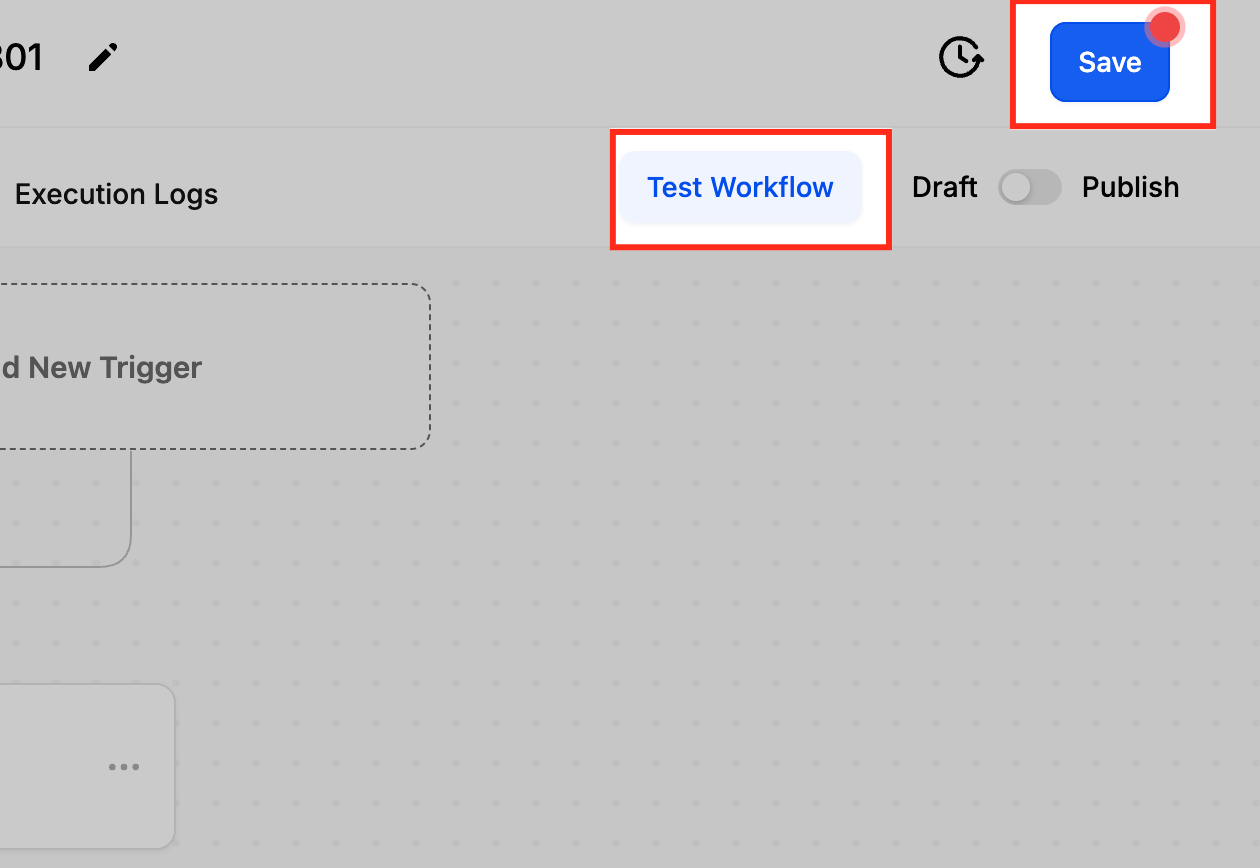
Step 6: Save and Test the Workflow
• Save the workflow and ensure the SMS triggers as expected by testing with sample data.
Real-Life Example of the “Send SMS” Action
Multi-Stage Appointment Reminder
Scenario: Reduce appointment no-shows with reminders.
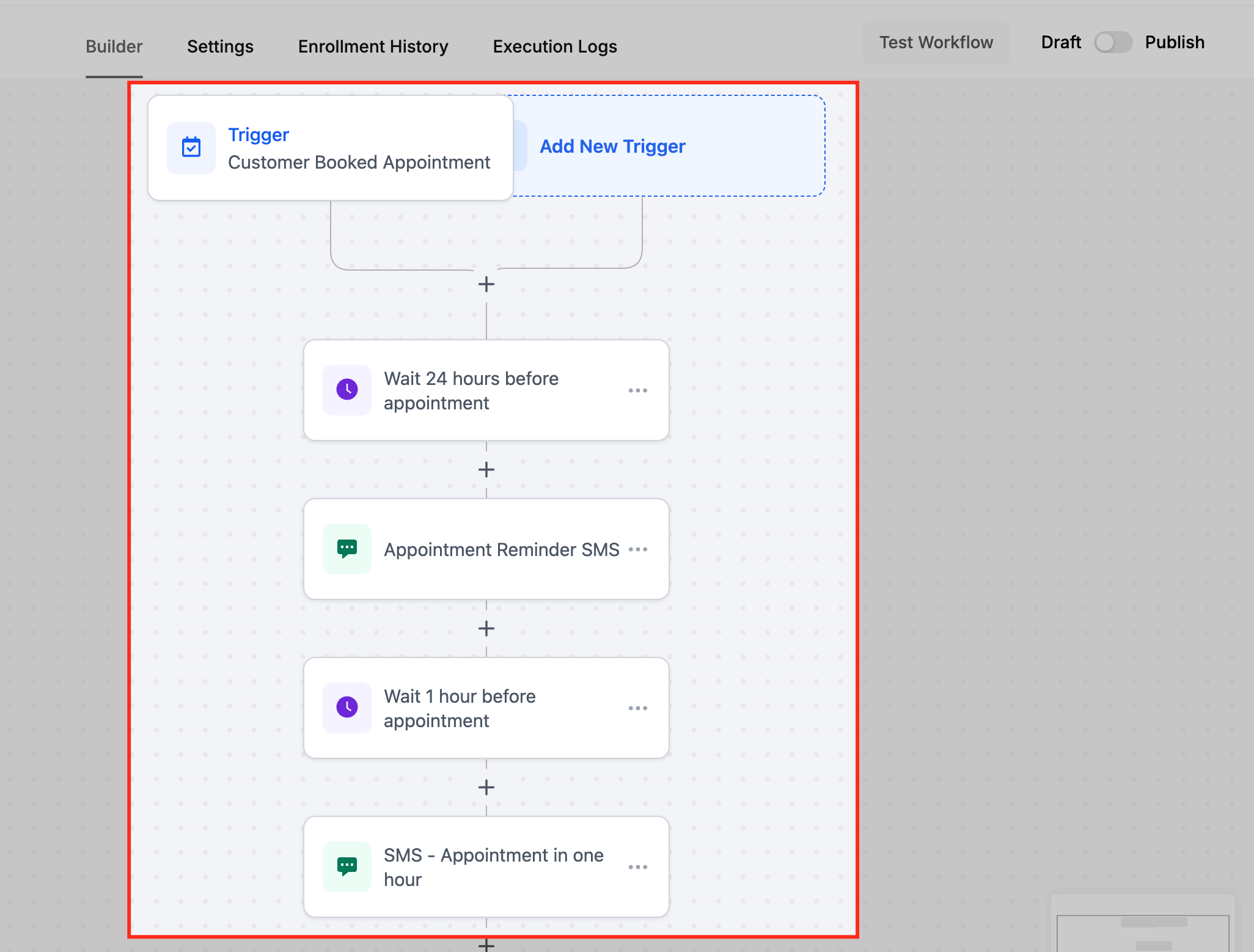
Workflow:
1. Trigger: Customer booked an appointment
2. Action 1: Wait 24 hours before the appointment.
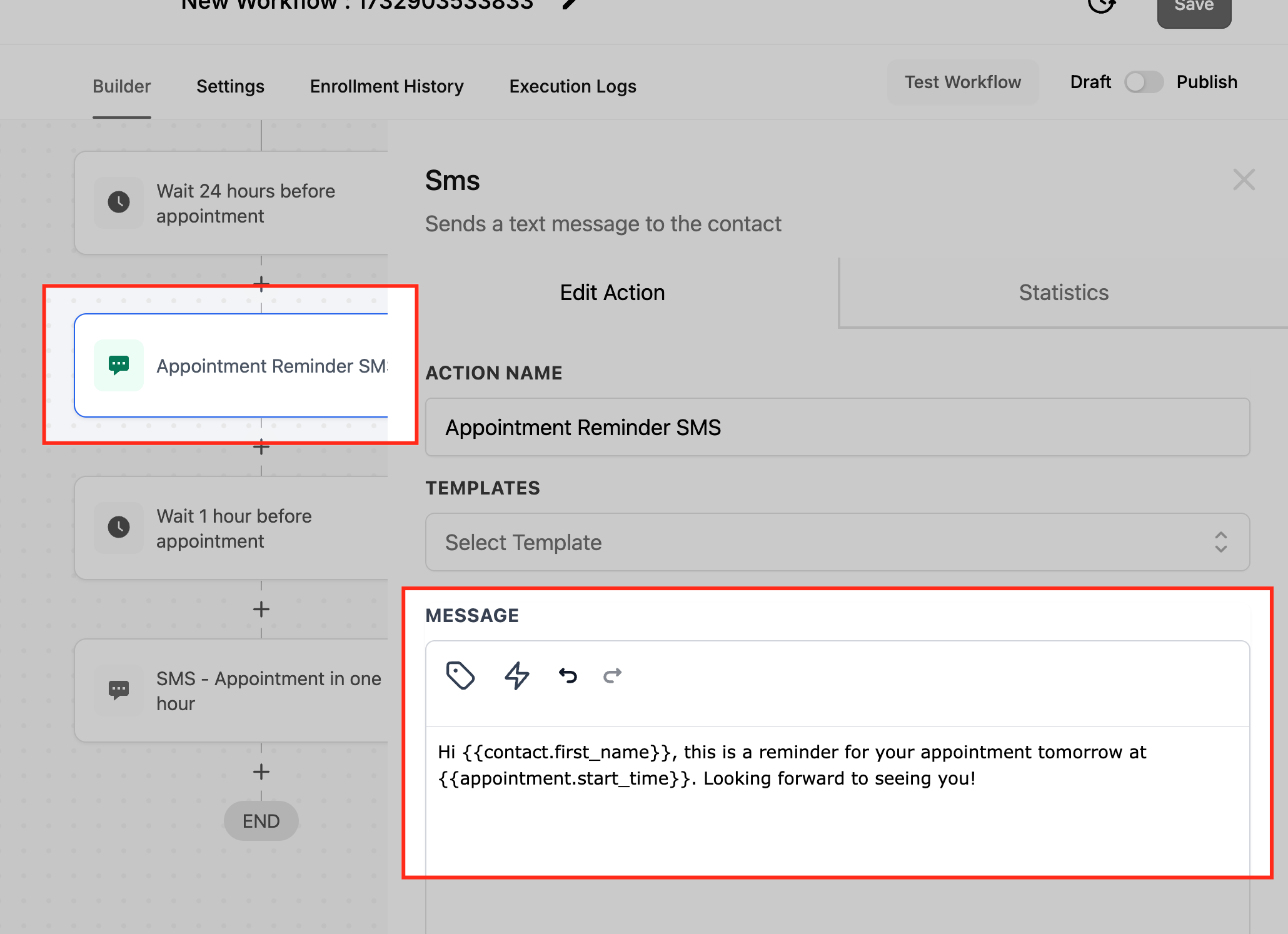
3. Action 2: Send reminder SMS 24 hours in advance.
• Message:
Hi {{contact.first_name}}, this is a reminder for your appointment tomorrow at {{appointment.start_time}}. Looking forward to seeing you!
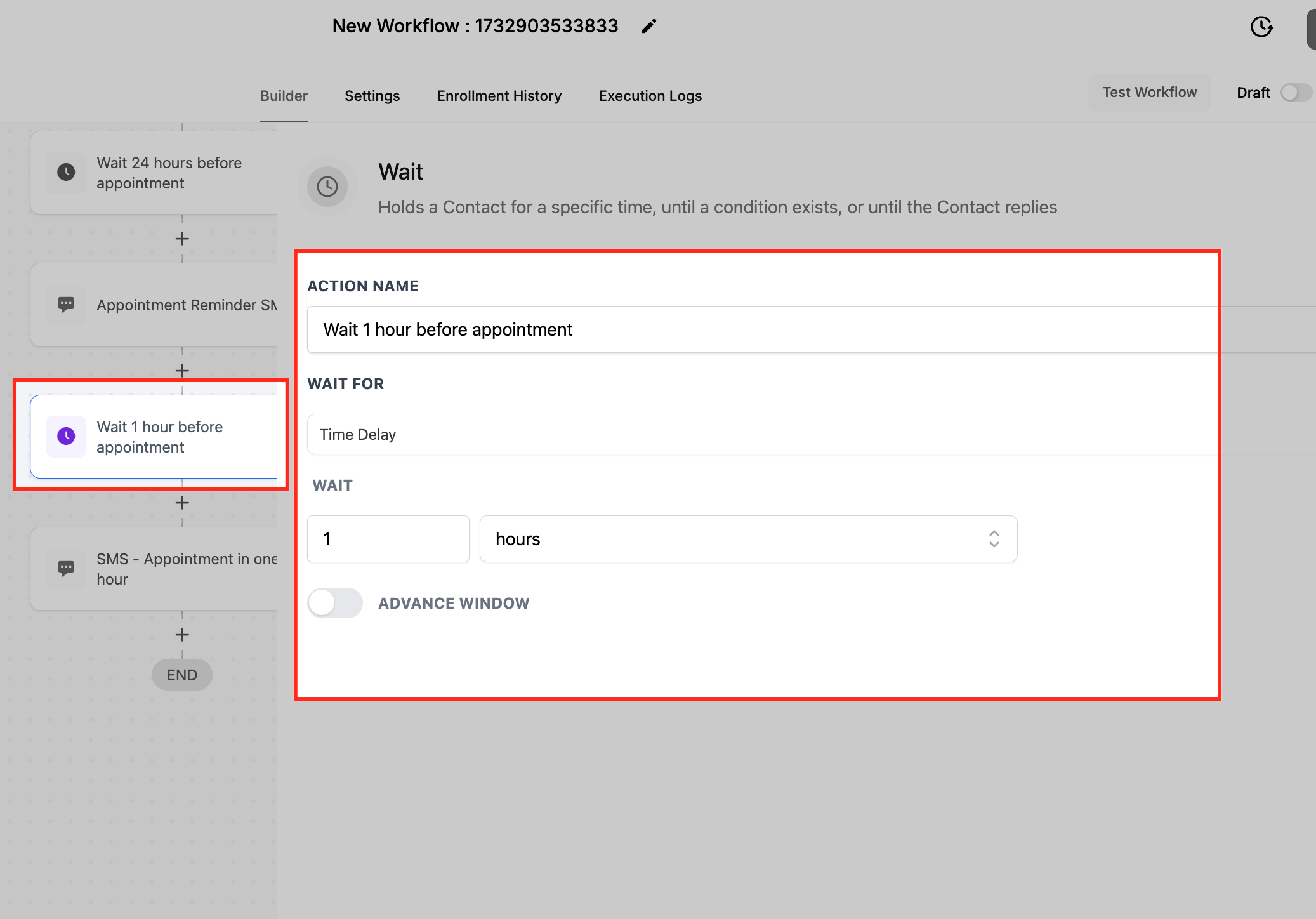
4. Action 3: Wait 1 hour before the appointment.
5. Action 4: Send another SMS reminder 1 hour before the appointment.
• Message:
Hi {{contact.first_name}}, your appointment is in an hour at {{appointment.start_time}}. See you soon!
Frequently Asked Questions
Q: Can I personalize SMS messages sent through the “Send SMS” action?
Yes. The Send SMS action supports dynamic fields that allow you to personalize messages using contact and appointment information, such as the contact’s first name, appointment time, or custom fields. This helps make messages more relevant and engaging.
Q: Is it possible to include links or attachments in SMS messages?
Yes. While SMS messages do not support direct file attachments, you can include URLs that link to files, documents, maps, tickets, or other online resources.
Q: Can I test an SMS before activating the workflow?
Yes. The Send SMS action includes a Test Phone Number field that allows you to preview and send a test message before enabling the workflow, ensuring the message content and personalization appear as expected.
Q: When does the SMS get sent in a workflow?
The SMS is sent when the workflow reaches the Send SMS action, based on the triggers, conditions, and wait steps configured earlier in the workflow. This allows precise control over message timing and delivery.
Was this article helpful?
That’s Great!
Thank you for your feedback
Sorry! We couldn't be helpful
Thank you for your feedback
Feedback sent
We appreciate your effort and will try to fix the article