This article covers default unsubscribe links in LC Email only. If you want to create a custom unsubscribe experience or link, see: Creating and Managing Custom Unsubscribe Links.
What is an Unsubscribe Link?
An unsubscribe link allows your contacts to opt out of receiving future emails from your business. This is a legal requirement under email compliance laws like the CAN-SPAM Act and GDPR. The LC Email system helps you meet these regulations by automatically including an unsubscribe link in your email footers — unless you choose to disable it.
Why Include an Unsubscribe Link (Legal Compliance)
Beyond best practices, unsubscribe links are a legal requirement under multiple international regulations. Failing to include them can lead to serious financial penalties. Digital laws vary globally, but most countries mandate that marketing emails must include a clear opt-out option.
The CAN-SPAM Act (Controlling the Assault of Non-Solicited Pornography And Marketing), enforced by the Federal Trade Commission (FTC), requires all commercial emails to include a clear mechanism for recipients to unsubscribe.
The General Data Protection Regulation (GDPR), mandatory since May 2018, includes Article 17 — the Right to Erasure. Subscribers can request that their personal data be deleted, and you are legally obligated to honor that request.
If a contact unsubscribes from an email list, they are exercising their right to erasure. As the data controller (the email sender), you are legally required to honor that request and stop processing or retaining their data.
Non-compliance with GDPR can result in a fine of €20 million or 4% of your company's annual global turnover — whichever is higher. Including an unsubscribe link ensures that you:
How to Enable / Disable the Default Unsubscribe Link
The platform includes an unsubscribe link in all emails by default. You can turn it off if you prefer to manually place your own link — but if you do, you must use the {{unsubscribe}} tag in every email.
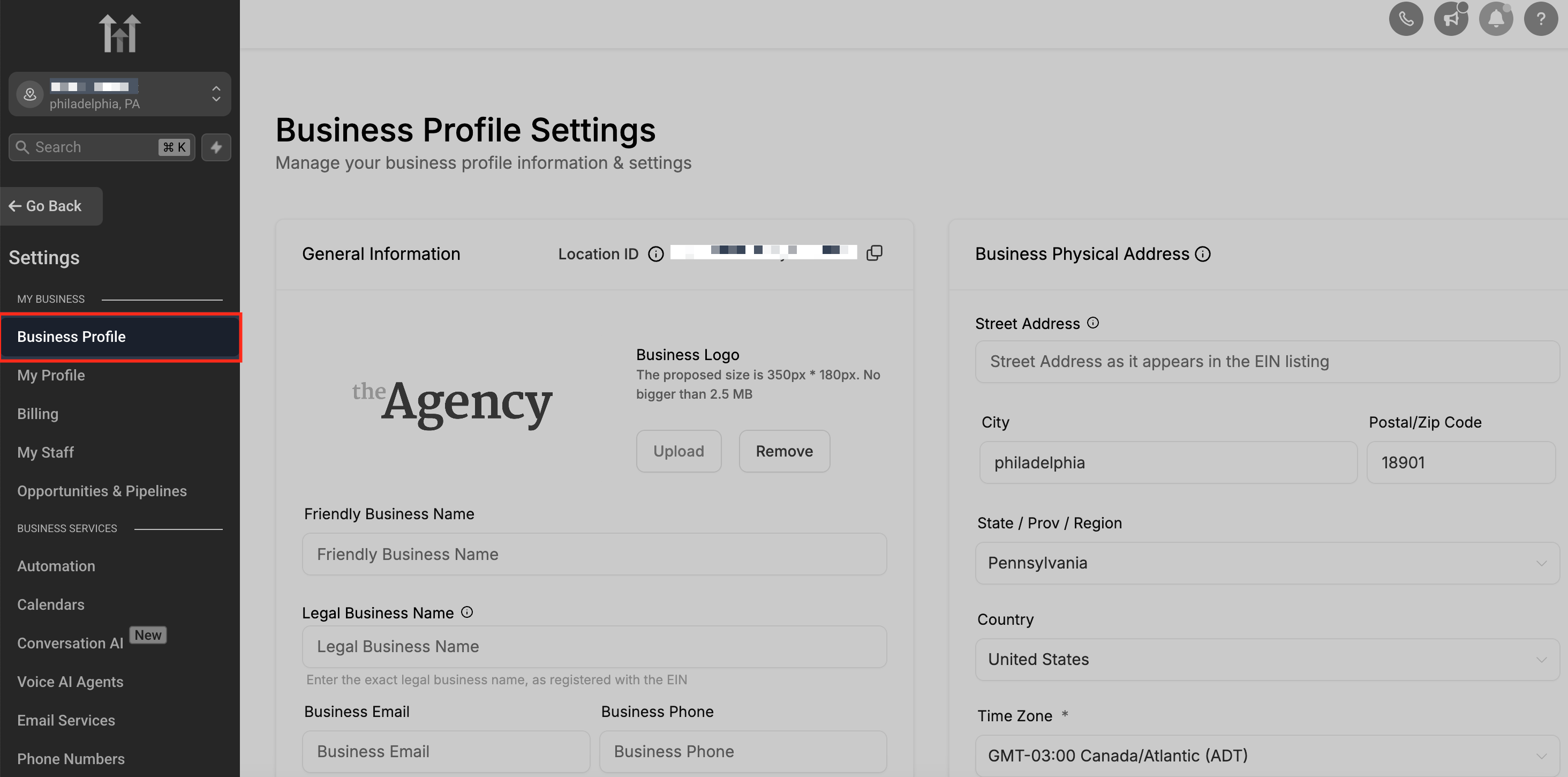
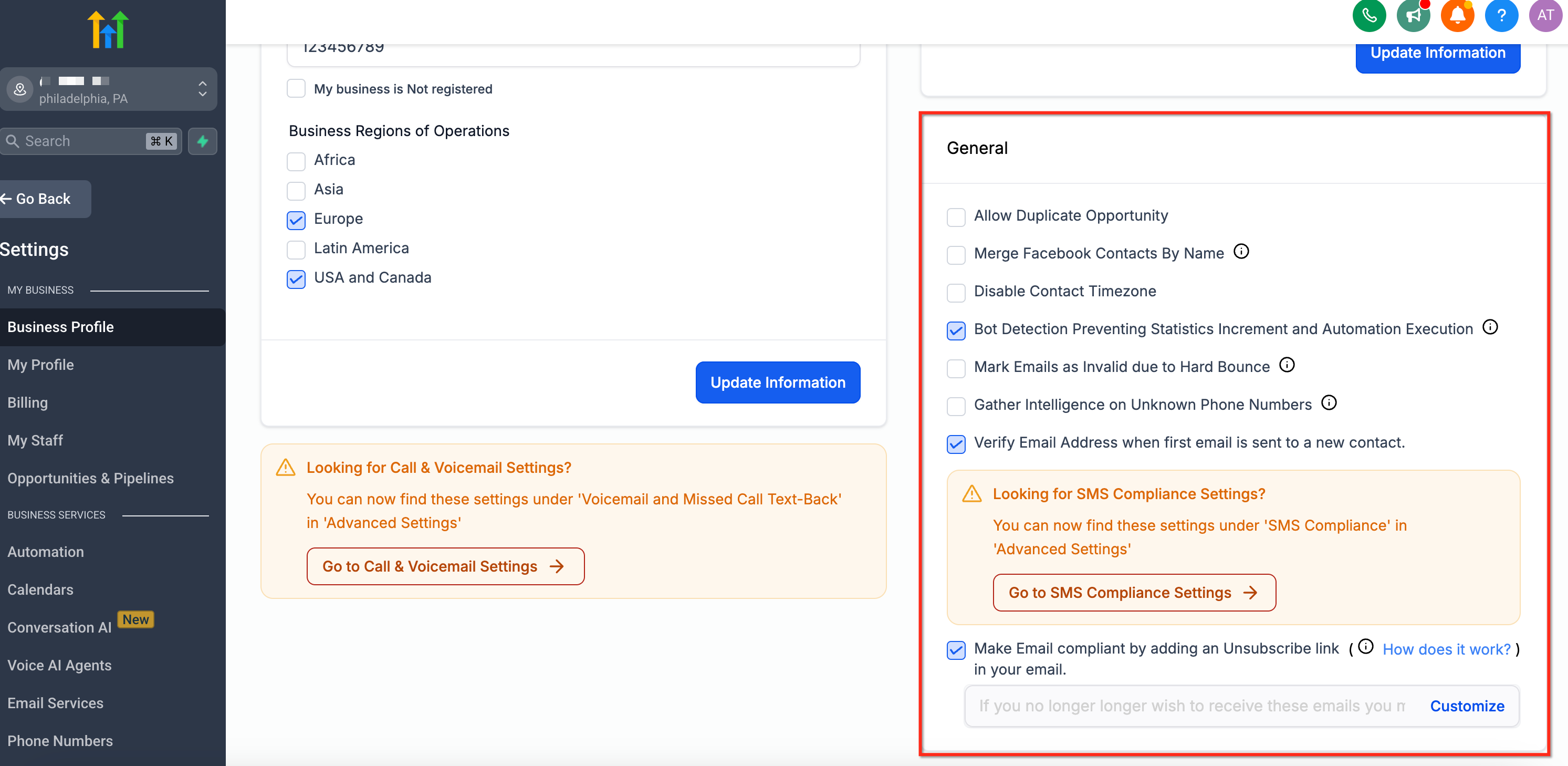

If you turn off the default unsubscribe link, you must manually include the {{unsubscribe}} tag in each email to remain compliant with email regulations.
How to Manually Add the Unsubscribe Link
If you prefer full control over placement and formatting, you can insert an unsubscribe link directly into any email using a built-in tag.
Open the LC Email Builder (in Conversations, Email Campaigns, or Email Templates under the Marketing tab). Place your cursor where you want the link to appear, then type or paste:
Alternatively, use the built-in custom value called UNSUBSCRIBE LINK found under the EMAIL custom values section.
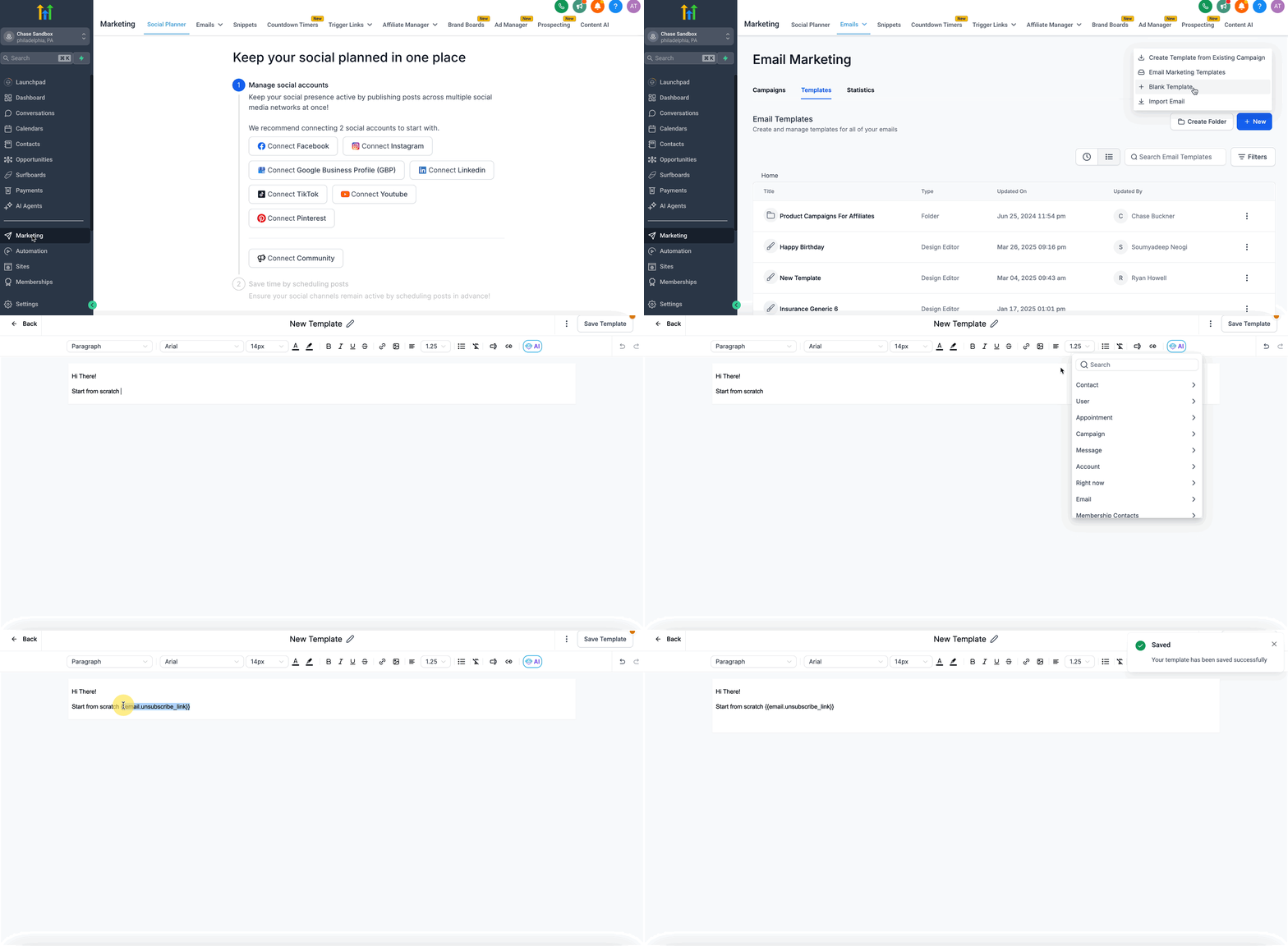
When the email is sent, the {{unsubscribe}} tag is automatically converted into a clickable link that lets the contact opt out.
What Happens If You Use Both Methods?
Including more than one unsubscribe link in an email may confuse recipients and impact your branding. Here's what happens when both are active in the same email:
{{unsubscribe}} tag — inserted directly into your email template at a specific location.{{unsubscribe}} manually and disable the default footer link.Frequently Asked Questions
Was this article helpful?
That’s Great!
Thank you for your feedback
Sorry! We couldn't be helpful
Thank you for your feedback
Feedback sent
We appreciate your effort and will try to fix the article