Preference Management
Give contacts control over the types of marketing emails they want. Preference Management lets each location create subscription categories, link them to campaigns, and automatically honor opt-outs at a category level.
No Default Categories
For new configurations, HighLevel does not add a default "One-on-One" subscription type. Create the categories that fit your email program. Category names can be edited after creation and support up to 100 characters.
Table of Contents
What is Preference Management?
Preference Management helps businesses stay compliant by honoring each contact's communication choices — both whether they want to receive emails, and what types of emails they prefer to receive. This reduces unwanted outreach, minimizes the risk of being marked as spam, and supports healthier email deliverability.
With Preference Management, each location can create and manage custom communication (preference) categories that align with its marketing needs. These categories can be linked directly to campaigns, enabling the system to automatically respect every contact's stated preferences.
When a contact opts out of a specific preference type, any future campaigns assigned to that category will automatically exclude them — even if they were part of the original campaign audience. This ensures more relevant messaging, stronger compliance, and a more personalized experience for every contact.
Key Benefits of Preference Management
Compliance-First Communication
Automatically uphold opt-out decisions at a category level so every send respects contact choices.
Healthier Email Deliverability
Reduce spam complaints and unwanted messages, protecting your sender reputation over time.
Personalized Engagement
Send more relevant content aligned with stated contact preferences — not everyone wants every email.
Location-Level Customization
Each location defines its own communication categories based on its specific marketing strategy.
Preference Types
Preference Types are the granular categories that are the foundation of Preference Management. Create as many as you need to reflect the distinct themes of your email program (e.g., Newsletters, Promotions, Event Updates).
These categories live under Settings → Preference Management Hub and can be edited, disabled, or deleted at any time.
For step-by-step instructions on creating Preference Types, jump to How to Setup Preference Management.
Associating Preferences with Campaigns
Linking a campaign to a preference category tells the system "why" you're emailing. This allows HighLevel to filter audiences based on contact choices before delivery.
When a contact opts out of a category, they are automatically kept out of current and future sends for that category — even if the contact is still on your static list.
For instructions on linking preferences to a campaign, see Step 2: Assign Preferences to Campaigns.
Automatic Audience Filtering
If a contact has opted out of a specific preference type, they will be automatically excluded from any campaign assigned to that category — even if they were originally included in the campaign audience. This ensures accurate targeting and prevents unwanted emails from being sent.
Once preferences are set, the system will:
Auto-Exclude Conflicts
Automatically remove contacts from campaigns that conflict with their stated preferences.
Enforce Category Opt-Outs
Honor category-level opt-outs even if the contact appears in the original campaign audience.
How to Setup Preference Management
Step 1
Create Preference Types
Preference Types are the subscription categories used to label your email programs — such as newsletters, promotions, or event updates.
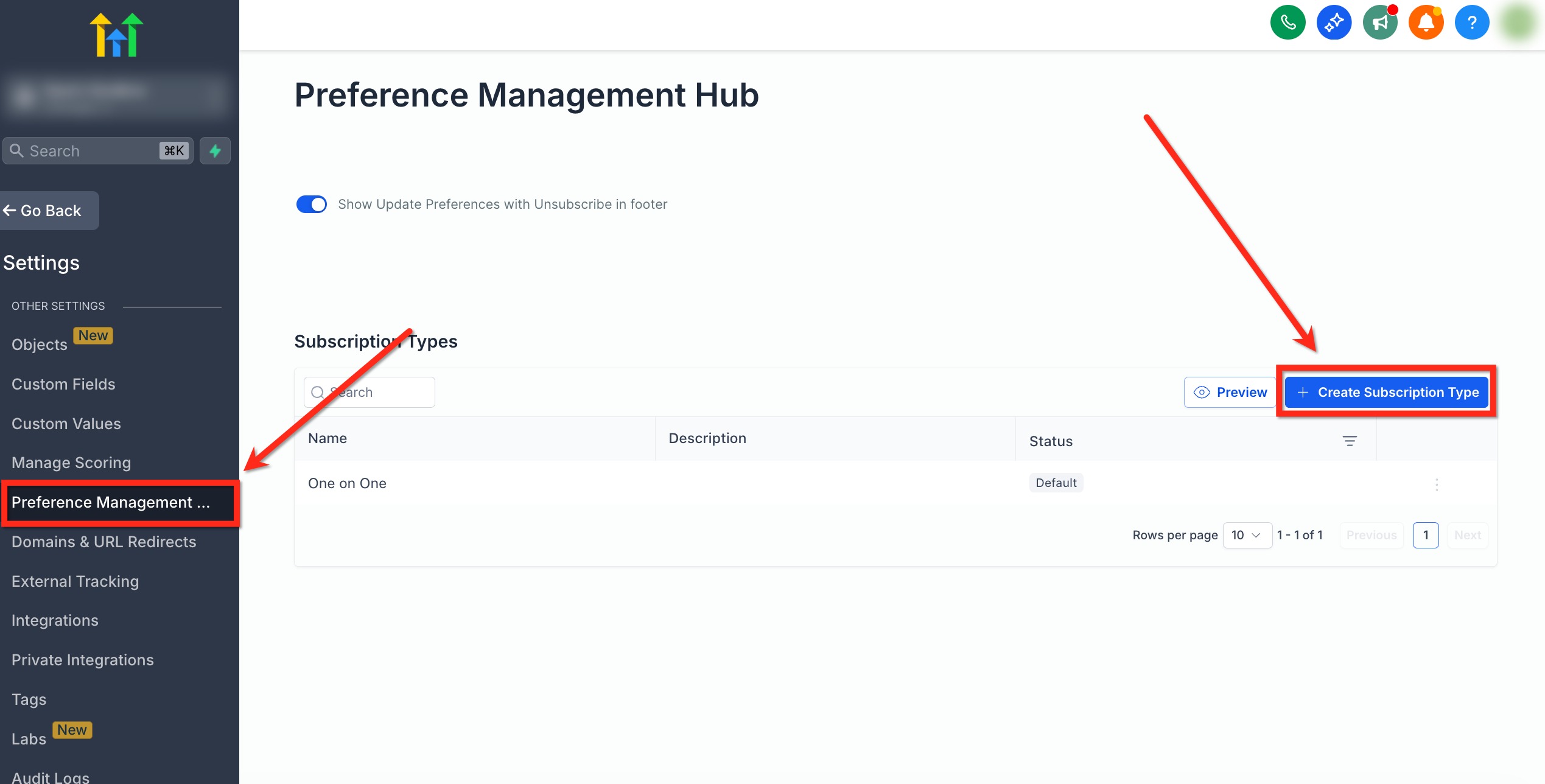
Go to the Preference Management Hub
Navigate to Settings → Preference Management Hub at the location level.
Create a Subscription Type
Click + Create Subscription Type.
Enter the Subscription Name & Description
Enter a Subscription Name and Description for the category you want to use.
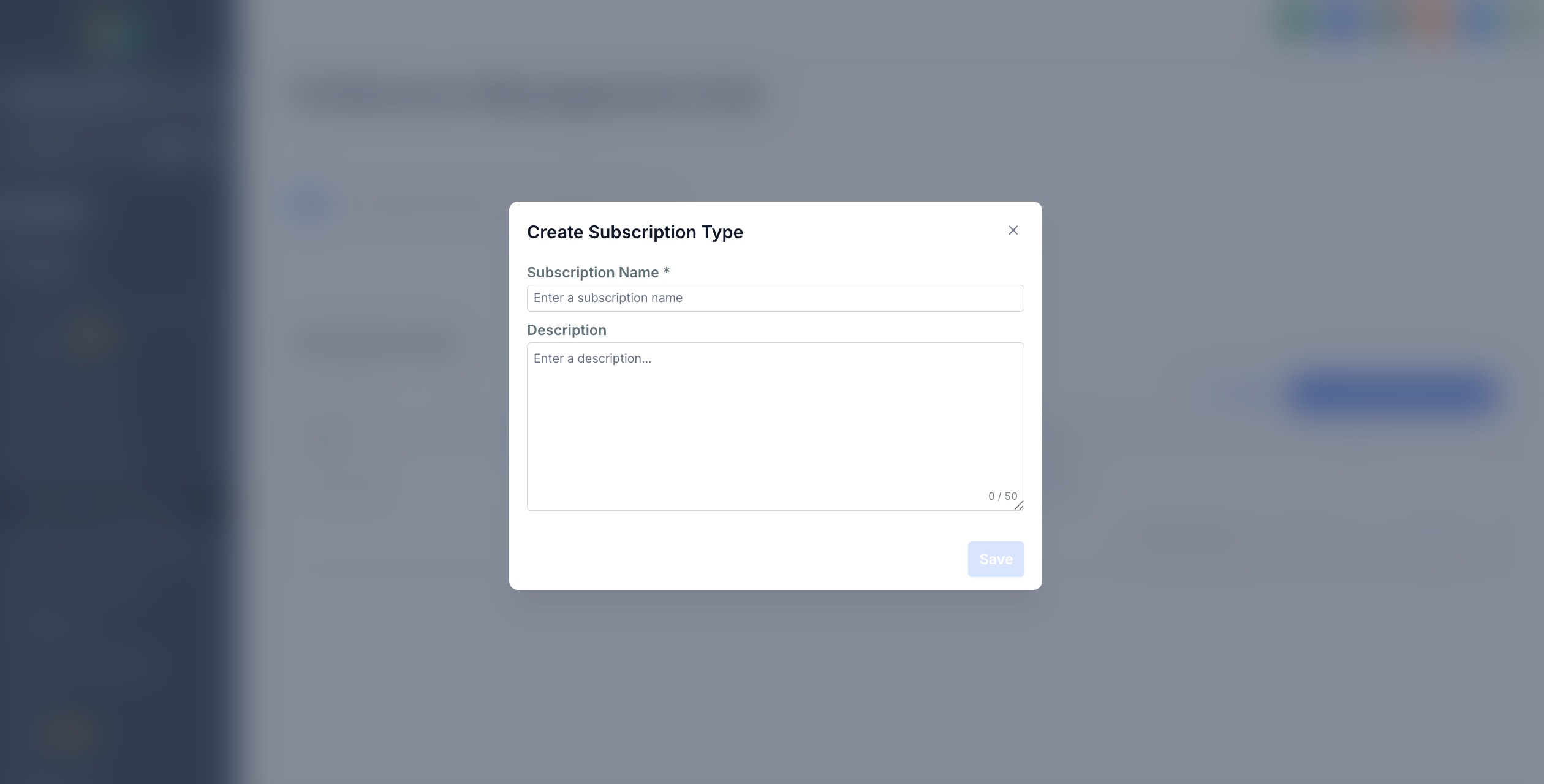
Use a Clear, Descriptive Name
Pick a name that recipients will understand. Subscription category names support up to 100 characters.
Save & Confirm
Save your changes and confirm the action when prompted.
Repeat for Each Category
Repeat this process for each preference category you want to use.
Step 2
Assign Preferences to Campaigns
Assign a preference category to an email campaign from within the Email Builder. This enables the system to understand why the message is being sent and who should receive it.
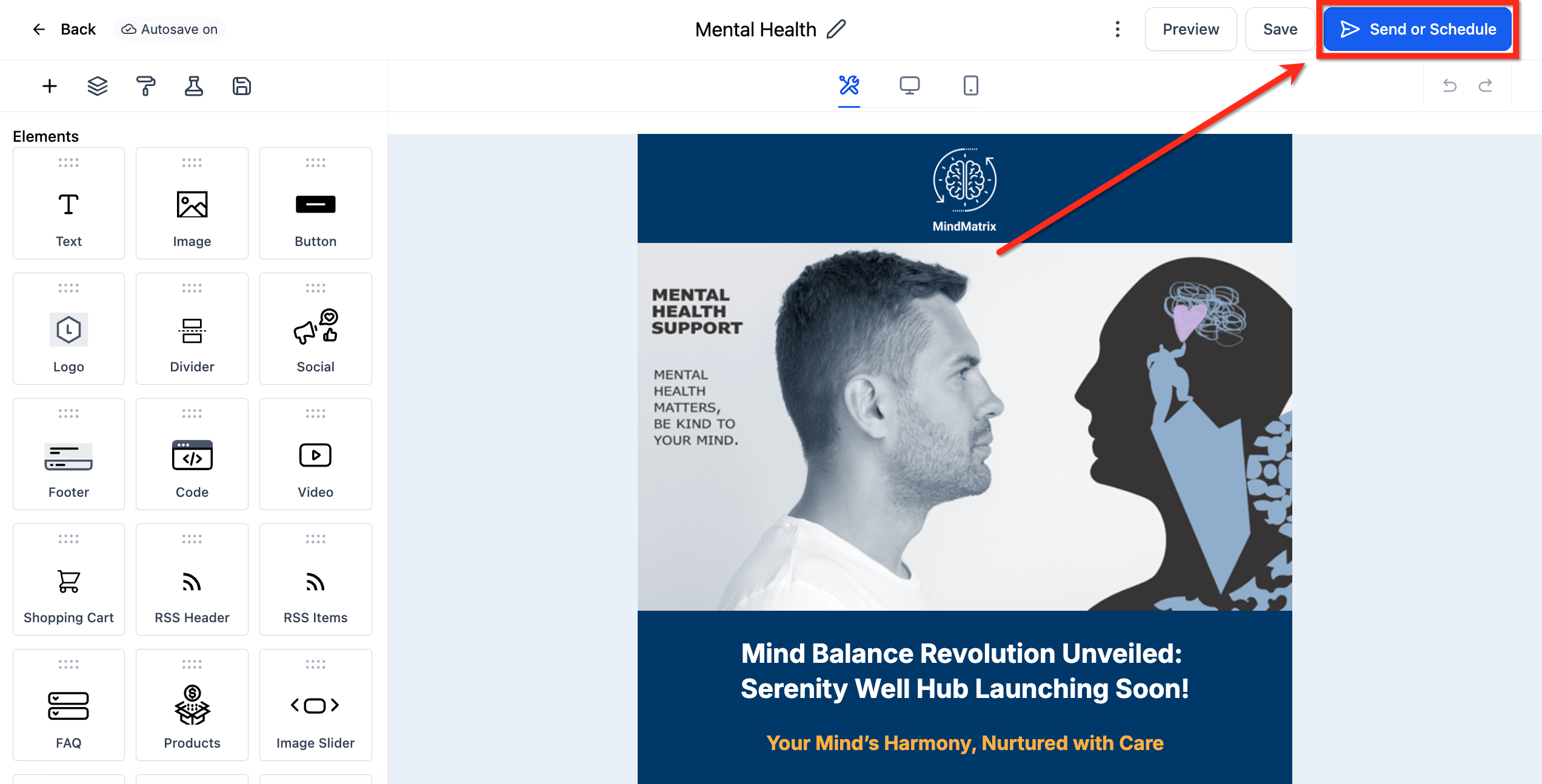
Open the Email Campaign
Open the Email Campaign you want to assign a Subscription Type to, then click Send or Schedule.
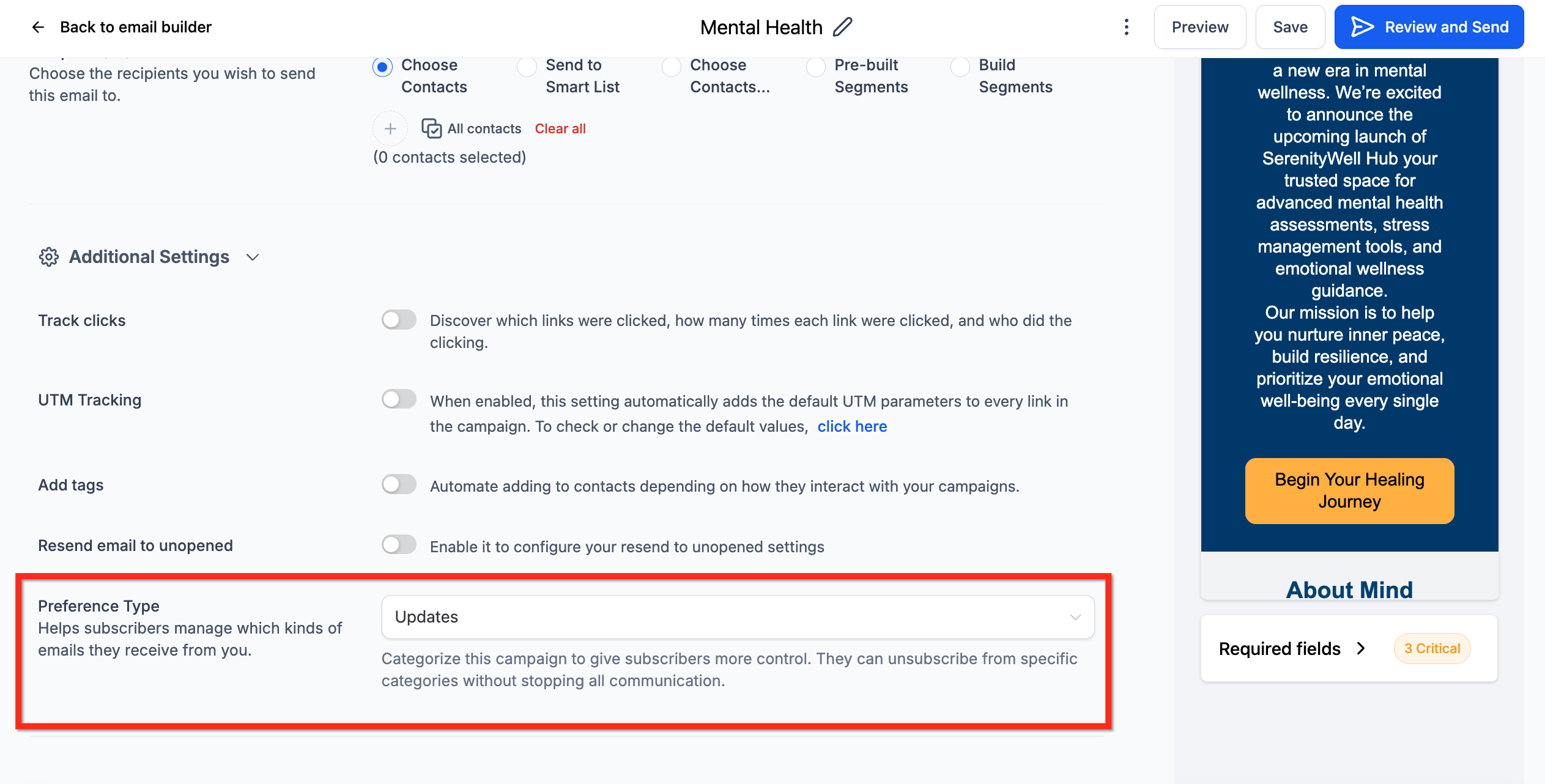
Select the Preference Type
Choose your desired Preference Type using the dropdown.
Managing Preferences at the Contact Level
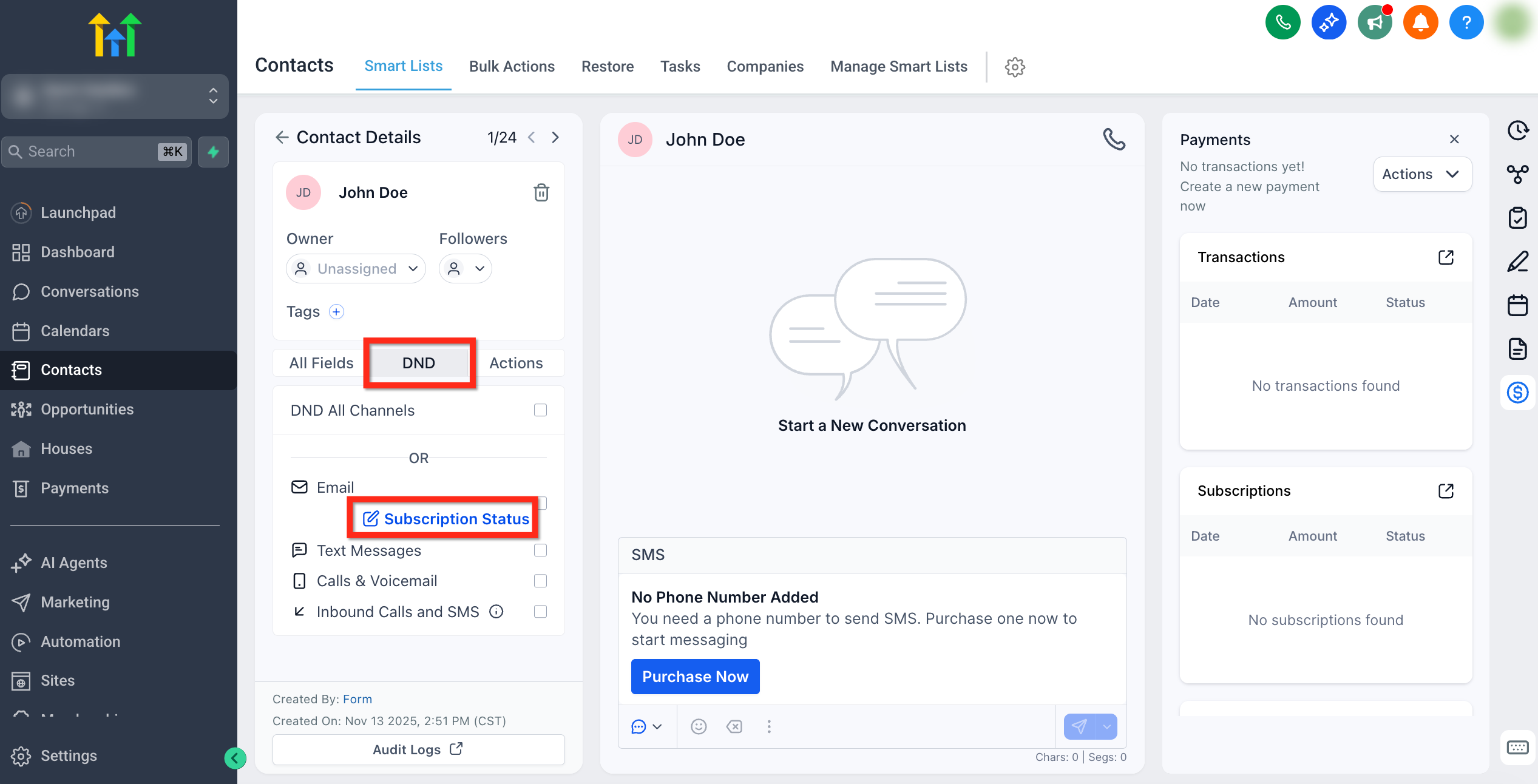
From the Contact Details Page, teams can view or manually adjust each contact's preferences for full transparency and control. To view or update preference settings for a contact, follow the steps below.
Note: When a preference status is updated at the contact level, HighLevel logs the update in Conversations so teams can review preference changes in context.
Open the Contact's Subscription Status
Go to Contacts and select a contact. From the contact page, open the DND tab and click Subscription Status.
Set Each Preference Type
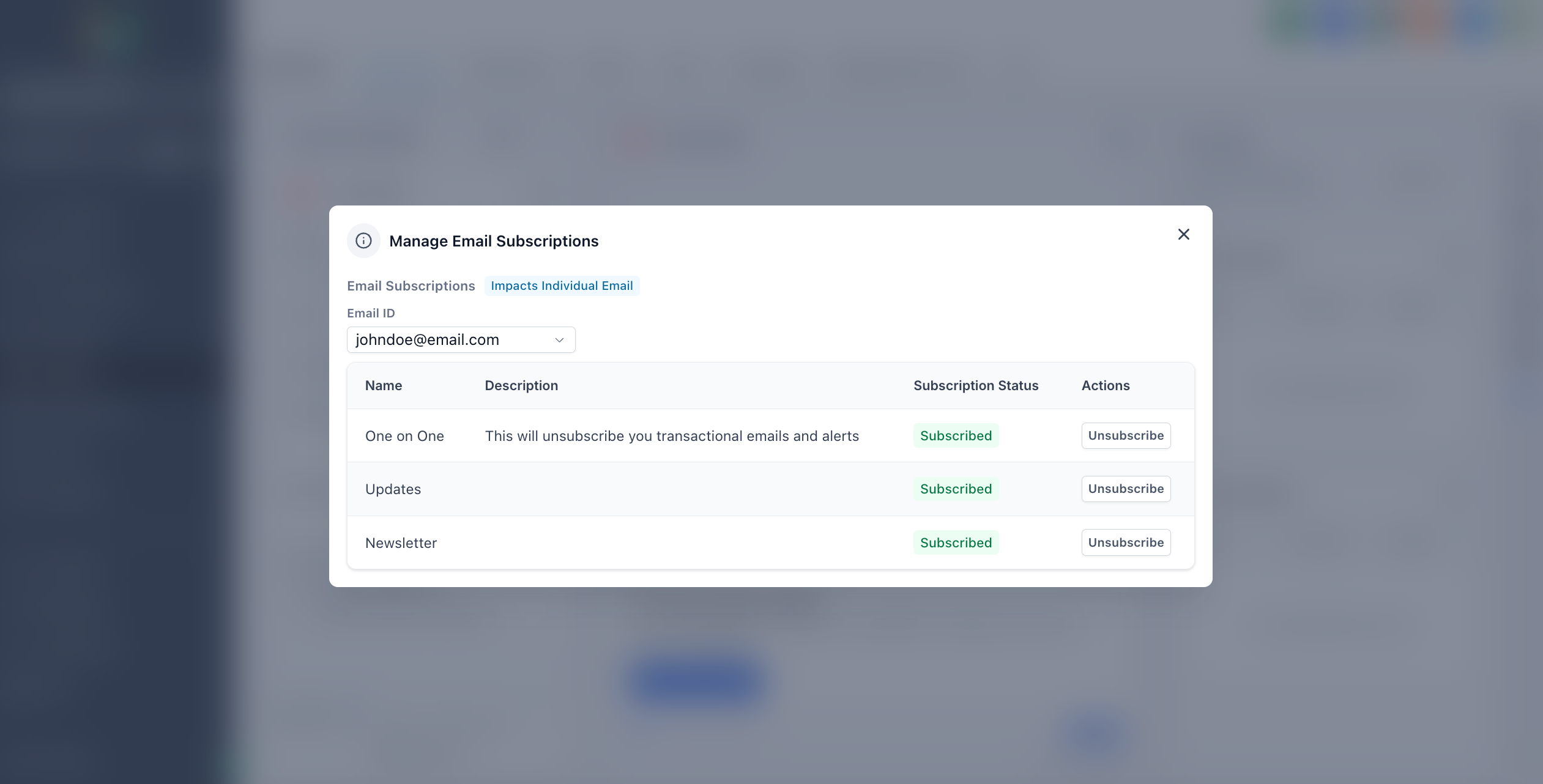
In the Manage Email Subscriptions popup, set each Preference Type to Subscribed or Unsubscribed as appropriate.
Provide a Legal Basis to Resubscribe
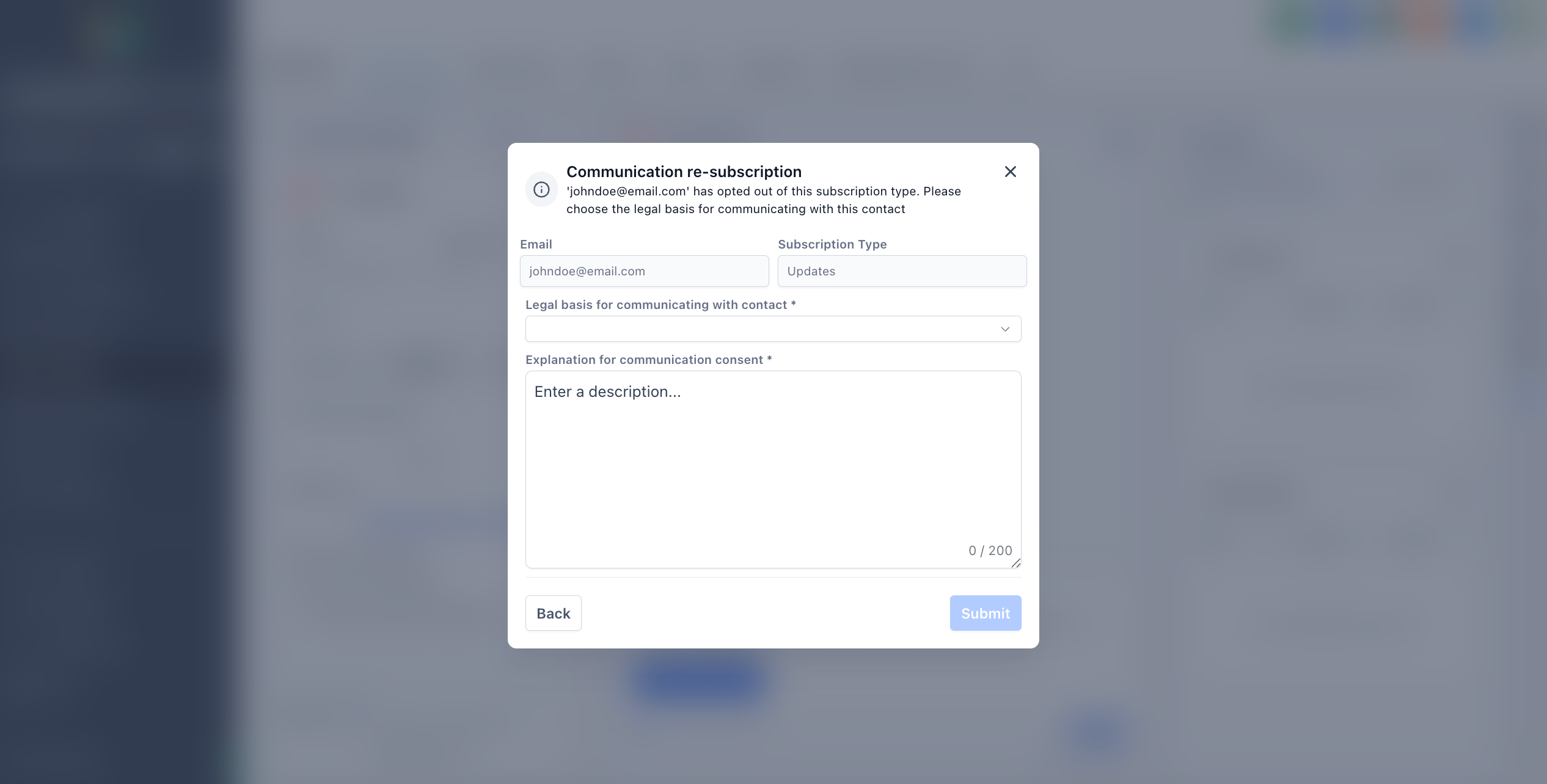
For any preference category marked as Unsubscribed, the location must provide a legal basis before the contact can be resubscribed.
Frequently Asked Questions
How does category opt-out relate to global unsubscribe?
Category opt-out suppresses only the selected topics. A global unsubscribe opts the user out from all marketing email from the location.
Can contacts manage their own preferences?
Yes. When Preference Management is enabled, the unsubscribe link includes a "Manage your preferences" link where contacts can manage their own category-level choices directly.
Do emails sent from workflows honor category preferences?
Yes. Automatic filtering removes contacts whose preferences conflict with the campaign's categories — regardless of how they were added to the audience.
What happens if all preference types are archived?
When all preference types are archived, Preference Management shows a guided zero-state message instead of an empty view — prompting you to create or restore a category.
Can Preference Management be turned off after enabling it?
No. Preference Management is irreversible once enabled. Because it introduces location-level unsubscribe controls, activation cannot be undone. Enable it only when you're ready to commit.
Is there a limit on how many Preference Types I can create?
Create as many categories as your email program requires. Subscription category names support up to 100 characters and can be edited after creation.
Was this article helpful?
That’s Great!
Thank you for your feedback
Sorry! We couldn't be helpful
Thank you for your feedback
Feedback sent
We appreciate your effort and will try to fix the article