SSL certificates (Secure Sockets Layer) ensure that links included in your emails are secure and accessible by encrypting tracking URLs, open URLs, and click URLs. Without a valid SSL certificate, those links will break — recipients will see errors instead of your content.
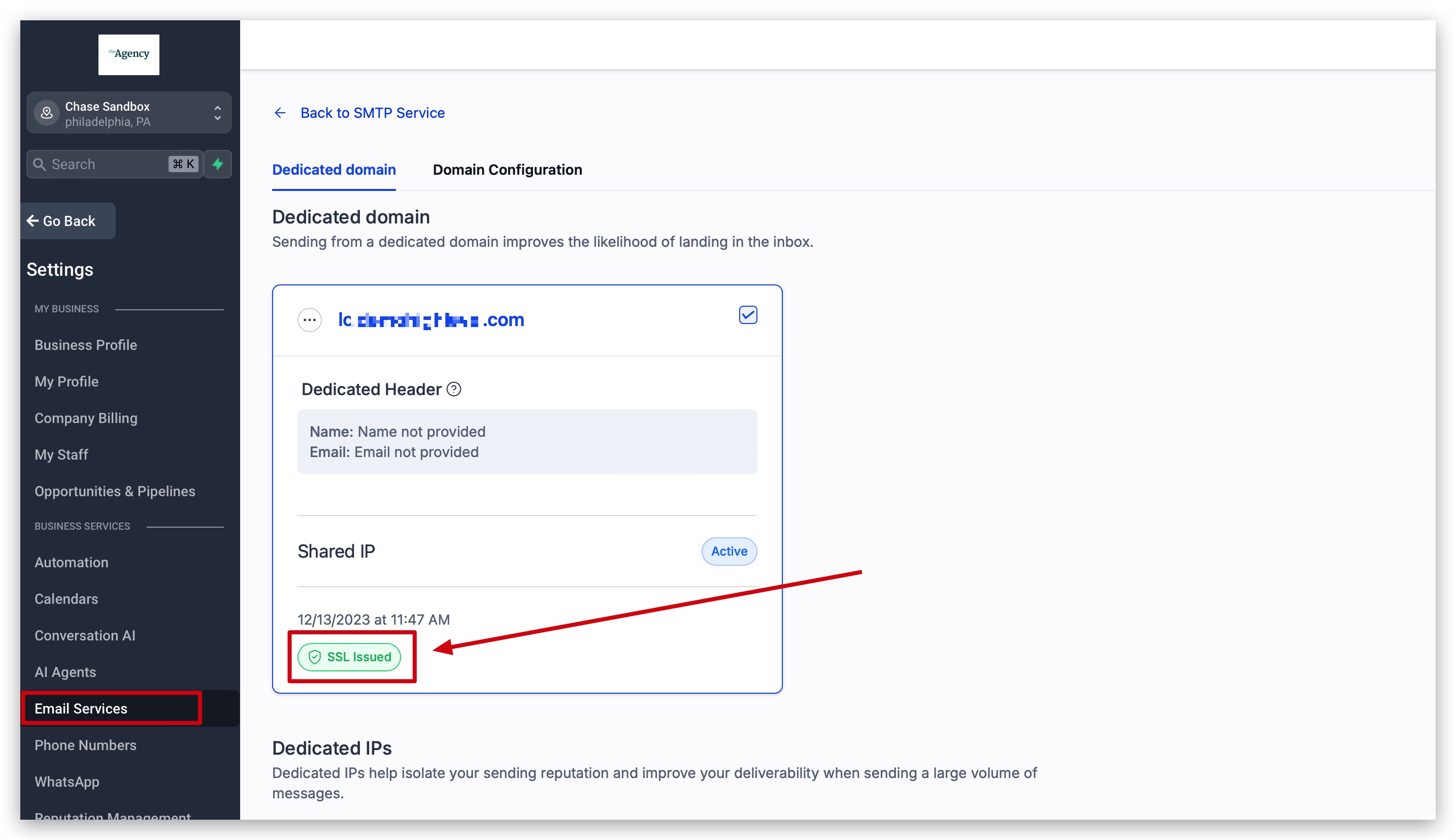
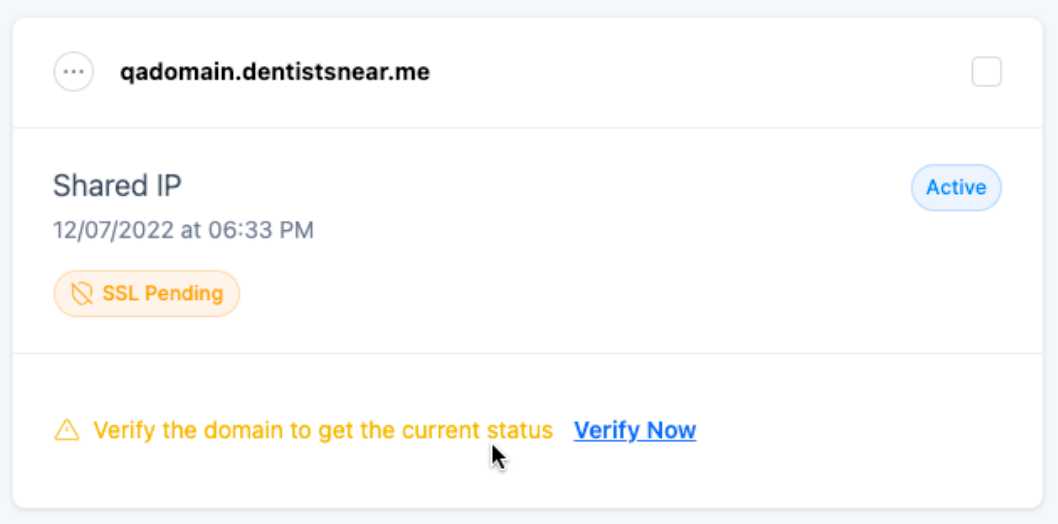
When a dedicated domain is added and verified, an SSL certificate is issued automatically. Your domain will show one of three statuses: SSL Issued (certificate active), SSL Pending (being generated), or SSL Unknown (not yet generated or issued).
Why Do I Need an SSL Certificate?
Without a valid SSL certificate, recipients may see broken links or security warnings when clicking through your emails. This harms your sender reputation and reduces engagement. Ensuring SSL is issued and valid is critical for successful email campaigns.
SSL certificates ensure links in your emails are functional and prevent the "This site can't provide a secure connection" error from appearing when recipients click them.
SSL secures communication between your domain and recipients, ensuring tracking, open, and click URLs are all encrypted end-to-end.
Preventing errors means higher engagement — recipients can access your content without hitting security warnings or broken-link pages.
Where to See SSL Certificates
To access SSL management for your custom email domain, follow these steps:
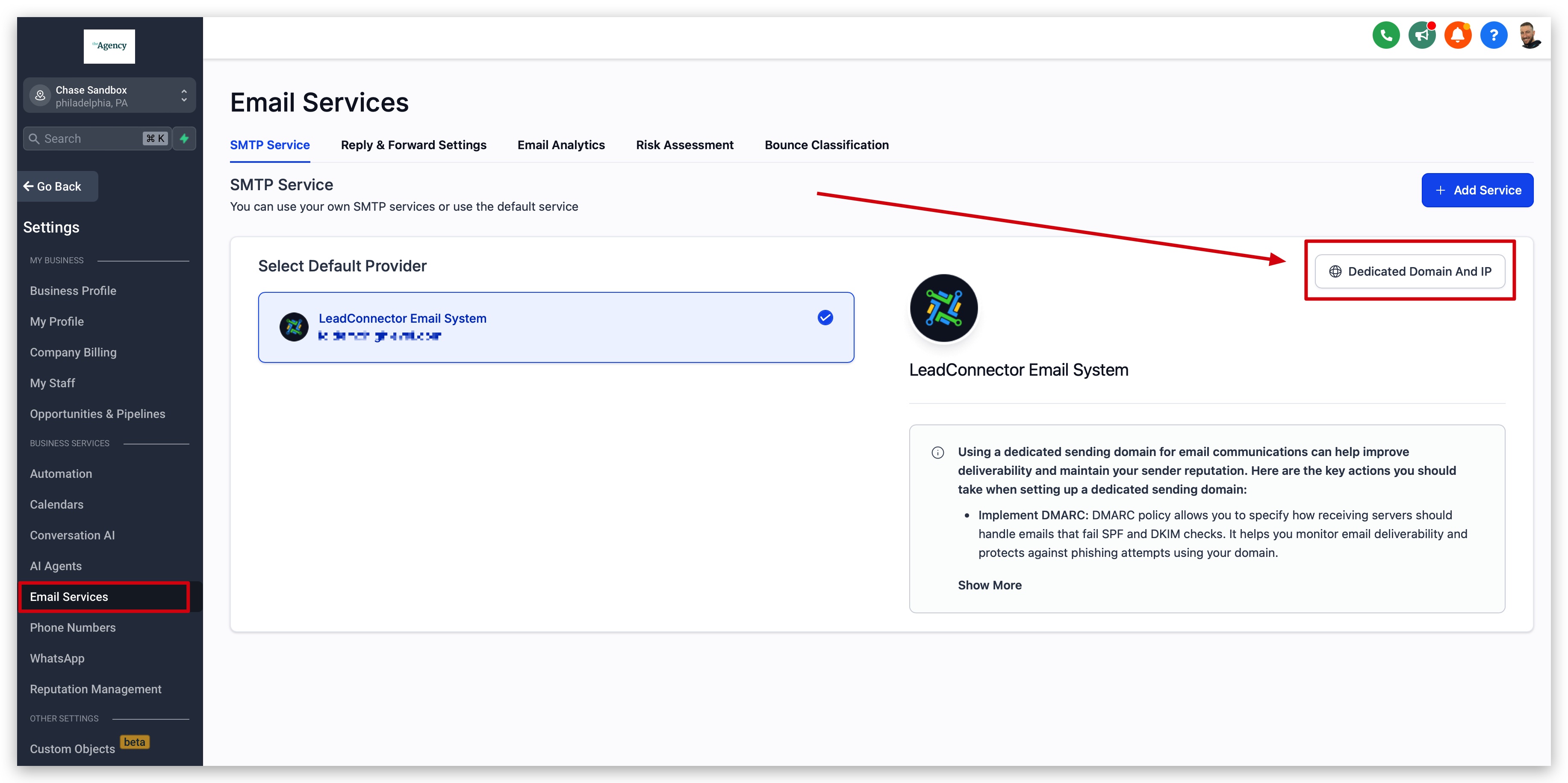
Navigate to Location Settings.
Select Email Services.
On the right side, click the Dedicated Domain And IP button. This opens the domain management screen where you can check SSL status and take action if needed.
How to Set Up SSL Certificates for Email Domains
Setting up or resolving SSL issues for your custom domain is straightforward. Follow the two steps below to ensure your certificate is issued or reissued correctly.
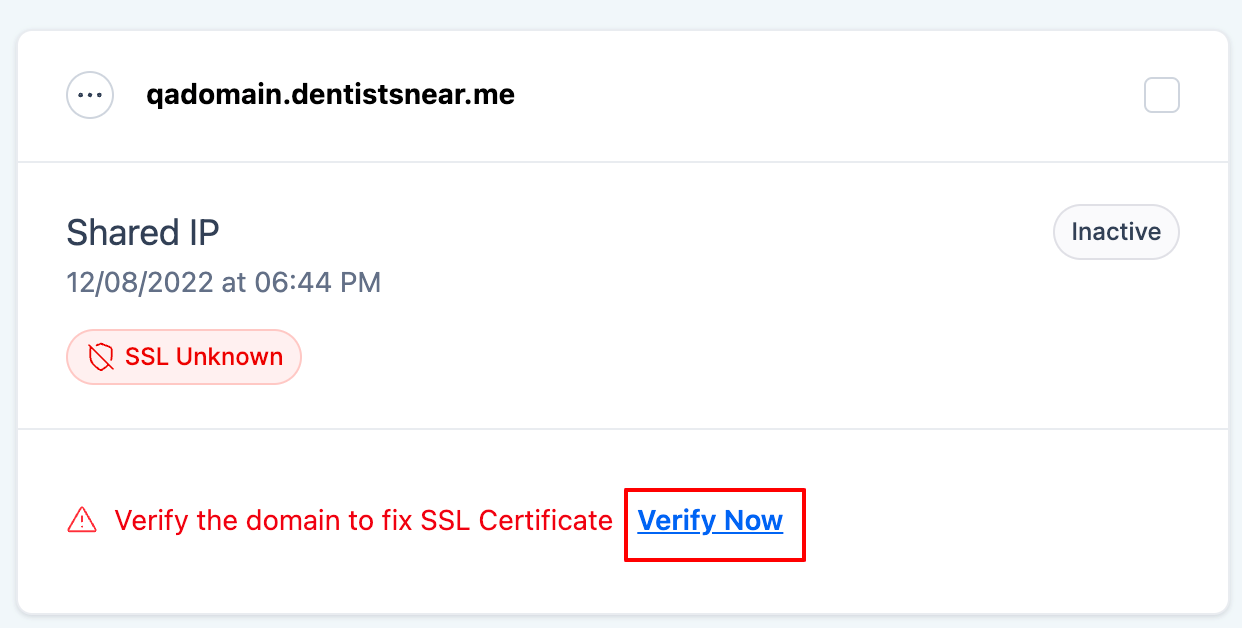
Go to Settings → Email Services → Dedicated Domain And IP and click the Verify Now button next to your domain. You'll be taken to your domain DNS page — confirm all records are correctly set up and verified.
Once your DNS records are verified, click the Verify domain button to issue or reissue your SSL certificate.
- SSL Issued: No further action needed — your domain is secured.
- SSL Pending: Reverify the domain by following Step 1 again. This prompts the system to complete certificate generation.
- SSL Unknown: Follow the domain verification process again. If SSL remains unknown after verification, review your DNS records and retry.
Once SSL shows as Issued, your domain and email campaigns are secure, functional, and ready to send.
Frequently Asked Questions
Was this article helpful?
That’s Great!
Thank you for your feedback
Sorry! We couldn't be helpful
Thank you for your feedback
Feedback sent
We appreciate your effort and will try to fix the article