Troubleshooting: Inbound SMS Showing as Calls or Not Appearing at all.

Modified on: Wed, 8 Jul, 2026 at 5:18 AM

SMS Troubleshooting
Incoming SMS Not Showing Up (or Appearing as Calls)
How to troubleshoot and resolve missing or miscategorized inbound texts, for both Twilio and LC Phone.
Overview

If you're not seeing incoming SMS messages in the platform — or they're showing up as calls instead — this guide walks you through how to troubleshoot and resolve the issue based on whether you're using Twilio or LC Phone.

1

How to Fix This (At a Glance)

✅ For LC Phone Users

Contact Support for resolution.

✅ For Twilio Users (Non-LC Phone)
  • Check Twilio Number Configuration
    • Number is SMS/MMS-capable.
    • Webhook URL is correctly set for messaging.
  • Check if Messaging Services are enabled.
  • Review Message Logs.
  • If the issue still persists, contact Twilio Support.
2

Step-by-Step Fix (for Twilio Users)

Step 1
Log in to Twilio
  • Go to twilio.com/login and sign in.
  • In the top-left drop-down, click Account Name > View Subaccounts.
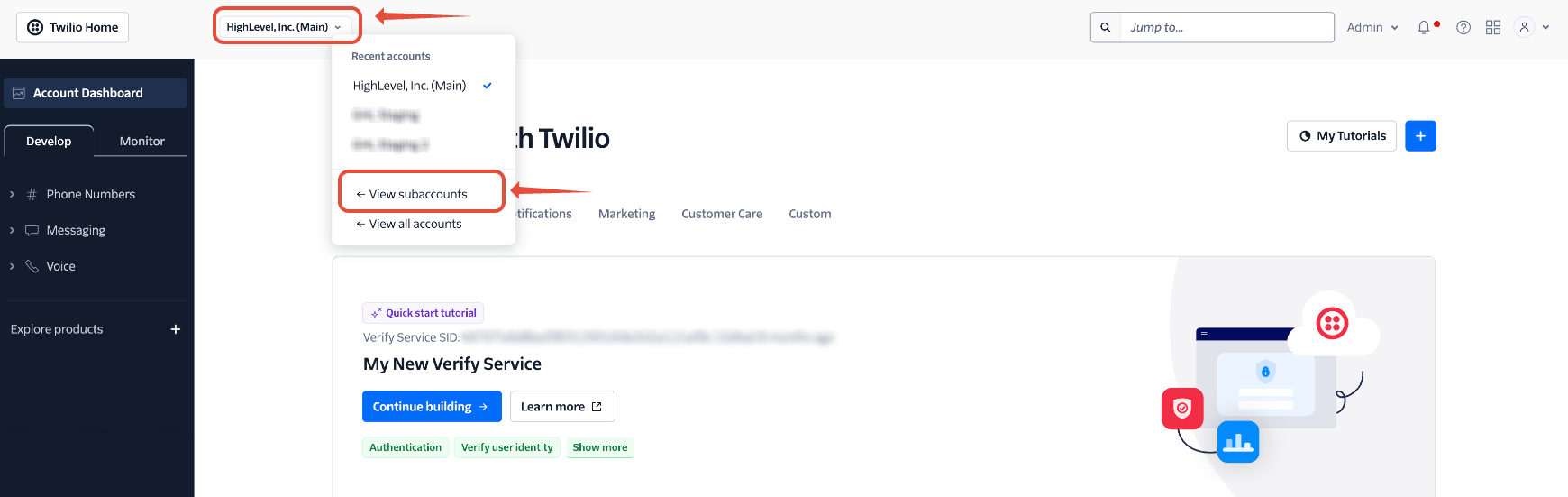
Twilio account dropdown showing View Subaccounts
Note

If you have multiple subaccounts and can't find the right one, go to your Agency View > Settings > Phone Integration > Sub-Account Settings. Search for the account you're troubleshooting and copy the Account SID as shown in Screenshot 2.0 below.
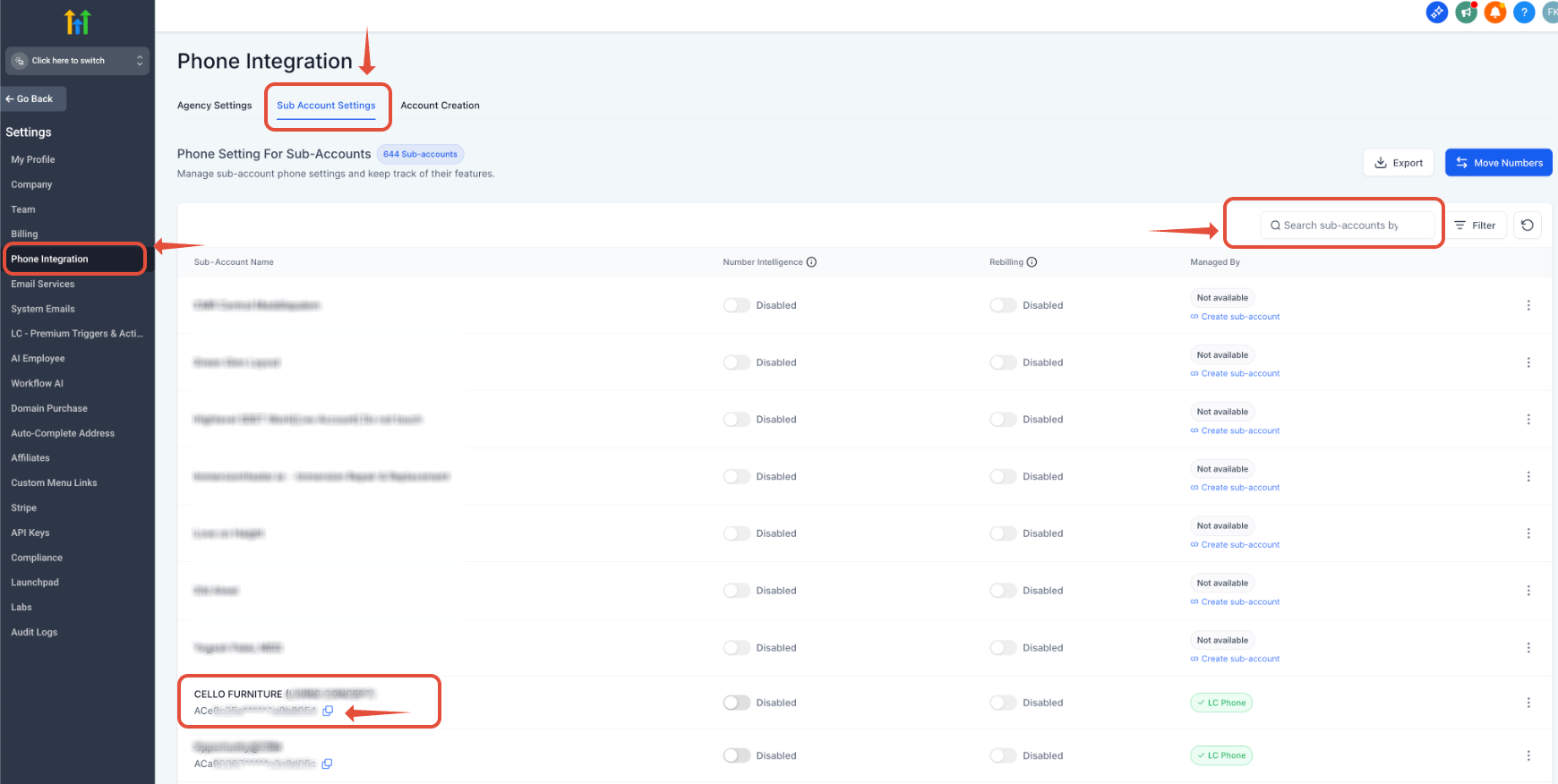
Copying the Account SID from Sub-Account Settings
Screenshot 2.0
Step 2
Find the Correct Twilio Number
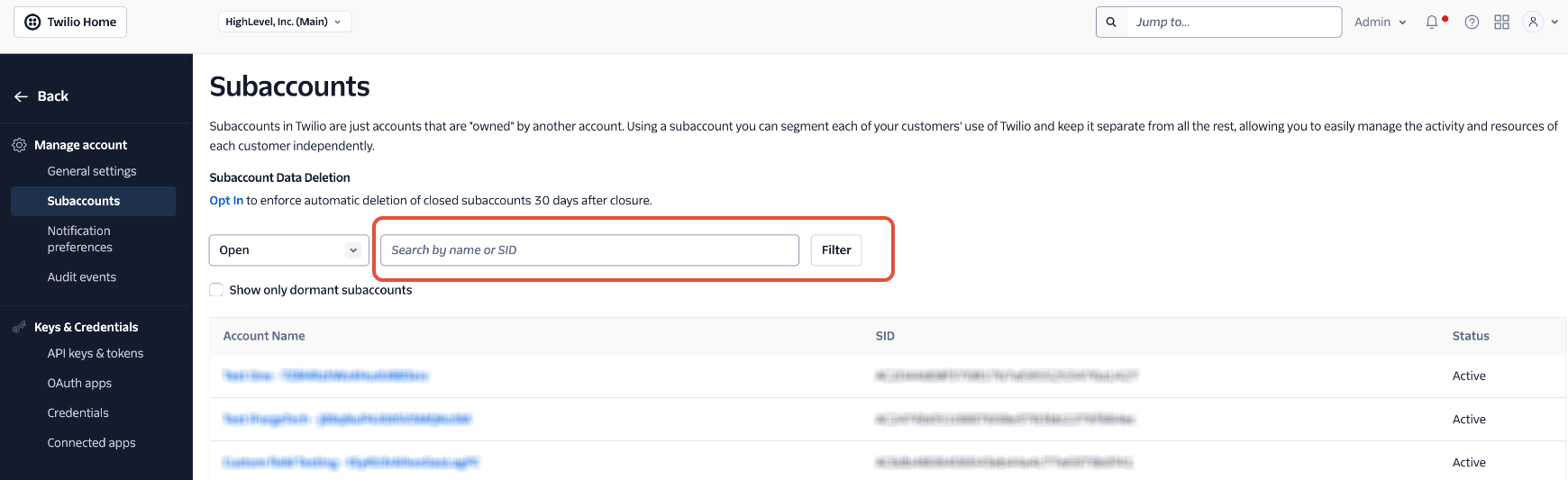
  • In Subaccounts, paste the Account SID into the search bar to find the matching subaccount.
  • Click on the sub-account you were looking for.
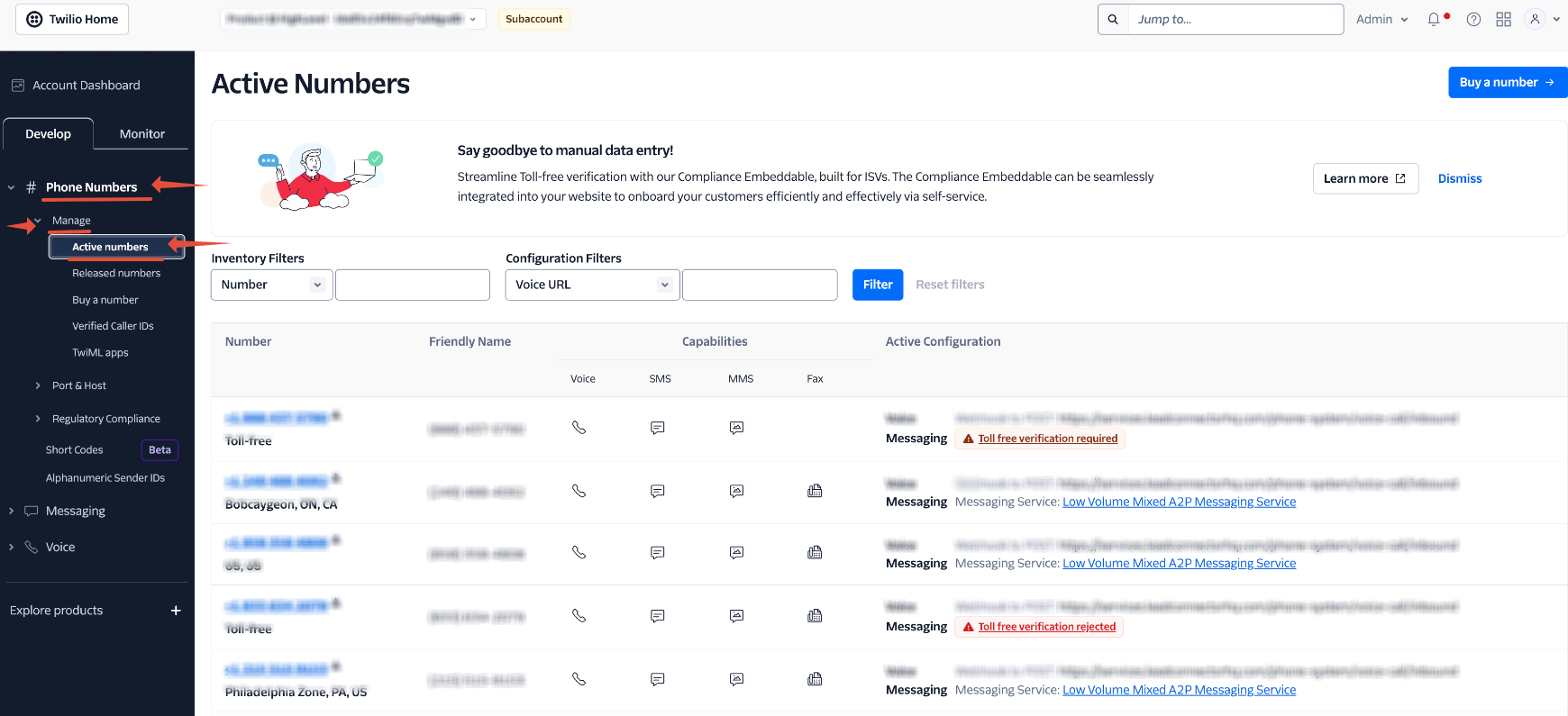
  • Go to Phone Numbers > Manage > Active Numbers.
  • Click the phone number in question.
Searching subaccounts by Account SID
Screenshot 3.0
Active Numbers list under Phone Numbers > Manage
Screenshot 3.1
Step 3
Confirm Webhook Configuration
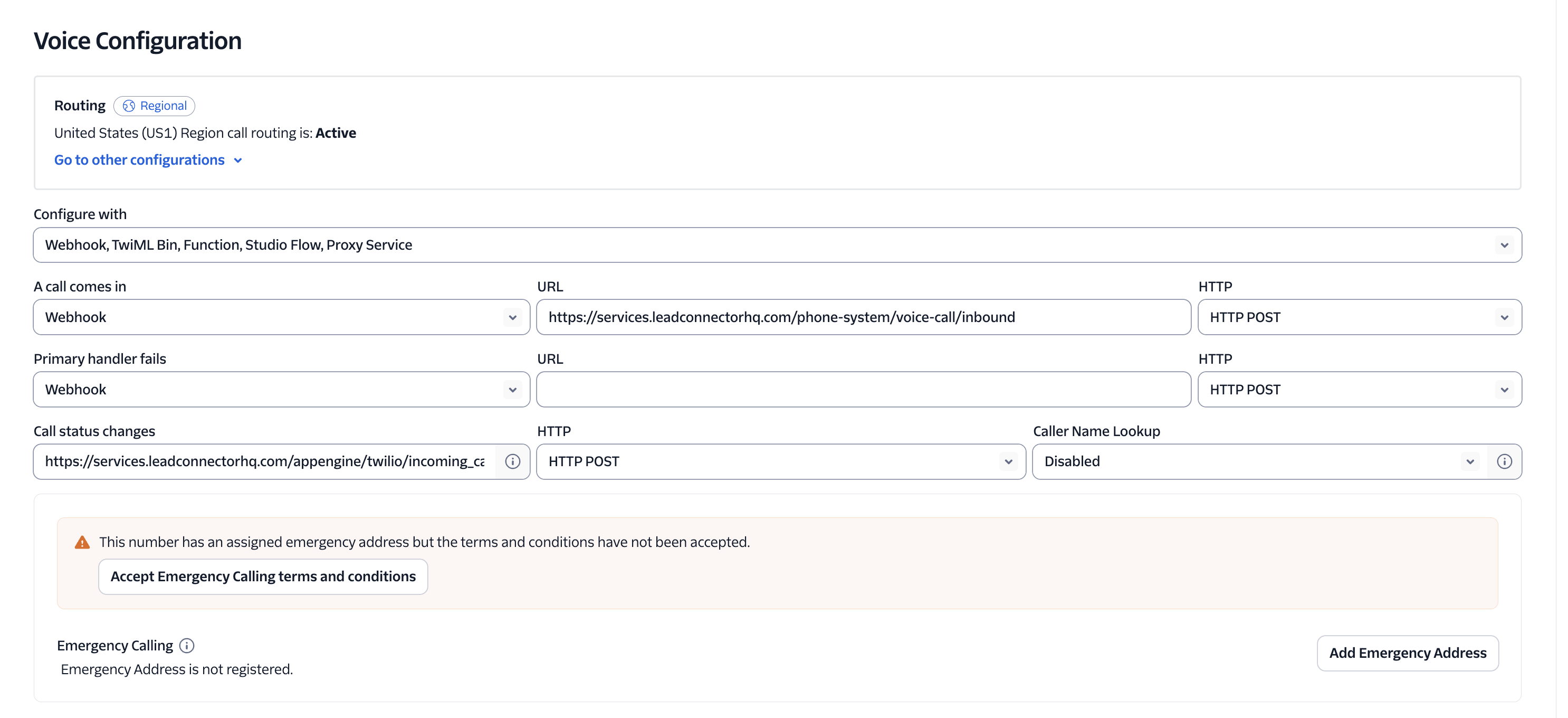
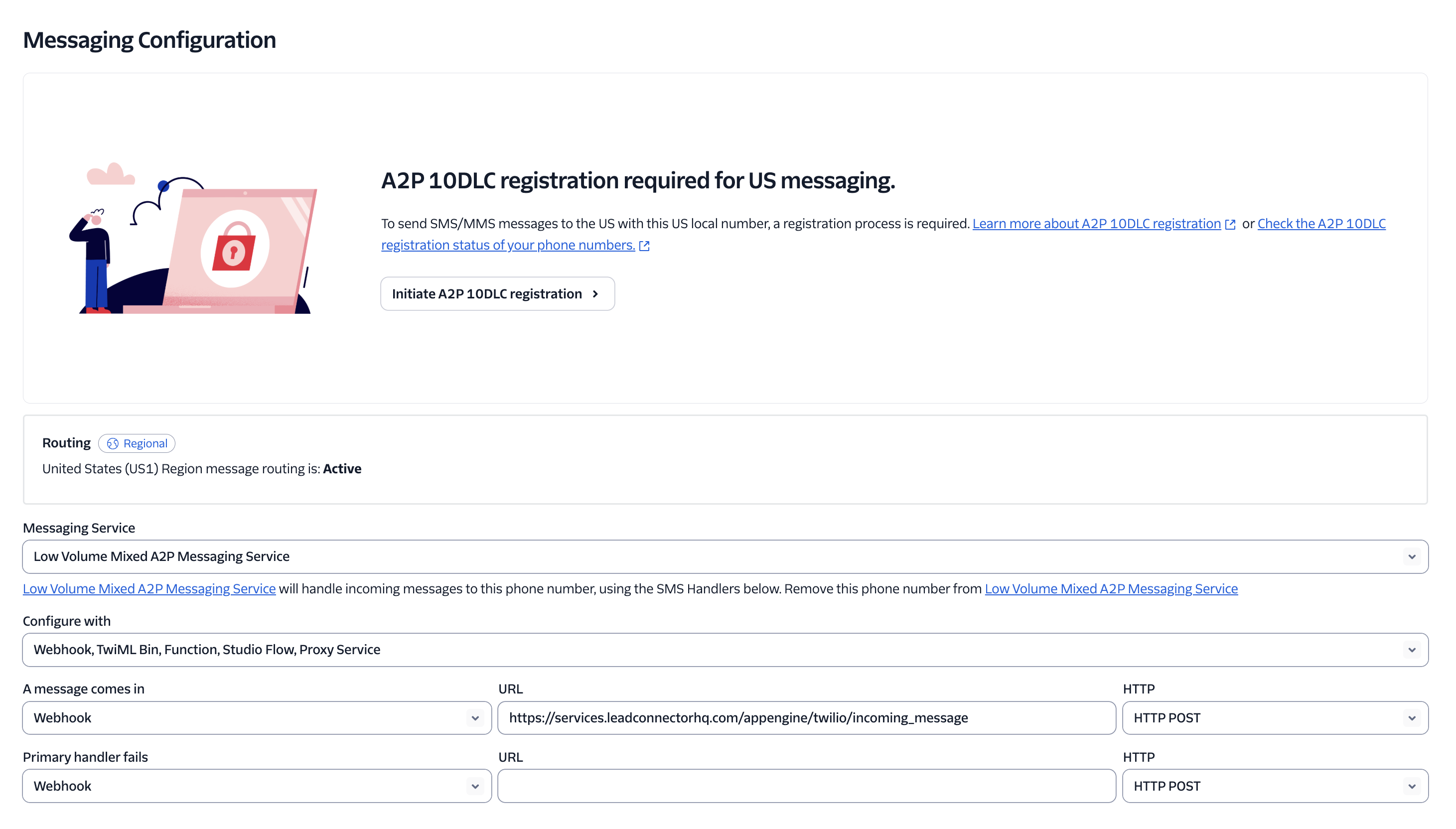
  • Scroll down and check the Messaging webhook settings.
  • If it's missing or incorrect, update it accordingly (Screenshot 3.2 and 3.3).
  • Click Save.
Messaging webhook configuration field
Screenshot 3.2
Messaging webhook saved correctly
Screenshot 3.3

Now test to see if inbound messages are appearing correctly.

3

Check SMS Capability

Look for the dagger icon () next to the number — it means the number can send/receive SMS only within the country.
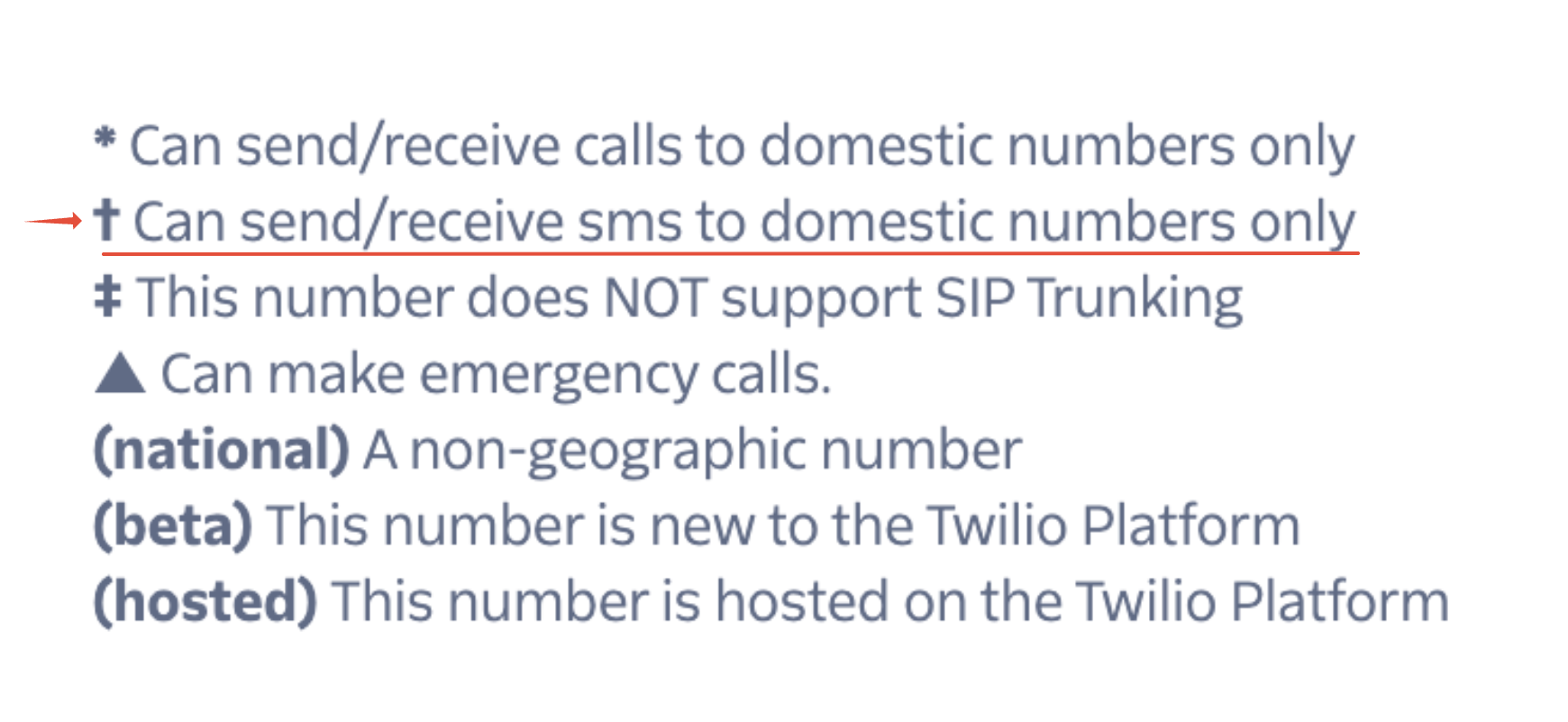
Dagger icon indicating domestic-only SMS capability
Screenshot 3.4
4

Review Message Logs

  • In the left sidebar, click Monitor > Logs > Messaging.
  • Enter the lead's phone number in the To field (numbers only — no spaces, dashes, or parentheses).
  • Review the message status.
  • Click the Date to view message details.
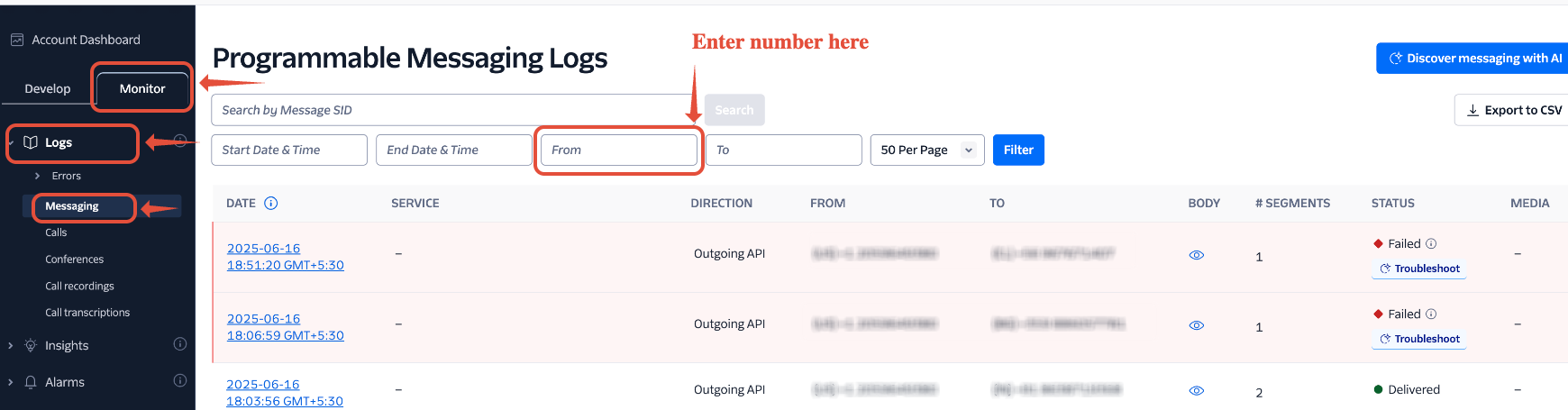
Twilio Messaging logs filtered by phone number
Screenshot 4.0
Note

If the message status is "Delivered" but nothing shows in the platform, copy the Message SID and open a ticket with Twilio Support.

5

Frequently Asked Questions

Q: How do I know if I'm using Twilio or LC Phone?
Check your number under Settings → Phone Numbers. Numbers provisioned through the platform's built-in phone system are LC Phone; numbers connected through your own Twilio account are Twilio numbers.
Q: I have several Twilio subaccounts and can't tell which one is mine — what do I do?
Grab the Account SID from Agency View → Settings → Phone Integration → Sub-Account Settings, then paste it into the subaccount search bar in Twilio to jump straight to the right one.
Q: Why would an incoming text show up as a call instead of a message?
This typically happens when the Twilio number's messaging webhook is missing, pointed at the wrong URL, or was overwritten by another integration. Reconfiguring the webhook in Step 3 usually resolves it.
Q: What does the dagger icon next to a number mean?
It flags a number that can only send and receive SMS within its own country. If you're messaging internationally from that number, this is likely why messages aren't arriving.
Q: The Twilio log shows "Delivered" but I still don't see the message — who's responsible?
At that point the message reached Twilio successfully, so the gap is on the delivery/webhook side. Copy the Message SID and open a ticket with Twilio Support so they can trace where the payload stopped.
Q: I'm on LC Phone and having the same issue — can I fix the webhook myself?
No. LC Phone numbers are managed on the platform's side, so you won't have direct access to webhook settings. Contact Support and they'll investigate and resolve it for you.

Was this article helpful?

That’s Great!

Thank you for your feedback

Sorry! We couldn't be helpful

Thank you for your feedback

Let us know how can we improve this article!

Select at least one of the reasons
CAPTCHA verification is required.

Feedback sent

We appreciate your effort and will try to fix the article