Spam calls can interrupt your team and make genuine customer calls harder to manage. HighLevel provides several tools that can help identify suspicious callers and reduce repeat spam calls.
You can use Number Intelligence to flag likely spam, Custom Dispositions to let agents mark unwanted calls, Inbound DND to block repeat callers, and optionally IVR to screen callers before routing them to your team.
Number Intelligence identifies likely spam but does not automatically block the call. You must configure DND or call-routing logic if you want to prevent future calls.
TABLE OF CONTENTS
- What is Inbound Spam Call Reduction in HighLevel?
- How Inbound Spam Call Reduction Works
- Step 1 — Enable Number Intelligence
- Step 2 — Create a Spam Call Custom Disposition
- Step 3 — Block Repeat Spam Callers with Inbound DND
- Interactive Voice Response (IVR) — Light Front-Door Filter (Optional)
- VIP/Safe List & Auto-Clear DND (Rollback Patterns)
- Mobile Visibility (Spam Labels on App)
- How To Set Up Inbound Spam Call Reduction (Step-by-Step)
- Frequently Asked Questions
What is Inbound Spam Call Reduction in HighLevel?
HighLevel can help reduce unwanted inbound calls by combining spam detection with call-handling automation.
A common setup uses:
- Number Intelligence to identify calls that may be spam.
- Custom Dispositions so agents can mark unwanted calls consistently.
- Inbound DND to block future inbound calls from contacts identified as spam.
- IVR, optionally, to require callers to make a keypad selection before reaching your team.
You can use these tools individually or together depending on how aggressively you want to filter inbound calls.
How Inbound Spam Call Reduction Works
A typical setup follows this flow:
- An unknown number calls your HighLevel number.
- Number Intelligence checks the incoming call.
- If the number appears suspicious, HighLevel can show Spam Likely.
- An agent can mark the completed call with a Spam call Custom Disposition.
- A workflow can detect that disposition and enable inbound DND for the contact.
- Future inbound calls from that contact are blocked.
You can optionally place an IVR before your normal call routing to reduce automated robocalls.
Step 1 — Enable Number Intelligence
Number Intelligence checks incoming calls from unknown U.S. numbers and can identify calls that are likely to be spam.
When a call is identified as suspicious, HighLevel displays a Spam Likely indicator. Number Intelligence does not automatically block the call.
To enable it:
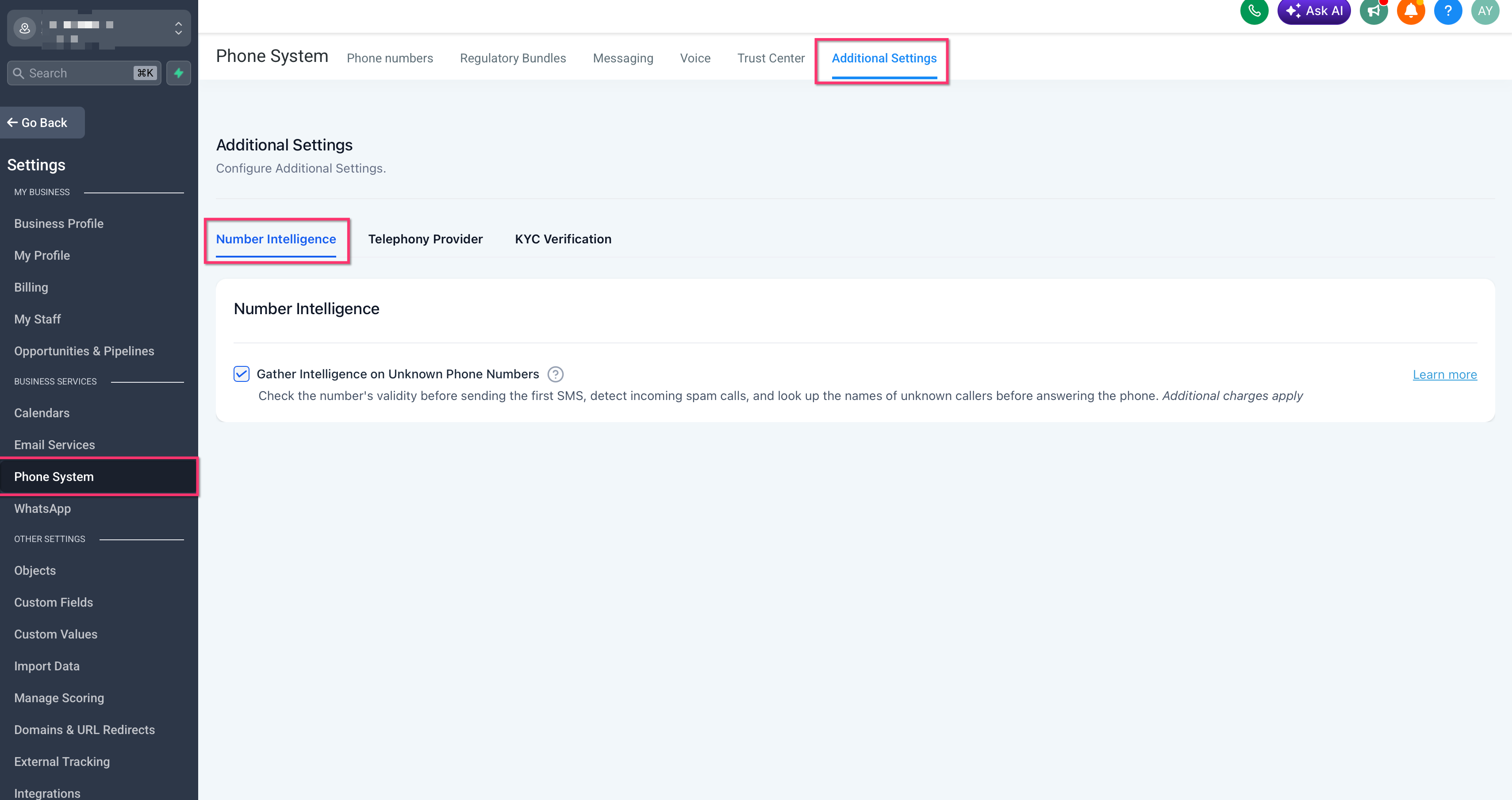
- Go to Settings > Phone System.
- Open Additional Settings > Number Intelligence.
- Enable Gather Intelligence on Unknown Phone Numbers.
- Save your changes.
Number Intelligence is usage-based. For current pricing and availability details, see the Number Intelligence article.
Note: Spam indicators may also appear in supported HighLevel mobile call views. Keep the HighLevel mobile app updated to the latest available version.
Step 2 — Create a Spam Call Custom Disposition
Create a Custom Disposition so agents can consistently mark calls that should be treated as spam.
- Go to Settings > Phone System > Voice > Custom Dispositions.
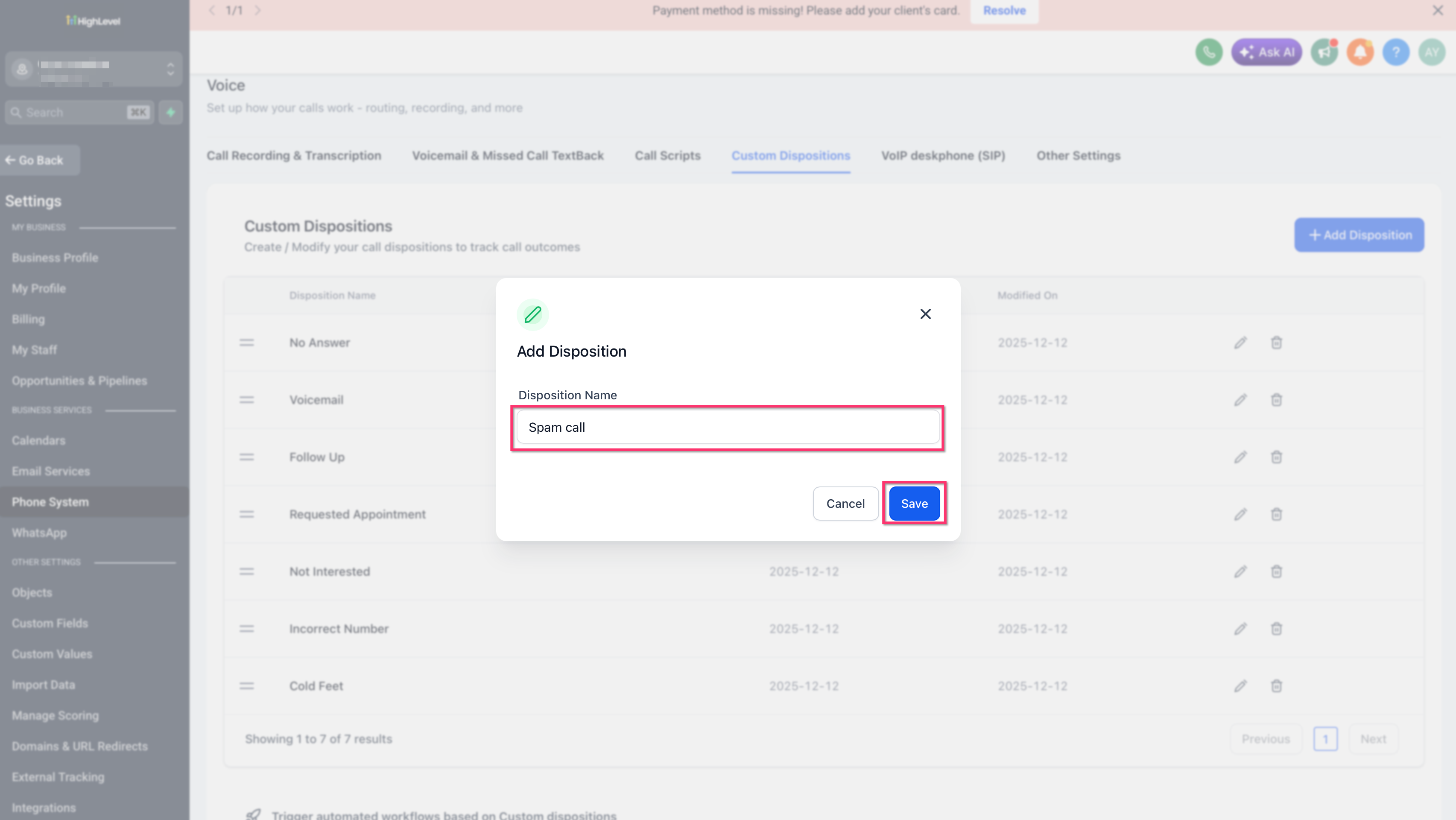
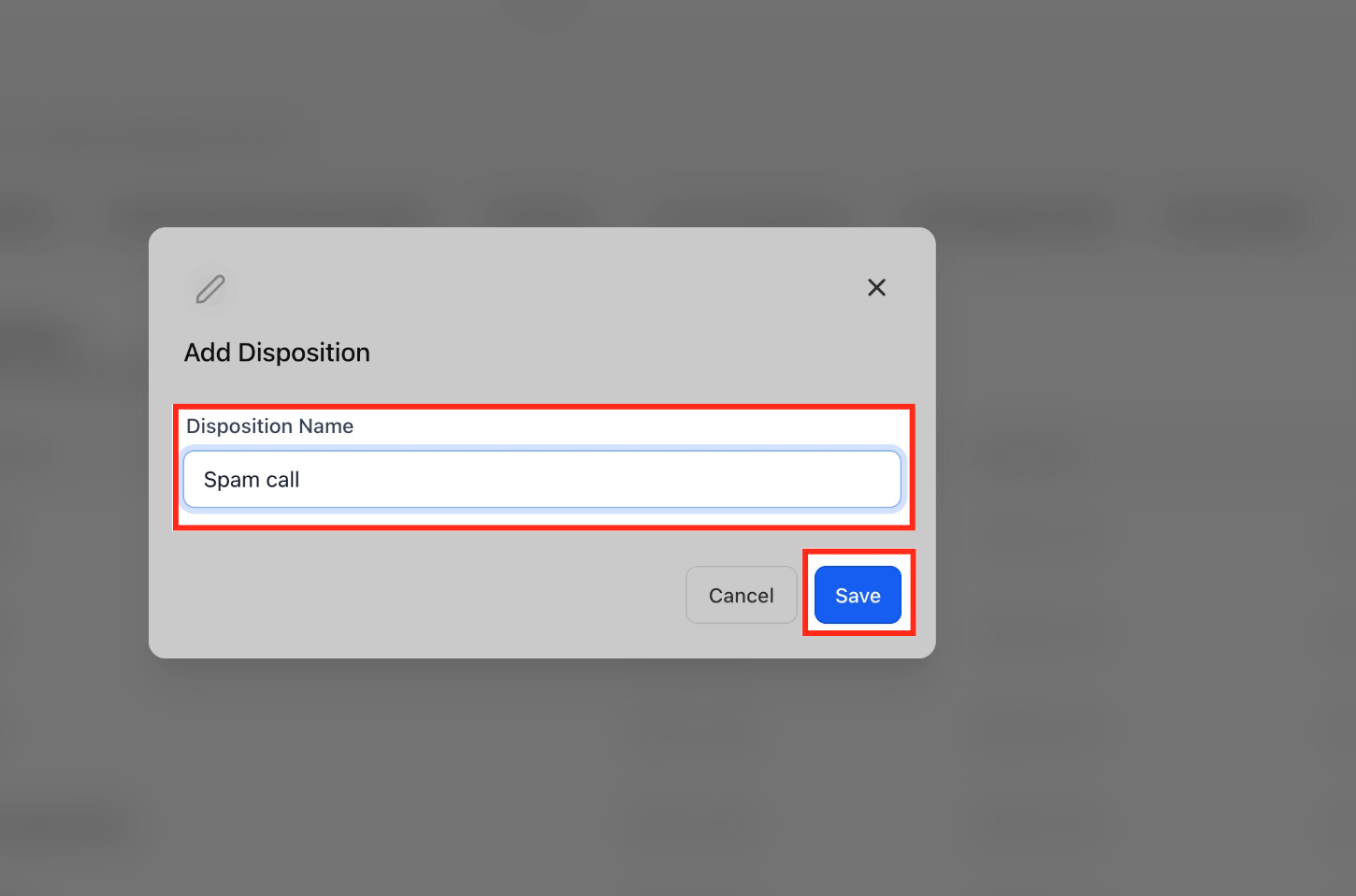
- Click + Add Disposition.
- Enter Spam call as the disposition name.
- Save the disposition.
After a suspicious call ends, the agent can select Spam call as the disposition. A workflow can then use this value to identify the contact and take further action.
Step 3 — Block Repeat Spam Callers with Inbound DND
After an agent marks a call as Spam call, create a workflow that enables inbound DND for that contact.
- Go to Automation > Workflows.
- Create a new workflow.
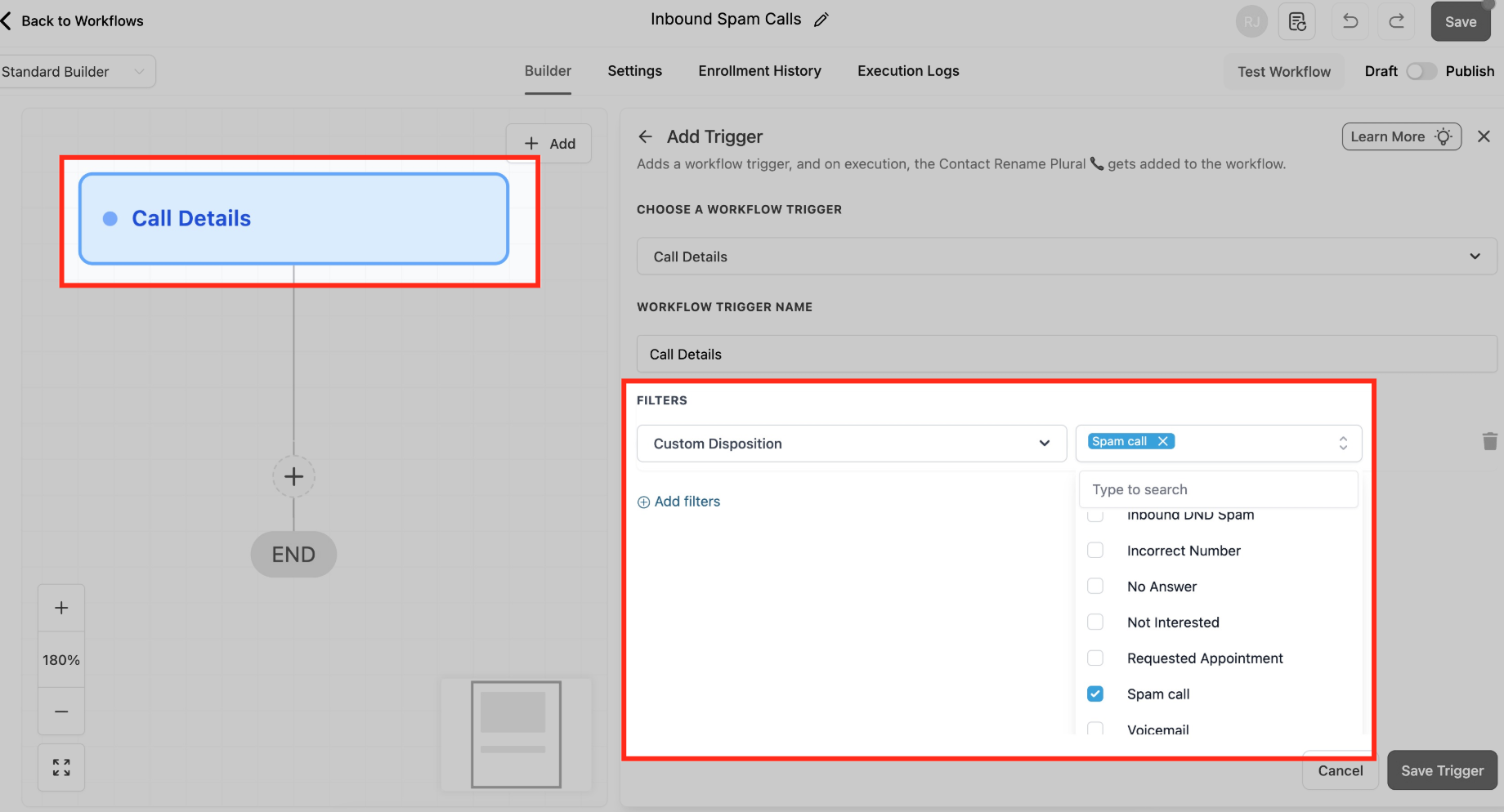
- Add the Call Details trigger.
- Configure these filters:
- Call Direction = Incoming
- Custom Disposition = Spam call
- Call Direction = Incoming
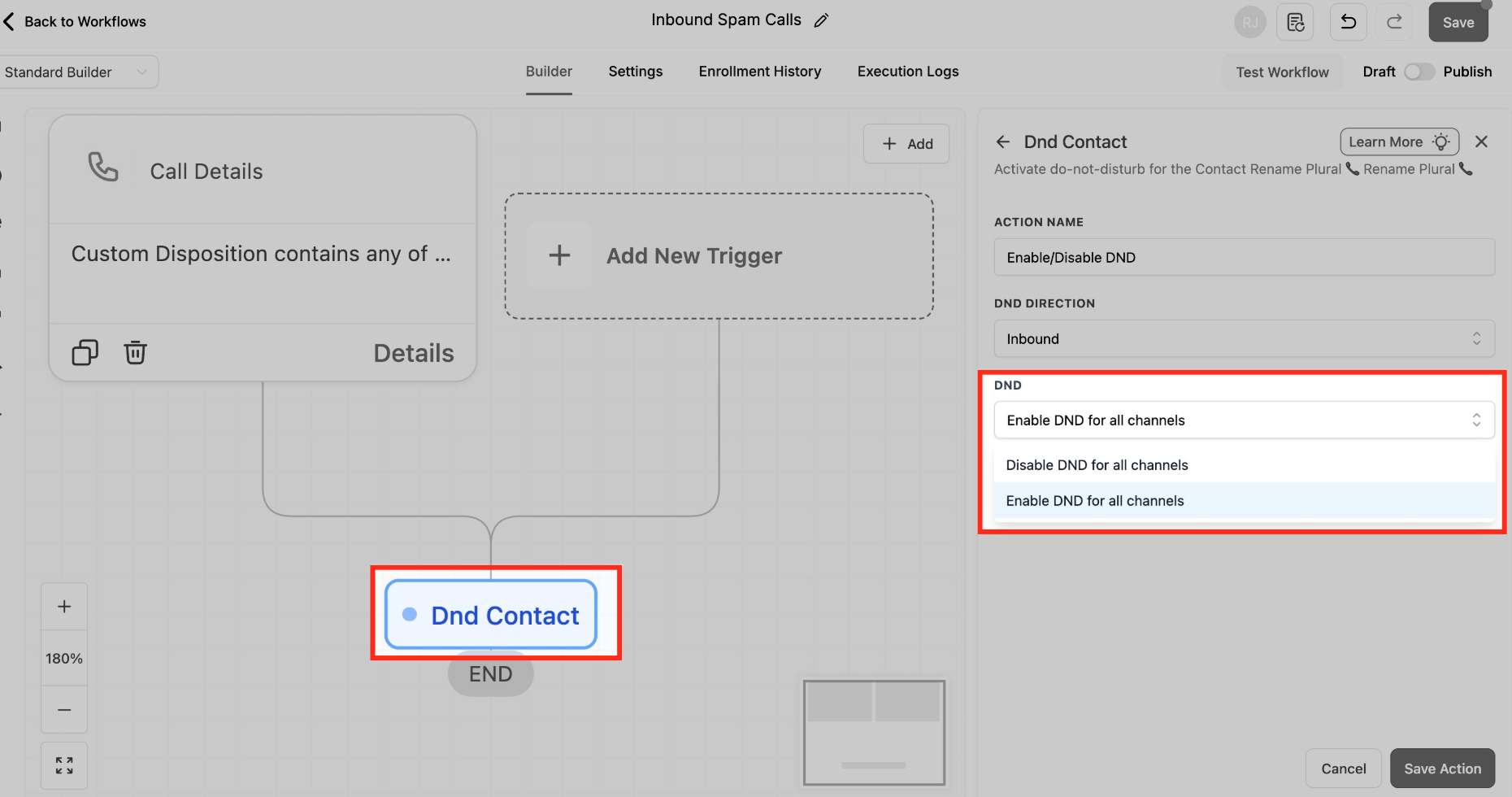
- Add the Enable/Disable DND action.
- Set DND Direction = Inbound.
- Configure the supported inbound channel option shown in your account.
- Save and publish the workflow.
This workflow helps prevent repeat unwanted callers from continuing to reach your team.
Interactive Voice Response (IVR) — Light Front-Door Filter (Optional)
A minimal IVR (“Press 1/2”) deters robocalls and routes people quickly. Keep it short to avoid friction for urgent-use businesses.
Minimal 2-option IVR template:
Say/Play: “To reach support, press 1. For new inquiries, press 2.”
Gather Input (DTMF) → Map Input:
1 → Connect Call to Support Team or User/Group
2 → Connect Call to Sales
Timeout/Invalid: Repeat once, then Voicemail or Fallback agent
Constraint: One phone number can be mapped to one IVR workflow at a time.
Build path:
Trigger: Start IVR (map your inbound number to this workflow).
Actions: Say/Play → Gather Input → Map Input → Connect Call (+ Voicemail fallback).
VIP/Safe List & Auto-Clear DND (Rollback Patterns)
False positives happen. These two patterns preserve accessibility for key callers and automatically restore access after review or elapsed time.
VIP / Safe List Bypass:
Add tag VIP or SafeList on contact.
In the DND workflow, add an If/Else before DND: If contact has tag VIP/SafeList → Skip DND; else → apply DND.
Auto-Clear DND After X Days (e.g., 30):
Create a workflow with Trigger: Contact DND (or schedule-based logic), Wait: 30 days, Action: Disable DND (or notify a reviewer first).
Optionally remove a “Quarantined–Spam” tag upon review.
Mobile Visibility (Spam Labels on App)
Seeing “Spam Likely” on mobile reassures agents that filters are working when away from desktop.
Requirement: HighLevel Mobile App v3.97.3 or later.
Experience: “Spam Likely” appears on call lists and details where supported.
How To Set Up Inbound Spam Call Reduction (Step-by-Step)
Correct order reduces risk and speeds verification. Complete each step and test before moving on.
Step 1 — Enable Number Intelligence
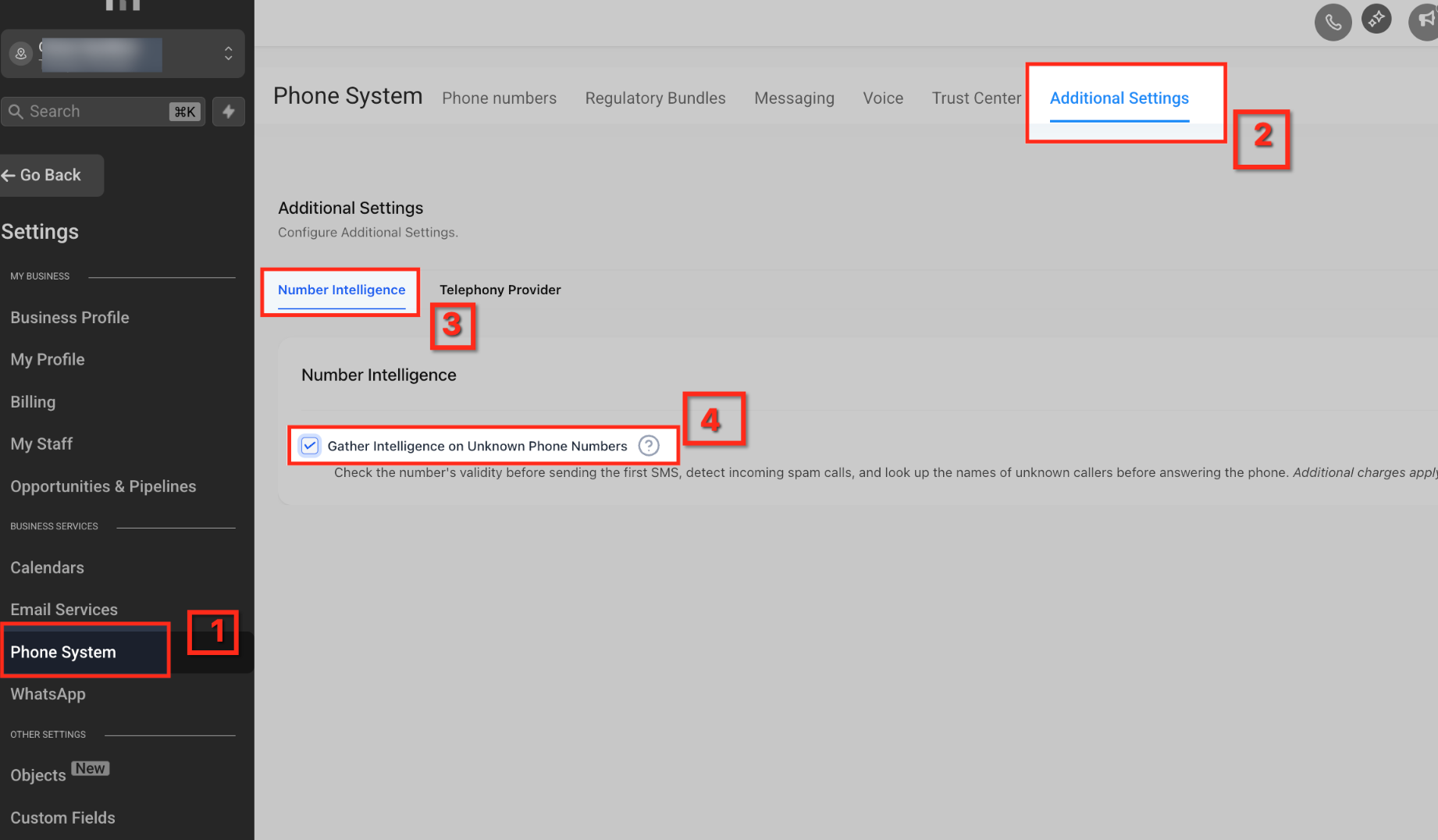
Go to Settings → Phone System → Additional Settings → Number Intelligence.
Check Gather Intelligence on Unknown Phone Numbers.
Save.
Agency onboarding tip: In Agency View, you can set defaults so new sub-accounts start with Number Intelligence enabled by default. See Understanding Default Phone Preferences for New Sub-Accounts.
Step 2 — Create the “Spam call” disposition
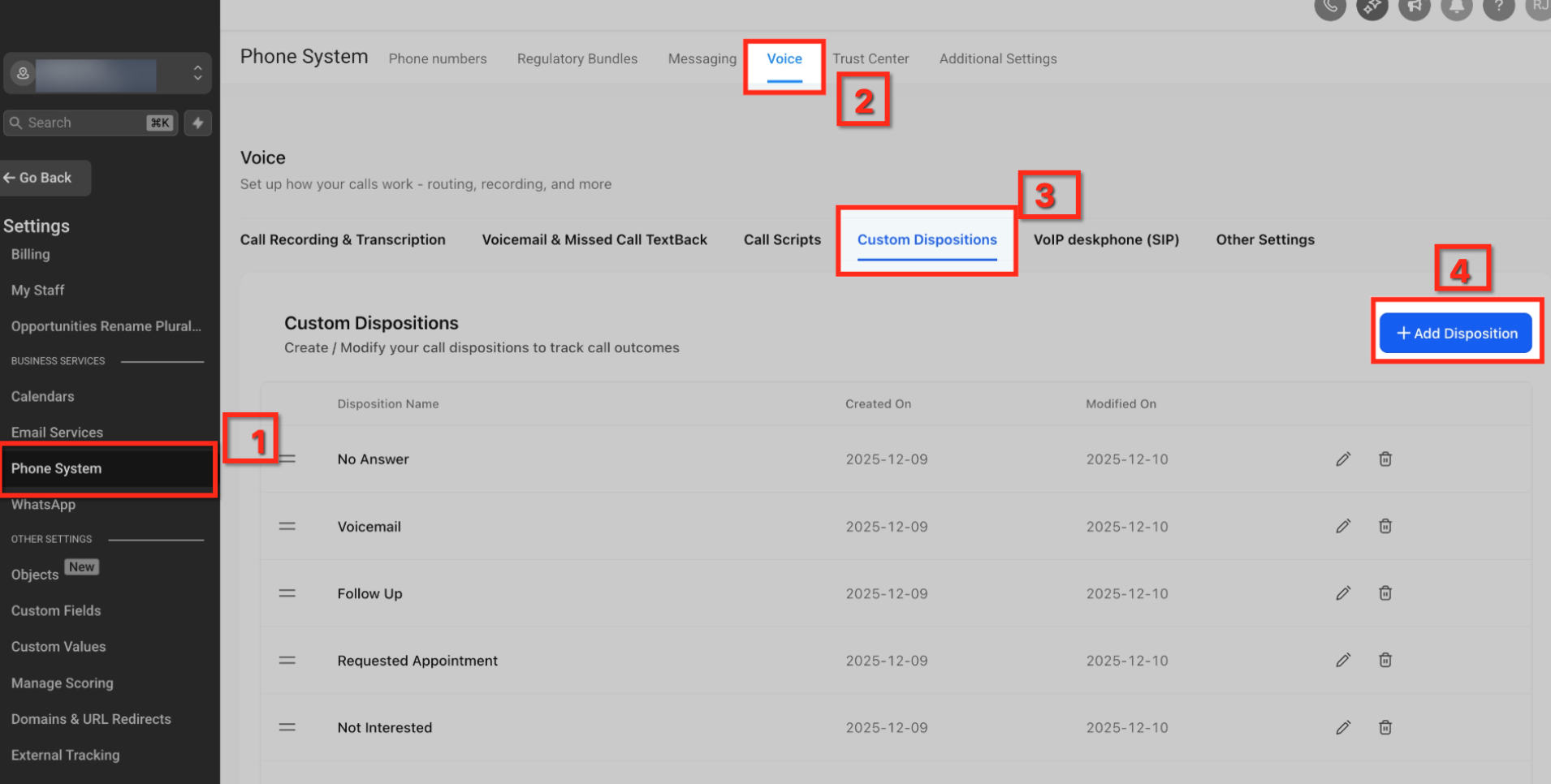
Go to Settings → Phone System → Voice → Custom Dispositions.
Click + Add Disposition.
In Add Disposition, set Disposition Name → Save.
Step 3 — Auto-enable Inbound DND (Calls) for spam-labeled contacts
Create a Workflow.
Trigger: Call Details.
Add Filters: Direction = Inbound AND Disposition
Action: Enable/Disable DND (Contact) → Enable Inbound → Calls only.
Optional branches: VIP tag skip; Remove DND path if corrected.
Publish.
For more information, you can refer to these help articles
1. Call Details Workflow Trigger
2. Enable/Disable DND Workflow Action
Step 4 — Using IVR Workflow
This article provides some of the important steps only. For more details, refer to the below help article :
Interactive Voice Response (IVR) Guide - Triggers & Actions
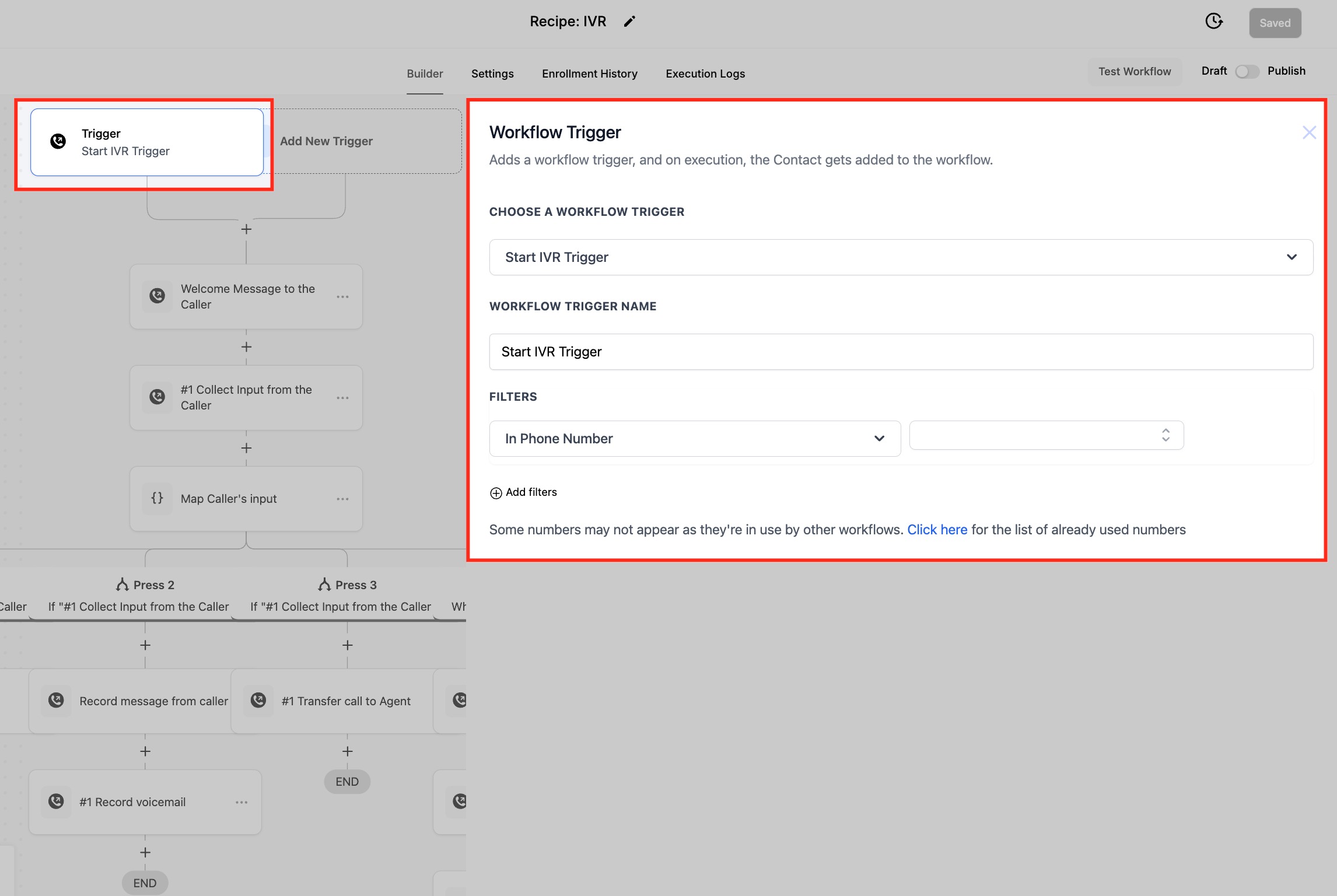
- Start by creating a new Workflow and choose the Start IVR Trigger.
- In Filters, set In Phone Number and select the public line you want to screen (note: if a number doesn’t appear, it may already be in use by another workflow).
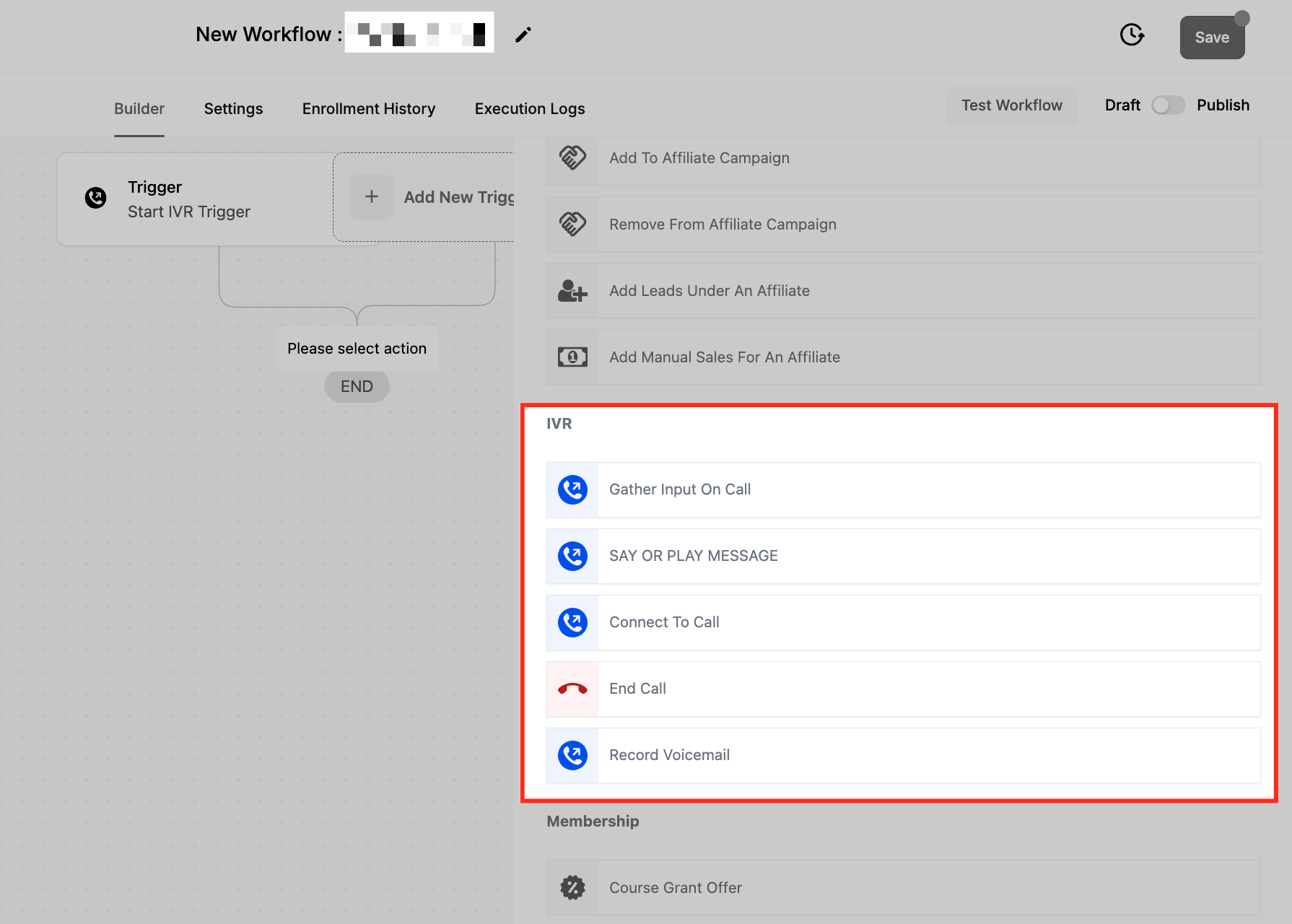
- Add Gather Input on call and use Say a message to deliver a short prompt such as “Thanks for calling [Business]. To connect, press 1.”
- Choose your Language, Message Voice, keep Number of loops at 1, and in Advanced Settings set a brief timeout (about 3–5 seconds) with one retry; accept only digit 1.
- For callers who press 1, add Connect Call (IVR) and select your Users or Add custom number; optionally enable Detect Voicemail, consider whether to Record Call, and set a reasonable Timeout (seconds).
- For callers who don’t respond or press the wrong key, add Say or play a message with a concise “We didn’t catch that” notice, then End Call (IVR) (or route to voicemail if preferred).
- Publish, then place test calls from a mobile and a landline to confirm the “press 1” path connects and the fallback path ends cleanly.
Create a new Workflow or update your existing number flow.
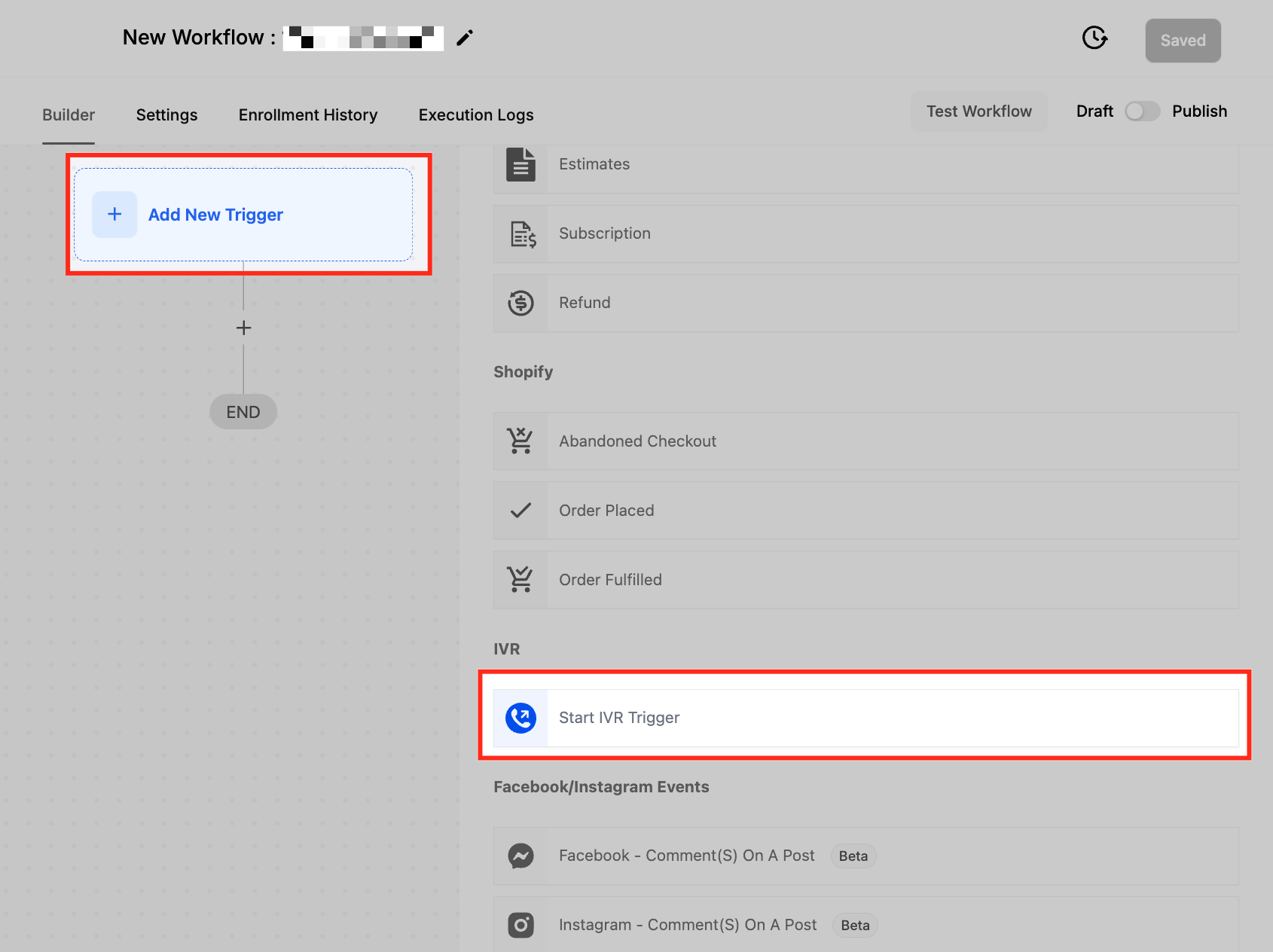
Trigger: Start IVR tied to your public inbound number.
IVR Gather Input on Call: expect “1”; timeout ~3–5 seconds; 1 retry.
Say or Play Message example: “Thanks for calling [Business]. To connect, press 1.”
Step 5 — Validate call flow & timeouts
Open Phone Numbers → [Select Number] → Incoming Calls Settings.
Confirm the IVR/workflow association and set ring timeout (e.g., ~20 seconds).
Place 3–5 test calls (unknown number; marked-spam number; VIP number) and verify outcomes.
Step 6 — Monitor & tune
Weekly: review Call Logs, disposition usage, IVR no-input rates, and contacts with Inbound DND (Calls).
Adjust prompts/timeouts and retrain agents as needed.
Note: if your own numbers are being labeled “spam likely”: that’s a separate, outbound reputation issue. see related articles for remediation via caller reputation best practices and free caller registry steps.Frequently Asked Questions
Q: Will Number Intelligence automatically block calls?
No. It provides “Spam Likely” signals. Blocking behavior comes from your workflows (e.g., DND) and/or IVR design.
Q: Should I set DND to “All channels”?
Start with Inbound + Voice. Expanding to all channels risks suppressing legitimate SMS/email. Increase scope only if spam persists.
Q: How do I avoid blocking VIPs or important vendors?
Use a VIP/SafeList tag and add an If/Else condition to skip DND and bypass IVR for those contacts.
Q: What if an agent marks a real customer as “Spam call”?
Remove DND on the contact record (or let your auto-clear workflow lift DND after X days). You can also log a note and add the VIP tag.
Q: Can I send spam-labeled calls straight to voicemail?
Yes. Route via IVR timeout/invalid or add a workflow branch that sends Inbound, Voice to voicemail when Custom disposition = Spam call.
Q: Does this impact outbound dialing?
DND settings configured for Inbound do not block your outbound calls to that contact. Choose Direction and Channels intentionally.
Q: Can I filter SMS spam, too?
You can apply DND to additional Channels (e.g., SMS). Evaluate impact first; consider separate logic for SMS vs Voice.
Q: Is IVR required?
No. IVR is optional. Many businesses rely on Number Intelligence + Disposition → DND only, especially in urgent-response use cases.
Related Articles
Was this article helpful?
That’s Great!
Thank you for your feedback
Sorry! We couldn't be helpful
Thank you for your feedback
Feedback sent
We appreciate your effort and will try to fix the article