Every call ends with work to do. You write notes, update the contact and log how the call went. Voice Intelligence does this for you after each recorded call, so your team can move on to the next one.
Voice Intelligence is a Labs feature. We are still improving it, and your feedback helps.
What you get after each call
| Result | What it gives you |
|---|---|
| Call summary | Why the contact called, the key points and the next steps. No more typing notes. |
| QA scorecard | A score out of 10, a score for each area you care about, and tips on what to do better. |
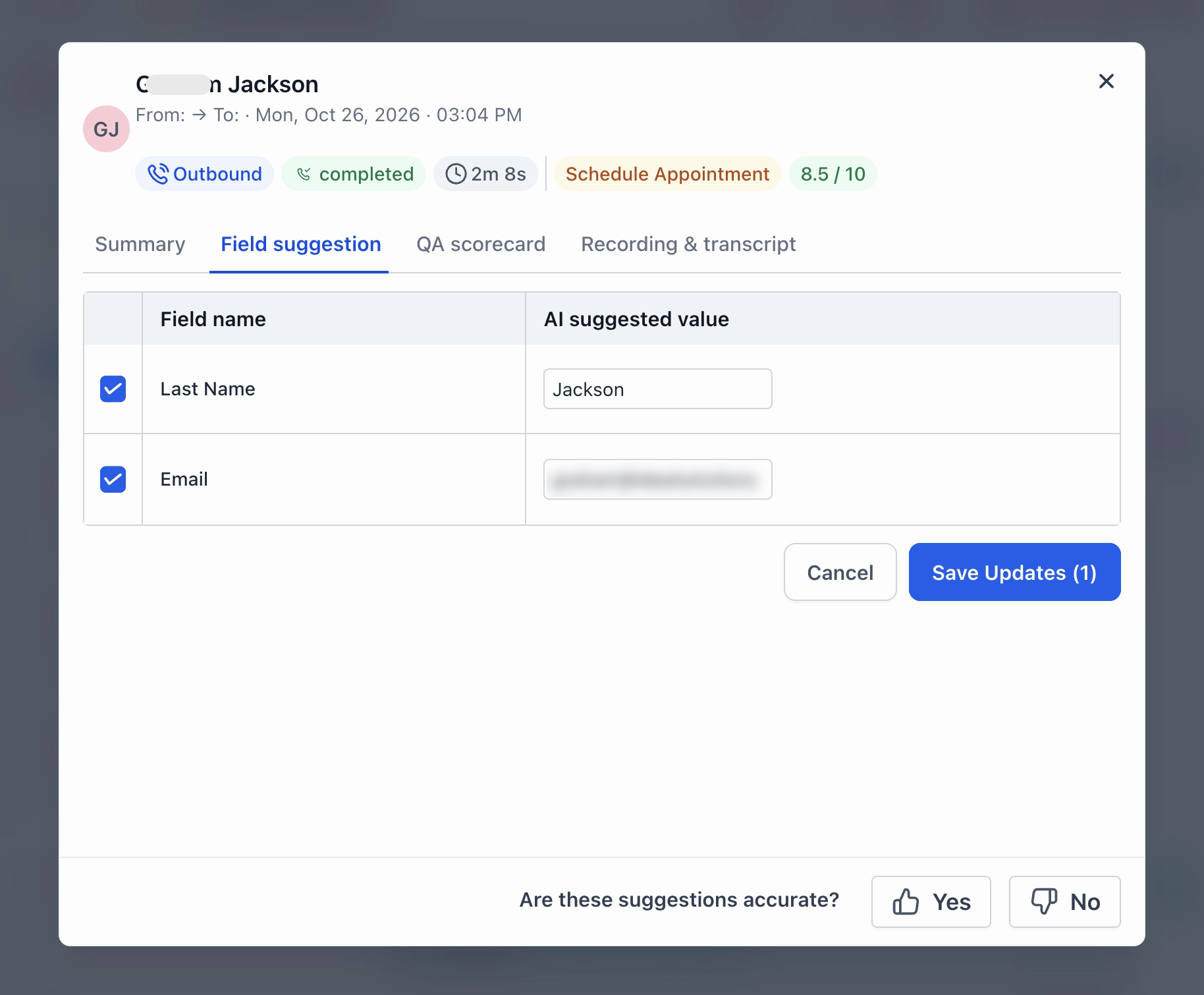
| Field suggestions | Contact details mentioned on the call, like a name or email, ready to save. |
| Call disposition suggestion | The call outcome, picked from your own disposition list. |
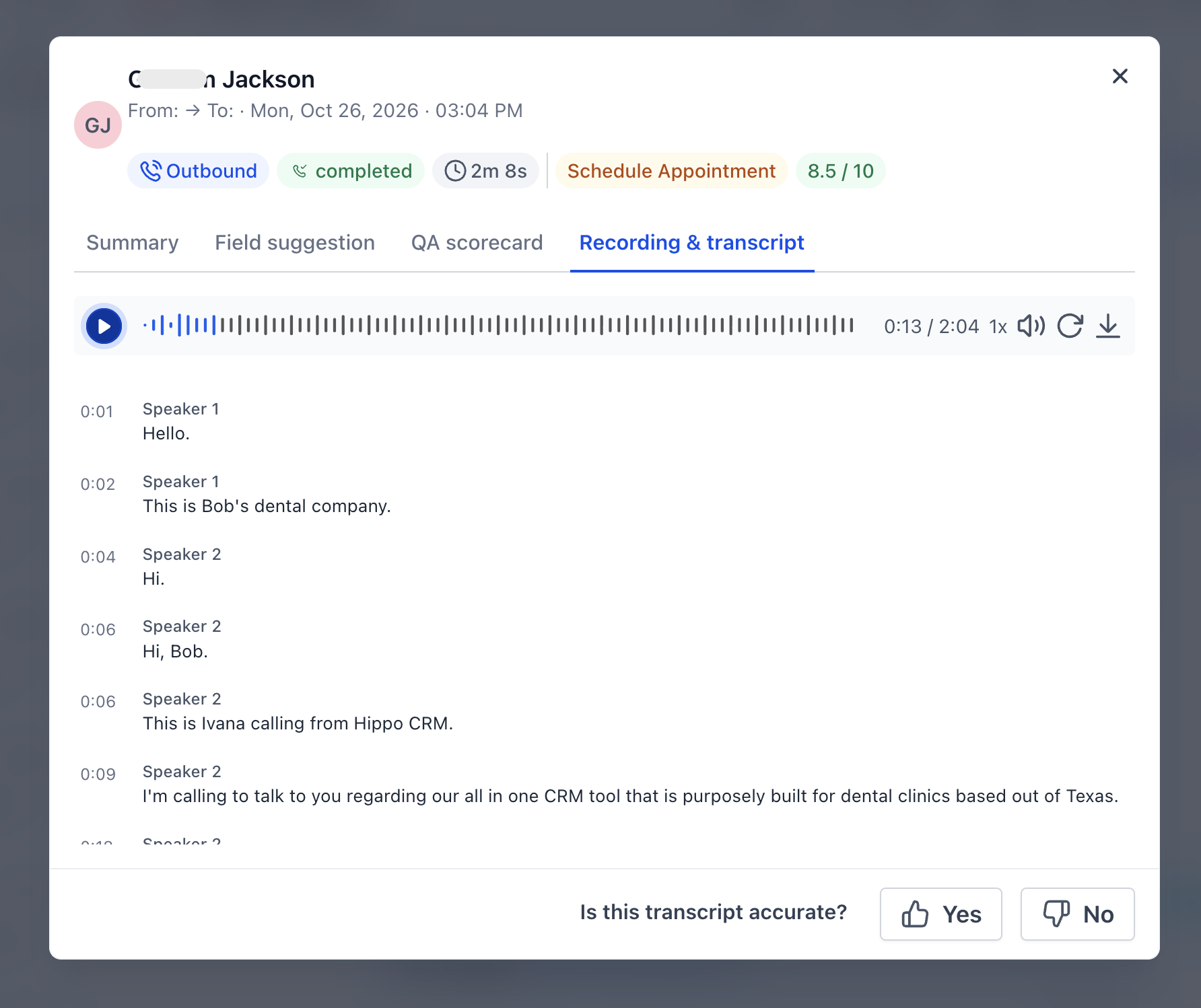
| Transcript | Every word of the call, split by speaker, next to the recording. |
Nothing changes on a contact until someone on your team approves it.
Before you start
Which calls get Voice Intelligence
Voice Intelligence works on any recorded call that uses one of your LeadConnector phone numbers. It doesn't matter where the call is answered or made.
| Call type | Supported? |
|---|---|
| Web app and dialer | Yes |
| Mobile app | Yes |
| Desk phones (SIP) | Yes |
| Calls forwarded to another phone (e.g. a cell phone) | Yes. The call still goes through your LeadConnector number, so it is recorded. |
| Voice AI calls | Yes, when call recording is on for that number. The summary, scorecard and suggestions cover the call your Voice AI agent handled. |
| IVR calls and calls placed by a workflow | Yes, when they are recorded. |
| Voicemails left for you | Yes. You get a summary of who called, why, and whether they asked for a call back. |
| Your calls that reach a voicemail greeting | Yes. The summary says the call went to voicemail, and the suggested disposition is your voicemail option if your list has one. |
These calls don't get Voice Intelligence:
- Calls made from a personal phone outside the app, because they don't use your LeadConnector number.
- Calls on phone numbers connected from another phone provider.
- Calls on numbers where call recording is off.
- Calls that weren't answered, and calls too short to have real content, like a hang-up after a few words.
Every result is saved on the call in the contact's conversation.
- Calls in the web app dialer: the results open in the dialer as soon as the call ends. Confirm the disposition and save field suggestions right away.
- Desk phone, forwarded, Voice AI, IVR and workflow calls: there is no screen to review during the call. Open the contact's conversation, then select View full details on the call. You can check and save field suggestions there at any time.
On calls outside the web app dialer, the suggested disposition shows as a tag on the call, marked with a sparkle icon. You can see it in Conversations, but you can't change or save it there.
Turn on Voice Intelligence
- Go to Settings → Phone System.
- Select the Voice tab, then Call Recording & Transcription.
- Select Voice Intelligence on the left.
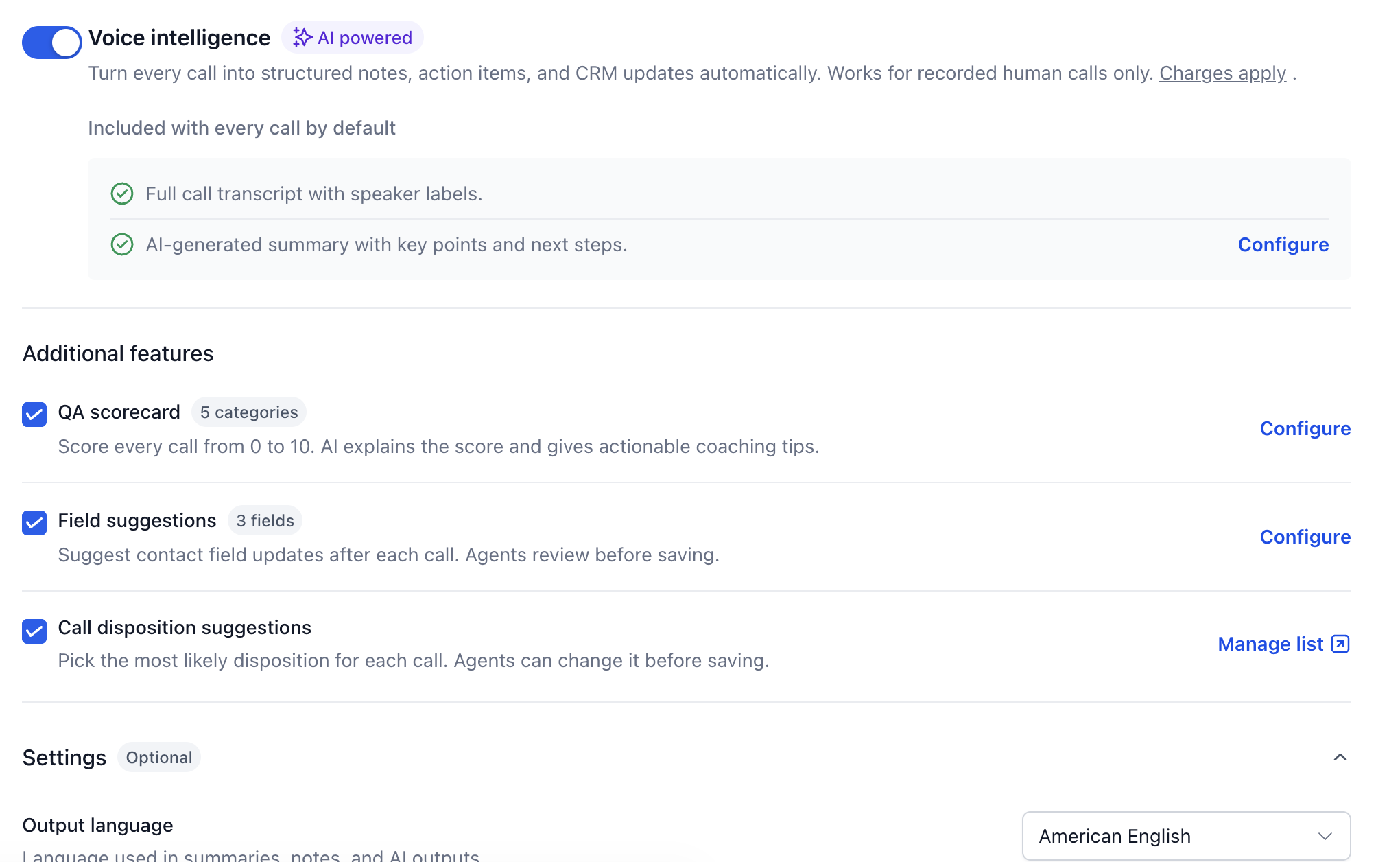
- Turn on the Voice intelligence switch.
The transcript and the call summary are always included. Under Additional features, check the boxes for the QA scorecard, field suggestions and call disposition suggestions you want.
All three additional features are on by default.
Make it fit your business
Admins set Voice Intelligence up once, and every call follows it.
Changes apply to new calls only. Past calls keep their results.
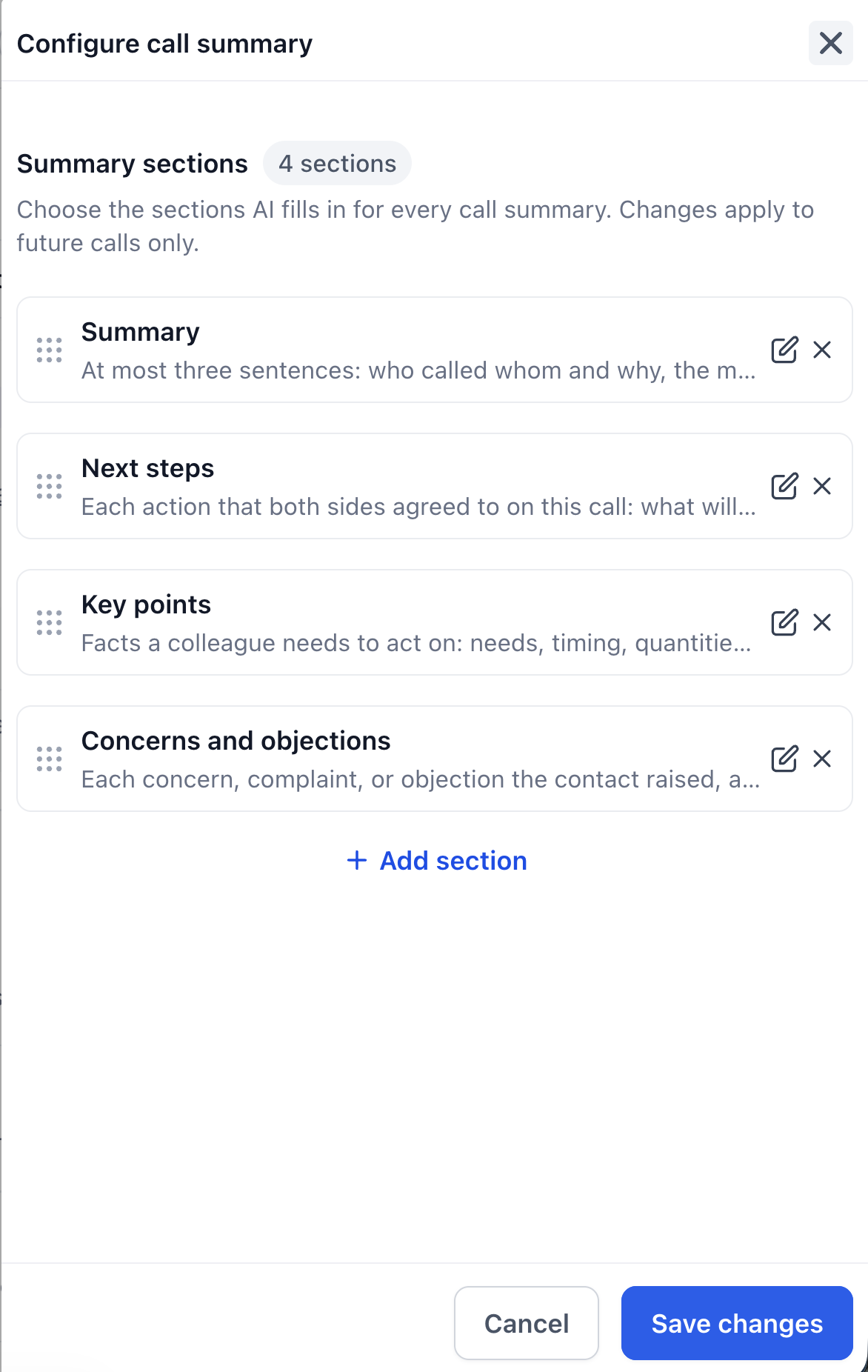
- Next to the summary line, select Configure.
- You see the summary sections. By default these are Summary, Next steps, Key points, and Concerns and objections.
- To change a section, select the edit icon. You can change its name, its description and its format: a single sentence, a bullet list or a short paragraph.
- To add a section, select Add section. To remove one, select the X. Drag sections to change their order.
- Select Save changes.
The description tells Voice Intelligence what to write. Keep it short and specific, for example "Each objection the contact raised and how the agent answered it."
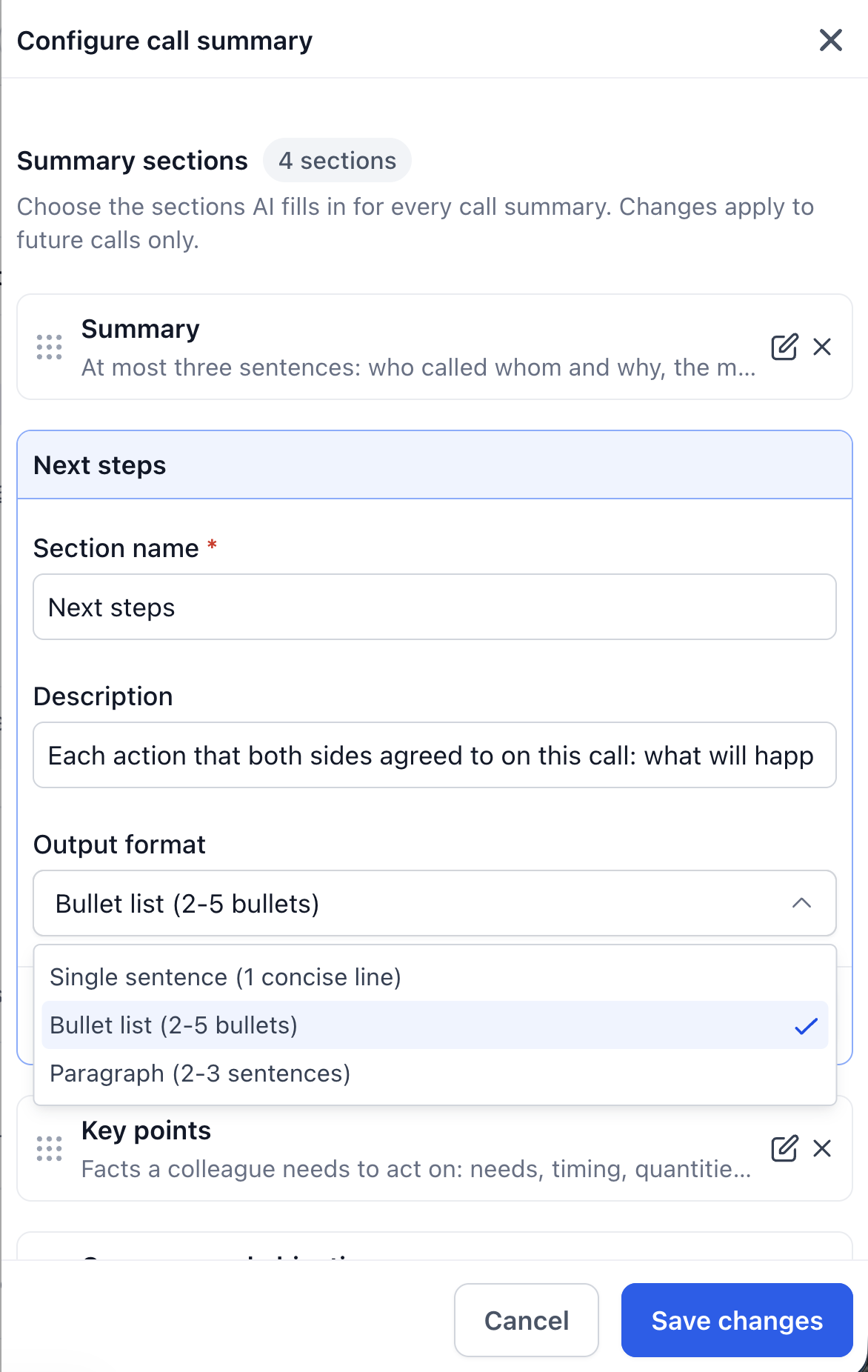
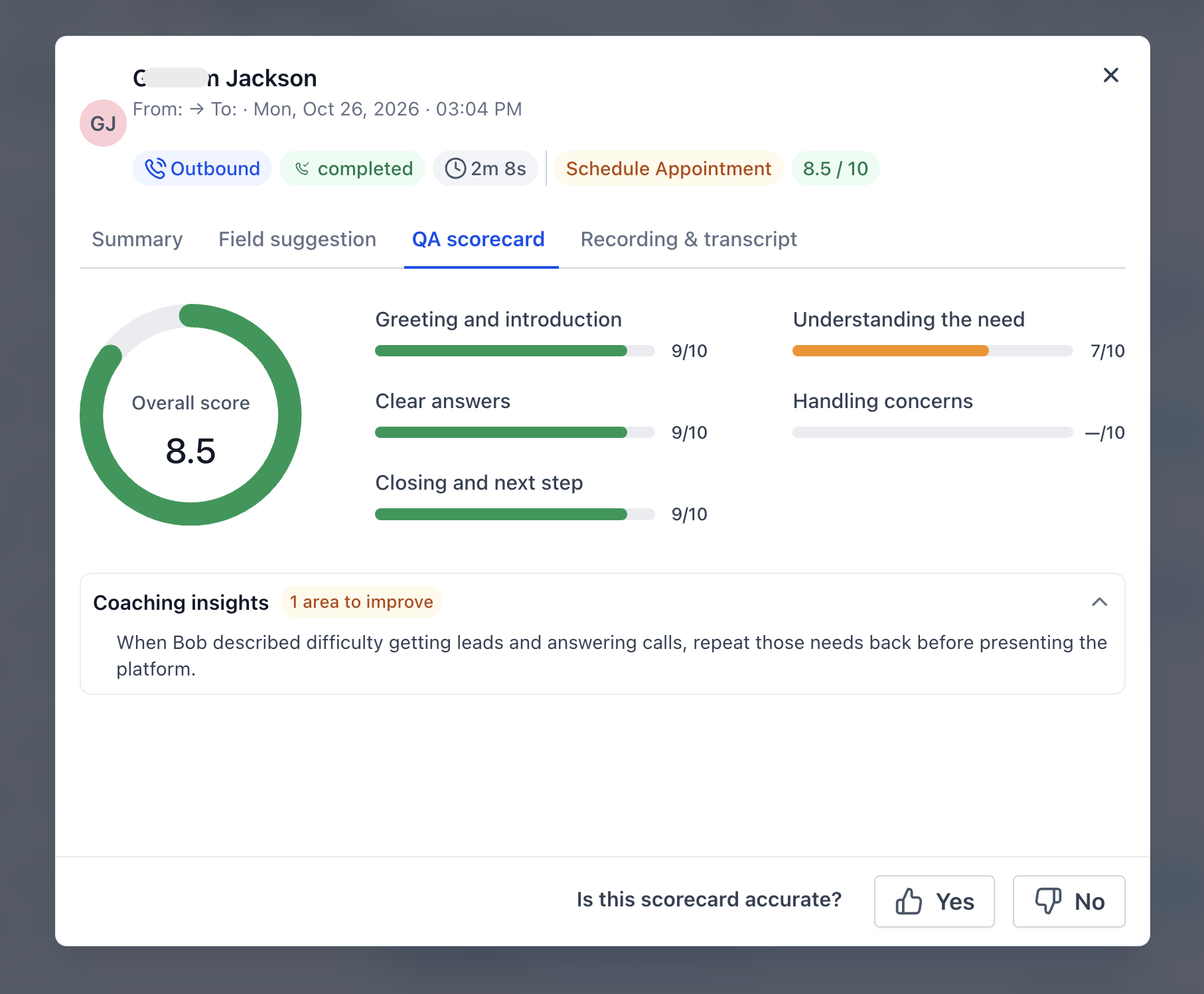
- Next to QA scorecard, select Configure.
- You see the scoring categories. By default these are Greeting and introduction, Understanding the need, Clear answers, Handling concerns, and Closing and next step.
- Edit a category to change its name or description. The description says what a good call looks like, so match it to your call script.
- Select Add category to add one, or select the X to remove one. Drag to change the order.
- Select Save changes.
Each category gets a score from 0 to 10, and the overall score is the average. If a category doesn't come up on a call, it is skipped, not counted as 0.
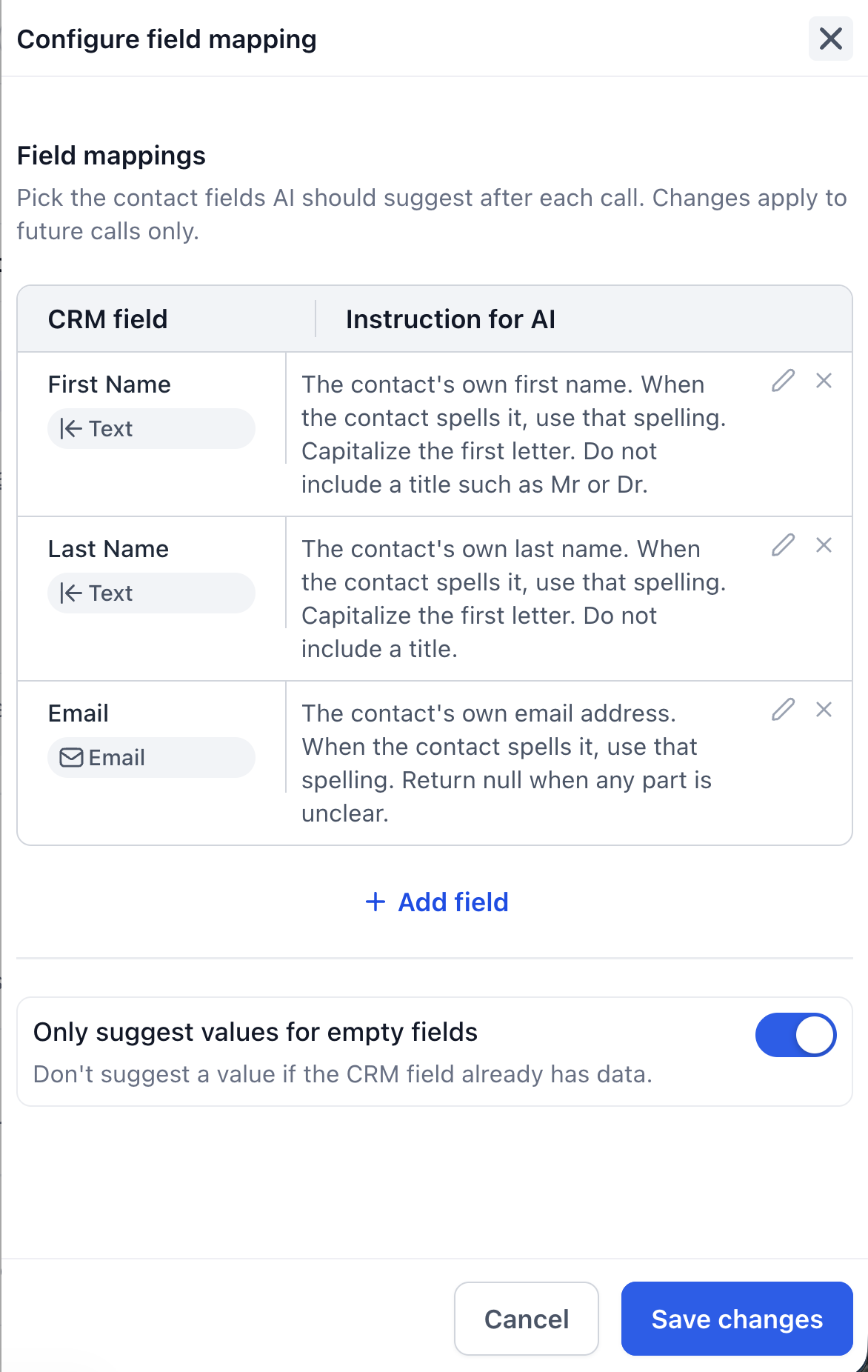
- Next to Field suggestions, select Configure.
- You see each contact field and its instruction. By default these are First Name, Last Name and Email.
- Select Add field and choose any contact field, including your own custom fields. Then write a short instruction, for example "The contact's budget in US dollars. Leave empty if not mentioned."
- Turn on Only suggest values for empty fields if you never want to replace data a contact already has.
- Select Save changes.
Voice Intelligence picks the call disposition only from your own list. To change the list, select Manage list next to Call disposition suggestions. This opens the Custom Dispositions tab.

Under Settings, pick an Output language. Summaries, notes and other results are written in this language.

See the results in Conversations
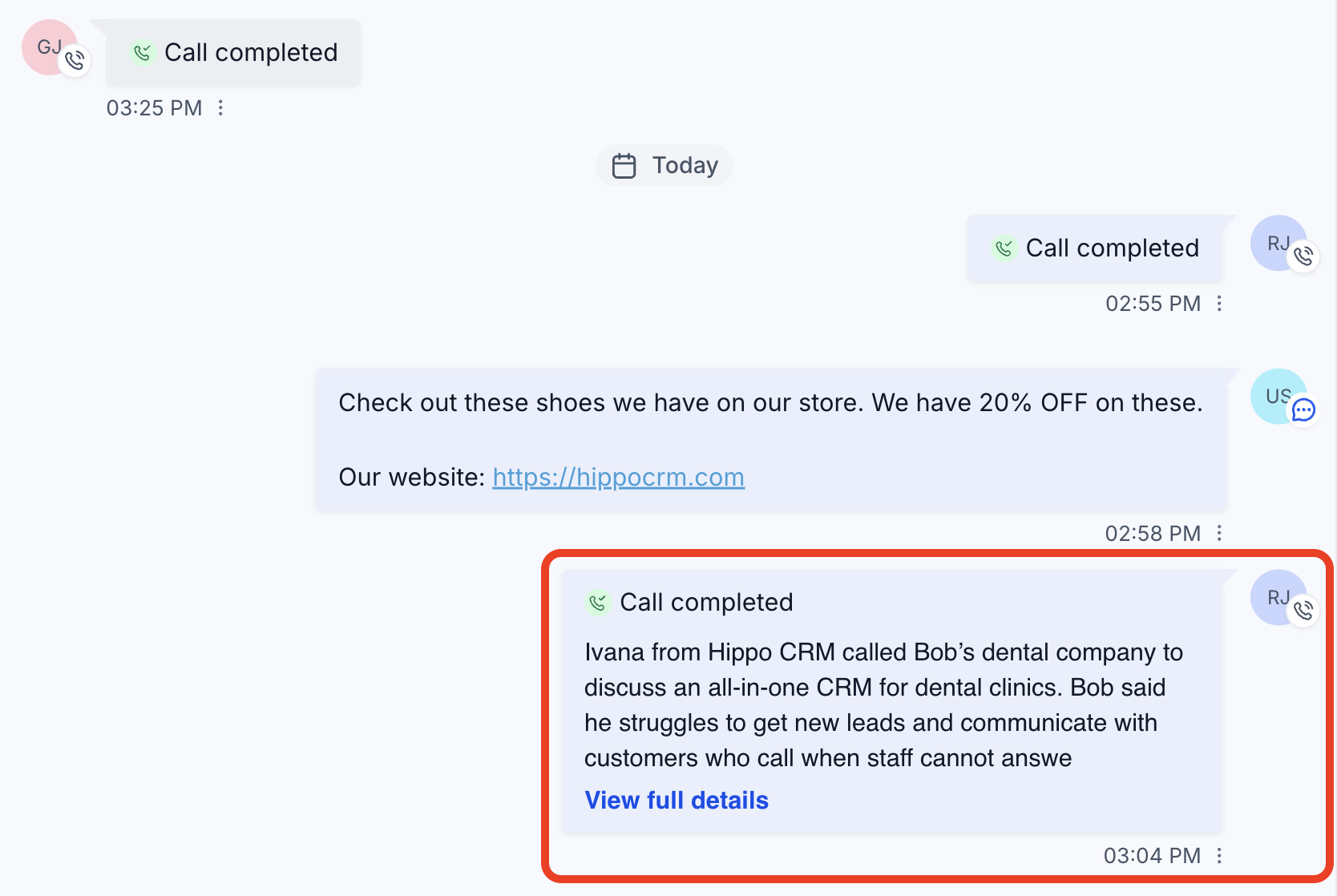
- Open the contact's conversation. After a call, the call card shows the start of the summary.
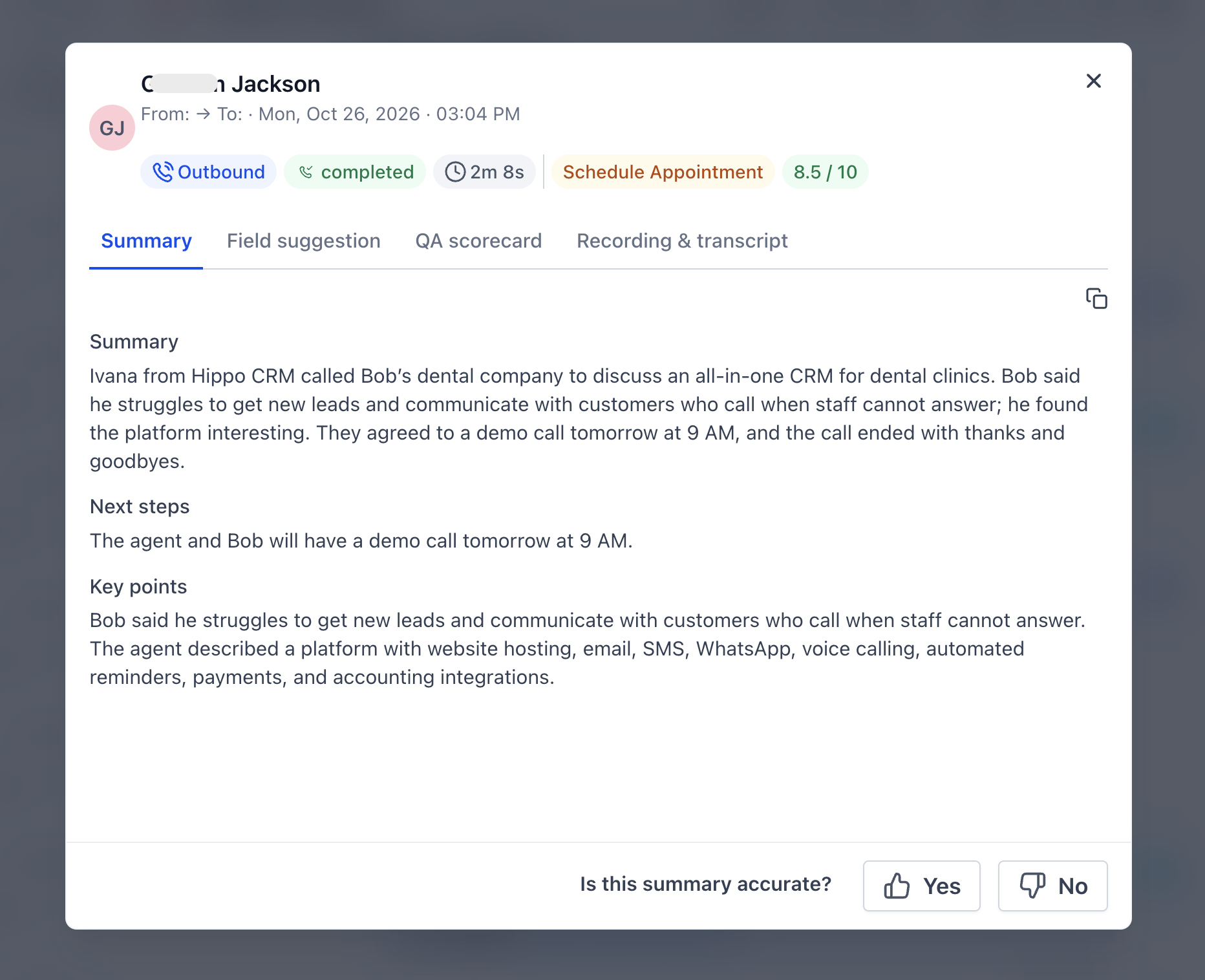
- Select View full details.
- Use the tabs to see the Summary, Field suggestion, QA scorecard, and Recording & transcript. The top of the window shows the call disposition and the overall score.
Results are usually ready a few seconds after the call recording is saved.
- Open the Field suggestion tab.
- Check each value you want to keep. You can edit a value before you save it.
- Select Save Updates. Only the checked values are saved to the contact.
See the results in the dialer
When a call ends in the dialer, the results open next to the call summary. The Review & update tab shows the suggested call disposition and the suggested contact fields.
- Check the disposition. Pick a different one from the list if needed.
- Check the field values you want to keep, and edit them if needed.
- Select Save Updates.
The QA scorecard, Summary and Recording & transcript tabs show the same results as in Conversations.
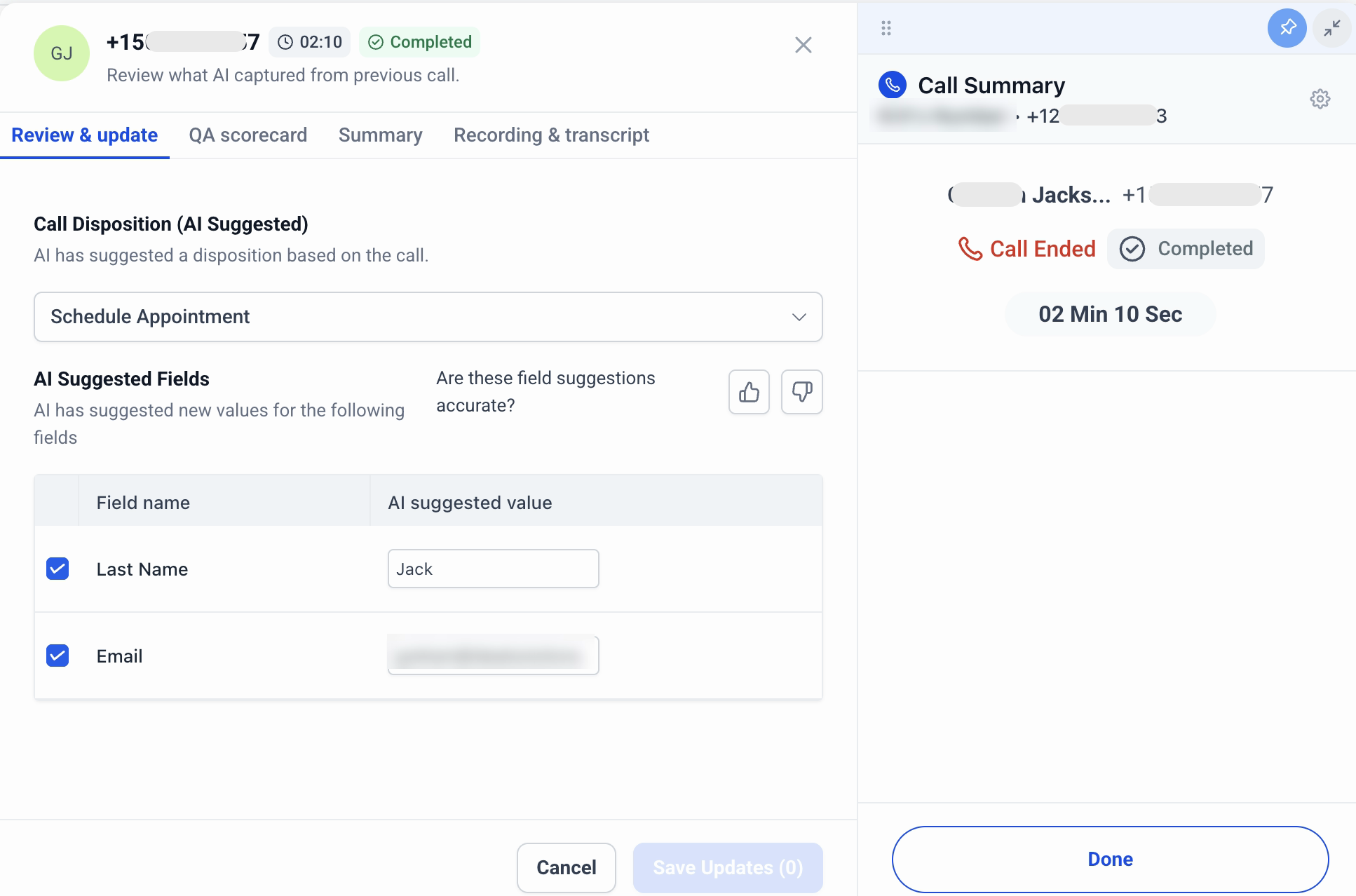
Review, tweak if needed, save, and move straight on to your next call.
Frequently asked questions
Each tab asks if the result is accurate. Select the thumbs up or thumbs down. Your feedback helps us make Voice Intelligence better.
Was this article helpful?
That’s Great!
Thank you for your feedback
Sorry! We couldn't be helpful
Thank you for your feedback
Feedback sent
We appreciate your effort and will try to fix the article