Announcements Builder
Modified on: Tue, 6 Oct, 2026 at 11:42 AM
Announcements Builder lets agencies create in-app banners for important updates, promotions, onboarding messages, and other communications. You can control where an announcement appears, who can see it, when it displays, and whether it includes a call-to-action button.
This article explains what Announcements Builder does, how it helps, and how to set it up for agency and account-level visibility.
TABLE OF CONTENTS
What is the Announcements Builder?
Announcements Builder allows agencies to create notification banners that appear inside HighLevel. Each announcement can include custom text, visibility settings, scheduling options, audience targeting, and an optional action button.
Agencies can use advanced Filters further narrow the audience to specific users or sub-accounts based on supported attributes.
How to Create an Announcement
- From the Agency View, navigate to Settings then Announcements.
- Click + Add Custom Announcement in the top-right corner.
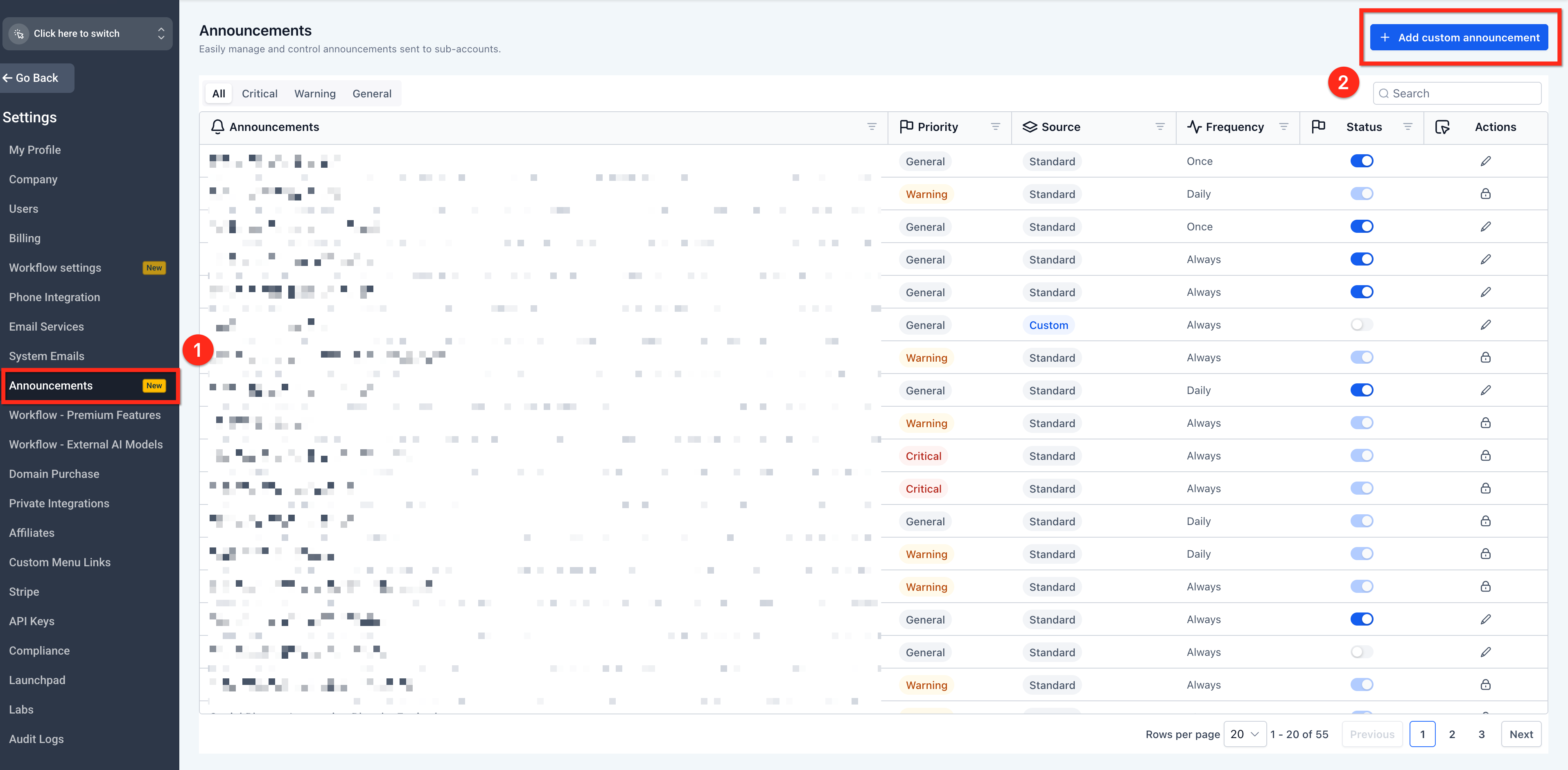
- Enter a name for the announcement.
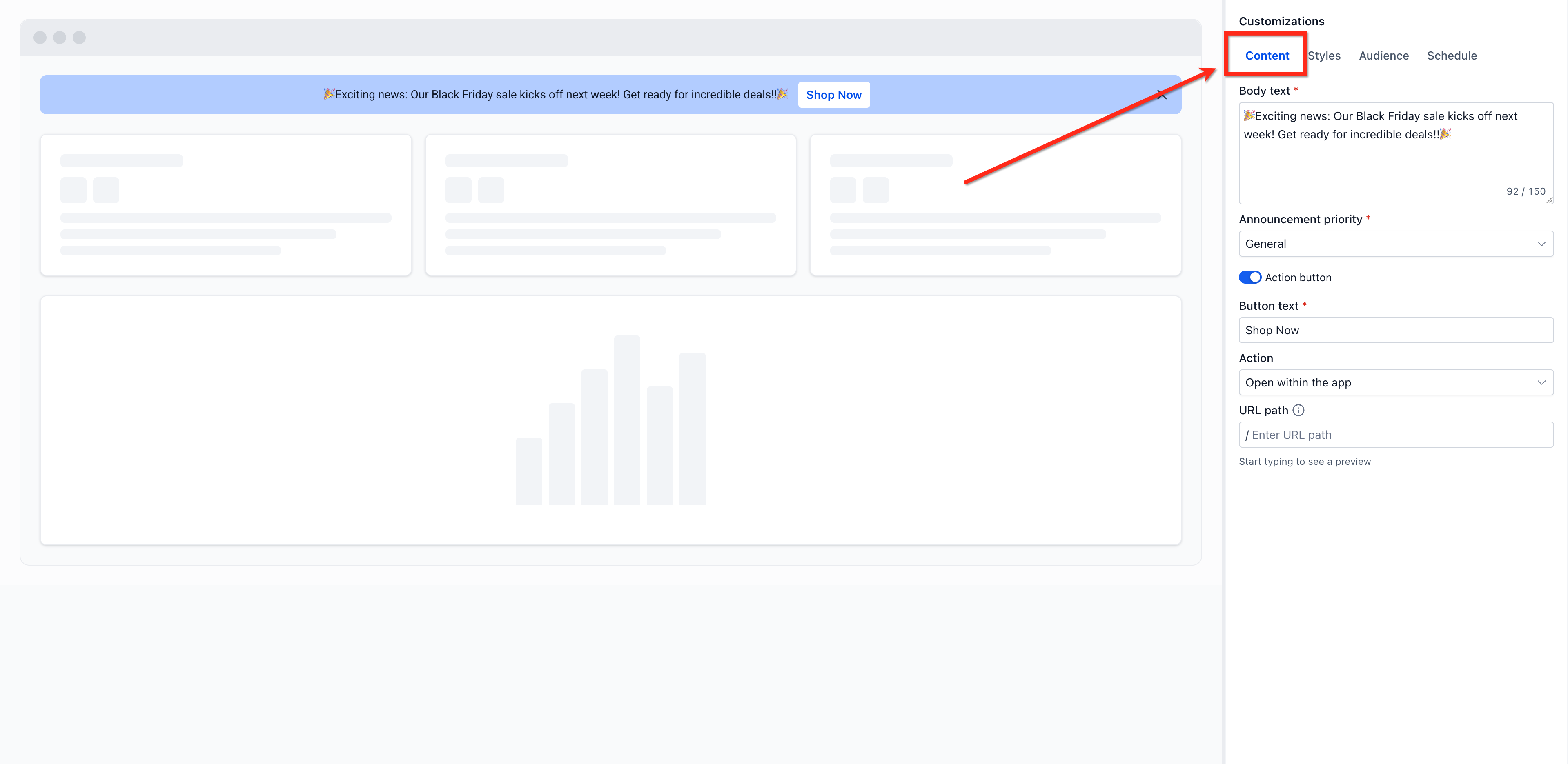
- In the Content tab, add the announcement name and Body text, choose the Announcement priority, and configure the optional CTA using Action button, Button text, Action, and URL.
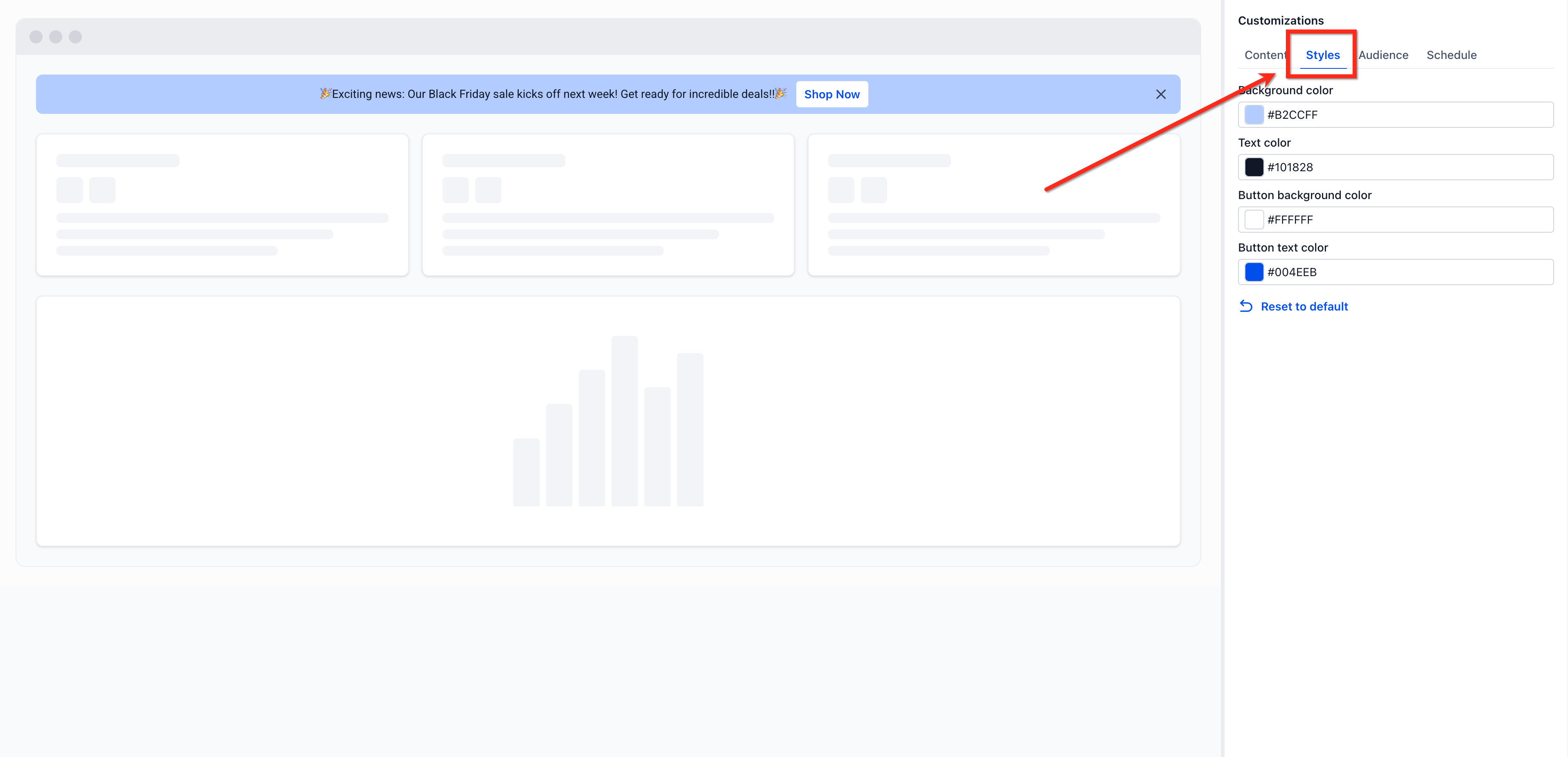
Open the Styles tab and customize the banner using the available color settings, including Background color, Text color, Button background color, and Button text color.
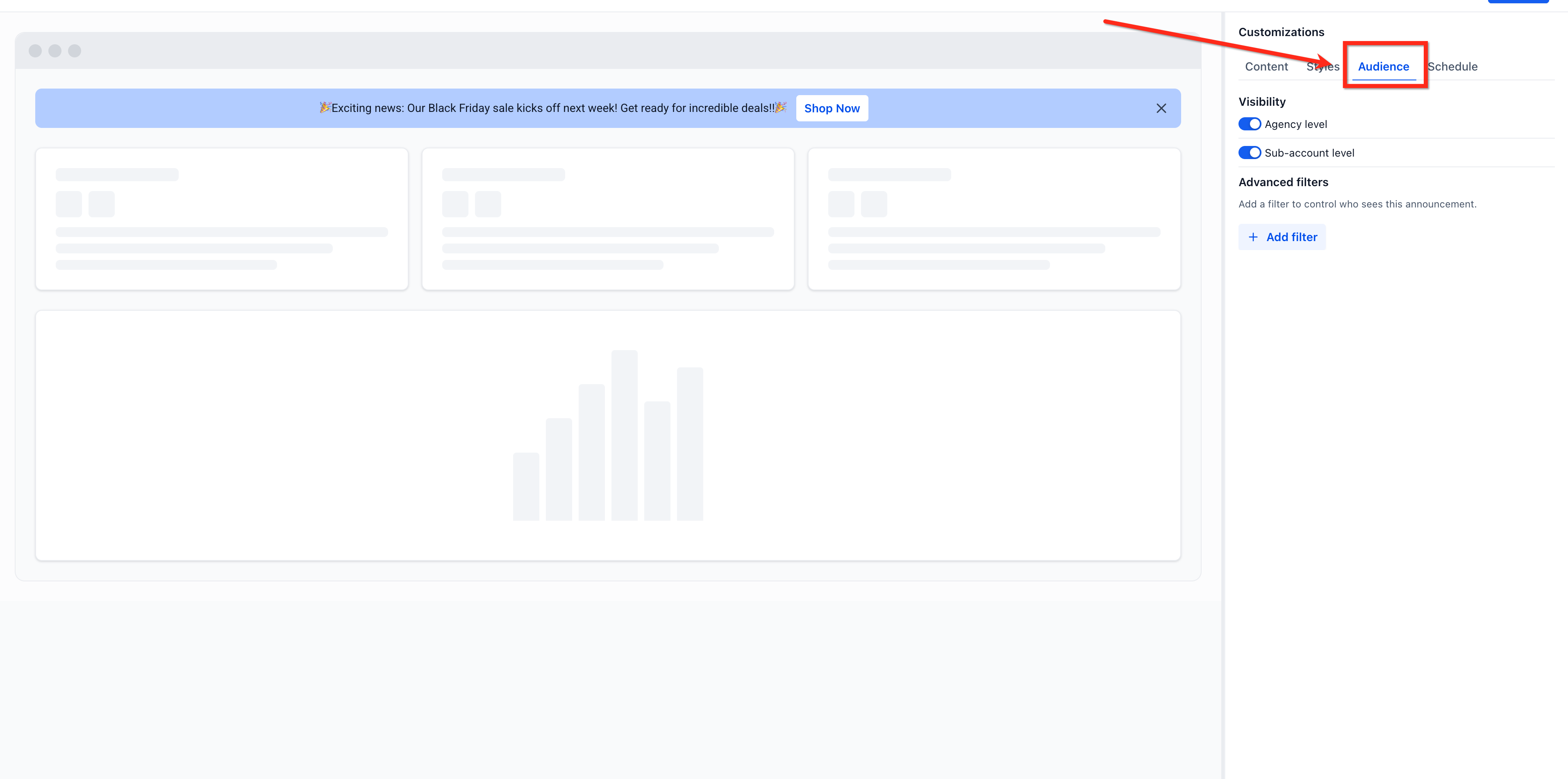
Open the Audience tab and choose whether the announcement appears at the Agency level, Sub-account level, or both. Use Advanced filters when you want to narrow the audience further.
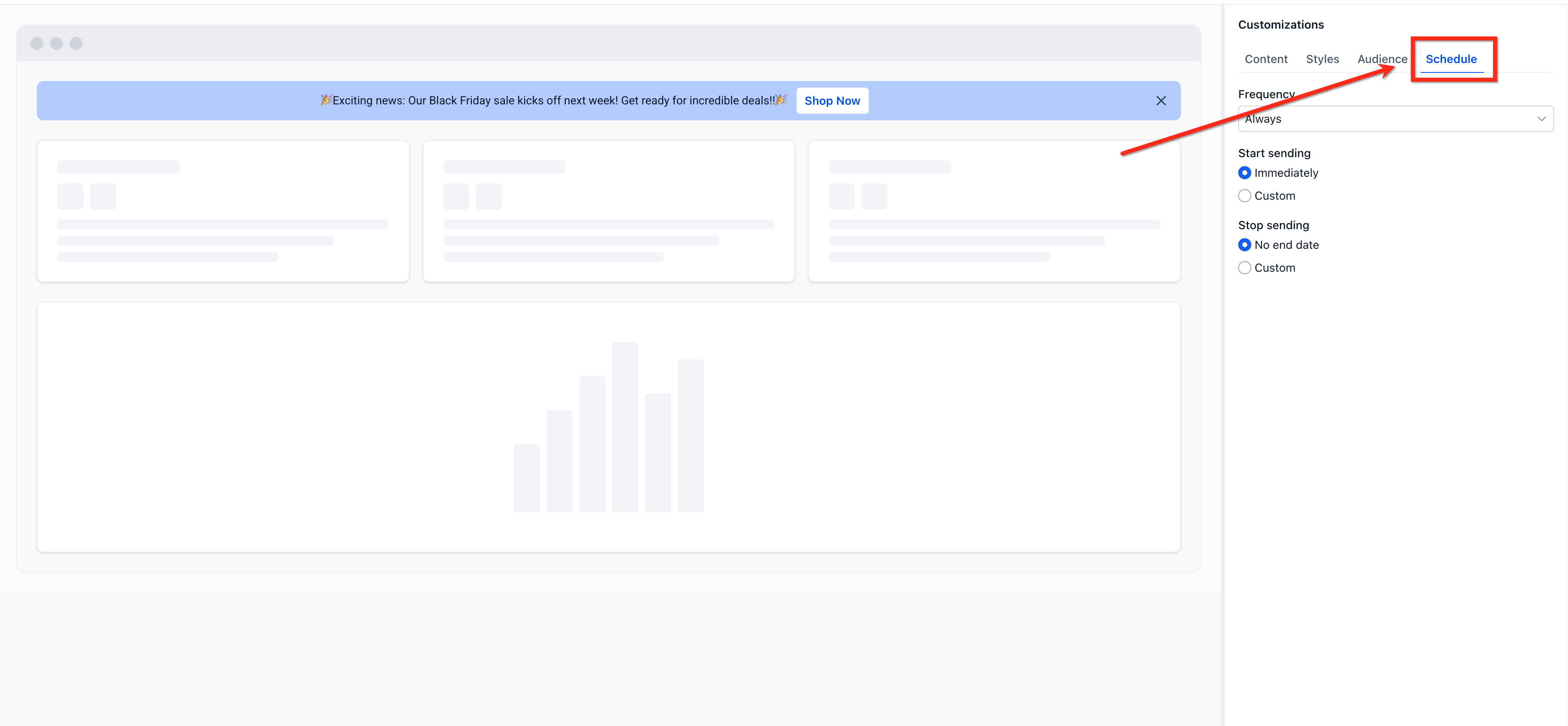
Open the Schedule tab and configure when the announcement should display.
Review the announcement and preview, choose Draft or Publish, then click Save.
Note: Existing HighLevel help content documents banner management inside Agency Settings and notes that it is intended for agency-side control of in-app banners. Access to related settings may depend on your agency role and permissions. For broader access management, review HighLevel’s user-access and permissions articles.
Banner Content and Core Settings
Strong banner content makes announcements easier to understand and more likely to drive action. Defining the core elements clearly helps agencies keep messages concise, relevant, and consistent across sub-accounts.
When creating an announcement, configure the core banner details such as:
- Title: A short headline that tells users what the announcement is about
- Message Content: The main body text that explains the update, alert, or action needed
- Priority: Set the banner level to Critical, Warning, or General
- Frequency Settings: Choose how often the banner should be shown to eligible users
- Status: Save the announcement as Draft while preparing it, or move it to Active when it is ready to display
Visibility and Audience Scope
Choosing the right visibility scope helps agencies avoid over-communicating while still keeping the correct users informed. This is especially important when announcements apply only to agency users, only to sub-accounts, or to both experiences.
Announcements Builder supports banner visibility across:
- Agency Level: Use this when the announcement is intended for users operating in the agency experience
- Account Level: Use this when the announcement should appear for sub-account users
- Both: Use this when the message is broadly relevant across both agency and account-level experiences
Advanced Filters
For more precise targeting, use Advanced Filters to show a banner only when specific conditions are met. Filters are grouped into two categories:
User fields: Email, First name, Last name, User (search), Role, Platform Language, Type
Sub-account fields: Sub-account (search), Status, Suspended reason, Address, City, Country, Currency, State, Postal code, Phone, Website, Timezone, Locale, Niche, HIPAA compliance, Agency account, Has LC email, LC email permanent lock, SaaS mode, Snapshot
Conditions work as follows:
- Conditions added within the same filter group are combined with AND — all must be true for the banner to show
- Click "+ Add filter" to create a new group, which is combined with OR — the banner shows if any group's conditions are met
Example: "Sub-account Is [Name]" AND "Country Is one of Australia" — OR — "Has LC email Is True"
Scheduling Announcements
Scheduling allows agencies to plan communication in advance and automatically control when a banner becomes relevant. This is useful for promotions, maintenance notices, onboarding prompts, policy reminders, or limited-time updates.
Use the scheduling settings to define:
- Start Date: The date when the announcement becomes eligible to display
- End Date: The date when the announcement should stop displaying
This gives agencies more control over banner lifecycle timing without requiring manual updates every time a message needs to go live or expire.
CTA Buttons and Redirect Behavior
Call-to-action buttons help turn an announcement into a guided next step instead of a passive message. This is useful when users need to open a page, review a feature, complete a setup task, or read more information.
Announcements can include an optional CTA button with:
- Button text
- Destination URL
- Redirect behavior
Use CTA buttons when the banner should send users to a specific page, resource, or workflow. Keep the destination relevant to the announcement so users can act on the message immediately.
Redirect behavior, including the option to Open in new tab, so users stay on your platform while the linked page opens separately
Priority and Frequency Behavior
Priority and frequency settings help agencies manage banner visibility more intentionally, especially when more than one banner may be active at the same time. This prevents important messages from being buried under less urgent communication.
Use priority levels to organize announcements by importance:
- Critical: Best for urgent or high-impact notices
- Warning: Best for important alerts that need visibility but are less urgent than critical items
- General: Best for standard informational messages
Frequently Asked Questions
Q: What is the difference between Announcements Builder and In-App Banner Management?
Announcements Builder is used to create and configure announcements, while In-App Banner Management is documented as an agency-level area for reviewing, prioritizing, and enabling or disabling in-app banners across the agency and connected sub-accounts.
Q: Can I save an announcement before publishing it?
Yes. Based on the release details provided, announcements support Draft and Active states, so you can save work before making it live.
Q: Can I schedule announcements ahead of time?
Yes. Announcements can be scheduled using a Start Date and End Date, which helps control when the banner is eligible to appear.
Q: Can I add a button to an announcement?
Yes. Announcements can include an optional CTA button with a destination URL and redirect behavior.
Q: Can announcements appear in both agency and sub-account experiences?
Yes. Based on the release details provided, banner visibility can be set for the agency level, account level, or both.
Q: What happens if multiple banners are active at the same time?
Priority settings help determine display handling. Use Critical, Warning, and General to organize messages by urgency and importance.
Q: Who should manage announcements in HighLevel?
This feature is best managed by agency-side users who are responsible for communication and platform administration. HighLevel’s current help content places related banner-management controls in Agency Settings, and access is generally governed by agency roles and permissions.
Q: Can I target a banner to specific sub-accounts or users?
Yes. Use Advanced Filters in the Audience tab to build conditions based on sub-account or user attributes. Combine conditions with AND within a group, or add a new group for OR logic.
Q: Can a CTA button open a link in a new tab?
Yes. When configuring the CTA button's redirect behavior, you can choose "Open in new tab" to send users to an external page without navigating away from HighLevel.
Related Articles
- Banner Management in HighLevel - Control In-App Banners
- Agency | Managing User Roles & Permissions - HighLevel
- User Access in HighLevel | Agency & Sub-Accounts
- Manage Sub-Account User Roles & Permissions | HighLevel
- Admin vs User Roles & Permission Scopes in HighLevel
- Social Planner: In-App Notification Banner for Disconnected Accounts
Was this article helpful?
That’s Great!
Thank you for your feedback
Sorry! We couldn't be helpful
Thank you for your feedback
Feedback sent
We appreciate your effort and will try to fix the article