Add Prospects to a Pipeline from the Prospecting Tool
Modified on: Tue, 3 Mar, 2026 at 5:47 AM
Prospecting is now more tightly connected to your CRM, making it easier to move from discovery to deal tracking without extra manual steps. When adding a new prospect, the Add to a pipeline option can send that prospect directly into your sales pipeline at the correct stage. This helps teams keep outreach organized while building a pipeline that’s ready for follow-up and conversion.
TABLE OF CONTENTS
- What is Add Prospects to a Pipeline in Prospecting?
- Key Benefits of Adding Prospects to a Pipeline
- Where This Feature Works in Prospecting
- How It Works
- How To Setup Add Prospects to a Pipeline
- Frequently Asked Questions
What is Add Prospects to a Pipeline in Prospecting?
Connecting Prospecting to Pipelines allows newly created prospects to immediately enter your CRM deal workflow. Instead of generating a prospect report and then manually creating or updating a deal, the prospect can be routed into an existing Pipeline and Stage during the add flow. This creates a smoother handoff from lead discovery to opportunity management.
Key Benefits of Adding Prospects to a Pipeline
Routing prospects into a pipeline right away keeps lead generation and deal tracking in one connected workflow. This reduces missed follow-ups, speeds up pipeline creation, and makes it easier to measure outcomes from Prospecting activity.
- Instant Deal Tracking: Send a new prospect directly into your CRM pipeline as soon as it’s added
- Faster Pipeline Creation: Build pipelines while prospecting without extra data entry
- Organized Follow-Up: Keep outreach aligned to pipeline stages so nothing falls through the cracks
- Better Visibility: Manage, nurture, and close prospects in one connected workflow
- Improved Measurement: Track Prospecting-generated leads alongside your CRM activity
How To Setup Add Prospects to a Pipeline
Proper setup ensures prospects land in the correct pipeline stage and are immediately actionable for sales teams. Selecting the right pipeline and stage at the time of creation keeps your CRM clean and aligns prospect follow-up with your sales process.
- Open the Prospecting Tool in your sub-account.
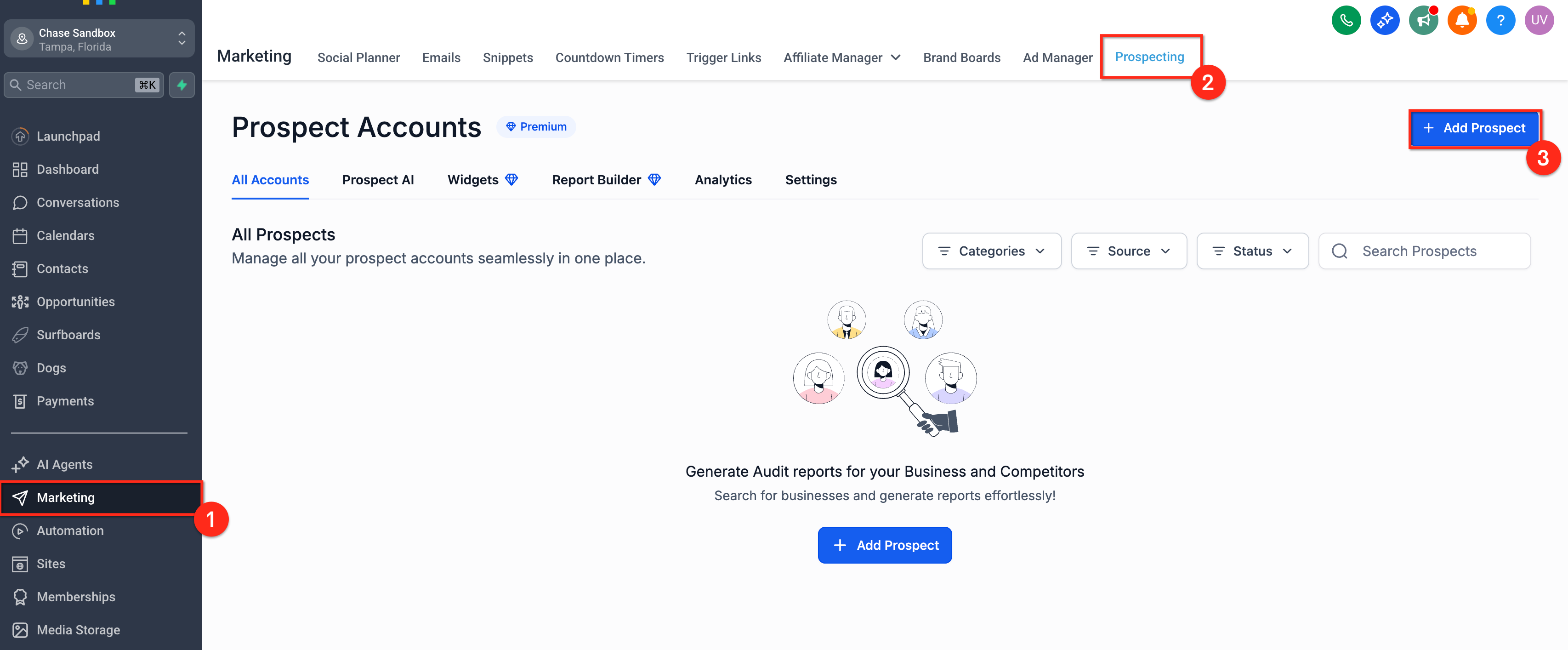
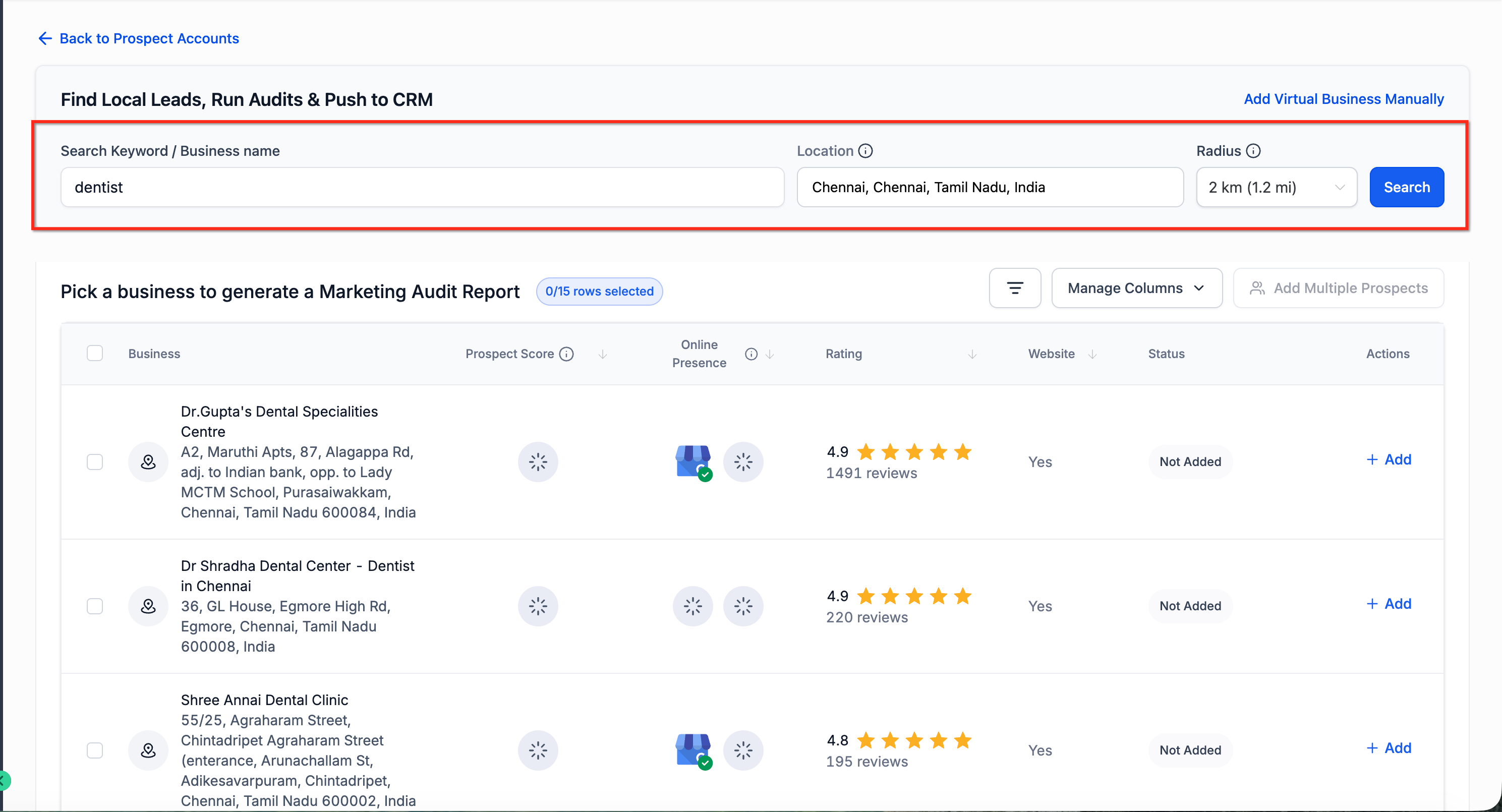
- Search for a prospect using Keyword, Location and Radius.
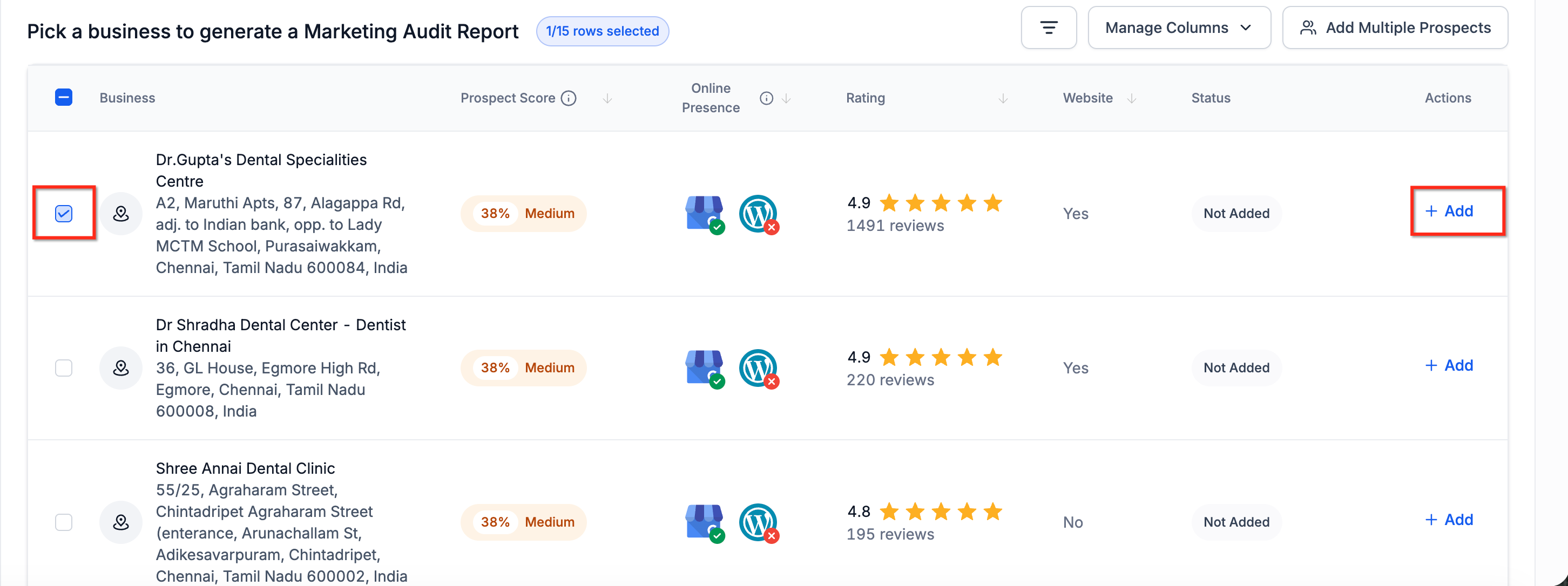
- Click Add on the prospect you want to capture.
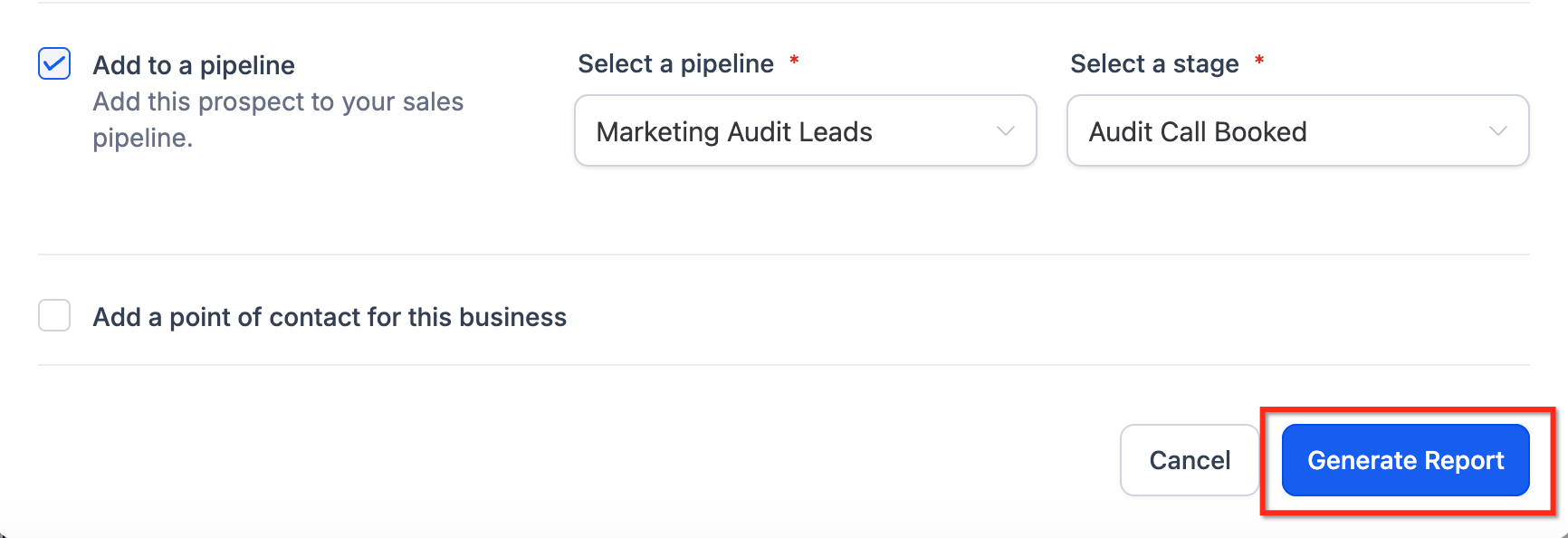
- Enable the Add to a pipeline option. Select the Pipeline you want to add the prospect to. Choose the correct Stage within that pipeline.
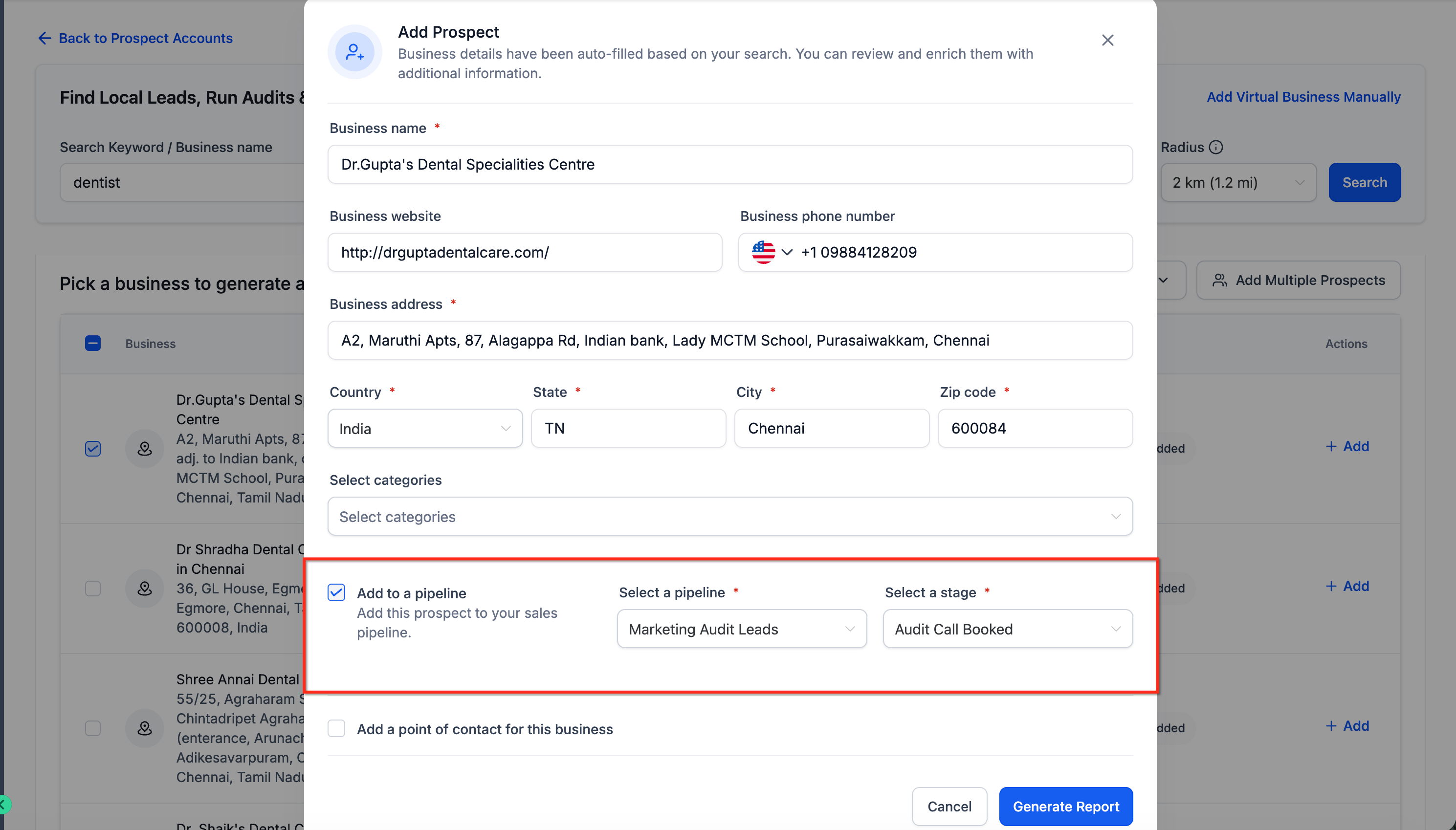
- Click Generate Report.
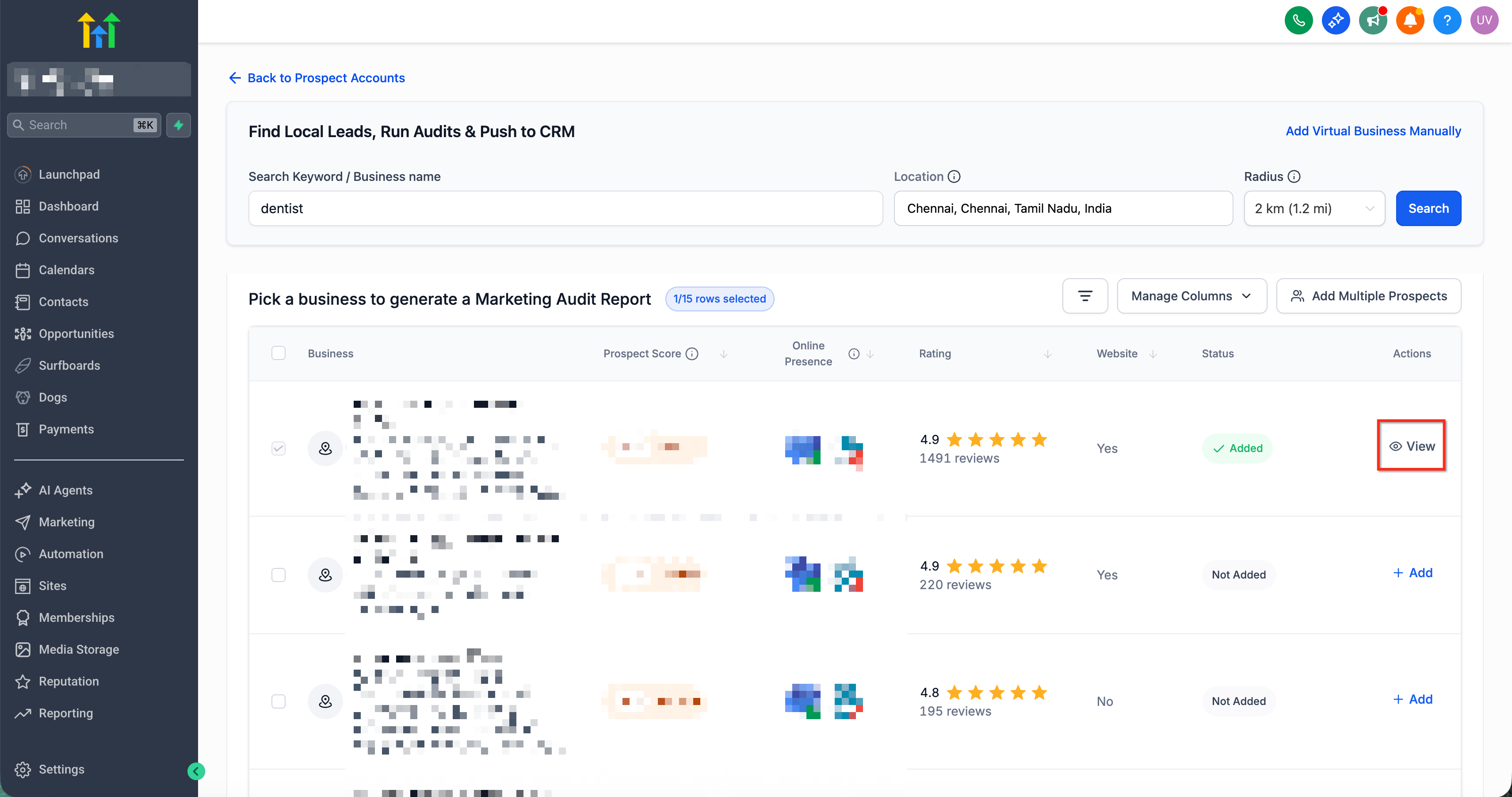
- Confirm the prospect appears inside your CRM pipeline at the selected stage.
Frequently Asked Questions
Q: Does this work with Bulk Prospecting?
A: Yes. Prospects can be routed into a pipeline from bulk prospecting as well as manual search and manual/form-based prospect creation.
Q: When is the prospect added to the pipeline?
A: The prospect is added after you enable Add to a pipeline, choose a pipeline and stage, and click Generate Report.
Q: Do I have to create a pipeline first?
A: Yes. You must have an existing pipeline (with stages) available to select when enabling Add to a pipeline.
Q: Can I change the pipeline stage after the prospect is added?
A: Yes. Once the prospect is in your CRM pipeline, you can move it between stages like any other deal.
Q: Will this keep my follow-ups organized?
A: Yes. Adding prospects directly into the correct stage makes it easier to manage outreach and next steps based on your pipeline process.
Q: Can I still do outreach to prospects added to a pipeline?
A: Yes. Once the prospect is in your CRM, you can manage follow-ups and outreach using your normal CRM workflows.
Q: Does adding a prospect to a pipeline trigger automations?
A: If your account uses automations based on opportunity creation or stage changes, adding prospects to a pipeline may trigger those workflows depending on how your system is configured.
Related Articles
Was this article helpful?
That’s Great!
Thank you for your feedback
Sorry! We couldn't be helpful
Thank you for your feedback
Feedback sent
We appreciate your effort and will try to fix the article