In this article, you’ll learn how to enable filters, manage multiple conversations effectively, and use additional tools to streamline communication.
TABLE OF CONTENTS
- What are Conversation Filters?
- Key Benefits of Conversation Filters
- Filters Panel
- Filter Builder
- AND / OR Logic
- Managing Multiple Conversations
- Starred Conversations
- Sorting Conversations
- Frequently Asked Questions
- Related Articles
What are Conversation Filters?
Conversation Filters are tools within the Conversations inbox that determine which conversations are displayed based on specific conditions. They are designed to help users stay organized, prioritize work, and focus on the most relevant conversations without manually searching through the inbox.
Conversation Filters work alongside inbox tabs, sorting options, and bulk actions to give teams full control over how conversations are viewed and managed.
Key Benefits of Conversation Filters
Conversation visibility and control improve significantly when filters are used correctly.
- Focused Inbox Views: View only conversations that match specific criteria such as assigned users, mentions, or tags.
- Improved Team Efficiency: Reduce noise and help team members focus on conversations that require action.
- Advanced Logic Support: Combine multiple rules using AND / OR logic for precise filtering.
- Scalable Inbox Management: Manage large volumes of conversations without manual sorting.
Filters Panel
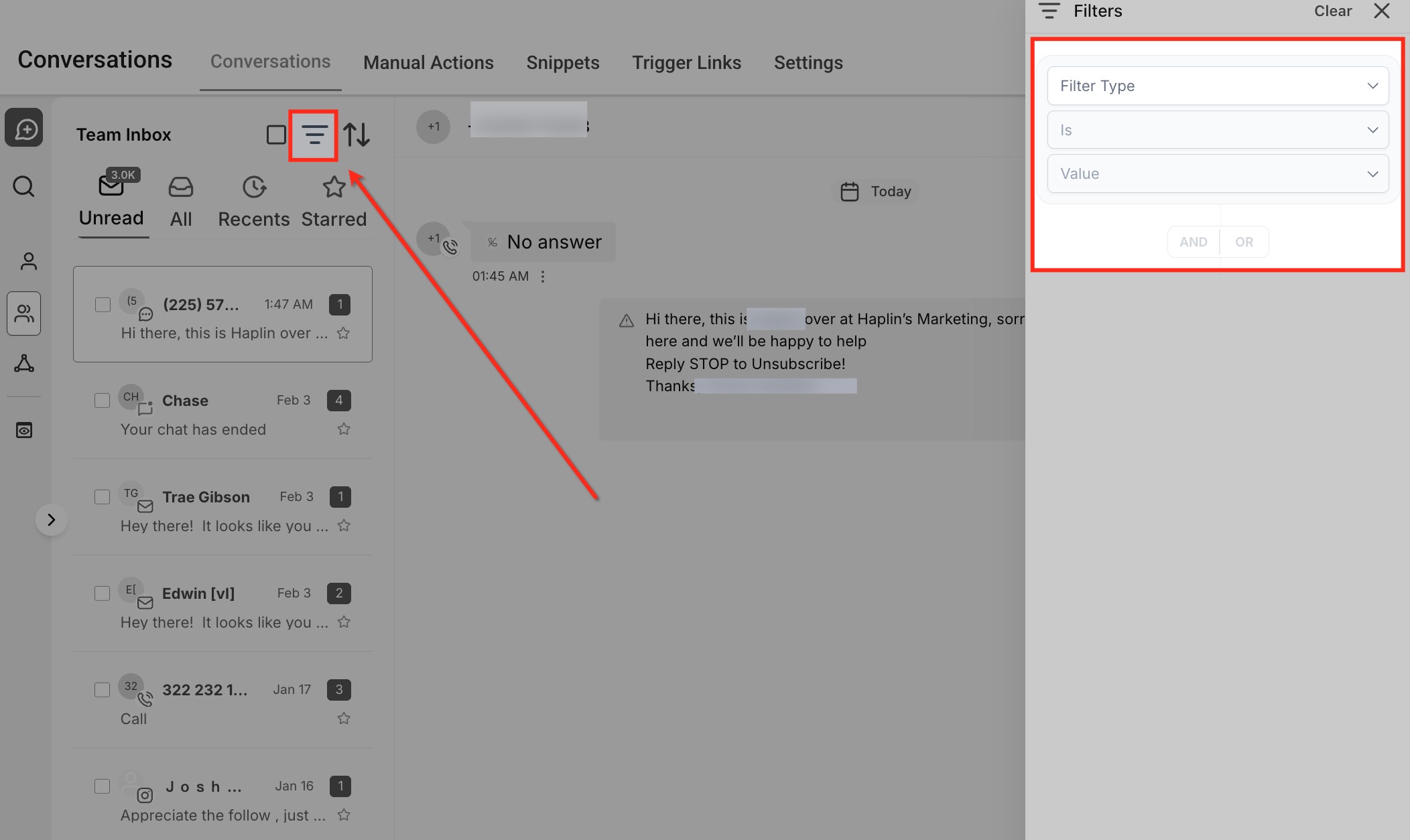
The Filters panel is the core of the updated filtering experience and allows rule-based filtering using multiple conditions.
Opening the Filters Panel
Clicking the Filters icon (three horizontal lines) opens the Filters panel on the right side of the screen.
Filter Builder
The Filter Builder allows users to define detailed rules that control which conversations appear in the inbox.
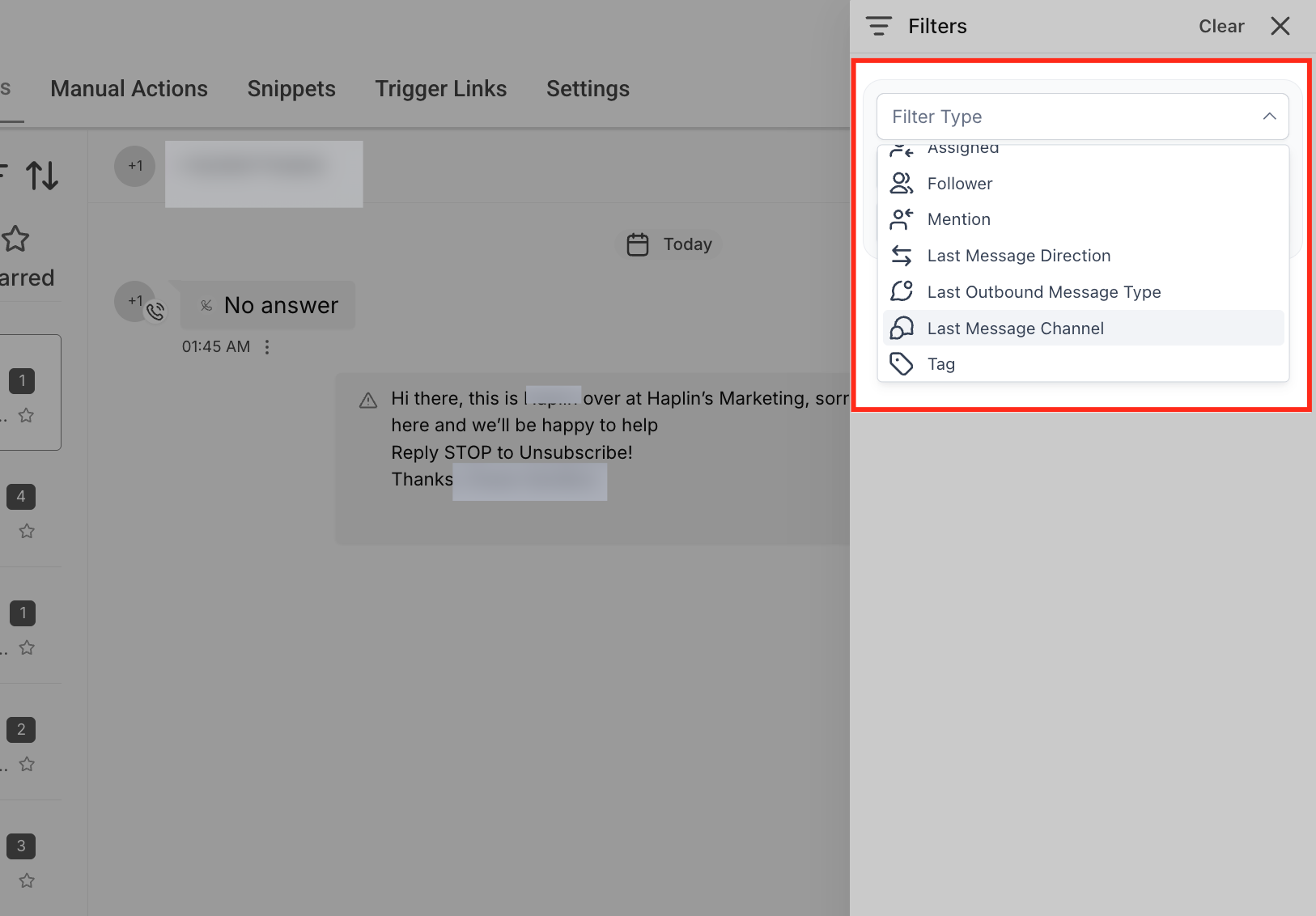
Available filter types include:
Filter By Assigned
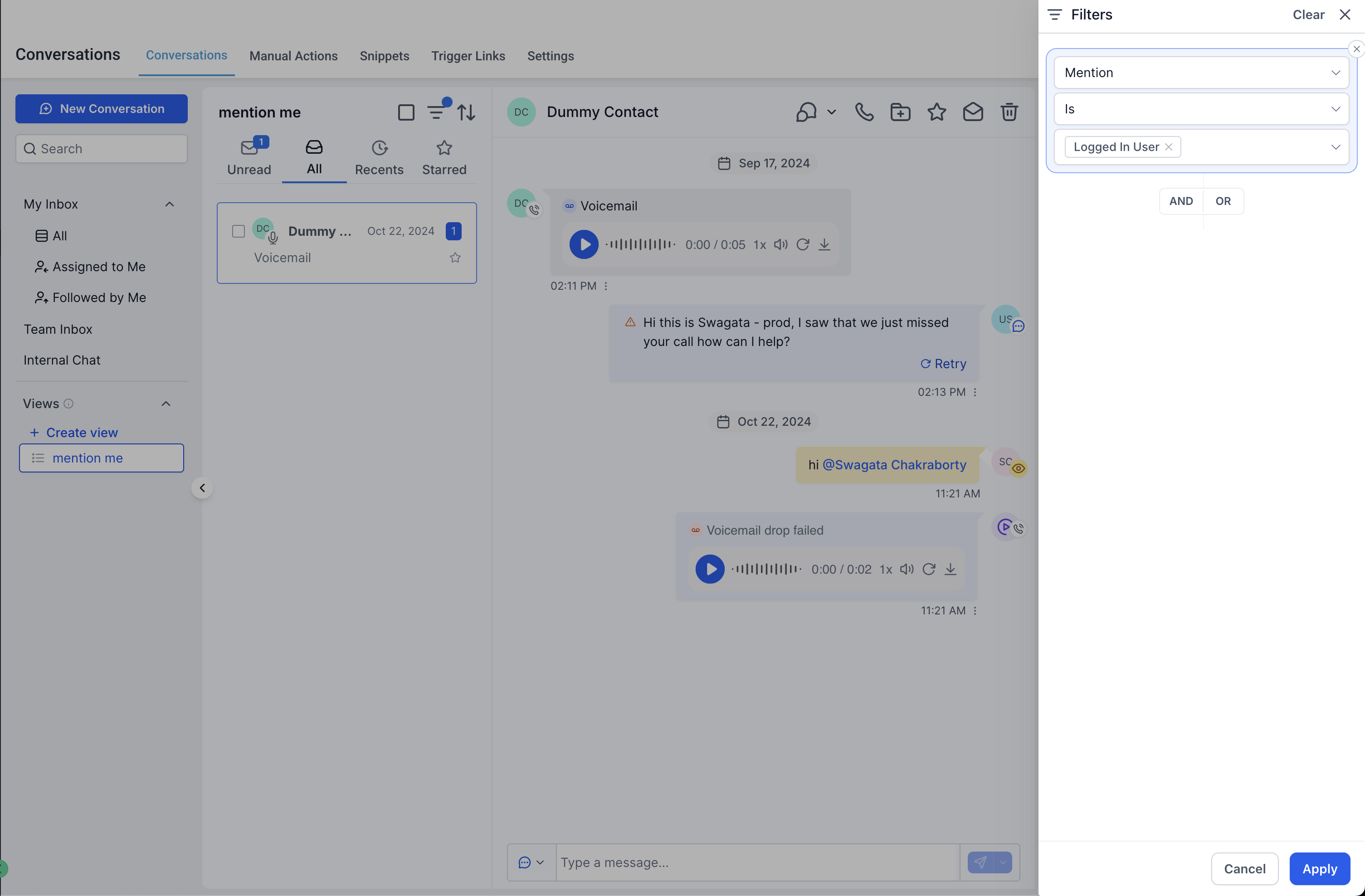
Filters conversations based on the user who is assigned as the conversation owner. This helps team members quickly view conversations they are responsible for or identify unassigned conversations that need ownership.
You can choose Logged In User in the user dropdown to make the filter apply to the currently logged-in team member. This is useful for shared Conversation Views.
Filter By Follower
Filters conversations where a specific user is added as a follower. Followers receive visibility into the conversation without being the primary owner, making this useful for collaboration and oversight.
You can choose Logged In User in the user dropdown to dynamically filter conversations where the currently logged-in user is a follower.
Filter By Mention
Filters conversations where a user has been mentioned using an @mention. This is helpful for locating conversations that require attention or were explicitly flagged for a specific team member.
Filter By Last Message Direction
Filters conversations based on whether the most recent message was Inbound (from the contact) or Outbound (sent by a user or automation). This helps identify conversations waiting for a response versus those already replied to.
Filter By Last Outbound Message Type
Filters conversations based on whether the most recent outbound message was sent Manually by a user or Automated through workflows or campaigns. This is useful for tracking human engagement versus automation.
Filter By Last Message Channel
Filters conversations by the communication channel used for the most recent message, such as SMS, Email, Calls, Voicemail, Live Chat, WhatsApp, Facebook, Instagram, or GBP. This allows teams to focus on specific channels.
Filter By Tag
Filters conversations associated with specific contact tags. Tags help categorize contacts and conversations, making it easier to segment and manage conversations based on custom labels.
Filter Condition
The condition determines how the selected filter type is evaluated.
Common conditions include:
Is: Includes conversations that match the selected value.
Is not: Excludes conversations that match the selected value.
Filter Value
The Value field defines the exact user, tag, channel, or attribute used in the filter.
How it works:
Supports searchable dropdowns.
Allows selecting one or multiple values depending on the filter type.
AND / OR Logic
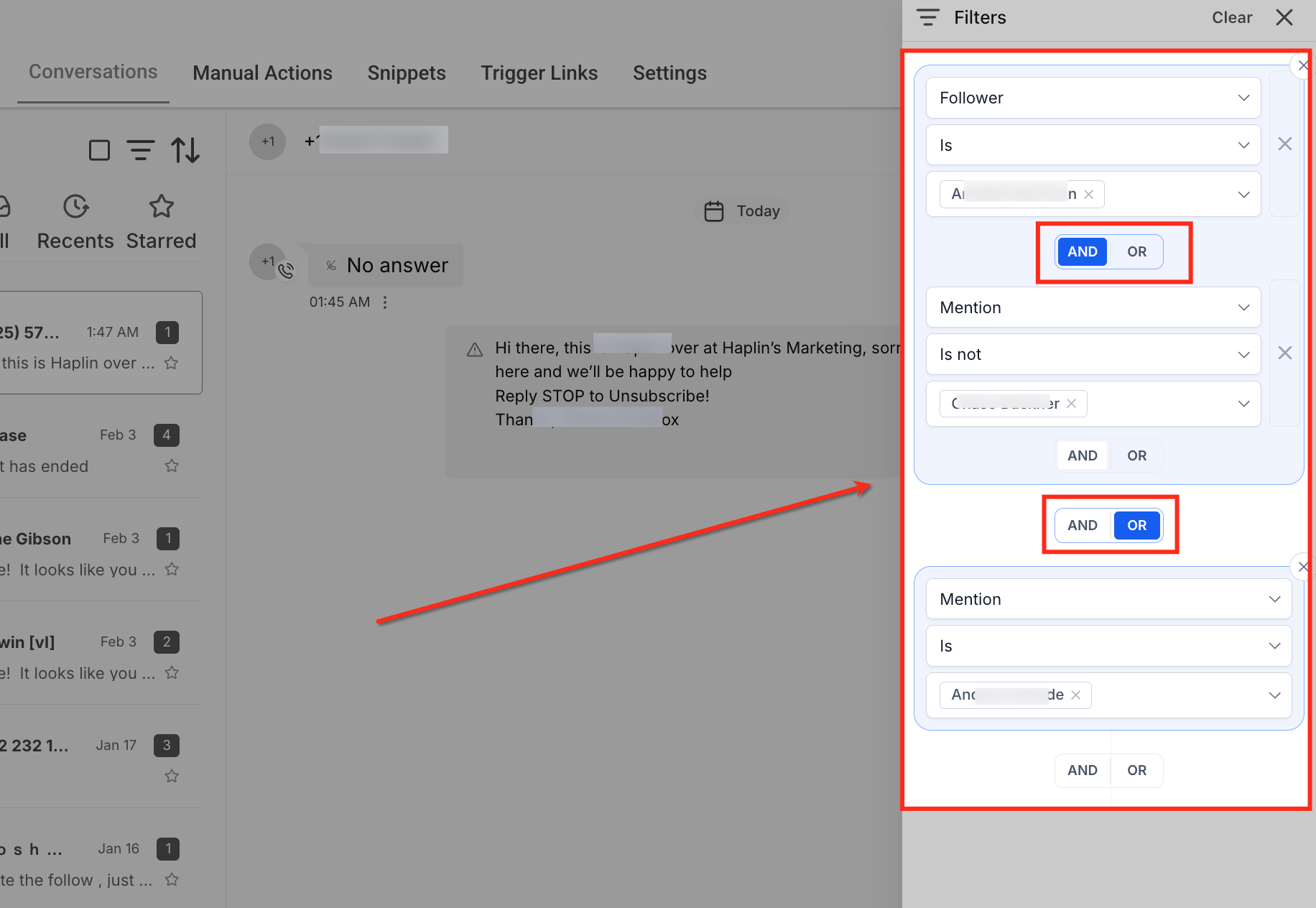
AND / OR logic controls how multiple filter rules interact with each other.
Logic Within a Filter Group
When multiple rules exist within the same group, logic toggles determine how they are evaluated.
AND: All rules must be true.
OR: Any rule can be true.
Logic Between Filter Groups
When multiple filter groups are created, additional AND / OR toggles define how entire groups interact.
This allows advanced logic such as combining assignment, mentions, and tags in a single filter setup.
Managing Multiple Conversations
Handling a high volume of conversations can be challenging, but with multiple "conversation actions", you can efficiently manage multiple conversations simultaneously, helping you maintain control and organization in a busy environment.
Conversation Selection Checkboxes
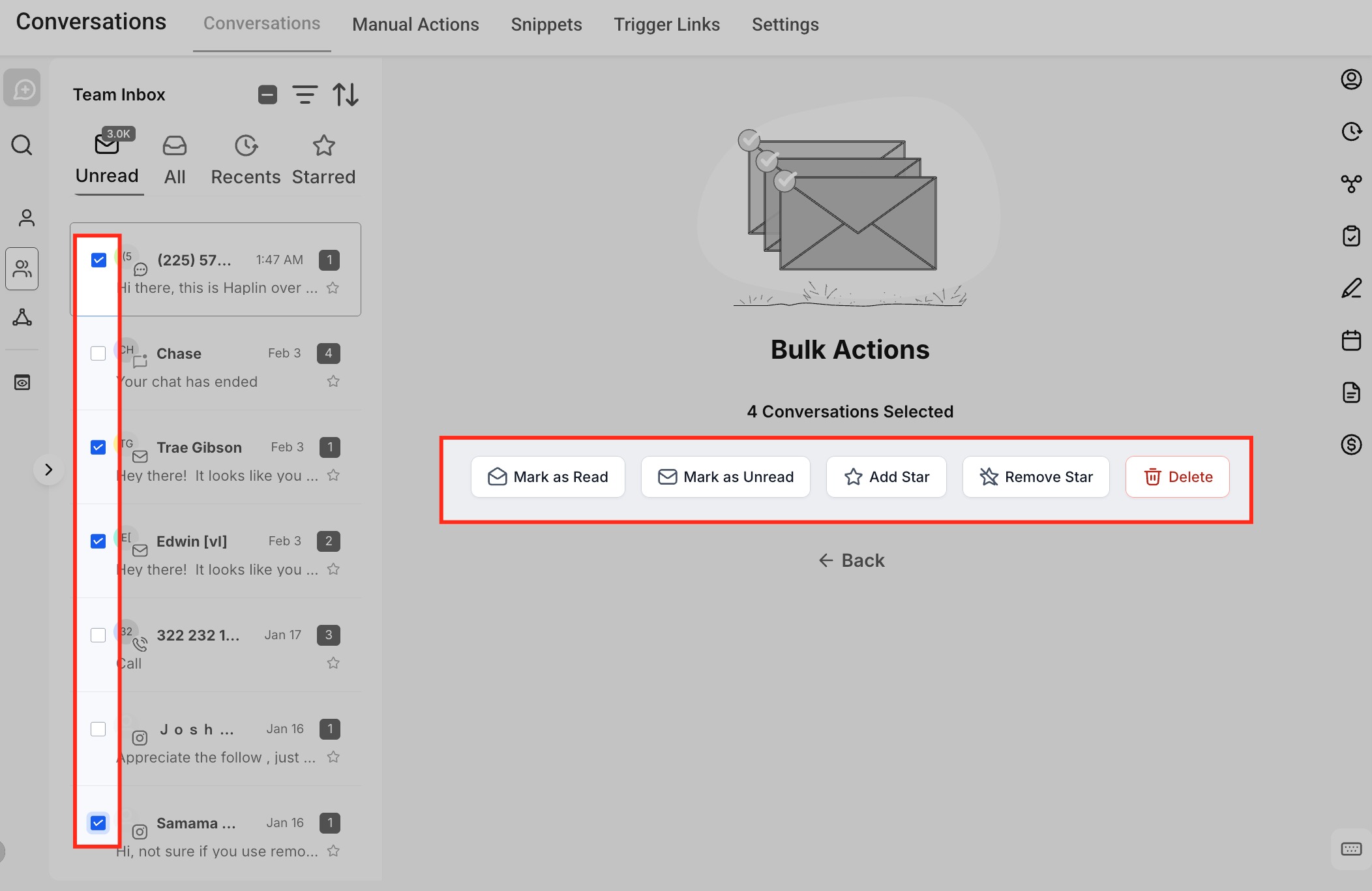
Each conversation in the inbox includes a checkbox on the far left. Selecting one or more checkboxes enables bulk management features.
How it works:
Select a single conversation to apply actions to that conversation only.
Select multiple conversations to activate bulk actions.
A select-all option appears when multiple conversations are available.
Bulk Actions Toolbar
The Bulk Actions toolbar appears automatically when one or more conversations are selected.
Available actions include:
- Mark as Read: Marks selected conversations as read.
- Mark as Unread: Returns conversations to the unread state.
- Add Star: Flags conversations as important.
- Remove Star: Removes the starred status.
- Delete: Permanently deletes the selected conversations.
Starred Conversations
Starred conversations are a simple yet effective way to highlight and revisit important messages, helping you keep track of high-priority interactions with ease.
Star Icon
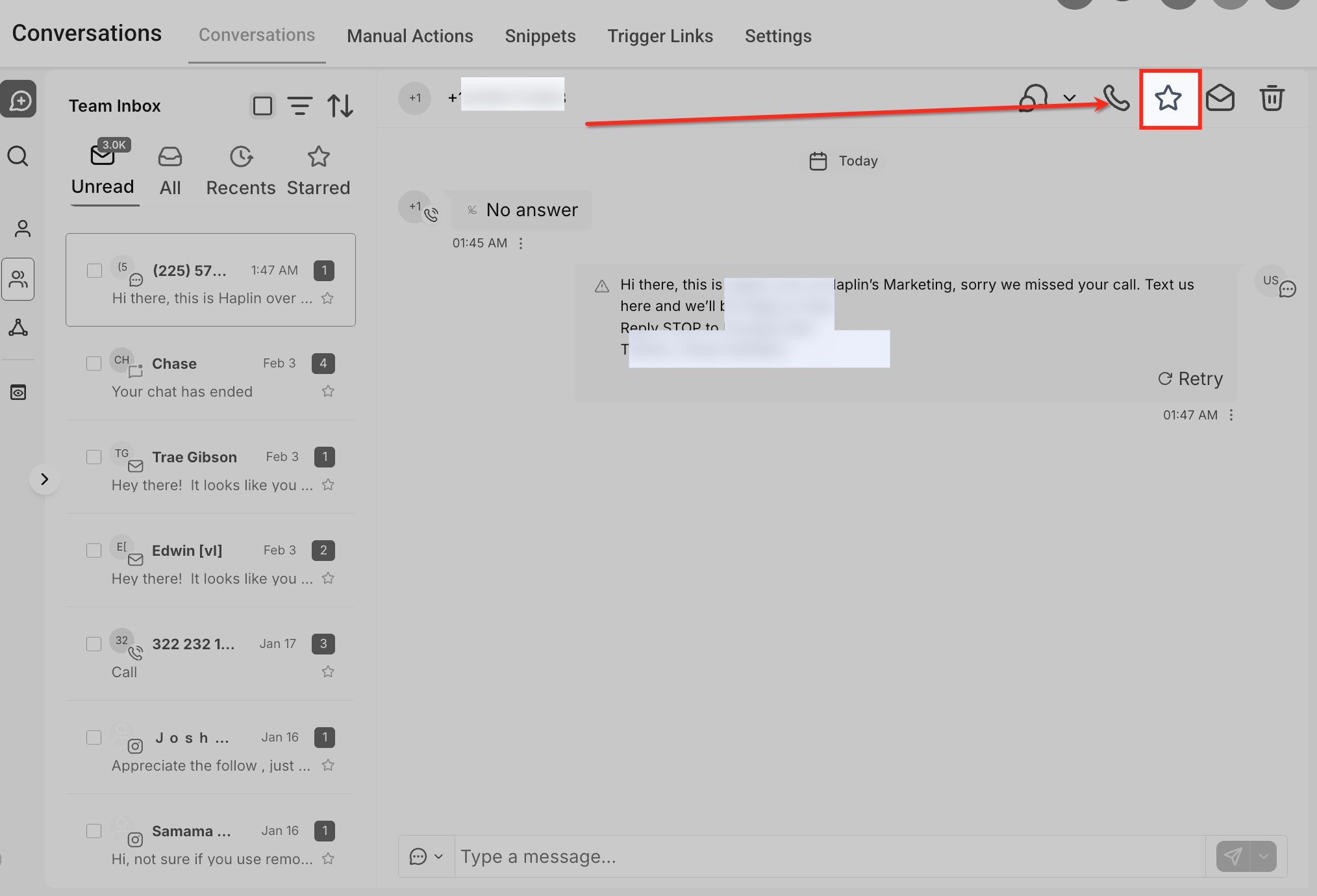
The star icon appears in both the conversation list and within individual conversation views.
How it works:
- Clicking the star marks the conversation as starred.
- Starred conversations can be accessed using the Starred inbox tab.
Sorting Conversations
Sorting options allow you to arrange your conversations in a way that’s most convenient for you. There are multiple available sorting methods, ensuring you can always find what you’re looking for quickly.
Sort Icon
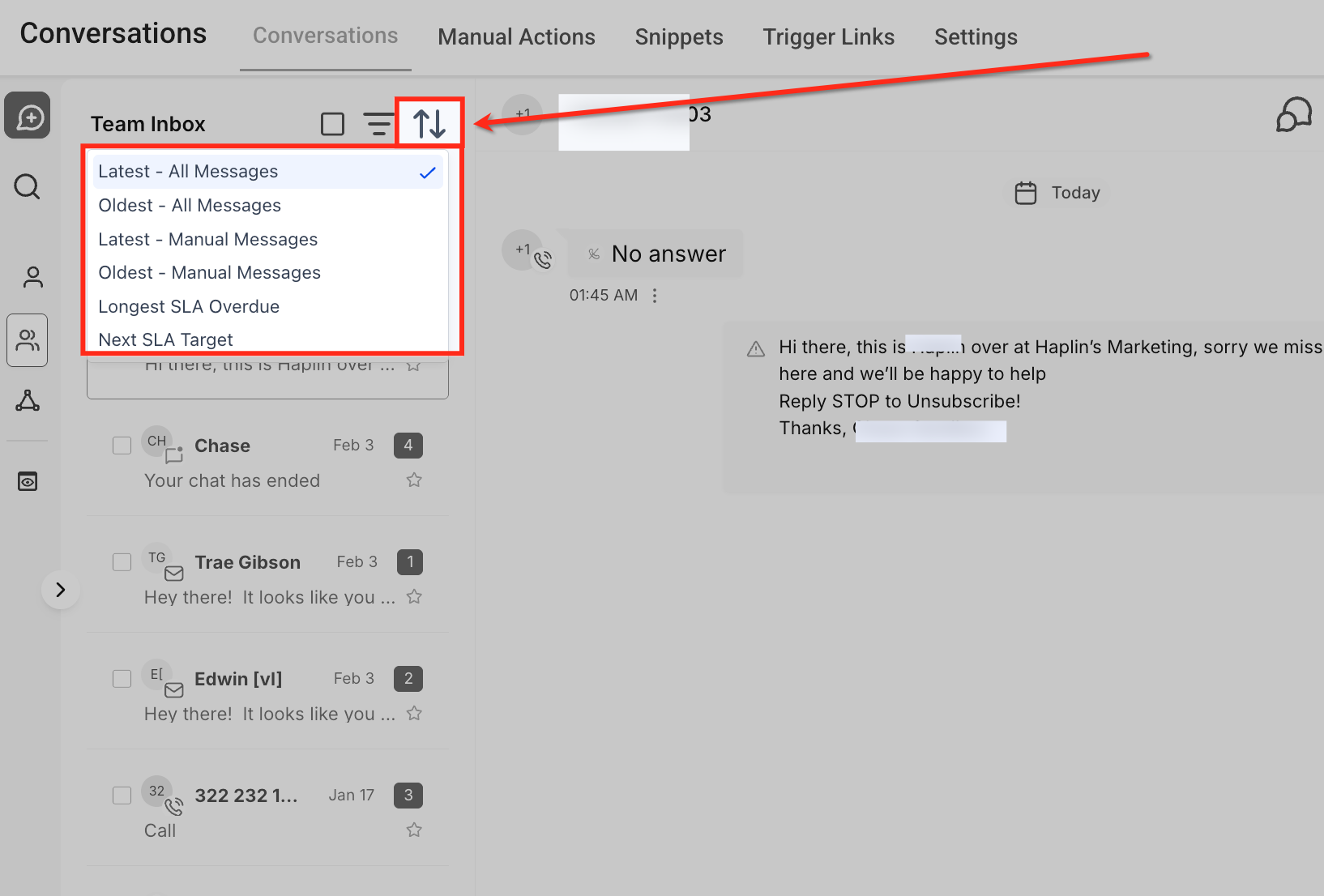
The sort icon (up/down arrows) opens a dropdown with available sorting options.
Available sorting options include:
- Latest All Messages: Displays conversations with the most recently sent or received message at the top, regardless of whether the message was manual or automated.
- Oldest All Messages: Displays conversations with the oldest last message at the top, helping surface conversations that may have been inactive the longest.
- Latest Manual Messages: Sorts conversations based on the most recent manually sent message by a user, excluding automated messages from workflows or campaigns.
- Oldest Manual Messages: Sorts conversations by the oldest manually sent message, making it easier to find conversations that have not received recent human interaction.
- Longest SLA Overdue: Prioritizes conversations that have exceeded their SLA by the longest duration, helping teams address the most critical response delays first.
- Next SLA Target: Sorts conversations by the closest upcoming SLA deadline, allowing teams to proactively respond before SLAs are breached.
Frequently Asked Questions
Q: Do Conversation Filters update in real time?
Yes, the inbox updates instantly when filters are applied, removed, or modified.
Q: Can I save filter combinations?
Currently, filters are session-based and need to be reapplied when returning to the inbox.
Q: What is the difference between Assigned and Follower filters?
Assigned refers to the primary owner of the conversation, while Follower includes users added for visibility or collaboration.
Q: Can I use multiple channels in a single filter?
Yes, the Last Message Channel filter supports selecting multiple channels.
Q: Does deleting conversations using bulk actions permanently remove them?
Yes, deleted conversations cannot be recovered.
Related Articles
HighLevel offers several supplementary tools to further enhance your conversation management experience. Explore the related articles below to maximize your use of conversation management tools in HighLevel!
- Using Snippets: Snippets are reusable text templates you can insert into messages to save time. Click here to learn more about Snippets.
- Adding Internal Comments and Mentions: Add internal comments and mention team members to collaborate effectively. Click here to learn more about Internal Comments and Mentions.
- Group Chat for SMS: Send group SMS messages within a conversation. Click here to learn more about Group Chat for SMS.
- Activity Cards: Quickly access tasks like editing or managing opportunities with Activity Cards. Click here to learn more about Activity Cards.
- Selecting SMS To and From Numbers: Choose specific numbers for sending SMS messages. Click here to learn more about Selecting SMS Numbers.
Was this article helpful?
That’s Great!
Thank you for your feedback
Sorry! We couldn't be helpful
Thank you for your feedback
Feedback sent
We appreciate your effort and will try to fix the article