Git Sync in HighLevel AI Studio connects your projects to Git repositories, allowing code changes to synchronize between AI Studio and external development tools. You can work with tools such as Cursor, Claude Code, Codex, GitHub Copilot, and Gemini CLI while keeping your project versions up to date. Automatic synchronization, version tracking, and branch management make it easier to develop projects without manually transferring code.
TABLE OF CONTENTS
- What is Git Sync in AI Studio?
- How to Set Up Git Sync with GitHub in AI Studio
- Automatic Push and Pull Synchronization
- Managing Git Sync in AI Studio
- Related Articles
What is Git Sync in AI Studio?
Git Sync is a two-way integration that keeps code changes synchronized between AI Studio and a connected Git repository. When you connect a GitHub account, AI Studio automatically creates a private repository for your project and pushes its initial version to GitHub.
Git Sync allows you to:
Sync changes automatically: Push saved AI Studio versions to GitHub and pull external commits back into AI Studio.
Work with external development tools: Edit project code outside AI Studio without manually transferring files.
Track changes: Maintain project versions and Git commit history.
Review updates: Generate new preview builds after pulling external changes.
Manage development: Switch branches, monitor synchronization activity, and resolve conflicts.
Git Sync supports React (Vite) and TanStack Start projects, including dependency and lockfile changes. Images, fonts, and other binary files are preserved during synchronization, although the AI Studio Code Editor cannot preview binary files.
Git Sync is optional. Projects without a Git connection continue working normally.
Note: Git Sync uses Git, which is supported by GitHub and other repository providers. While this article covers GitHub, support for additional Git-based providers, including privately hosted repositories, may vary.
How to Set Up Git Sync with GitHub in AI Studio
Connecting GitHub creates a private repository for your project and enables automatic synchronization. You can connect a personal account or organization and choose who can use the connection.
Before you begin: Make sure your user has the Manage Git & download code permission under Settings → Team → Permissions → AI Studio. This permission is enabled by default for agency and sub-account roles.
Open your HighLevel sub-account, navigate to AI Studio, and select your project.
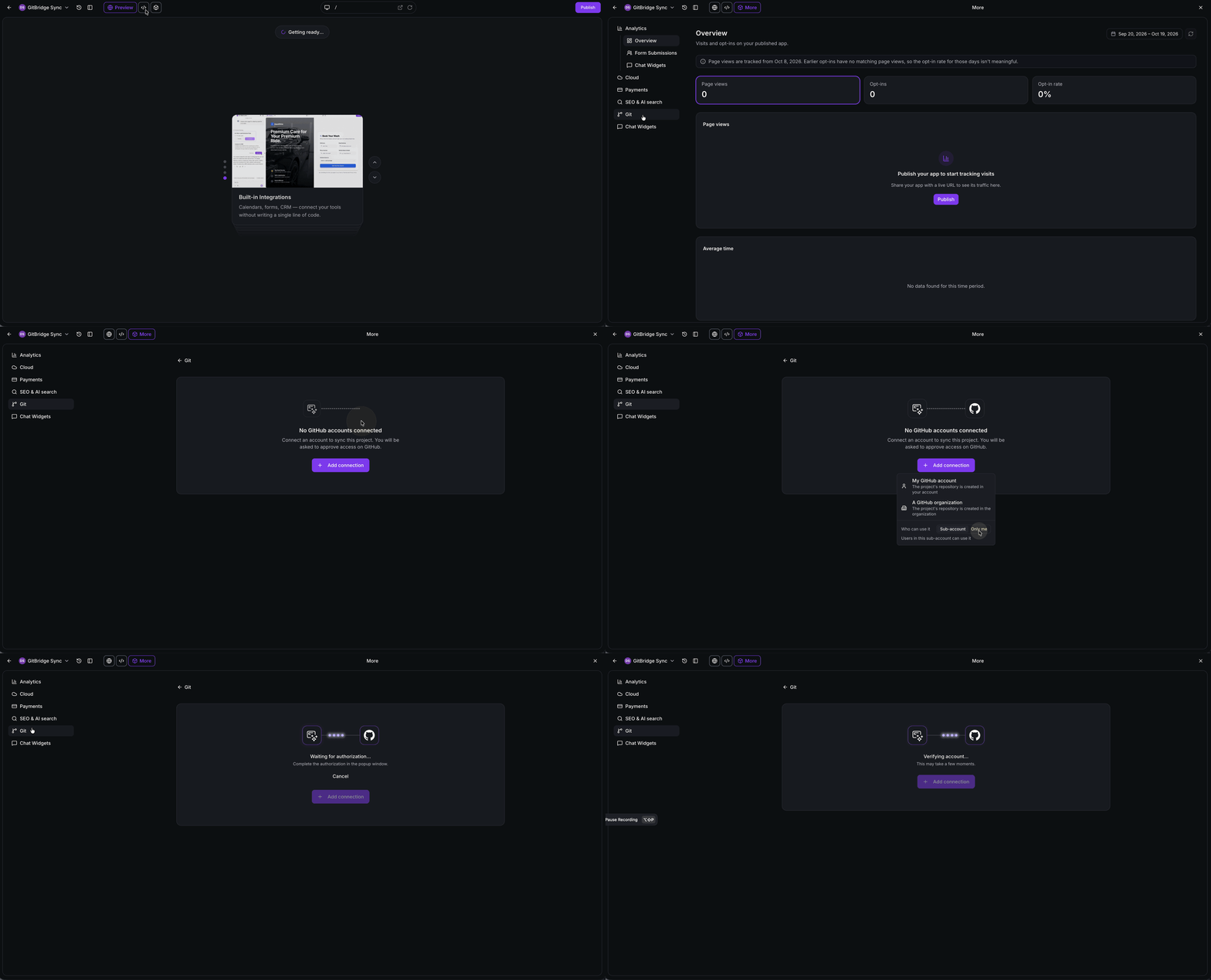
Click More → Git, then select GitHub.
Click + Add connection to connect a new GitHub account. If your account is already listed, click Connect.
Choose My GitHub account or Organization, then select who can use the connection:
Only me: Available only to you.
Sub-account: Available to other users within the sub-account, subject to their permissions.
Click Continue on GitHub.
Install and authorize Lead Connector on GitHub. Complete any required verification. Organization members may need administrator approval.
- Return to AI Studio and allow the connection to finish. AI Studio creates a private repository, pushes the initial version, and connects to the main branch.
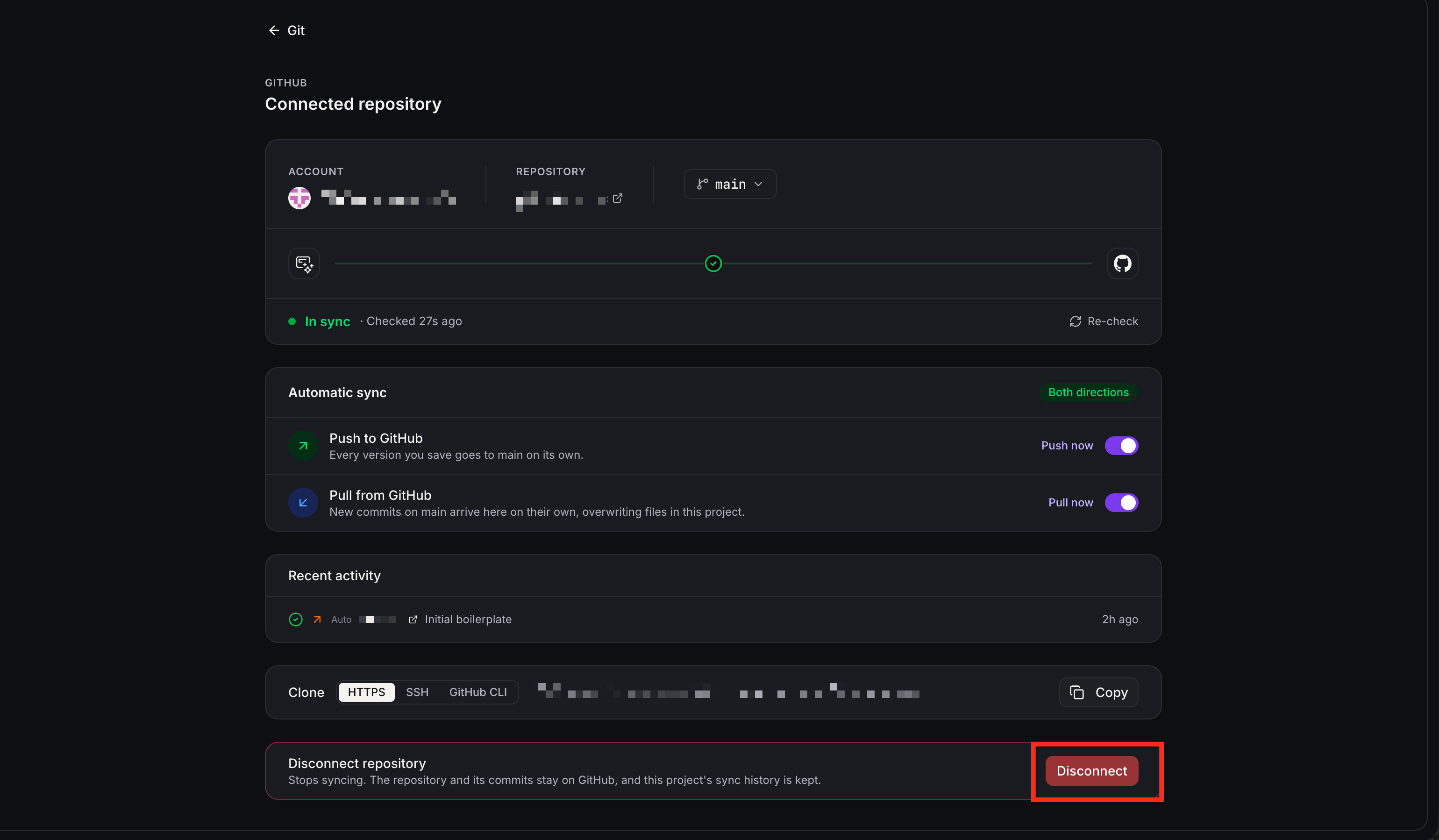
Confirm that Automatic Push and Automatic Pull are enabled. Both are on by default.
Automatic Push and Pull Synchronization
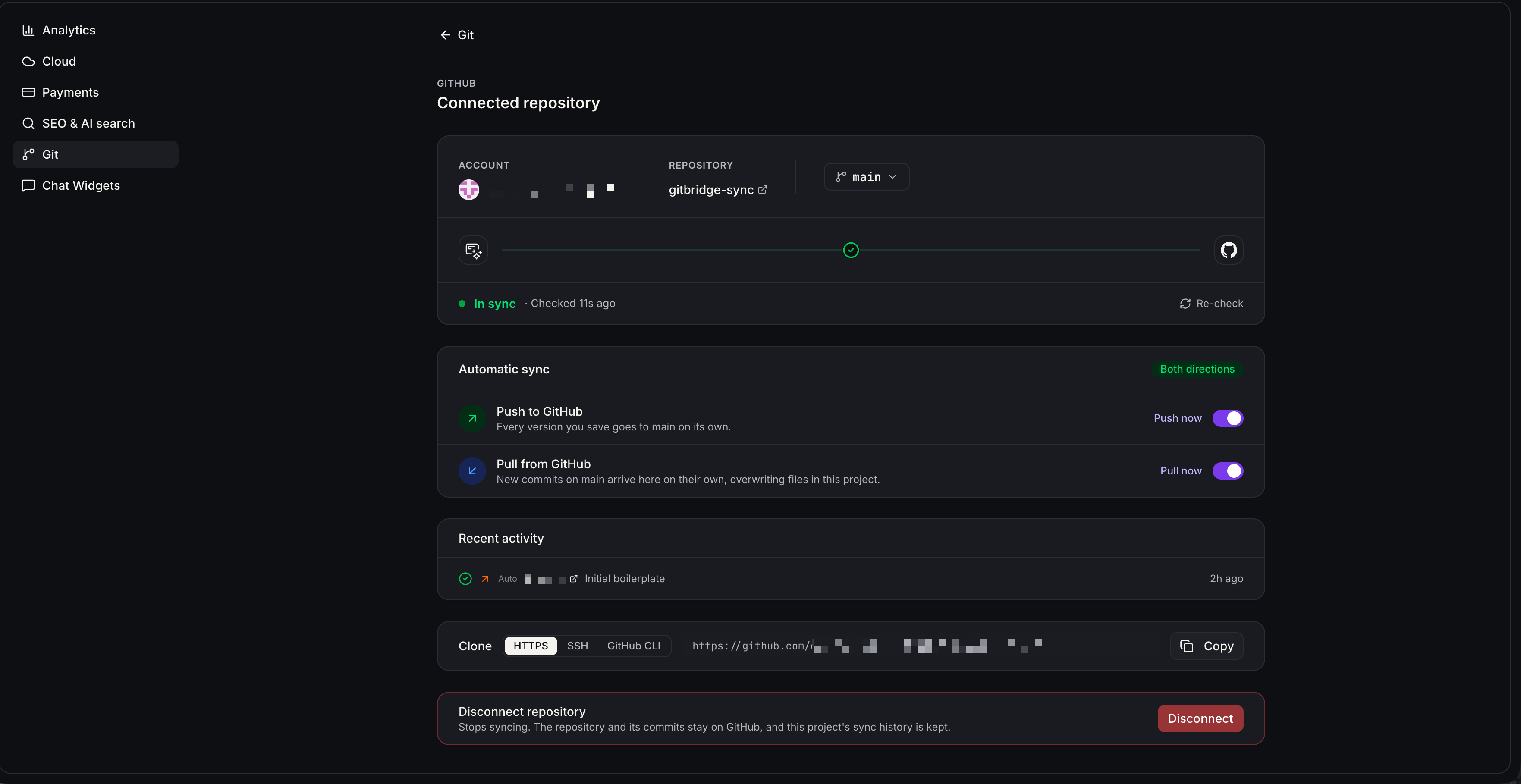
Git Sync automatically keeps your AI Studio project and GitHub repository synchronized. Both Automatic Push and Automatic Pull are enabled by default and can be turned off independently.
Automatic Push: Every saved AI Studio version is pushed to GitHub, including AI-generated changes, code edits, visual edits, and restored versions. Commits retain their original history and are attributed to LeadConnector (noreply@leadconnectorhq.com) rather than your personal GitHub identity.
Automatic Pull: New commits on the connected GitHub branch are automatically pulled into AI Studio. Each commit creates a new project version, displays the changed files in a chat card, and generates an updated preview.
When the preview is ready, click Refresh preview to see the latest changes. You can also use Push now or Pull now in More → Git to synchronize manually, even when automatic synchronization is disabled.
Sync Conflicts: If both GitHub and AI Studio have new commits, the branch is marked as diverged in Git settings. Select Review and resolve to choose between Force push (keeps the AI Studio version and can overwrite divergent GitHub commits) or New branch (pushes AI Studio changes to a new branch, preserving both versions).
Note: Git Sync scans outgoing changes for sensitive credentials. Recognized secrets block the push, while potentially hardcoded credentials generate warnings.
Managing Git Sync in AI Studio
Once Git Sync is connected, you can switch branches, review synchronization history, and manage your GitHub connection directly from your project's Git settings.
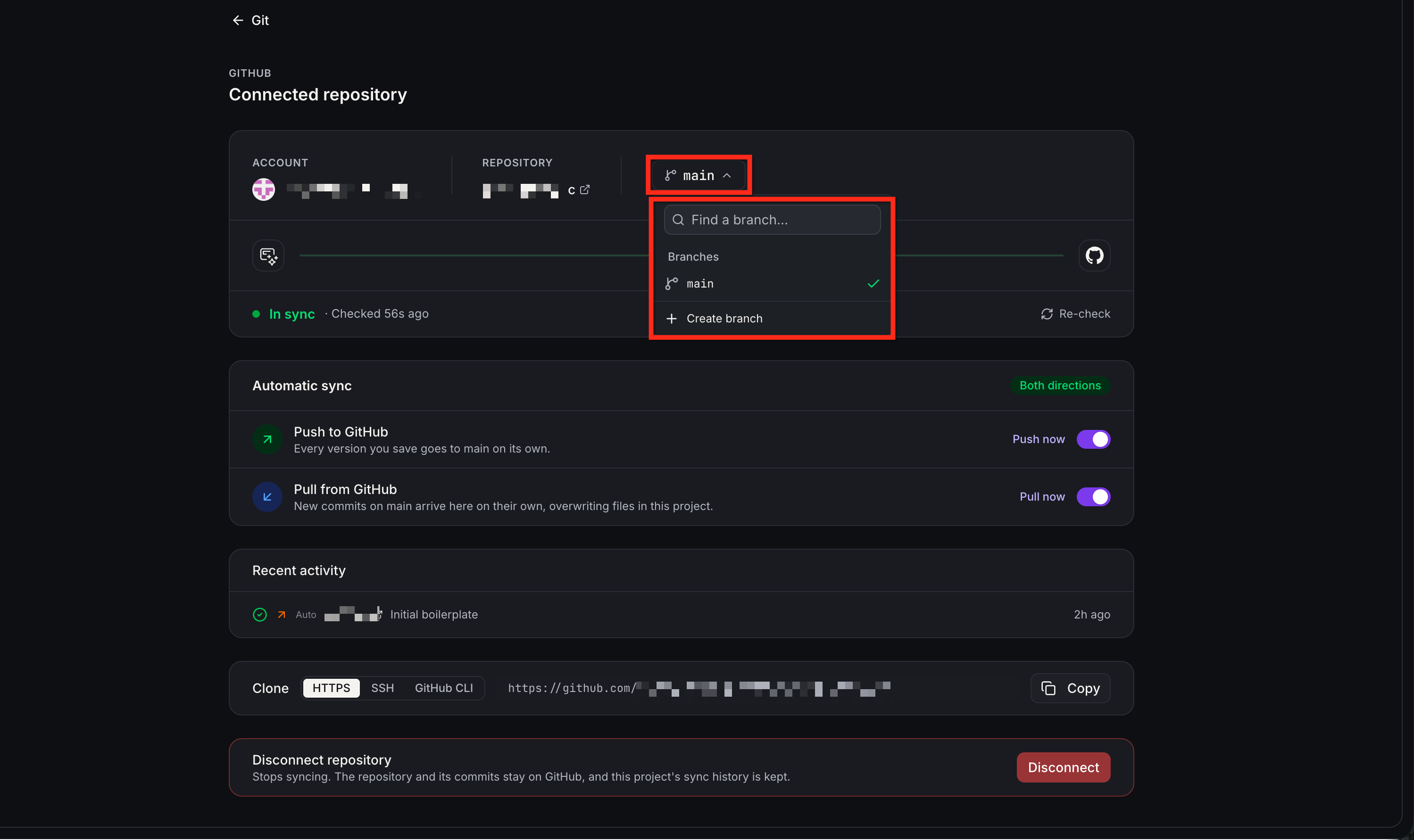
Switch or Create a Branch
Git Sync uses the main branch by default, but you can work with other branches when needed.
Open your AI Studio project and go to More → Git.
Locate the branch selector and choose an existing branch or enter a new branch name.
Confirm your selection. If the branch does not exist, AI Studio creates it during the next push.
Only the selected branch receives incoming commits from GitHub. Changes on other branches are not pulled until you switch to them.
View Sync History
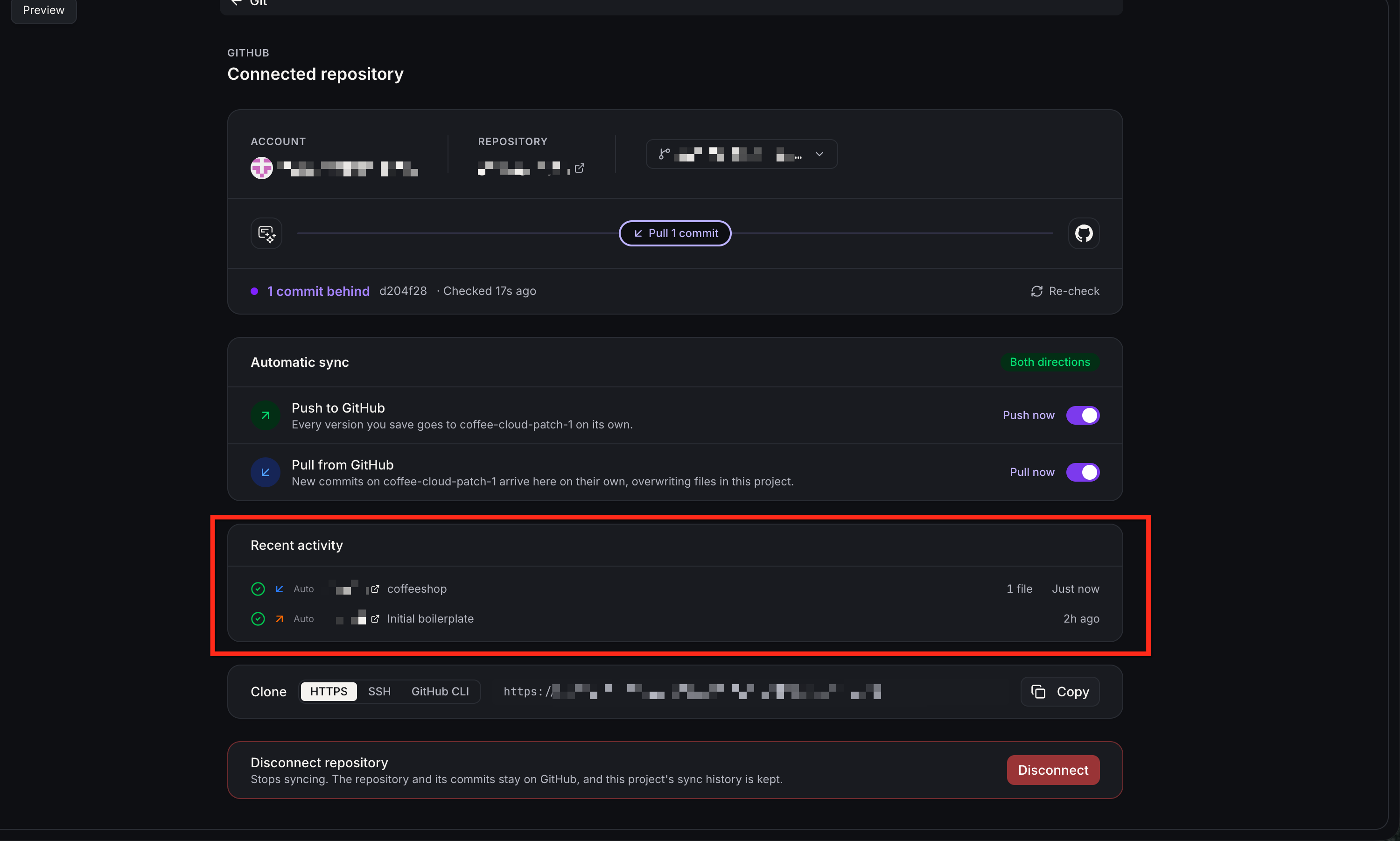
Sync History helps you confirm whether changes were successfully transferred between AI Studio and GitHub.
Open More → Git in your AI Studio project.
Select Sync History to view recent activity, including pushes, pulls, commit records, and synchronization errors.
You can also view total syncs, success rate, and links to individual commits on GitHub. Failed operations include details explaining what went wrong.
Disconnect or Reconnect GitHub
You can manage your GitHub connection from More → Git.
Use Disconnect to disconnect the project from GitHub, or reconnect an account when its authorization needs to be renewed. When reconnecting a previously connected project, AI Studio can reuse its existing repository rather than creating a new one, without automatically force-pushing changes.
Related Articles
Was this article helpful?
That’s Great!
Thank you for your feedback
Sorry! We couldn't be helpful
Thank you for your feedback
Feedback sent
We appreciate your effort and will try to fix the article