Your AI Studio sites just got a whole lot "louder" for the rest of the internet to hear! Improve the SEO readiness of your AI Studio projects with Advanced SEO Support. Advanced SEO Support helps make published AI Studio sites easier for search engines, social platforms, and AI crawlers to read.
TABLE OF CONTENTS
- What is Advanced SEO Support for AI Studio?
- Key Benefits of Advanced SEO for AI Studio
- Pre-render SEO
- How to Enable Advanced SEO Support for AI Studio
- Social Media & Link Previews
- Generate Sitemap
- Frequently Asked Questions
- Related Articles
What is Advanced SEO Support for AI Studio?
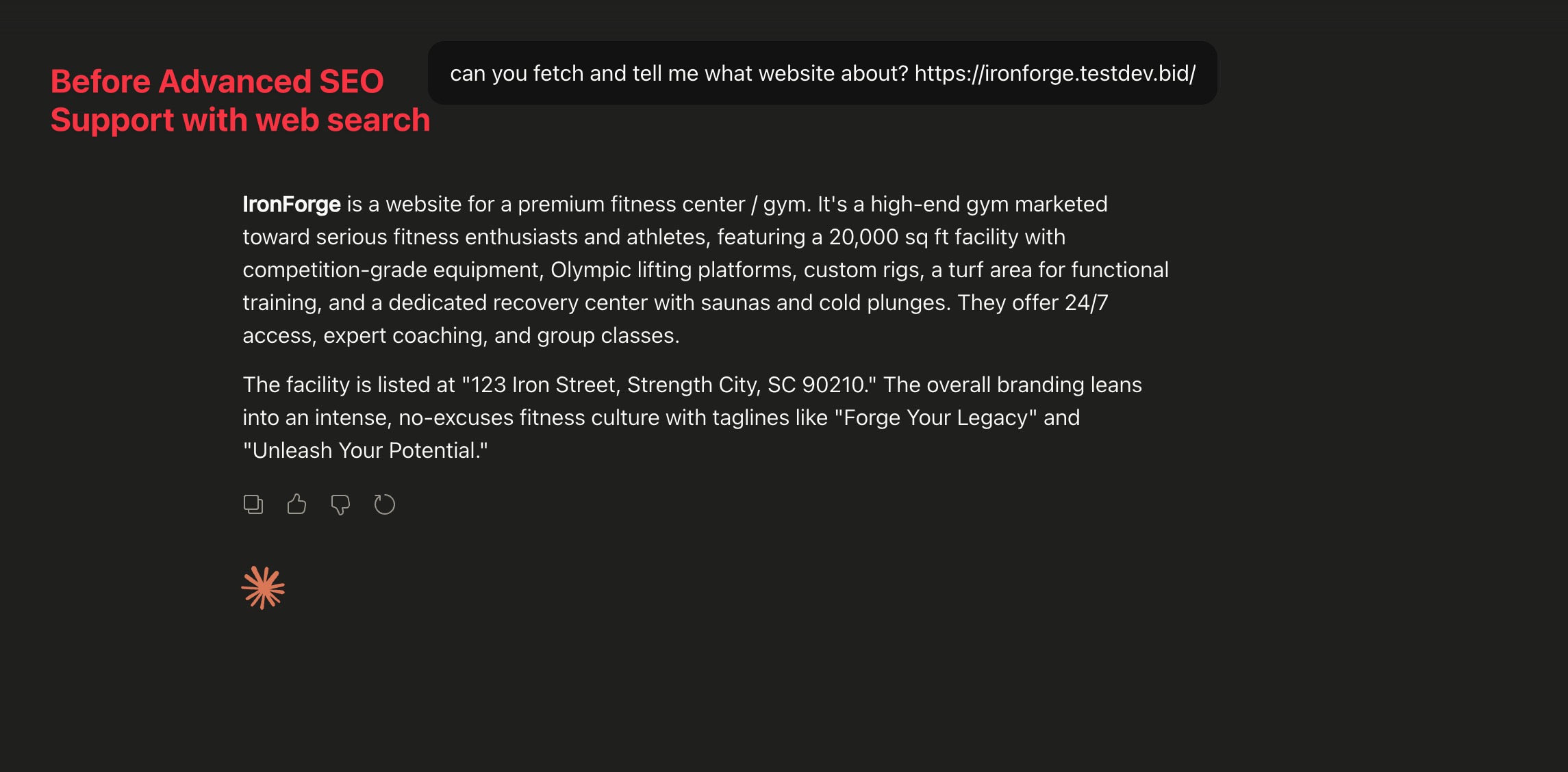
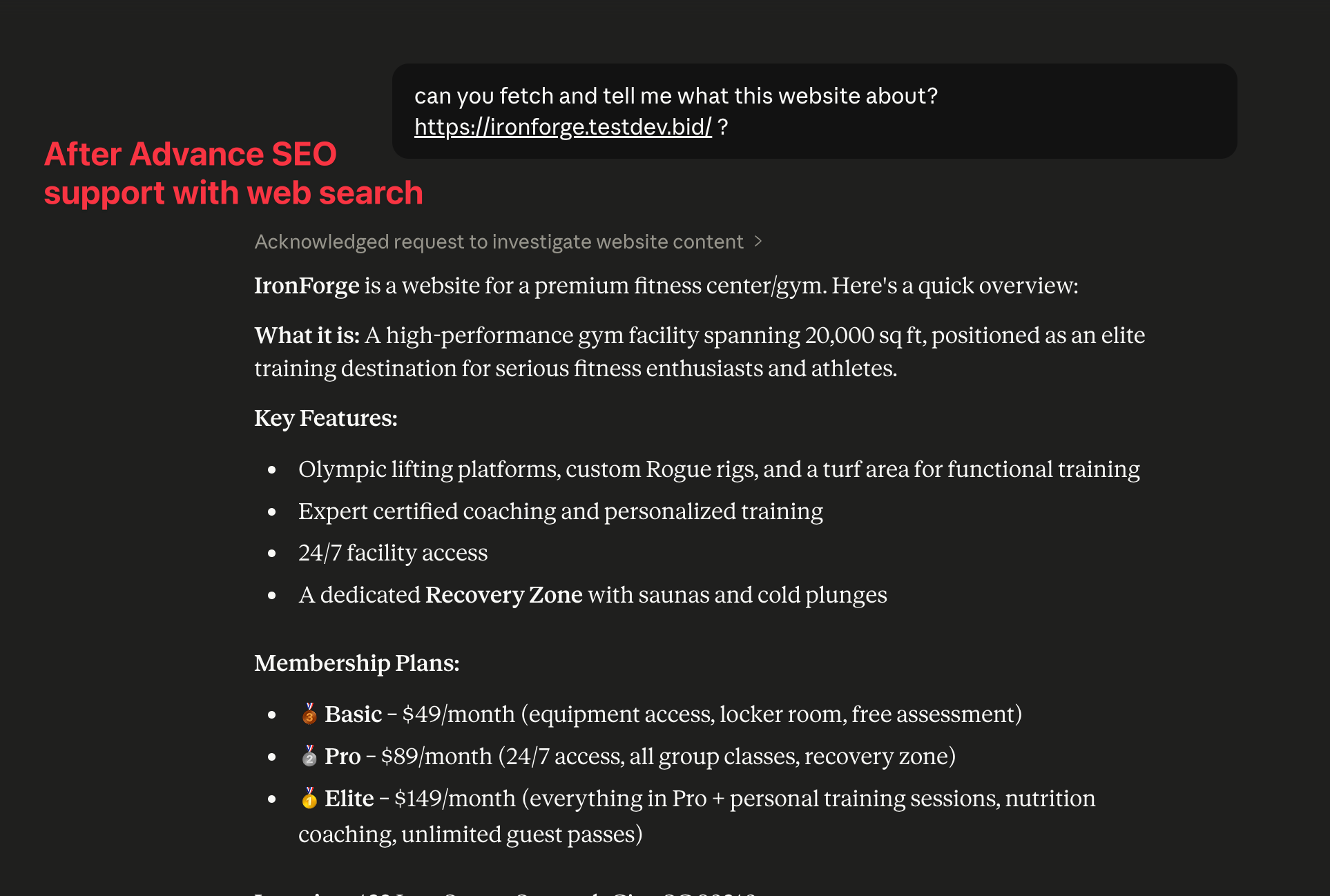
Advanced SEO Support in AI Studio helps published AI Studio sites become easier for search engines, social platforms, and AI crawlers to read. This matters because most AI Studio sites are Single-Page Applications (SPAs). While they are fast for humans, they often look like "empty boxes" to bots because they require JavaScript to load. This meant:
- Google took weeks to index your content.
- Social Previews (on Slack/Twitter) looked blank or generic.
- AI Search (ChatGPT/Perplexity) couldn't "read" your site to cite it.
With Advanced SEO Support, supported bots can receive rendered HTML instead of an empty SPA shell. This helps improve crawlability, supports better social link previews, and makes published content easier for AI-powered tools to understand.
Advanced SEO Support includes:
- Pre-render SEO: Helps supported bots receive rendered page content instead of the default SPA response.
- Social Media & Link Previews: Helps shared links display the correct title, description, and preview image.
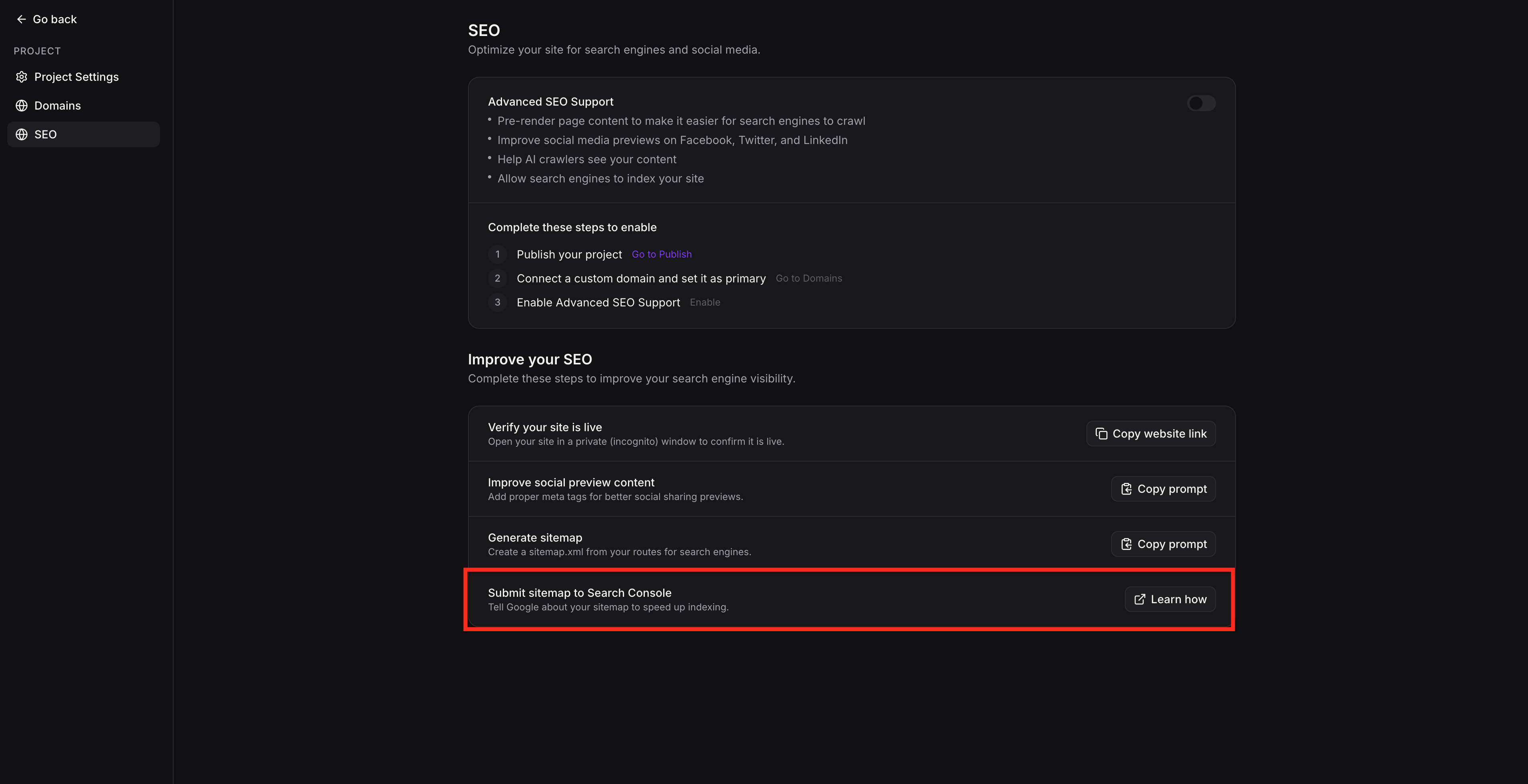
- Generate Sitemap: Helps search engines discover important pages on your published site more efficiently.
Together, these tools improve visibility and discoverability while keeping the normal visitor experience unchanged.
Key Benefits of Advanced SEO for AI Studio
- Rich Social Previews: When you share a link on LinkedIn, WhatsApp, or X, it now displays the correct title, description, and Open Graph image.
- AI Search Visibility: AI-powered search engines (ChatGPT, Claude, Gemini) can now understand and cite your content in their answers.
- Edge-Level Performance: Pre-rendered pages are served from the Cloudflare edge in under 10ms. It’s lightning-fast for bots and has zero impact on your actual site visitors.
- Instant Indexability: Search engines receive fully rendered HTML. No more waiting for Google’s JS queue; you're indexable on the first crawl.
- Per-Project Control: Pre-rendering can be enabled or disabled per project from the settings panel.
Pre-render SEO
Pre-render SEO helps supported bots receive fully rendered HTML instead of the default single-page application shell.
Note: Pre-render SEO is available only for published projects with a connected custom domain.
When it is enabled through Advanced SEO Support, supported bots can access page content, metadata, images, canonical tags, and structured data that already exist on the page. This is especially helpful for search engines and AI crawlers that may delay JavaScript rendering or skip it entirely.
Instead of seeing an empty app shell, supported bots can receive rendered content on the first request, which improves crawlability, makes content easier to interpret, and helps pages surface more accurately in search results, previews, and AI-powered experiences.
Key operational details include:
Automatic bot detection: Supported search engine crawlers, social media bots, and AI crawlers are served rendered HTML automatically.
- Graceful fallback: If pre-rendering is not enabled or a page is not yet cached, bots receive the standard SPA (same behavior as before). No degradation from current experience.
- Automatic cache refresh: Pre-rendered pages are automatically regenerated on every publish, domain change, or site update. No manual cache clearing or rebuilding required. The system handles up to 150 routes per site.
- Edge-level serving: Pre-rendered pages are served from Cloudflare's edge network in under 10ms. No additional latency for bots or users.
How to Enable Advanced SEO Support for AI Studio
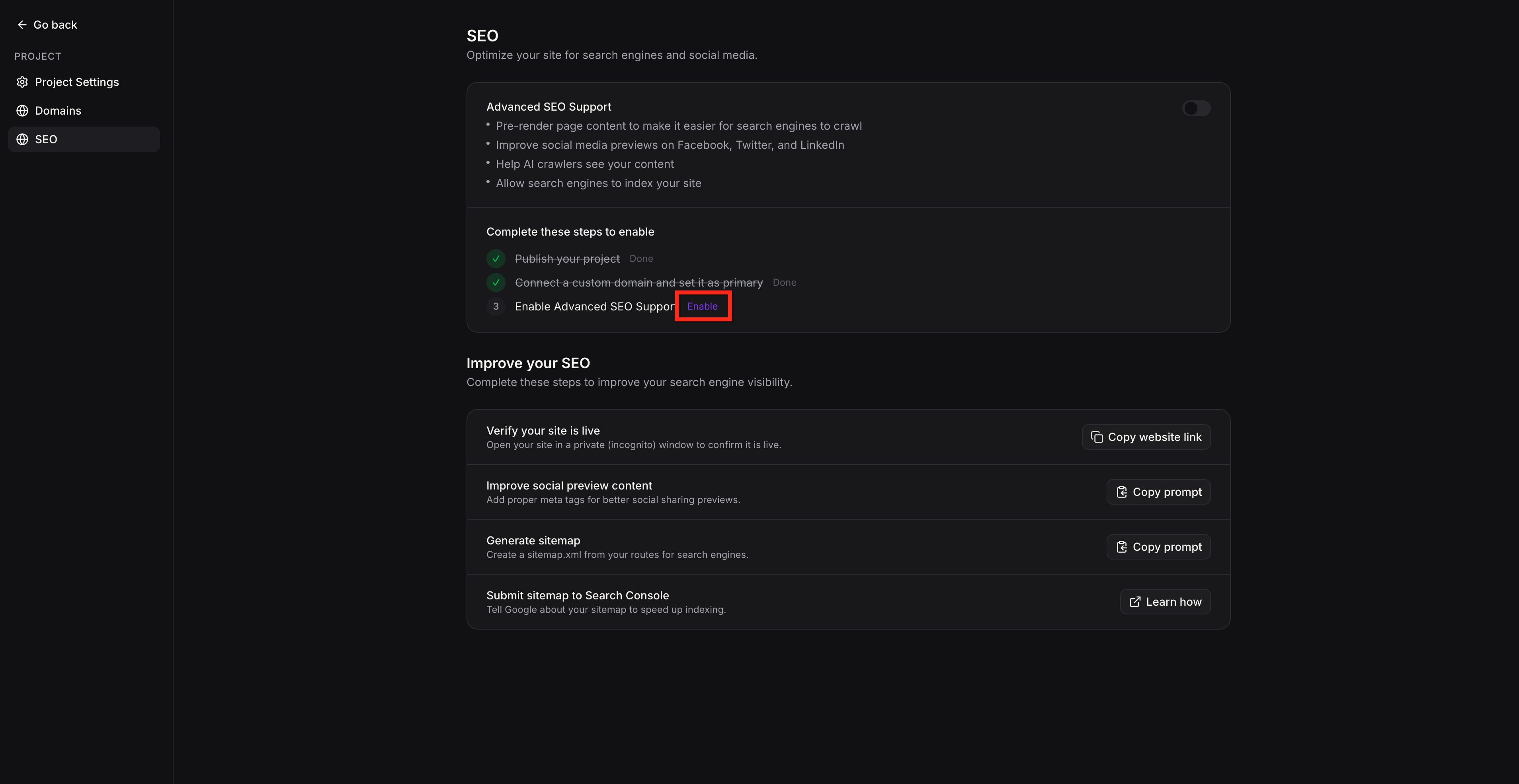
Enabling Advanced SEO Support helps turn on the SEO tools available for your published AI Studio project. This setup is completed from the SEO settings inside the project and requires a connected custom domain.
From within your AI Studio project, follow these steps:
Open the AI Studio project you want to configure
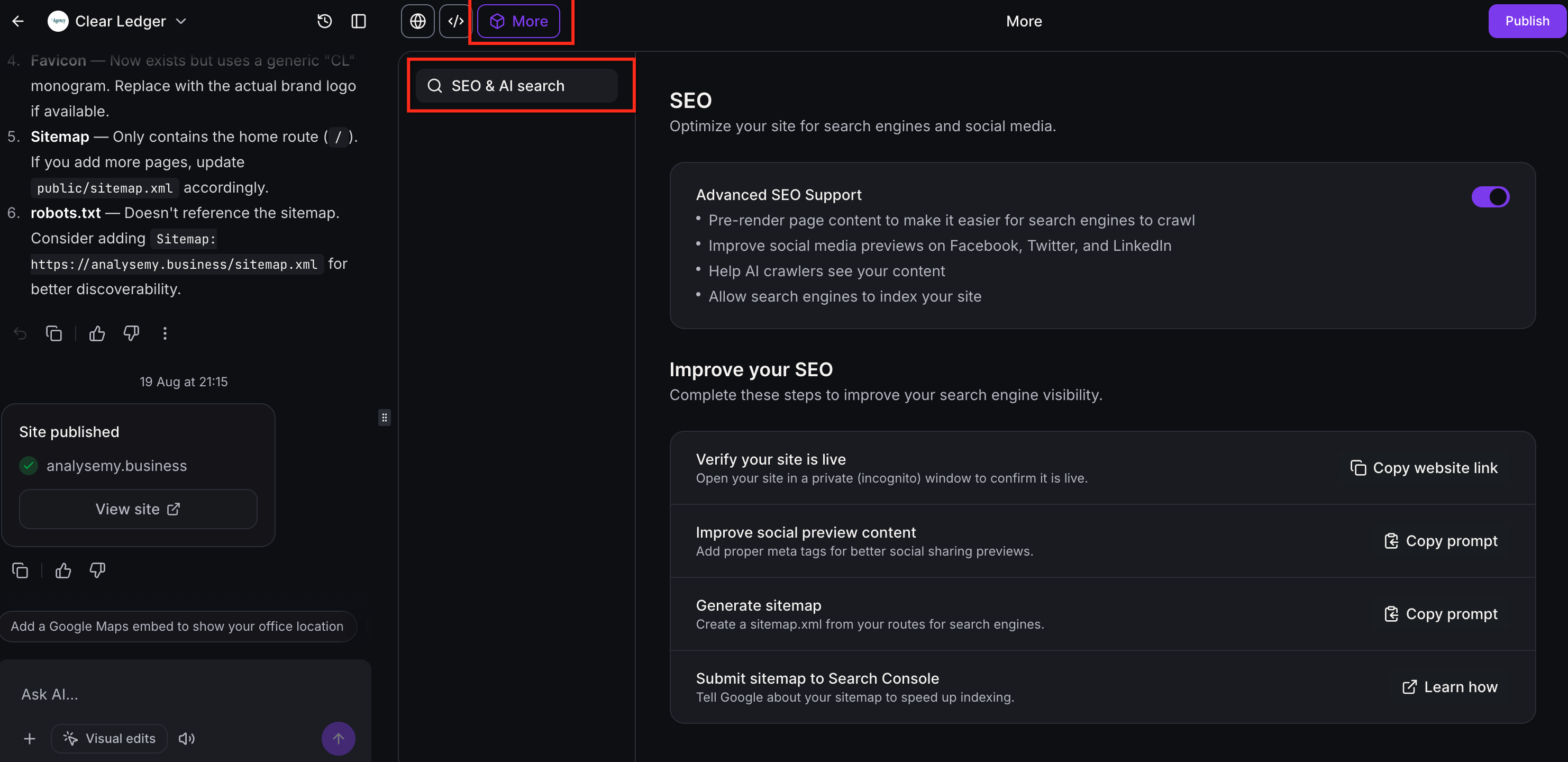
Click More at the top of the builder. In the More panel, open SEO & AI search.
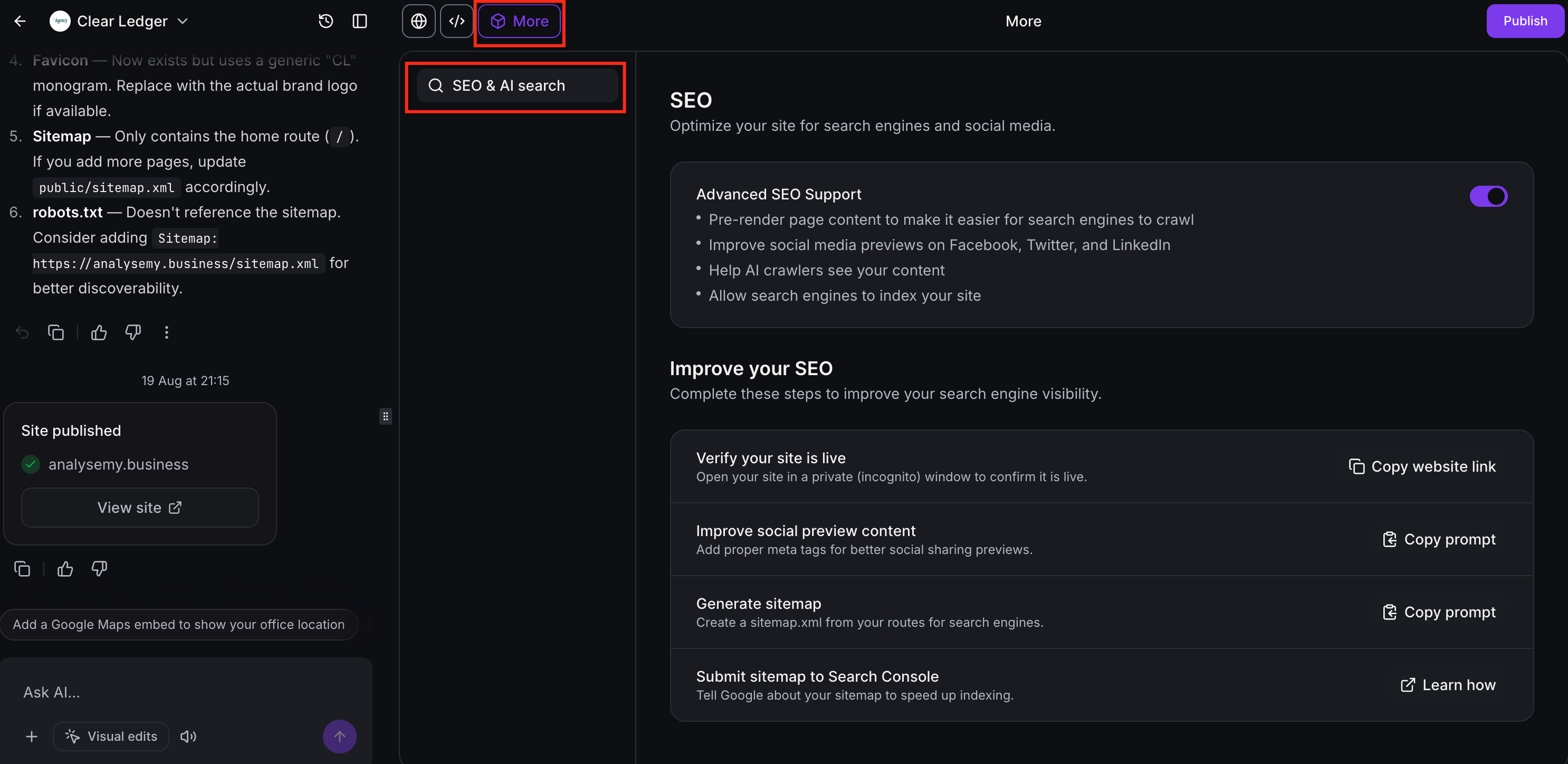
- Make sure the project is published, a custom domain is connected, and the custom domain is set as primary.
For more info on publishing AI Studio projects, see: Publishing Your AI Studio Projects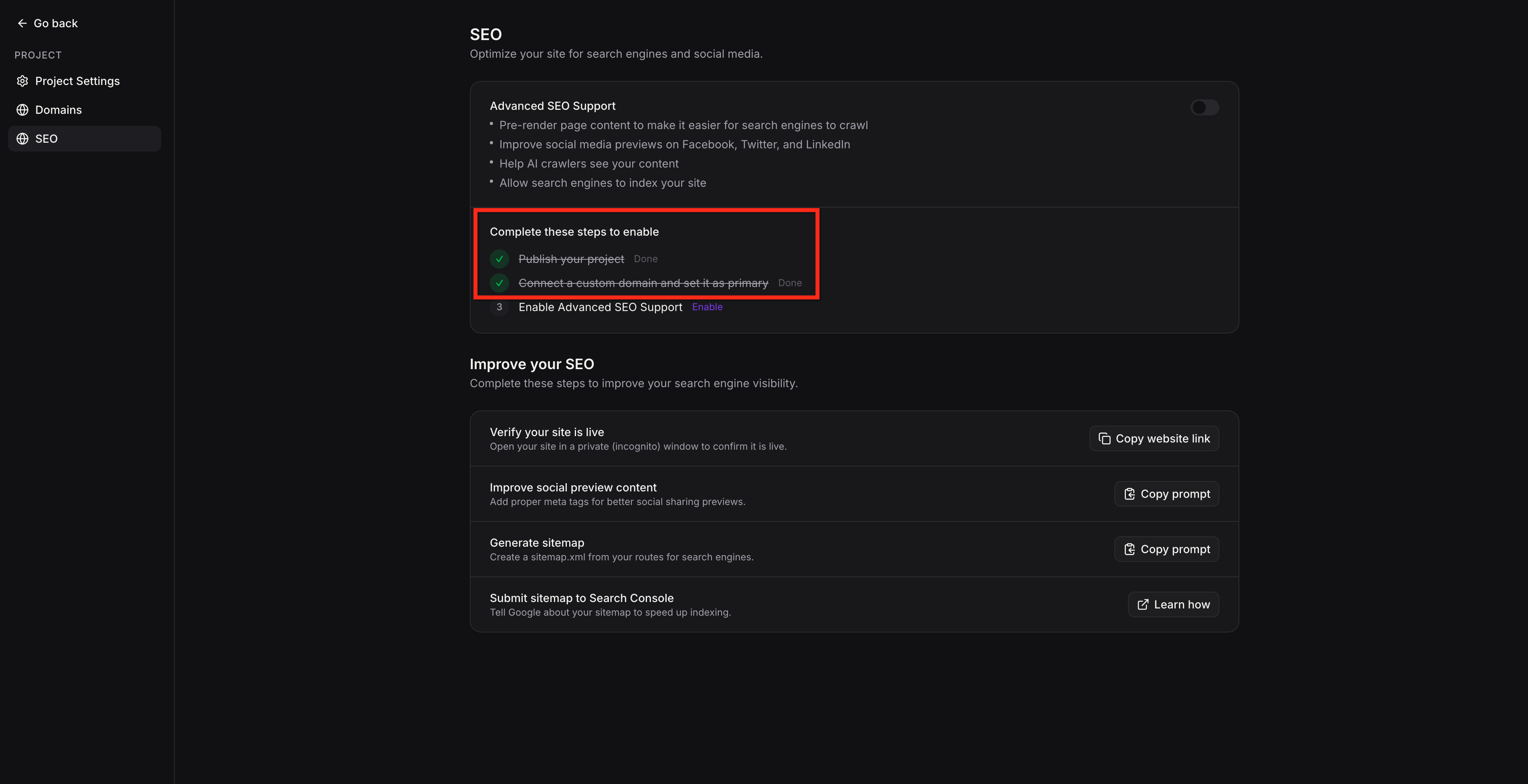
Click Enable to turn on Advanced SEO Support.
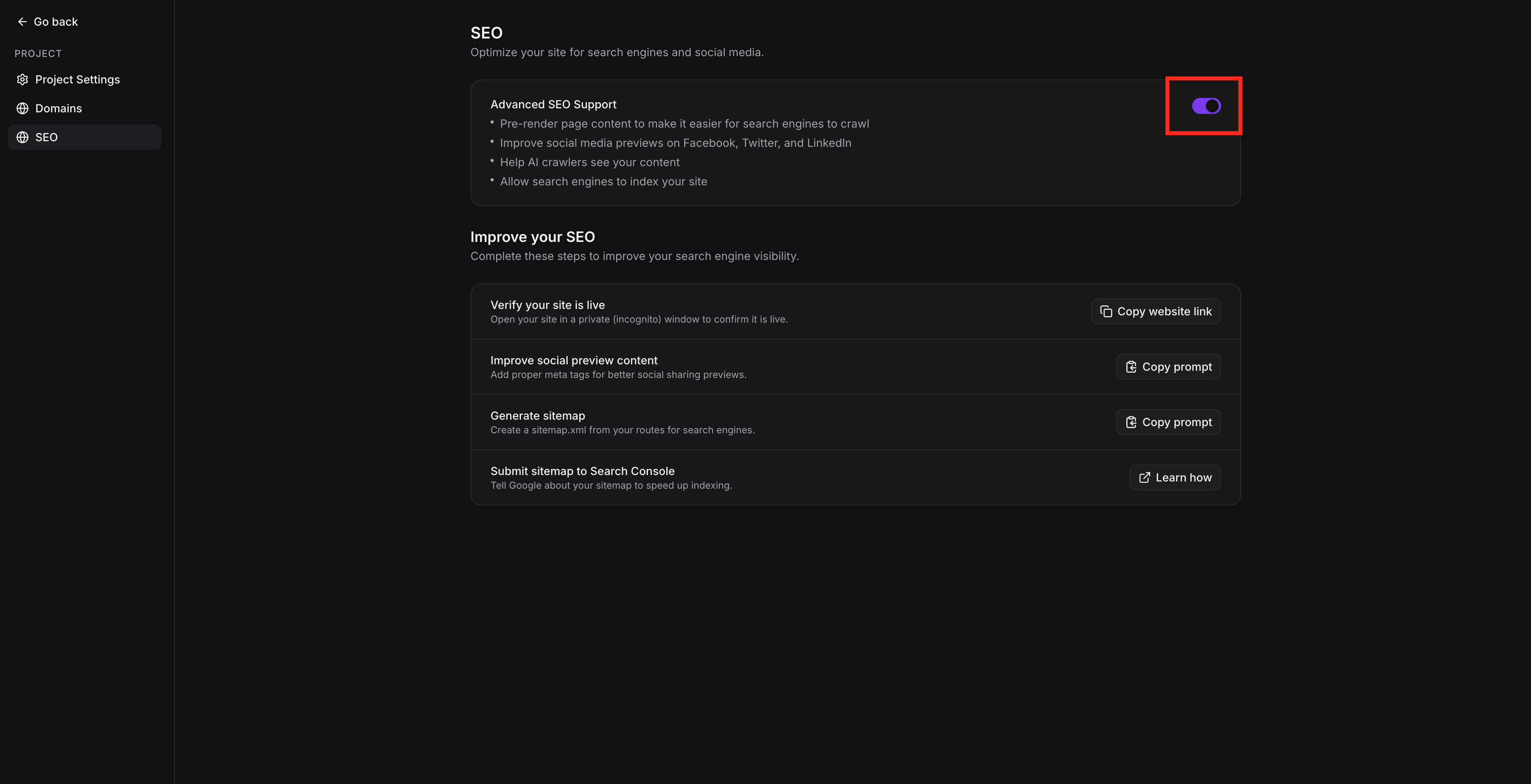
Confirm the toggle turns purple when it is enabled. Now re-publish the project so the latest rendered output is available to supported bots.
Social Media & Link Previews
With Advanced SEO Support enabled, links shared on Facebook, Twitter, LinkedIn, WhatsApp, Slack, and Discord can display the correct page title, description, and Open Graph image instead of showing blank or generic previews. Each page can also serve its own unique title, description, and preview image to social platforms rather than relying on a single site-wide fallback.
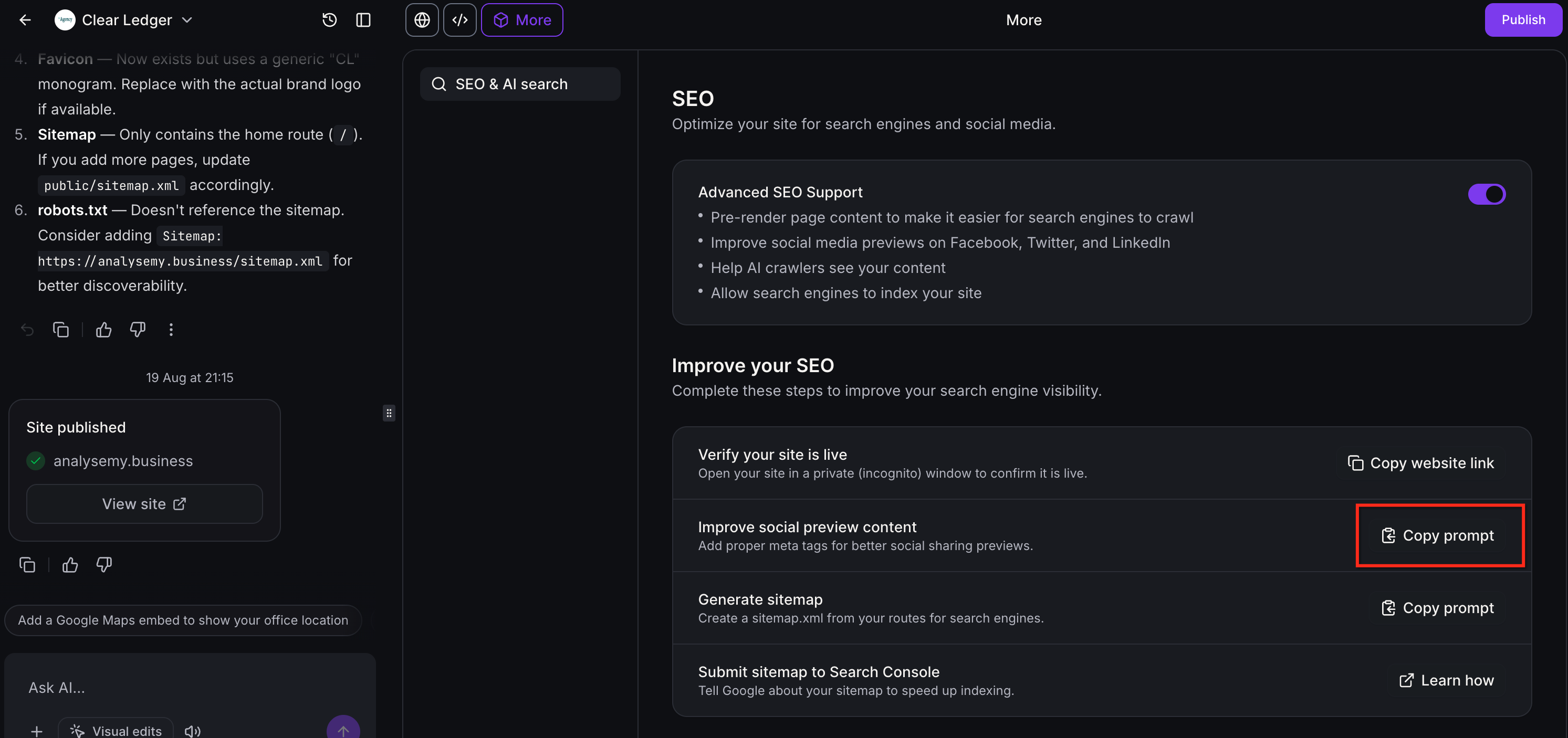
The Improve social preview content action uses a Copy prompt workflow to apply SEO metadata across the project. When Advanced SEO Support is enabled, supported bots can receive those tags in rendered HTML, helping each page show the correct preview details instead of a generic fallback.
To generate social media and link previews:
- Open the AI Studio project you want to update.
- Click More at the top of the builder, then open SEO & AI search.
Find Improve social preview content and click Copy prompt.
Paste the copied prompt into the AI Studio chat.
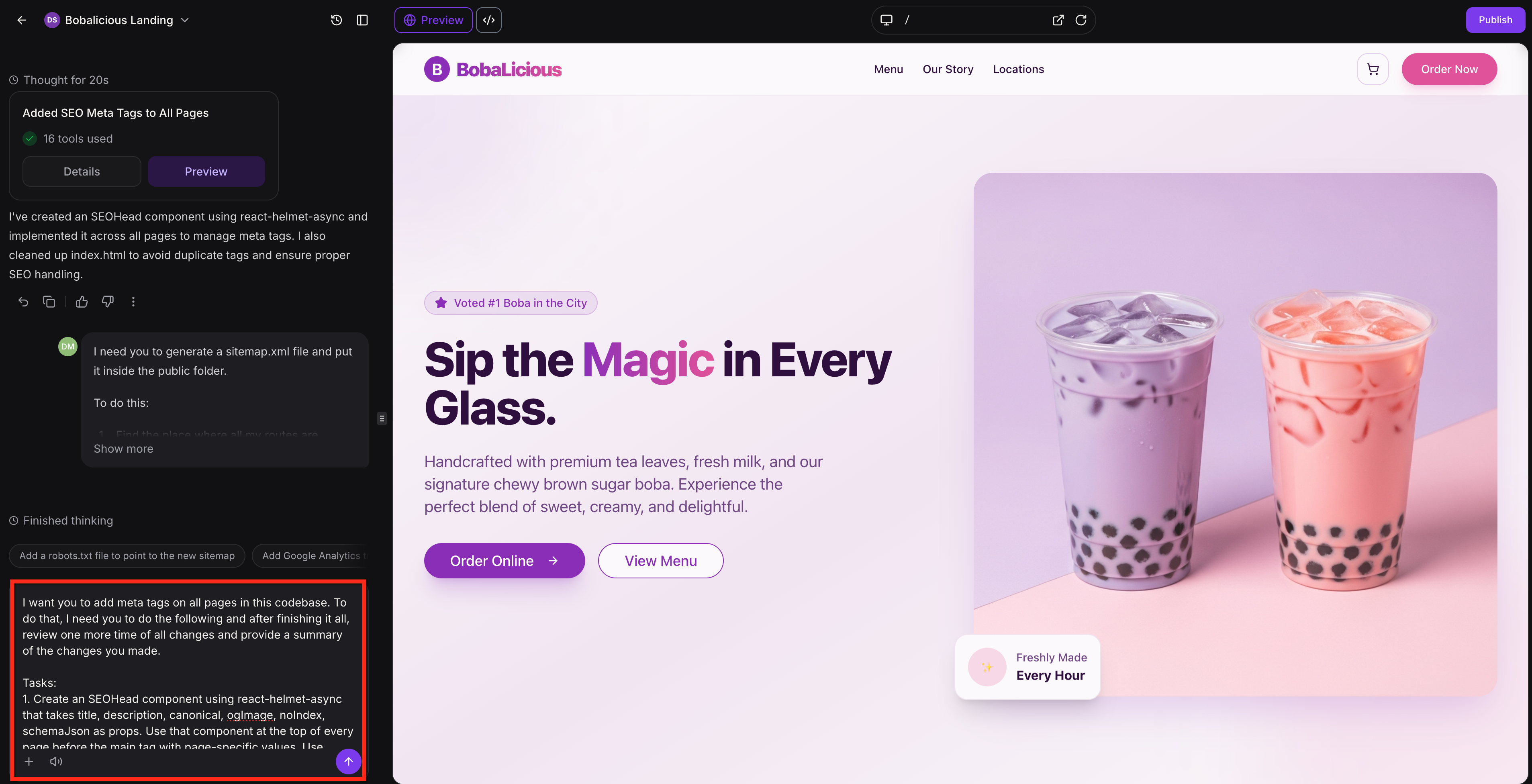
Review the returned update summary in the builder, then publish your project to apply the updates.
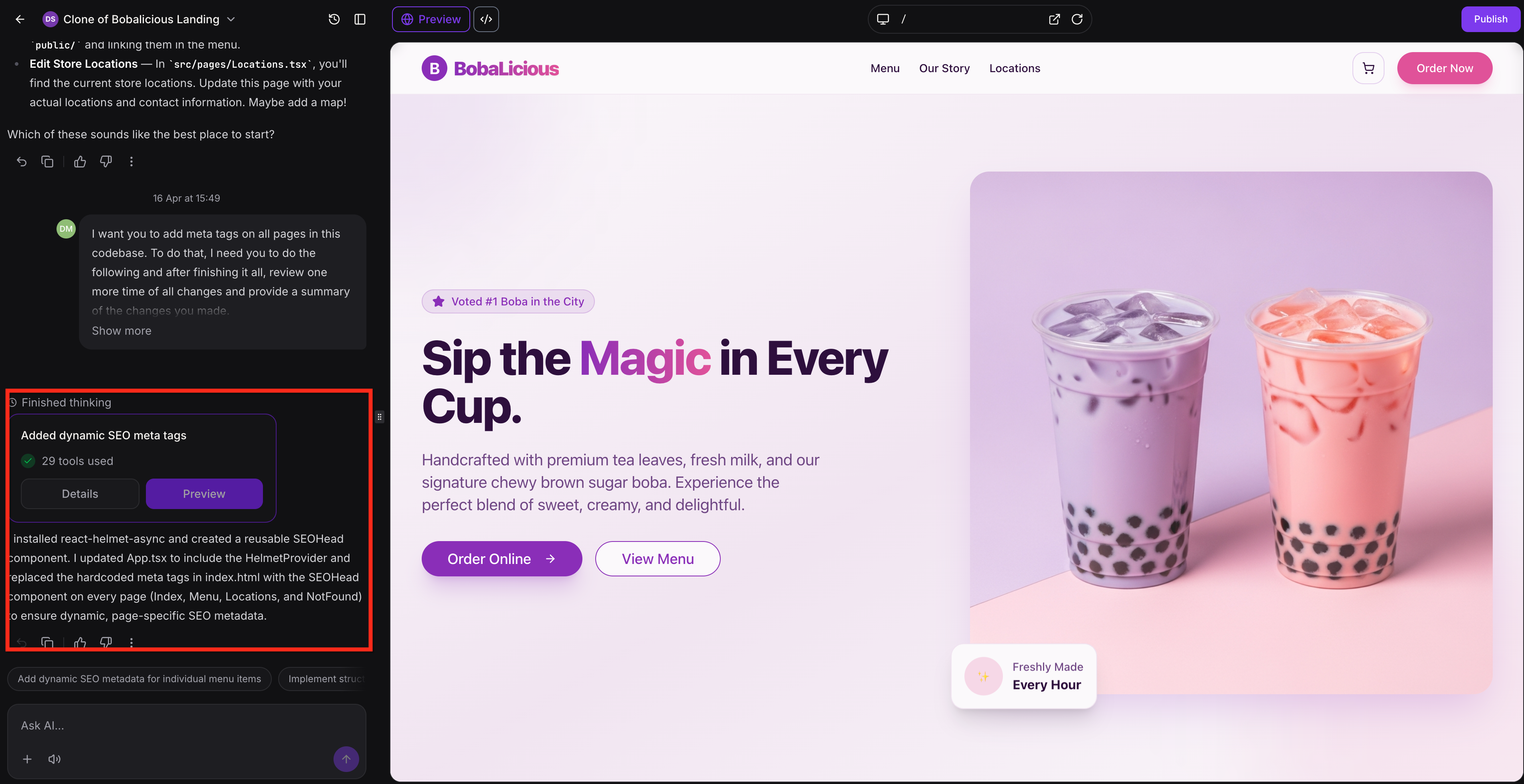
Use these checks to confirm it is working:
Share the live URL on a supported platform such as Facebook, Twitter, LinkedIn, WhatsApp, Slack, or Discord. Confirm the preview shows the expected title, description, and Open Graph image.
Use Facebook Sharing Debugger or Twitter Card Validator to confirm Open Graph tags are being served.
Generate Sitemap
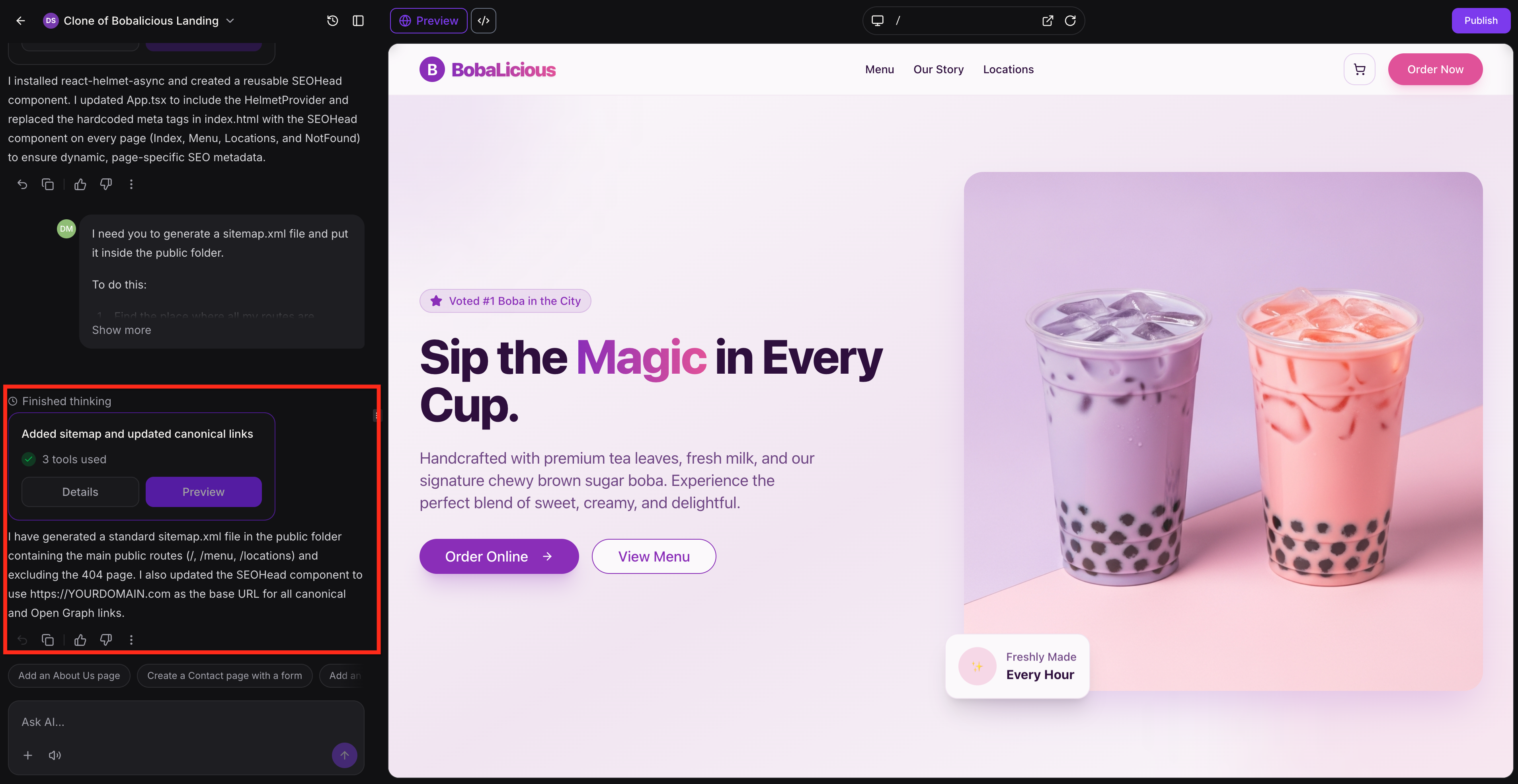
Generate Sitemap helps search engines discover the important pages on your site more efficiently. In AI Studio, the Generate sitemap action uses a Copy prompt workflow to create sitemap support for the project.
Rendered output refreshes automatically when the site is published, updated, or moved to a different domain, which helps keep the sitemap aligned with the latest site content and structure.
To generate a sitemap:
- Open the AI Studio project you want to update.
- Click More at the top of the builder, then open SEO & AI search.
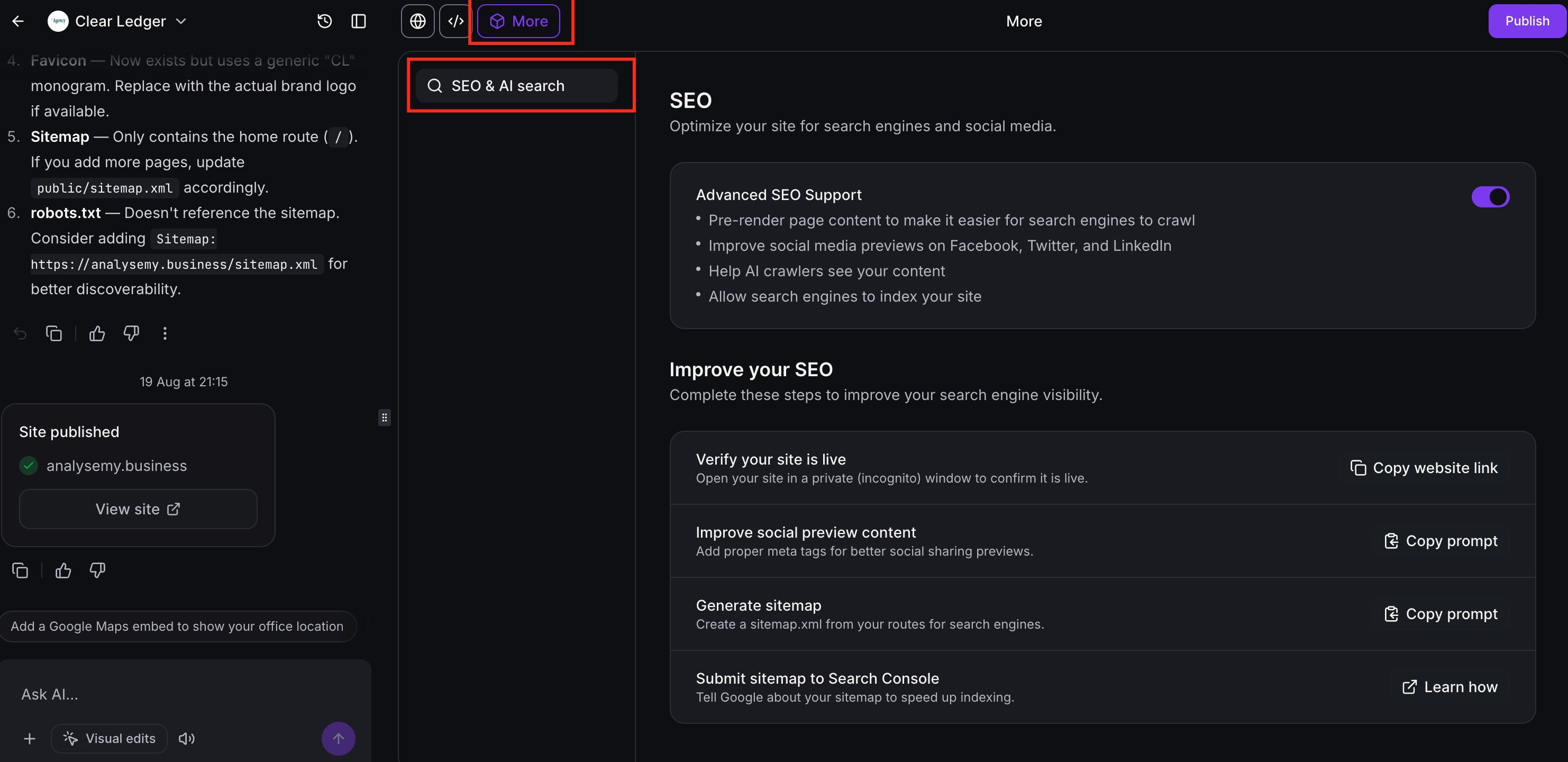
Find Generate sitemap and click Copy prompt.
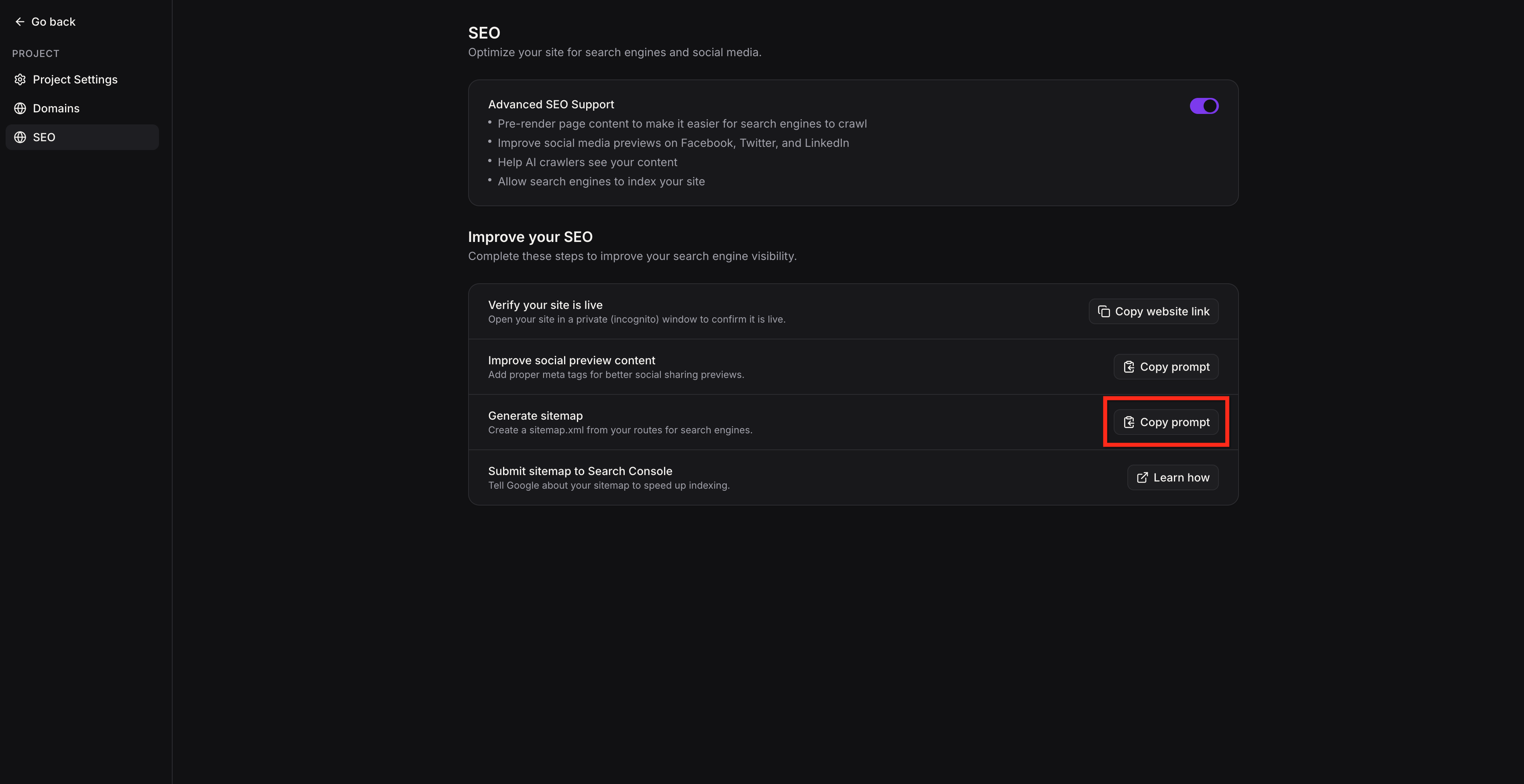
Paste the copied prompt into the AI Studio chat.
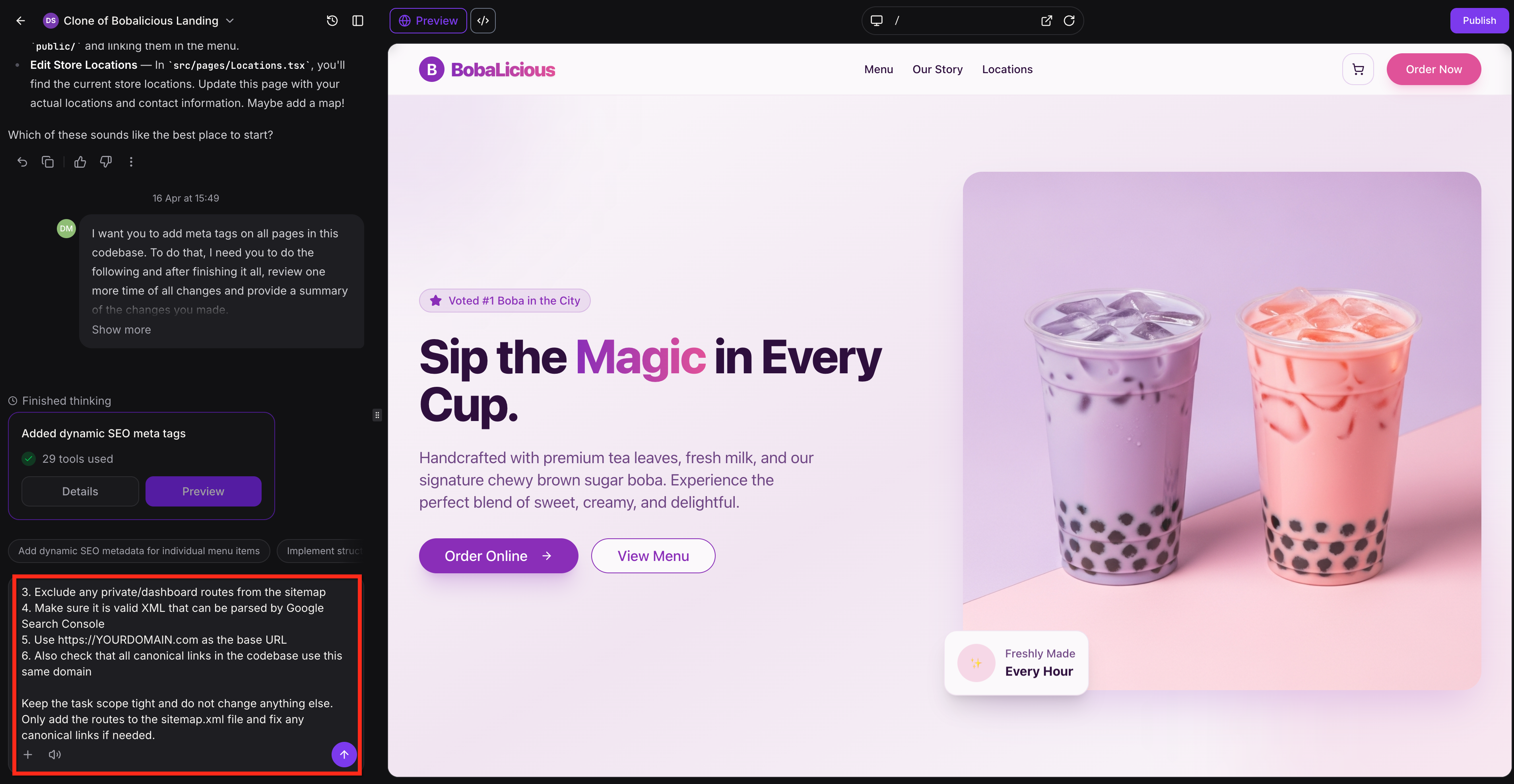
Review the returned update summary in the builder, then publish your project to apply the updates. Click Details to view your sitemap.
- Submit your sitemap to Google Search Console to help Google discover your URLs and monitor sitemap processing.
Frequently Asked Questions
Q: Do I need to publish the project before enabling Advanced SEO Support?
Yes. Publishing is required before completing the custom domain and SEO setup flow.
Q: Does pre-rendering change how my site looks or behaves for regular visitors?
No. Human visitors still receive the same fast, interactive SPA experience. Only bots and crawlers are served the pre-rendered HTML snapshots.
Q: Does Advanced SEO Support include automated schema markup injection?
No. Schema markup is not added automatically by Advanced SEO Support itself. If you add schema through an AI Studio prompt and it is generated in the page code, supported bots can receive that schema as part of the rendered HTML when pre-rendering is enabled.
Q: How does the cache refresh work?
The cache refreshes automatically when you publish the project, change the connected domain, or update the site and re-publish.
Related Articles
Was this article helpful?
That’s Great!
Thank you for your feedback
Sorry! We couldn't be helpful
Thank you for your feedback
Feedback sent
We appreciate your effort and will try to fix the article