Ask AI Skills and Connectors
Ask AI Connectors let you link your Notion, Canva, GitHub, HubSpot, or any Model Context Protocol (MCP) app directly to Ask AI. You authenticate once, grant per-app or per-tool permissions, and Ask AI acts inside your accounts—securely, without exposing credentials.
Ask AI Skills let you codify how you want work done. Write a custom instruction set, upload an existing playbook or SOP, and Ask AI will apply it automatically when your request matches—or on demand via the / command in any text or voice chat.
What Are Connectors?
Connectors let Ask AI act inside the apps you already use—Notion, Canva, GitHub, HubSpot, or any app in the Model Context Protocol (MCP) marketplace. You authenticate under your own login (not a sub-account's), and Ask AI can read, create, update, or search within the connected service on your behalf.
Every connector is linked to your user account within a company, so your credentials and tool selections never leak across agency or sub-account boundaries.
What Are Skills?
Skills teach Ask AI how you want work done. A Skill is a named instruction set that Ask AI applies whenever your request matches—or that you invoke on demand by typing /skill-name in the composer. Skills work in both text and voice chats.
You can write a Skill from scratch, upload an existing markdown playbook, or ask Ask AI to create one during a conversation. Once saved, a Skill becomes part of your personal library and is matched automatically when relevant.
How to Connect an App
Follow these steps to link a new connector to Ask AI and configure which tools it may use.
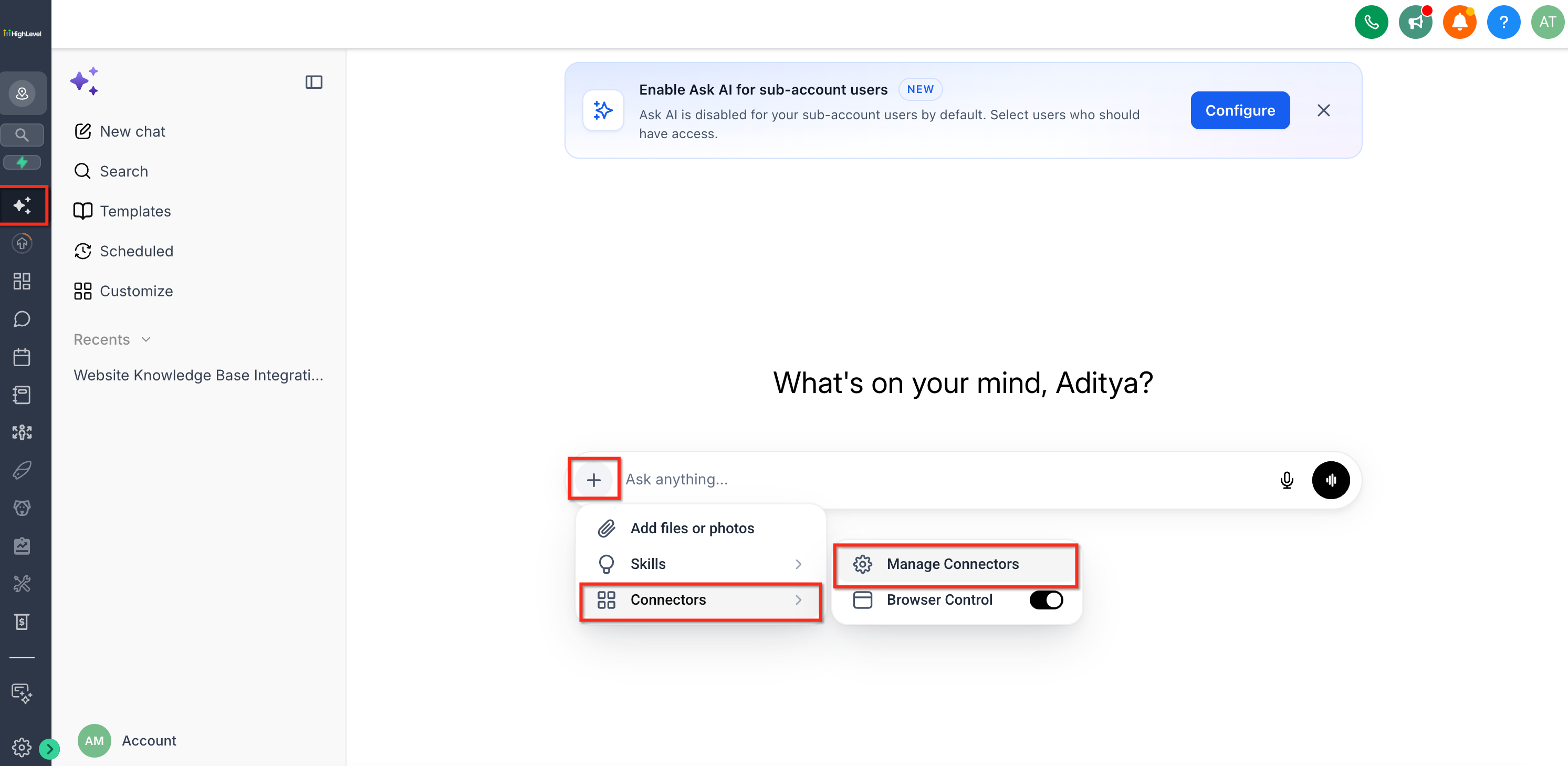
Click the plus icon in the Ask AI sidebar, then select Connectors.
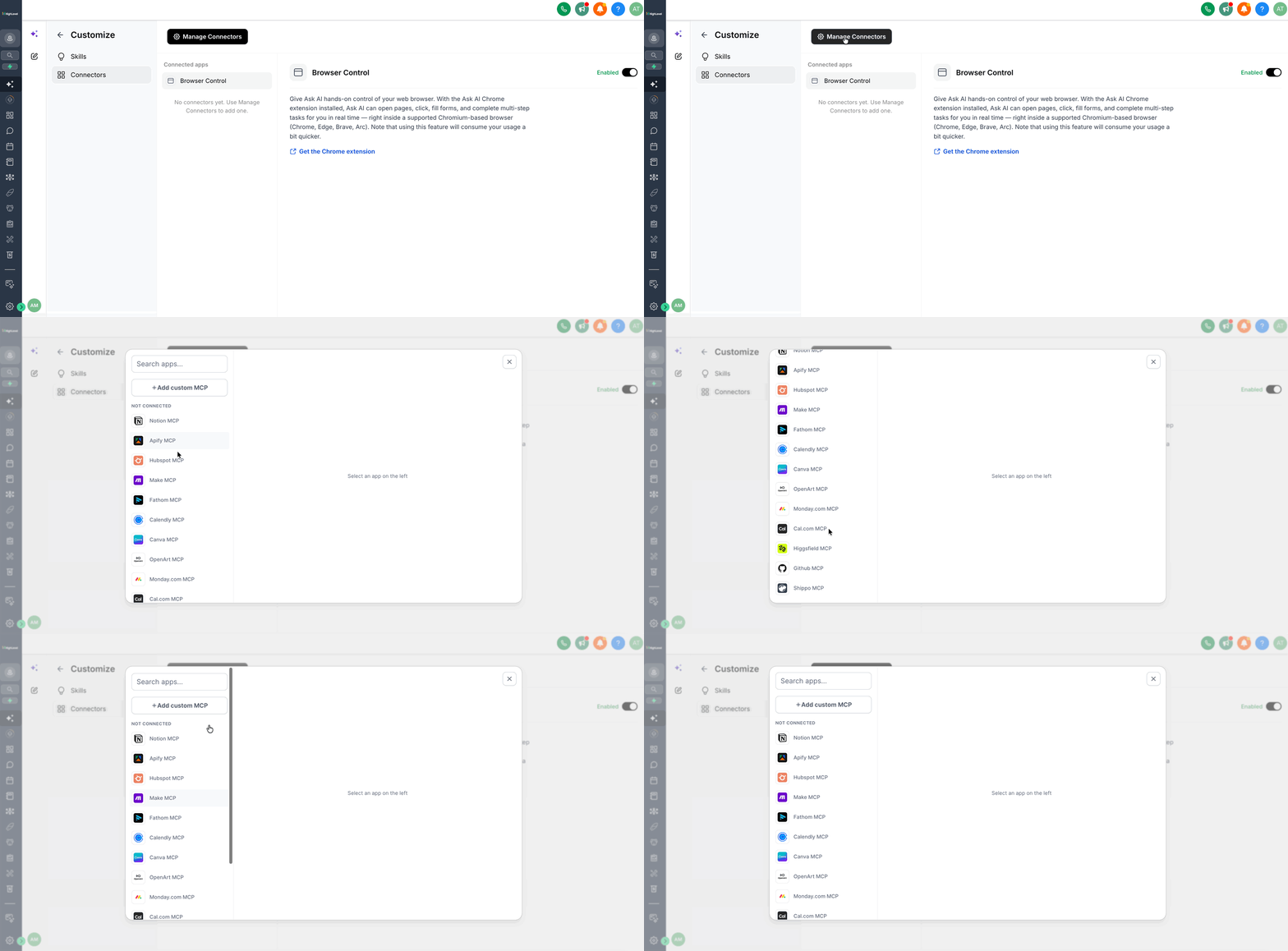
Click Manage Connectors to open the MCP app browser. Search or scroll to find the app you want—Notion, GitHub, Canva, HubSpot, Cal.com, and more.
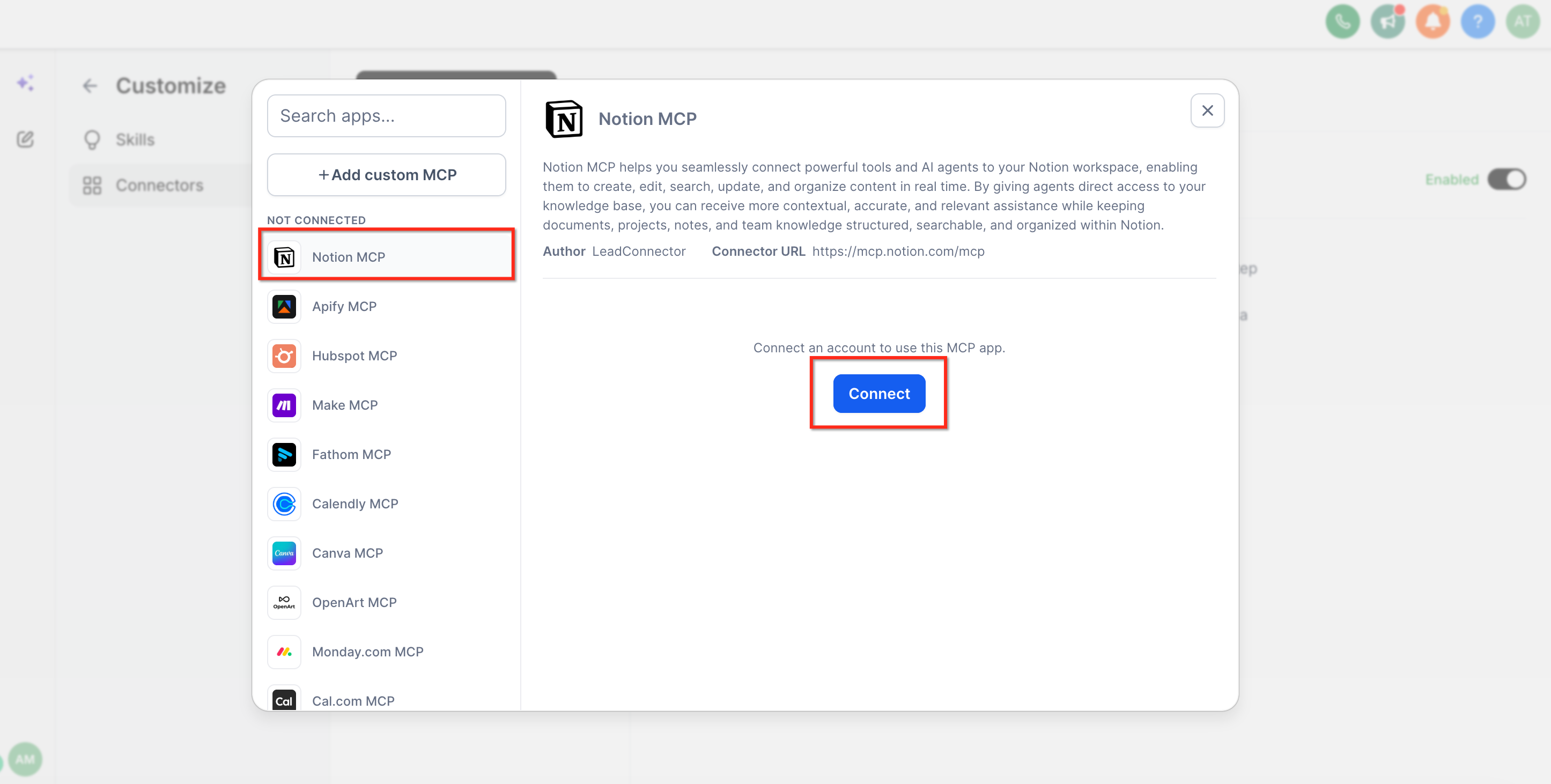
Select the app and click Connect. You'll be redirected to authenticate with the service. Once authorized, the app appears in your Connected apps list.
Click the app name in Connected apps to see the full list of tools it offers. Toggle All tools off to individually enable only the actions you want Ask AI to use (e.g., notion-search, notion-create-page).
Flip the toggle next to the app name to Enabled. Ask AI will now use that connector when fulfilling your requests.
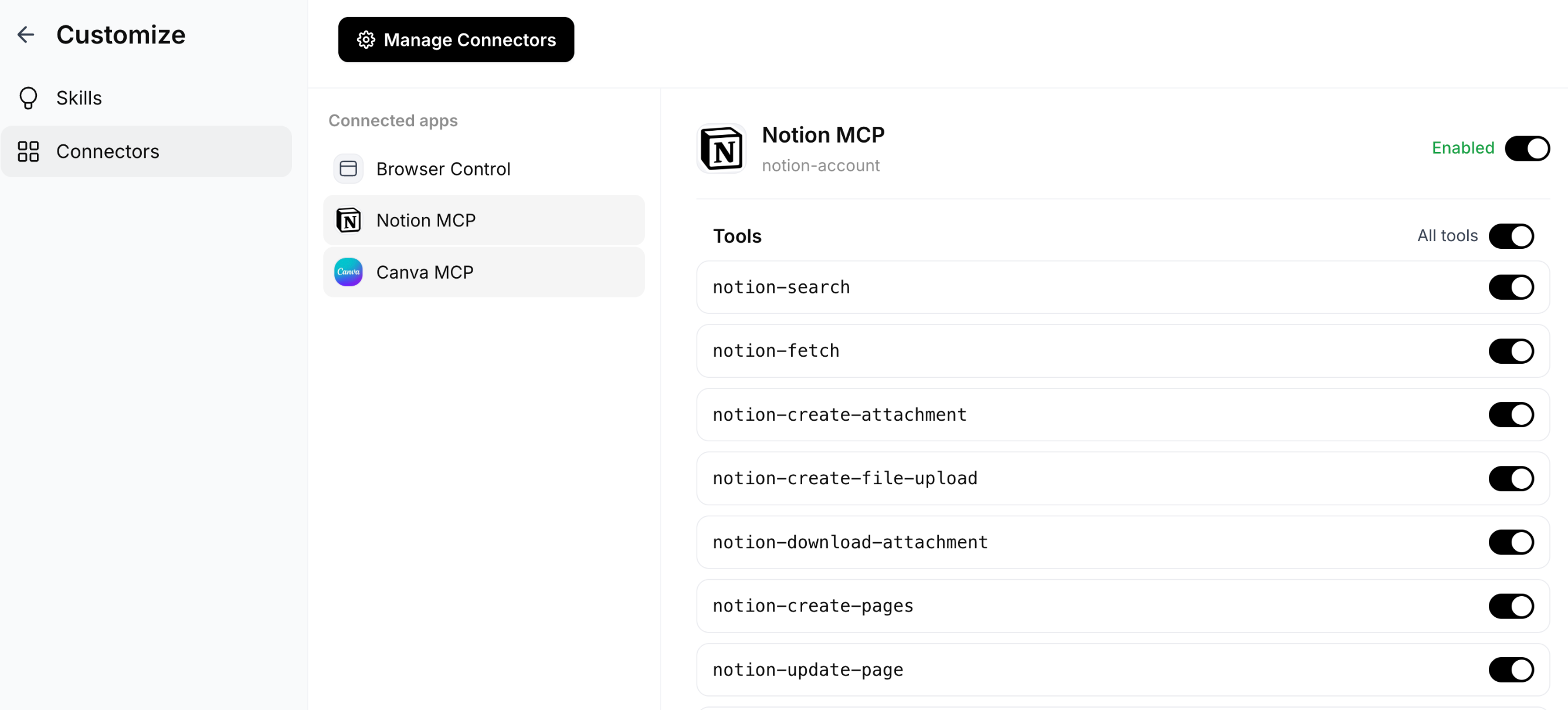
You can also access the connector toggle from the composer + menu at the bottom of any Ask AI chat.
How to Create or Upload a Skill
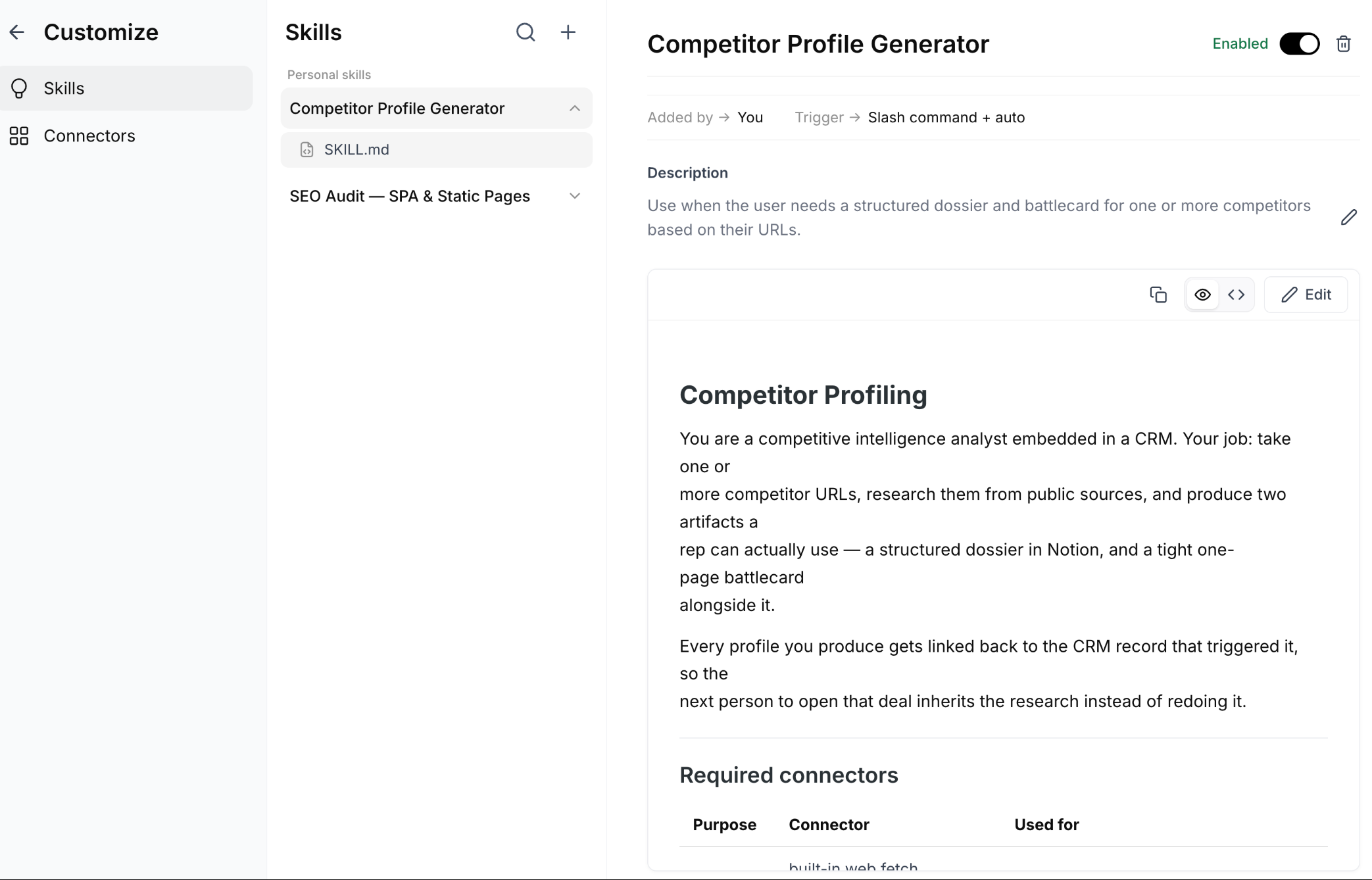
You can create a Skill in three ways: let Ask AI write it for you, upload an existing document, or write it manually. Once created, you can enable, disable, or delete Skills at any time.
In any Ask AI conversation, say something like "Save this as a skill: When I ask you to generate a PDF report, use the following steps…" Ask AI will draft the Skill for you.
Ask AI shows you the generated Skill. Confirm to add it to your library, or refine it by providing more detail.
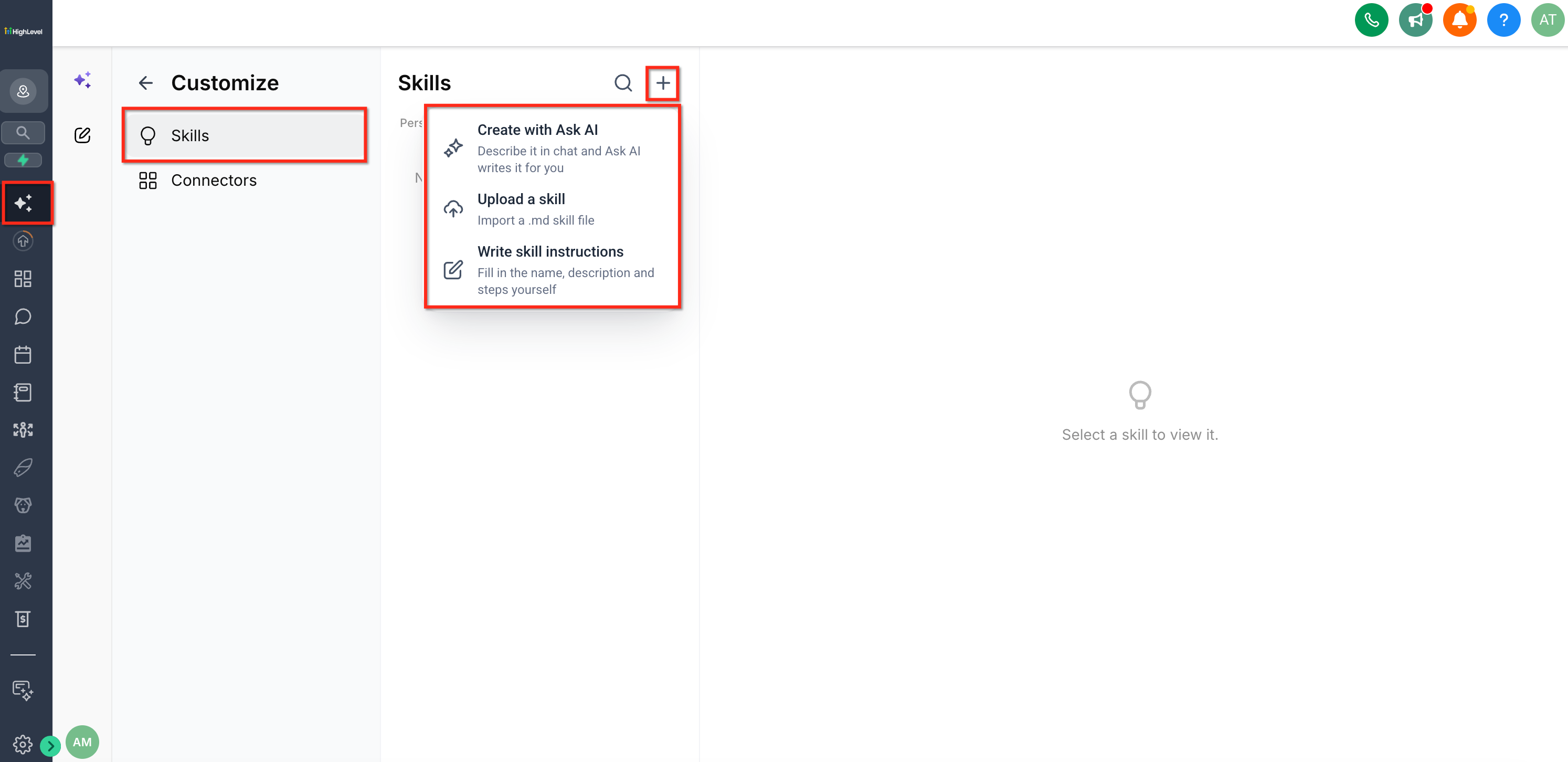
Click Customize → Skills in the Ask AI sidebar.
Click Upload a skill and select a markdown file. Ask AI reads it, proposes a name and one-line summary, and adds it to your library. Uploading the same file twice creates a versioned copy (e.g., "Report Generation 2").
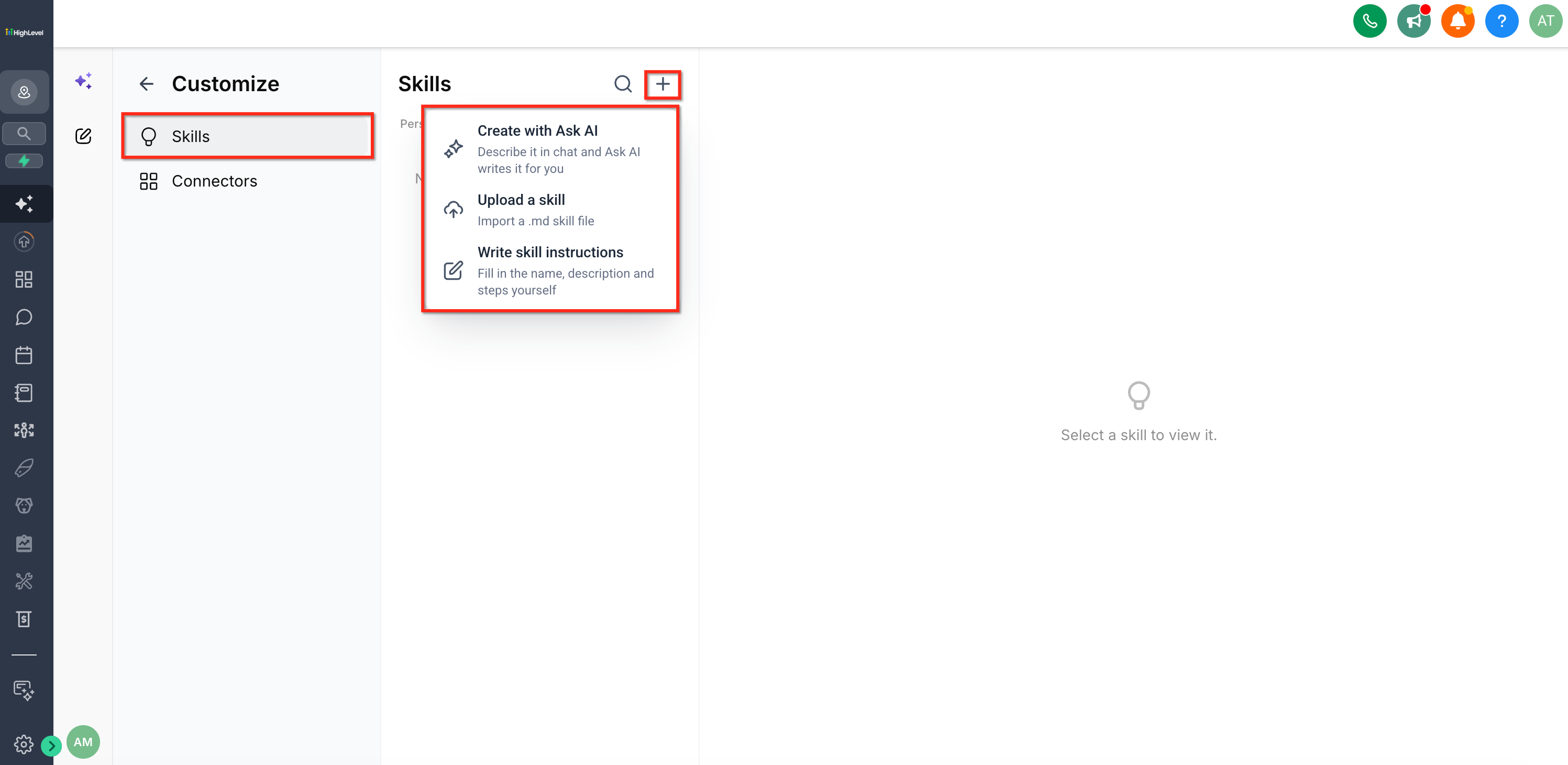
In Customize → Skills, click Write skill instructions.
Provide a Name, a Use when… trigger description (one line), and a Markdown body with the full process Ask AI should follow.
Click Save. Your new Skill appears in the library and is enabled by default.
In the Ask AI composer, type / and select a Skill from the dropdown. That Skill will be pinned to your message, bypassing automatic matching.
In Customize → Skills, toggle a Skill off to hide it from Ask AI without deleting it. Click the trash icon to remove it permanently.
If a Skill produces the wrong output mid-conversation, Ask AI can correct it on the fly. Provide feedback ("That didn't work; update the Skill to…"), and Ask AI will revise the Skill instructions iteratively.
Security and Reliability
Ask AI Connectors and Skills are designed to be secure by default and resilient to common failure modes. Your credentials, tools, and instructions are scoped to your user account and never shared across organizational boundaries.
Skills and connector settings are keyed to your user within a company. Agency and sub-account scopes never leak into each other.
Ask AI stores only a reference to your connected account. Access tokens are minted per call, never persisted, never shown to the AI, and never logged.
Each app is isolated, so one failing integration is dropped for that turn while everything else keeps working.
If a connected account is rotated or reconnected elsewhere in HighLevel, Ask AI finds the healthy reference and repairs the saved setting on its own.
No connector or Skill data is shared across users, sub-accounts, or agencies. Your connections and instructions remain private to you.
Frequently Asked Questions
Was this article helpful?
That’s Great!
Thank you for your feedback
Sorry! We couldn't be helpful
Thank you for your feedback
Feedback sent
We appreciate your effort and will try to fix the article