Edit with Ask AI helps you refine Social Planner content through a conversational editing experience. Instead of starting over when a post needs changes, you can give Ask AI specific instructions, preview the revised content, and choose whether to replace the original text or copy the edited version. This article explains how to use Edit with Ask AI, how session memory works, and how to get better editing results.
TABLE OF CONTENTS
- What is Edit with Ask AI?
- Key Benefits of Edit with Ask AI
- Content AI vs. Quick AI Actions vs. Edit with Ask AI
- How To Use Edit with Ask AI in Social Planner
- Prompt Examples for Better Edits
- Preview, Replace, and Copy
- Frequently Asked Questions
What is Edit with Ask AI?
Edit with Ask AI is a conversational editing tool that helps you revise content inside Social Planner using natural language instructions. You can ask Ask AI to rewrite, shorten, expand, simplify, polish, reformat, or adjust the tone of selected content without manually rewriting the post from scratch.
Edit with Ask AI is currently available in Social Planner wherever Content AI is enabled. It is designed to help you refine content after a draft already exists, whether that draft was generated by Content AI or written manually.
Key Benefits of Edit with Ask AI
Edit with Ask AI makes content refinement faster and more flexible by letting you explain exactly how a post should change. This gives you more control than a one-click edit while still keeping the workflow simple inside Social Planner.
- Conversational editing: Give Ask AI natural language instructions instead of manually rewriting content.
- Preview before applying: Review revised content before replacing the original text.
- Flexible editing control: Shorten, expand, simplify, polish, reformat, or change tone based on your goal.
- Copy or replace edits: Replace the original content or copy the revised version for use elsewhere.
- Saved editing sessions: Return to previous editing conversations without losing context.
- No extra AI credits for edits: Use conversational edits without consuming additional AI credits.
Content AI vs. Quick AI Actions vs. Edit with Ask AI
Social Planner includes multiple AI-assisted ways to create and improve content. Knowing when to use each option helps you choose the right tool for the task.
- Content AI: Use this to generate the first draft of a social post from guided inputs.
- Quick AI actions: Use these for simple one-click edits, such as improving writing, fixing grammar, shortening, or expanding content.
- Edit with Ask AI: Use this when you want to give custom editing instructions and refine content through a chat-style experience.
For example, you might use Content AI to create the first draft, then use Edit with Ask AI to make the post more casual, add a stronger call to action, or rewrite it for a specific audience.
How To Use Edit with Ask AI in Social Planner
Edit with Ask AI is available from the AI menu inside the Social Planner post editor. Use it when you want to refine post content through a chat-style editing experience instead of choosing a one-click AI action.
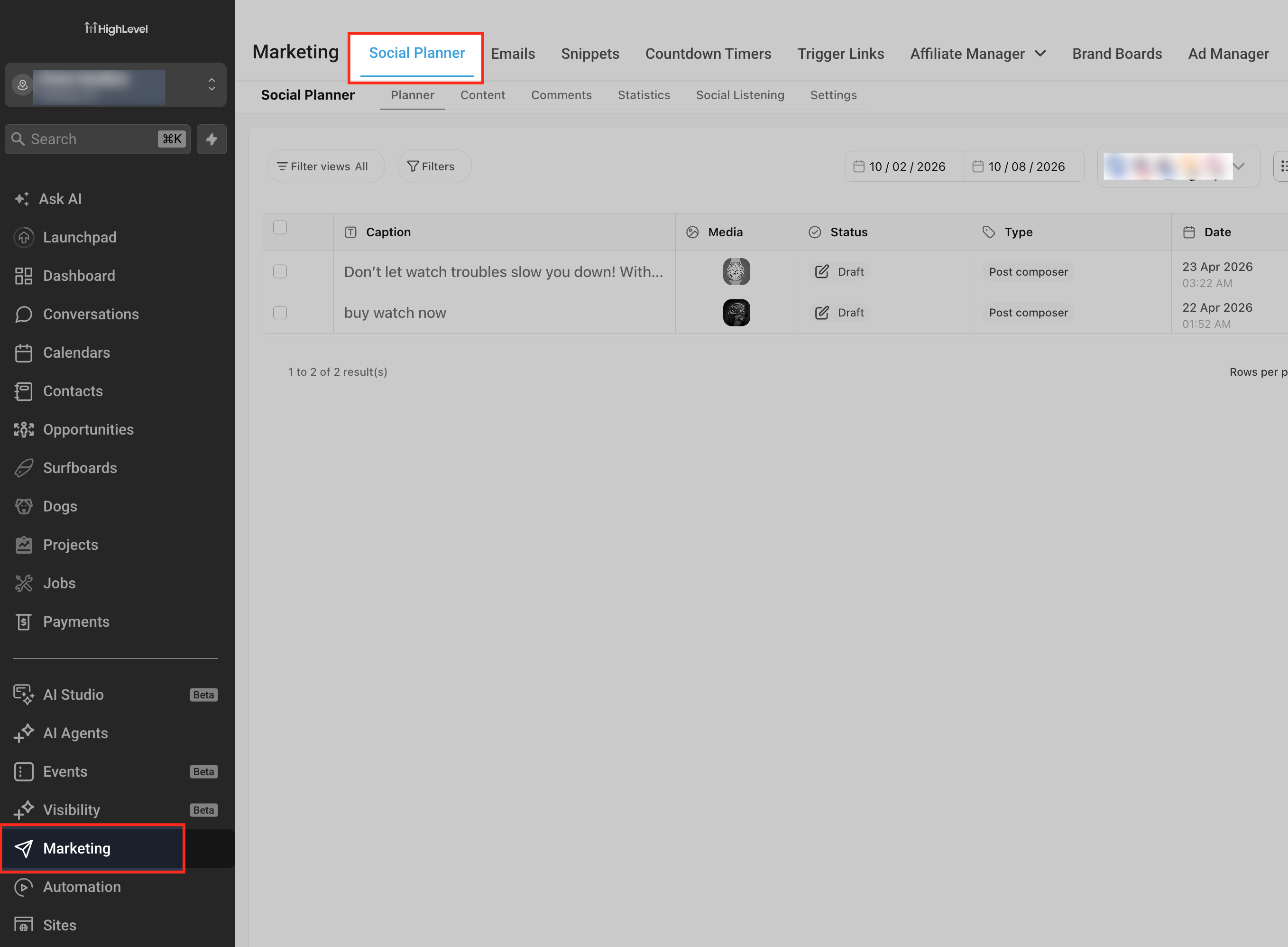
Go to Marketing > Social Planner
Open Marketing, then go to Social Planner. This is where you can create, edit, preview, save, schedule, and publish social posts.
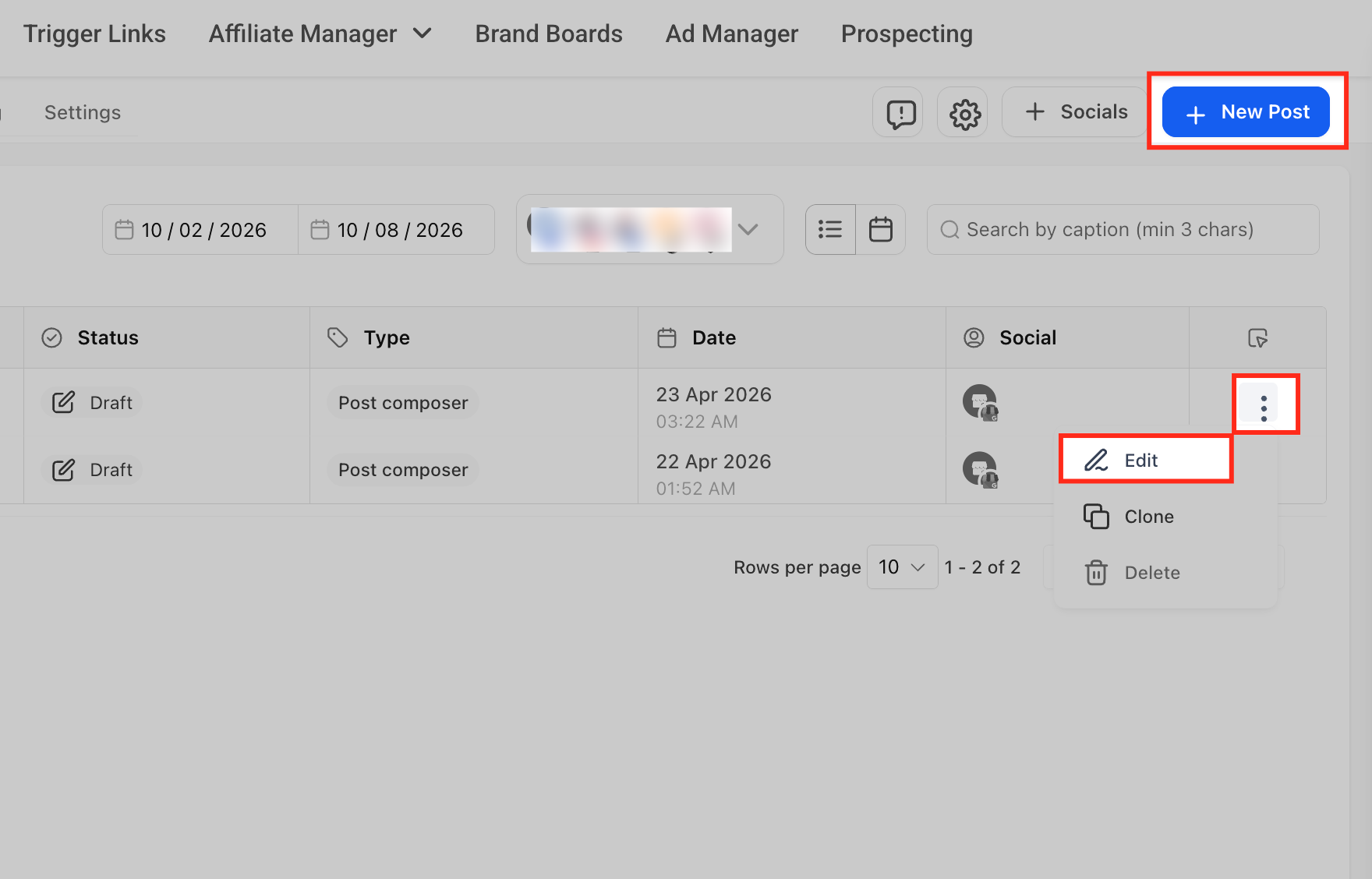
Create a new social post or open an existing post
Start a new post or open an existing draft. You can either edit the existing post with the Edit option under three dots menu or create a new post using "+ New Post" option.
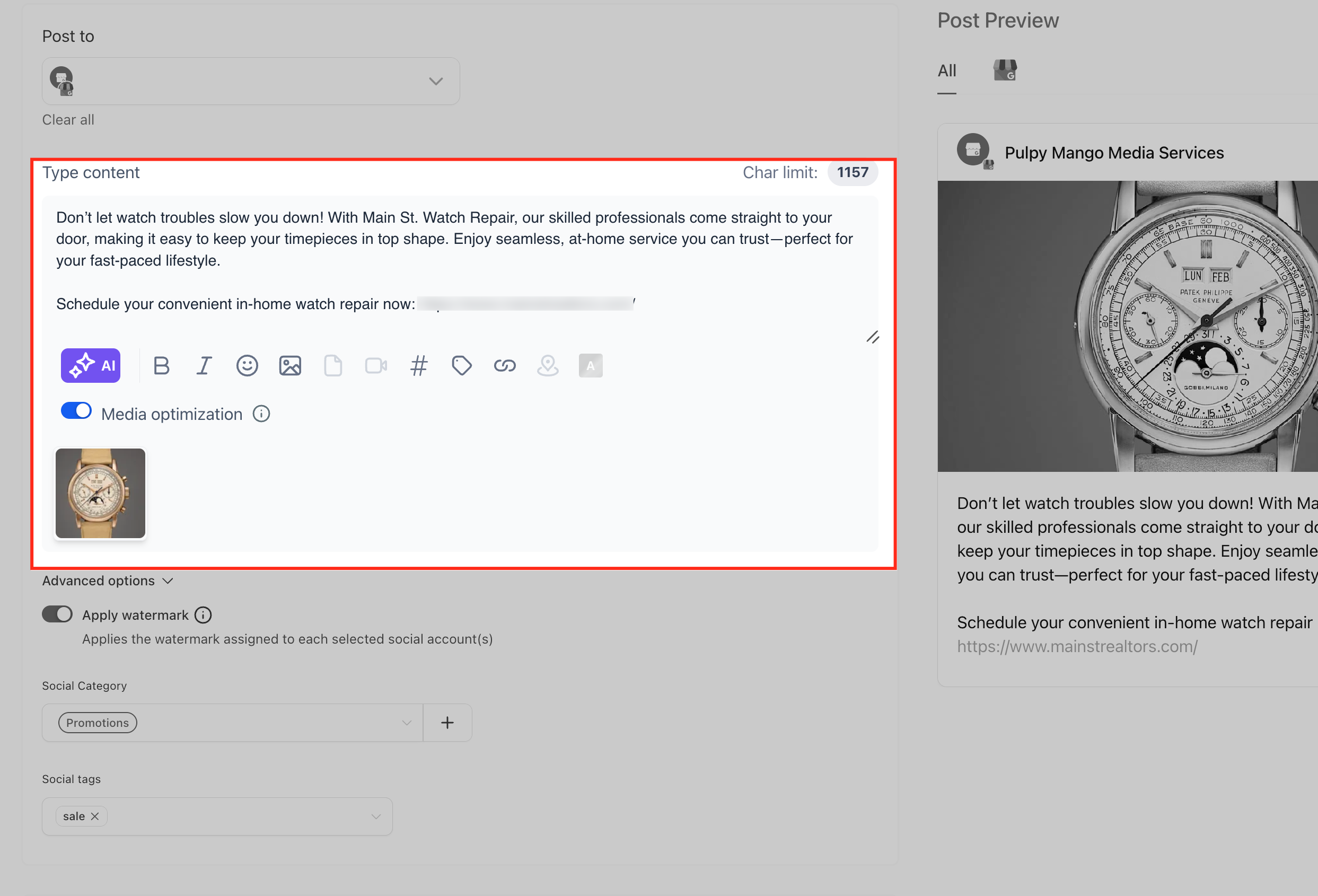
The post editor shows the Post to selector, the Type content field, formatting tools, platform options, and the live post preview.
Add or review the post content
Enter content in the Type content field or review existing draft text. Edit with Ask AI works best when there is content available for Ask AI to revise, rewrite, shorten, expand, or improve.
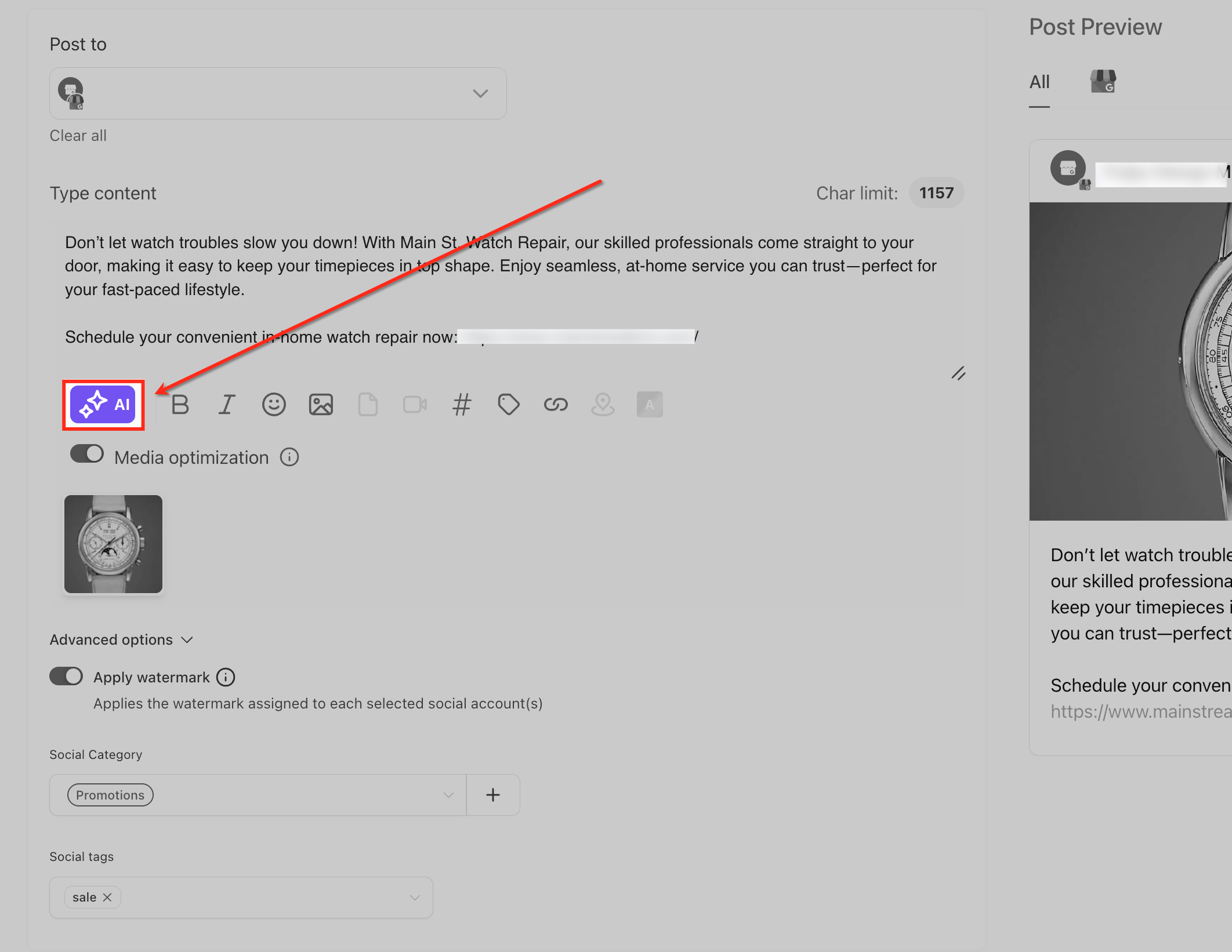
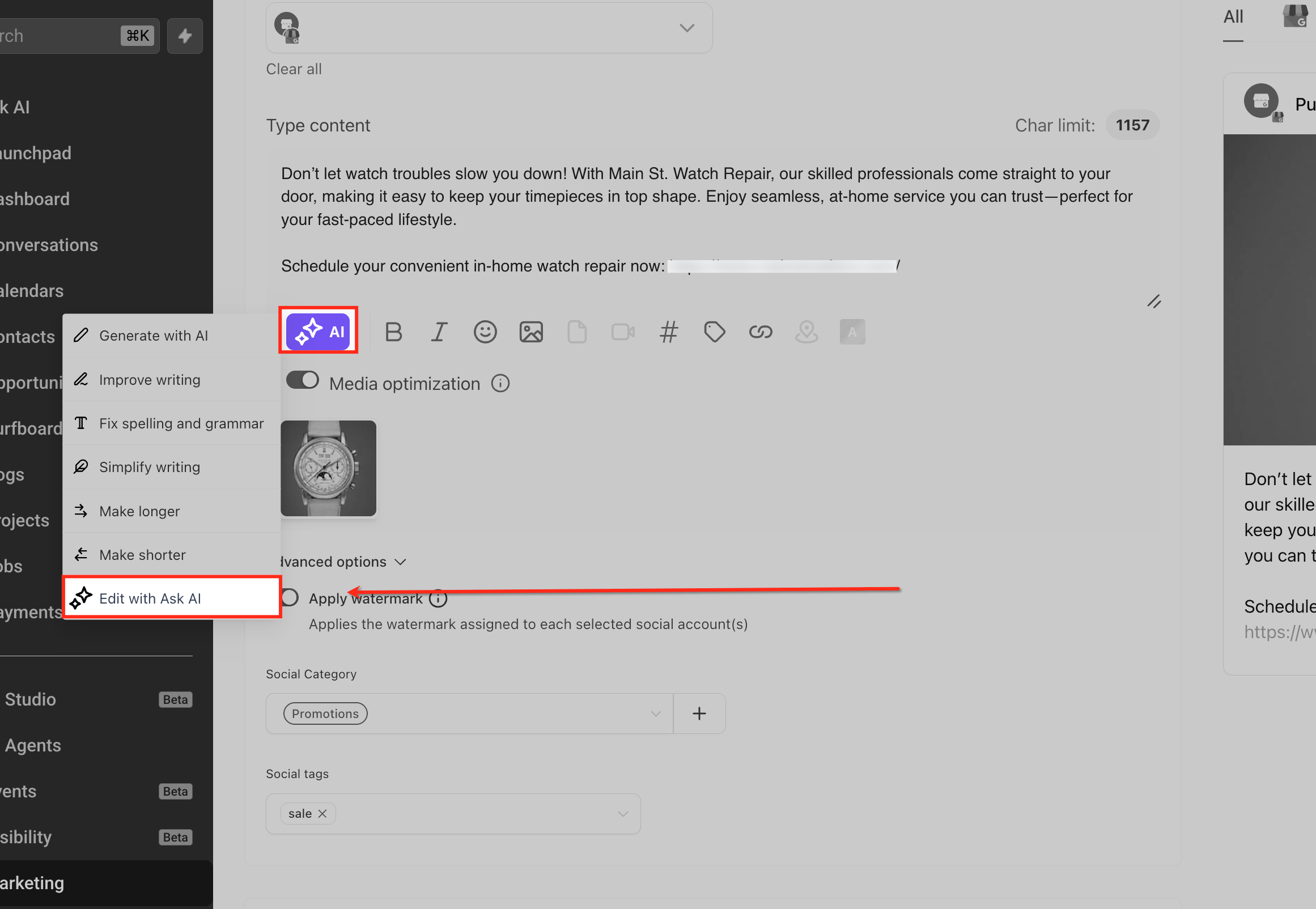
Click the AI button in the content toolbar
Click the purple AI button beside the content formatting toolbar. This opens the AI editing menu for the social post content.
Select Edit with Ask AI
From the AI menu, choose Edit with Ask AI. The menu may also show quick AI actions such as Generate with AI, Improve writing, Fix spelling and grammar, Simplify writing, Make longer, and Make shorter.
Use Edit with Ask AI when you want to give a custom instruction instead of using a predefined quick action.
Enter your editing instruction
Tell Ask AI how you want the content changed. Be specific about tone, length, audience, platform, format, or call to action.
Example prompts:
- “Make this more professional but still friendly.”
- “Shorten this for a Facebook post.”
- “Add a stronger call to action.”
- “Rewrite this for small business owners.”
- “Make this easier to understand.”
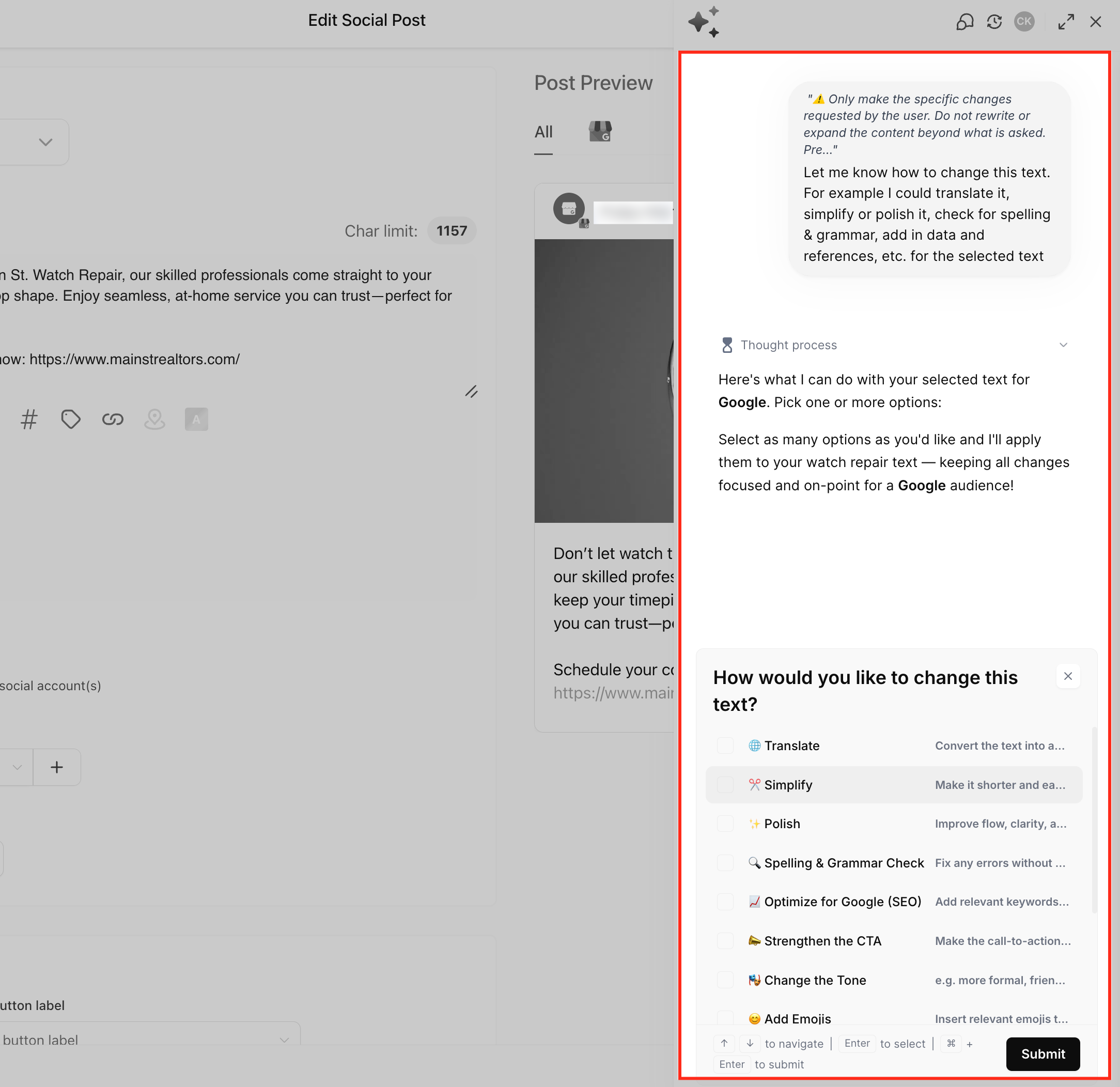
Preview the revised content
Review the revised version before applying it. Check that the updated content matches your brand voice, post goal, platform, and audience.
Continue refining the content
If the edit is close but not final, continue the conversation with another instruction. You can ask Ask AI to make the post shorter, warmer, more direct, more detailed, or better formatted.
Example follow-up prompts:
- “Make it more concise.”
- “Keep the same message but make it more casual.”
- “Add one sentence about booking a consultation.”
- “Make the opening line stronger.”
Replace the original content or copy the revision
When the revised version is ready, choose whether to replace the original content or copy the revised version.
- Replace: Updates the content in the Type content field with the revised version.
- Copy: Copies the revised version so you can paste it elsewhere while keeping the original content unchanged.
Use Replace when you are ready to update the post. Use Copy when you want to keep both versions.
Review the post preview
Check the Post Preview panel to see how the content may appear on the selected social channel. Review the post text, formatting, media, links, and platform-specific options before saving or publishing.
Save, schedule, or publish the post
After reviewing the final content, choose whether to save the post for later, schedule it, or publish it. Always review the final post manually before publishing.
Prompt Examples for Better Edits
Clear prompts help Ask AI understand the exact change you want. The more specific you are about tone, audience, length, and format, the easier it is to get a useful revision.
Tone
- “Make this sound more friendly and casual.”
- “Make this more professional but still approachable.”
- “Rewrite this in a confident but not pushy tone.”
Length
- “Shorten this to two sentences.”
- “Expand this into a more detailed post.”
- “Make this concise enough for a quick LinkedIn update.”
Clarity
- “Simplify this for beginners.”
- “Make this easier to understand.”
- “Remove jargon and make the message clearer.”
Call to Action
- “Add a clear call to action at the end.”
- “Make the CTA stronger and more direct.”
- “Invite readers to book a consultation.”
Formatting
- “Turn this into a short bulleted list.”
- “Add headings and improve spacing.”
- “Rewrite this as a numbered list.”
Brand Style
- “Make this sound more warm and helpful.”
- “Keep the tone educational and trustworthy.”
- “Make this match the style of the previous post.”
Preview, Replace, and Copy
Edit with Ask AI lets you control how revisions are applied. This helps you review the AI-generated version before changing the original content.
- Preview: Shows the revised version before it is applied.
- Replace: Updates the selected original content with the revised version.
- Copy: Copies the revised version so you can use it elsewhere.
Preview the edit before choosing Replace. If you are unsure or want to keep both versions, use Copy first.
Frequently Asked Questions
Q: What is Edit with Ask AI?
Edit with Ask AI is a conversational editing experience that lets you revise selected Social Planner content using natural language instructions.
Q: Where is Edit with Ask AI available?
Edit with Ask AI is currently available in Social Planner wherever Content AI is enabled.
Q: Does Edit with Ask AI consume extra AI credits?
No. Editing with Ask AI does not consume extra AI credits.
Q: Can I edit content I wrote myself?
Yes. You can use Edit with Ask AI to revise content you wrote manually or content generated with Content AI.
Q: Can I preview edits before replacing content?
Yes. You can preview the revised version before choosing whether to replace the original content.
Q: What happens when I click Replace?
Replace updates the selected original content with the revised version.
Q: What happens when I click Copy?
Copy copies the revised version so you can paste it elsewhere while keeping the original content unchanged.
Q: Can I keep refining the same content?
Yes. You can continue chatting with Ask AI and give follow-up instructions until the content matches your goal.
Q: Does Ask AI remember my editing session?
Yes. Smart Session Memory saves the editing conversation so you can return later and continue with previous context.
Q: Why do I not see Edit with Ask AI?
Confirm you are in Social Planner, Content AI is enabled, and you are working in a supported content editing area.
Q: Is Edit with Ask AI available outside Social Planner?
The current article confirms Edit with Ask AI is available in Social Planner wherever Content AI is enabled.
Related Articles
Was this article helpful?
That’s Great!
Thank you for your feedback
Sorry! We couldn't be helpful
Thank you for your feedback
Feedback sent
We appreciate your effort and will try to fix the article