Create polls directly in Community posts to collect feedback and encourage participation. HighLevel supports poll creation through the web Community experience, while GoKollab lets members create polls from the iOS and Android mobile app. Polls help members share their opinions without leaving the Community feed. This guide covers creating polls on web and mobile, configuring available voting settings, and viewing published polls.
TABLE OF CONTENTS
- What Are Polls in Community Posts?
- Key Benefits of Community Polls
- How to Create Polls in Community Posts
- Frequently Asked Questions
- Related Articles
What Are Polls in Community Posts?
Community Polls are interactive posts that let members vote on questions directly within HighLevel Communities. Polls keep feedback and discussions in one place, making it easier to gather opinions without directing members to an external survey or platform.
Polls are available through the HighLevel web Community experience and the GoKollab mobile app. Members can participate directly from Community posts, while poll creators can use available settings to manage voting and results.
On the HighLevel web experience, Community Polls support:
- 2 to 10 answer options.
- Single-select or multi-select voting.
- Optional result visibility for members.
- Optional poll end dates and times.
- Editing published polls to add answer options.
Key Benefits of Community Polls
Community Polls help you collect feedback and encourage participation without moving conversations outside your Community. Members can respond directly to questions, while poll creators can configure voting options and manage results using the controls available in their interface.
- Native posting: Create polls directly within the Community post composer.
- Flexible voting: Allow members to select one or multiple answers, depending on the poll settings.
- Controlled visibility: Choose whether members can view poll results.
- Timed engagement: Set an end date and time to close voting automatically.
- Easy updates: Edit published polls and add answer options through the documented web experience.
- Mobile poll creation: Create polls directly from Community posts in the GoKollab mobile app, making it easier to collect feedback while away from your computer.
How to Create Polls in Community Posts
You can create Community polls using HighLevel on the web or the GoKollab mobile app. Both experiences let you prepare a post, add poll answer choices, and publish the poll to a Community feed. Follow the instructions for the platform you use.
Create a Poll in HighLevel Communities (Web)
The HighLevel web experience lets you create Community polls and configure answer options, voting preferences, result visibility, and closing times before publishing.
Note: The steps below describe the documented new Client Portal workflow. If your account uses the newer unified Communities Beta experience, the navigation may look different.
- From the HighLevel Sub-Account view, select Memberships in the left-hand menu.
- Under Client Portal, click Try the new Client Portal if the updated experience is not already enabled.
- Select the checkbox and click Enable for everyoneto make the updated experience available to members.

- From Memberships, select Communities, then open Groups.
- Click Login for the Group where you want to publish the poll.

- Click Create a post.
- Enter the post Title and Description.
- Click Poll in the post composer.
- Add your poll answer options.
- Reorder or delete answer options as needed.
- Turn on Allow multiple answers if members should be able to select more than one option.
- Turn Allow Members to See Results on or off to control result visibility.
- Configure the poll end date and time if you want voting to close automatically.
- Review the poll and click Postto publish it to the Community feed.

Create a Poll in the GoKollab Mobile App
GoKollab members can create and publish polls directly from Community posts on iOS and Android. The mobile poll editor includes answer choices, voting settings, and publishing controls, allowing members to gather feedback without switching to the web experience.
- Open the GoKollab mobile app and sign in using your Community credentials.
- Select Communities from the bottom navigation.
- Open the Community where you want to create a poll.
- Start a new Community post to open the Create post screen.
- Select the destination Community channel using the channel selector at the top of the post composer.
- Enter the post title and the question or description you want members to respond to.
- Open the Create poll panel from the post composer.
- Add the answer choices that members can vote on.
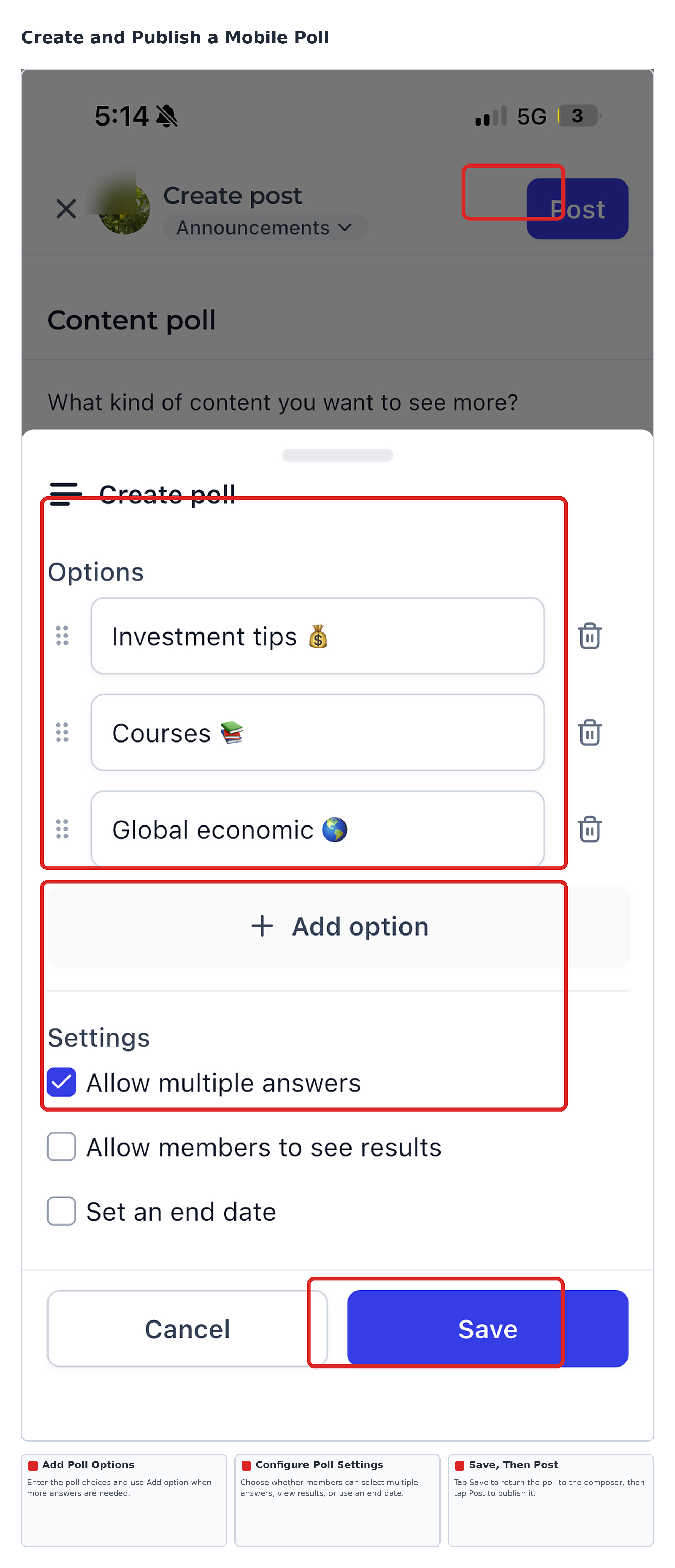
- Tap Add option to include more answer choices. Use the available reorder and delete controls to adjust the options as needed.
- Review the available poll settings:
- Allow multiple answers: Let members select more than one answer.
- Allow members to see results: Control whether members can view poll results.
- Set an end date: Configure when voting should close.
- Allow multiple answers: Let members select more than one answer.
- Tap Save to save the poll settings and return to the post composer.
- Review the post title, selected channel, and poll details. Tap Post in the upper-right corner to publish the poll.
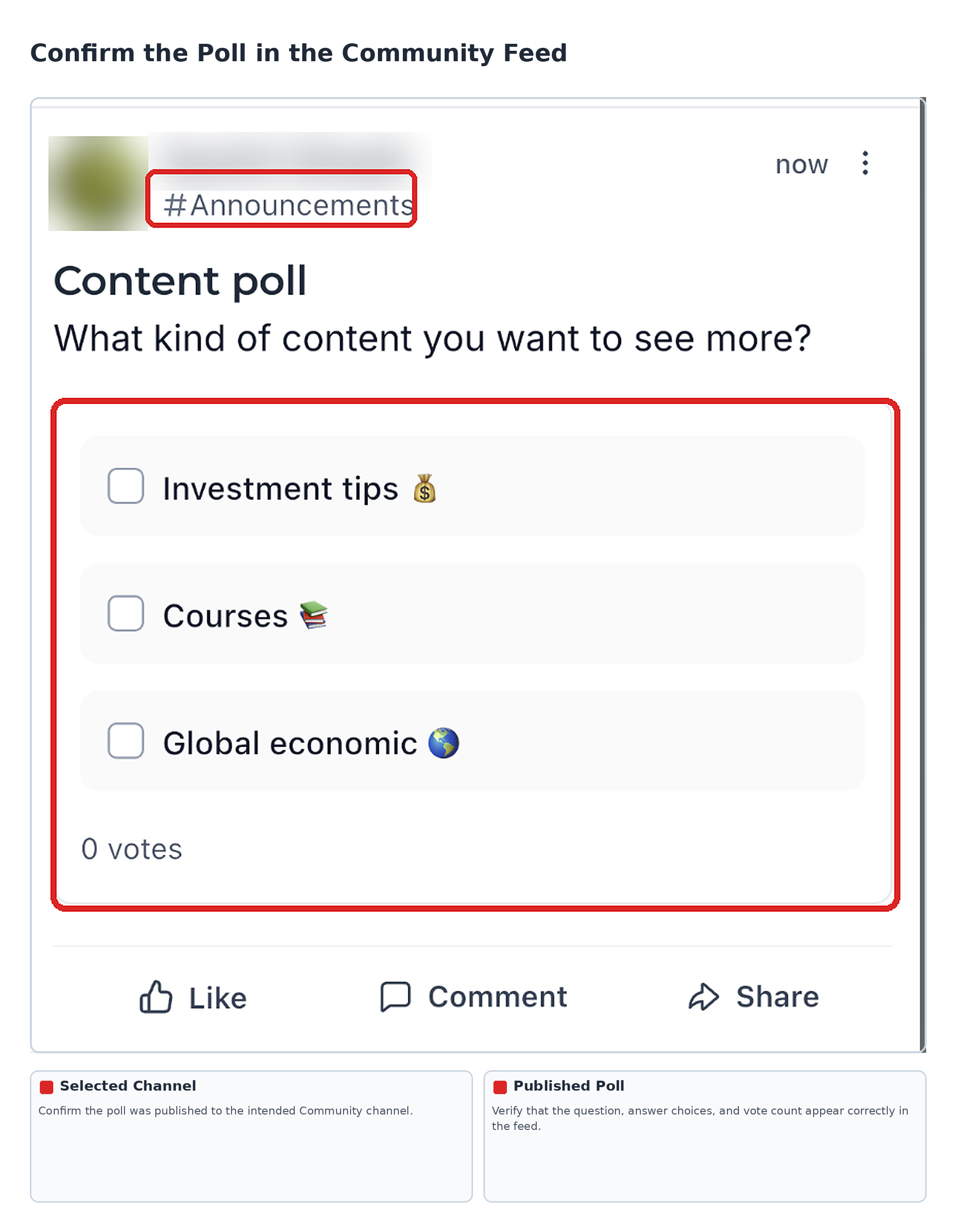
- Return to the Community feed and confirm that the poll appears in the intended channel. Review the poll question, answer choices, and displayed vote count.
Frequently Asked Questions
The answers below describe the documented HighLevel web poll editor. Several voting settings are also visible in the GoKollab mobile editor, but controls and limits should be verified separately when using the mobile app.
Q: How many options can I add to a poll?
The HighLevel web poll editor supports between 2 and 10 answer options.
Q: How long can each answer option be?
Each answer option can contain up to 100 characters in the web editor.
Q: Can members select more than one answer?
Yes. Turn on Allow multiple answers to let members select multiple choices. This setting is available in the documented web editor and appears in the GoKollab mobile poll editor.
Q: What happens when member result visibility is turned off?
Members can still vote, but they cannot see vote counts or live percentages when results are hidden.
Q: What happens when a poll reaches its end date?
The poll is marked Closed, and members can no longer vote.
Q: Can I edit a poll after publishing it?
Yes. The documented web experience lets poll creators edit published polls and add new answer options.
Q: Can members change their vote?
Yes. Members may be prompted to confirm before changing their vote.
Related Articles
Was this article helpful?
That’s Great!
Thank you for your feedback
Sorry! We couldn't be helpful
Thank you for your feedback
Feedback sent
We appreciate your effort and will try to fix the article