Efficient member management keeps your Community organized, safe, and engaging. This guide covers roles and permissions, inviting and approving members, and privacy so you can scale confidently while maintaining control. Learn best practices and avoid common pitfalls with clear, step‑by‑step instructions.
TABLE OF CONTENTS
- What is Managing Members Inside Groups
- Key Benefits of Managing Members Inside Groups
- Understanding Member Roles & Permissions
- How to Invite Members to the Group
- Privacy & Join Flow (Public vs Private)
- How to Modify Member Roles
- How to Remove or Ban Members
- Frequently Asked Questions
- Related Articles
What is Managing Members Inside Groups
Groups foster interactive discussions, connect individuals with shared interests, and serve as knowledge-sharing hubs. Managing members inside Groups refers to the ongoing workflows admins use to add, approve, organize, and remove people from a Group in HighLevel Communities. Understanding roles, privacy, and access controls ensures the right people can join and participate while admins maintain safety, compliance, and a great member experience.
Key Benefits of Managing Members Inside Groups
Clarity of control: Assign roles and permissions so owners/admins moderate effectively.
Faster onboarding: Invite by link or email to reduce friction and increase conversions.
Stronger safety: Use private Groups and approvals to keep discussions high‑quality.
Time savings via automation: Grant or revoke access automatically based on actions (e.g., purchases, refunds, cancellations).
Better targeting: Filter contacts by Group for messaging, analytics, and follow‑ups.
Revenue alignment: Combine Paid Groups with access rules to reduce churn and protect premium content.
Understanding Member Roles & Permissions
Roles determine who can manage people and content. Picking the right role up front prevents rework and protects your community’s health.
Note: A group can only be Deactivated and cannot be Deleted.Default roles and typical abilities
A well-structured community group has a hierarchy of roles, each with distinct responsibilities and capabilities.
Owner: Full control, including deactivating the Group, editing settings, and assigning any role.
Admin: Manage members and content; invite, approve, remove, and adjust roles.
Channel Manager (specific channel): Moderate channel and members for a specific channel.
Contributors: Participate in discussions based on Group privacy and channel access.
| Role | Create Posts | Moderate Posts | Manage Members | Delete Group |
|---|---|---|---|---|
| Owner | ✔️ | ✔️ | ✔️ | ✔️ |
| Admin | ✔️ | ✔️ | ✔️ | ❌ |
| Channel Manager (specific channel) | ✔️ | ✔️ | ✔️ | ❌ |
| Contributor | ✔️ | ❌ | ❌ | ❌ |
Here's a breakdown of the table:
Create Posts: This is the ability to create and publish new posts in the group. All roles except for 'Owner' and 'Admin' may or may not have this ability, depending on the settings established by the 'Owner.'
Moderate Posts: This is the ability to moderate, or delete posts made by other group members. This ability is typically reserved for 'Owners,' 'Admins"
Manage Members: This includes adding new members, changing members' roles, and removing members from the group. Typically, this ability is reserved for 'Owners' and 'Admins.'
Deactivate Group:This is the ability to pause/deactivate the group entirely. This ability is typically reserved only for the 'Owner' to prevent accidental or unauthorized deactivation of the group.
How to Invite Members to the Group
Choose the invite method that best fits your needs.
Invite via Link
Go to Memberships > Communities > Groups.
Login to your group.

Click on Invite Members.

Copy the Invite Link and send via email, SMS, WhatsApp, etc.

Invite via Email
- Go to Memberships > Communities > Groups.
- Login to your group.
Click on Invite Members.
Under Email Invite, enter name and email id of the recipient.
Turn Administrative Privileges ON/OFF.
Click on Send Invite, recipients receive an email with the join action.

Privacy & Join Flow (Public vs Private)
Privacy settings control who can discover and join your Group and whether manual approval is required. Choose the mode that balances growth and safety for your audience.
Public Groups: Anyone can see the group posts and other members of the group. Anyone can join immediately, no manual approval required.
Private Groups: Only members can see the group posts and other members of the group. All join attempts require manual review even when the person uses an invite link.
Approve or decline via Members → Requested → ⋯ (Three Dots) → Request → Approve or Decline.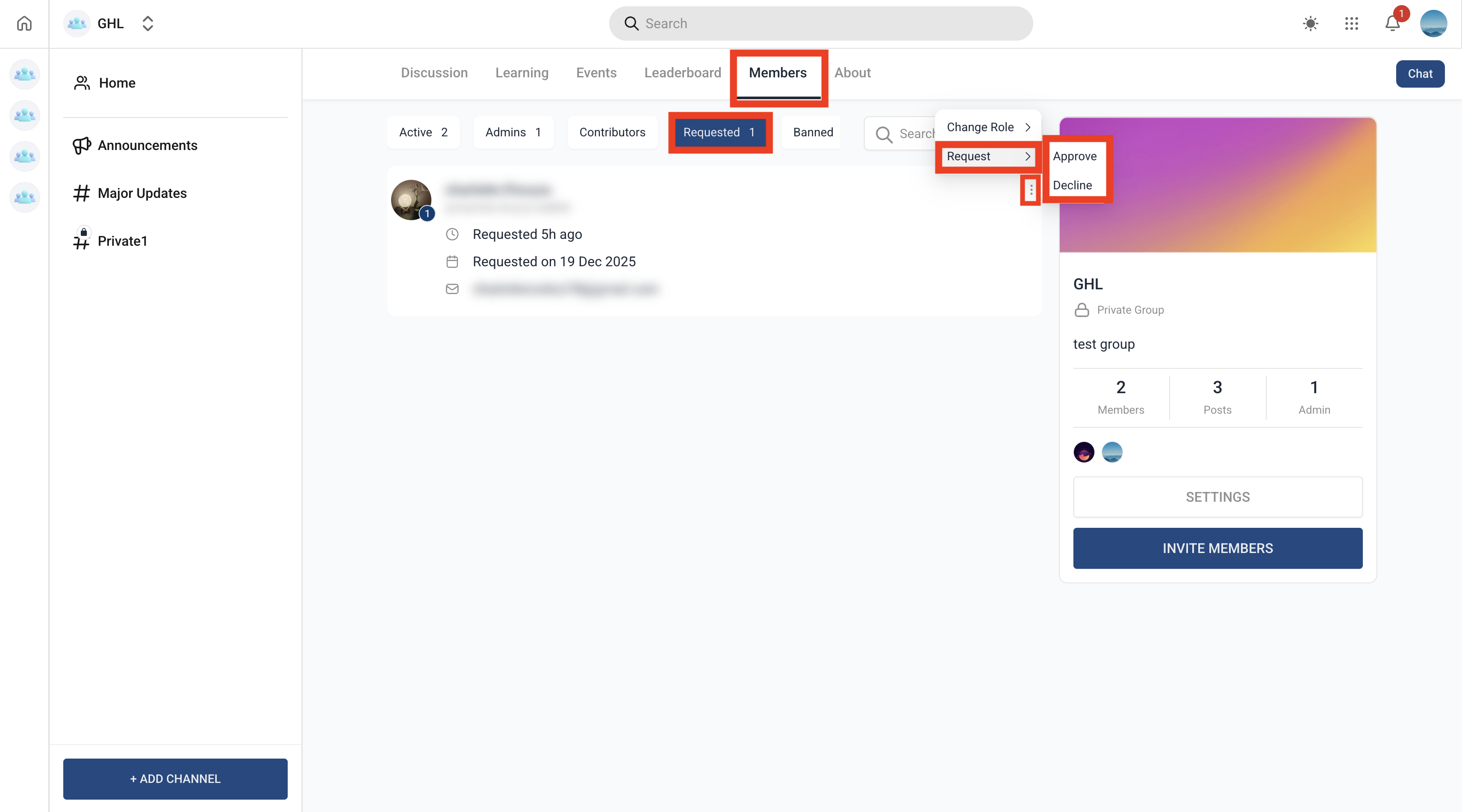
How to Modify Member Roles
As members contribute or take on responsibilities, adjust roles to reflect trust and duties.
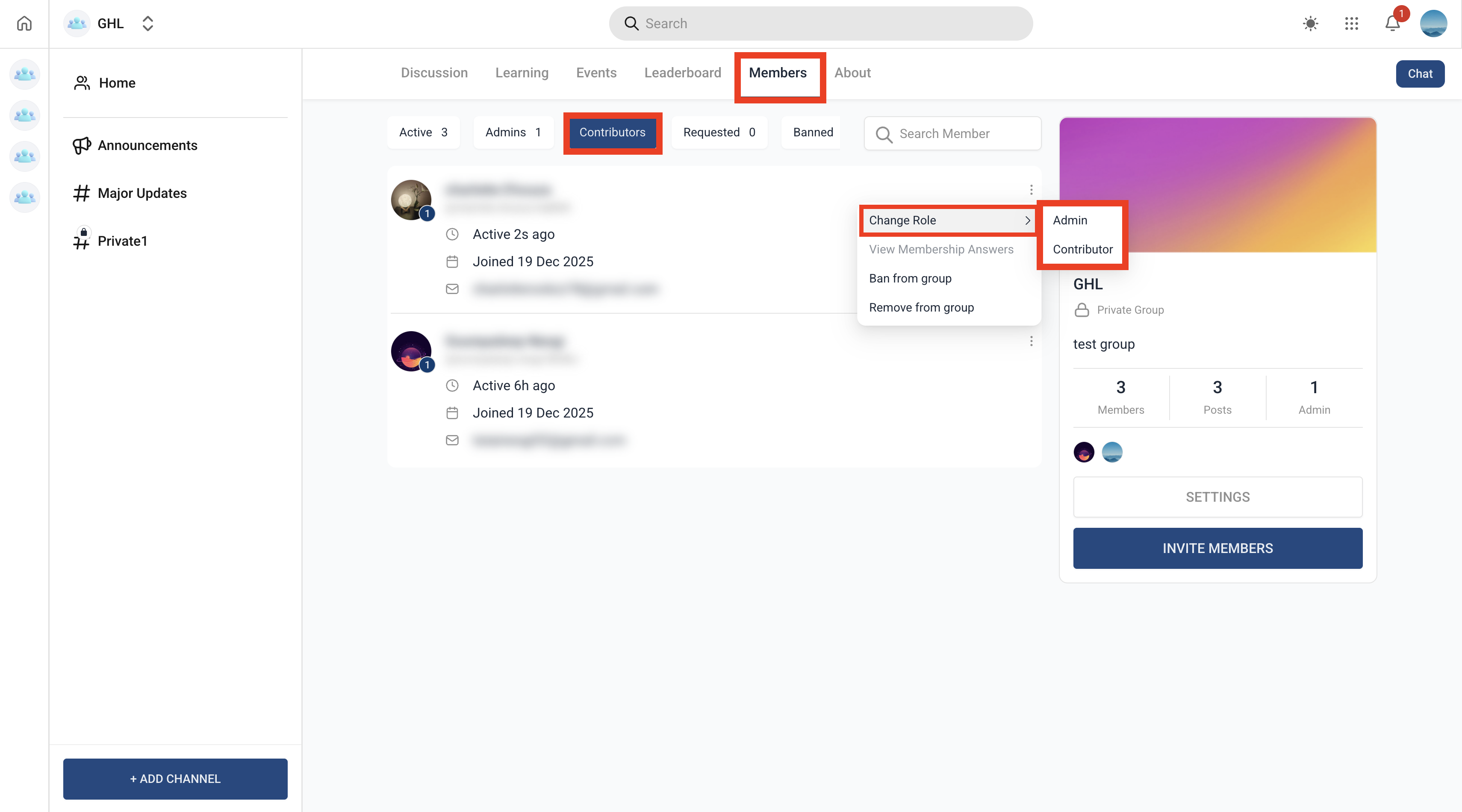
Go to Members > Contributors > locate the member > click … (three dots).
Select Admin, or Contributor (available options depend on your group configuration and your own permissions).
How to Remove or Ban Members
Banning a member permanently prevents them from rejoining the group. Removing a member only takes them out of the group for now — they can request to join again in the future.
To remove/ban: go to Members > locate member > … (three dots) > click on Ban or Remove from Group.

Frequently Asked Questions
Q: I have a large list of potential members. Is there a way to invite them all at once?
You can invite multiple members at once by sending out a mass email or SMS campaign with the group URL included. This makes it easy for them to access and join the community.
Q: Can members invite others to the group, or is this feature exclusive to admins and owners?
Go to group Settings > turn the Allow members to invite new members option ON/OFF.
Hides the invite button for members when turned off. Members can only invite others if this is enabled.
Q: I sent an invitation, but the member hasn't joined yet. Can I resend the invitation?
Absolutely. It's possible the invitation was missed, or they haven't had a chance to join yet. Simply resend the group URL or joining email again.
Related Articles
Was this article helpful?
That’s Great!
Thank you for your feedback
Sorry! We couldn't be helpful
Thank you for your feedback
Feedback sent
We appreciate your effort and will try to fix the article