Post Creation Nudges in HighLevel Communities
Post Creation Nudges help keep your community engaged by prompting users to share important updates immediately after completing key actions. With pre-filled posts and automatic mentions, sharing becomes effortless.
This article covers how Post Creation Nudges work, the supported actions that trigger sharing prompts, and how to use them to drive engagement in your HighLevel Communities.
What Are Post Creation Nudges?
Post Creation Nudges are smart prompts inside HighLevel Communities (GoKollab) that appear right after key actions—such as creating a course, creating an event, or completing a course. Instead of expecting admins or learners to remember to post manually, HighLevel surfaces a "Share as Post" prompt with a pre-filled message and automatic mentions, so important updates can be shared in one click.
These nudges use the standard community post composer—where members already create rich posts and select channels—to keep everything familiar and easy to manage.
Key Benefits
Understanding why these nudges exist makes it easier to weave them into your engagement strategy instead of treating them as one-off prompts. Post Creation Nudges remove friction, increase visibility, and celebrate meaningful activity inside your communities.
Post Creation Nudges for New Courses
New course nudges help admins turn every course launch into a clear, discoverable announcement without writing a post from scratch. As soon as a course is added to a group, the admin can share it with the relevant members in seconds.
When you add a new course inside a community or attach a course to a group (often via the Learning area of your community or through Kollab Studio), you configure course details, pricing, and access. Post Creation Nudges build on that flow by prompting you to broadcast the course to the right audience.
- After a group admin creates a new course and associates it with a community group, a "Share as Post" prompt appears.
- The post is pre-filled with the course title and a course mention, making the announcement clear and clickable for members.
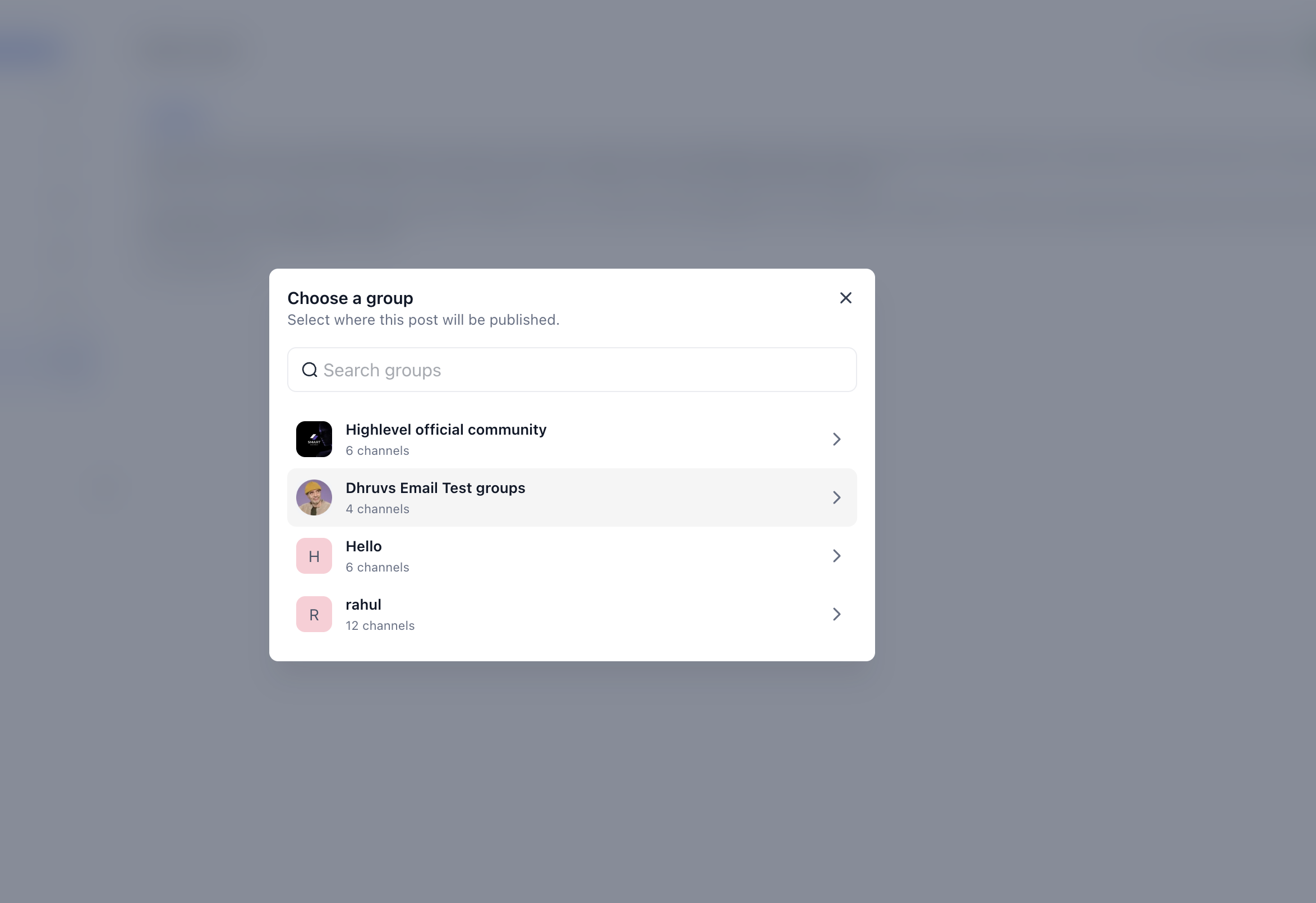
- Admins can edit the post text before publishing, confirm or change the target community group and channel (using the same channel system for Announcements, General chat, or other categories), and publish immediately with one click.
Post Creation Nudges for Events
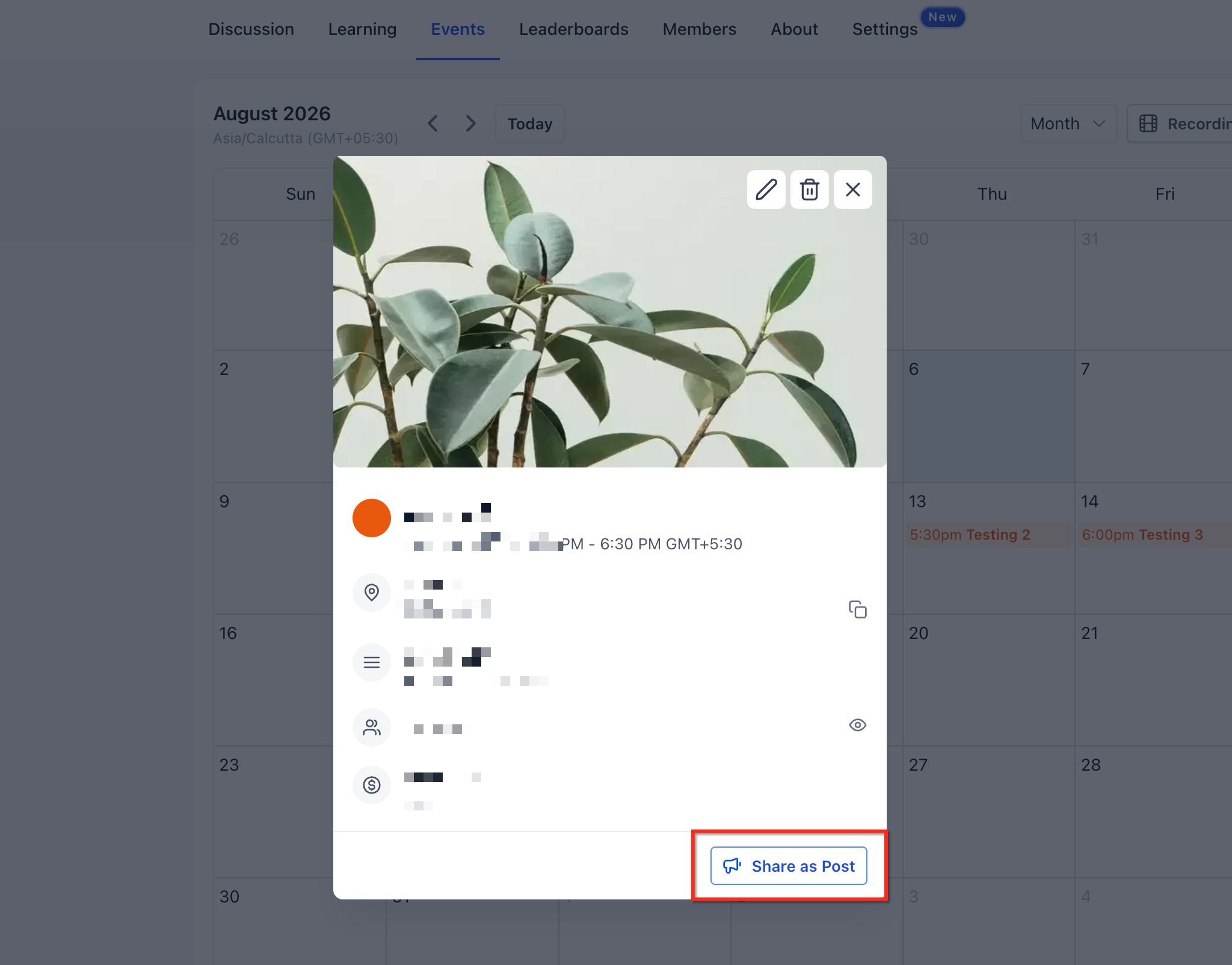
Event nudges ensure that when you create a Community Event—such as a workshop, Q&A, or live room session—you also share it as a post so members can see and register quickly.
Community Events already centralize event details (date, time, description, free or paid, and visibility for specific groups, courses, or membership levels). Post Creation Nudges extend that by turning event creation into a posting opportunity right away.
- When an authorized user (such as a group owner or admin) creates a new Community Event, they'll see a "Share as Post" prompt after saving.
- The generated post includes a pre-filled event announcement and an event mention that links to the event, helping members find details and register.
- Before posting, the creator can adjust the post copy to better match the tone or audience and select the best group and channel (for example, an Announcements channel for major events or a niche channel for smaller cohorts).
Post Creation Nudges for Course Completions
Course completion nudges focus on the learner experience, turning each completion into a moment of recognition and encouragement that can inspire others to keep learning.
When learners finish a course inside a community's Learning area, HighLevel tracks their progress and can present next steps or related content. Post Creation Nudges add a celebration layer by inviting learners to share what they've achieved.
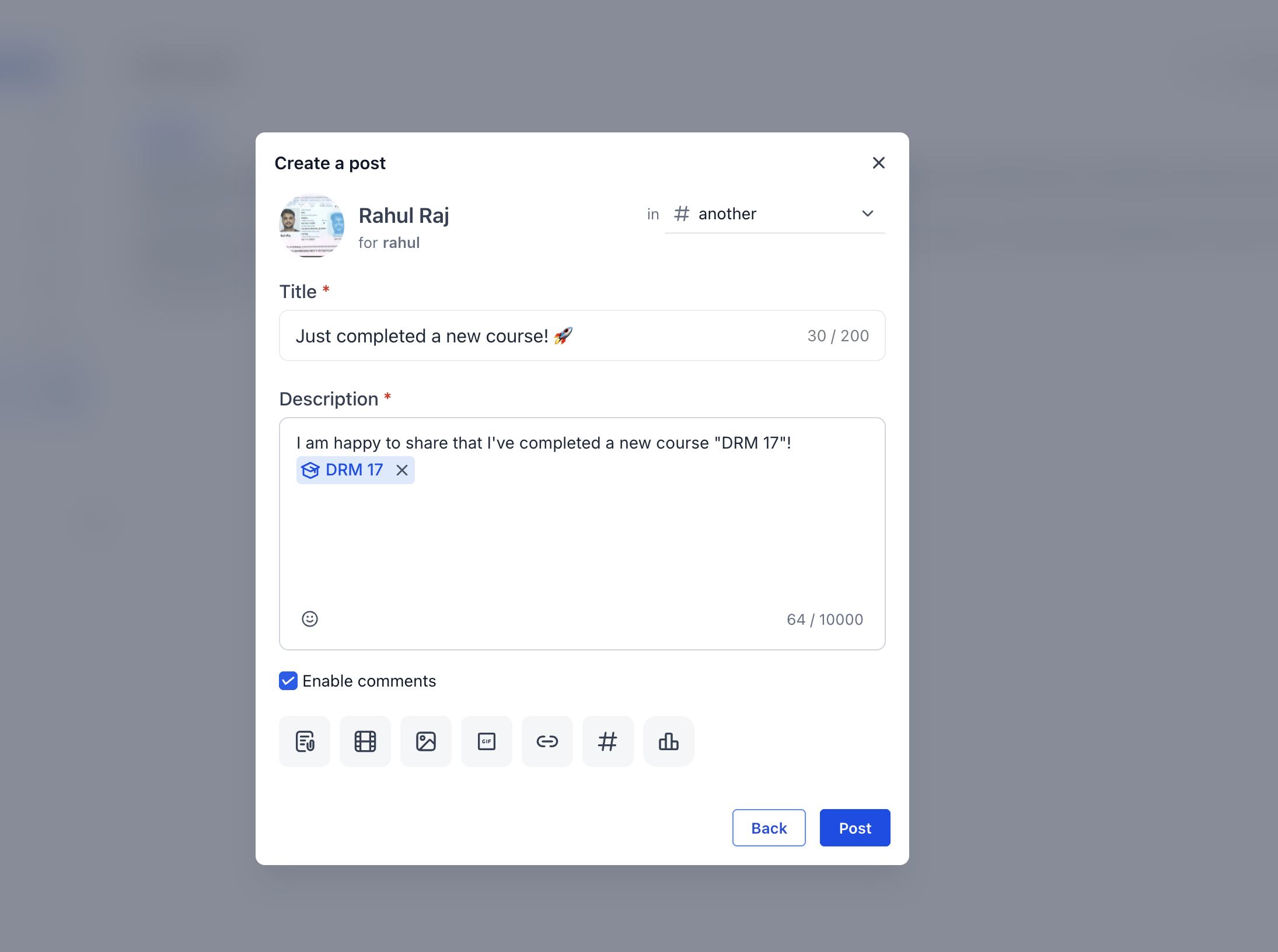
- After a learner completes a course, they receive a congratulatory prompt inviting them to "Share as Post."
- The pre-filled post typically includes a short congratulatory or reflective message and a mention of the completed course, so other members can easily find and enroll in it.
- The learner can then personalize the message (for example, adding what they learned or thanking the instructor) and choose the group and channel where the achievement will be posted, subject to their posting permissions in that community.
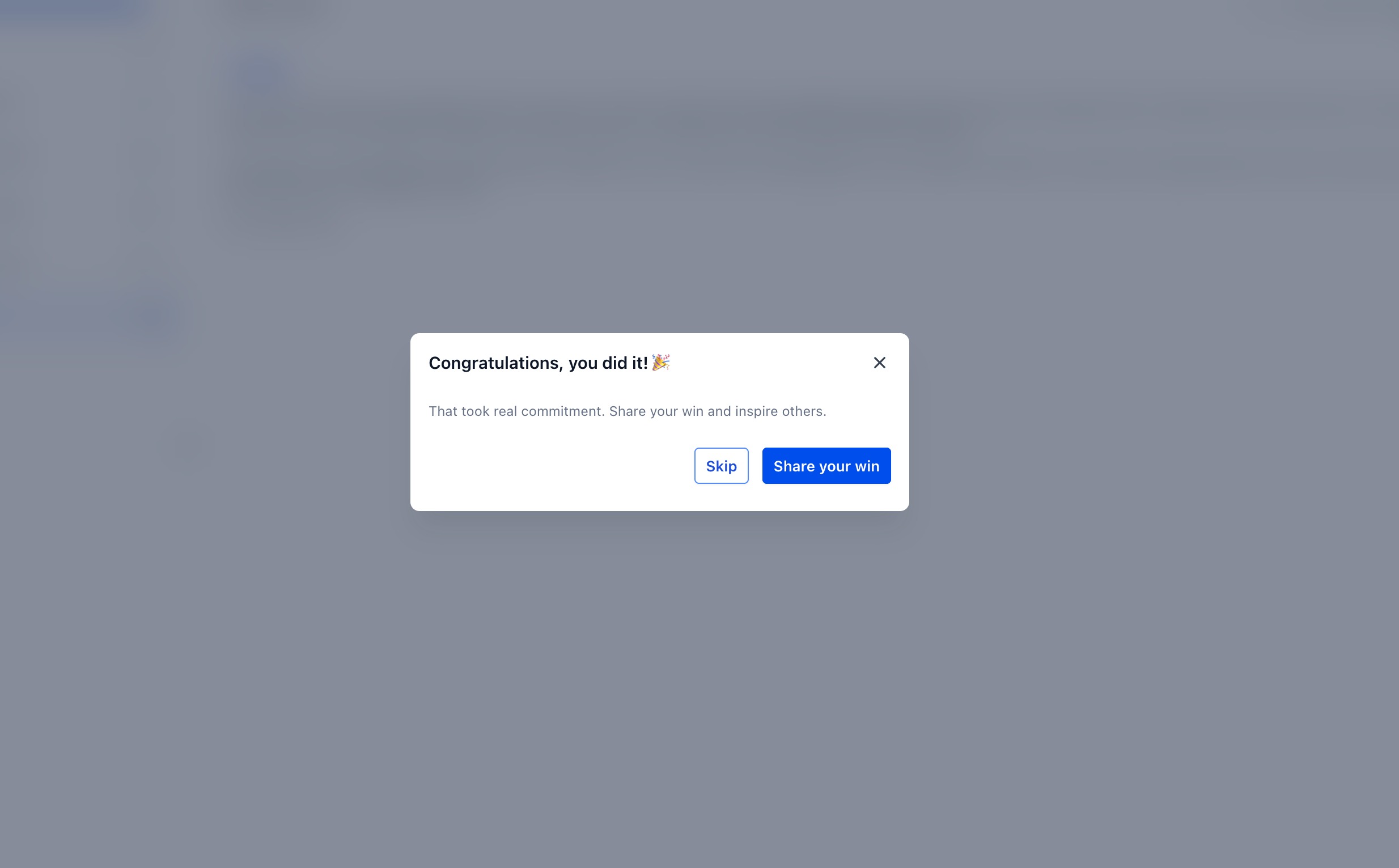
Share as Post Prompt Experience
The "Share as Post" prompt uses the same core post composer as other community posts, so admins and members don't need to learn a new interface. This consistency keeps all of your content—manual posts, scheduled posts, and nudge-driven posts—flowing through the same channels and permissions model.
Add a new course to a group, create a new Community Event, or complete a course as a learner.
A modal or panel appears with a pre-filled post. The post already contains the relevant course or event mention, so it's ready to share.
Edit the headline or body text to better fit your voice or call to action. Optionally add emojis, attachments (images, videos, PDFs, GIFs), or embedded media—just like any other community post.
Confirm which community group the post belongs to. Choose the appropriate channel (e.g., Announcements, General, or a topic-specific channel), using the existing channel structure you've set up in Communities.
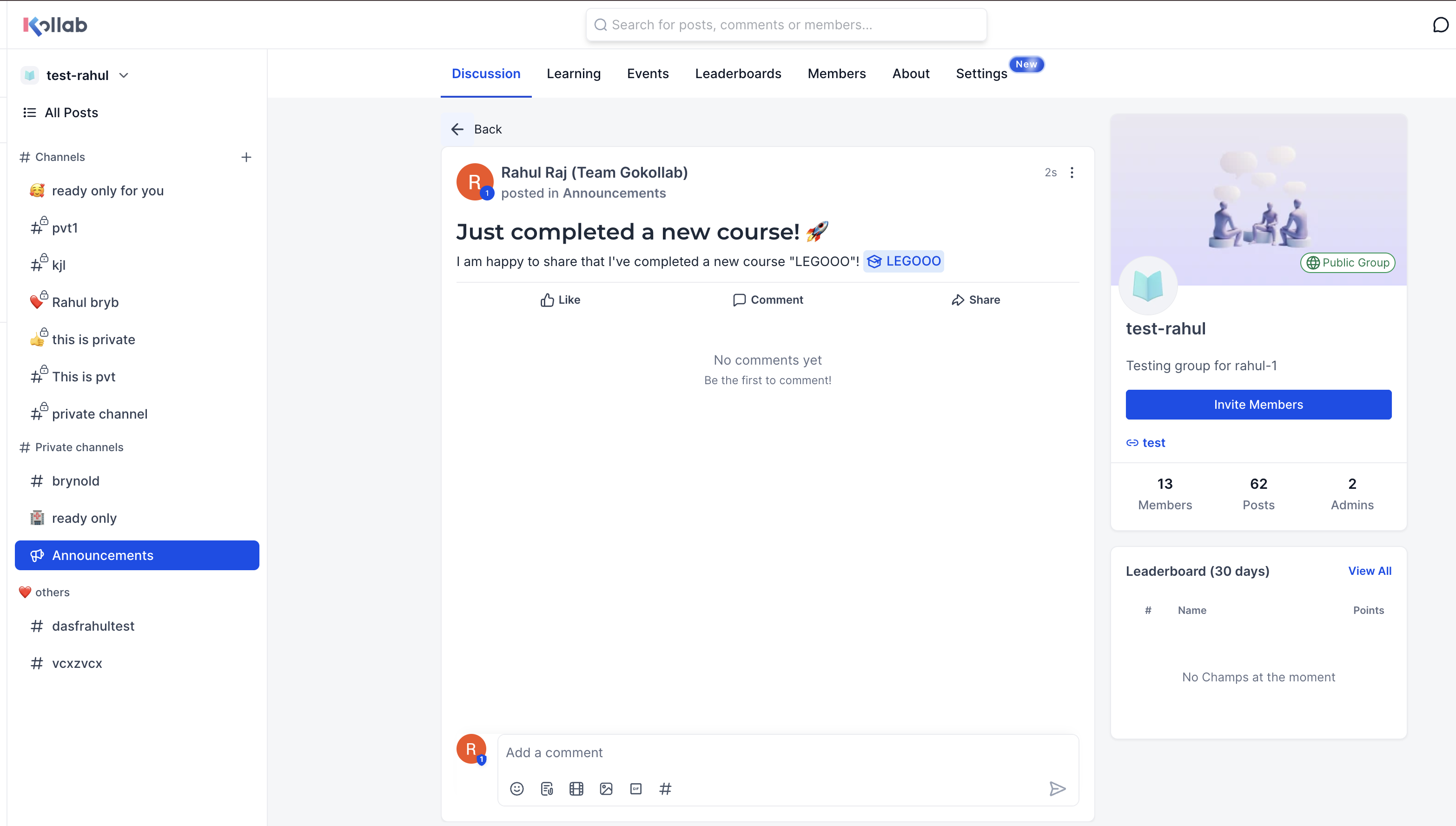
Click Post to publish instantly to the selected group and channel. Members will then see the update in their community feed, alongside other posts, events, and content.
How to Set Up Post Creation Nudges
Post Creation Nudges do not require complex configuration; they are designed to work automatically within the GoKollab (new UI/Beta) communities experience. However, a solid setup of Communities, courses, and events ensures the nudges show up in the right places and are genuinely useful to your members.
Follow these steps to ensure you're ready to use Post Creation Nudges effectively:
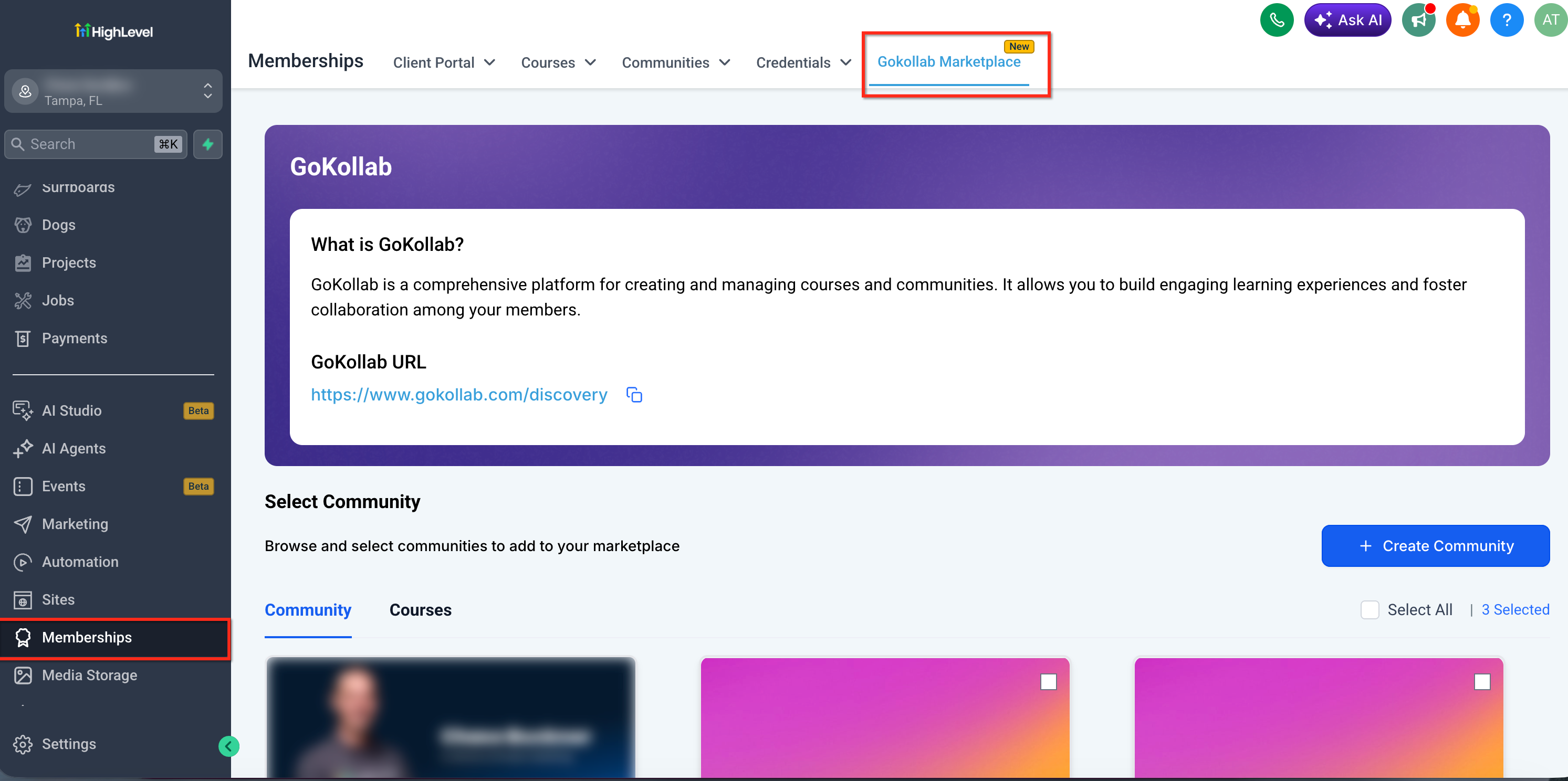
Access Kollab Studio, HighLevel's creator hub for managing communities and courses in one place.
Make sure you can see your communities and courses listed there. If you're still on an older communities experience, reach out to Support or your HighLevel rep to confirm GoKollab access.
In Communities, create a community (if you haven't already) and set up the groups and channels that structure your member discussions (e.g., Announcements, General, topic rooms).
Confirm you are an owner or admin so you can create courses and events in that community.
Use the Learning or Courses area associated with your community or access courses through Kollab Studio.
Create a new course (or ensure existing courses are properly associated with the right group).
When you save the course, watch for the "Share as Post" nudge and follow the flow to publish your announcement.
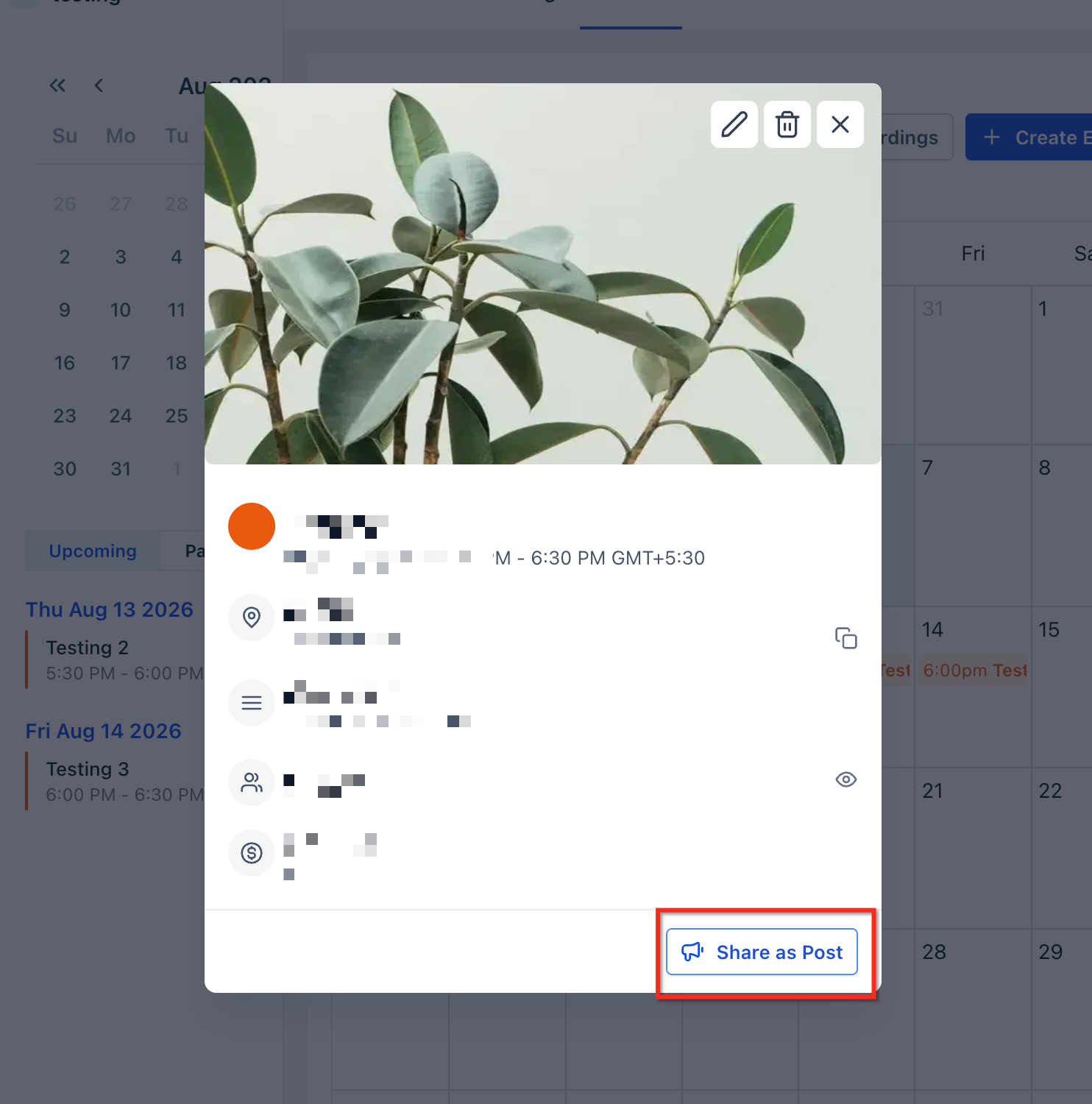
Within your community, navigate to the Events or Community Events area.
Create an event with title, time, description, location (such as Live Room, Zoom, or another link), and visibility settings for the appropriate audience.
After saving, use the Post Creation Nudge to share the event as a community post with an automatic event mention.
Enroll a test member (or yourself) in one of your courses in the community Learning area.
Progress through the course and complete it to trigger the course completion nudge.
Customize the pre-filled post, select the desired community group and channel, and post the celebration to verify visibility.
Decide which channels should receive new course announcements, event promotions and reminders (alongside calendar and email reminders where configured), and course completion celebrations.
Communicate expectations to moderators and instructors so they consistently use nudges when they appear.
Encourage learners to personalize their course completion posts by adding reflections, photos, or thank-yous. This builds community culture and inspires others to engage with your courses.
Frequently Asked Questions
Was this article helpful?
That’s Great!
Thank you for your feedback
Sorry! We couldn't be helpful
Thank you for your feedback
Feedback sent
We appreciate your effort and will try to fix the article