TABLE OF CONTENTS
- What is Folder Management in Agent Studio?
- Key Benefits of Folder Management in Agent Studio
- Folder Organization
- How To Setup and Manage Folders
- Frequently Asked Questions
What is Folder Management in Agent Studio?
Key Benefits of Folder Management
- Visual structure: Separate experiments from live builds or sort by team, client, or project.
- Faster housekeeping: One-click bulk actions slash repetitive work.
- Instant status insight: Draft vs. Published labels remove guesswork.
- High-volume performance: Server-side pagination and adjustable row counts keep lists snappy.
- Customizable views: Choose Folders-first or Agents-first grouping and sort by name or last updated.
- Fewer mistakes: Clear confirmation dialogs guard against accidental deletions.
Folder Organization
- Bulk Delete: Permanently remove the selected items.
- Bulk Move: Relocate many agents into a different folder in one step.
- Bulk Delete Folders: Clear unused groups (agents inside remain until you delete them).
How To Setup and Manage Folders
Create a New Folder
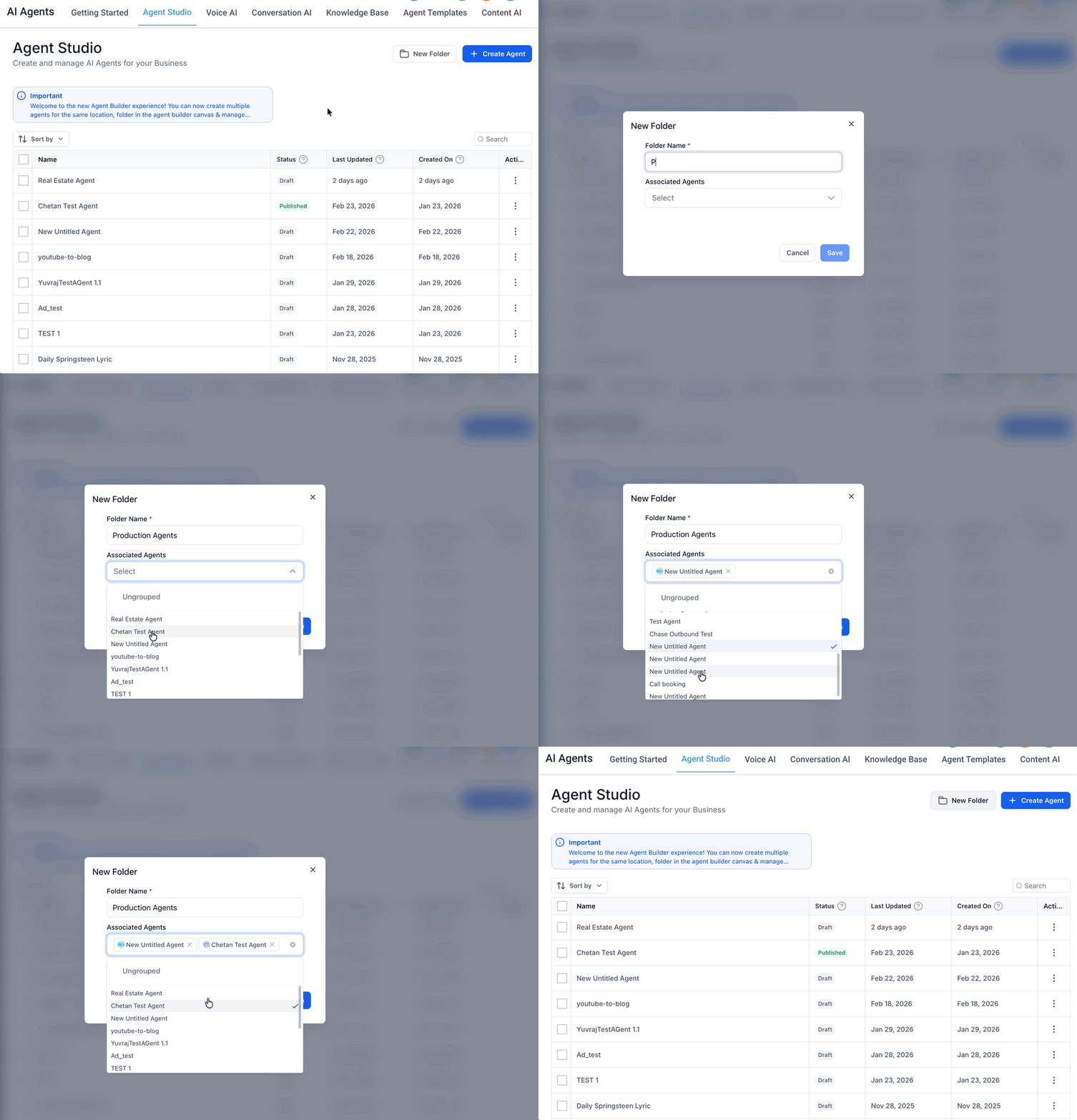
- Click New Folder in the top-right corner of Agent Studio to open the folder creation modal.
- Enter a clear and descriptive name in the Folder Name field.
- (Optional) Open the Associated Agents dropdown and select any ungrouped agents you want to include in this folder.
- Click Save to create the folder; any selected agents will immediately appear grouped under it in the list view.
Sort & Group
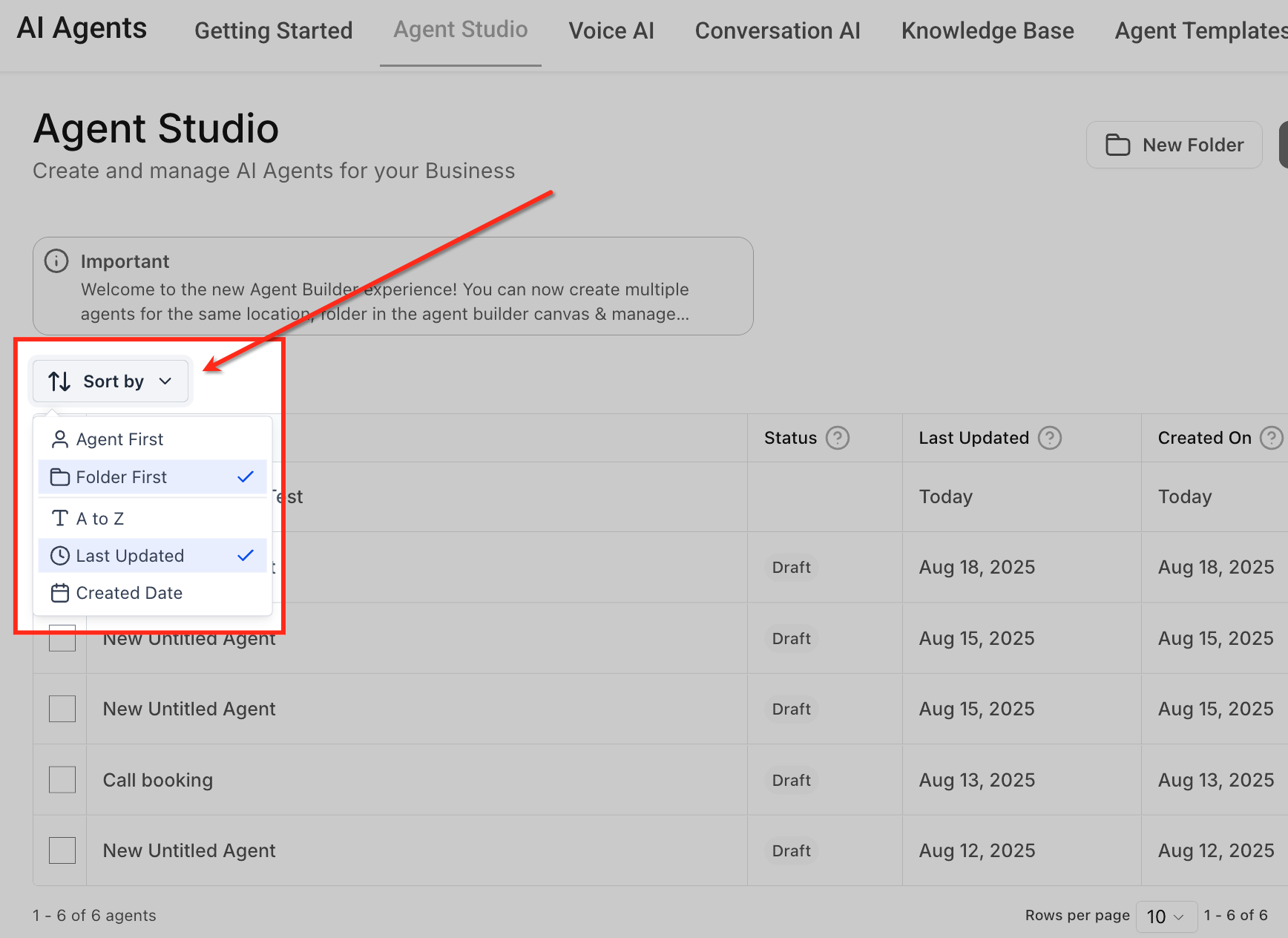
Click the Sort by dropdown to adjust how agents are displayed. You can toggle between Agent First or Folder First, and sort by Name, Last Updated, or Created Date.
Search Agents
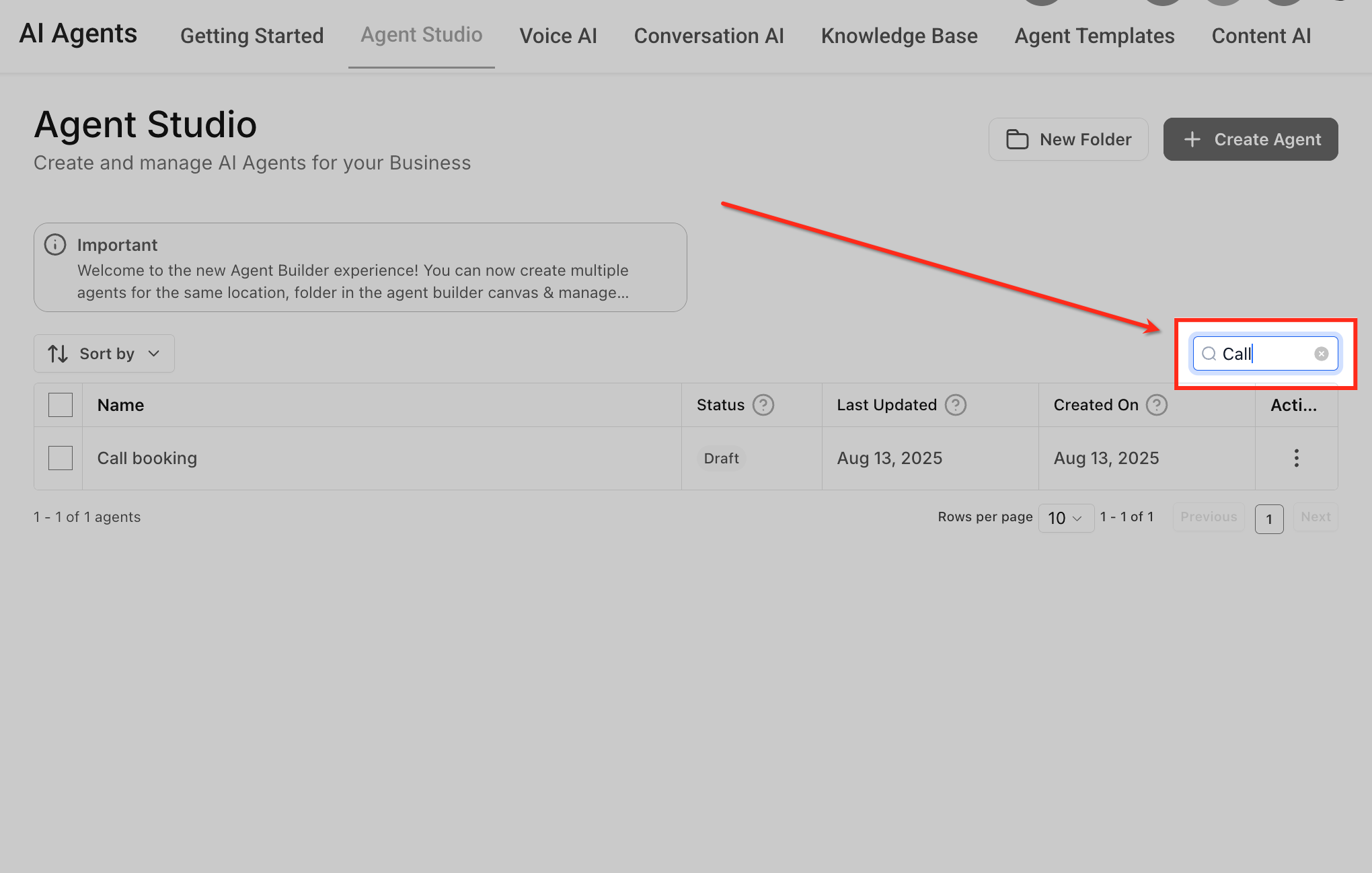
Use the Search bar in the upper-right corner to quickly filter agents by name. Results update instantly, helping you locate specific agents even in large libraries.
Bulk Actions
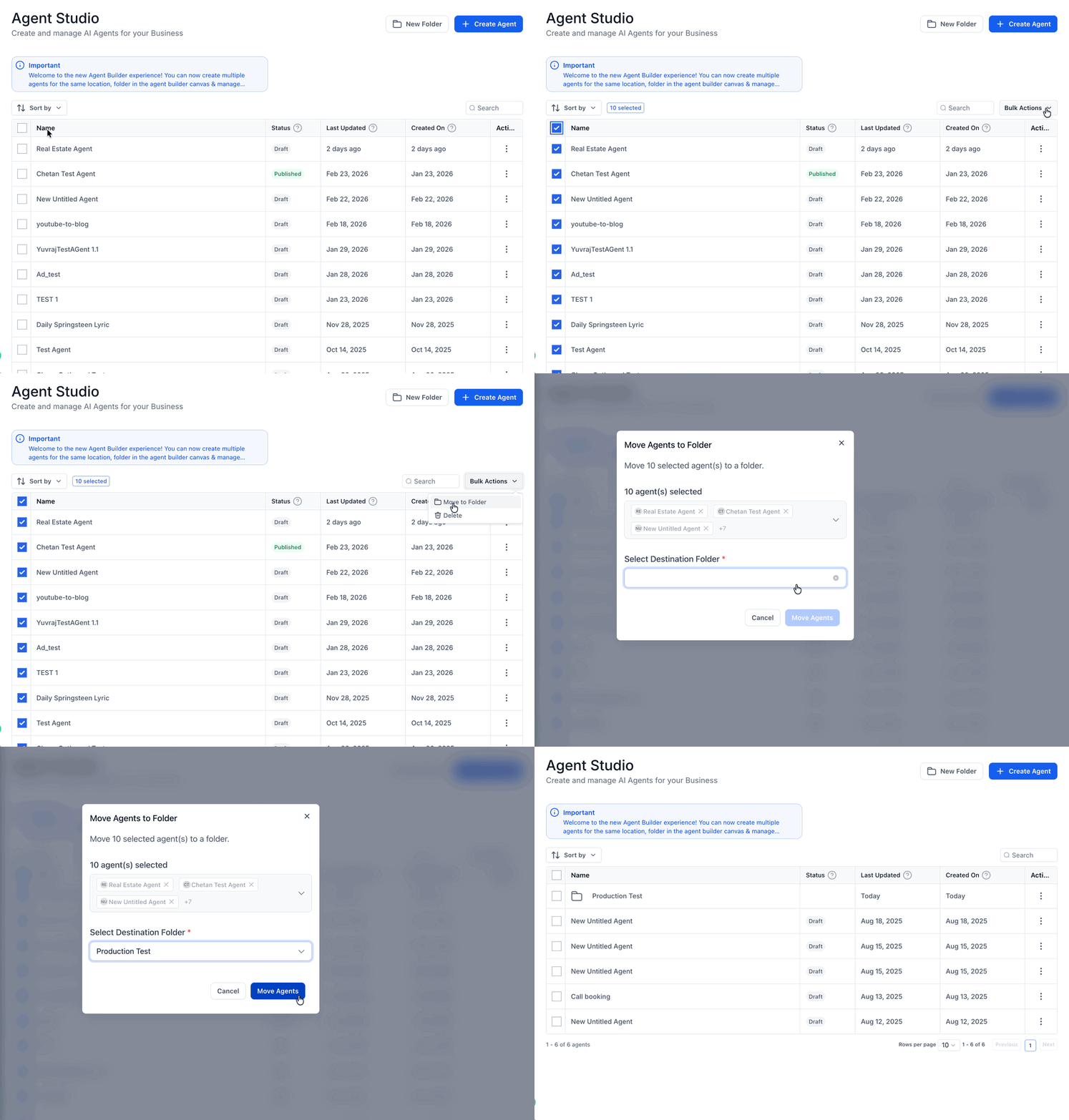
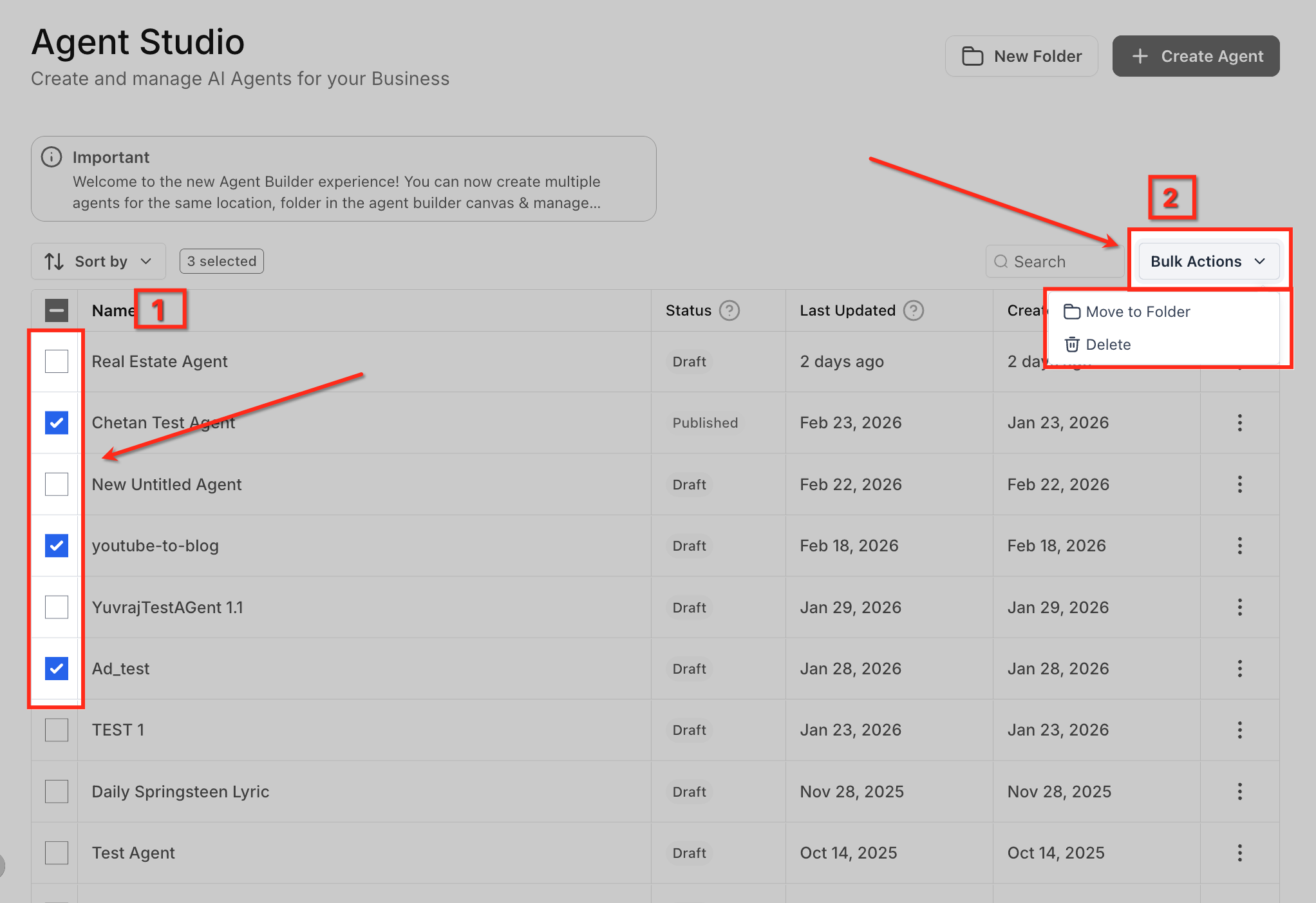
Tick the checkboxes beside one or more agents in the list to enable bulk actions. The selected count appears near the top, confirming how many agents will be affected by your next action.
Choose Bulk Action
- Click the Bulk Actions dropdown in the top-right corner after selecting agents. From here, choose Move to Folder or Delete to apply changes to all selected items at once.
- After selecting agents and choosing Move to Folder or Delete, a confirmation modal appears. Choose a destination folder to move the selected agents or click Delete Agent to confirm the bulk delete operation for selected agents.
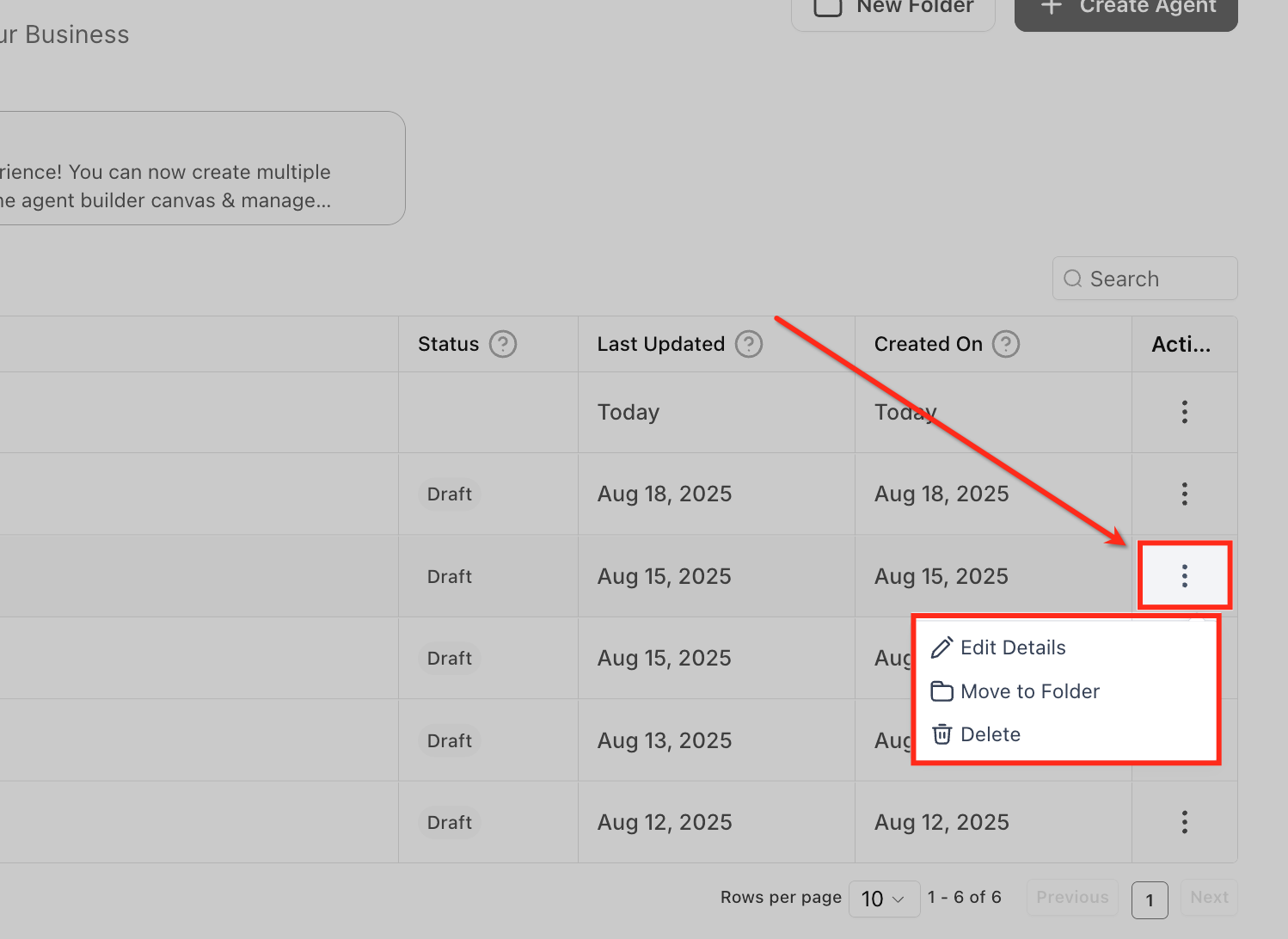
Three Dots Menu
Click the three-dot (⋮) menu on any agent row to access individual actions. From here, you can edit details, move the agent to a folder, or delete it.
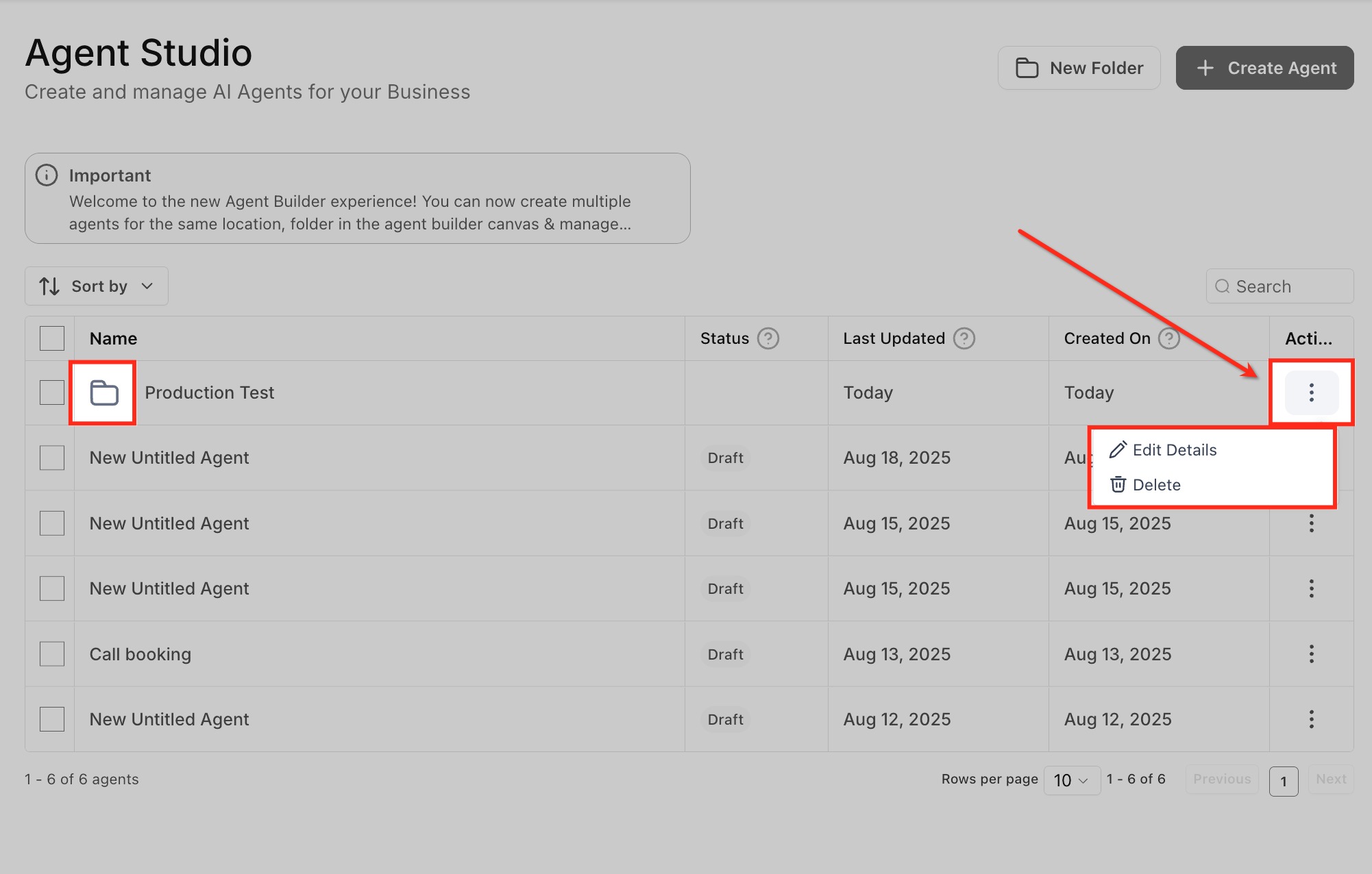
Manage Folders
Folder rows display a folder icon to visually distinguish them from agents. Clicking the three-dot menu on a folder allows you to edit folder details or delete the folder itself.
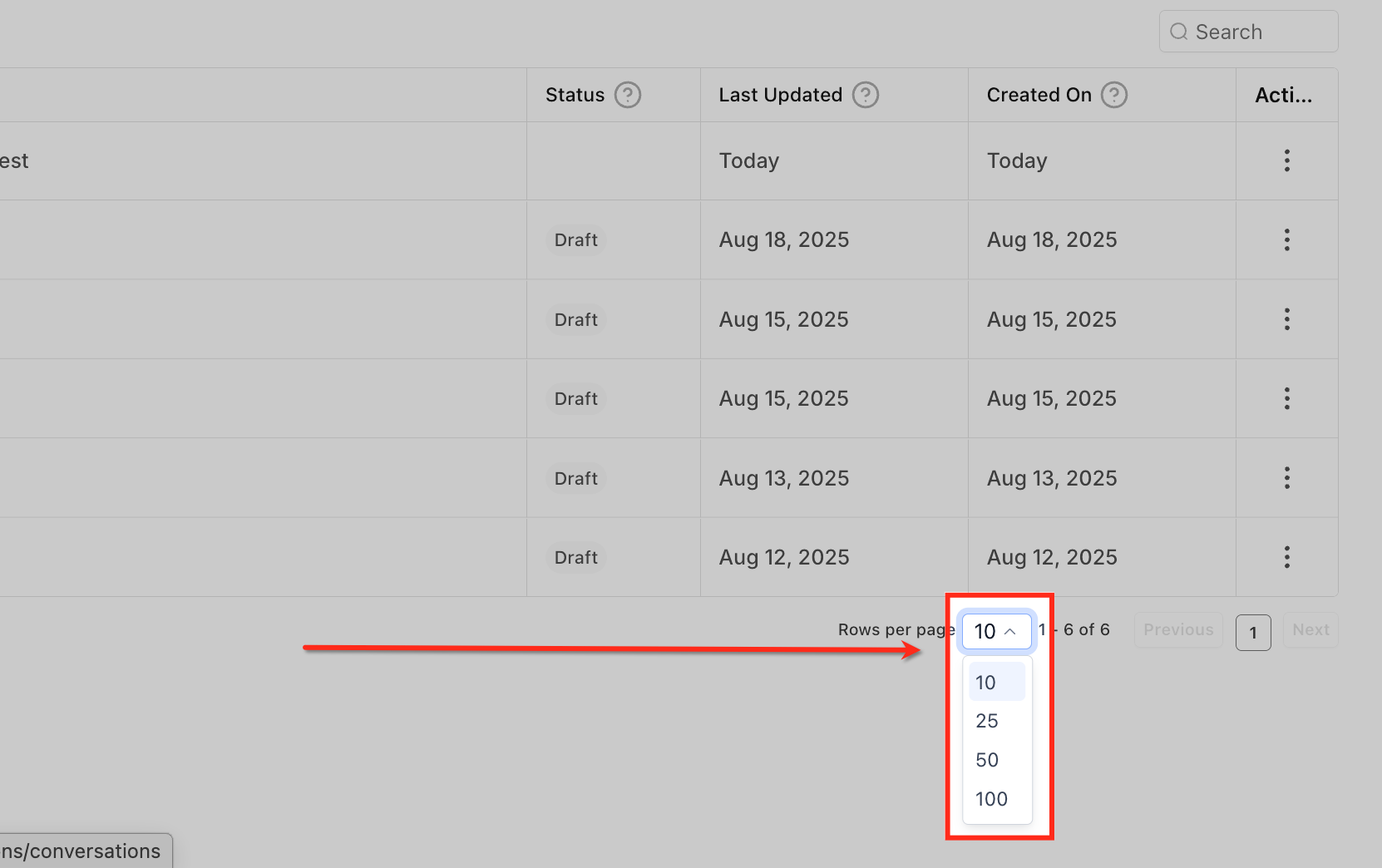
Adjust Page Size
Use the Rows per page dropdown at the bottom of the list to control how many agents appear on screen. Choose between 10, 25, 50, or 100 rows to match your workspace preference.
Frequently Asked Questions
Was this article helpful?
That’s Great!
Thank you for your feedback
Sorry! We couldn't be helpful
Thank you for your feedback
Feedback sent
We appreciate your effort and will try to fix the article