Automate post-purchase experiences in seconds with the new HighLevel Ecommerce Stores “Order Fulfilled” workflow trigger. This guide explains what the trigger does, why it matters, and how to set it up so you can deliver delight the moment a package ships.
TABLE OF CONTENTS
- What is the Order Fulfilled Trigger?
- Key Benefits of the Order Fulfilled Trigger
- Filter Options for Precise Automation
- Store vs. External Order Sources
- Transition from “Shopify Order Fulfilled (Deprecating Soon)”
- Shipping-Integration Compatibility
- How To Setup the Order Fulfilled Trigger
- Frequently Asked Questions
- Related Articles
What is the Order Fulfilled Trigger?
When an order’s status changes to “Fulfilled,” this trigger launches a workflow, whether the fulfillment occurs inside a HighLevel Ecommerce Store or via external platforms (e.g., Shopify) and shipping connectors like Shippo or ShipStation. It gives you a single automation point for all fulfillment events, ensuring customer follow-ups, internal tasks, and inventory updates fire exactly when products leave the warehouse.
Key Benefits of the Order Fulfilled Trigger
The Order Fulfilled trigger helps you:
- Close the customer-experience loop by sending shipment notifications the instant an order is fulfilled.
- Reduce manual work update CRMs, inventory, and accounting systems automatically.
- Segment customers using fulfillment-level data (cart value, product SKU, carrier, etc.).
- Support multi-store brands: one trigger covers both native HighLevel Stores and external sources like Shopify.
Filter Options for Precise Automation
Fine-tune when a workflow should run by combining any of these filters:
- Cart Value: Target high- or low-value orders.
- Fulfilled Products: Run follow-ups only for specific SKUs.
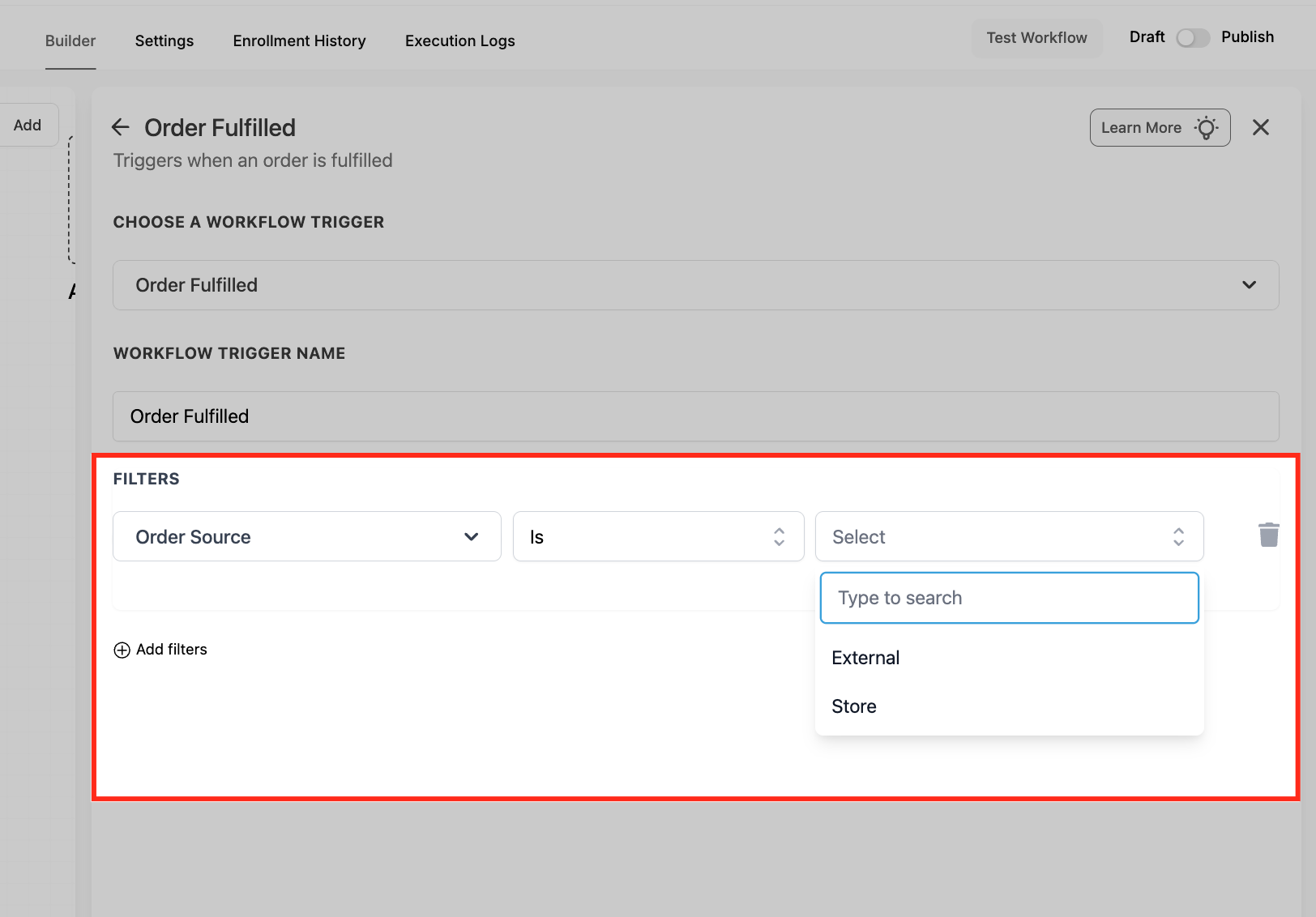
- Order Source: Choose “Store” (HighLevel) or “External.”
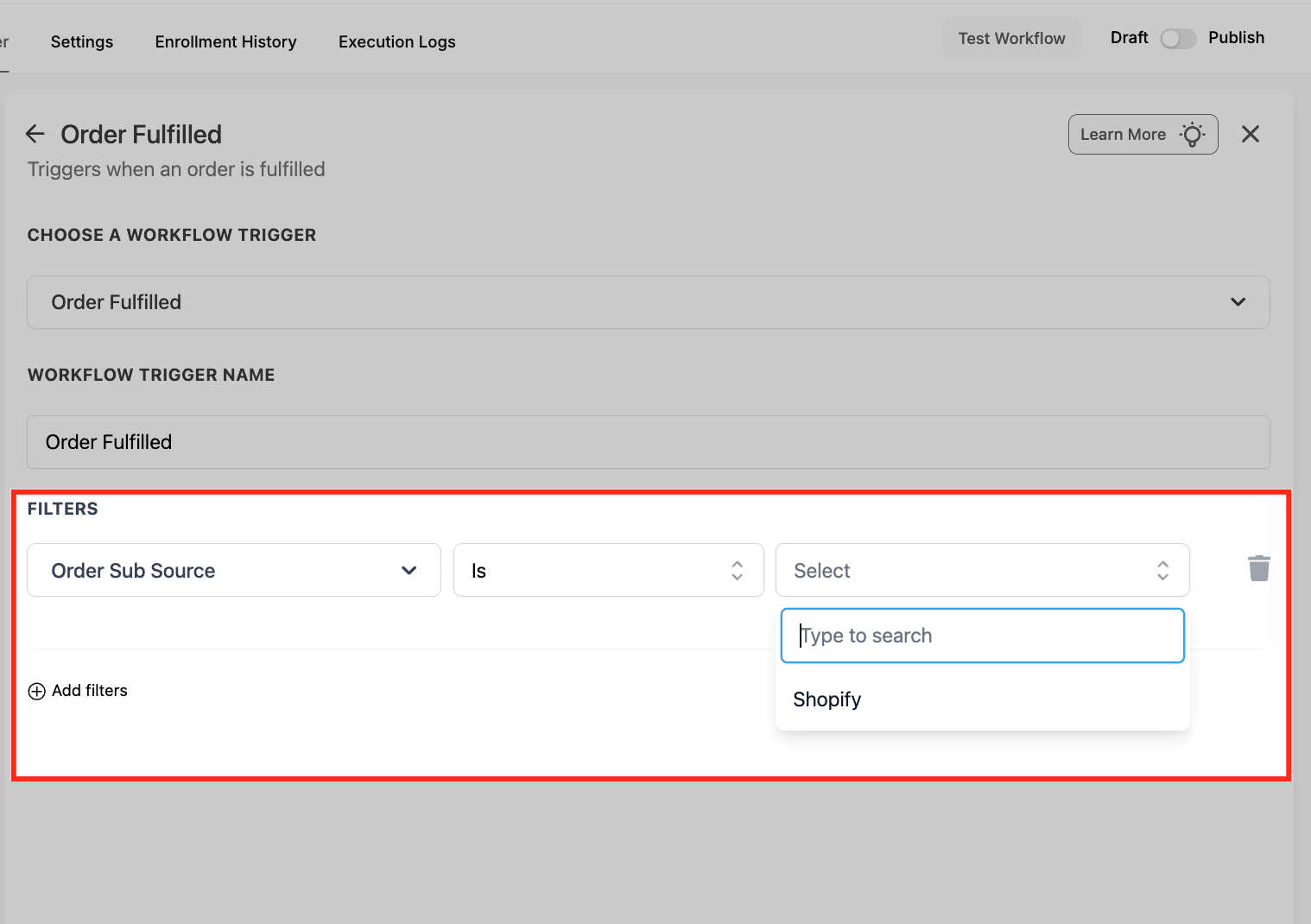
- Order Sub-Source: When “External,” narrow to Shopify.
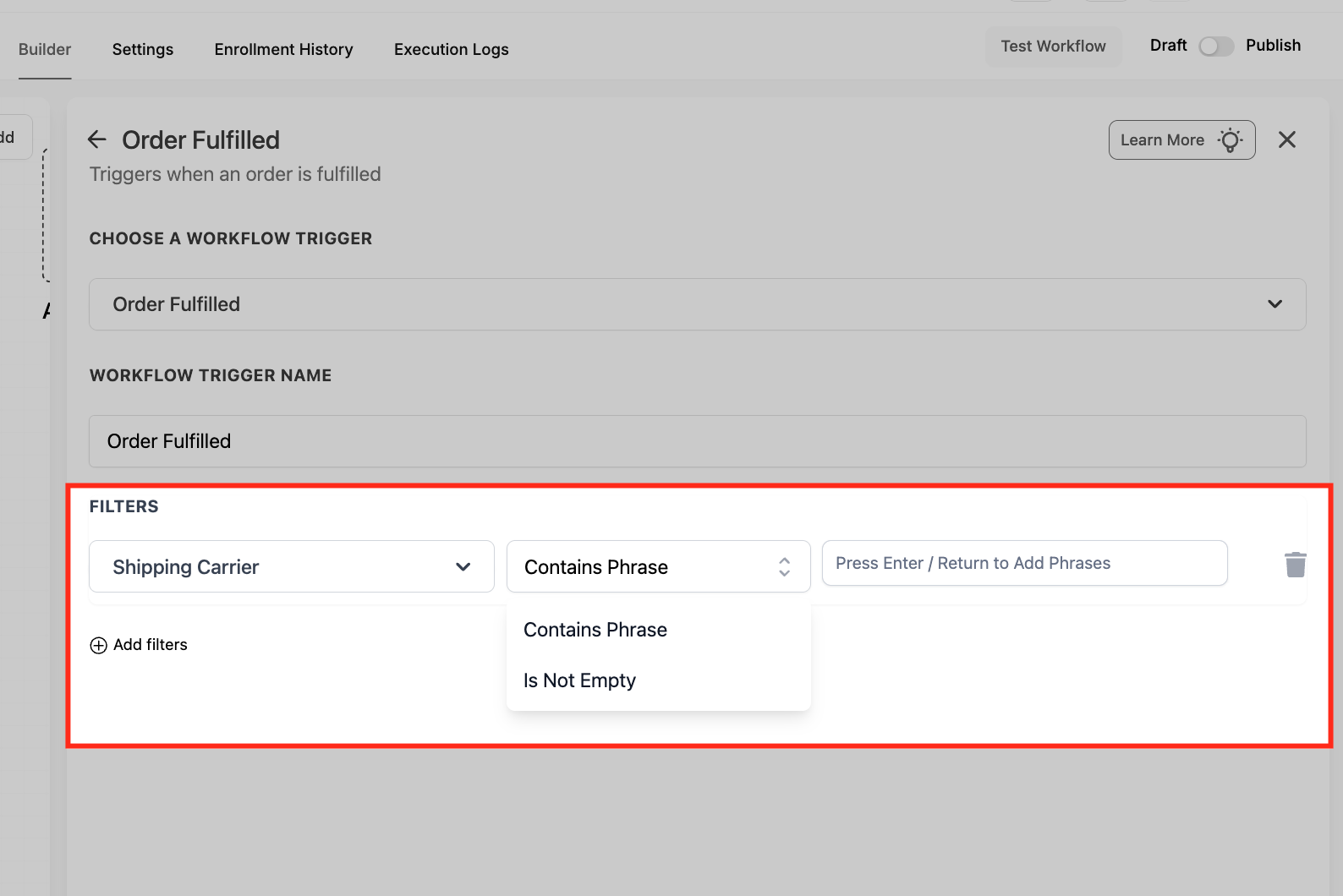
- Shipping Carrier: Treat FedEx, UPS, USPS, etc., differently.
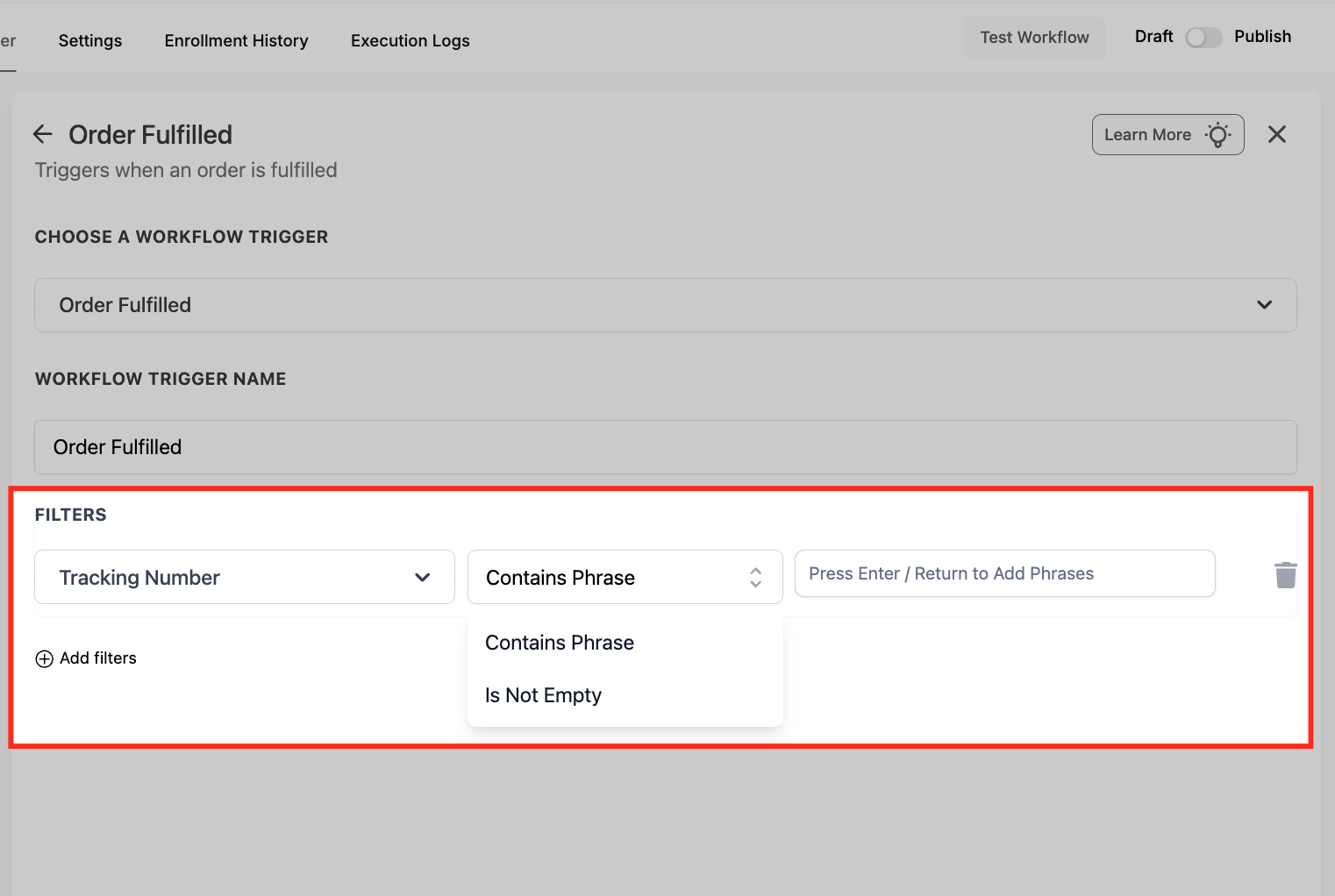
- Tracking Number: Trigger on presence or specific patterns (e.g., overnight shipping codes).
These filters let you craft hyper-relevant post-fulfillment experiences.
Store vs. External Order Sources
This trigger listens to two fulfillment pathways:
- Store – Orders created in a HighLevel Ecommerce Store.
- External – Orders synced from third-party storefronts (currently Shopify).
By unifying both pathways, you no longer maintain separate workflows for each platform—simply set the Order Source filter and you’re covered.
Transition from “Shopify Order Fulfilled (Deprecating Soon)”
HighLevel has renamed the legacy Shopify-only trigger to “Shopify Order Fulfilled (Deprecating Soon).” Existing workflows continue working, but new automations should use the Ecommerce Stores Order Fulfilled trigger to future-proof setups and gain access to the full filter set above.
Shipping-Integration Compatibility
Fulfillment events pushed in from Shippo, ShipStation, and other connected shipping tools will also fire this trigger, allowing one centralized workflow regardless of where labels are created.
How To Setup the Order Fulfilled Trigger
A well-configured trigger ensures customers hear from you exactly when their package ships. Follow these steps:
Open Workflows
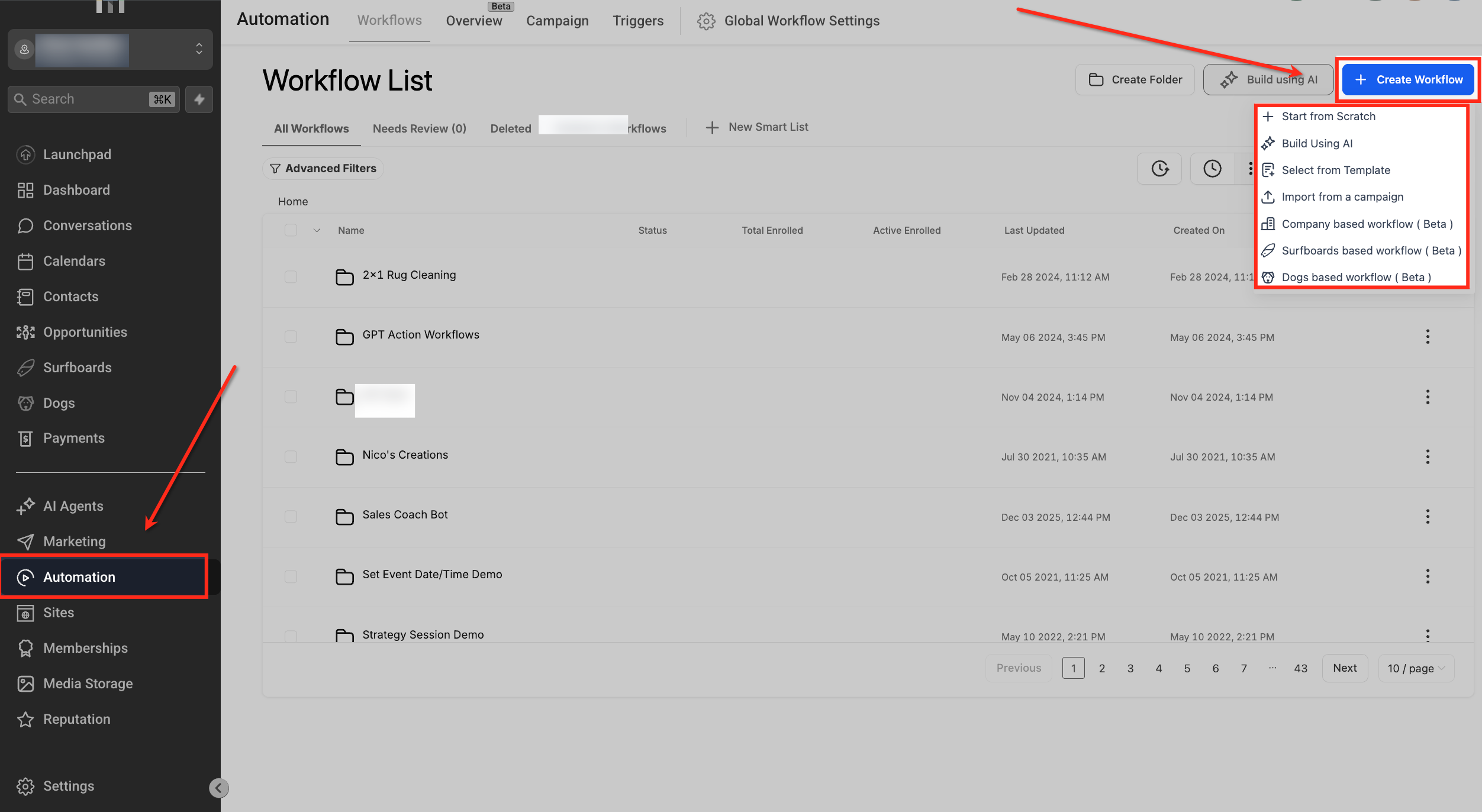
From the left navigation, click Automation to access your workflow tools. On the Workflow List page, click + Create Workflow to start a new workflow (or open an existing workflow you want to update).
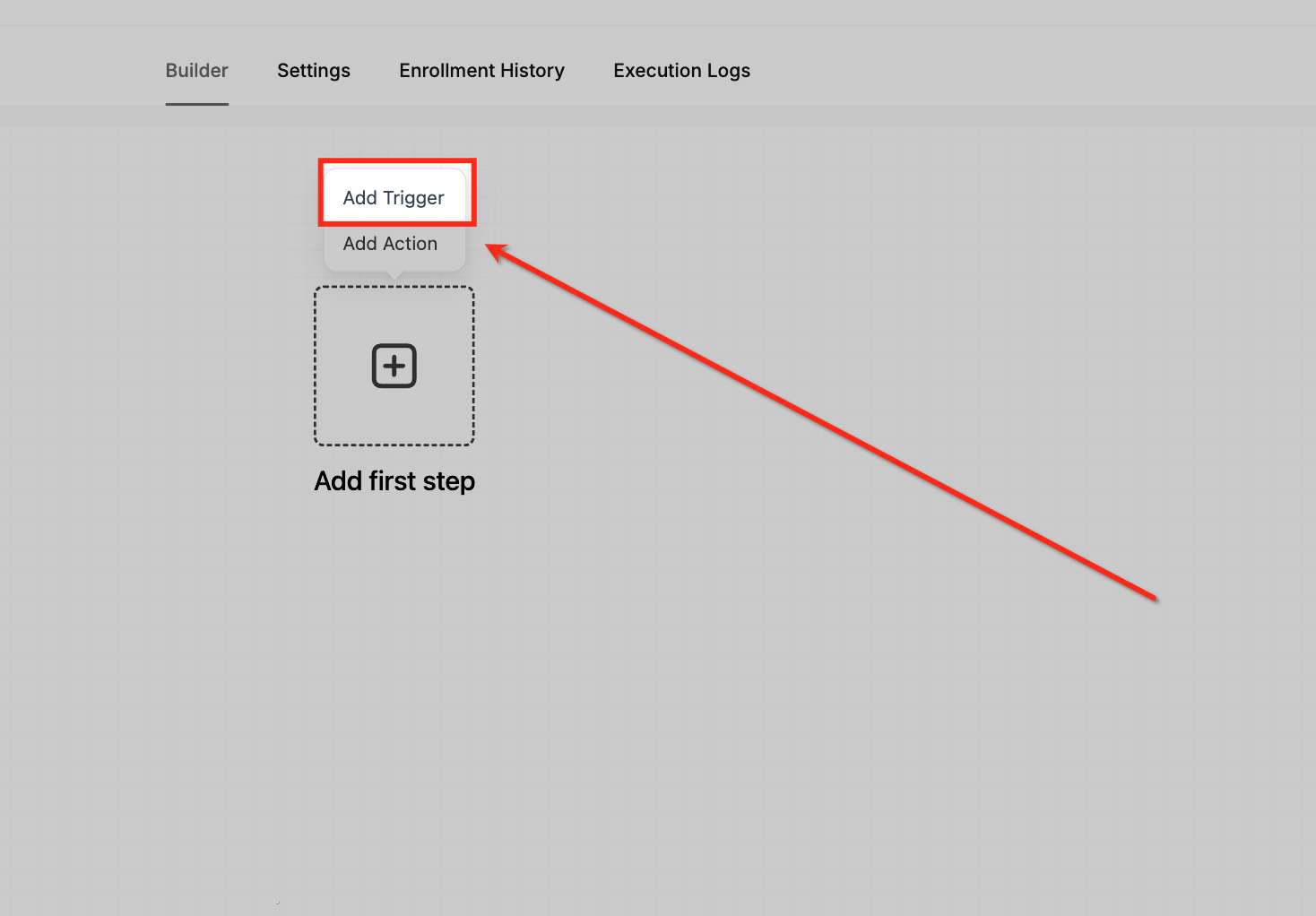
Add Trigger
In the workflow builder, click Add Trigger to define what event will start the workflow. This creates the entry point for your automation before you add any actions.
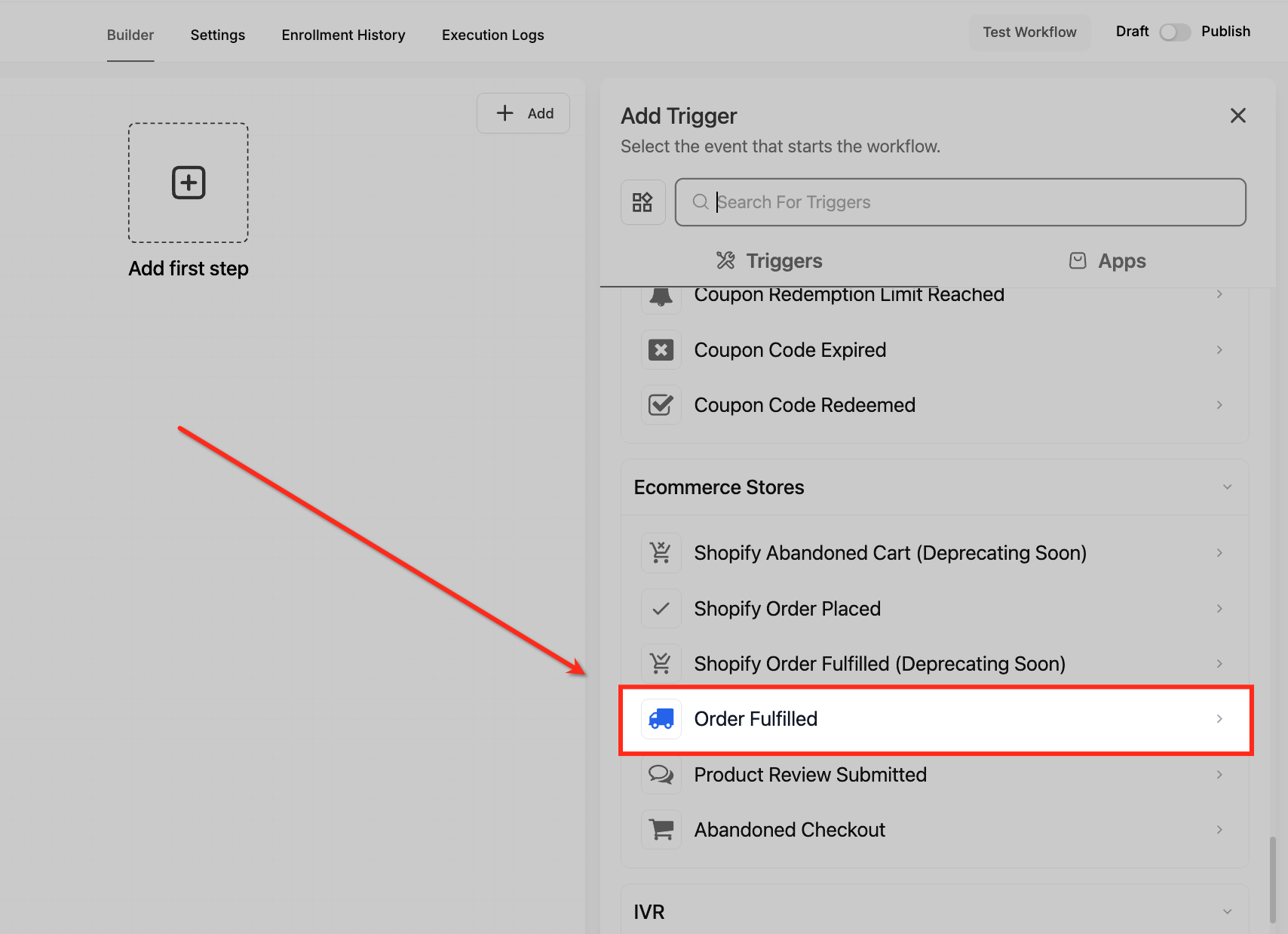
Select Trigger
In the Add Trigger panel, scroll to Ecommerce Stores and select Order Fulfilled. This ensures the workflow starts the moment an order is marked fulfilled.
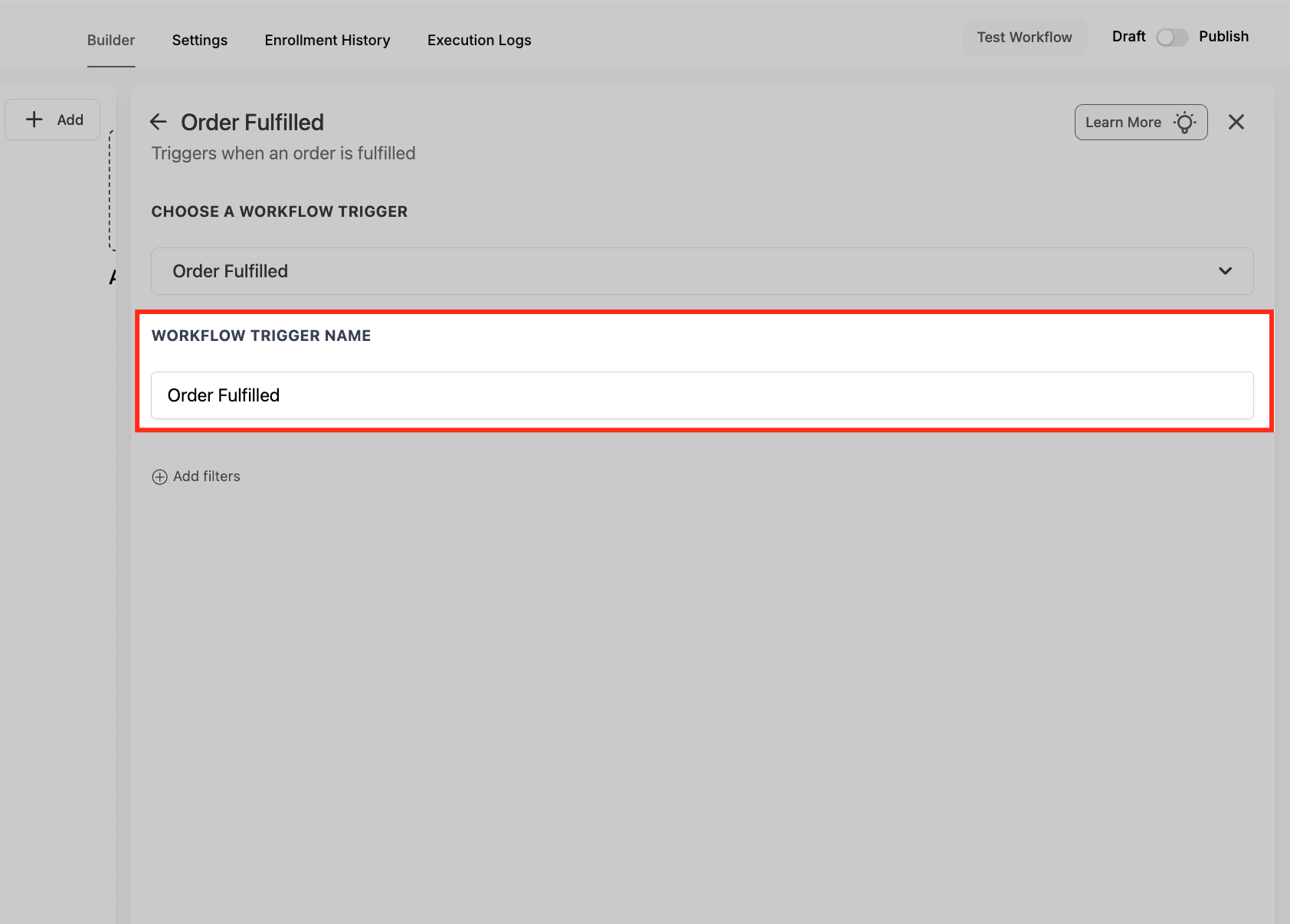
Name Trigger
Enter a clear Workflow Trigger Name (for example, “Order Fulfilled – Store + Shopify”). A descriptive name makes it easier to find and manage the trigger later, especially in workflows with multiple starting points.
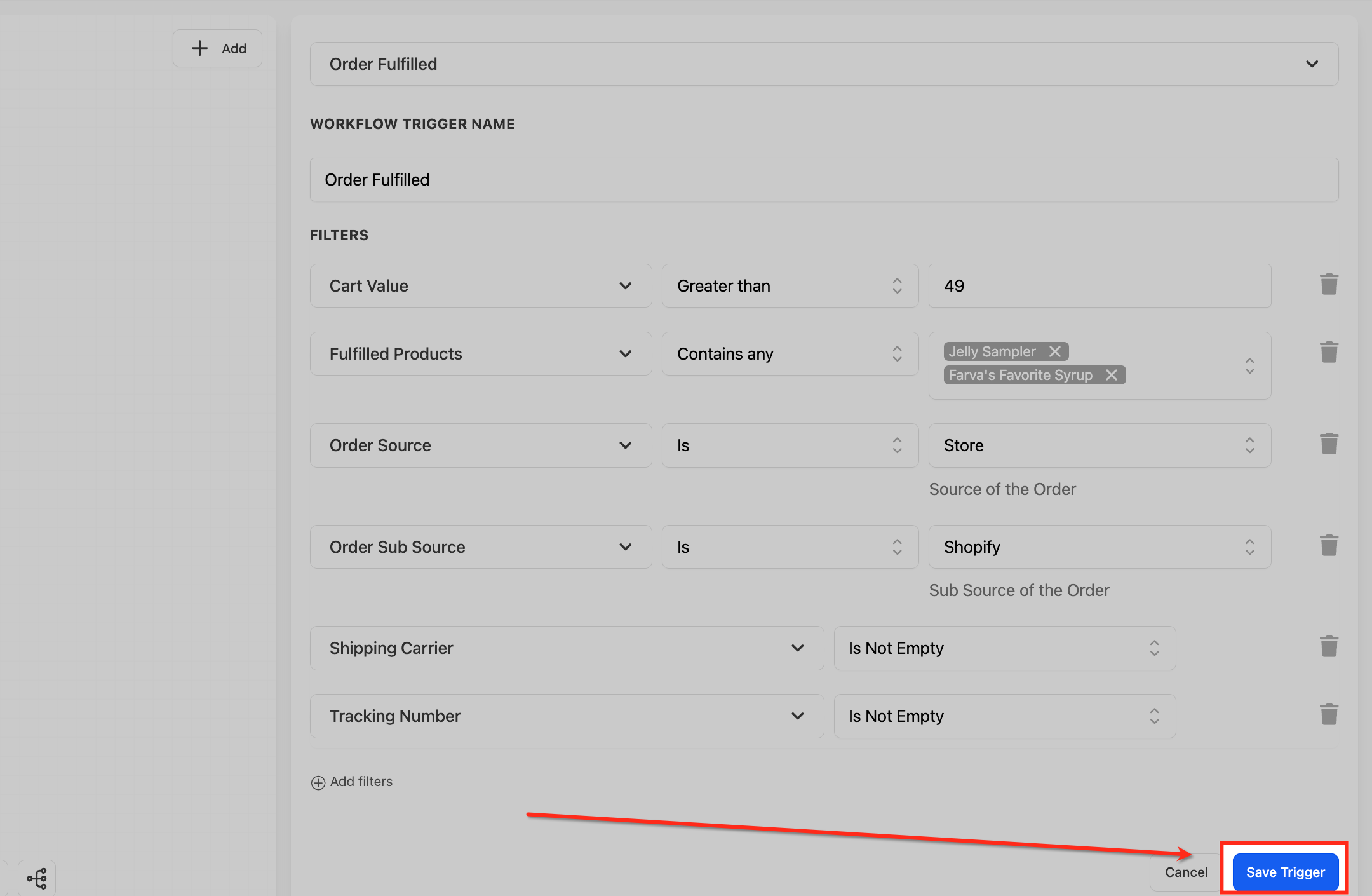
Add Filters
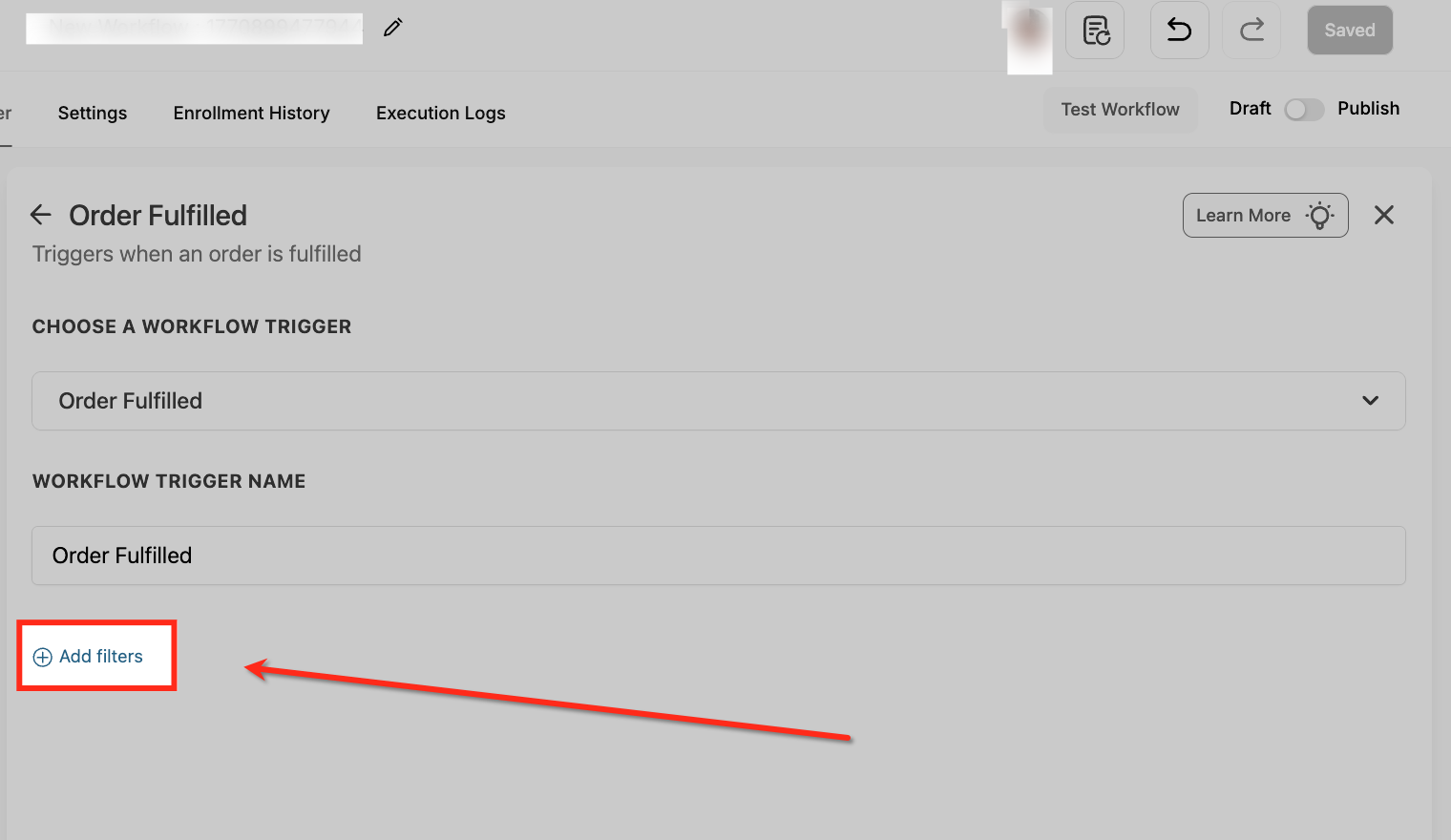
Under Filters, click Add filters to control which fulfillment events should enroll in the workflow. Using filters helps you avoid unnecessary enrollments and keeps your follow-ups relevant to the order details.
Pick Filter
Open the filter dropdown and select the first condition you want to apply (for example, Cart Value or Order Source). Choosing the right filter type is what tells HighLevel which part of the fulfillment data to evaluate.
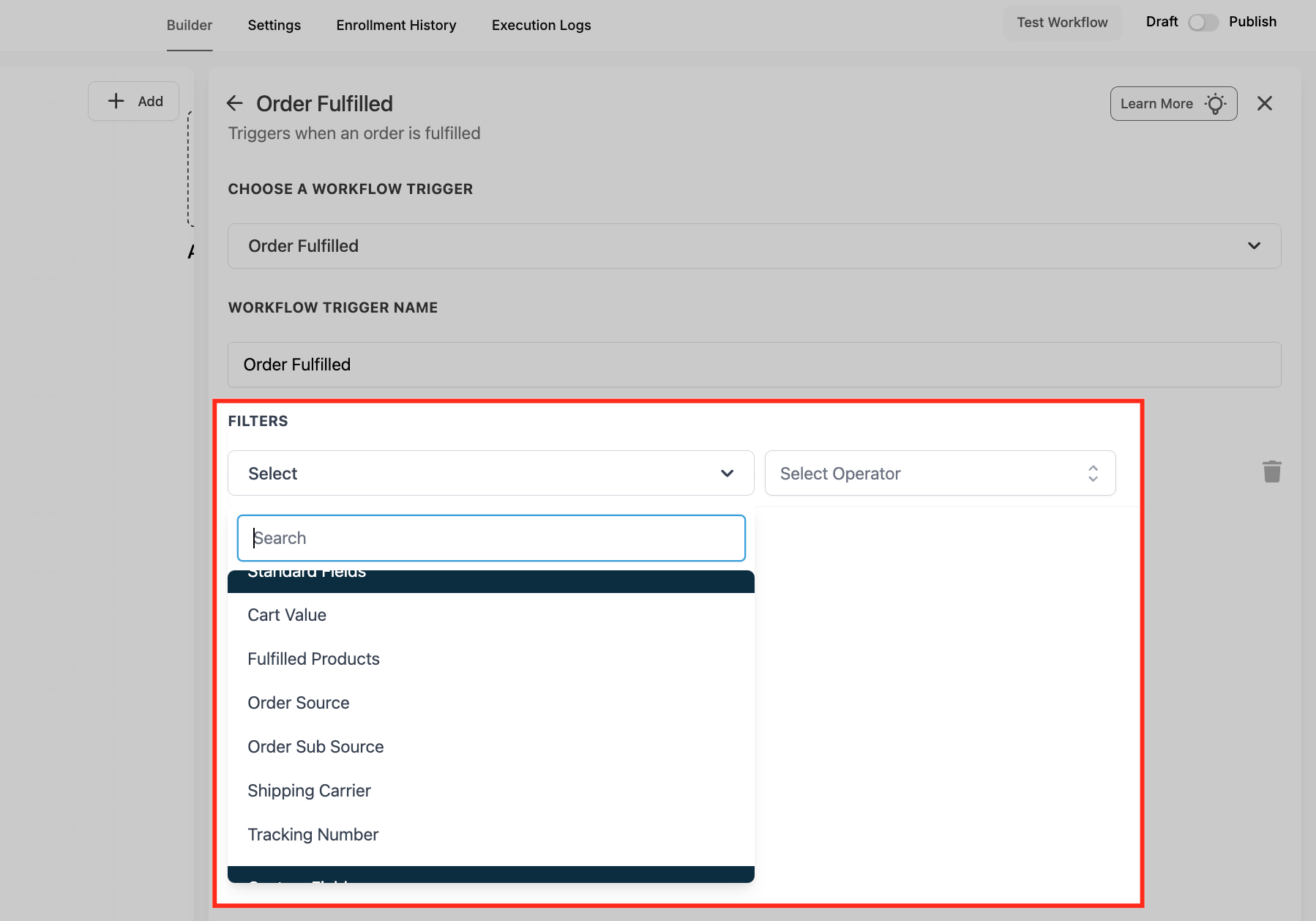
Cart Value
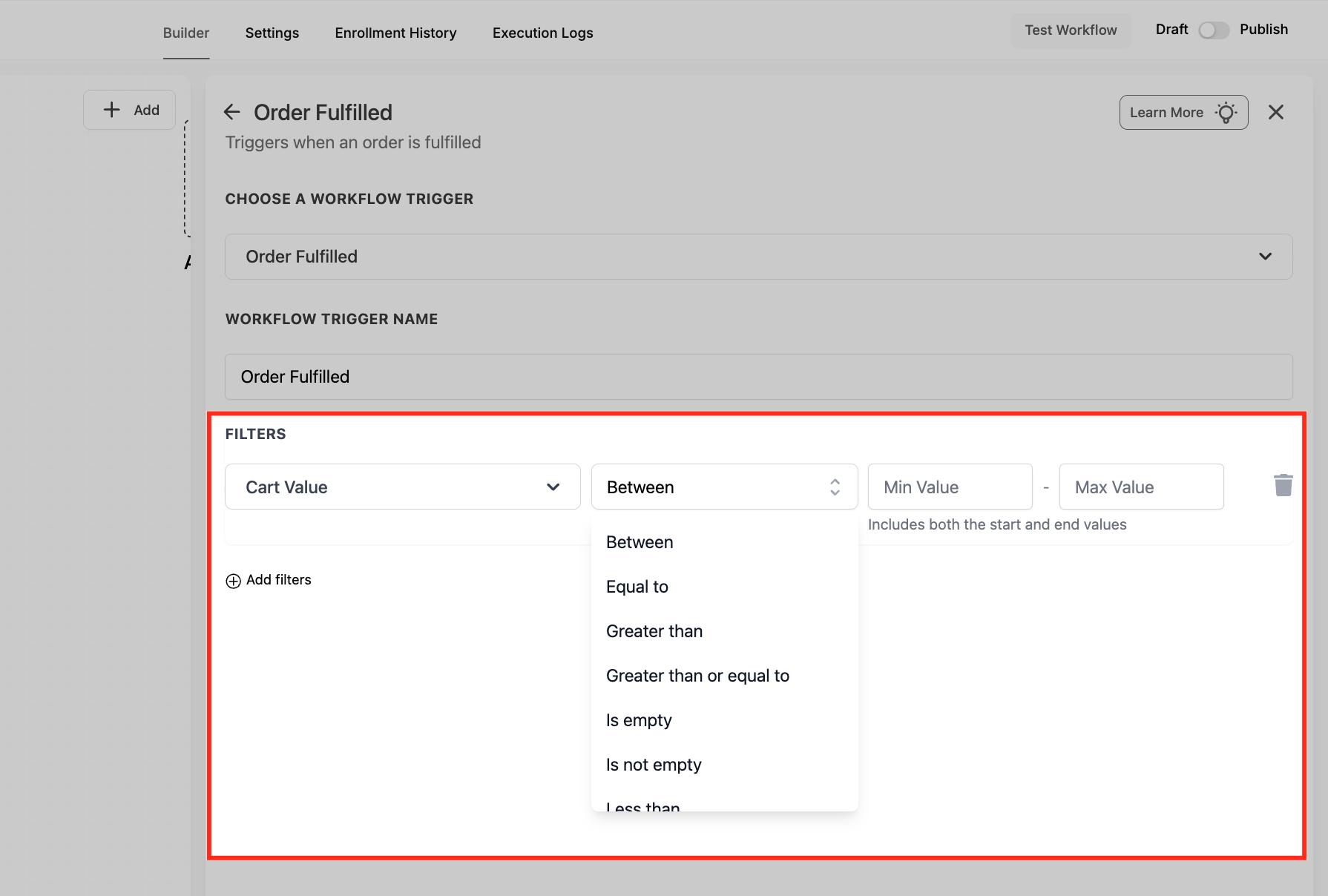
Choose Cart Value from the filter list to target orders based on how much the customer spent. This is a simple way to route higher-value purchases into VIP follow-ups or exclude low-value orders from certain automations.
Set Cart Rules
After choosing Cart Value, select an operator (like Greater than or Between) and enter the value(s) you want to target. This is useful for routing higher-value orders into premium experiences while excluding low-value purchases.
Filter Products
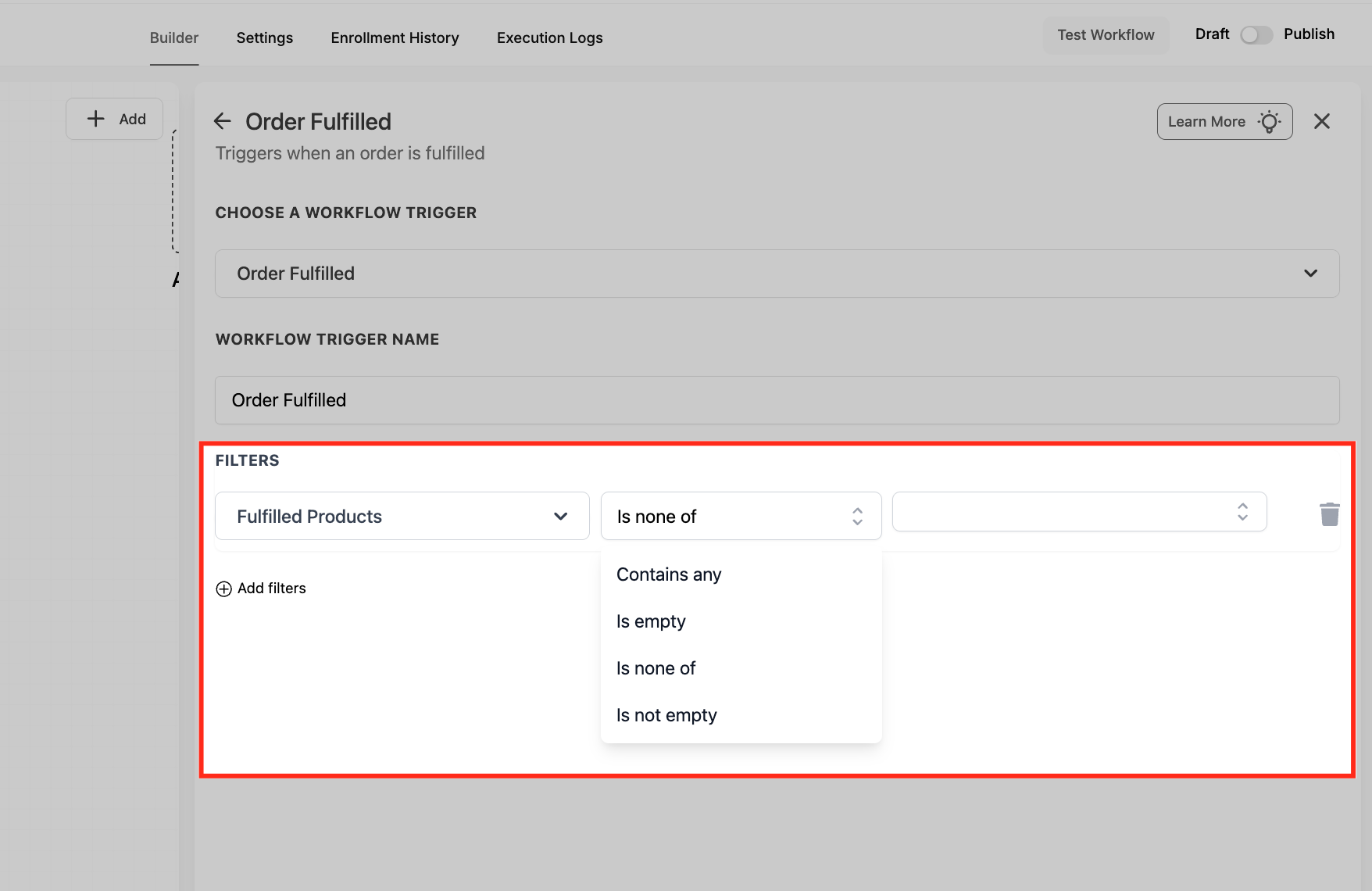
Select Fulfilled Products and choose an operator like Contains any to include specific items or Is none of to exclude them. This lets you tailor post-purchase messaging based on what was actually fulfilled, not just what was ordered.
Select Source
Set Order Source to choose where the fulfilled order originated, such as Store or External. This is important for brands running multiple storefronts because it helps you segment automation behavior by platform.
Choose Sub-Source
If you set Order Source to External, use Order Sub Source to narrow the trigger to a specific platform like Shopify. This keeps external order automations precise while still using the unified Order Fulfilled trigger.
Filter Carrier
Select Shipping Carrier and choose an operator like Contains Phrase or Is Not Empty based on your goal. If you use Contains Phrase, type the carrier name and press Enter/Return to add it, which helps you customize messaging by carrier or shipping method.
Require Tracking
Choose Tracking Number and set the operator to Is Not Empty when you only want the workflow to run once tracking exists. This prevents premature notifications and ensures customers receive messages with actionable shipment details.
Save Trigger
After confirming your trigger name and filters, click Save Trigger to apply the configuration. Saving is required before you can reliably build and publish the rest of the workflow actions based on this fulfillment event.
Save, publish, and test by fulfilling a test order in your store or via Shopify.
(Optional) Toggle Allow Multiple if you expect multiple shipments per order.
Add post-fulfillment actions examples:
Send email/SMS with tracking link.
Add customer to a “Shipped” pipeline stage.
Notify the warehouse Slack channel.
Frequently Asked Questions
Q: Does the trigger fire on partial fulfillments?
Yes each time an item group is marked Fulfilled, the workflow runs (use filters to control duplicates).
Q: Will my old “Shopify Order Fulfilled” workflows break?
No. They keep running, but we recommend migrating before the legacy trigger is retired.
Q: Can I delay the follow-up email until the tracking number is live?
Yes add a Wait step “until tracking URL is not empty” or delay by X minutes after the trigger.
Q: How do I stop duplicate notifications on split shipments?
Enable the Tracking Number filter and choose “Is Not Empty” so only shipments with new tracking numbers trigger.
Q: Does marking an order “Delivered” retrigger anything?
No the Order Fulfilled trigger fires only when status changes to Fulfilled. Use other triggers for delivery-stage automations.
Q: Is WooCommerce supported?
Not yet. Use External > Sub-Source filters as new platform integrations become available.
Related Articles
Was this article helpful?
That’s Great!
Thank you for your feedback
Sorry! We couldn't be helpful
Thank you for your feedback
Feedback sent
We appreciate your effort and will try to fix the article