TABLE OF CONTENTS
- What is the Product Review Submitted Trigger?
- Key Benefits of the Product Review Submitted Trigger
- How To Set Up the Product Review Submitted Trigger
- Frequently Asked Questions
What is the Product Review Submitted Trigger?
When a shopper clicks “Submit review” on any HighLevel store product, this workflow trigger captures the event, pulls in the review details (rating, headline, comment, reviewer info, store, and product), and immediately launches the automation you define.
It lives under Automations → Workflows → Add Trigger → Ecommerce Stores.
Key Benefits of the Product Review Submitted Trigger
- Instant engagement: Email or SMS customers the moment feedback is received, boosting post-purchase loyalty.
- Hands-free moderation: Auto-route 1- or 2-star reviews to your support inbox for priority handling.
- Social proof amplification: Push 5-star reviews to Slack or Google Sheets for quick repurposing on ads and landing pages.
- Granular targeting: Combine rating, headline, and product filters to build highly specific follow-ups.
- Cross-store flexibility: Isolate automations by Store Name when you manage multiple storefronts.
How To Set Up the Product Review Submitted Trigger
Create Workflow
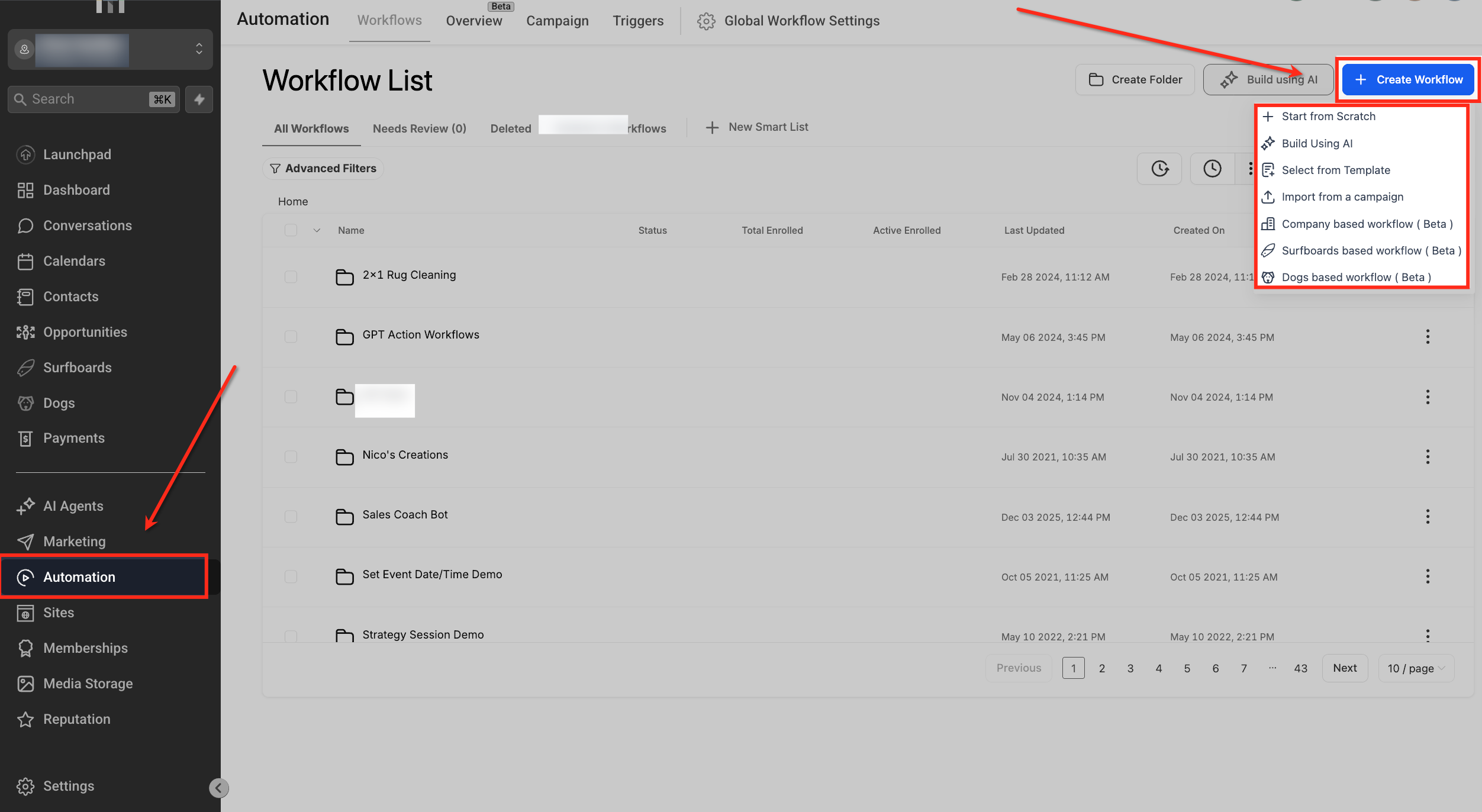
On Automation → Workflows, review your existing workflows you can edit one or duplicate it to implement this trigger or click + Create Workflow to start a new one.
From the menu, choose Start from Scratch, or pick Build Using AI, Select from Template, Import from a campaign, or any account-specific beta options.
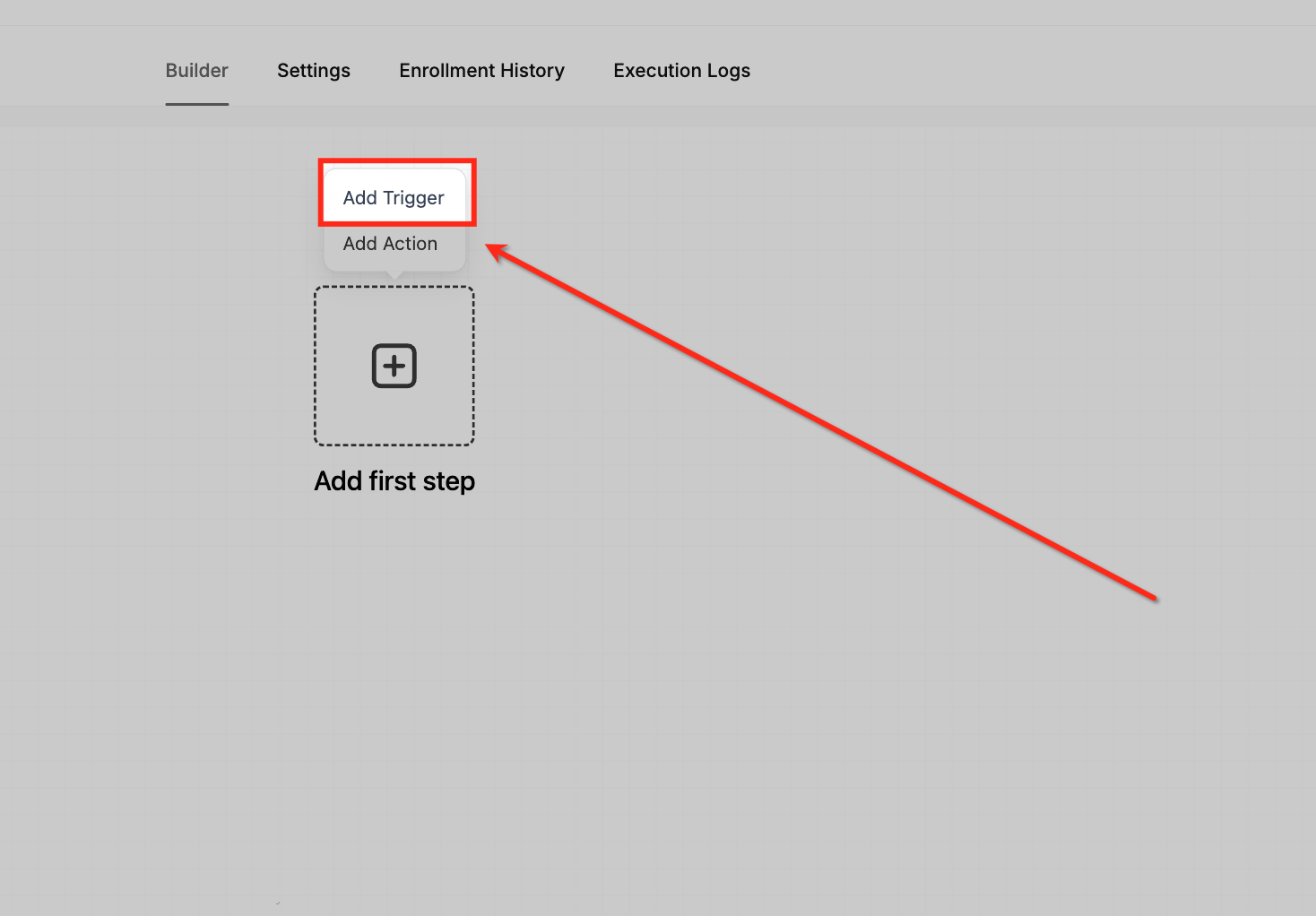
Add Trigger
While inside the Workflow Builder tab, click Add Trigger to choose the event that will start this automation. The trigger drawer opens within the builder (beside the Settings, Enrollment History, and Execution Logs tabs), letting you keep building as you select Ecommerce Stores options.
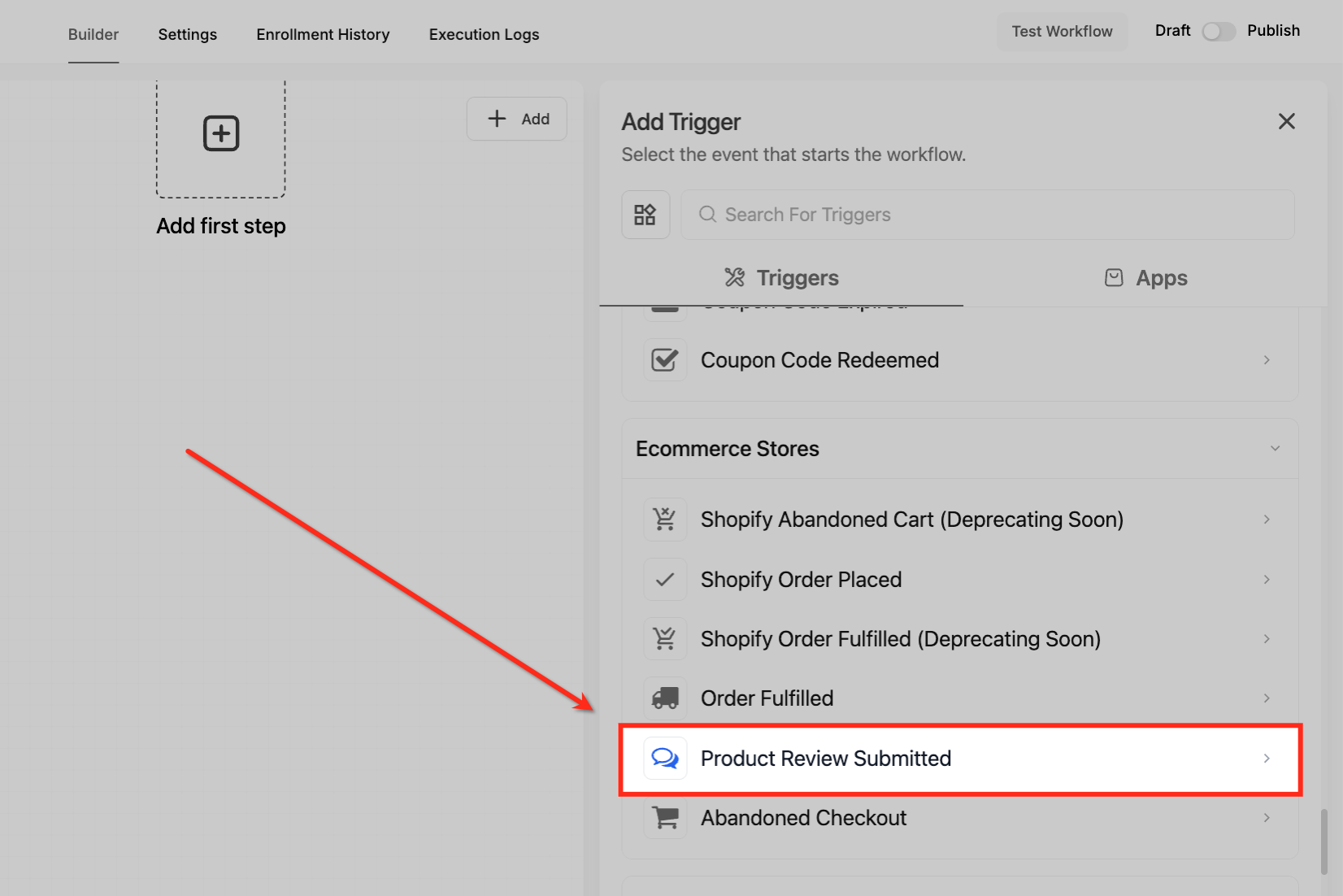
Locate Trigger
In the Add Trigger drawer, scroll down to find Product Review Submitted under Ecommerce Stores. Click Product Review Submitted to select it.
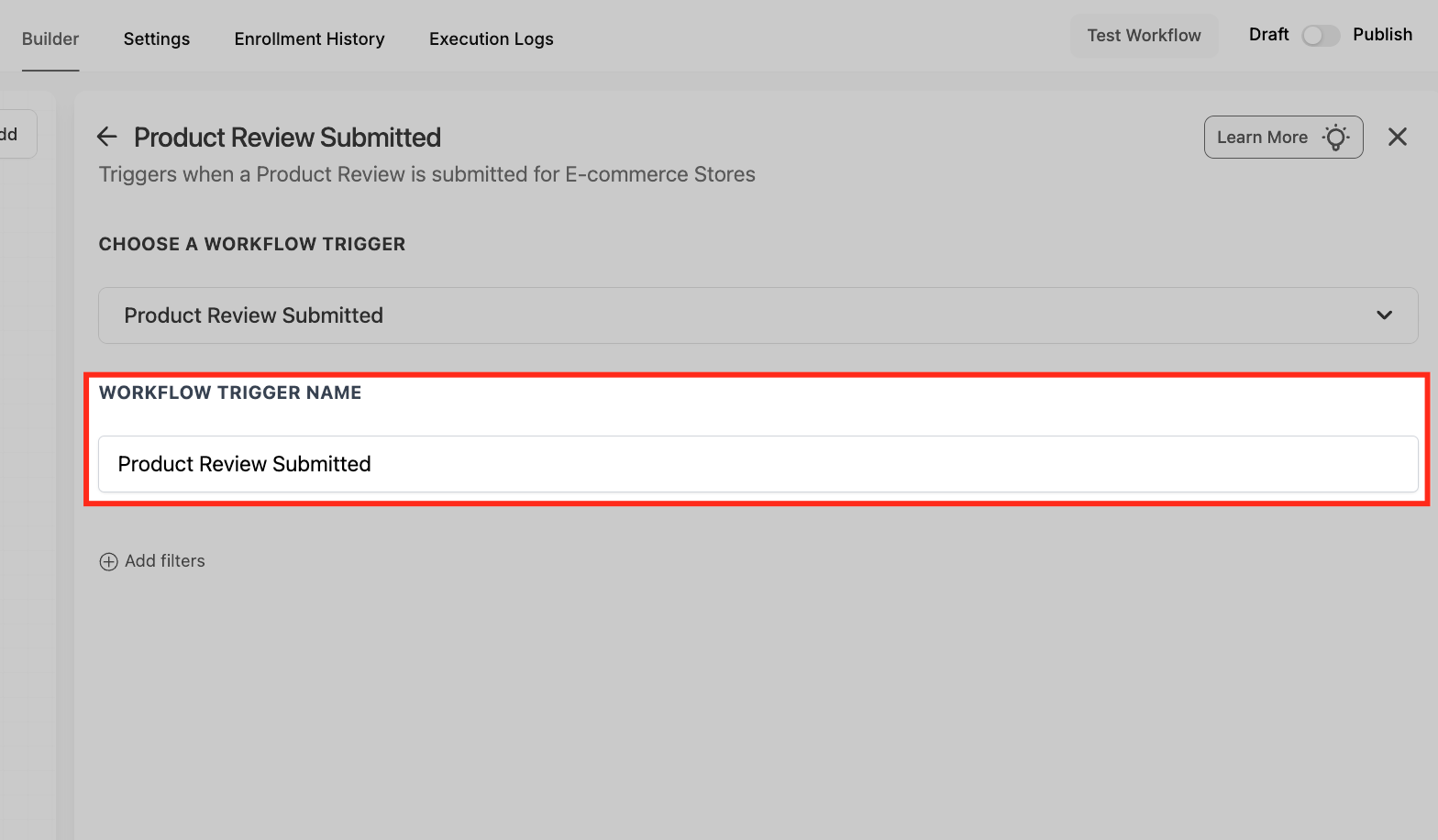
Name Trigger
Enter a clear Workflow Trigger Name (e.g., “1-Star Review Rescue” or “5-Star UGC Push”) to reflect the purpose of this automation. A descriptive name makes it easy to recognize in the workflow list and execution logs when troubleshooting or scaling.
Add Filters
Use Add filters to define the conditions a review must meet to enroll in this workflow. Add one or more criteria product, rating, store, comment keywords, or reviewer email/name and use Require All vs Require Any to narrow or broaden targeting; leave filters off to capture every review.
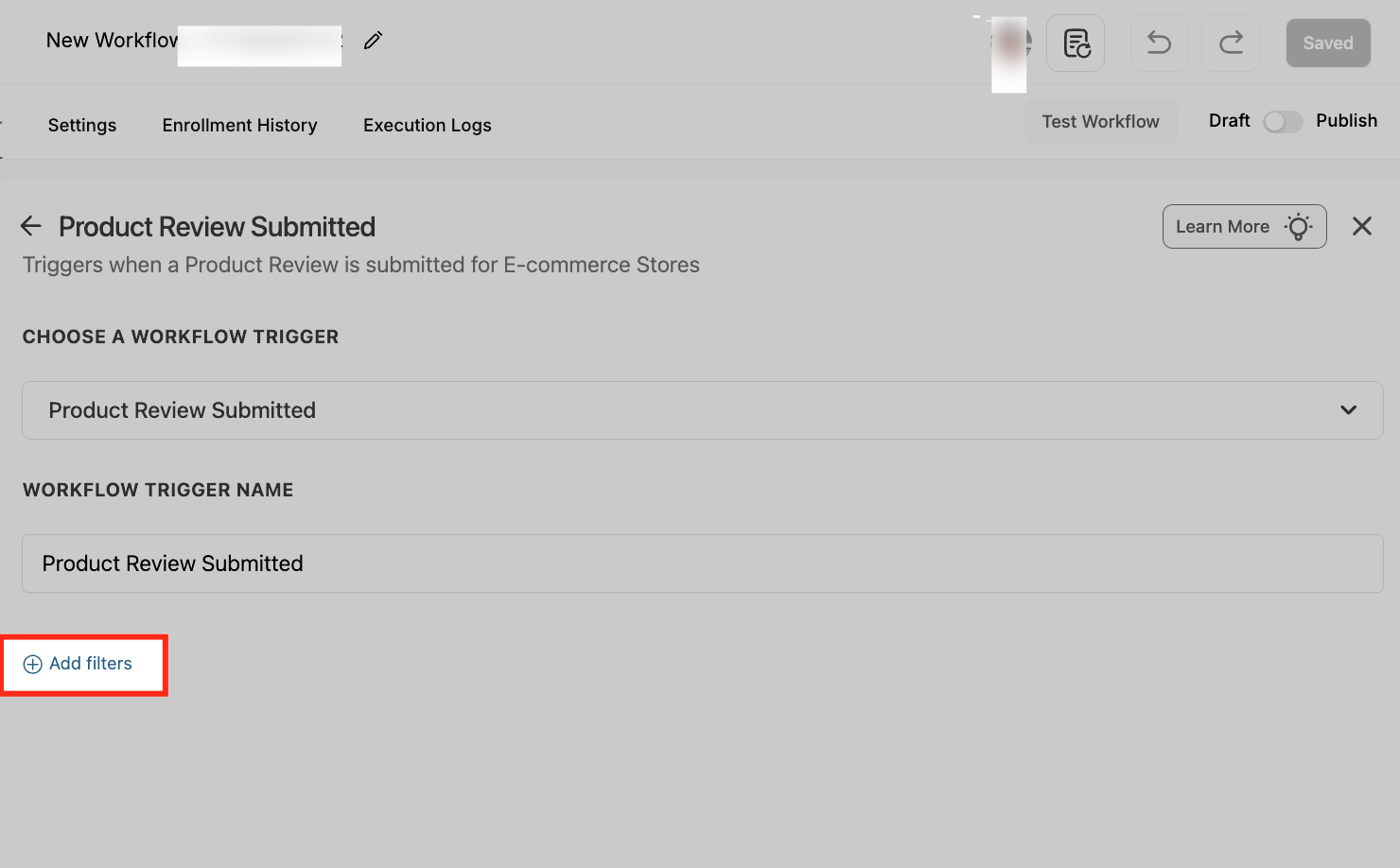
Global Product Filter
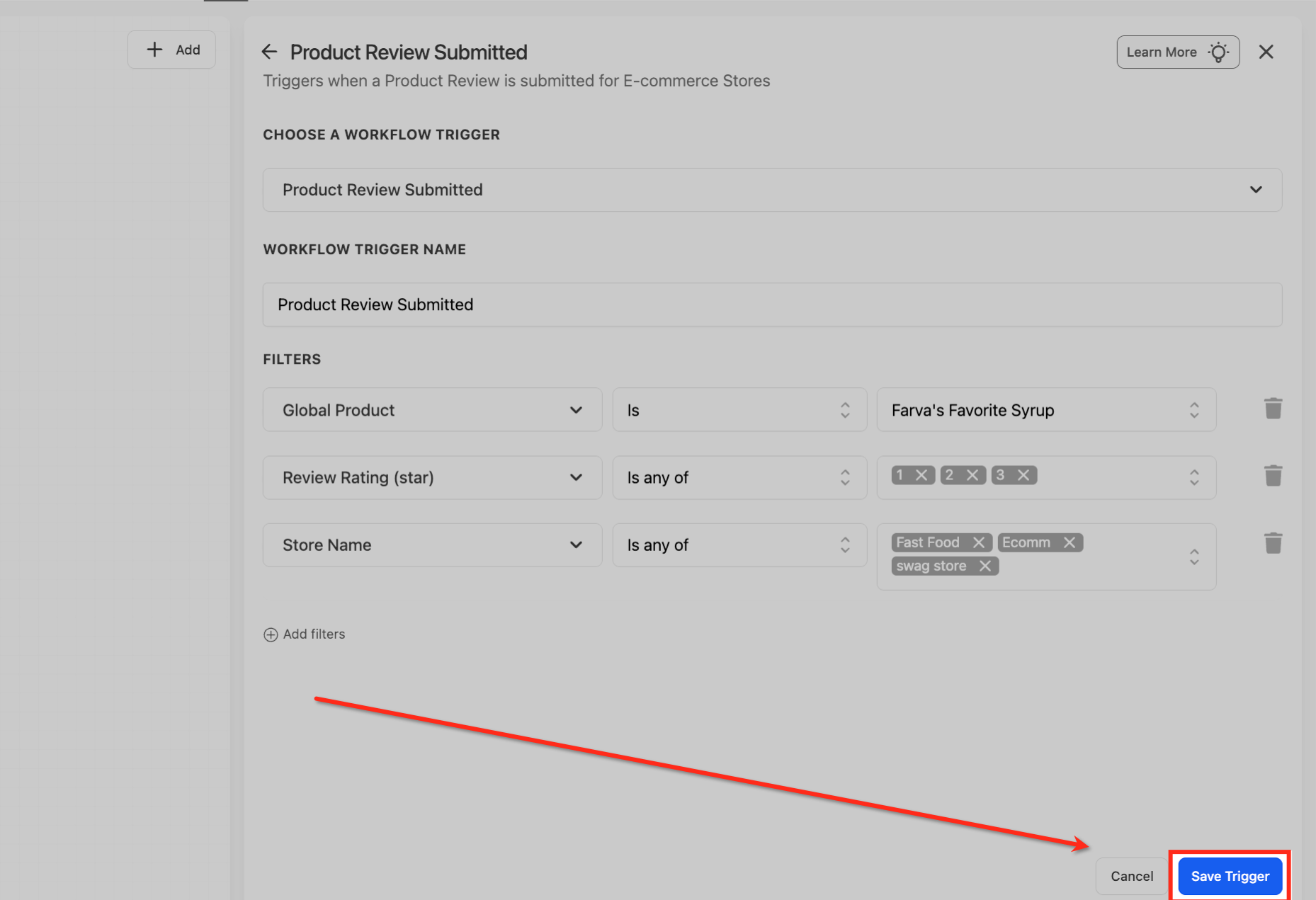
Under Filters, select Global Product with the operator Is, then pick the single catalog item this workflow should watch. This limits the trigger to reviews submitted for that exact product useful for launches, VIP items, or product-specific follow-ups.
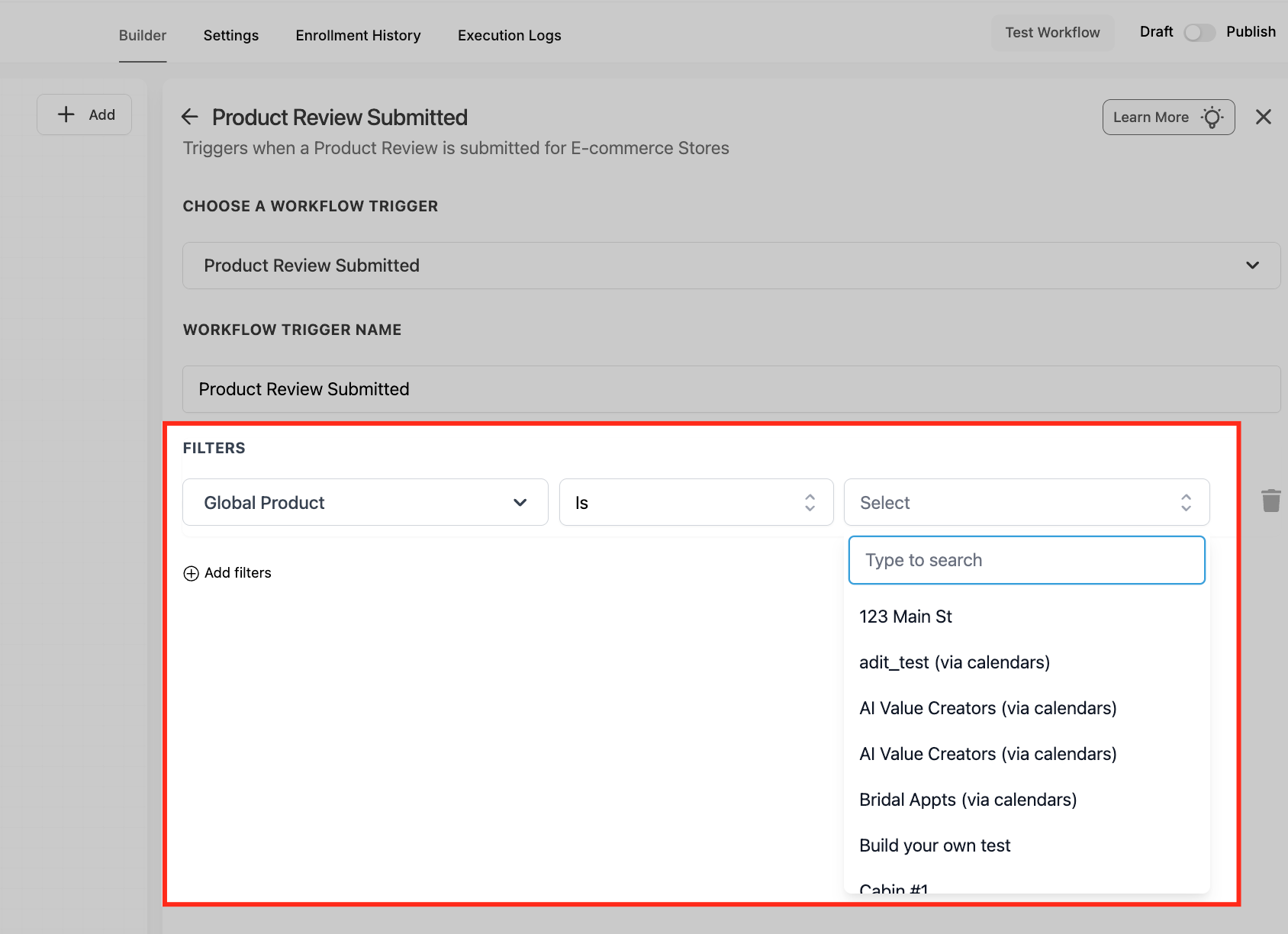
Review Comment Filter
Add a Review Comment filter and choose Contains Phrase to target reviews that mention specific terms (e.g., “shipping,” “refund,” “size”). You can add multiple phrases to route sentiment-specific feedback, or use Is Not Empty to include any review that contains a written comment.
Review Headline Filter
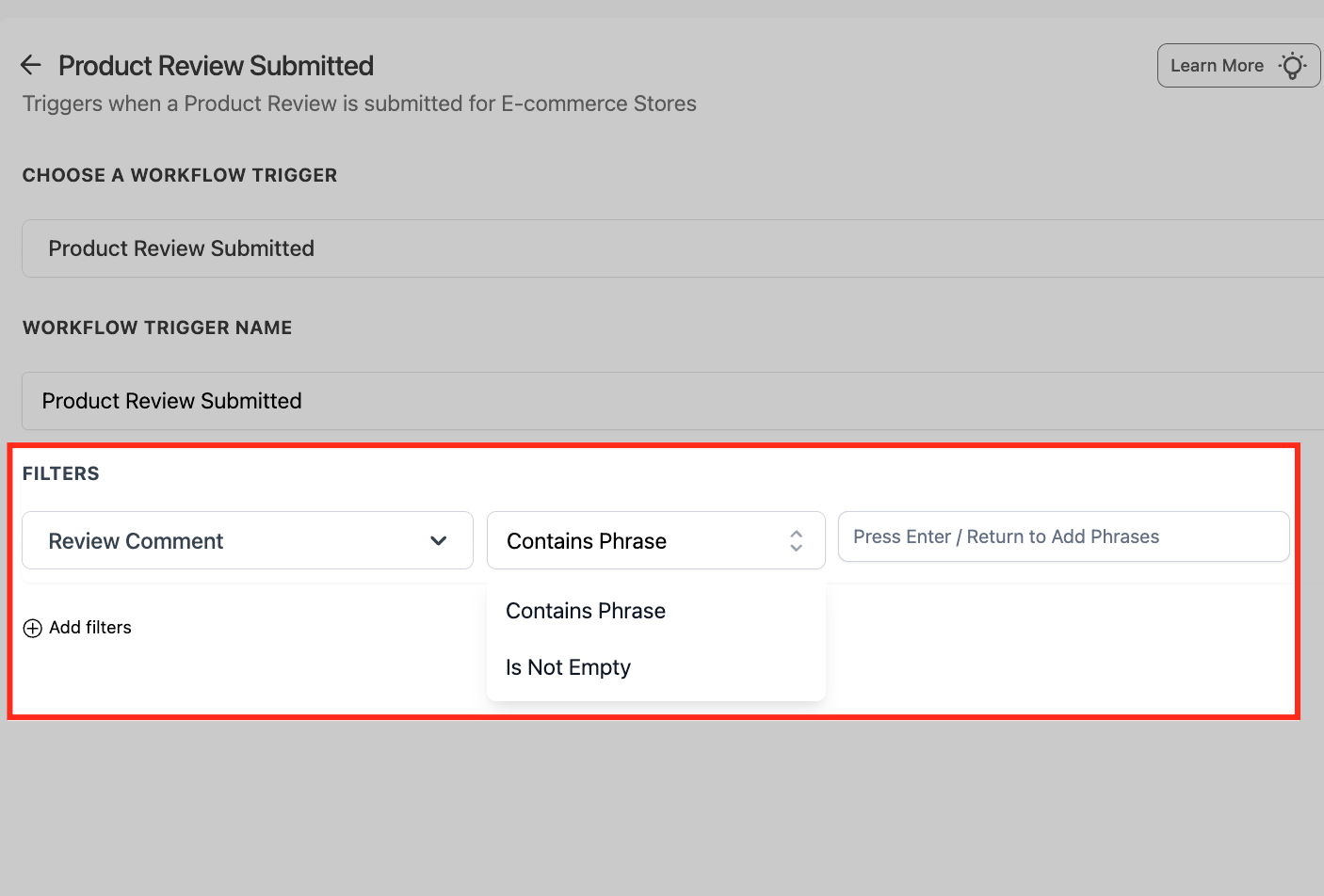
Review Rating Filter (Star)
The Review Rating (star) filter lets you control which review star ratings (1–5) are allowed to trigger your workflow. It’s used to separate automations by sentiment for example, routing low ratings to support for fast resolution and sending 5-star reviewers into advocacy, referral, or social proof workflows.
The Review Rating (star) filter supports multiple operators to control exactly which reviews can enroll in your workflow. Use Is any of to trigger on selected star ratings, or Is none of to exclude specific ratings while allowing everything else. For edge cases, Is empty targets missing ratings, and Is not empty ensures only reviews with a star rating are included.
Store Filter
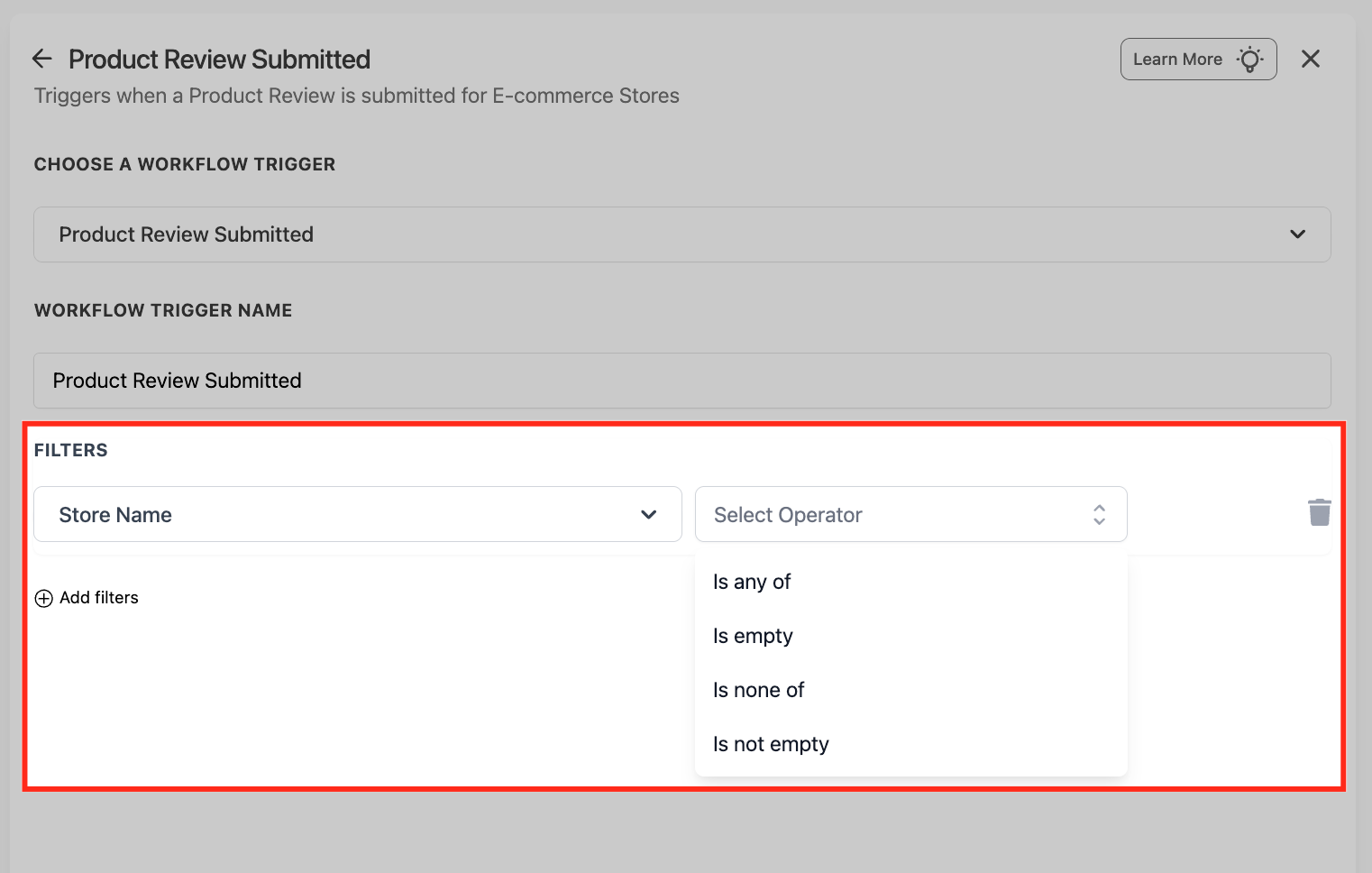
Add a Store Name filter to limit which storefront(s) can fire this workflow ideal when your sub-account manages multiple Ecommerce Stores. Choose an operator such as Is any of (include selected stores), Is none of (exclude), or Is empty/Is not empty for edge-case handling.
User Email & User Name Filters
Use the User Email & User Name filters to prioritize or exclude specific reviewers (VIPs, affiliates, internal testers, suspected spammers). They compare the reviewer’s submitted email or name with operators like equals, contains, is empty/not empty and can be combined with rating, product, or keyword filters for precision.
Apply them to escalate low-star VIP reviews, route influencer feedback to marketing, or suppress automated replies to disposable/test accounts.
Save Trigger
Saving commits your conditions and returns you to the builder to add actions or branches. Use this moment to test with a sample review and then publish once behavior matches your intent. Test by submitting a dummy review in your store
Add downstream actions such as Send Email, Create Task, Slack Notification, etc.
Frequently Asked Questions
Yes. If reviews are globally disabled in the store settings, no review events are emitted and the trigger won’t fire.
Related Articles
Was this article helpful?
That’s Great!
Thank you for your feedback
Sorry! We couldn't be helpful
Thank you for your feedback
Feedback sent
We appreciate your effort and will try to fix the article