Introducing streamlined email campaigns with direct creation, clear warnings, and a better preview
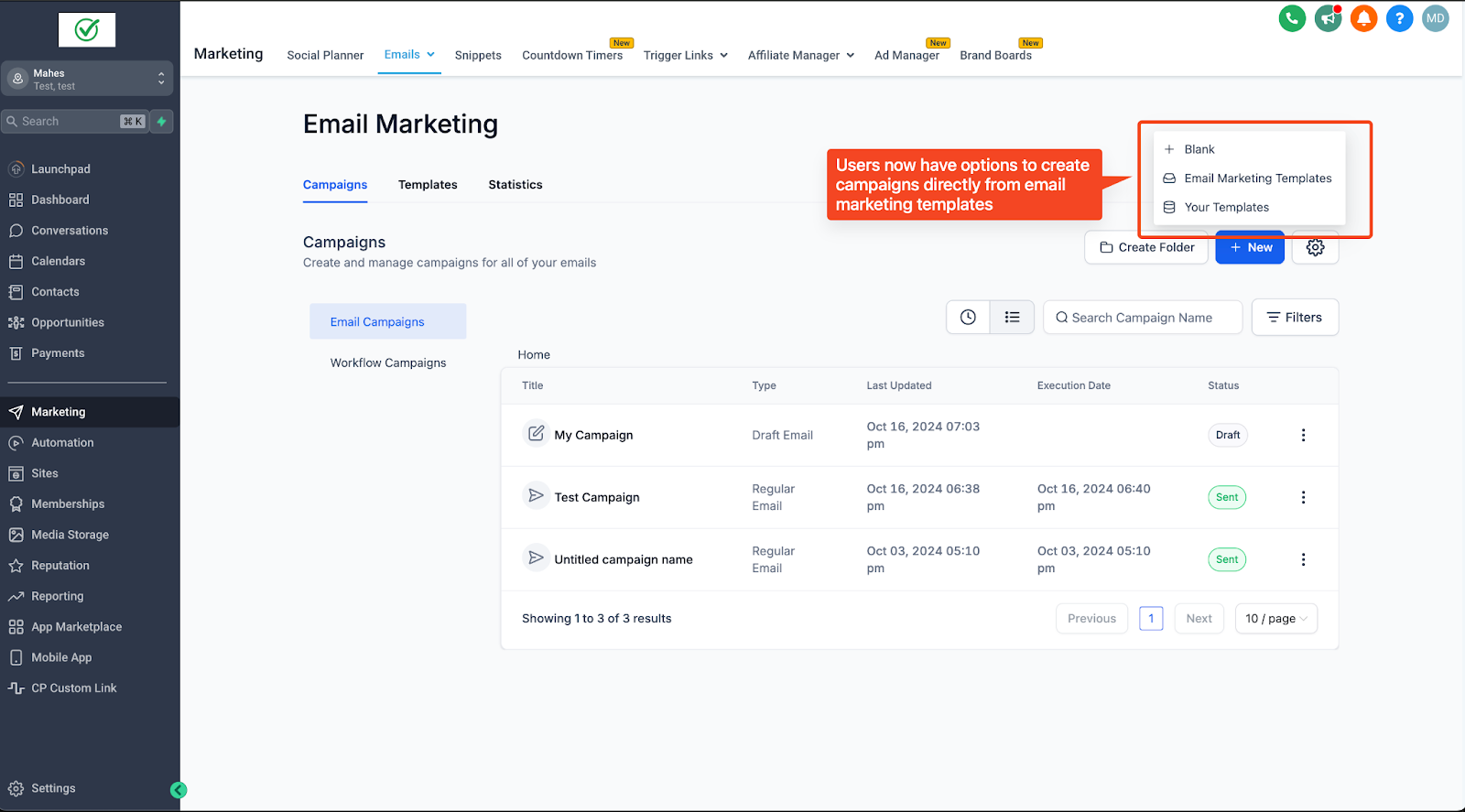
Start Campaigns Directly from the Template Library
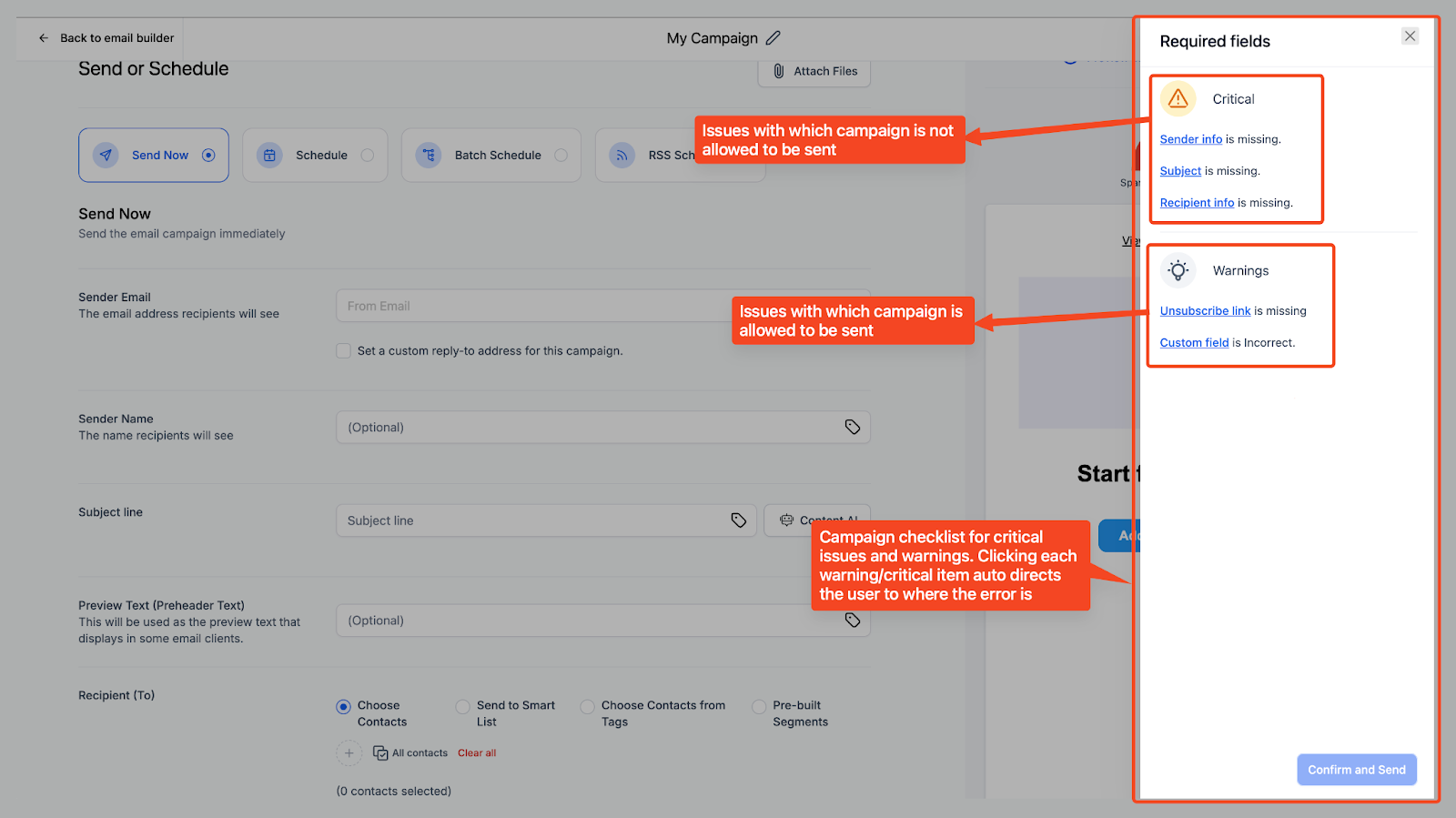
Checklist for missing or incorrect fields, so you can quickly resolve any issues before sending.
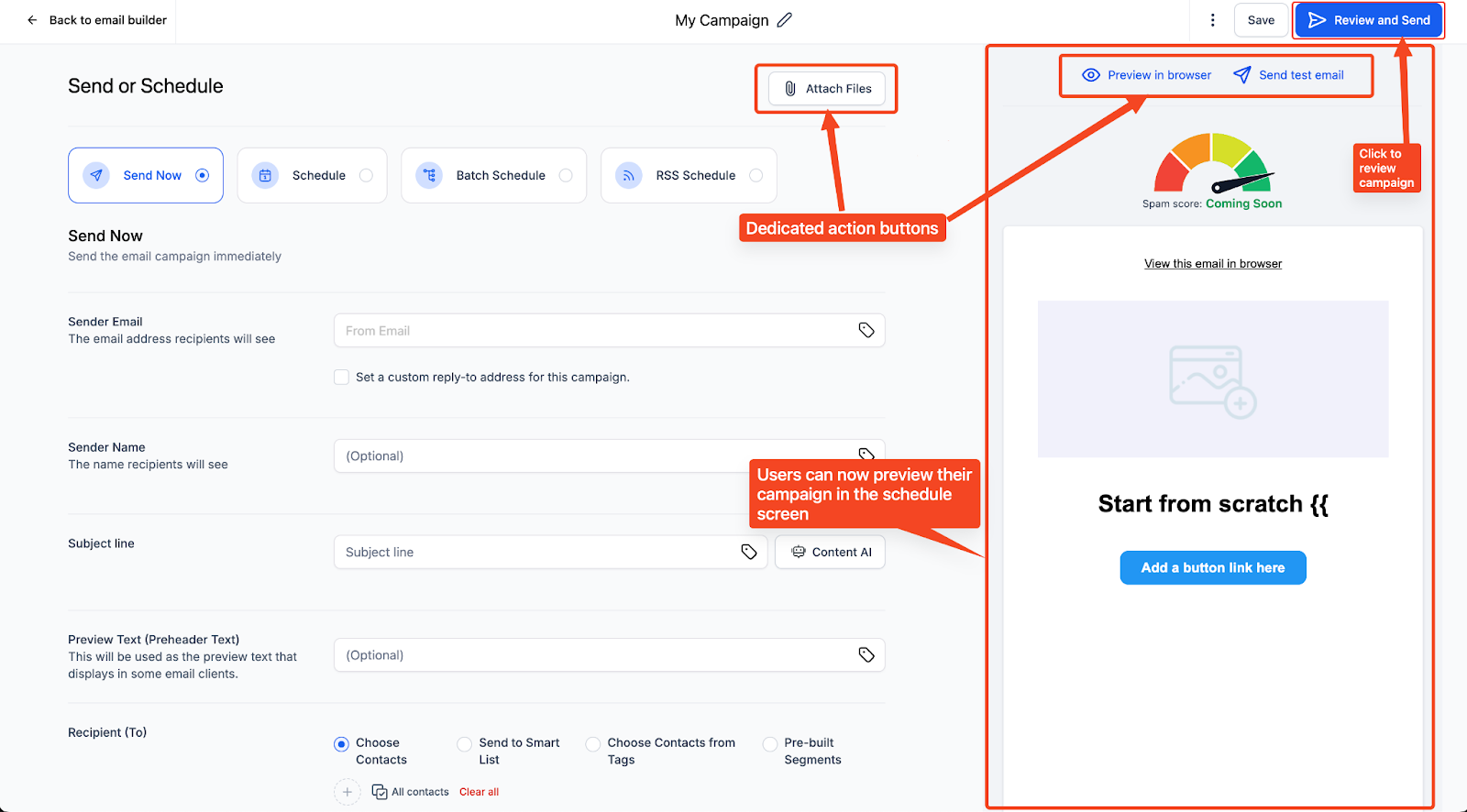
Improved UI of send or schedule screen: See your email design while composing the subject line and preview text for a smoother workflow.
How to Use It:
Knowing where to find key actions speeds up the campaign build process. Using the Preview button during editing helps catch formatting and personalization issues early, while the attachment count badge provides instant clarity before sending.
Go to Email Marketing -> Campaigns.
Click New -> Email Marketing Templates.
Choose a template and click Continue.
Open your email in the campaign builder.
Click Preview on the top menu bar (next to Save) to review your email at any time while editing. One click—no menus required.
When ready, proceed to Send or Schedule.
On the Send/Schedule screen, Attach Files displays a number badge showing how many files are attached.
Use this for a quick at-a-glance confirmation before sending.
Check for warnings in Required Fields, then click Confirm & Send.
Note:
As of now the checklist only provides information on the mandatory fields and errors in custom fields. We will expand this to provide email limit warnings, content issues etc.
Was this article helpful?
That’s Great!
Thank you for your feedback
Sorry! We couldn't be helpful
Thank you for your feedback
Feedback sent
We appreciate your effort and will try to fix the article