The Email Statistics Summary Page in HighLevel provides a detailed overview of an individual email campaign's performance. It helps you track email delivery, opens, clicks, bounces, unsubscribes, and other important engagement metrics. You can also analyze engagement trends, review attributed conversions and revenue, and examine recipient-level activity. These insights help you evaluate campaign effectiveness, identify delivery issues, and make informed decisions to improve future email campaigns.
The Summary Page is part of the individual campaign statistics experience. Unlike the unified Email Statistics dashboard, which combines data from Email Campaigns, Workflows, and Bulk Actions, the Summary Page focuses on the performance of a specific email campaign.
TABLE OF CONTENTS
- Key Benefits of the Email Statistics Summary Page
- Understanding Email Summary Metrics
- Engagement Analysis Chart
- How to Interpret the Engagement Analysis Chart
- How to Access the Email Statistics Summary Page
- Frequently Asked Questions
- Related Articles
Key Benefits of the Email Statistics Summary Page
Understanding how recipients interact with your email campaigns helps you identify what works and where improvements are needed. The Summary Page brings together delivery, engagement, and conversion information, making it easier to evaluate campaign performance without reviewing individual contact records separately.
Monitor Email Delivery Performance: Track delivered, bounced, and skipped emails to identify potential delivery issues and evaluate how effectively your campaigns reach recipients.
Measure Recipient Engagement: Review email opens, clicks, replies, and unsubscribes to understand how contacts interact with your content.
Analyze Engagement Trends: Visualize delivery, open, and click activity over time to recognize engagement patterns and assess campaign performance.
Track Conversions and Revenue: Monitor eligible purchases, attributed revenue, and Revenue per Recipient (RPR) to evaluate how email campaigns contribute to sales.
Review Contact-Level Activity: Identify contacts who opened, clicked, replied, unsubscribed, or experienced delivery issues.
Support Data-Driven Improvements: Use email performance insights to refine audience targeting, messaging, and calls to action for future campaigns.
Understanding Email Summary Metrics
The Summary Page displays important email performance metrics that help you evaluate different stages of an email campaign. Reviewing these metrics together provides a clearer picture of delivery success, recipient engagement, and potential issues that may affect campaign results.
Delivered
Delivered represents emails that were successfully accepted by recipients' email servers. A delivered email is not necessarily placed in the recipient's primary inbox. It may be routed to another folder, such as Promotions or Spam.
Delivery Rate Formula:
(Delivered Emails ÷ Total Emails Sent) × 100
For example, if 950 out of 1,000 sent emails were delivered, the delivery rate would be 95%. A lower-than-expected delivery rate may indicate problems with email addresses, sender reputation, or recipient-server acceptance.
Note: Delivery statistics depend on the configured email service provider and the availability of delivery events.Opened
Opened represents recipients who triggered a tracked email open event. HighLevel uses unique opens to measure how many individual recipients opened an email, rather than counting every repeated open from the same recipient.
Open Rate Formula:
(Unique Opens ÷ Delivered Emails) × 100
For example, if 200 recipients opened an email out of 800 delivered emails, the open rate would be 25%. Open rates can help you evaluate subject lines, sender recognition, and overall audience interest.
Important: Open tracking relies on supported tracking methods and email client behavior. Privacy features, such as automatic image loading, can affect open statistics. A recorded open does not guarantee that the recipient read the email.Clicked
Clicked represents recipients who interacted with tracked links in an email campaign. Unique clicks count each recipient once for applicable click activity, even when they click multiple times.
Click Rate Formula:
(Unique Clicks ÷ Delivered Emails) × 100
For example, if 80 recipients clicked a link out of 800 delivered emails, the click rate would be 10%. Click activity can help you evaluate the relevance of your email content, offers, and calls to action.
Note: Click statistics depend on supported link tracking and the configured email sending provider.
Conversion
Conversion represents eligible purchases or conversions attributed to an email campaign based on HighLevel's email attribution rules. HighLevel uses qualifying email interactions and a configurable attribution window to determine whether a purchase should be credited to a campaign.
The default attribution window is five days. The conversion or order rate represents the proportion of eligible recipients associated with attributed conversions, using the calculation applicable to the reporting view.
A conversion may not be attributed to the campaign if the purchase occurs outside the configured attribution window or does not meet the attribution requirements. For additional details, see Understanding Email Conversion and Revenue Attribution.
Soft Bounced
Soft Bounced represents emails that could not be delivered because of a temporary issue. Common reasons include:
The recipient's mailbox is full.
The recipient's email server is temporarily unavailable.
The receiving server is experiencing a temporary delivery problem.
Soft bounces may be retried depending on the email provider's delivery behavior. A temporary delivery failure does not always indicate that the recipient's email address is invalid.
Hard Bounced
Hard Bounced represents emails that could not be delivered because of a permanent delivery issue. Common reasons include:
An email address does not exist.
A recipient's domain is invalid.
The receiving server permanently rejects the message.
Hard bounces can indicate problems with contact information or email list quality. Regularly reviewing invalid addresses and maintaining a clean contact list can help protect email sending health.
Unsubscribed
Unsubscribed represents recipients who opted out of future email communications using the unsubscribe mechanism in an email.
Unsubscribe Rate Formula:
(Unsubscribed Recipients ÷ Delivered Emails) × 100
For example, if five recipients unsubscribe from 1,000 delivered emails, the unsubscribe rate would be 0.5%. An increase in unsubscribes may indicate that the content is not relevant to the audience or that emails are being sent too frequently.
Skipped
Skipped represents emails that HighLevel did not attempt to send to certain recipients because of an applicable restriction or sending issue. Possible reasons include:
The contact has an applicable Do Not Disturb (DND) setting.
The contact is excluded from the send because of an applicable restriction.
An internal processing issue prevents the sending attempt.
Skipped emails differ from bounced emails because a bounce occurs after an email delivery attempt reaches the sending or receiving process.
Review skipped recipients to identify whether contact settings or sending restrictions prevented delivery.
Spam
Spam represents email messages reported as spam by recipients. Spam complaints are an important indicator of recipient dissatisfaction and may affect sender reputation.
An increase in spam complaints may suggest problems with audience relevance, sender recognition, or messaging expectations.
To reduce complaints, send emails to appropriate audiences, make messages relevant, and provide a clear unsubscribe option.
Engagement Analysis Chart
The Engagement Analysis Chart helps you visualize how recipients interact with an email campaign over time. Comparing delivery, open, and click activity can reveal changes in engagement and help you evaluate the timing and effectiveness of your campaign.
The chart displays three main engagement metrics:
Delivered: Shows recorded successful email deliveries.
Opened: Shows recorded email open activity.
Clicked: Shows recorded email link-click activity.
These metrics are represented by separate lines, allowing you to compare engagement activity over the available reporting period.
How to Interpret the Engagement Analysis Chart
The chart can help you recognize engagement patterns and identify opportunities to improve future campaigns.
Review Delivery Activity: Identify when email deliveries were recorded and whether delivery activity occurred as expected.
Compare Opens and Clicks: Examine whether recipients who opened the email also interacted with its links.
Identify Engagement Patterns: Look for periods of increased or decreased engagement to understand when interactions occurred.
Evaluate Campaign Content: If the campaign records opens but relatively few clicks, consider whether the message and call to action encouraged recipients to take the intended next step.
Note: Engagement peaks indicate when activity was recorded. They do not necessarily identify the best time to send future emails. Consider audience behavior, campaign content, and additional reporting data before making scheduling decisions.How to Access the Email Statistics Summary Page
Accessing the individual campaign statistics page allows you to review a specific email send rather than the combined performance of multiple campaigns. Selecting the correct campaign ensures that the delivery, engagement, and conversion data you analyze belongs to the intended email.
Follow these steps:
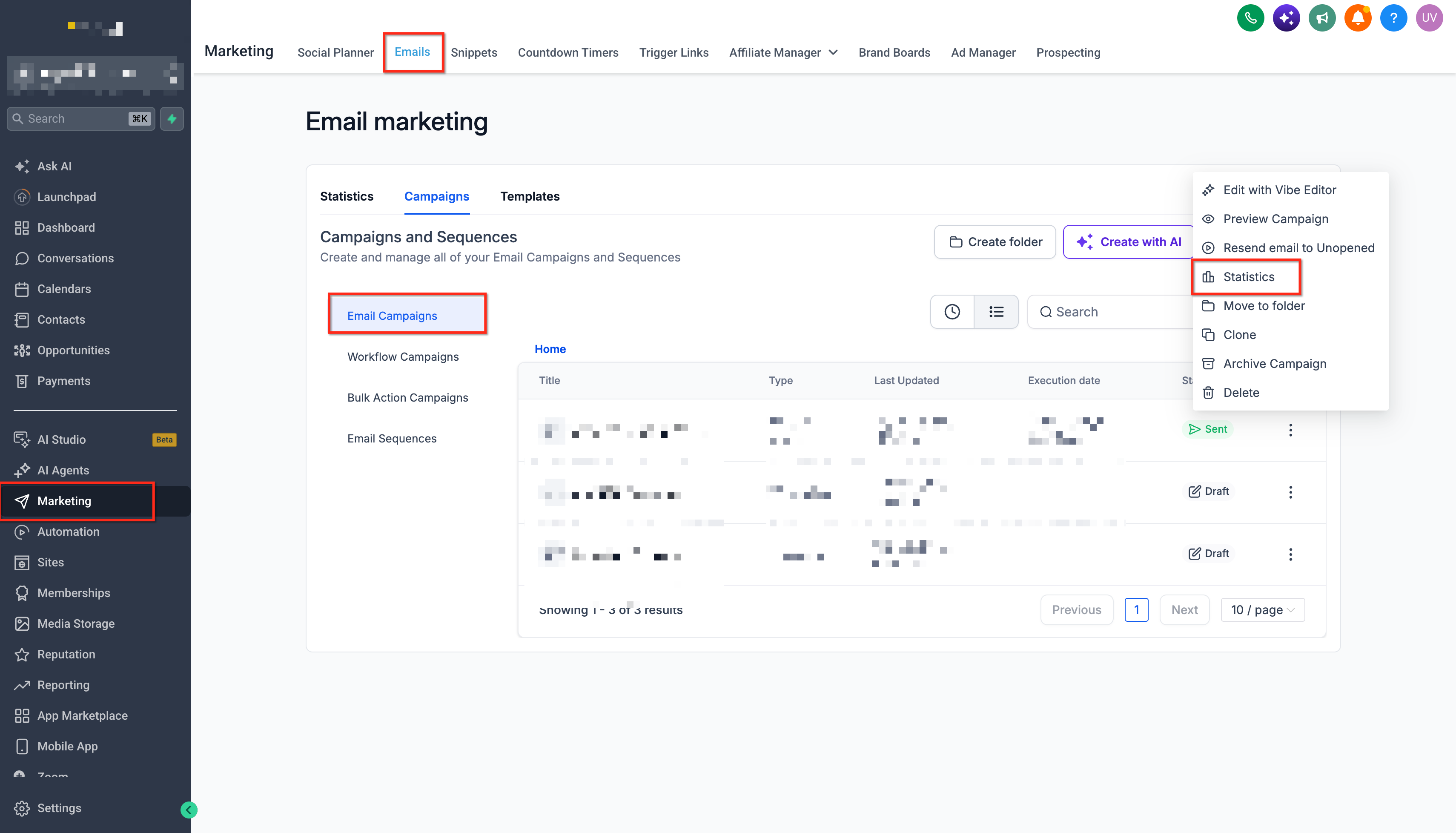
Navigate to Marketing → Emails in your HighLevel sub-account.
Select the Campaigns tab to view your email campaigns.
Locate the sent email campaign you want to analyze.
Click the three-dot menu (⋮) next to the campaign name.
Select Statistics from the menu.
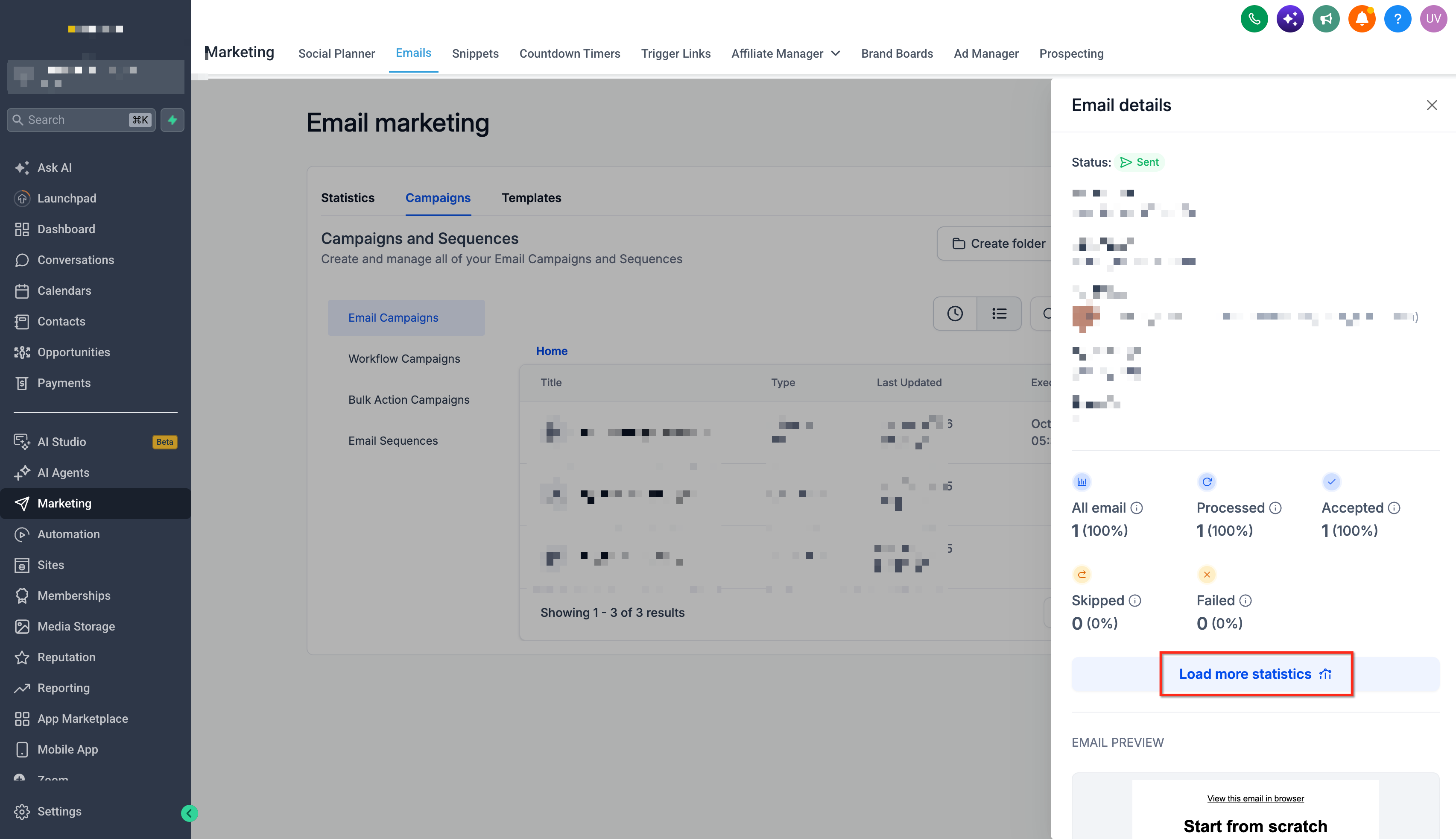
In the statistics side panel, click Load More Statistics.
On the full statistics page, select the Summary tab.
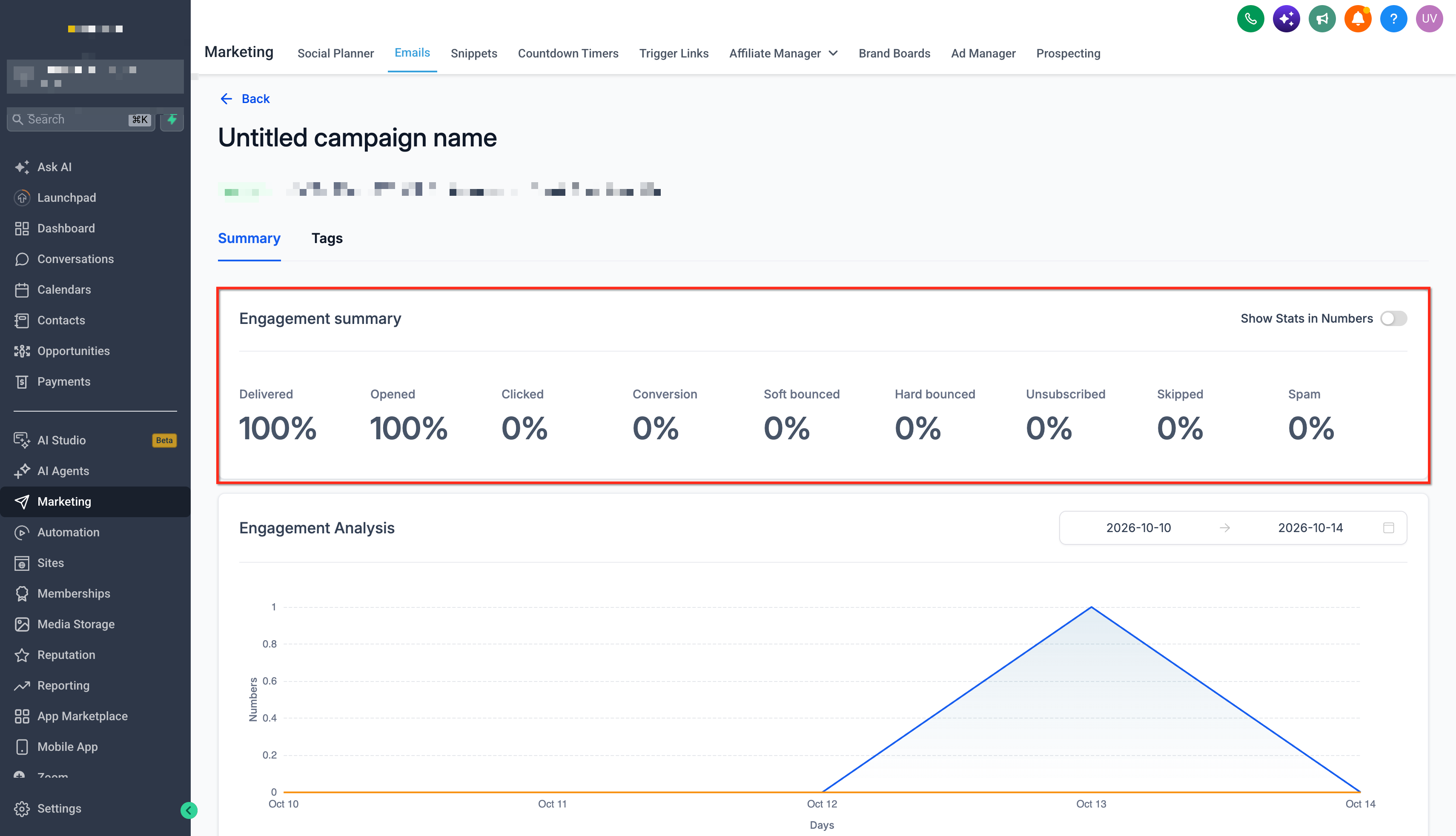
Review the available delivery, engagement, and conversion metrics.
Open the Details tab as you scroll down when you need to review activity associated with individual recipients.
Note: Campaign statistics become available as sending and engagement events are recorded. Some metrics may take additional time to appear, and reporting availability depends on the sending provider and tracking configuration.Frequently Asked Questions
Q: Why are some email statistics missing even though my campaign was sent?
Missing statistics can result from the configured email provider, tracking settings, or unavailable reporting events. Some SMTP providers expose only open and click information, while LC Email and Mailgun support more comprehensive delivery reporting. Confirm the sending method and provider configuration if expected metrics are missing.
Q: Why does my campaign show opens but no clicks?
Recipients may open an email without clicking its links. Also, open tracking and click tracking use different events, so their results may not match. Review your email's links and confirm that the sending configuration supports click tracking.
Q: Why are my open statistics higher than expected?
Some email clients automatically load tracking images or use privacy features that can generate recorded open events. As a result, open statistics may not precisely represent the number of people who actually read the email.
Q: Why does my conversion summary show $0 even though recipients clicked my email?
Clicks alone do not generate attributed revenue. The campaign must receive credit for an eligible purchase under HighLevel's attribution rules. Revenue can remain at zero if no eligible purchase was recorded, the purchase occurred outside the attribution window, or another campaign received attribution.
Q: What is the difference between Skipped, Failed, and Bounced emails?
Skipped generally means the email was not sent because of an applicable restriction or processing issue. Failed indicates an error during sending or processing. Bounced means the email encountered a delivery failure, which may be temporary (soft bounce) or permanent (hard bounce).
Q: Why does the number of delivered emails differ from the number of targeted recipients?
Some recipients may have been skipped, encountered sending errors, or experienced delivery failures. Review the Details tab to investigate the available status information for those contacts.
Q: Why do campaign-level statistics differ from the unified Email Statistics dashboard?
The campaign Summary Page focuses on one individual email campaign, while the unified Email Statistics dashboard can combine data from Email Campaigns, Workflows, and Bulk Actions. Different source selections and reporting date ranges can also affect the results displayed.
Q: Can I download email statistics for analysis outside HighLevel?
Yes. Available recipient-level statistics can be reviewed and exported from the campaign Details area. For broader reporting, the unified Email Statistics dashboard supports CSV exports, with download links delivered to the specified email addresses.
Related Articles
Was this article helpful?
That’s Great!
Thank you for your feedback
Sorry! We couldn't be helpful
Thank you for your feedback
Feedback sent
We appreciate your effort and will try to fix the article