Group Chat for SMS lets your team message small groups of contacts from a single conversation thread on both desktop and mobile. This article shows you how to use the Group Chat feature to start conversations with multiple clients, team members, or stakeholders so you can communicate faster, clearer, and more effectively.
TABLE OF CONTENTS
- What is Group Chat for SMS?
- Key Benefits of Group Chat for SMS
- Requirements to use Group Chats
- Group Chat Behaviors and Limitations
- How to Create a Group Chat (Desktop)
- How to Create a Group Chat (Mobile)
- Managing Group Chats
- Frequently Asked Questions
- Related Articles
What is Group Chat for SMS?
The Group Chat for SMS feature allows you to create a group and send SMS messages to multiple contacts in a single conversation. Rather than juggling several one-on-one conversations, users can now collaborate with multiple contacts (like families, internal teams, or entire departments) in one unified thread. This streamlines communication, reduces response delays, and improves transparency across all participants.
Note: 1. Group Texting is only supported on +1 (US+Canada) long code numbers. Toll-free numbers and short codes cannot exchange group in texts from Twilio.

2. Group Chat supports sending and receiving attachments. Images appear inline and files show as a downloadable chip. For more info, see SMS Attachment Size Limits
Key Benefits of Group Chat for SMS
- Collaborative Conversations: Bring multiple contacts into one thread for streamlined discussions.
- Streamlined Communication: Keep everyone on the same page without repeating messages across chats.
- Improved Client Engagement: Tailor interactions by grouping related contacts (e.g., families, departments, or teams).
- Mobile Convenience: Start, manage, and continue group conversations anytime, anywhere.
- Better Responsiveness: Everyone can view and reply to messages in real time.
Requirements to use Group Chats
To use the Group Chat for SMS feature, you’ll need:
- Phone number: Must use a LeadConnector number enabled for SMS/MMS.
- Region: Participants must have US/Canada phone numbers.
- Access: Users with only assigned data access can create and view groups that include only contacts assigned to them. Users can send messages in the group only if they have access to the phone number used to create the group chat.
Group Chat Behaviors and Limitations
Before you create a Group Chat, review these behaviors and limitations.
- Maximum Group Size: Group chats support 2-9 participants.
- DND: Contacts on Do Not Disturb (DND) cannot be added to or messaged in a group. If any participant enables DND after creation, you can no longer use that group thread. To continue group messaging, you will need to create a new group excluding the participant who is marked as DND.
- Immutability: After creation, you cannot add/remove participants or change the From number. Create a new group when members need to be changed.
- If Participants Contacts are Updated: Messages continue to route to the original numbers added at group creation, even if a contact is later deleted or their number is edited. Updated/Deleted tags appear beside affected contacts.
How to Create a Group Chat (Desktop)
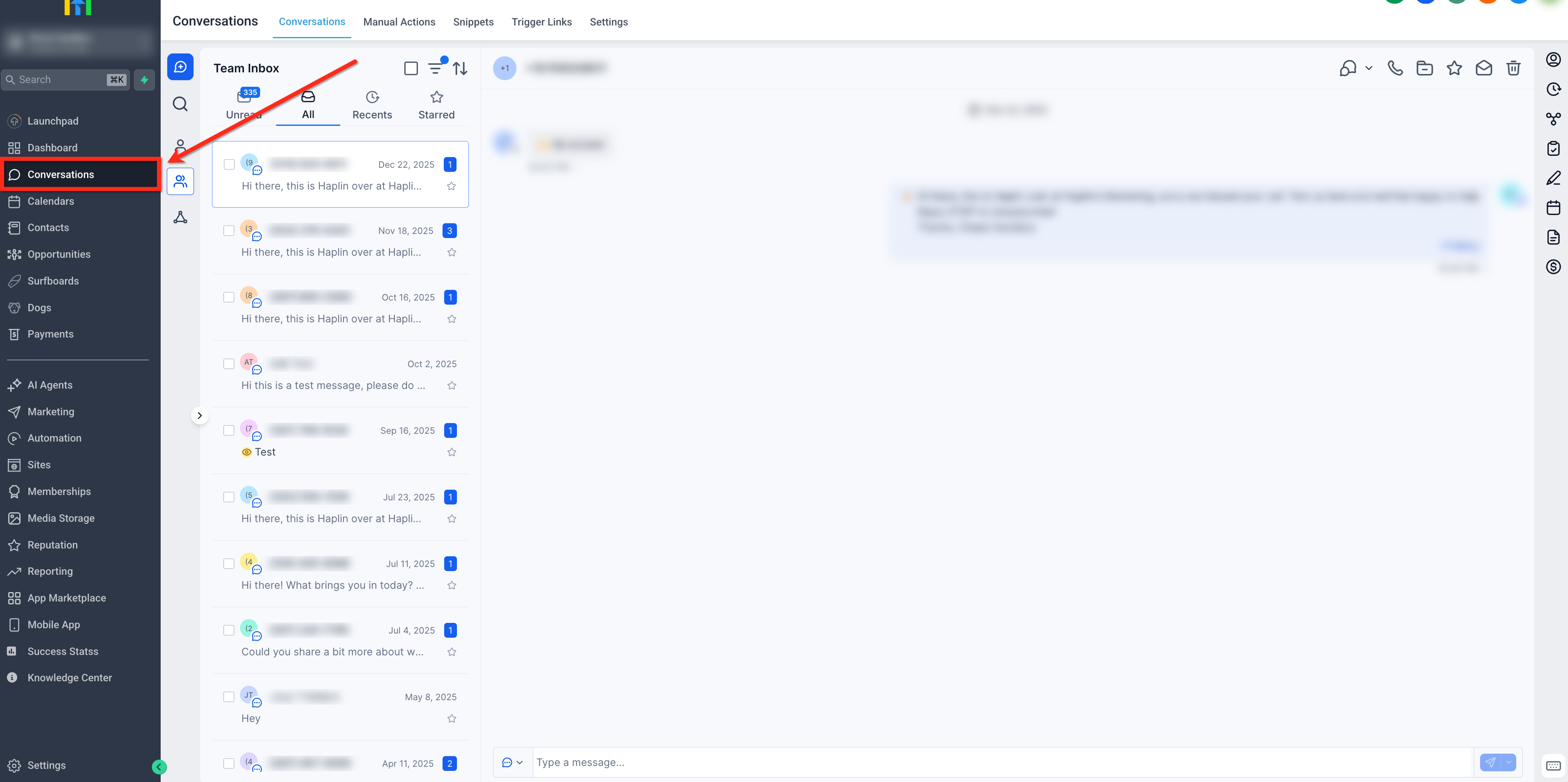
- Open Conversations from the left sidebar.
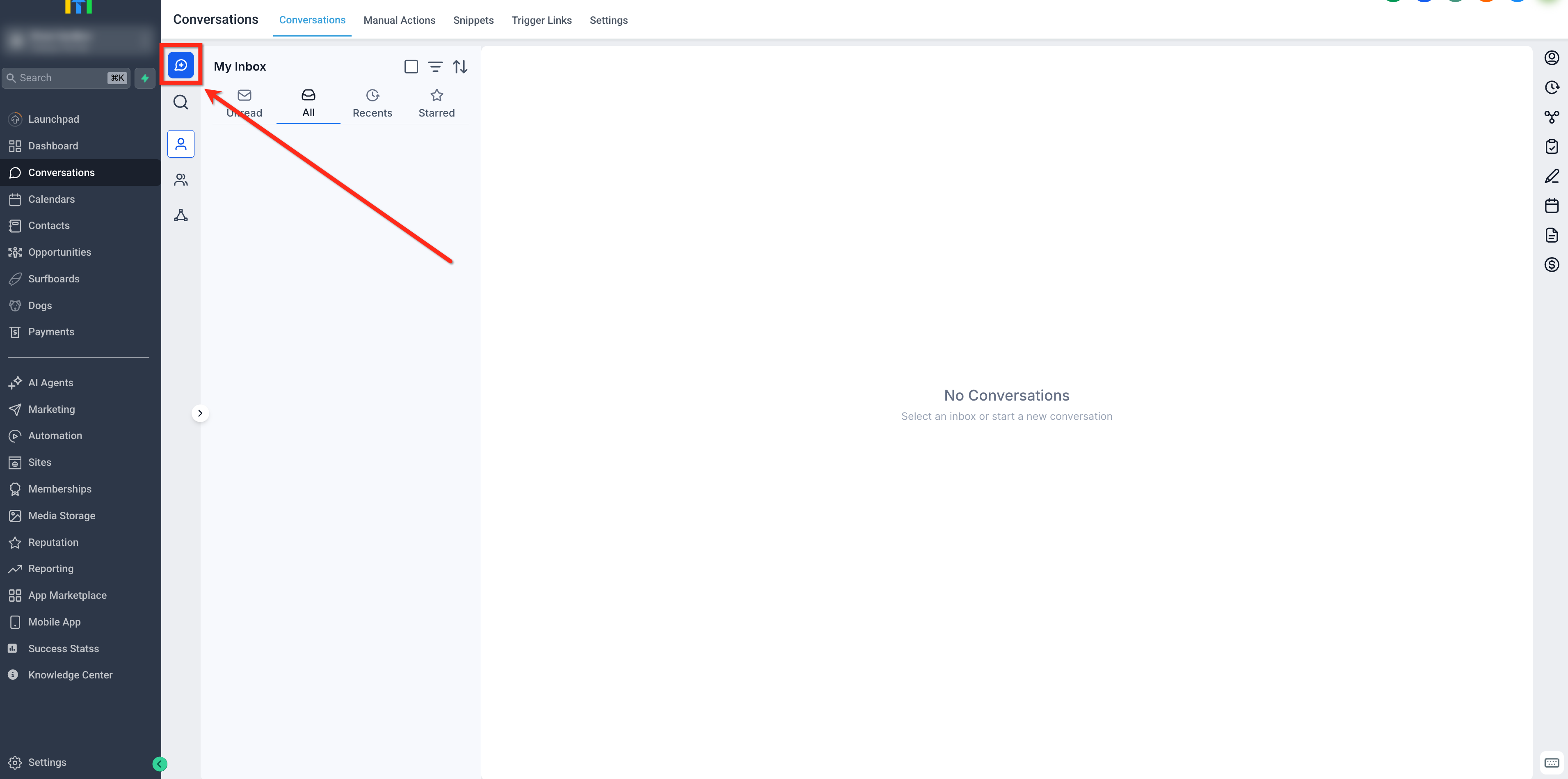
- Click the blue Create New Message button.
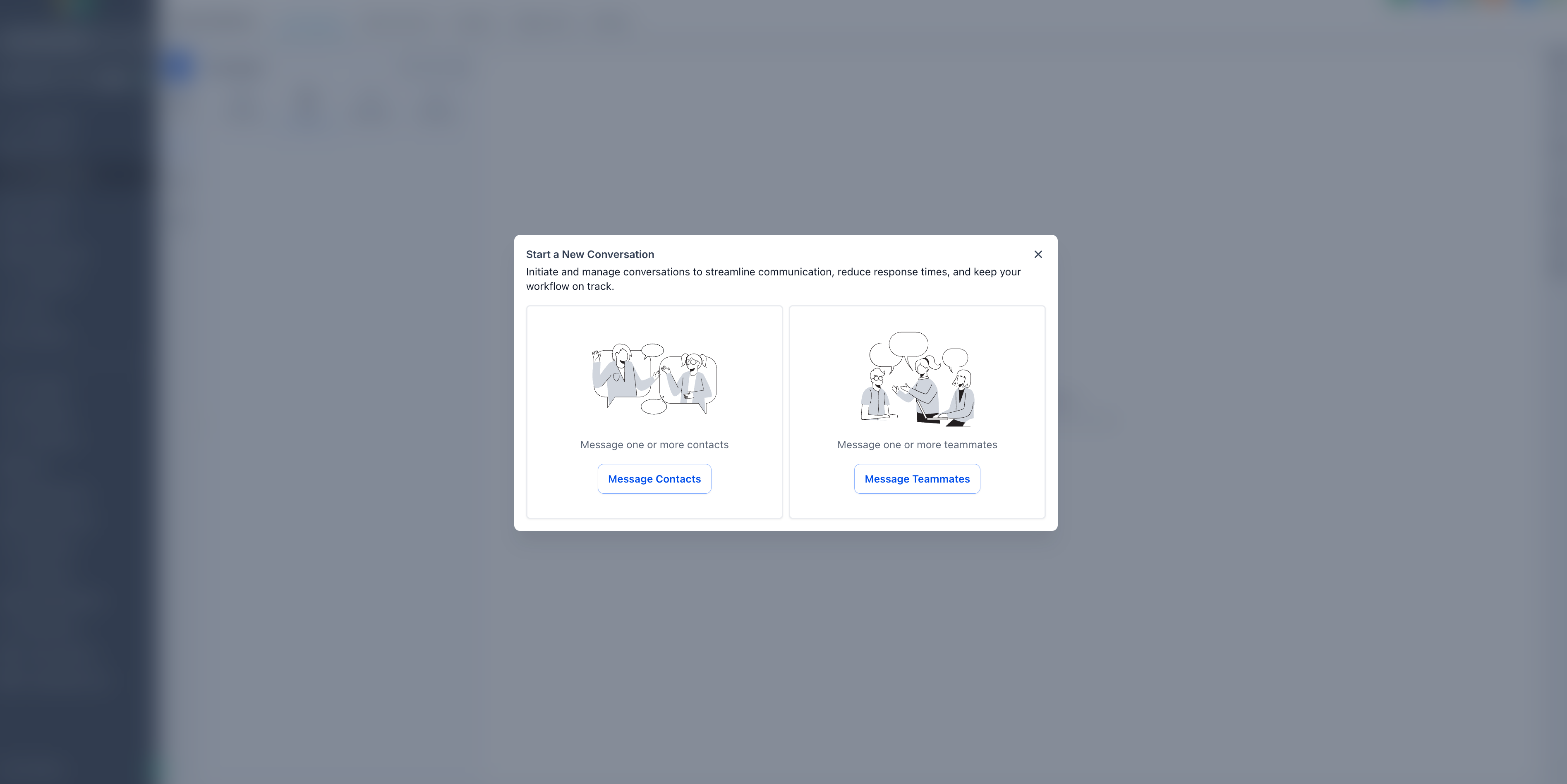
- Choose Message Contacts (or Message Teammates for an internal group).
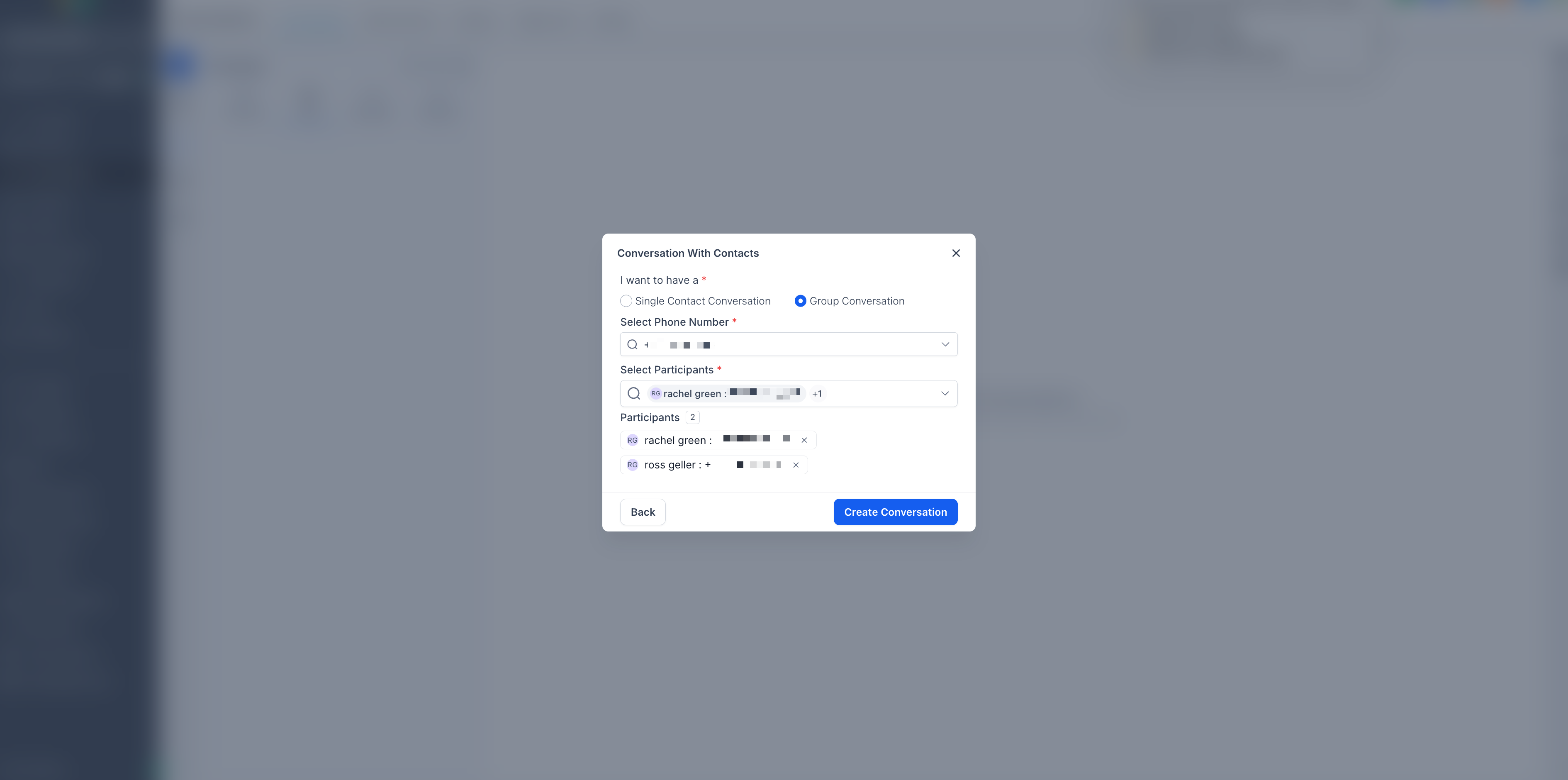
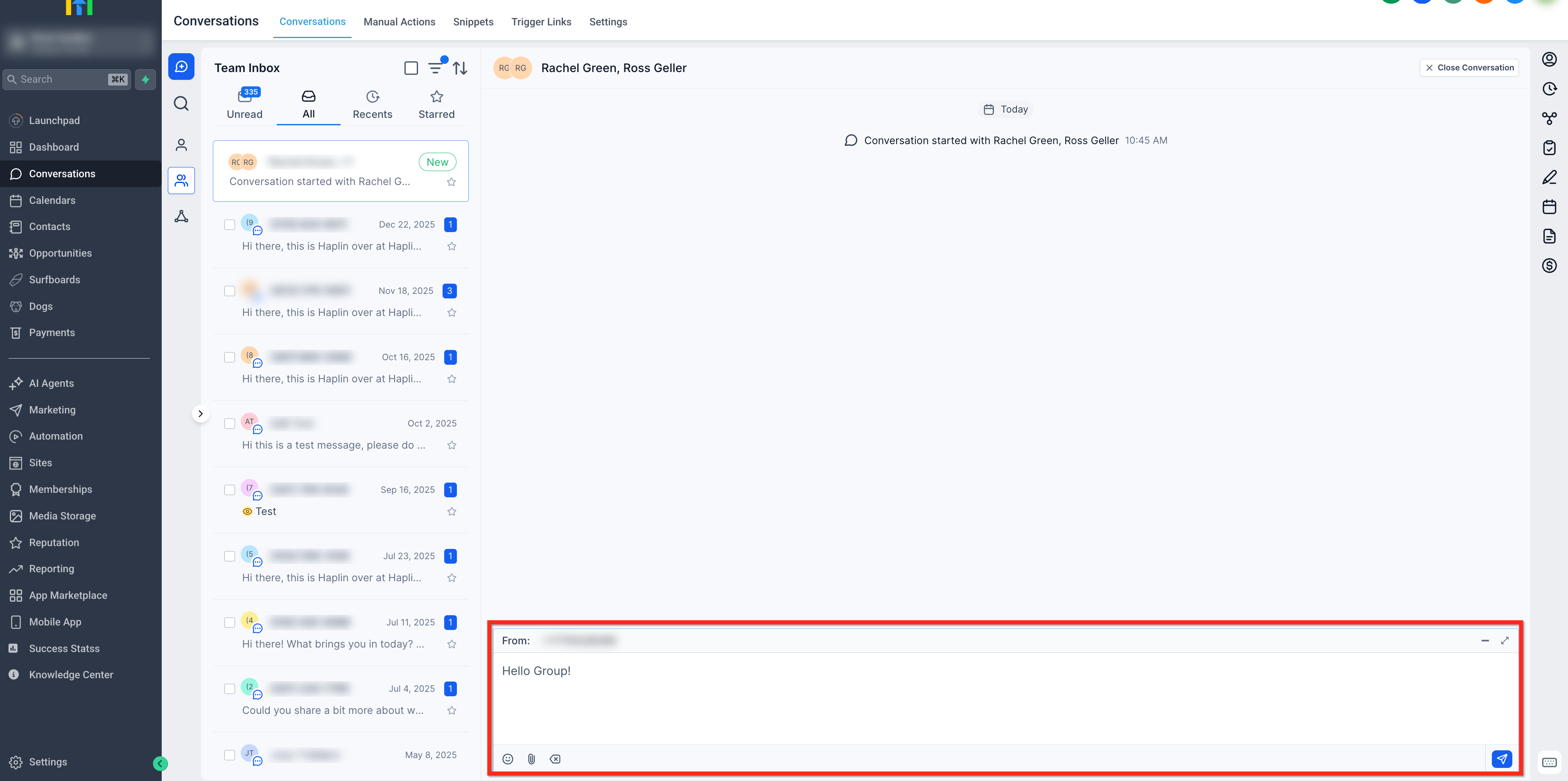
- Select Group Conversation, choose your number to send messages from, add 2–9 participants, then click Create Conversation.
- Type your message and click Send.
How to Create a Group Chat (Mobile)
- Open the HighLevel or LeadConnector mobile app on your iOS or Android device and tap the Conversations tab at the bottom of your screen.
- Choose Group Chat as the conversation type.
- Select your phone number and choose multiple contacts from your list to add to the group chat. You must add at least 2 and a maximum of 9 participants.
- Optionally name the group chat, making it easy to identify later.
- Tap Start Chat to launch the conversation instantly.
Managing Group Chats
Once a group chat is live, you can communicate just like you would in a one-on-one chat. You can:
- Send and receive messages
- Share images or files
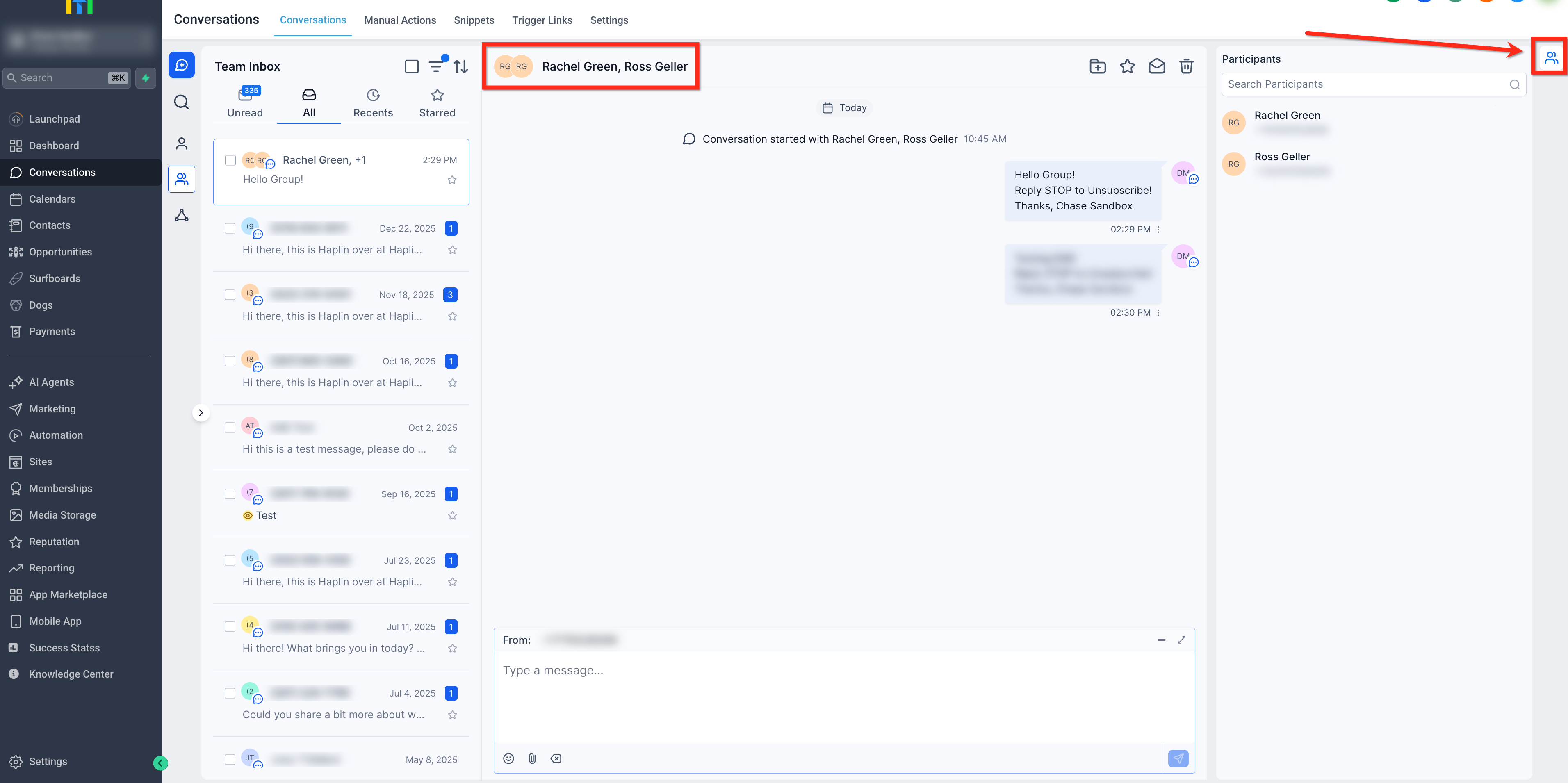
- View all participants in the chat
At the top of the group chat window, you can see all added contacts. Click the Chat Participants icon to search by name or phone number.
Frequently Asked Questions
Q: Can I edit participants or the business number after creating the group?
No. Create a new group with the updated set of recipients.
Q: Do attachments work in Group Chat?
Yes, but respect carrier file-size limits. If delivery fails, try compressing the file. For more information on SMS file limitations, see: SMS Attachment Size Limits.
Q: What happens if a participant turns on DND after the group is created?
Group messaging to that thread is blocked. Create a new group excluding the DND contact, or have them opt back in to continue using the thread.
Q: Can I manage Group Chats from the Mobile App?
Yes. You can create, view, and reply to group chats in the HighLevel and LeadConnector mobile apps.
Q: How do notifications work in a group chat?
Notifications are delivered just like one-on-one chats (via mobile push alerts for every new message in the group).
Q: Are all group chat participants able to see past messages?
Yes. All members of the group can view the complete message history.
Related Articles
Was this article helpful?
That’s Great!
Thank you for your feedback
Sorry! We couldn't be helpful
Thank you for your feedback
Feedback sent
We appreciate your effort and will try to fix the article