Create Pages in the HighLevel Page Builder
This guide shows you how to create new pages, reorder page sequences, and quickly switch between pages—all from inside the HighLevel Page Builder—so you can build complete funnels and websites faster with less context-switching.
You'll learn how to use the pages drawer, page selector popover, drag-and-drop reordering, and search tools to stay focused on design and conversion rather than navigation overhead.
What is New Page Creation from Page Builder?
New Page Creation from Page Builder is a Funnels & Websites enhancement that lets you create, configure, and organize pages without leaving the HighLevel Page Builder. Instead of navigating back to the funnel or website settings to add or reorder pages, you can perform all page management tasks directly from the pages drawer and a page selector popover inside the editor.
This streamlined workflow is available for both funnels and websites, and pairs with existing builder improvements—like enhanced drag-and-drop layout and modern navigation menus—to make multi-page experiences faster to build and easier to manage.
The feature includes four key tools: an "Add New Page" button in the pages drawer, a page selector popover on the action bar for quick switching, drag-and-drop page reordering, and a search bar for locating pages in large projects.
Key Benefits
New Page Creation from Page Builder removes friction from multi-page builds and ongoing maintenance by keeping all page management tools inside the editor.
Add New Page from Pages Drawer
The "Add New Page" option in the pages drawer is the primary way to create pages inline while you design. It keeps page creation, naming, and path configuration tightly coupled to the editing experience so you can build out full funnels and sites in one flow.
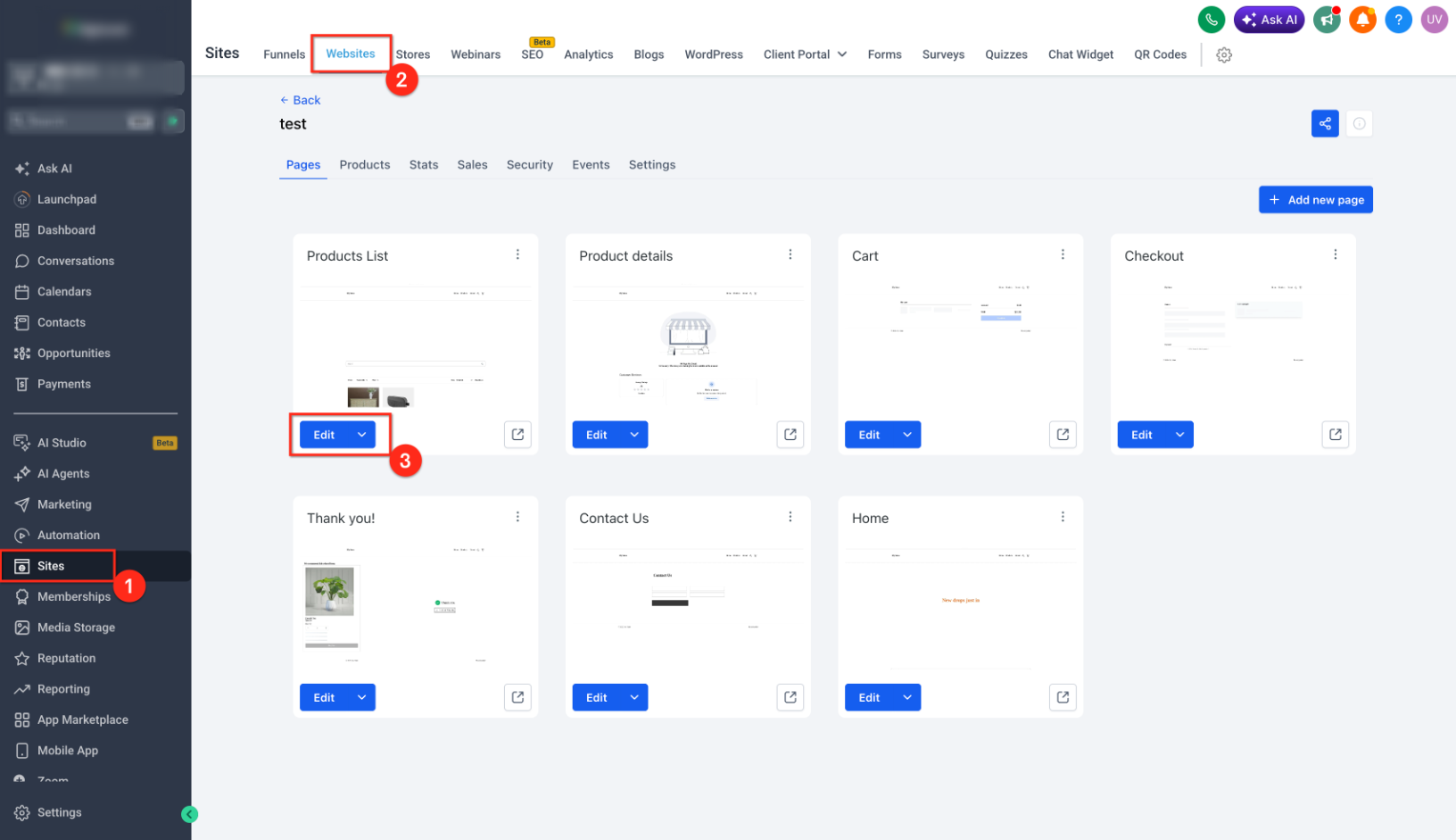
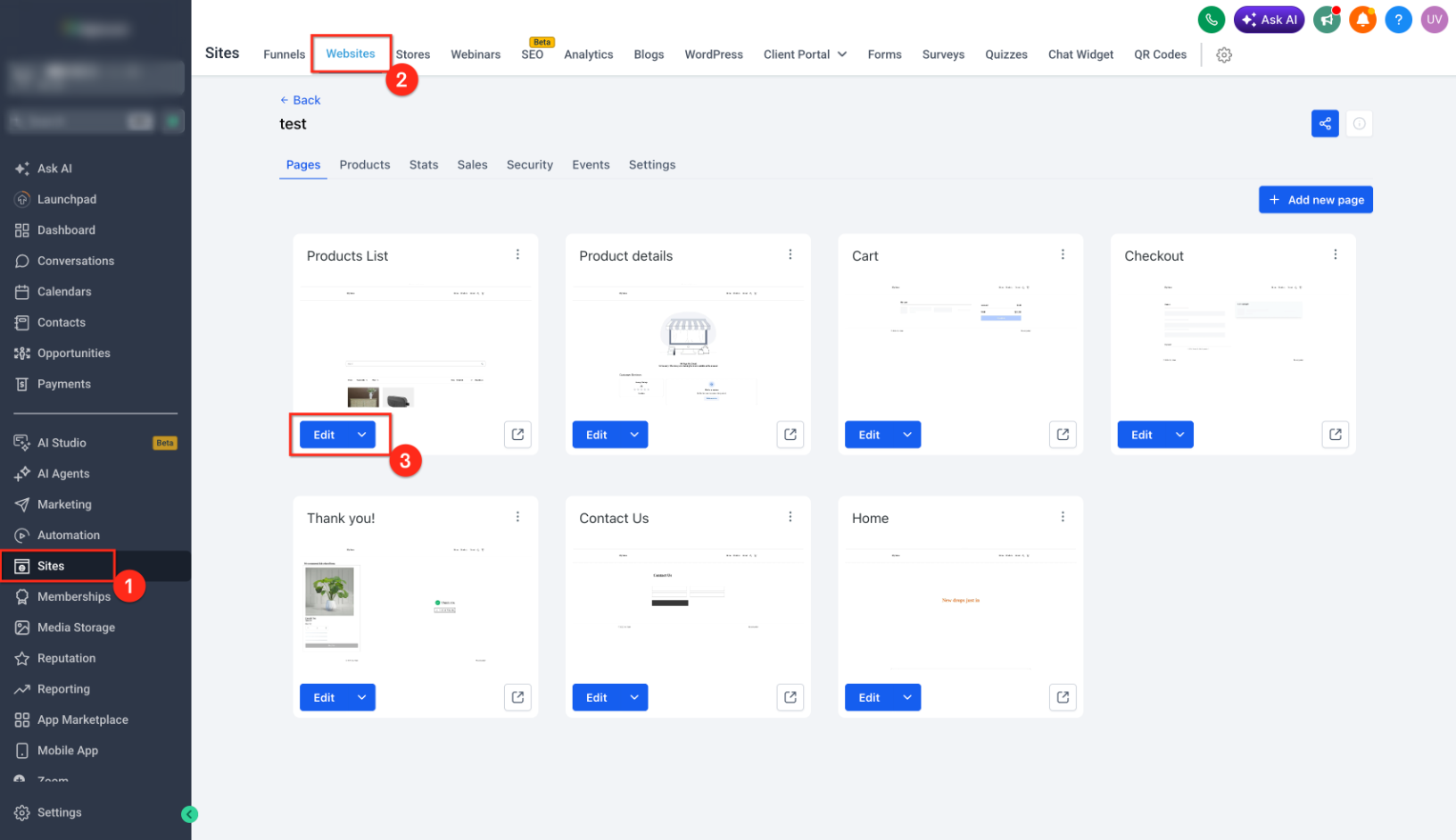
Go to Sites → Funnels or Sites → Websites, then click Edit on any page to open the Page Builder.
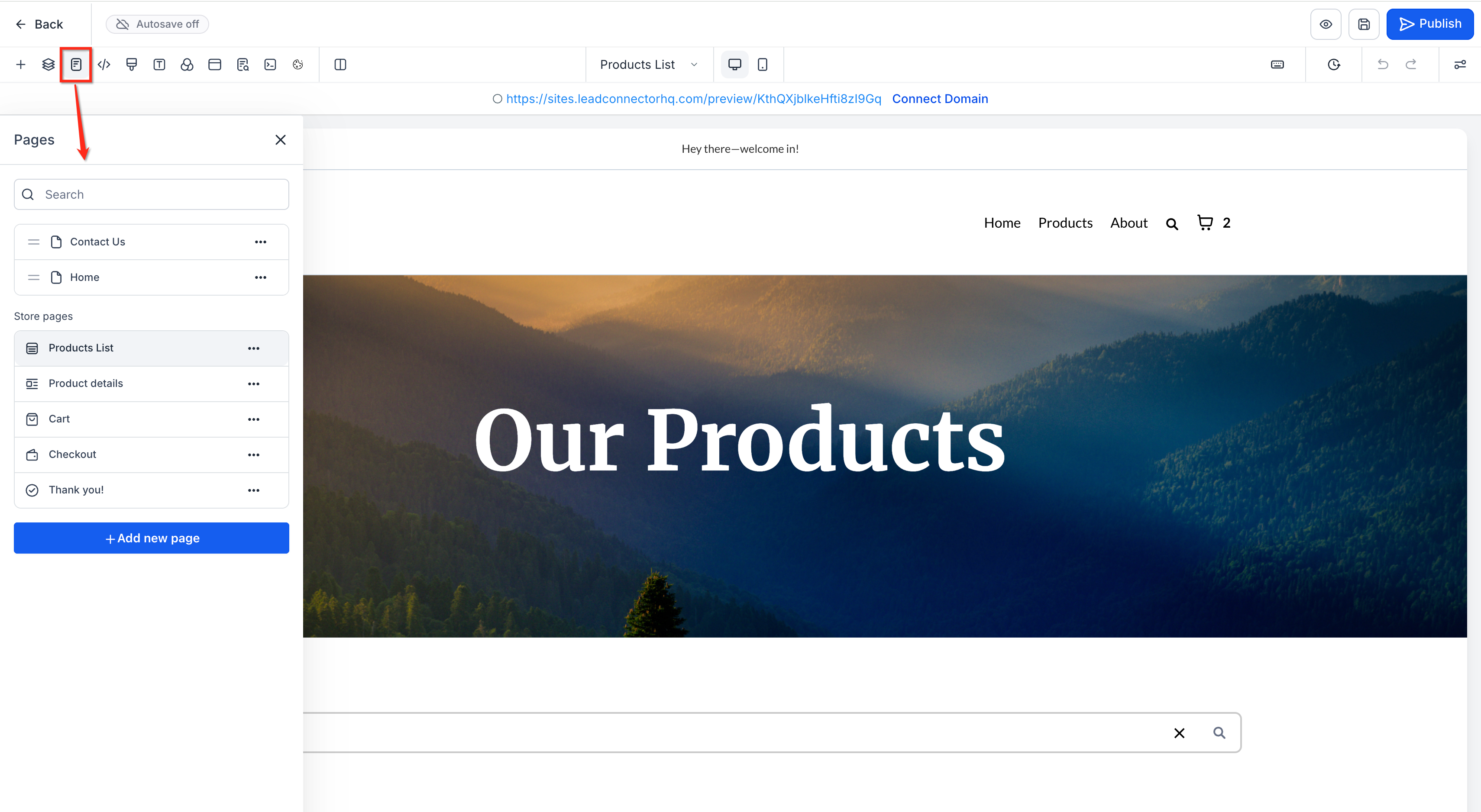
In the builder, open the Pages drawer (typically accessible from the left or side navigation, depending on your layout).
You'll see a list of all pages or steps in the current funnel or website.
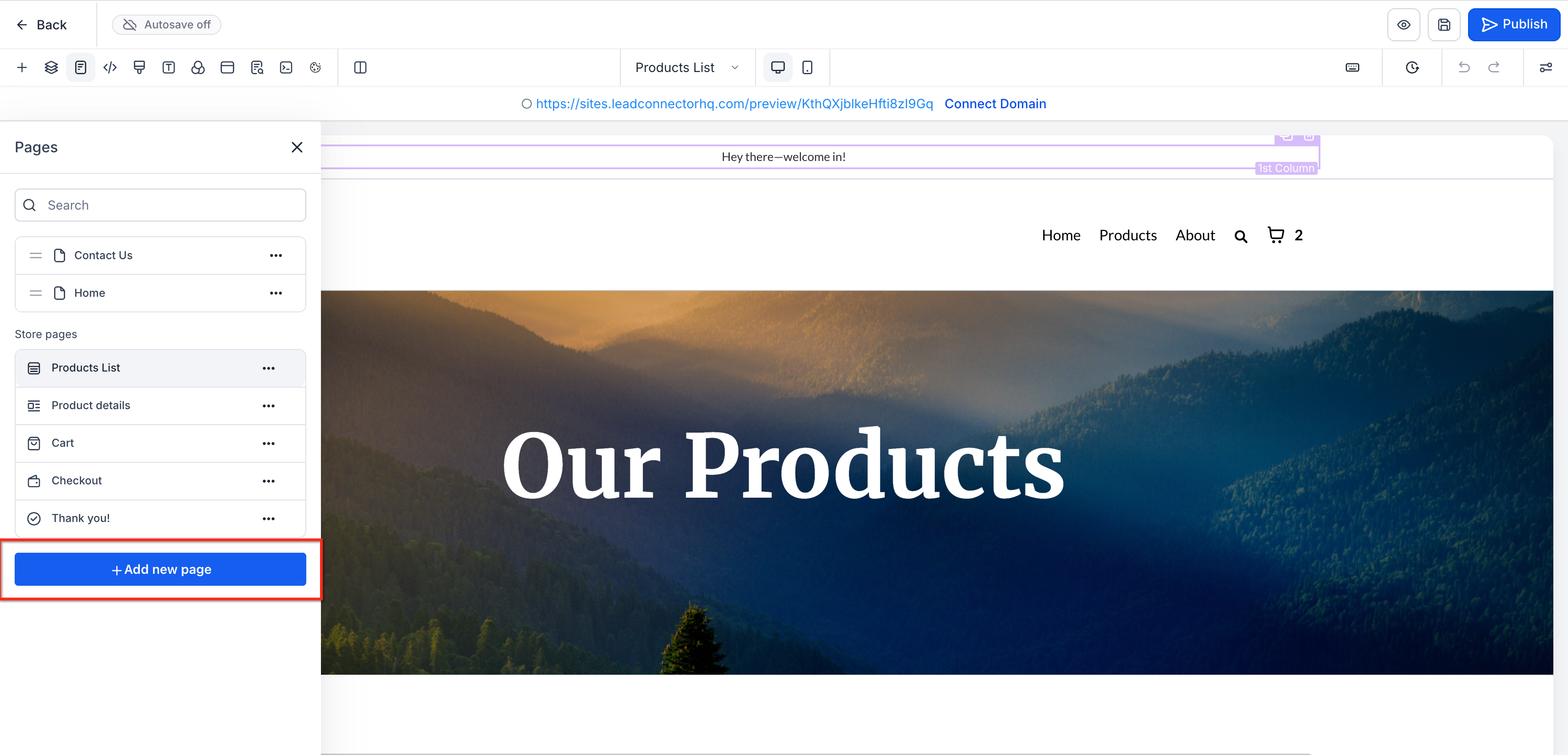
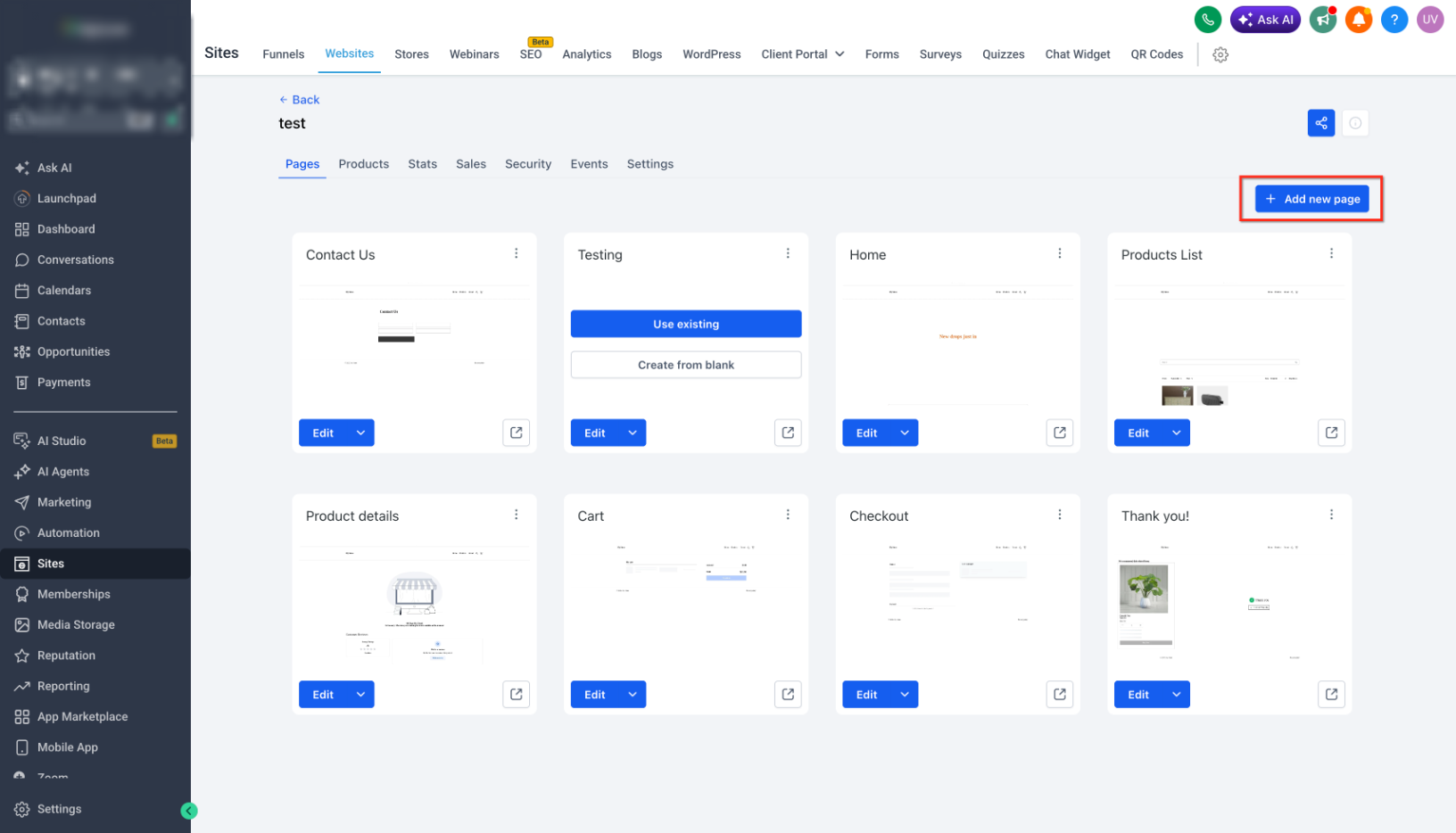
At the top or bottom of the pages list, click Add New Page. This opens a modal form so you can configure the new page without exiting the builder.
Page Name – Enter a clear, descriptive name (e.g., "Pricing", "Thank You", "Webinar Confirmation").
URL Path / Slug – Define the path visitors will use (e.g., /pricing, /thank-you). Keep it short, readable, and relevant.
If the path conflicts with an existing page in that funnel or website, adjust the path to keep URLs unique.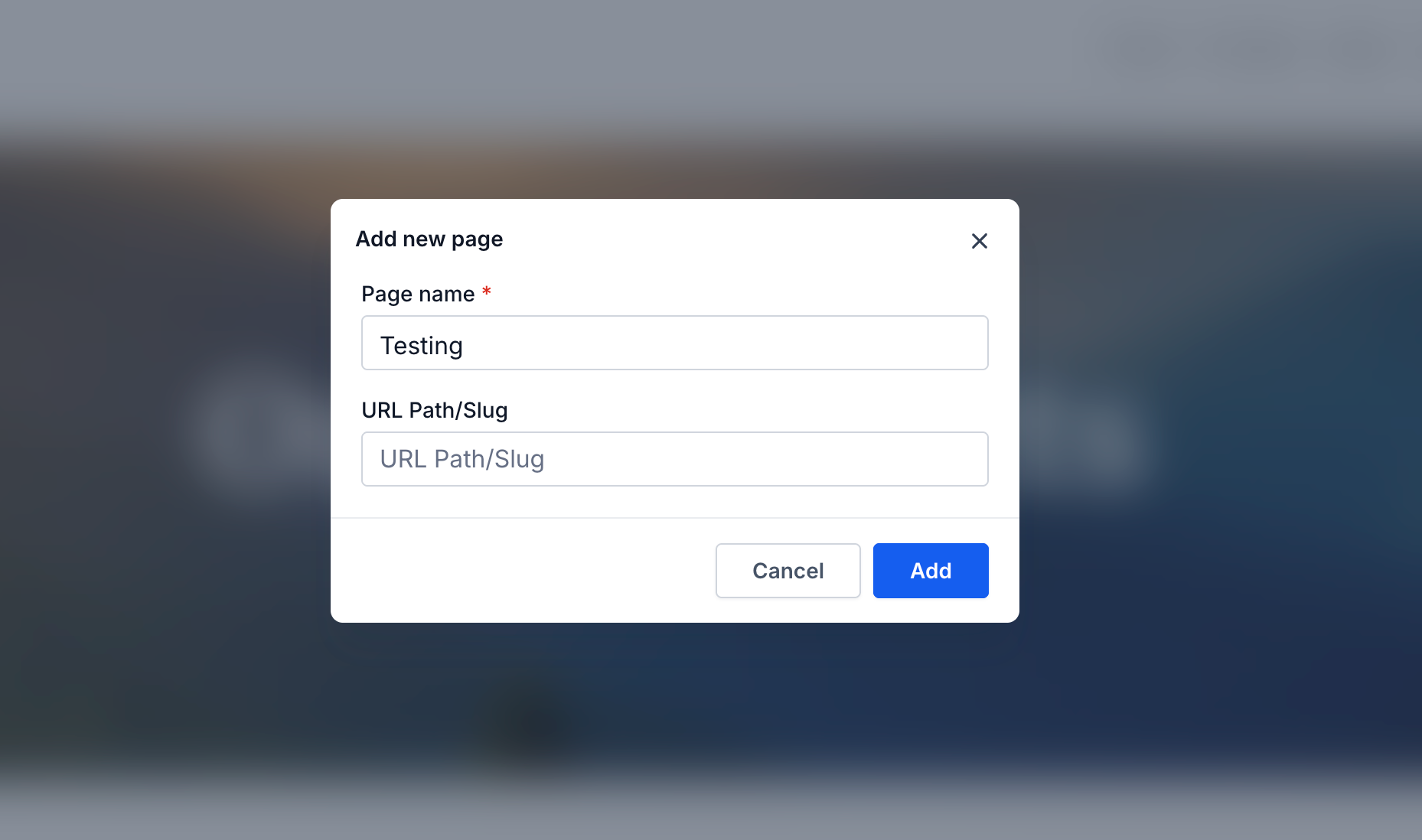
The new page appears immediately in the pages drawer list and becomes available for editing in the builder.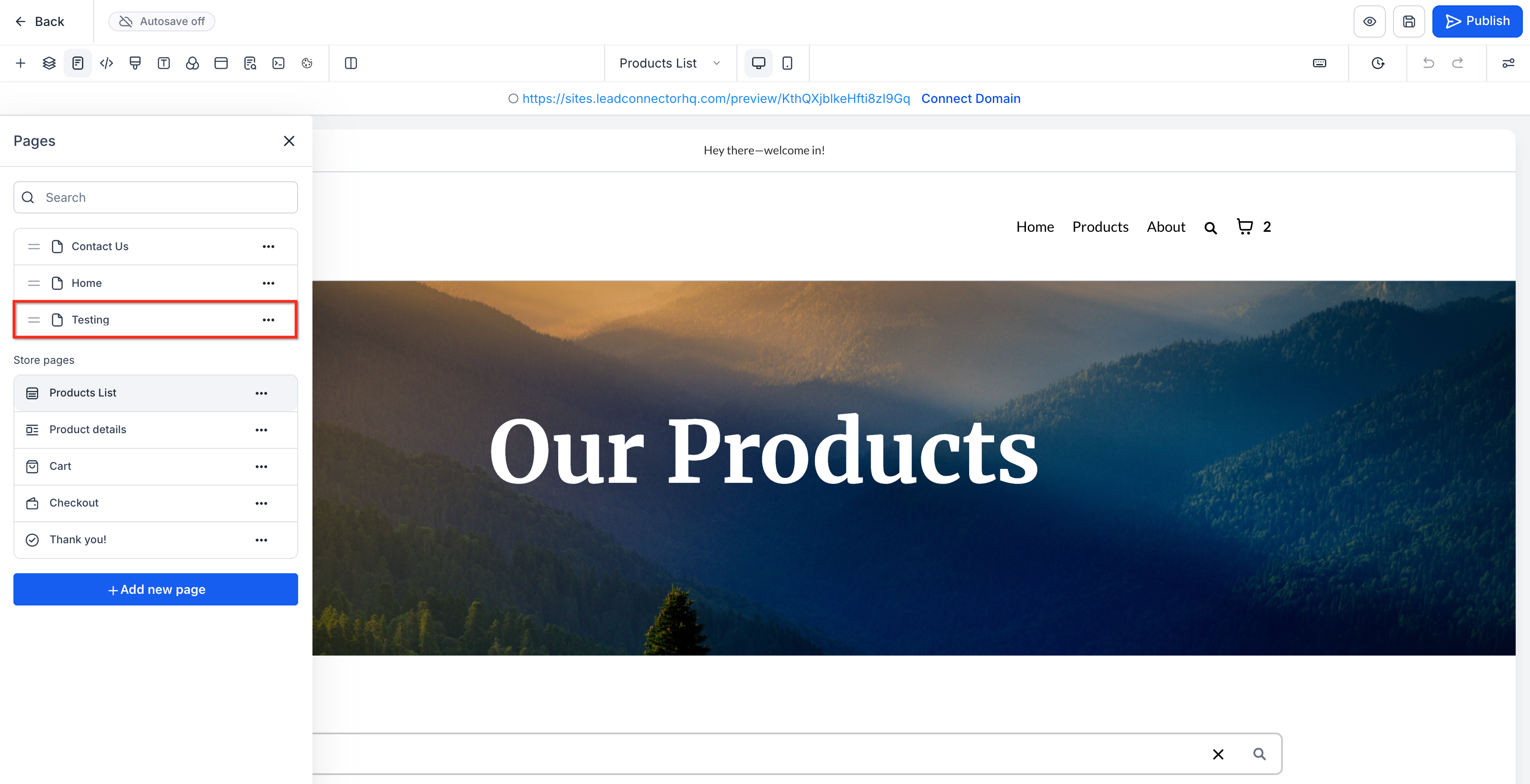
Select the new page in the drawer to switch the canvas to that page and begin adding sections, rows, and elements.
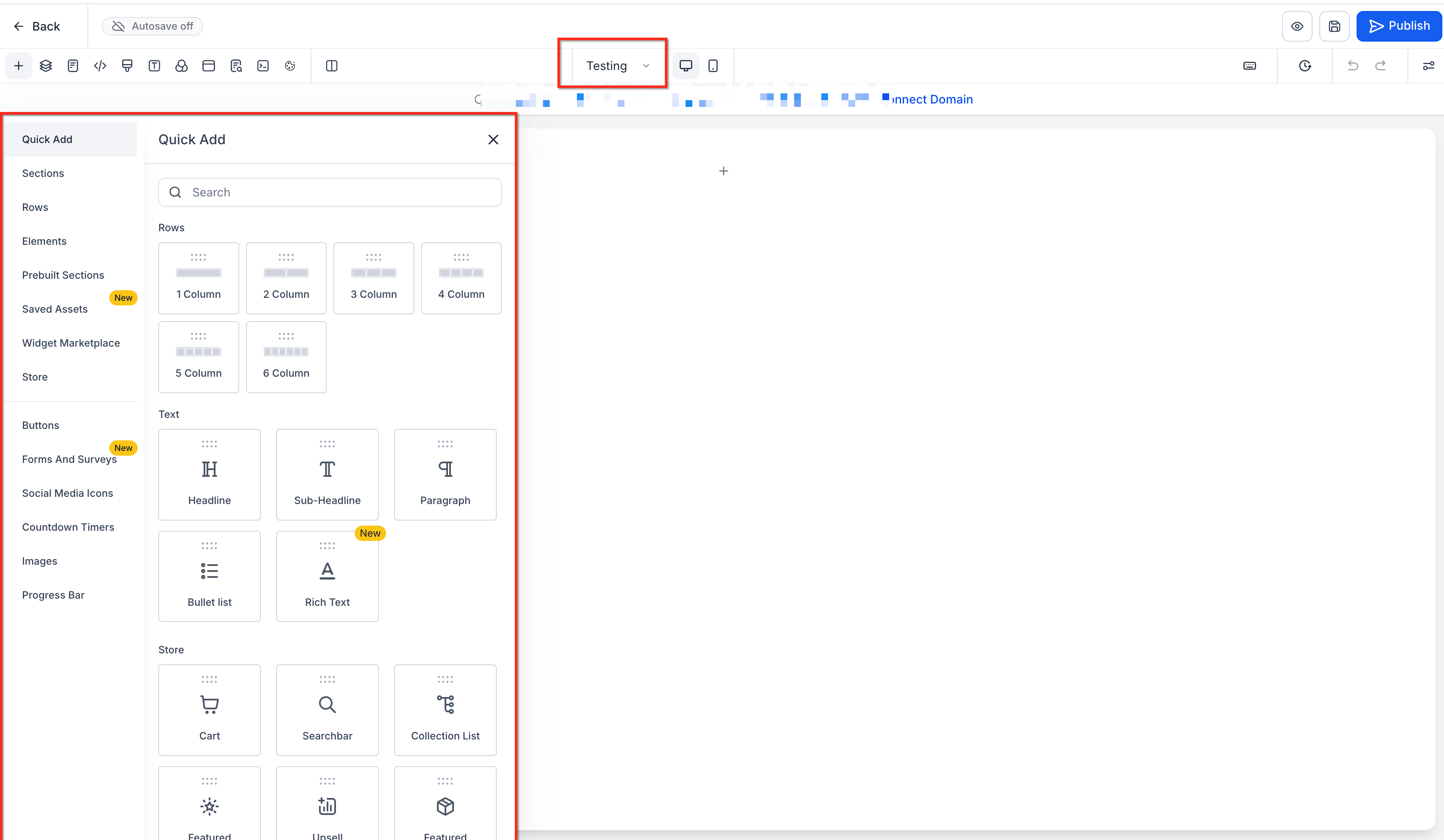
Use consistent naming across funnels and websites (e.g., "Home," "About," "Services," "Contact") so it's easier to search and manage pages later.
Page Selector Popover on Action Bar
The page selector popover lives in the secondary action bar and provides a compact, at-a-glance view of all pages. It's ideal when you want to switch pages quickly without opening the full drawer. This tool helps you keep your workspace clean—especially on smaller screens—while still giving you rapid access to navigation, landing pages, and other key steps.
In the builder's secondary action bar (usually at the top), look for the current page name or a page dropdown icon.
Click the page name or dropdown to open the page selector popover.
You'll see a list of all pages in the current funnel or website, often mirroring the order defined in your drawer.
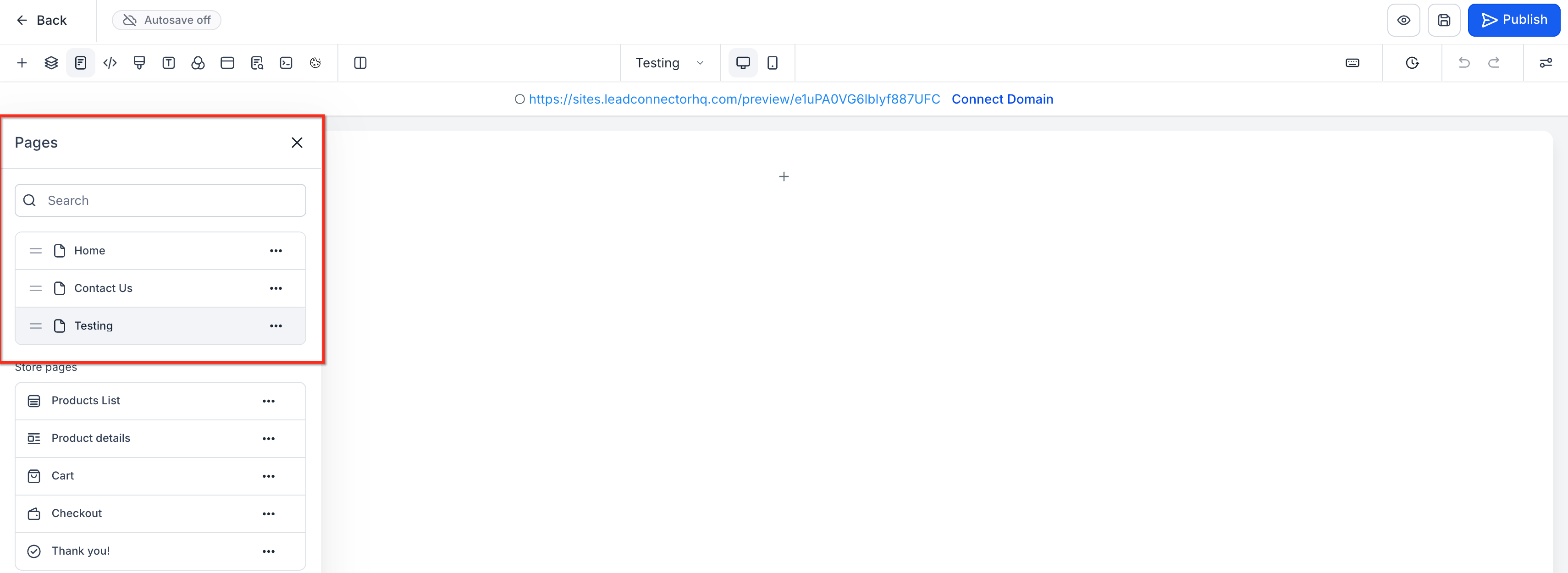
Click any page in the list to instantly switch the canvas to that page.
This is especially helpful for jumping between shared components like navigation menus or footers that appear across multiple pages.
Inside the popover, look for an inline new page form or an Add New Page option.
Enter the Page Name and URL Path directly within the popover.
Save to add the page to the funnel or website and to the list in both the popover and the pages drawer.
Click outside the popover or hit the close icon to continue designing on the selected page.
When building a three-step funnel (Opt-in → Sales → Thank You), keep the popover open so you can quickly bounce between steps as you adjust headlines, navigation labels, or universal sections.
Drag & Drop Page Reordering
Drag-and-drop page reordering lets you organize page order while working in the Page Builder. Website pages can also be reordered directly from the Pages grid without opening the builder.
- Pages drawer – Reorder pages while working in the Page Builder.
- Page selector popover – Make quick page-order adjustments while staying focused on the builder canvas.
- Website Pages grid – Reorder website page cards directly from the Pages area. The new order saves automatically when you drop the page into position, with no confirmation step.
Use whichever view you prefer for page management.
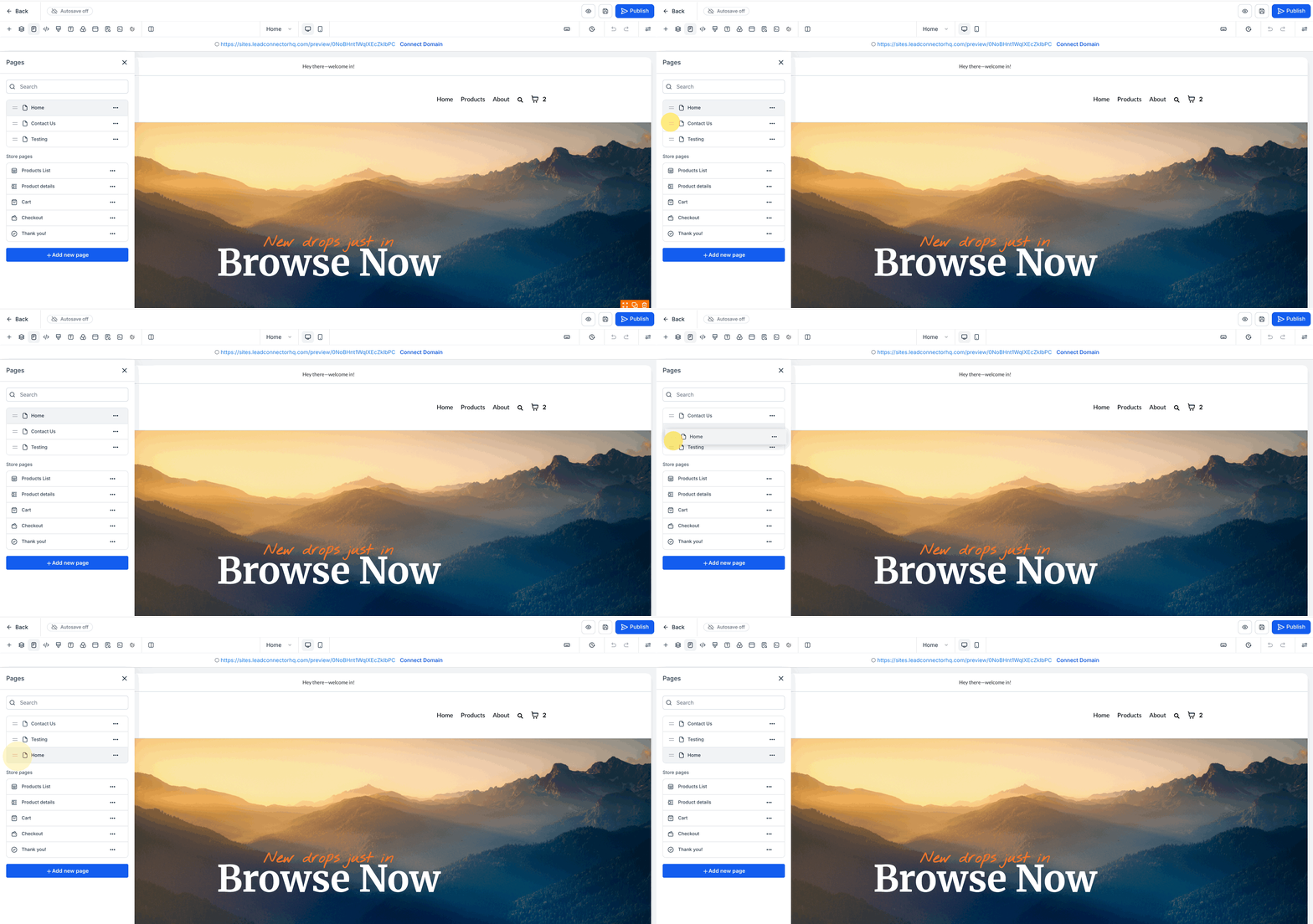
Hover over the page entry until you see a drag handle (e.g., three horizontal lines) or the cursor indicates you can drag.
Drag the page up or down the list.
Release the mouse when it's at the correct position.
When reordering from the Pages drawer or page selector popover, HighLevel may show a confirmation modal for sequences that rely on a specific order, such as webinar funnels.
Carefully review the warning and confirm only if you're sure reordering won't affect your intended flow.
If you use a Navigation Menu element that links to pages, verify that your menu still reflects the correct order and destinations after reordering.
Reordering changes page order, not URLs. The URL paths you set earlier remain the same unless you edit them separately. This helps preserve existing links and SEO while still letting you refine the visitor journey.
Search in Pages Drawer
The search bar in the pages drawer is designed for users managing large funnels or content-rich websites. It allows you to quickly locate specific pages based on name (and, in many cases, URL path), so you're not scrolling endlessly to find the one you need.
In the builder, open the Pages drawer to view the page list.
At the top of the drawer, find the Search input.
Enter part of the page name (e.g., "pricing", "webinar", "thank") or a keyword from the URL path.
The list filters in real time to show only pages that match your search query.
Click the desired page from the filtered list to switch the canvas to that page.
Clear the search field to return to the full list.
- Use clear, consistent naming when you create pages (e.g., "Webinar – Registration," "Webinar – Live Room," "Webinar – Replay").
- If you reuse funnel patterns across multiple client accounts, adopt a standard naming convention so anyone on your team can quickly find the right page.
How to Set Up New Page Creation from Page Builder
New Page Creation from Page Builder is enabled by default in the Funnels & Websites Page Builder—there's no toggle to activate. What matters most is understanding how to incorporate it into your everyday build workflow so you get the biggest efficiency gains.
Navigate to Sites → Funnels or Sites → Websites in your sub-account.
Open an existing funnel or website or create a new one, then click Edit on any step or page to launch the builder.
Decide the pages you need (e.g., Home, About, Services, Pricing, Blog, Contact or Opt-in, Sales Page, Order Form, Upsell, Thank You).
Having a clear list makes it easier to create pages in one pass.
Open the Pages drawer.
Click Add New Page and configure the Page Name and URL Path for each page in your plan.
Repeat until all required pages exist in the funnel or website.
From the pages drawer or page selector popover, drag and drop pages into the correct sequence.
Confirm any modals that appear, especially in webinar funnels, only when you're sure of the new order.
Use the page selector popover to move between pages as you:
- Reuse navigation menus that link to multiple pages.
- Maintain consistent branding (colors, fonts, sections).
- Apply universal or global sections across pages (e.g., header, footer).
For big projects (membership funnels, webinar ecosystems, large websites), rely on the search bar in the pages drawer to jump straight to the page you need instead of scrolling.
After designing, preview key journeys (e.g., from opt-in to thank you) and verify:
- Navigation menus route to the correct pages.
- Page order aligns with your conversion path.
- URLs and internal links (buttons, menus, QR codes) point to the correct destinations.
Related Articles
- Navigation Menus in the HighLevel Funnel Builder
- Image Slider Element for Engaging Web Design
- Drag and Drop with Auto-Hierarchical Layout in Funnel & Website Builder
- How to Use the Color Picker for Funnels and Websites
- How to Use the QR Code Element in HighLevel Builder
- Converting Funnels and Websites with the New Import Feature 9
Frequently Asked Questions
Was this article helpful?
That’s Great!
Thank you for your feedback
Sorry! We couldn't be helpful
Thank you for your feedback
Feedback sent
We appreciate your effort and will try to fix the article