Border Control in the Page Builder gives you more flexibility when styling supported elements in Funnels and Websites. You can adjust border width by side, customize corner radius values and choose from various border styles.
TABLE OF CONTENTS
What is Border Control in Page Builder?
Border Control lets you customize how borders appear on supported Page Builder elements from one centralized panel. This includes commonly used elements like buttons, images, and videos.
You can adjust border style, color, side-specific width, and corner radius to create anything from subtle accents to more defined visual frames. This makes it easier to build polished, consistent designs without relying on manual workarounds.
Key Benefits of Border Control in Page Builder
More Precise Customization: Adjust border settings with greater control to match the exact look you want for each element.
Independent Side Styling: Set different border widths on each side to create accents, dividers, or more custom framing effects.
Custom Corner Shaping: Apply different corner radius values to create softer layouts or more distinctive shapes.
More Visual Variety: Use additional border styles like double, groove, ridge, inset, and outset to add depth and design variation.
Border Settings Options
The border panel brings the most important border controls into one place, so you can style supported elements faster and with fewer manual workarounds. Understanding what each setting changes visually makes it easier to build the exact shape or framing effect you want.
Border Control is available for supported Page Builder elements, including Button, Image
Video Note: Supported elements can vary by builder context and feature rollout.
Border Style: Changes the visual appearance of the border.
Border Color: Sets the color used for the border.
Border Sides: Lets you apply one width value to all sides or unlink the values to control the top, right, bottom, and left borders separately.
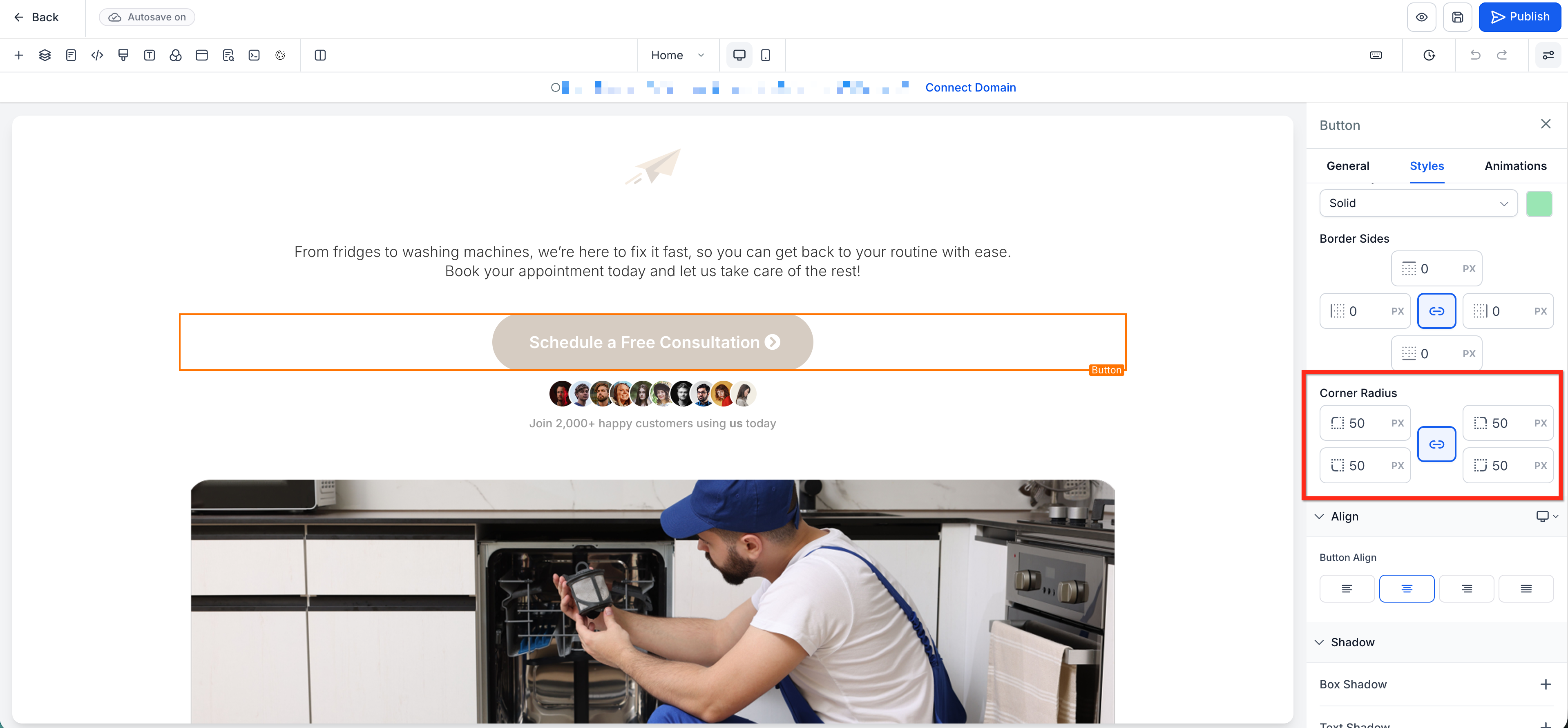
Corner Radius: Adjust the roundness of corners with one shared value or unlink the values to round each corner independently.
How To Setup Border Control in Page Builder
From within a Funnel or Website in Page Builder, select a supported element (for example, a Button, Image, or Video element).
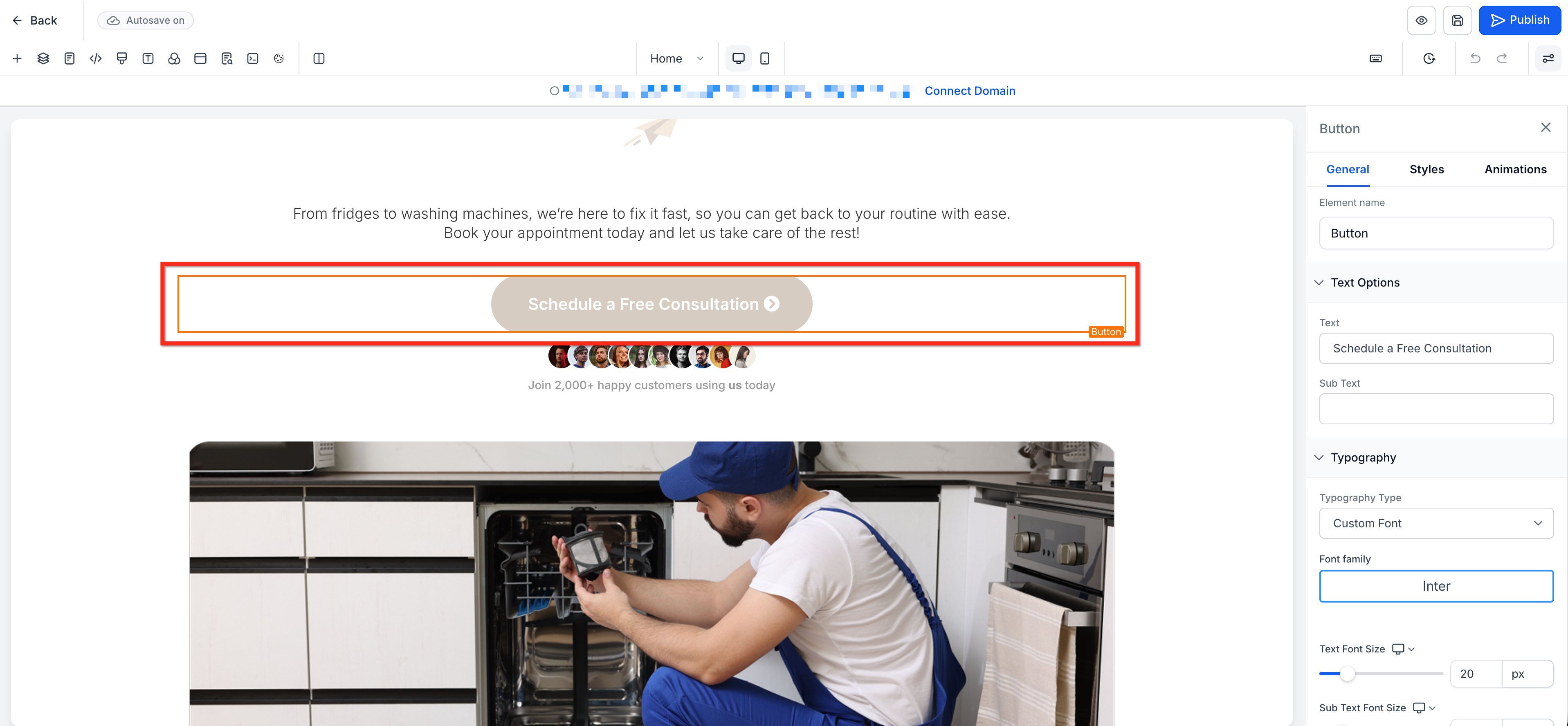
In the right-hand sidebar, open the Styles tab then scroll to the Border panel.
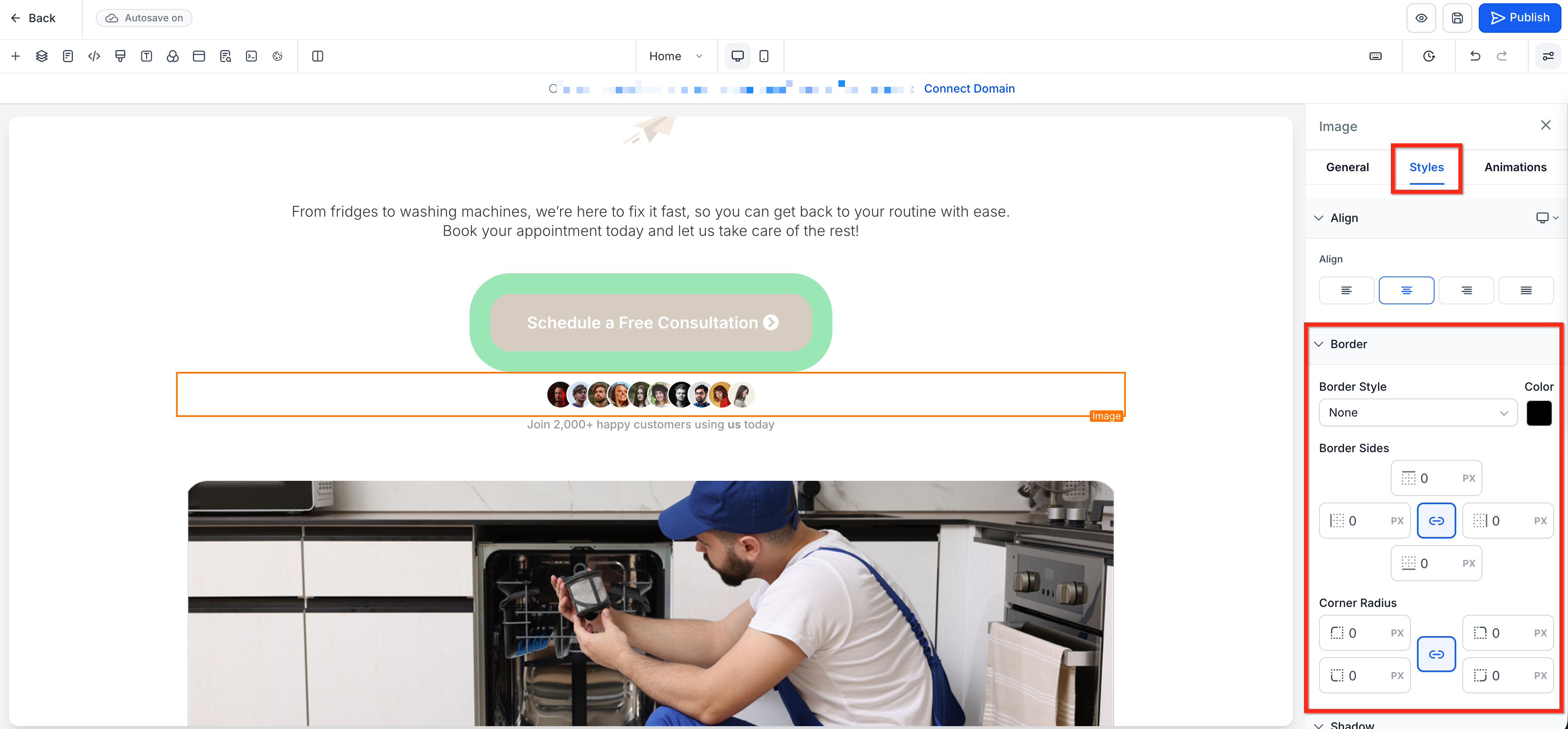
Select a Border Style and Border Color.
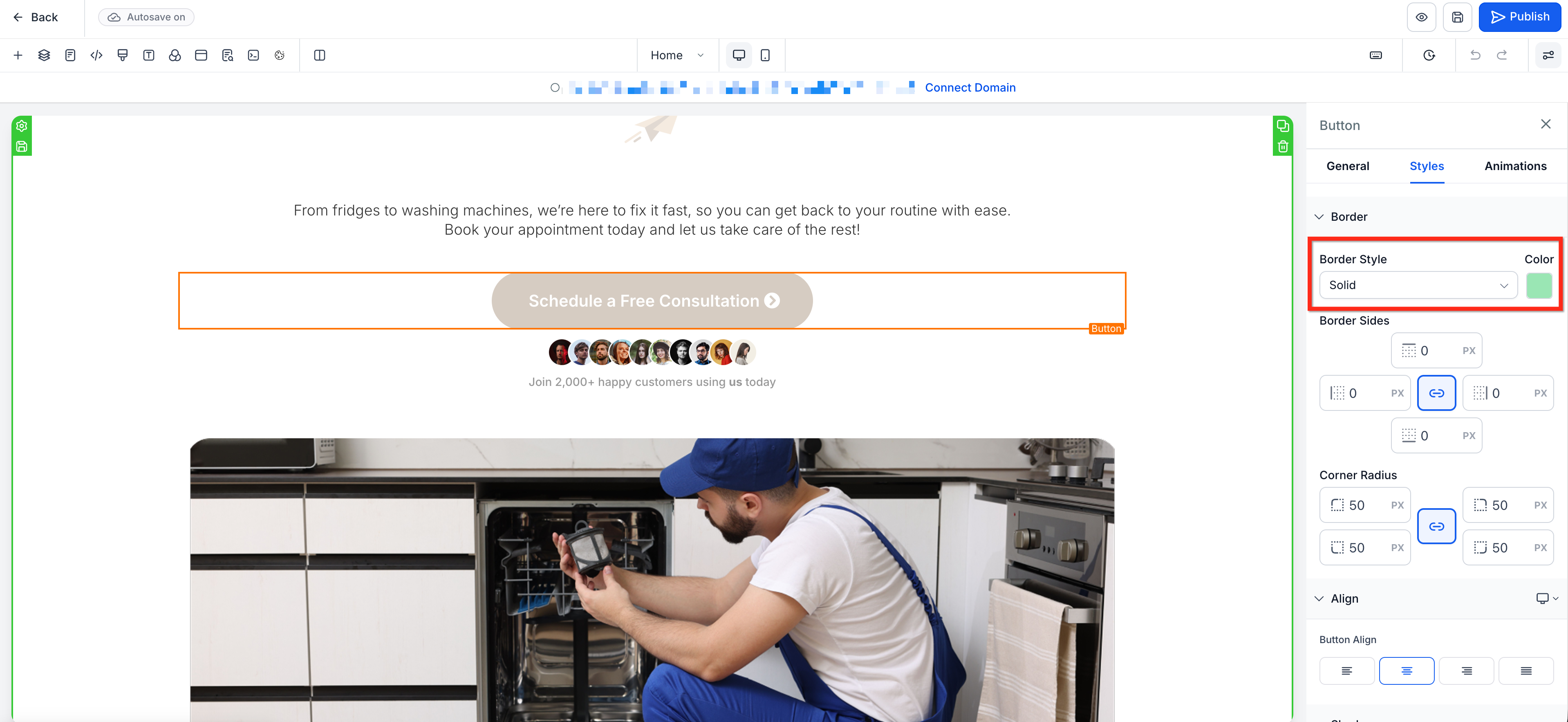
Set your Border Sides values. Leave the values linked to use the same width on all sides or unlink them to set each side individually.
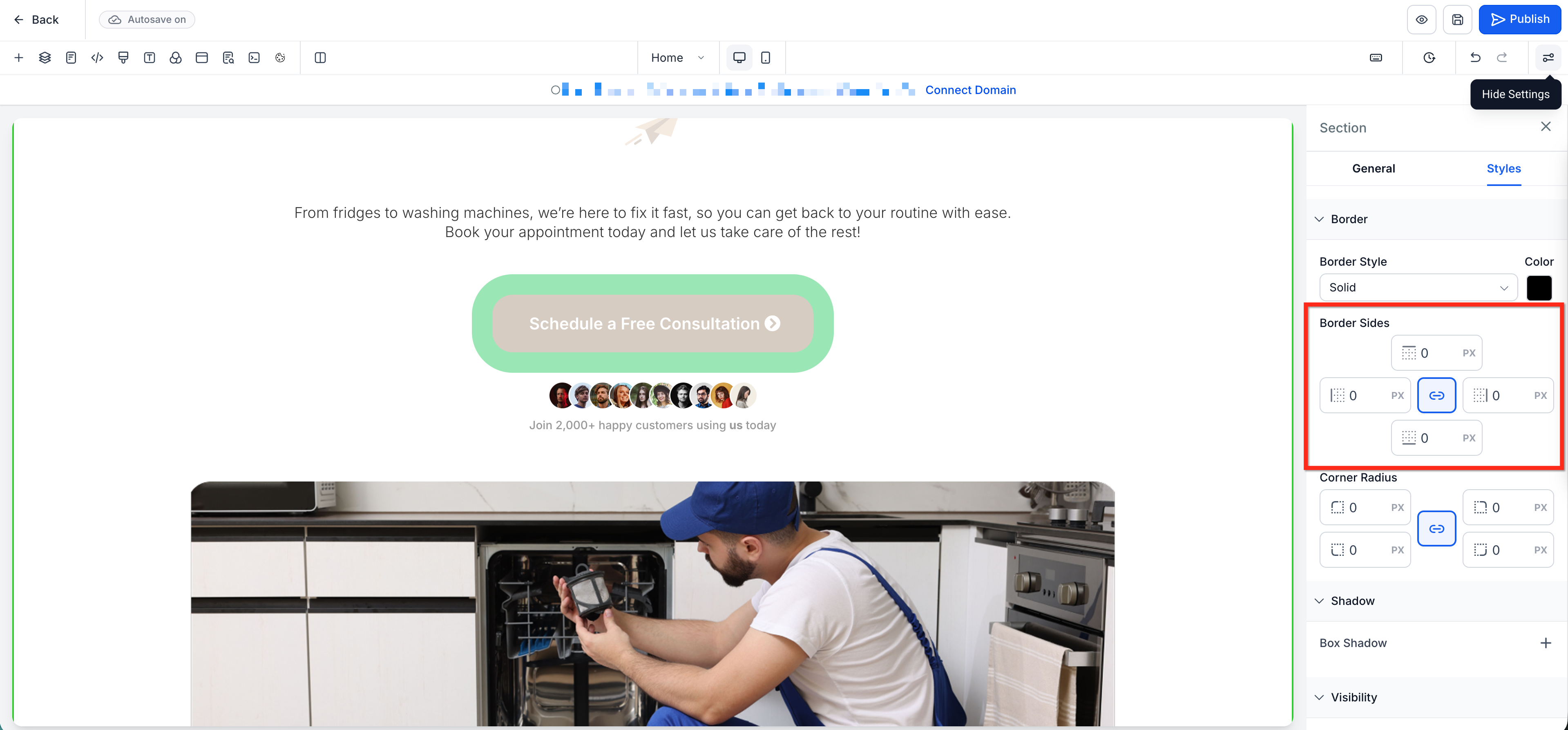
Set your Corner Radius values. Leave the values linked to round all corners equally or unlink them to round each corner independently.
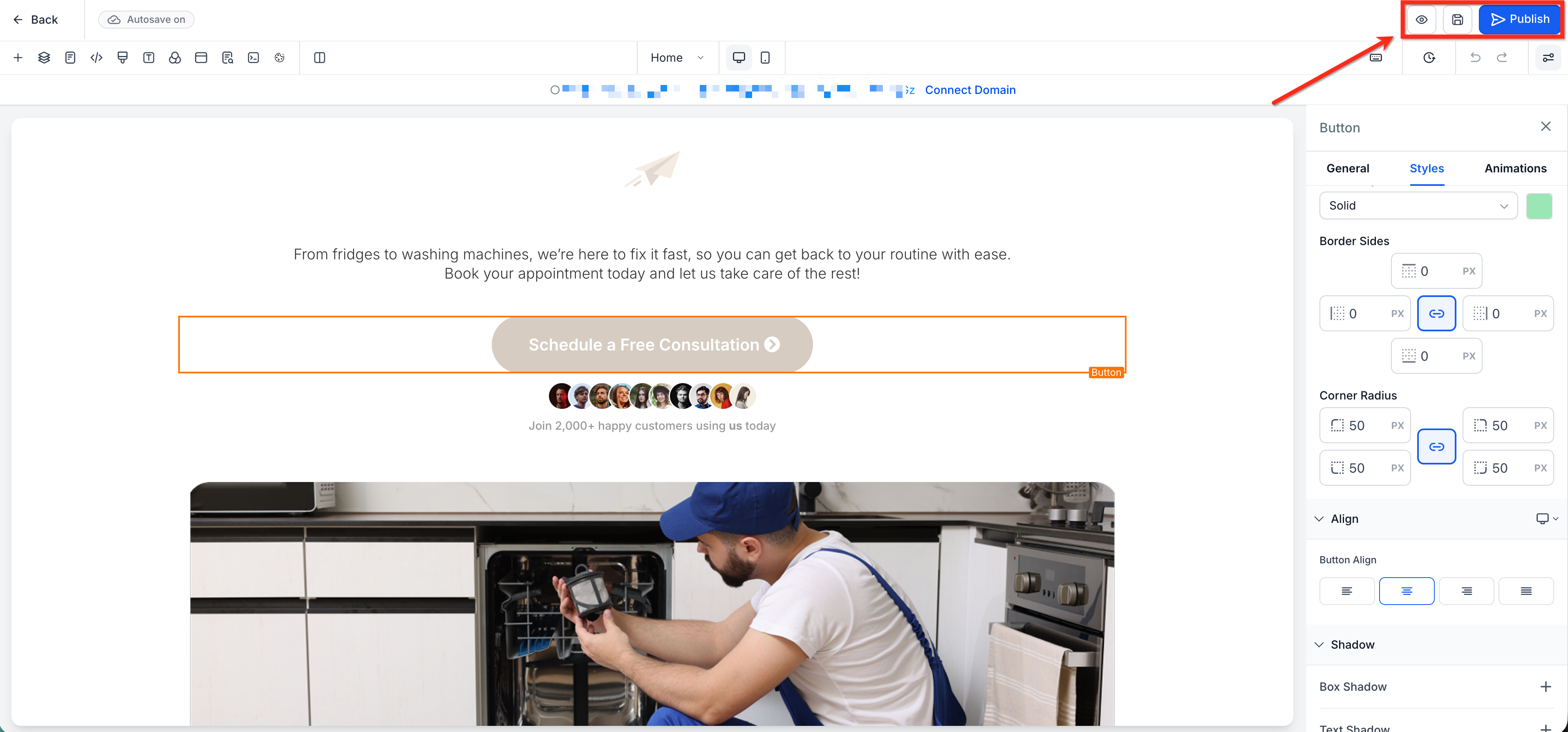
Preview the element in the canvas and fine-tune the values as needed. Save and Publish your changes when you are ready.
Frequently Asked Questions
Q: Can I edit each side of the border separately?
Yes. Use the link icon in Border Sides to switch from one shared value to individual values for each side.
Q: Will this affect my existing pages?
No. Existing pages that use older border settings continue to work normally.
Q: Is Border Control available in both Funnels and Websites?
Border Control is available across Funnels and Websites.
Q: Can I edit each corner radius separately?
Yes. Use the link icon in Corner Radius to unlink the values and customize each corner independently.
Related Articles
Was this article helpful?
That’s Great!
Thank you for your feedback
Sorry! We couldn't be helpful
Thank you for your feedback
Feedback sent
We appreciate your effort and will try to fix the article