The HighLevel Client Portal allows clients to securely upload documents directly to their contact record in the CRM. This simplifies file sharing, keeps documents organized, and enables businesses to manage client-submitted files from a centralized location. This article explains how clients can upload documents through the Client Portal and lists the supported file types.
TABLE OF CONTENTS
- What Is Document Upload in the Client Portal?
- Supported File Types
- Key Benefits Of Uploading Documents
- How to Upload Documents
- Step 1: Enable Client Portal Access
- Step 2: Share the Client Portal
- Step 3: Upload a Document
- Step 4: View Uploaded Documents
- Frequently Asked Questions
- Related Articles
What Is Document Upload in the Client Portal?
The Client Portal includes an Upload Document feature that enables clients to submit files directly from their portal.
Once a document is uploaded:
- It is associated with the client's contact record.
- CRM users can view, download, and manage the document.
- The uploaded file is stored under Contacts → Documents → Received → Client Portal.
Note: The Client Portal supports document uploads only. Video files cannot be uploaded through the Client Portal.
Supported File Types
Clients can upload the following document and image file formats:
Documents
- PDF (.pdf)
- Microsoft Word (.doc, .docx)
- Microsoft Excel (.xls, .xlsx)
- Microsoft PowerPoint (.ppt, .pptx)
- Plain Text (.txt)
- Rich Text Format (.rtf)
Images
- JPEG (.jpg, .jpeg)
- PNG (.png)
- GIF (.gif)
Note: Video file formats such as .mp4, .mov, .avi, .mkv, and .wmv are not supported for uploads through the Client Portal.
Key Benefits Of Uploading Documents
Uploading documents through the Client Portal allows you to:
- Securely collect documents from clients.
- Keep client files organized within their CRM record.
- Eliminate the need for email attachments.
- Enable faster collaboration between businesses and clients.
- Manage uploaded documents from a single location.
How to Upload Documents
Step 1: Enable Client Portal Access
Grant the contact access to the Client Portal.
Step 2: Share the Client Portal
Invite your client to access their Client Portal.
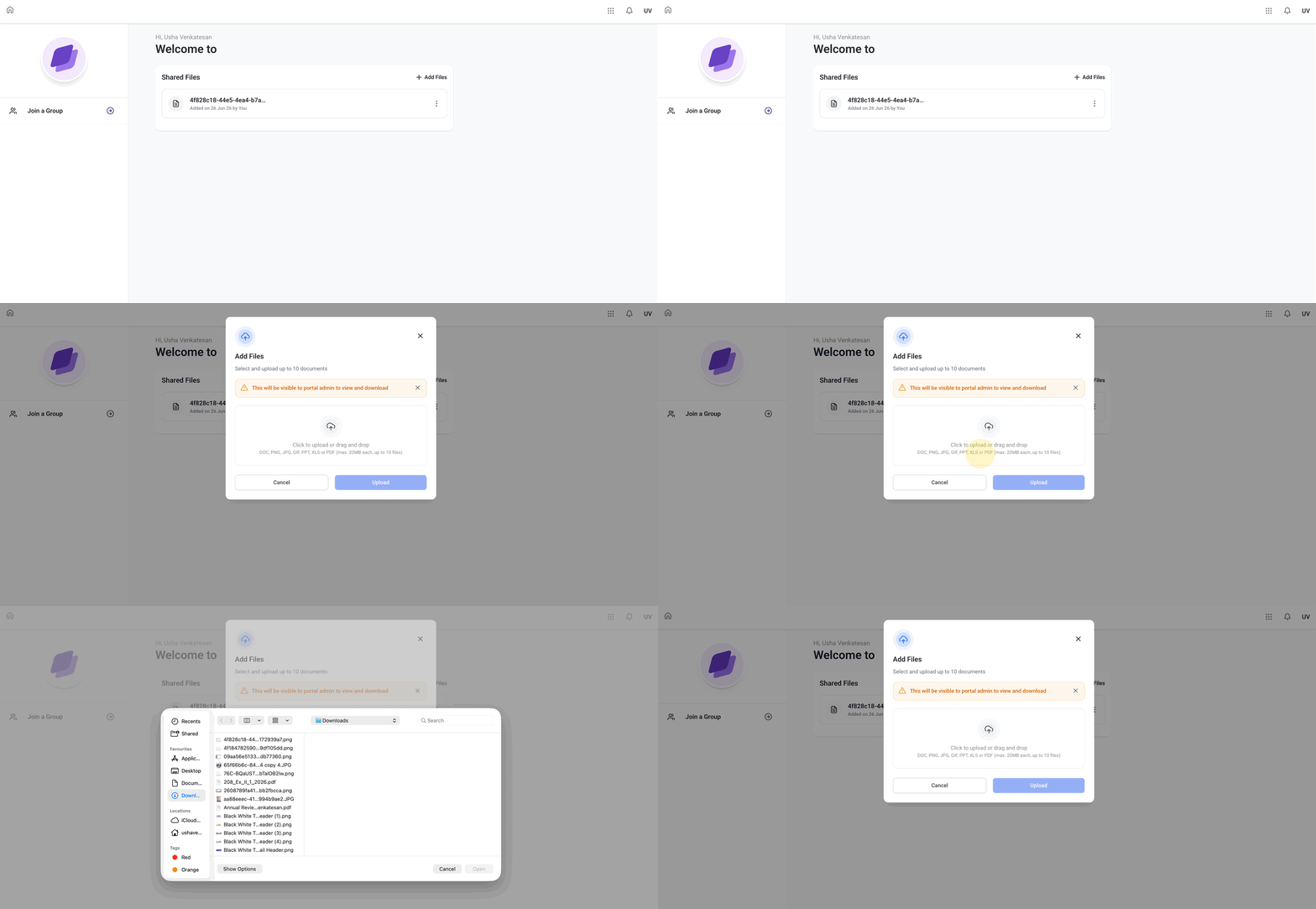
Step 3: Upload a Document
- Log in to the Client Portal.
- Navigate to the Documents section.
- Click Upload Document.
- Select a supported document or image file from your device.
- Wait for the upload to complete.
CRM users can access uploaded documents by navigating to:
Contacts → Select Contact → Documents → Received → Client Portal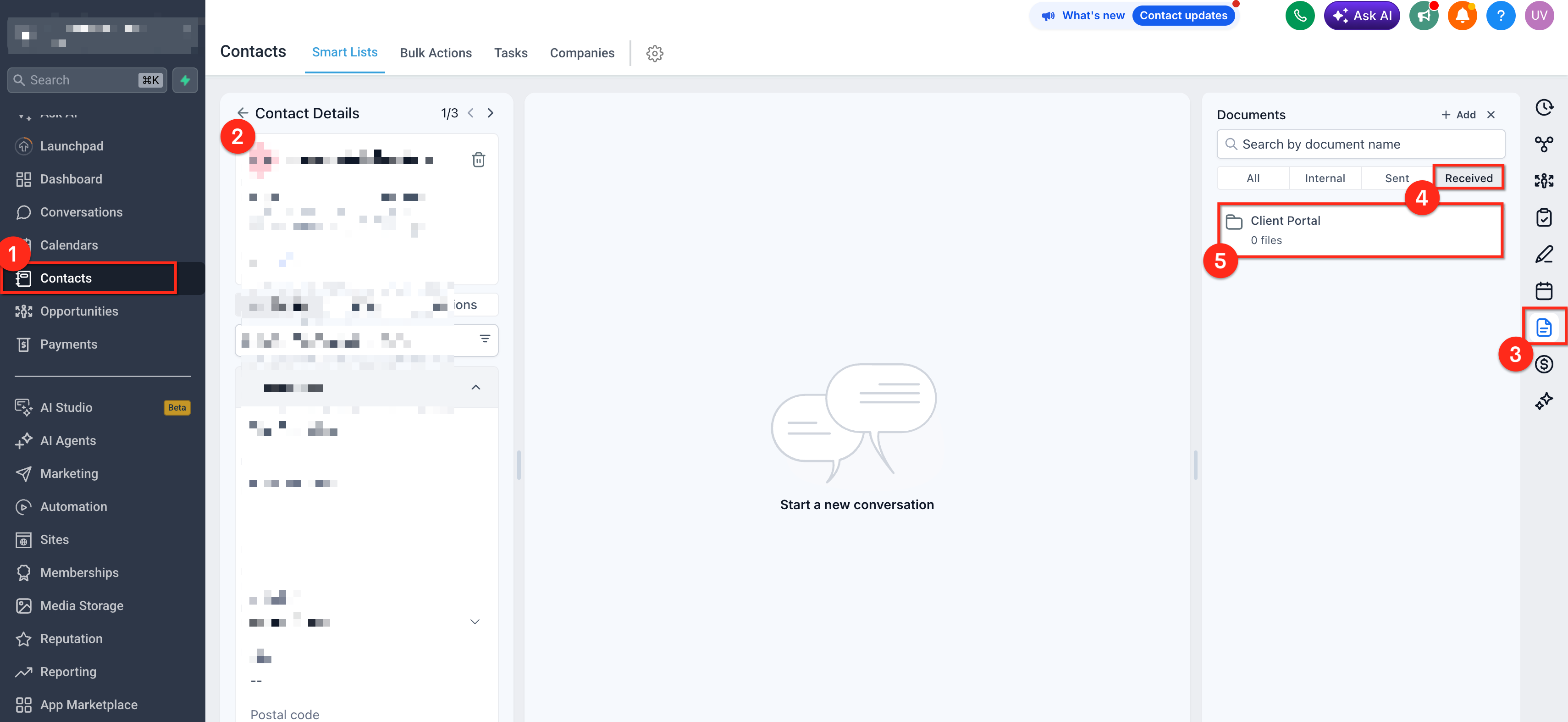
Frequently Asked Questions
Q. Can clients upload documents through the Client Portal?
A. Yes. Clients can upload supported document and image files using the Upload Document feature.
Q. Can clients upload video files?
A. No. The Client Portal currently supports document and image uploads only. Video file formats are not supported.
Q. Can clients delete uploaded documents?
A. Depending on their portal permissions, clients may be able to manage or remove documents they have uploaded.
Q. Why can't I upload my file?
A. Verify that:
- The file is in a supported format.
- The file is not corrupted.
- The upload has completed successfully.
- Your internet connection is stable.
Related Articles
Was this article helpful?
That’s Great!
Thank you for your feedback
Sorry! We couldn't be helpful
Thank you for your feedback
Feedback sent
We appreciate your effort and will try to fix the article