HighLevel now allows Community Admins and Group Owners to control whether new members are required to complete their profile before entering a group.
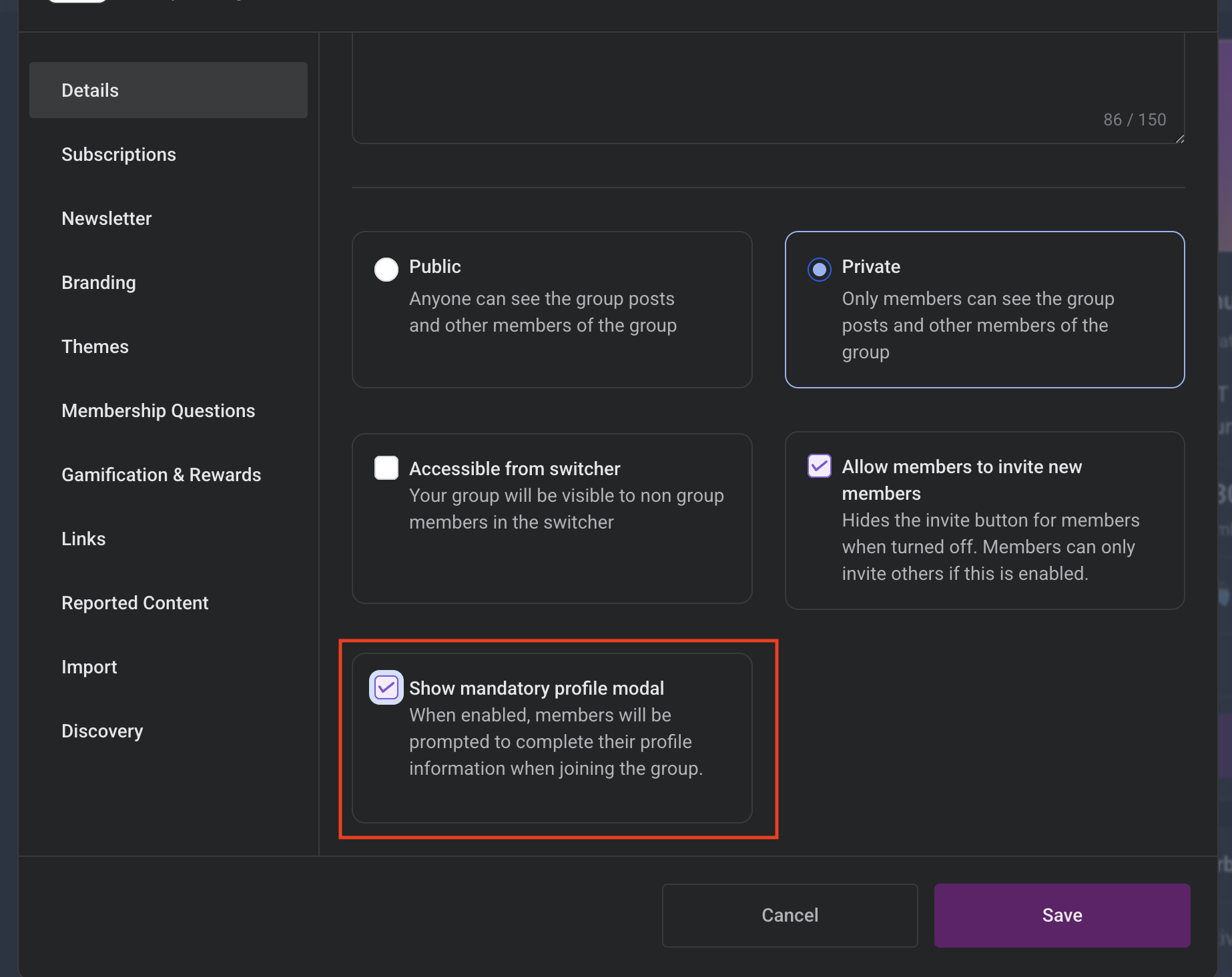
Using the new Show mandatory profile modal setting, you can choose whether members must upload a profile picture and bio during onboarding or allow them to access the group immediately.
TABLE OF CONTENTS
- What Is the Mandatory Profile Modal?
- Enable or Disable the Mandatory Profile Modal
- Important Notes
- Frequently Asked Questions
- Related Articles
What Is the Mandatory Profile Modal?
The mandatory profile modal appears when a new member joins a Community group for the first time.
The modal prompts the member to:
- Upload a profile picture
- Add a short bio
When enabled, members must complete or interact with this step before entering the group.
Enable or Disable the Mandatory Profile Modal
You can control this setting individually for each Community group.
To manage the setting:
- Open the desired Community group
- Click Settings
- Navigate to the Configuration or General section
- Locate the Show mandatory profile modal setting
- Choose one of the following:
- ON — Requires new members to upload a profile picture and bio
- OFF — Allows members to skip the profile modal and enter immediately
- ON — Requires new members to upload a profile picture and bio
- Save your changes
- This setting only affects members who join after the change is made.
Important Notes
- The setting is managed per group, not globally
- Existing member profiles are not affected
- Members can still update their profile picture and bio later from their personal settings
- The setting applies across web, iOS, and Android experiences
Frequently Asked Questions
Q: Does disabling the modal remove profile pictures for existing members?
No. Existing member profiles and avatars remain unchanged.
Q: Can members still upload a profile picture later?
Yes. Members can update their profile information anytime from their account settings.
Q: Is this setting applied globally across all communities?
No. The setting is configured individually for each group.
Q: Does this affect the mobile app?
Yes. The setting applies consistently across web, iOS, and Android.
Q: Who can manage this setting?
Only Community Admins and Group Owners can enable or disable the setting.
Related Articles
- How to Setup, Customize, and Manage Your Communities
- Manage Members Inside Groups
- Communities – Change Your Group Theme
Was this article helpful?
That’s Great!
Thank you for your feedback
Sorry! We couldn't be helpful
Thank you for your feedback
Feedback sent
We appreciate your effort and will try to fix the article