Global Tax Compliance for Reselling Products
In this article, we will discuss Global Tax Compliance for reselling products: what it is, how to set it up, and what to keep in mind to ensure accurate tax collection across your sub-accounts.
Overview
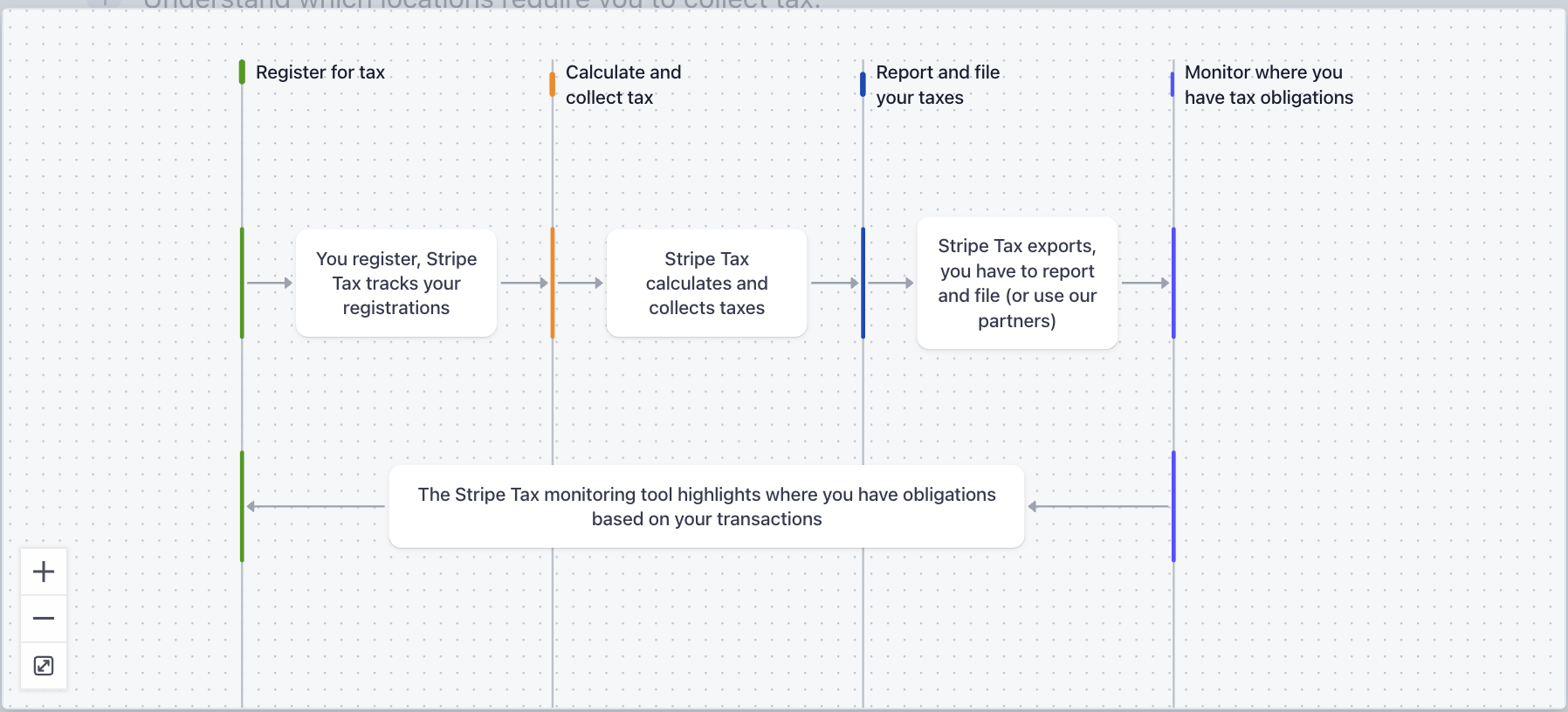
Tax Compliance is a HighLevel feature that allows agencies to manage sales tax collection and reporting across multiple jurisdictions. It is powered by Stripe Tax and supports 100+ countries, US state-level registrations, and Canadian province-level registrations.
With this feature, you can:
- Collect taxes from sub-accounts on wallet recharges or based on actual monthly usage
- Manage tax registrations and product tax codes directly from your HighLevel dashboard
- Generate and download tax invoices per sub-account and jurisdiction
- Sell internationally across multiple tax jurisdictions
Before You Begin: Key Requirements
Please review the following before configuring Tax Compliance:
1. All sub-accounts must have a valid billing address
Tax jurisdiction matching depends entirely on the sub-account's billing address, including a valid zip code. If a sub-account does not have a valid address on file, the system cannot determine which tax rules apply and taxes will not be collected. Make sure all relevant sub-accounts have this configured before enabling tax collection.
2. You must have a connected Stripe account
Tax Compliance uses Stripe Tax for all tax registration, calculation, and reporting. Your agency's Stripe connected account is required for all tax operations.
3. Jurisdictions must be registered in Stripe Tax first
Before configuring tax collection for a jurisdiction in HighLevel, you must complete the registration for that jurisdiction in Stripe. HighLevel will then sync and display your registered jurisdictions automatically.
4. Stripe Tax may have additional charges
Enabling Automatic collection mode uses Stripe Tax for calculations. Depending on your Stripe plan, Stripe Tax may apply additional per-transaction fees. Review your Stripe plan before enabling automatic mode.
Setup Walkthrough
Go to Agency Settings
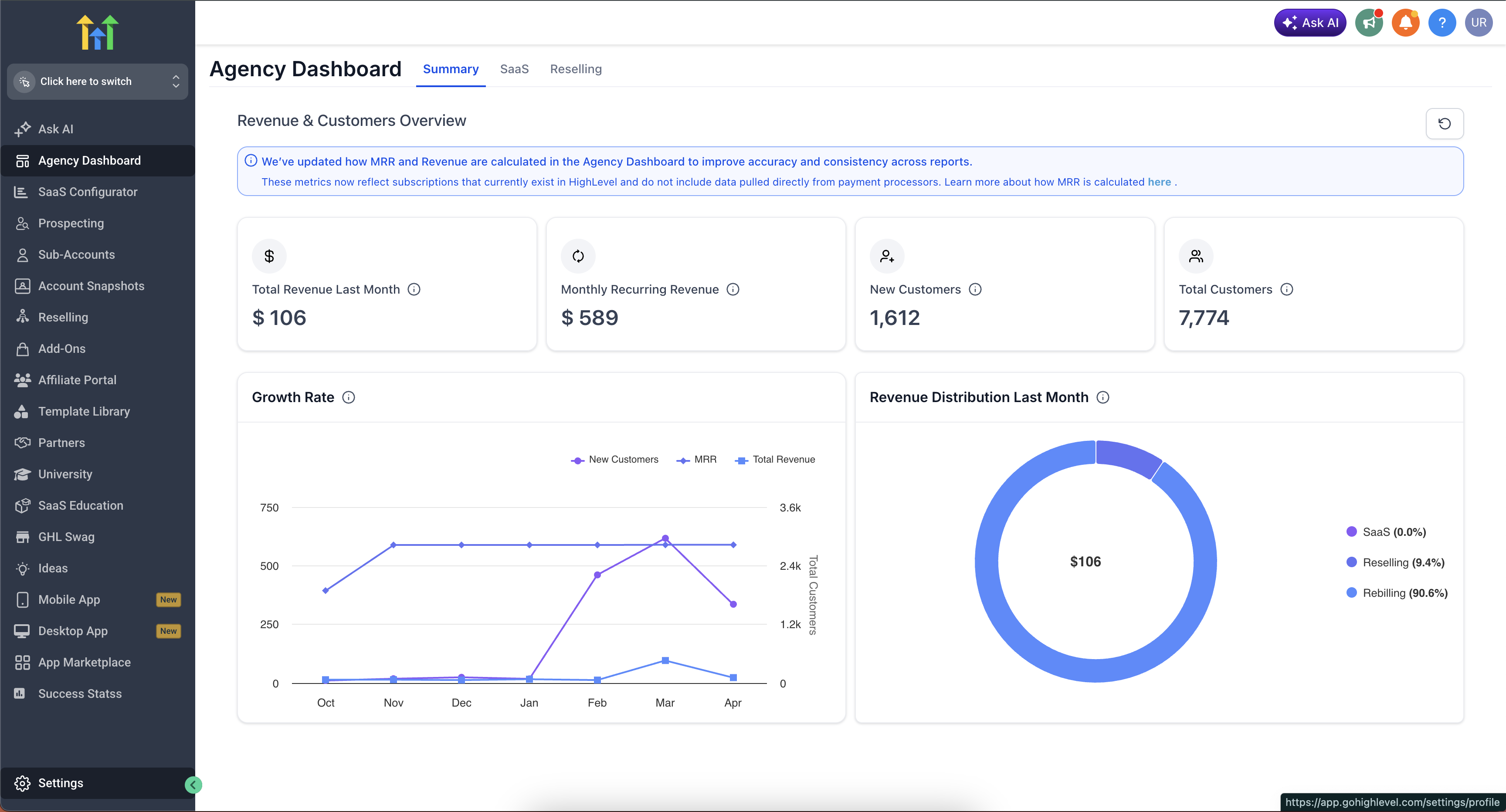
Go to Settings > Stripe
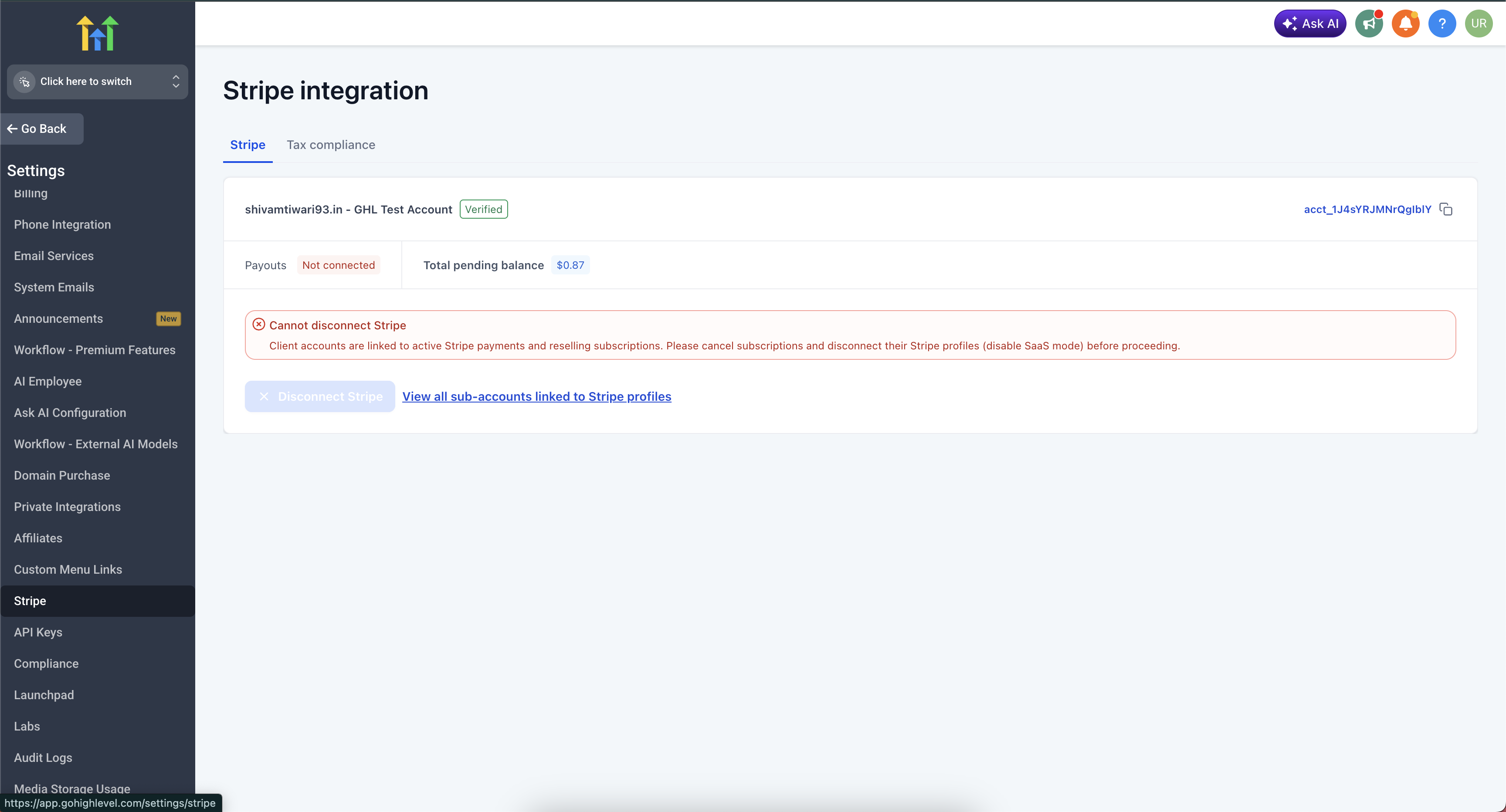
Go to Settings > Stripe > Tax Compliance
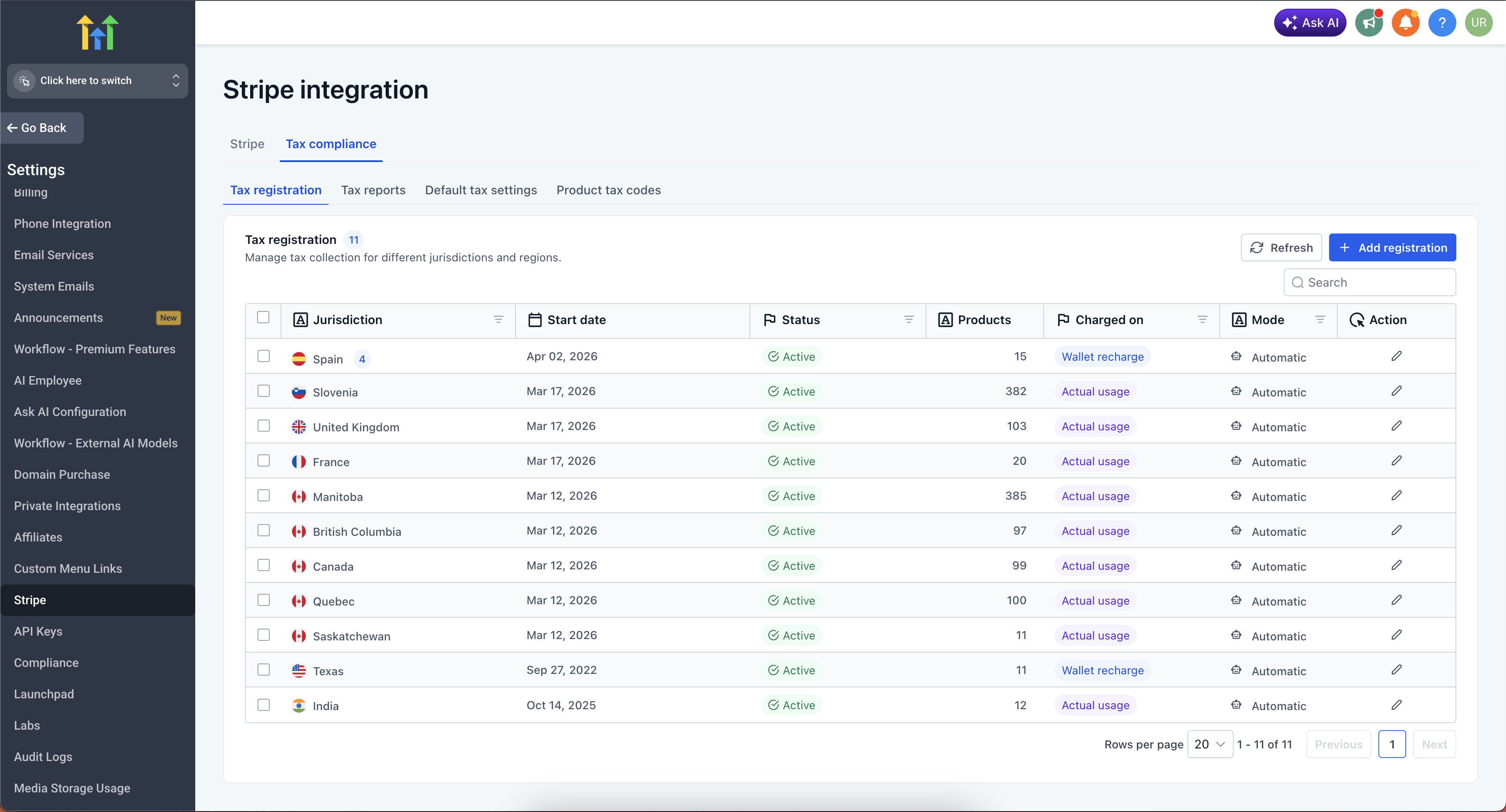
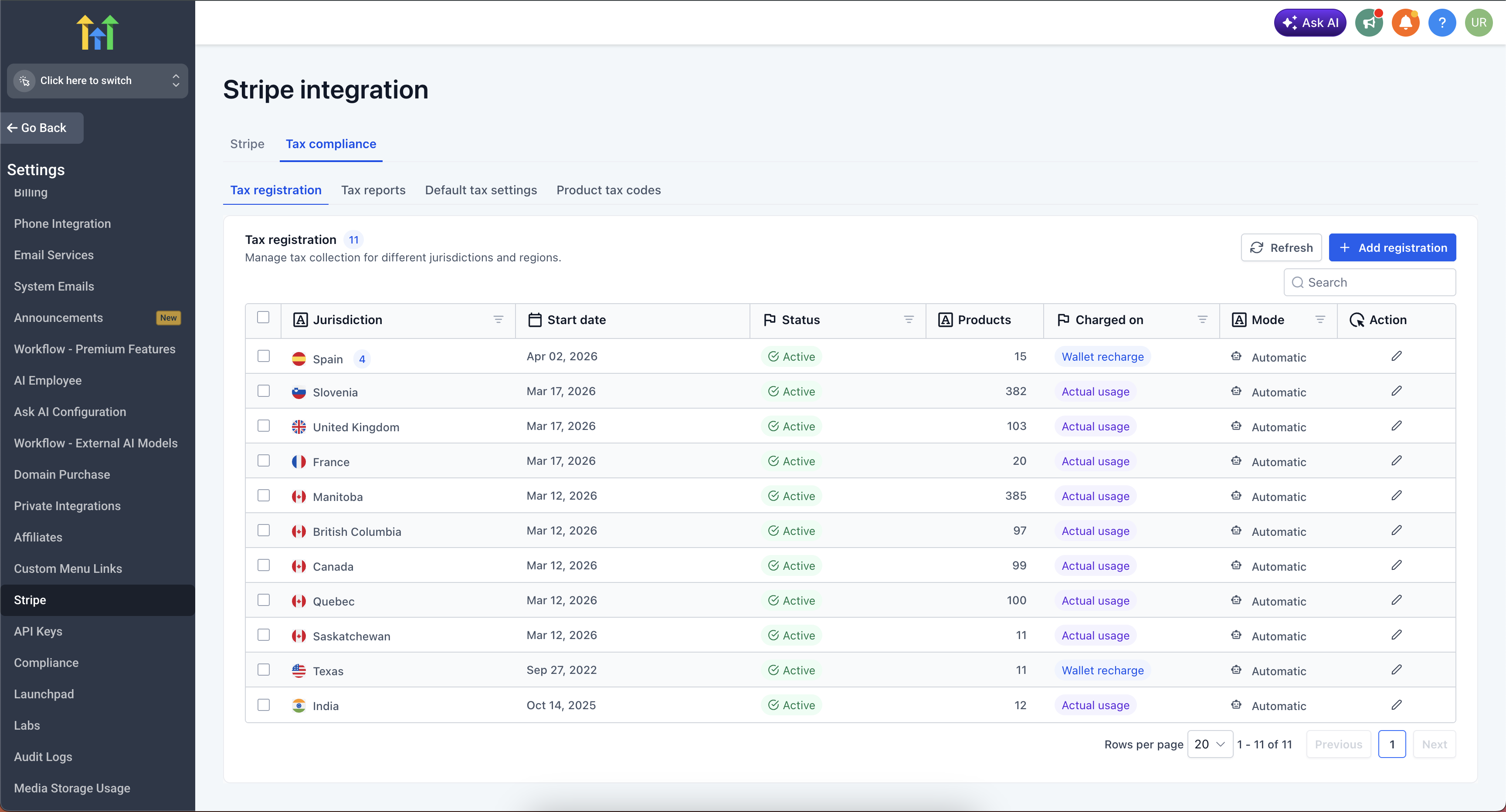
Select Configure Tax for the jurisdiction you want to start collecting taxes from
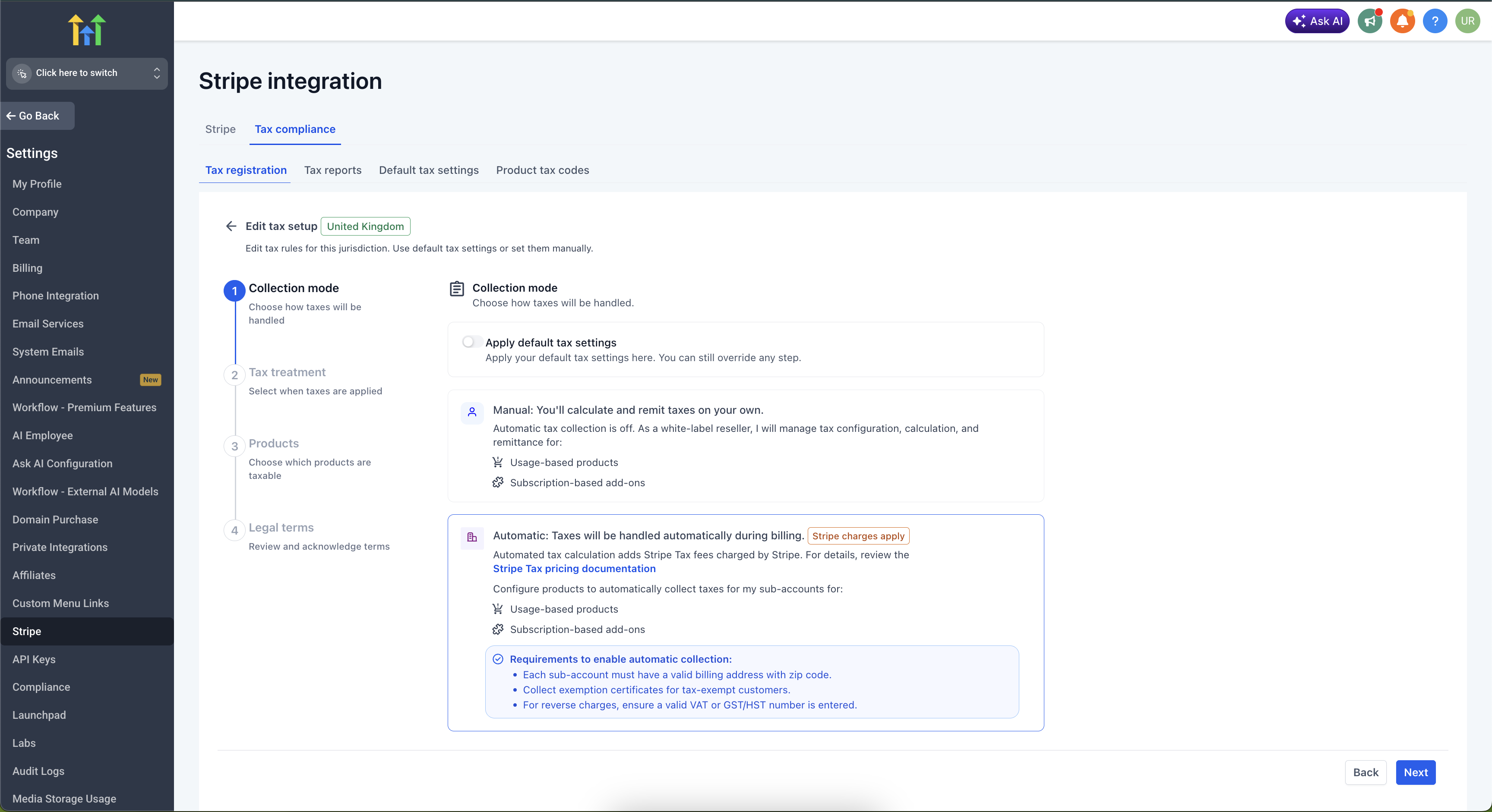
Select Collection Mode
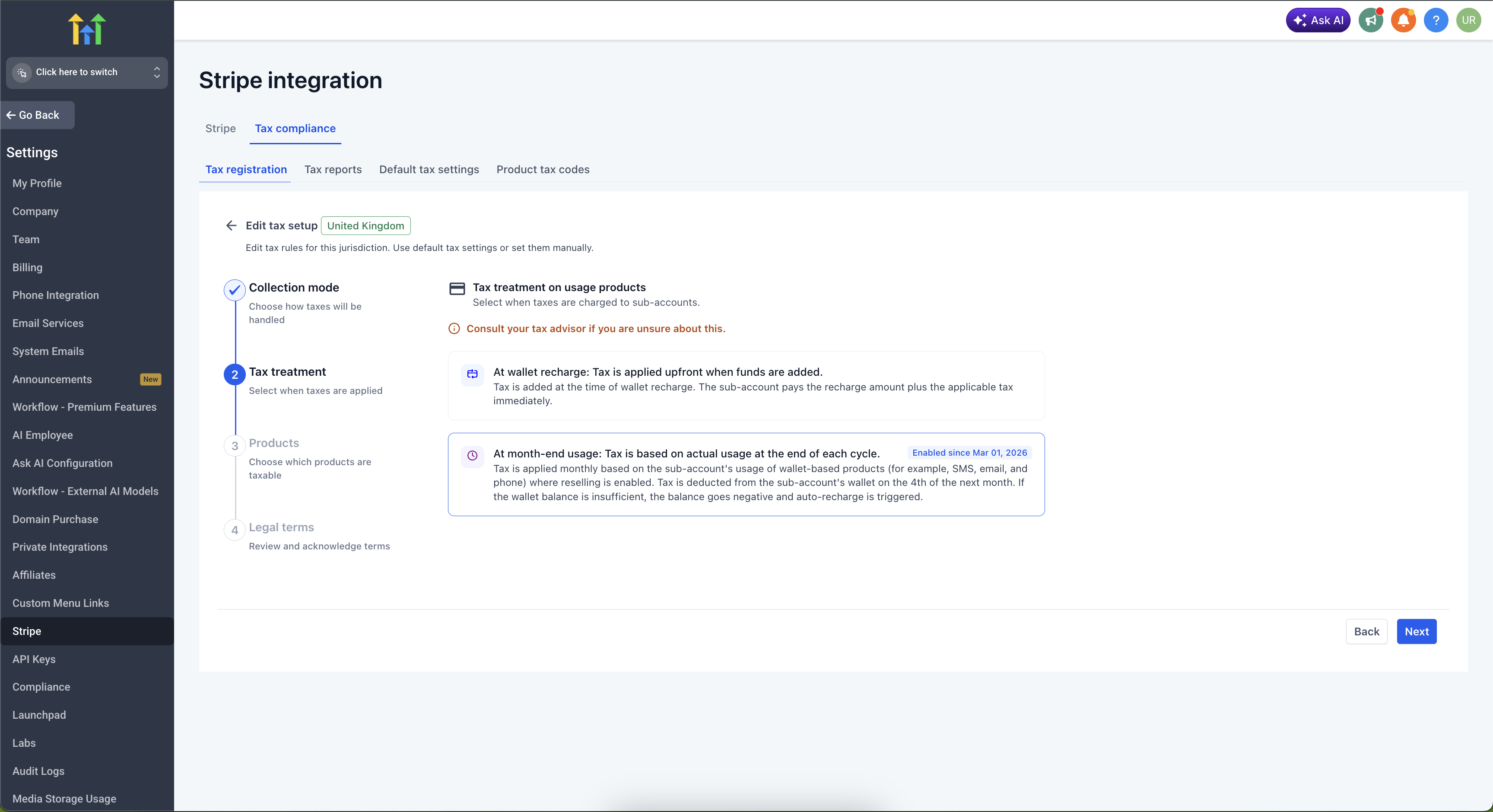
Select Tax Treatment on Usage Products
| Treatment | How It Works |
|---|---|
| On Recharge | Tax is calculated and charged when the sub-account adds funds to their wallet. For example, a $10 top-up at 20% tax means the sub-account is charged $12, with $10 going to the wallet and $2 to tax. |
| At Month End | Tax is calculated based on actual monthly usage and charged to the wallet at the start of the following month. If the wallet balance is too low, it can go negative and trigger an auto-recharge. |
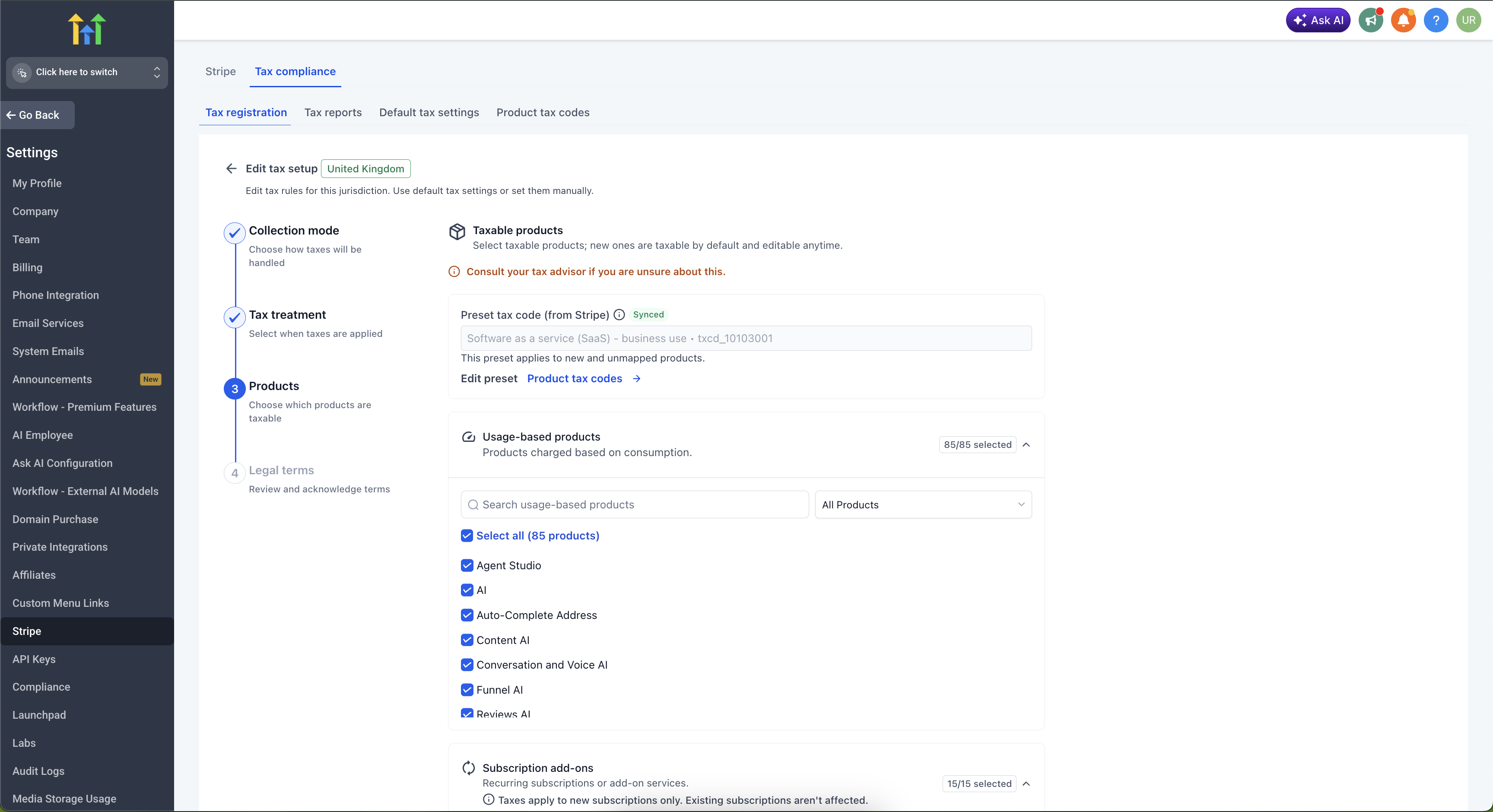
Select Taxable Products
Choose which products are subject to tax for this jurisdiction. You can use preset tax codes matched from Stripe or customize them per product. You can also mark specific products as non-taxable.
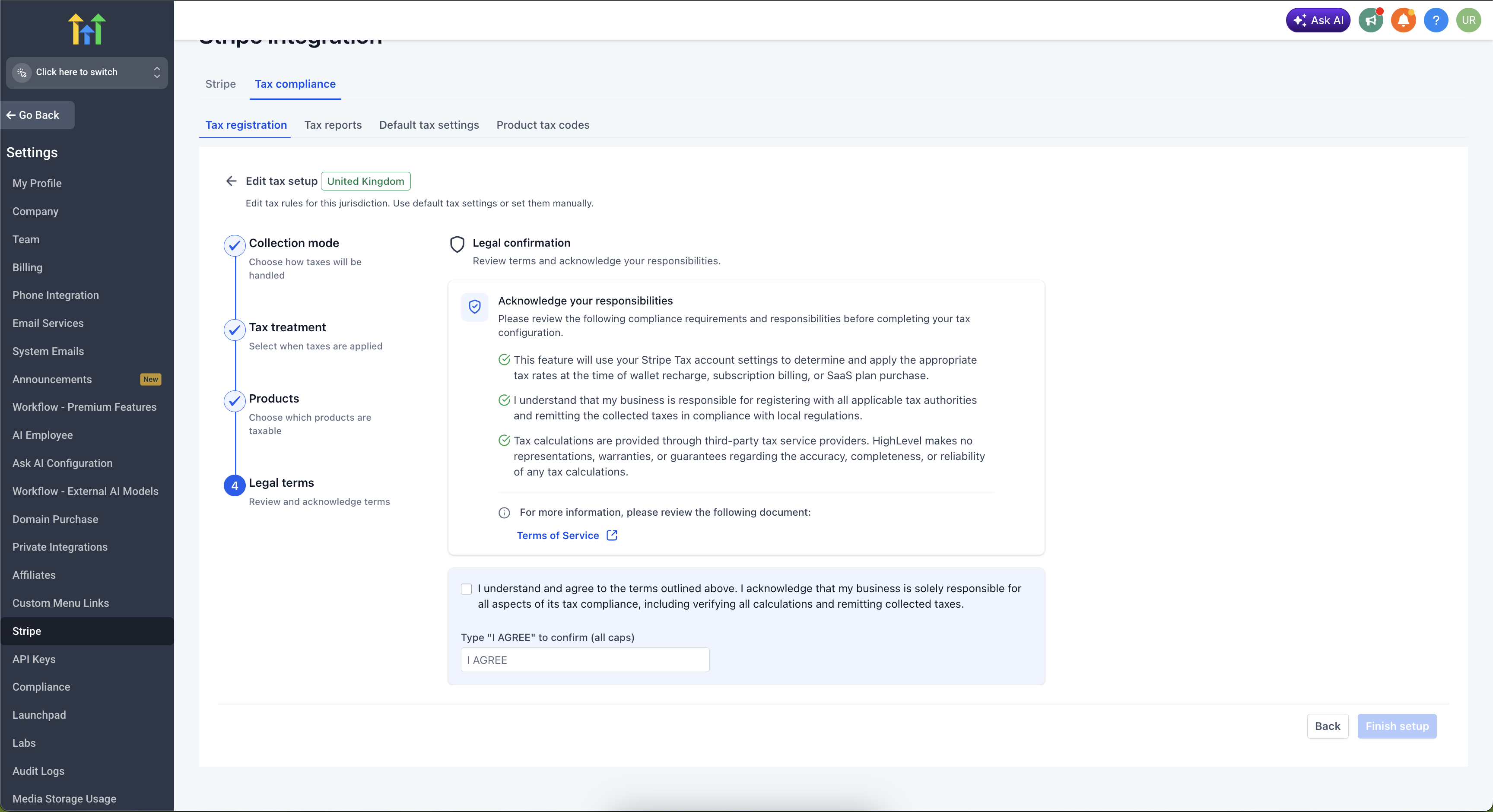
Complete Legal Confirmation
Read the Terms of Service and legal confirmation. This acknowledges that tax calculations are handled by Stripe Tax and that the platform does not guarantee tax accuracy. Click I Agree to finish setup.
FAQ
Which countries and jurisdictions are supported?
Tax Compliance supports 100+ countries via Stripe Tax. US state-level and Canadian province-level registrations are fully supported with jurisdiction-specific matching logic.
Can I have different tax settings for different jurisdictions?
Yes. While Global Settings provide defaults, each jurisdiction registration can have its own collection mode, tax treatment, and product taxability configuration.
What happens if I switch from On Recharge to At Month End?
The switch is scheduled for a future date to avoid mid-period disruptions. Both the old and new treatment will have defined date windows showing when each is active.
Can I exempt specific products from tax?
Yes. In both Global Settings and per-jurisdiction configuration, you can mark specific usage-based products, subscription products, or marketplace apps as non-taxable.
How are tax reports generated?
Tax reports are automatically generated based on collected tax data. You can view them in the Tax Reports tab, download individual reports, or request a bulk ZIP file sent to your email.
Is this feature available to all agencies?
Tax Compliance is currently in beta and available to select agencies. It will be rolled out more broadly in upcoming releases.
Do I need a Stripe account?
Yes. Tax Compliance uses Stripe Tax for tax registration, calculation, and reporting. Your agency's Stripe connected account is required for all tax operations.
What if my sub-accounts don't have a billing address?
Tax jurisdiction matching will not work without a valid billing address (including zip code) on the sub-account. Taxes will not be collected for those sub-accounts until an address is added.
Was this article helpful?
That’s Great!
Thank you for your feedback
Sorry! We couldn't be helpful
Thank you for your feedback
Feedback sent
We appreciate your effort and will try to fix the article