The Listings Audit helps agencies and locations quickly assess how consistently a business appears across top online publishers. This update delivers smarter accuracy from multiple data sources, a clearer Partial Match category, dynamic country‑aware publishers, and new charts plus search & filters—so you can pinpoint fixes and present insights with confidence.
TABLE OF CONTENTS
- What is the Enhanced Listings Audit?
- Key Benefits of the Enhanced Listings Audit
- Match Categories Explained
- Country‑Aware Publisher Matching (Dynamic Listings)
- Listings Accuracy Score & Visuals
- Search, Filter, Sort & Pagination
- Availability & Access
- Data Freshness & Reliability
- Global Scan API (Overview)
- How To Use the Listings Audit
- Frequently Asked Questions
What is the Enhanced Listings Audit?
The Enhanced Listings Audit is a revamped experience inside Marketing Axudit Reports and Prospecting Reports that evaluates a business’s presence across major listing publishers. It standardizes match categories, auto‑selects relevant publishers based on country, and summarizes results with easy‑to‑read charts and sortable tables.
The Listings Audit classifies each publisher result into Match, Partial Match, or No Match, and rolls field‑level checks (Business Name, Address, Phone) into an overall Listings Accuracy score.
Key Benefits of the Enhanced Listings Audit
Understanding how these improvements translate into day‑to‑day value helps teams prioritize outreach, show ROI in sales conversations, and move faster during client onboarding.
Smarter accuracy: Expanded, multi‑source validation (Yext, Uberall, internal Yext Entity Search) improves the reliability of the Listings Accuracy score.
Partial Match clarity: A dedicated status highlights near‑matches so you can spot and fix inconsistencies that previously looked “green.”
Country‑aware publishers: Auto‑selected publishers matched to the business’s country provide more localized, meaningful insights.
Faster reviews: New search, status filters, sorting, and pagination streamline analysis and presentation.
Better storytelling: Donut charts and field bars make it easy to explain match distribution and accuracy to clients.
Higher reliability: A multi‑vendor, multi‑source approach and a unified Global Scan API reduce outages and improve data consistency across HighLevel.
Match Categories Explained
Clear definitions reduce confusion when interpreting results and help teams prioritize action.
Match: Publisher listing aligns with the business details used in the report.
Partial Match: Publisher listing aligns with some details, but at least one key detail differs (for example, an address or phone variation). This category was introduced to provide more precision than a simple Match/No Match split.
No Match: Publisher listing does not align with the business details used in the report.
Note: Exact field logic and thresholds may vary by publisher. Partial Match generally indicates at least one mismatch among core NAP fields (Business Name, Address, Phone).
Country‑Aware Publisher Matching (Dynamic Listings)
Matching publishers to the business’s country ensures you analyze platforms that matter most for that region.
Publishers are auto‑selected based on the business’s country, enabling localized insights.
Dynamic listings coverage now spans most countries globally.
When auditing a business in a new region, the set adapts automatically—no manual configuration required.
Tip: If a publisher you expect isn’t shown for a given country, confirm the business’s country is correct in the report inputs.
Listings Accuracy Score & Visuals
Visual summaries speed up client conversations and help quantify the impact of cleanup work.
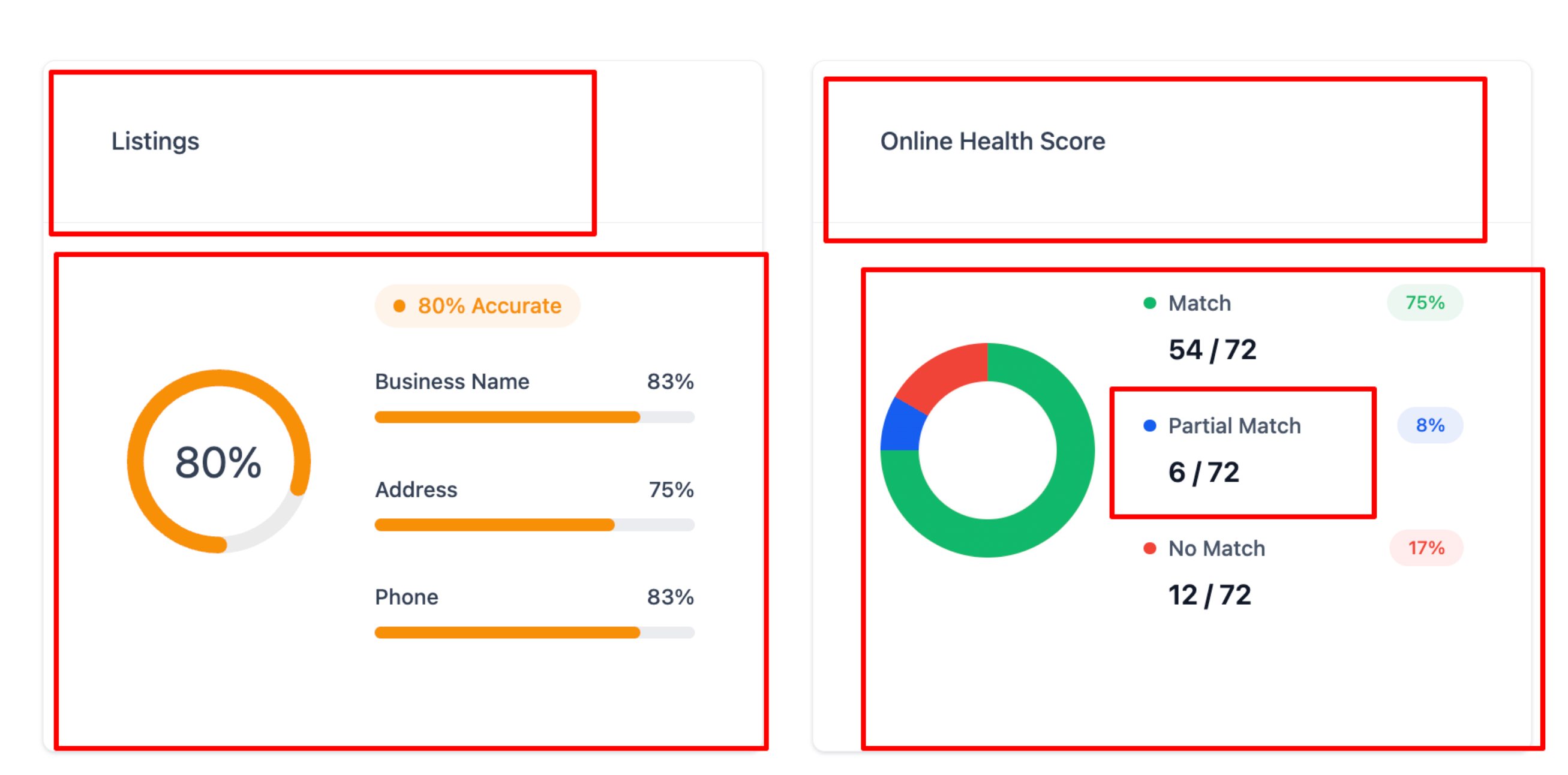
Listings Accuracy gauge: Overall percentage reflecting field‑level checks.
Field bars: Individual percentages for Business Name, Address, and Phone to show where mismatches occur most.
Online Health Score donut: Distribution of Match / Partial Match / No Match with counts and percentages.
Search, Filter, Sort & Pagination
These controls help you surface the most actionable results quickly and present clean, focused views to clients.
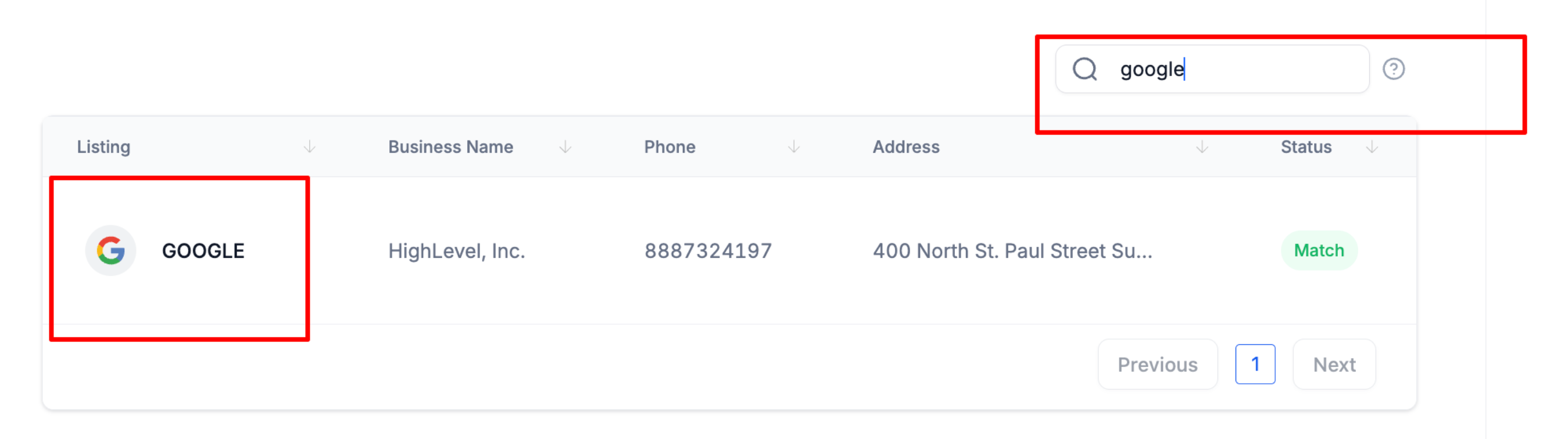
Search: Type a publisher/platform name to narrow results (e.g., “google,” “facebook,” “apple”).
Filter by status: Focus on Match, Partial Match, or No Match to prioritize fixes.
Sort: Click any column header (Listing, Business Name, Phone, Address, Status) to reorder.
Default order: Results are presented with Match → Partial Match → No Match for quick clarity.
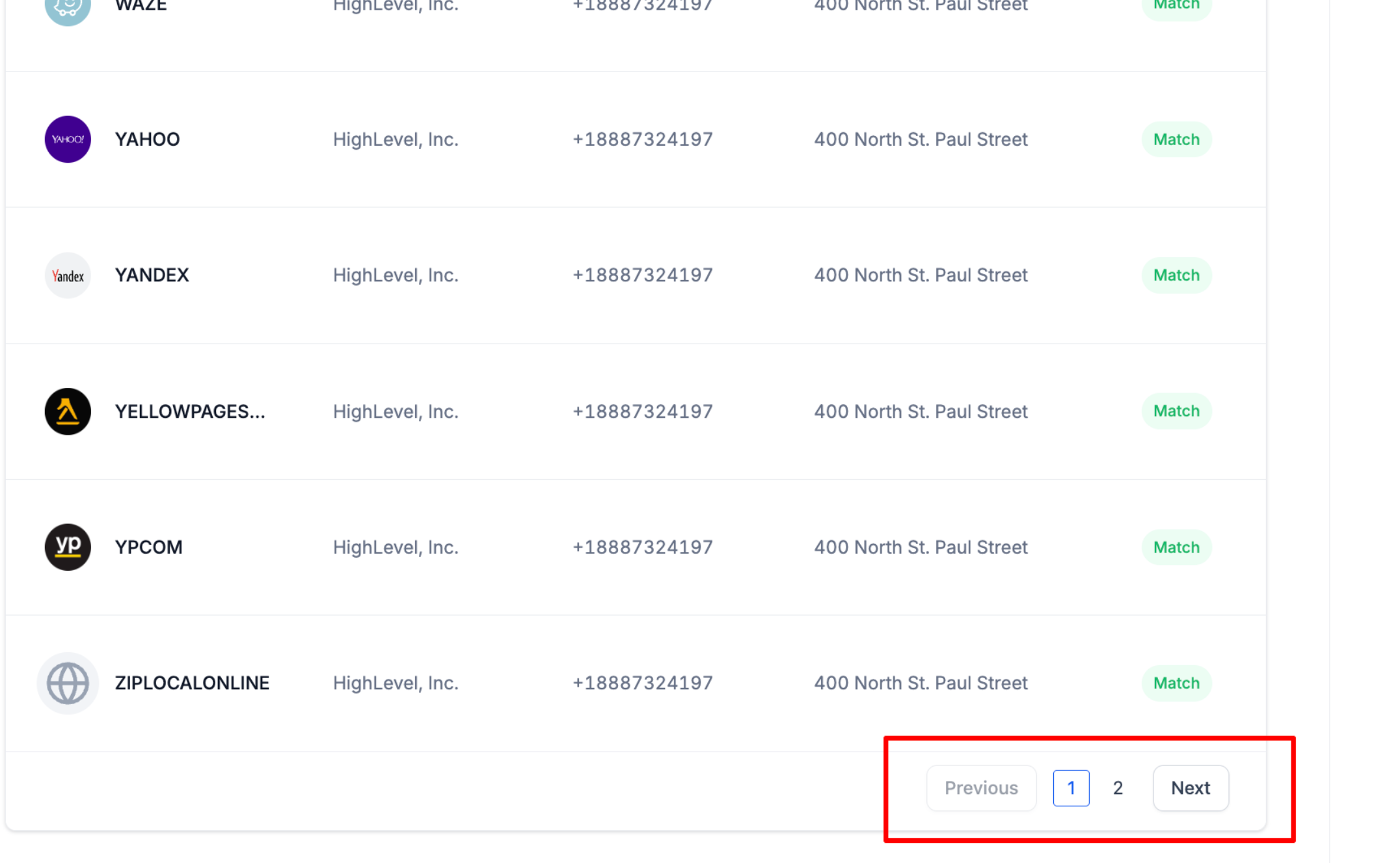
Pagination: Navigate with Previous/Next; pagination improves load time on large publisher sets.
Availability & Access
Knowing where the feature lives—and who can see it—keeps teams aligned during sales and onboarding.
Where you’ll see it
Marketing Audit Reports inside Sub‑Accounts (Reporting)
Prospecting Reports inside the Agency dashboard
Prospecting Reports inside Sub‑Accounts (Marketing)
Availability: Enhancements are live by default for Free Reports and Premium Reports across supported Prospecting and Audit experiences.
Data Freshness & Reliability
Data sources and platform reliability affect how quickly changes appear in audits.
Multi‑source validation: HighLevel consolidates data from Yext, Uberall, and internal Yext Entity Search to improve accuracy.
Resilience: A multi‑vendor, multi‑source strategy reduces risk of outages and improves the continuity of service.
Refresh expectations: Listing changes on publisher sites may take time to propagate into audits, depending on the publisher and scan cadence.
Tip: If a recent change isn’t reflected, wait for the next refresh cycle and re‑run the report. Persistent discrepancies may indicate a Partial Match condition that requires manual correction on the source listing.
Global Scan API (Overview)
The Global Scan API standardizes how HighLevel aggregates listings intelligence internally so end‑user experiences remain consistent.
What it is: A unified internal API that consolidates data from Yext, Uberall, and internal Yext Entity Search for use across the HighLevel platform.
Why it matters: Centralization streamlines integrations across product teams and improves consistency in Prospecting and Audit experiences.
Developer access: If public developer documentation becomes available, it will be referenced from the HighLevel API Documentation hub. Until then, treat this as an internal platform improvement with no extra setup required.
How To Use the Listings Audit
Following these steps ensures you can locate the feature, understand the visuals, and share client‑ready insights.
1. Open a Marketing Audit Report (Sub‑Account → Reporting → Local Marketing Audit)
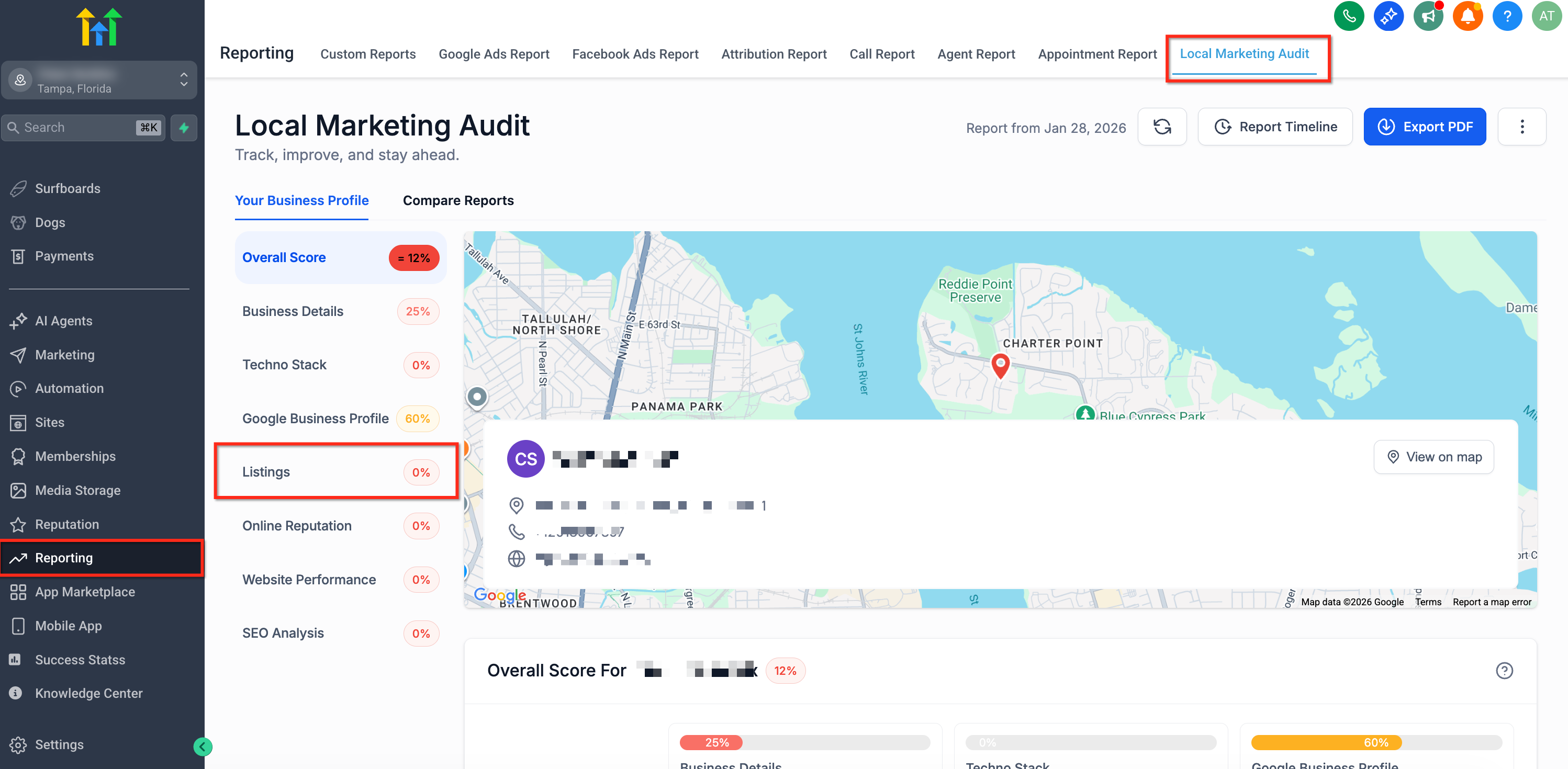
2. From the left sidebar, click Listings. Review the Listings Accuracy gauge and field bars (Business Name, Address, Phone) to identify likely mismatch areas.
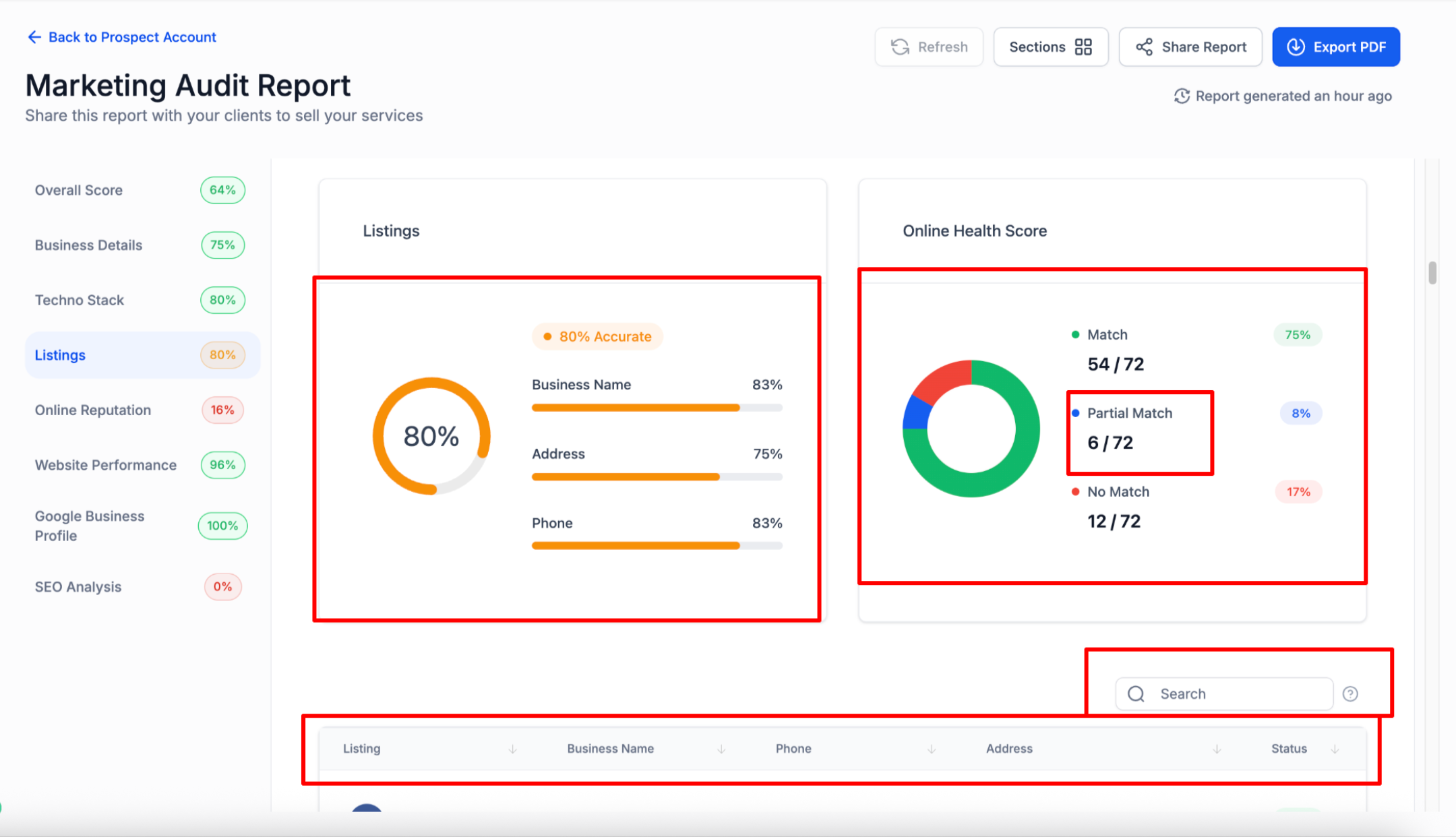
3. Check the Online Health Score donut to see the distribution of Match / Partial Match / No Match with counts and percentages.
4. Use Search to locate specific publishers (e.g., type “Google”), or Filter by status to focus on Partial/No Match.
5. Click column headers to sort the table and use Pagination to navigate large result sets.
6. Use Share Report or Export PDF to present findings to clients and prospects.
Frequently Asked Questions
Q: What changed with this release?
Listings now use enhanced multi‑source validation, country‑aware publisher sets, a clear Partial Match status, new charts, and improved search/filter/sort/pagination.
Q: What counts as a Partial Match?
A listing that aligns on some details but differs on at least one core NAP field (Business Name, Address, Phone). Exact field logic may vary by publisher.
Q: Can I override which publishers are included?
Publishers are auto‑selected based on the business’s country. If a key publisher appears to be missing, confirm the country in the report inputs.
Q: Do Free and Premium users both get these enhancements?
Yes. The new visuals and status taxonomy are live in both Free and Premium report experiences.
Q: How often does the data refresh?
Refresh cadence depends on the underlying publishers and scanning cycles. Recent listing changes may take time to appear.
Q: Can I export the Listings Audit?
Use Export PDF for a client‑ready snapshot. (If CSV export is available in your account, fields will reflect the current view.)
Q: Why do counts change between two runs of the same report?
Publishers update over time, and scans can surface new or corrected data, changing match status distribution.
Q: Do these changes affect old reports?
Re‑running an audit applies the updated logic. Previously generated PDFs remain unchanged.
Was this article helpful?
That’s Great!
Thank you for your feedback
Sorry! We couldn't be helpful
Thank you for your feedback
Feedback sent
We appreciate your effort and will try to fix the article