HighLevel’s Local Marketing Audit in Sub-Accounts delivers a fast, accurate snapshot of local visibility. Generate audits with verified business details, refresh on demand, and review progress with a 12‑month Report Timeline. This article explains how to generate an audit and compare results against competitors.
TABLE OF CONTENTS
- What is the Local Marketing Audit?
- Key Benefits of the Local Marketing Audit
- Permissions & Access for Local Marketing Audits
- How to Generate Local Marketing Audit Reports
- Refresh a Local Marketing Audit
- Understanding Your Report (Your Business Profile & Compare Reports)
- Audit Report Settings
- Report Timeline
- Sharing a Local Marketing Audit
- Frequently Asked Questions
- Related Articles
What is the Local Marketing Audit?
The Local Marketing Audit is a powerful diagnostic tool designed to help you understand the overall health and performance of your business. It provides a comprehensive analysis across several key areas like listings, reviews, website performance and SEO, helping you identify growth opportunities.
Key Benefits of the Local Marketing Audit
Measure Business Health at a Glance: Get an in-depth snapshot of how your business is performing across critical marketing and operational dimensions.
Reinforce Agency Value: Show your clients exactly where their business stands and how your agency is driving improvements.
Boost Visibility into Key Metrics: Access detailed insights that can guide strategy, optimize performance, and enhance client satisfaction.
Permissions & Access for Local Marketing Audits
Proper access ensures the right teammates can run, refresh, configure, and share audits while maintaining control over your data. This feature is enabled by default for all users within a Sub-Account.
Email Delivery Note: If you’ll email reports from Settings → Report Generation, those recipients should have at least View permissions.
You can manage access under following these steps:
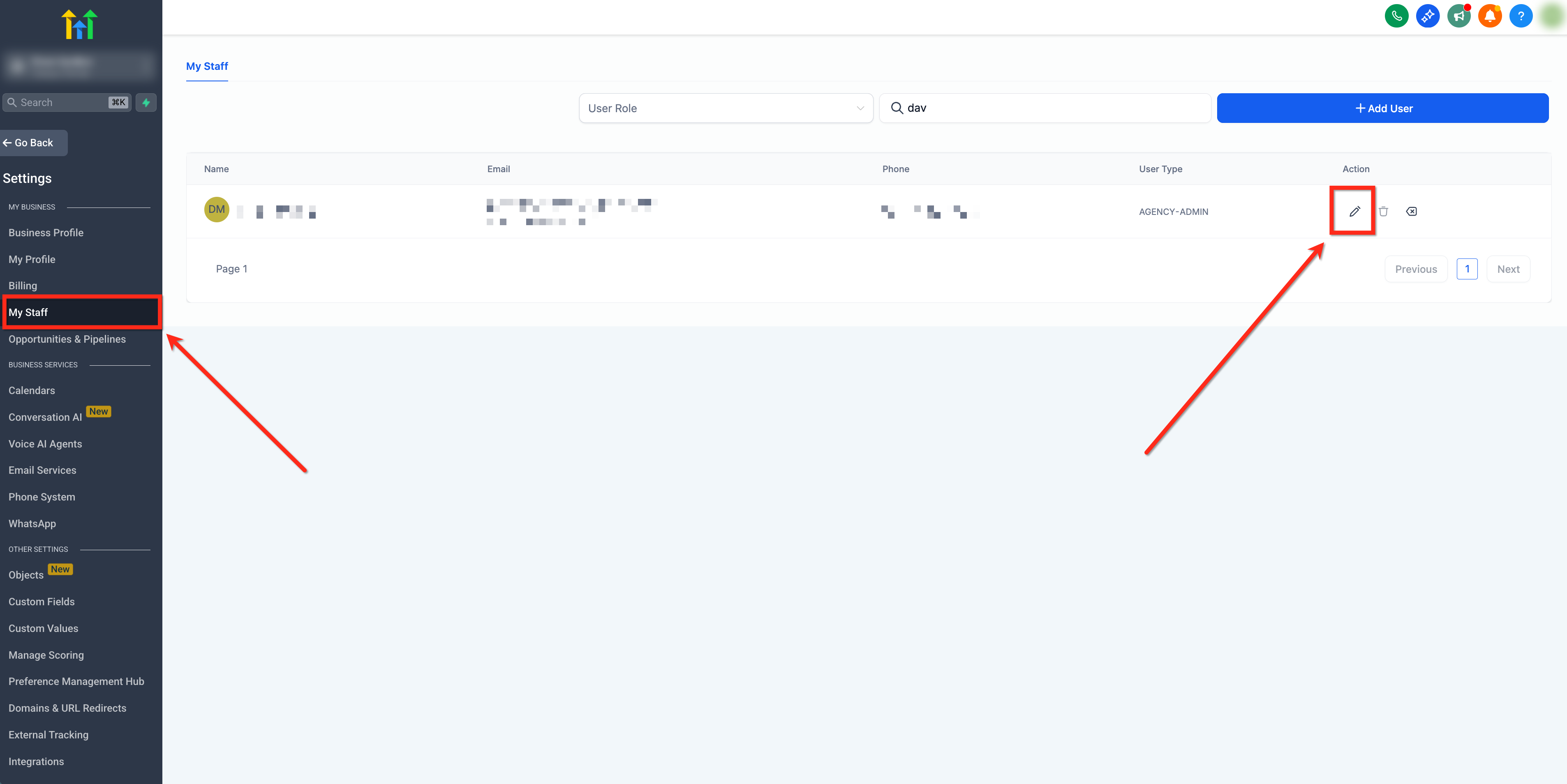
- Go to Settings → My Staff. Select the user and click Edit.
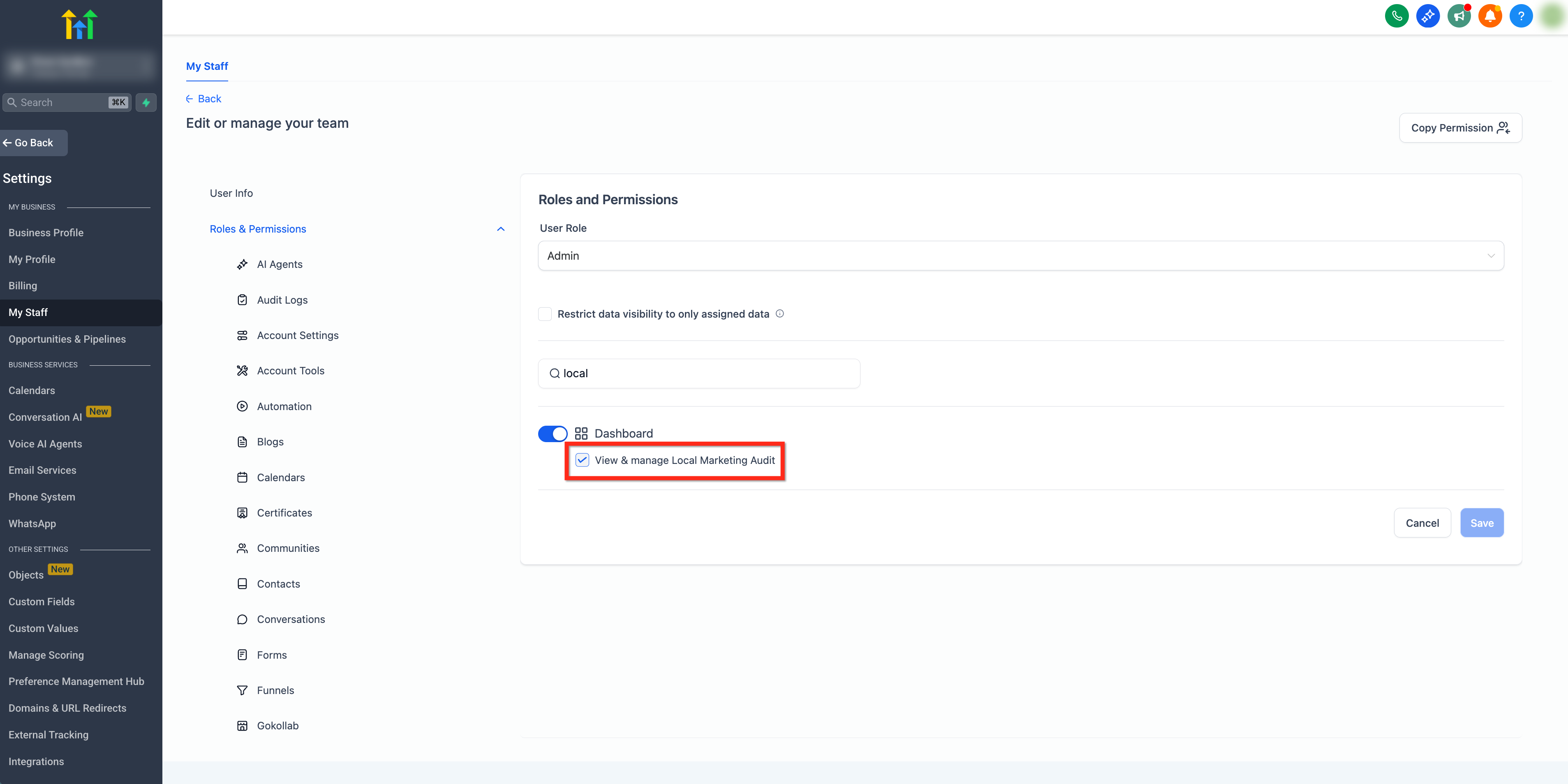
- Go to the Roles & Permissions tab. Enable or disable the permission for View & Manage Local Marketing Audit and save your changes.
How to Generate Local Marketing Audit Reports
Step 1: Open Local Marketing Audit
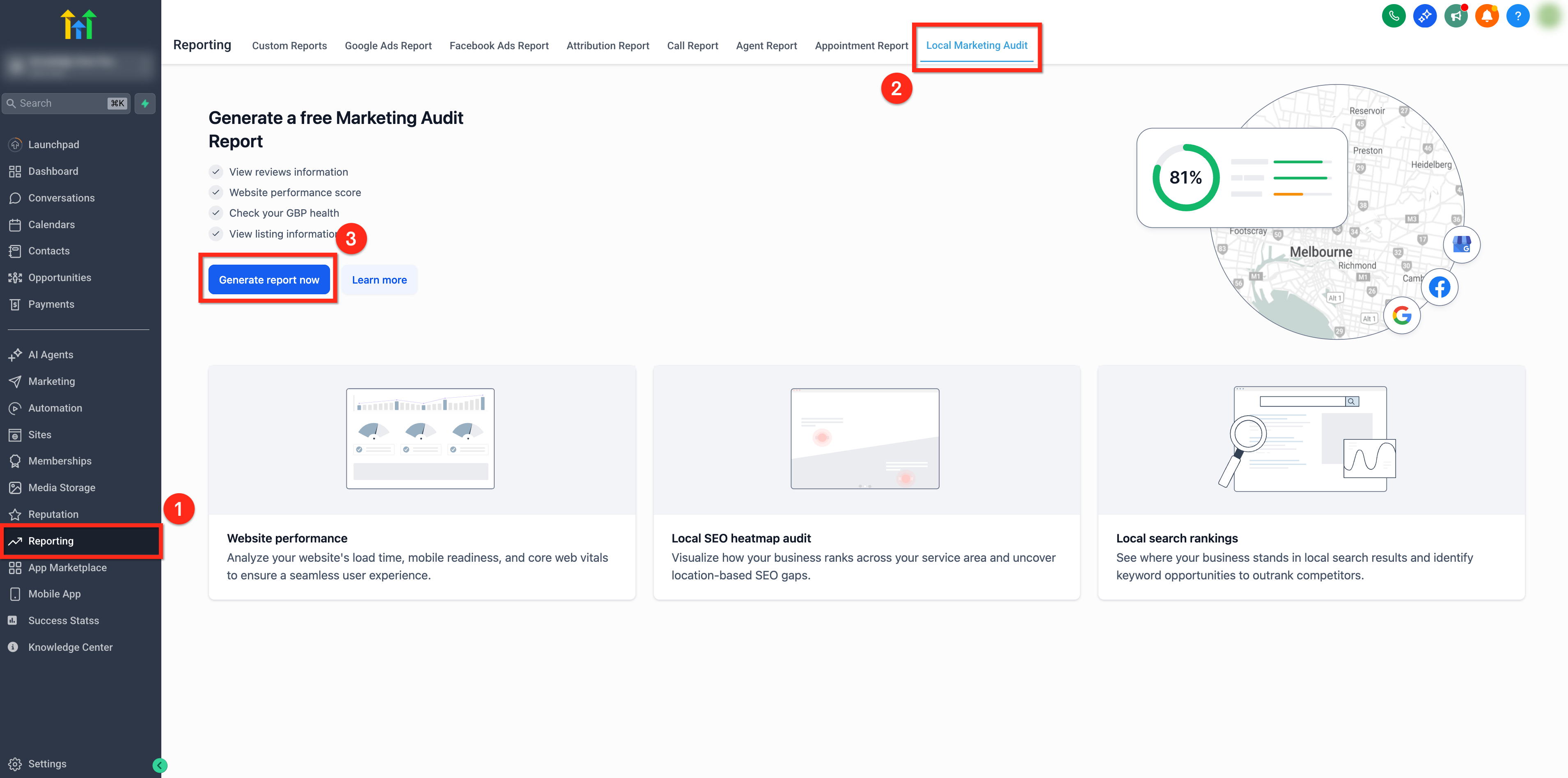
- In the left navigation bar, click Reporting.
- At the top, select the Local Marketing Audit tab.
- Click the blue Generate New Report button.
Step 2: Review & Select Business Details
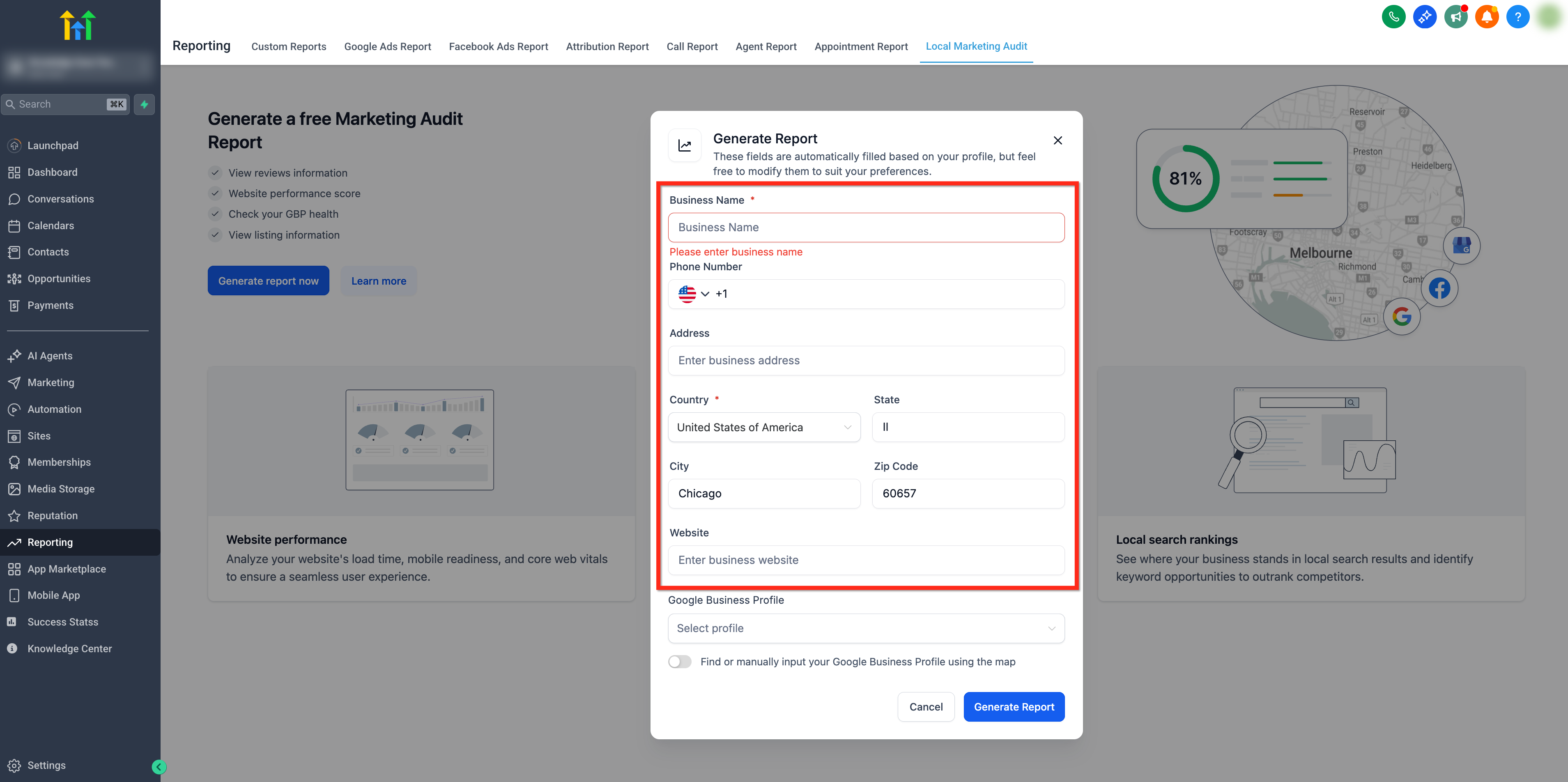
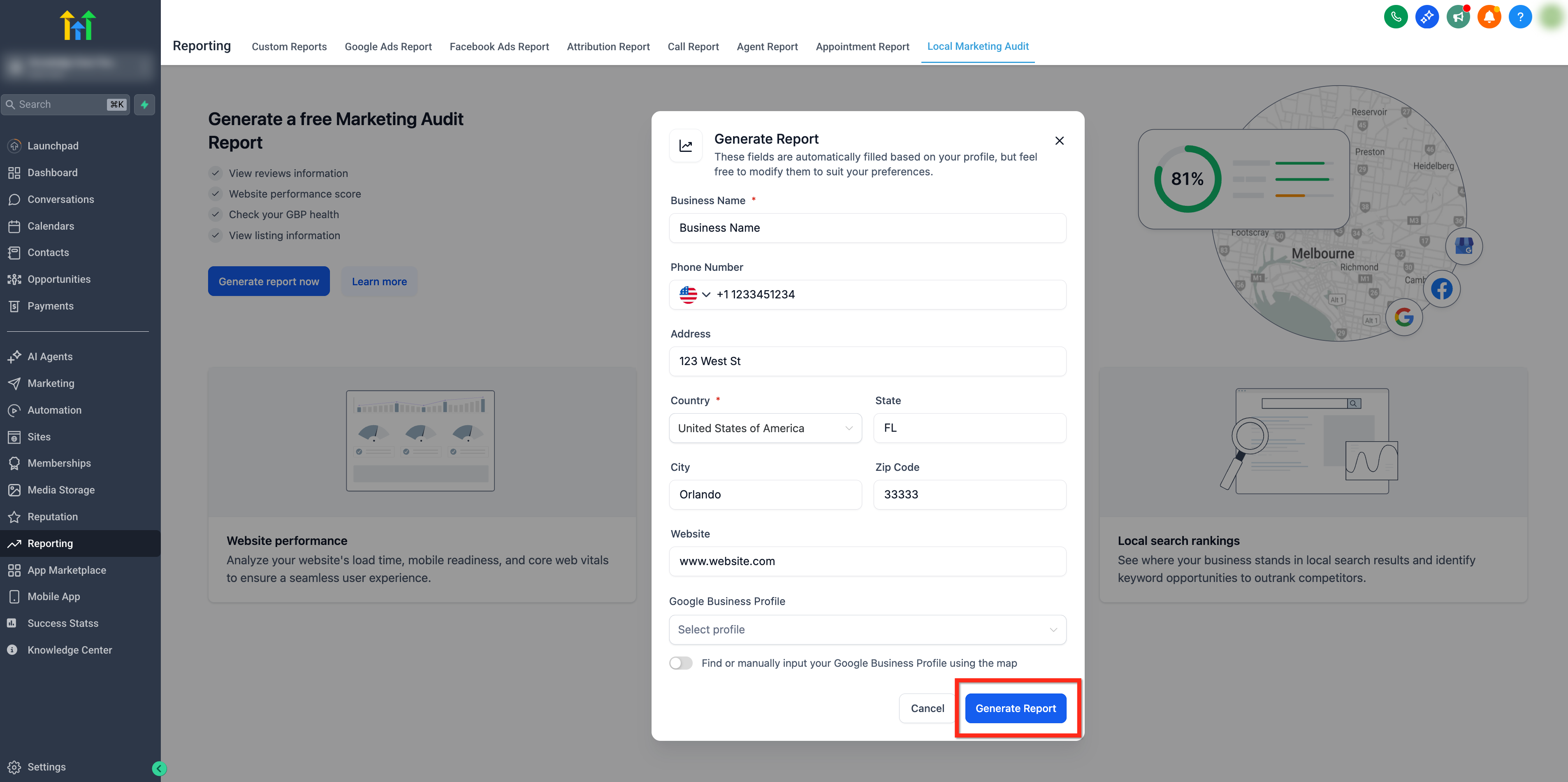
Your Business Name, Address, Phone, Website is automatically pulled from your location information into the Generate Report module. Review and make any needed edits to the information.
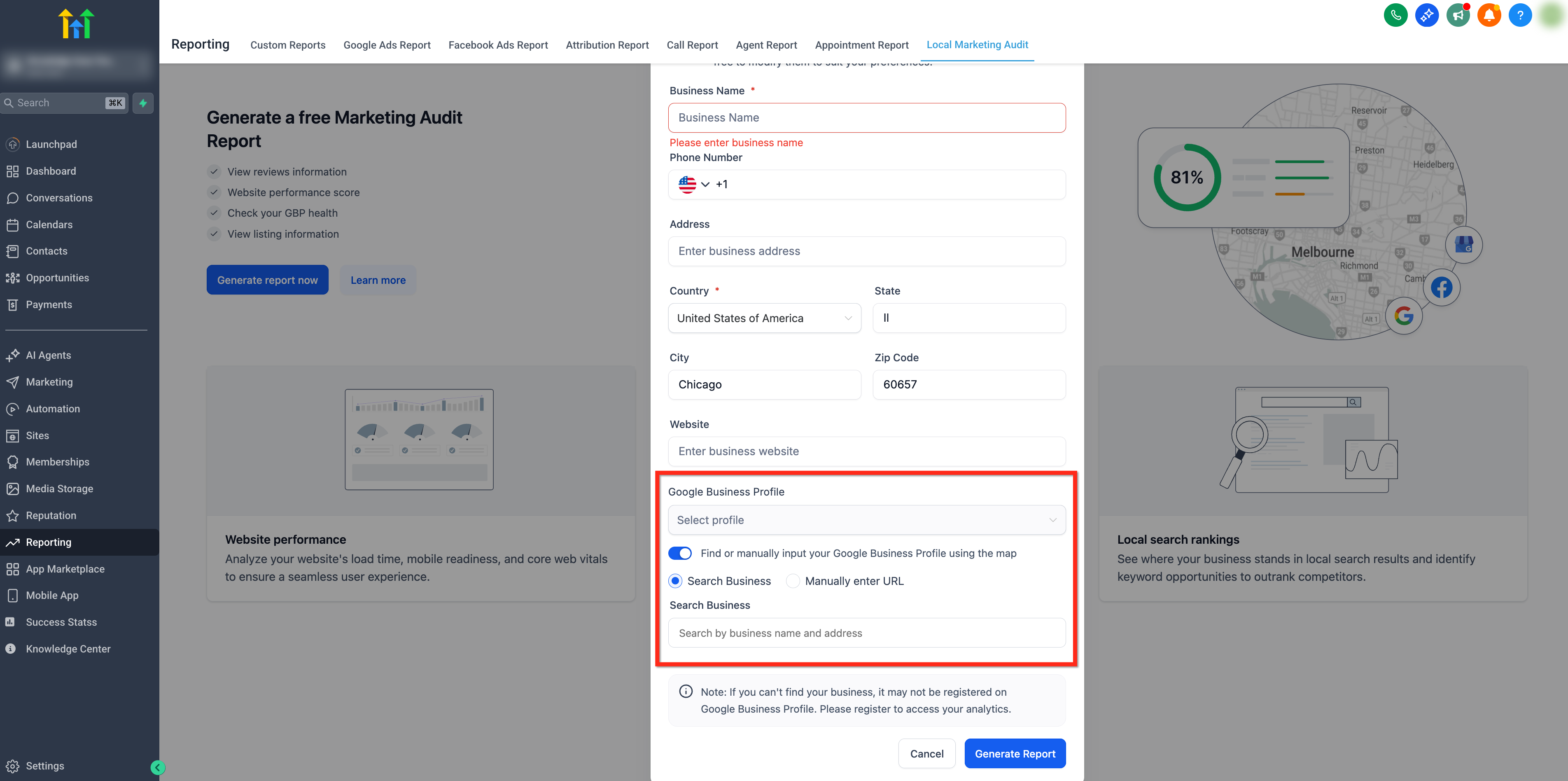
Step 3: Review Google Business Profile
If a Google Business Profile (GBP) is already connected, you can select it from the dropdown. If not, simply enable the toggle to search Google Maps directly using your business name, address or Google Maps URL.
Step 4: Generate Report
Once all information has been added and verified, click Generate Report.
Refresh a Local Marketing Audit
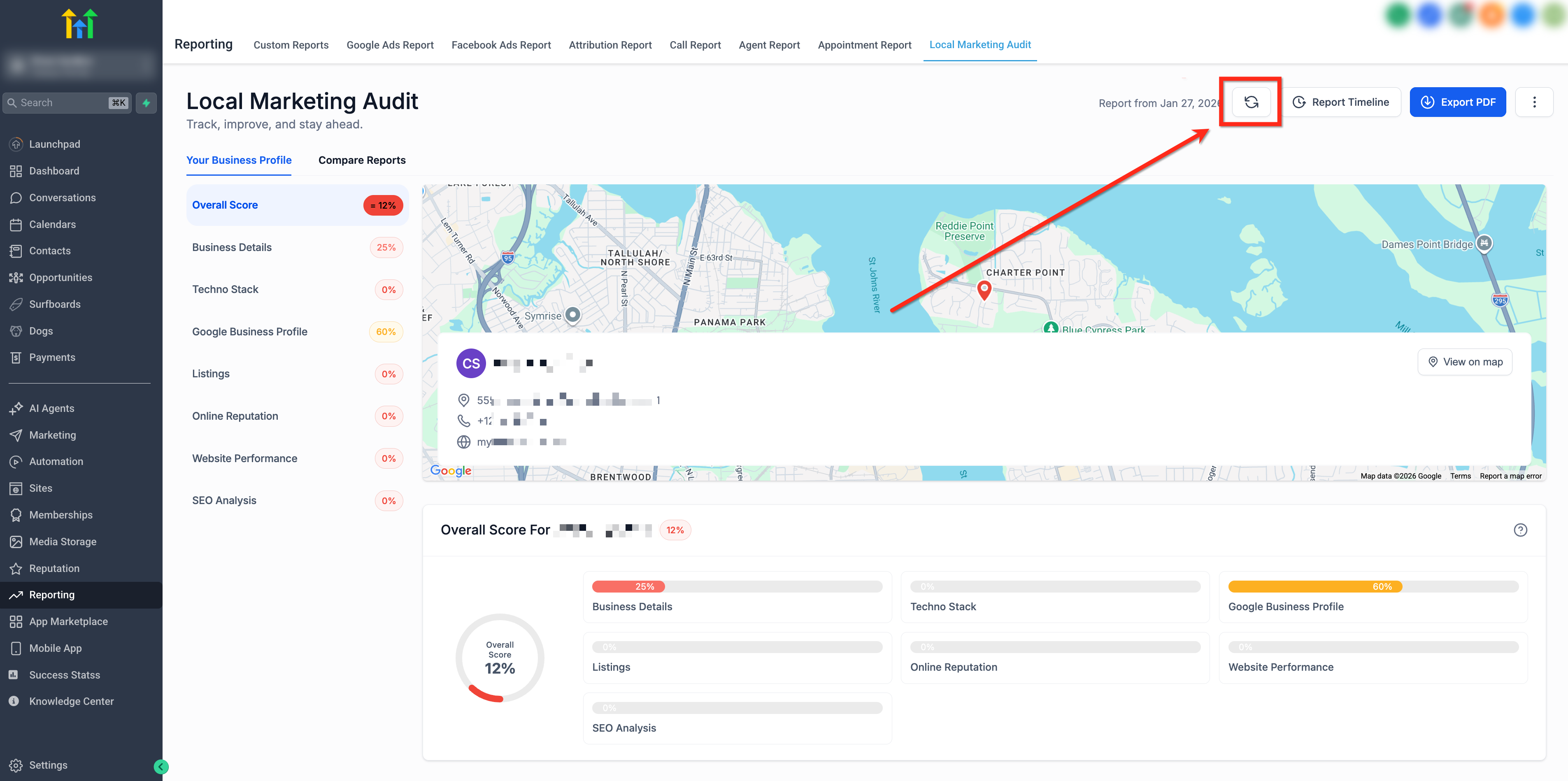
When you update your website, GBP, listings, or tracking, you can refresh the audit instantly. There is now waiting period and no need to recreate the report.
To refresh your audit, just click Refresh Report at the top of the Local Marketing Audit page.
Understanding Your Report (Your Business Profile & Compare Reports)
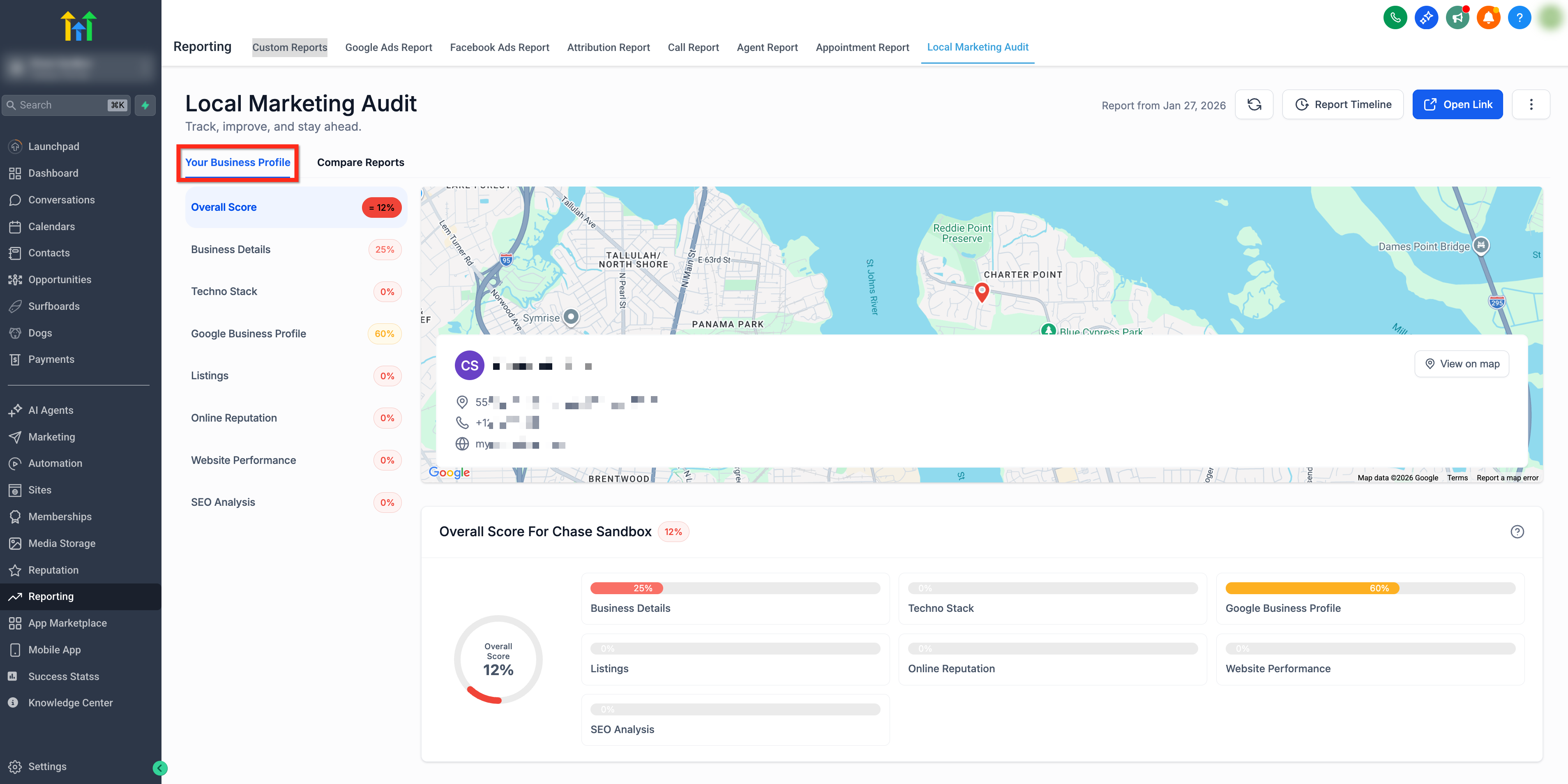
The report is organized into two primary areas. Use Your Business Profile to assess your current state and Compare Reports to benchmark against competitors.
Your Business Profile
Google Business Profile Audit: Evaluate the completeness and optimization level of your GBP listing.
Website Performance Audit: Check for speed, responsiveness, SEO-friendliness, and overall user experience.
Local SEO Heat Map: Visualize your local visibility across various search terms and geographies.
Listings Analysis: Ensure your business information is consistently and accurately listed across platforms.
Online Reviews Audit: Analyze review quantity, quality, and response patterns to gauge your reputation health.
Business Detail Accuracy Check: Review foundational business data (name, address, phone, etc.) for correctness and consistency.
For additional information, see: Understanding the Grades in Your Marketing Audit Report
Competitive Analysis (Compare Reports)
Understand how your business stacks up against the competition with our AI-Powered Competitor Analysis. This feature helps you uncover actionable insights by comparing your business's online presence with others in your market. Benchmark your current audit against competitors, section by section (GBP, Listings, SEO, etc.).
The Competitor Analysis covers two critical areas:
- Listings Comparison: Review the accuracy, completeness, and optimization of your business listings compared to your competitors.
- Online Reputation (Reviews) Comparison: Gain insight into review volume, sentiment, and engagement strategies. Understand how your reputation measures up and where you can improve.
For additional information on this report, see Prospecting: Competitor Analysis Report.
Note: The analysis is based on published listings available online for both your business and the selected competitors.How to Add Competitors and Generate the Report
- Once your Marketing Audit is generated, go to the Compare Reports tab.
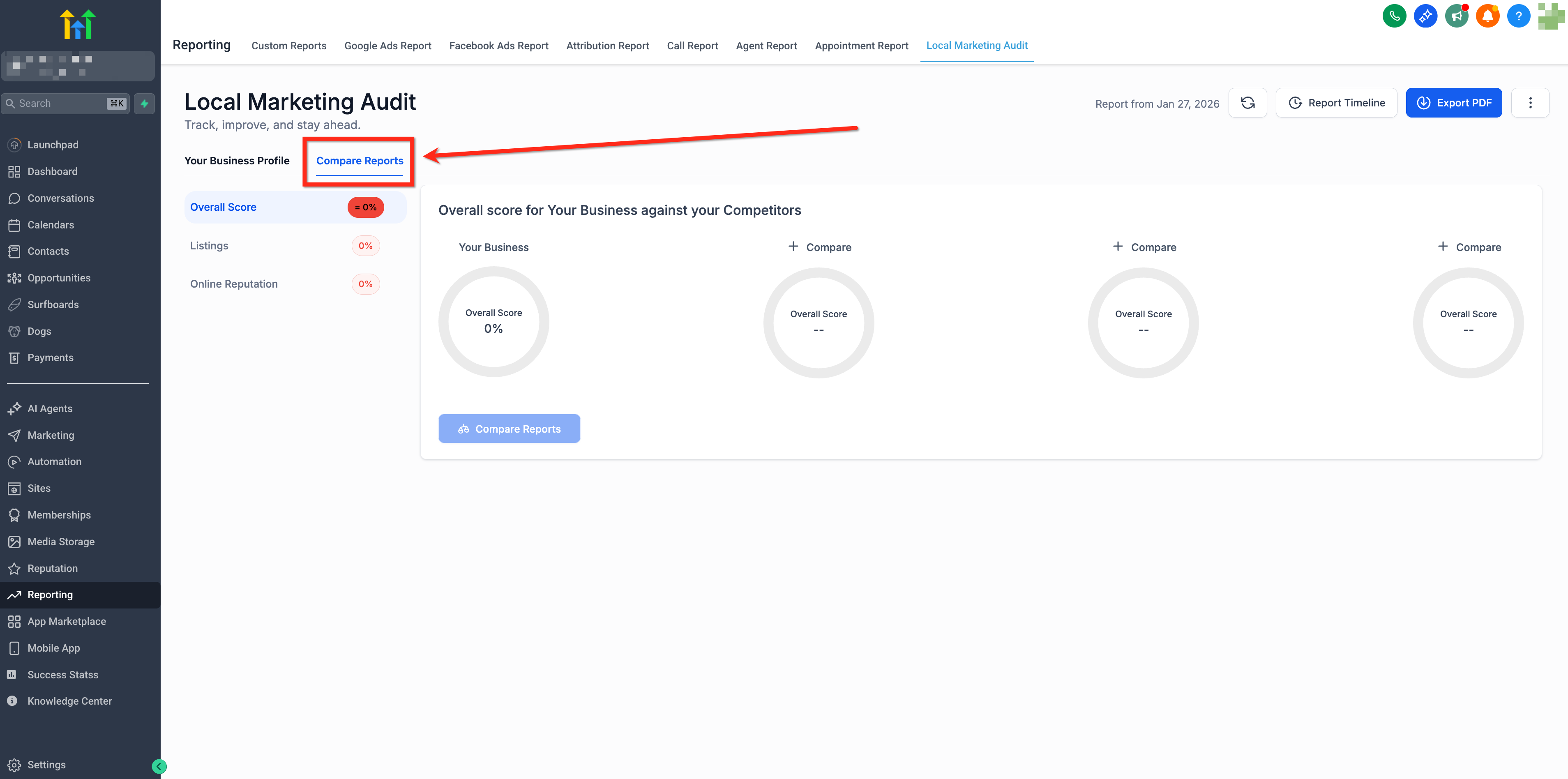
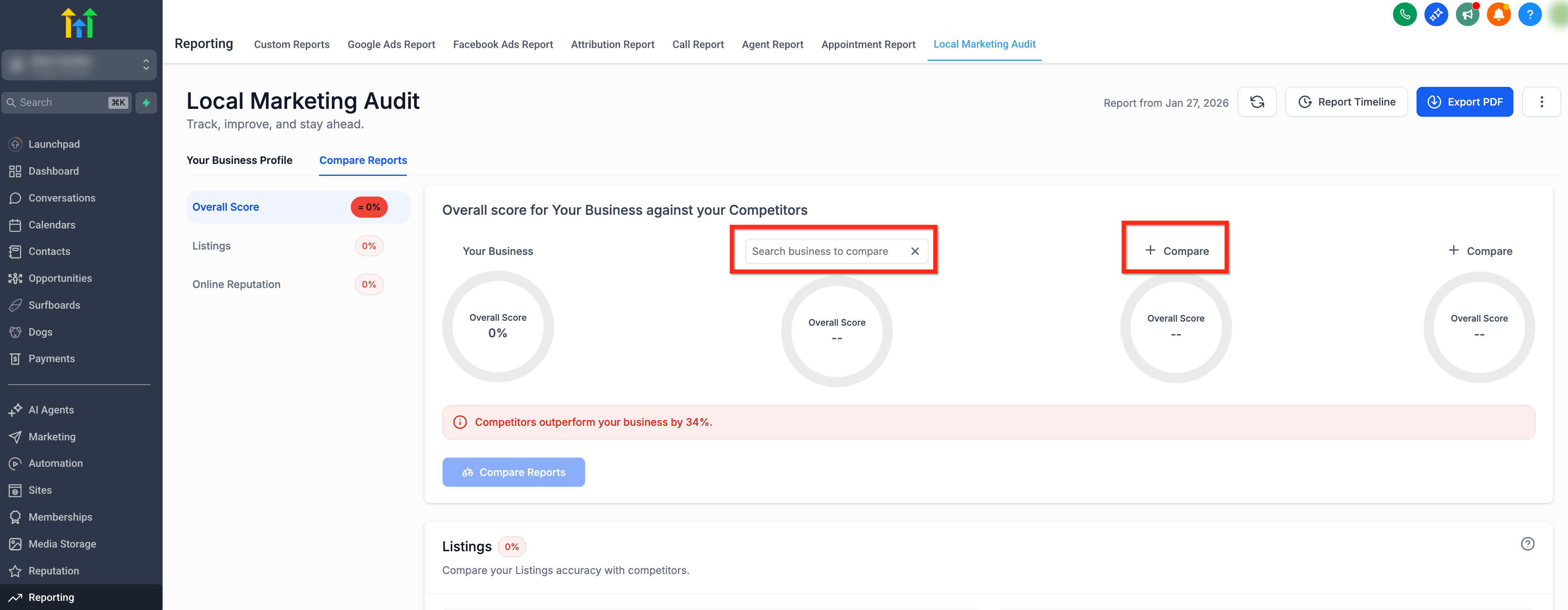
- Add Up to 3 Competitor Businesses. Click + Compare then search for the business you would like to compare.
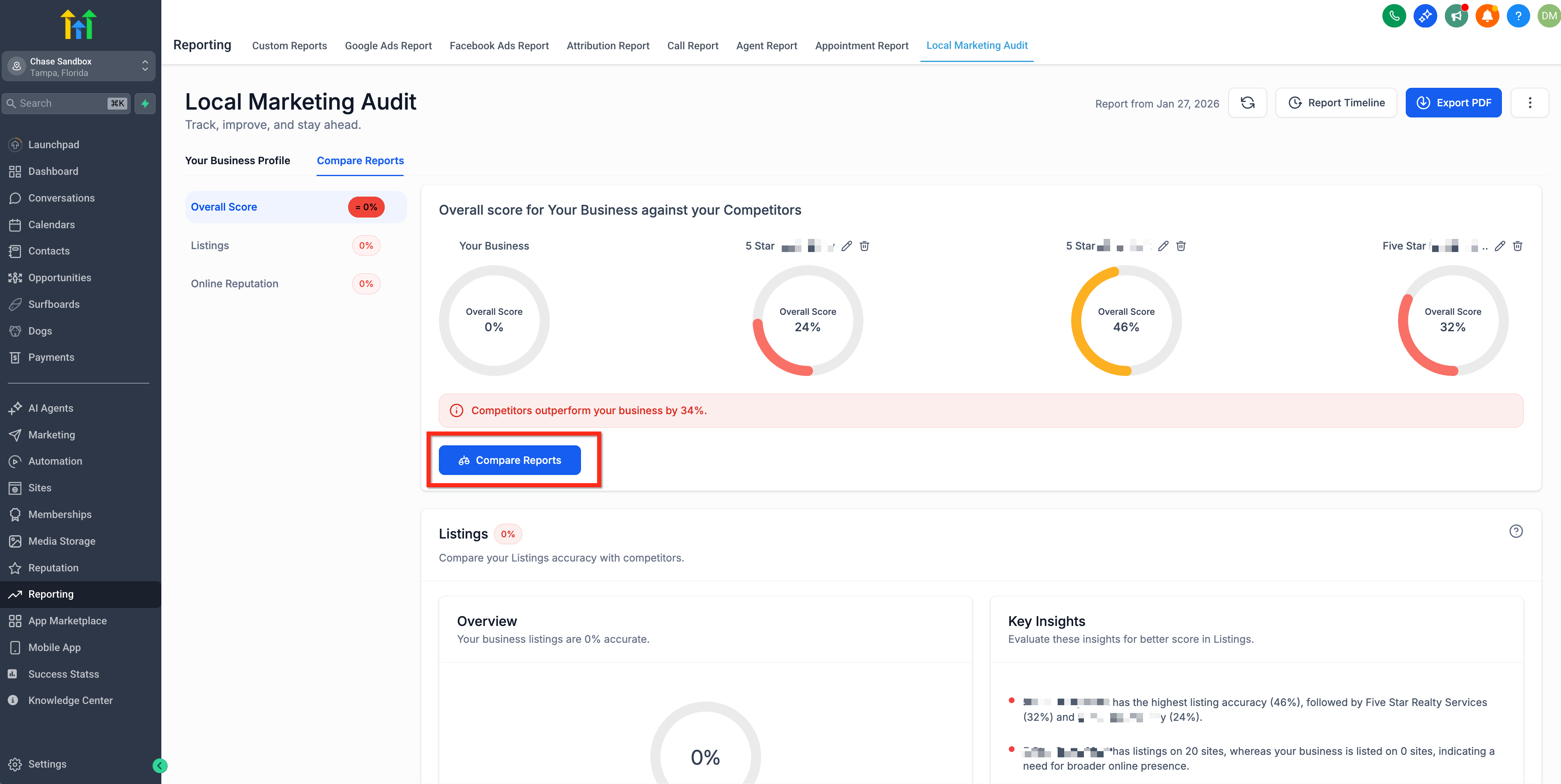
- Click Compare Reports. This will initiate the AI-driven Competitor Analysis and generate side-by-side insights.
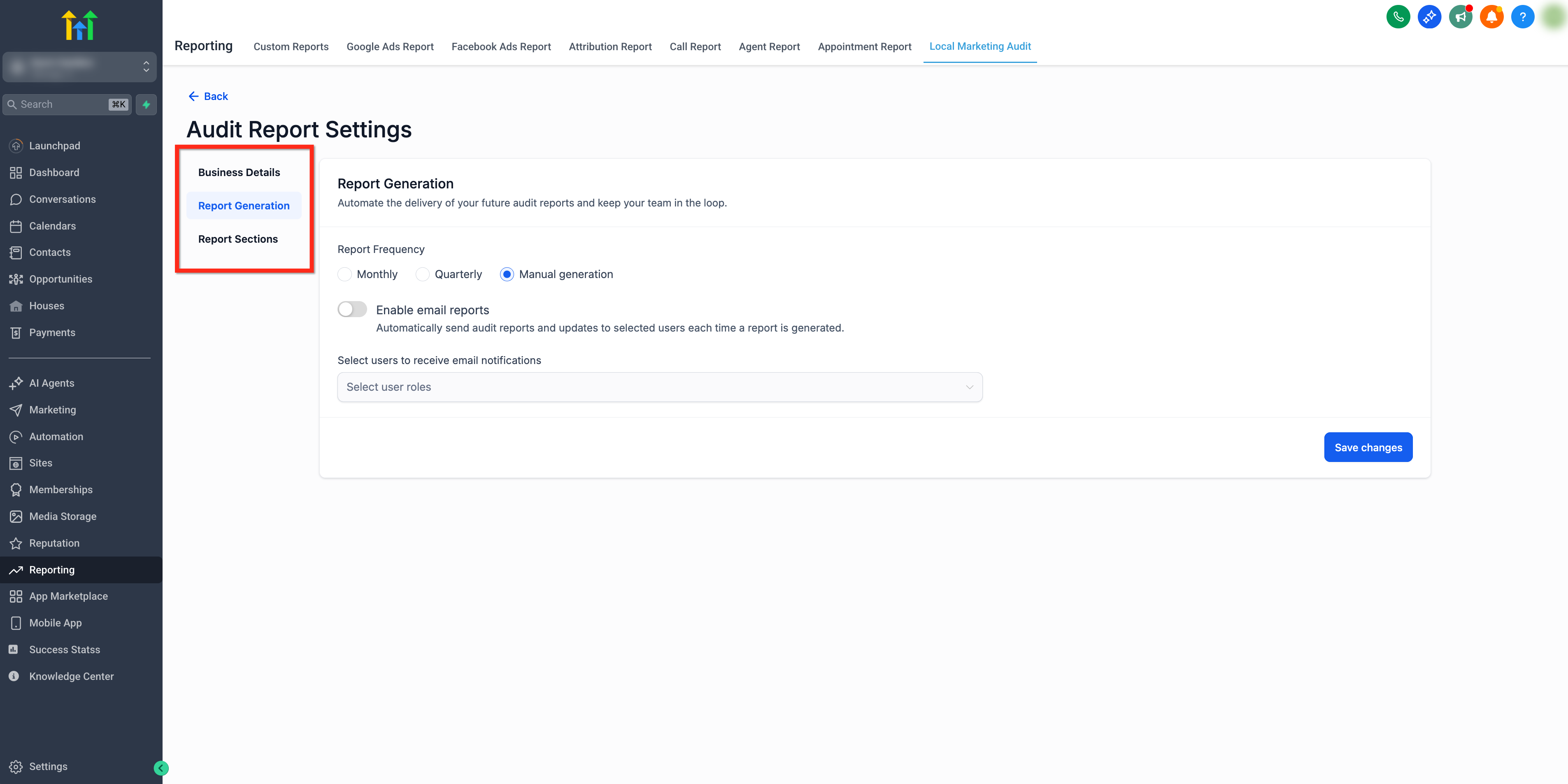
Audit Report Settings
Centralized Audit Settings let you change once and apply forward. Configure how future audits behave, settings do not modify historical reports.
To open the Audit Report Settings, click the three dot menu in the top‑right corner and choose Settings from the dropdown.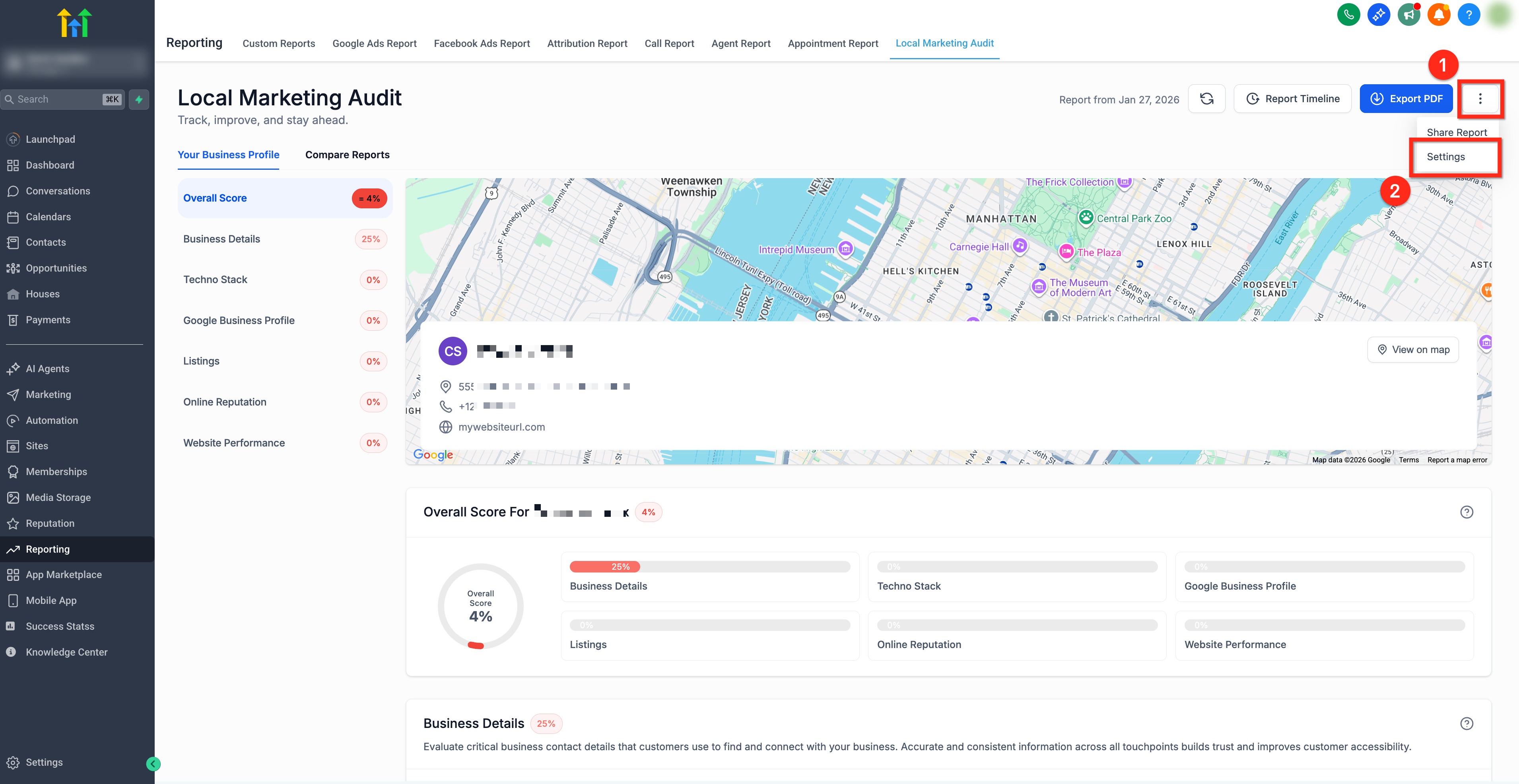
Audit Report Settings includes three tabs: Business Details, Report Generation, and Report Sections.
- Business Details: Update Name, Address, Phone (NAP), Website, and choose the Google Business Profile (GBP) used for audit generation.
- Report Generation: Choose how often reports run (Monthly, Quarterly, or Manual only) and enable or disable email delivery for reports
- Report Sections: Decide which audit sections are included and reorder sections to match your priorities.
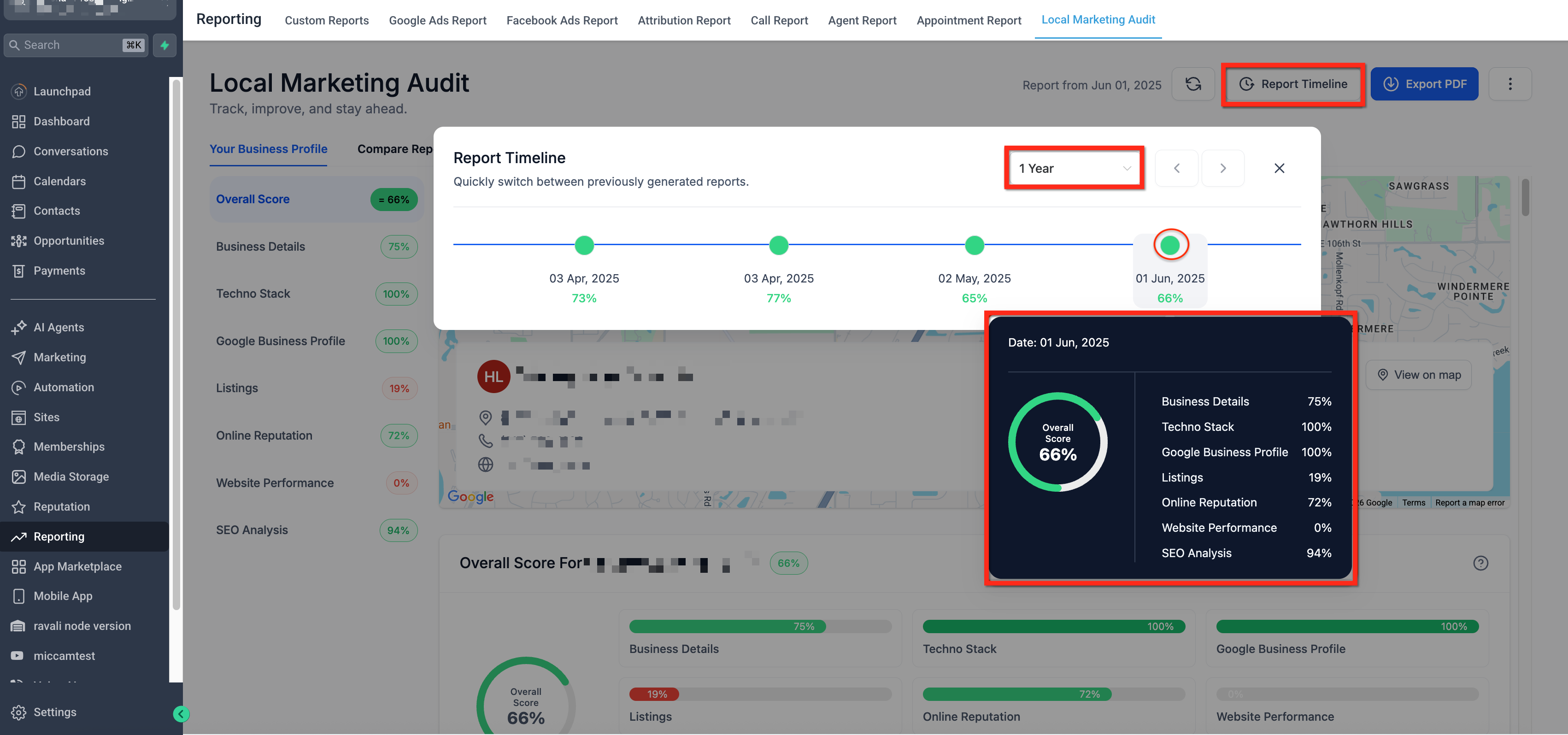
Report Timeline
The interactive Report Timeline stores prior audit reports for up to 12 months, so you can quickly review past performance, view improvements, and analyze trends.
Click Report Timeline at the top of the audit to open the Report Timeline. From here you can:
- Click a date to instantly open an older report.
- Hover to preview a summary card with key metrics.
Quickly compare scores and sections over time
Sharing a Local Marketing Audit
Sharing options make it easy to deliver findings to clients and teammates in the format they prefer. Choose between a polished PDF for formal reports or quick delivery via email, SMS, or a shareable link
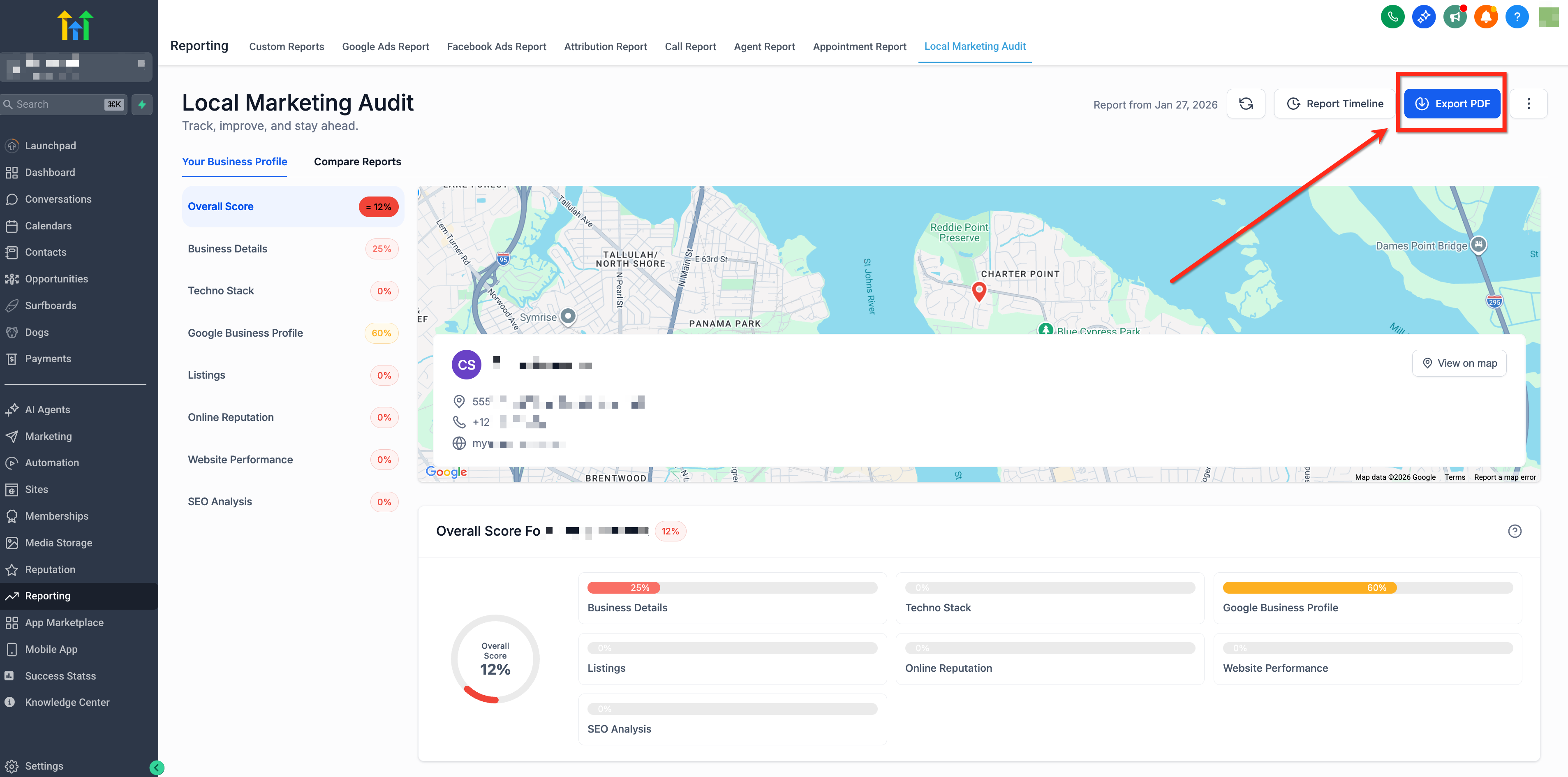
Export the Audit as a PDF
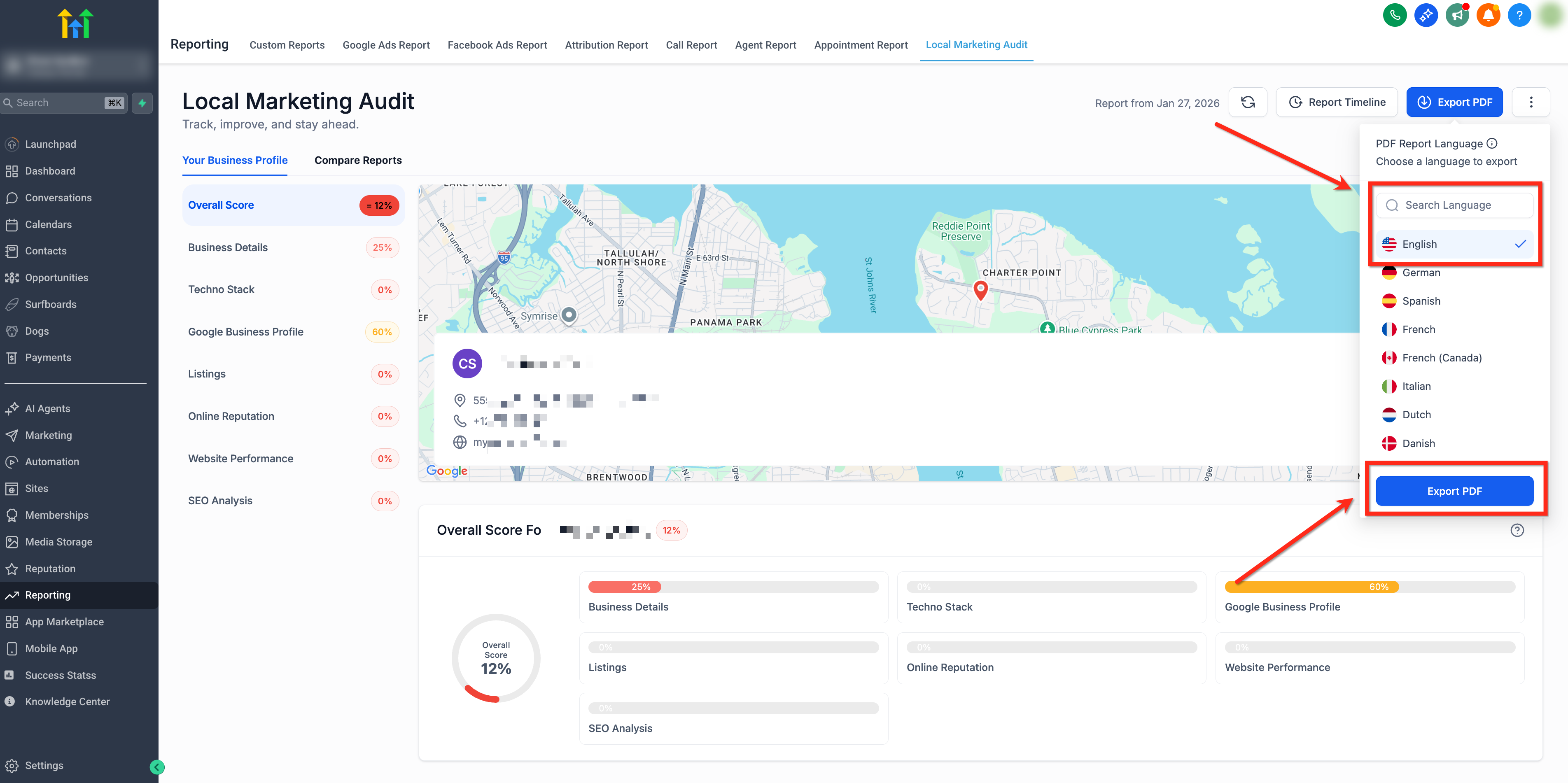
Use a PDF when you need a client-ready report with consistent formatting. You can even choose the language of the exported report!
- Click Export PDF.
- Select a language from the dropdown then click Export PDF to download.
Share Report via Email, SMS or a Link
Use the built-in share tools to send the report directly to contacts or generate a secure link you can drop into chat threads!
- Click 3 dot menu and from the dropdown select Share Report.
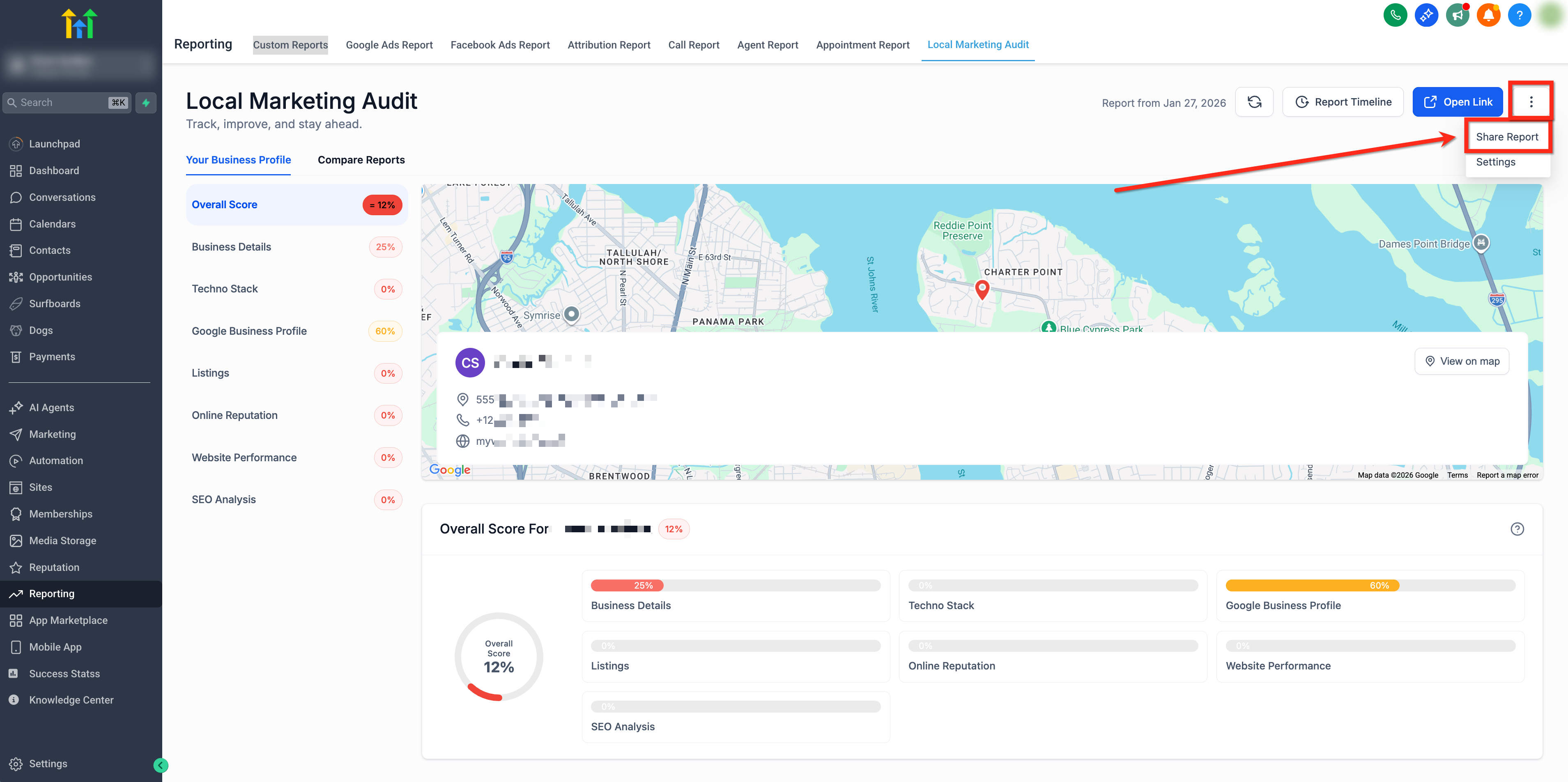
- Choose a delivery method (Email, SMS or Share Link), select a language and enter contact information.
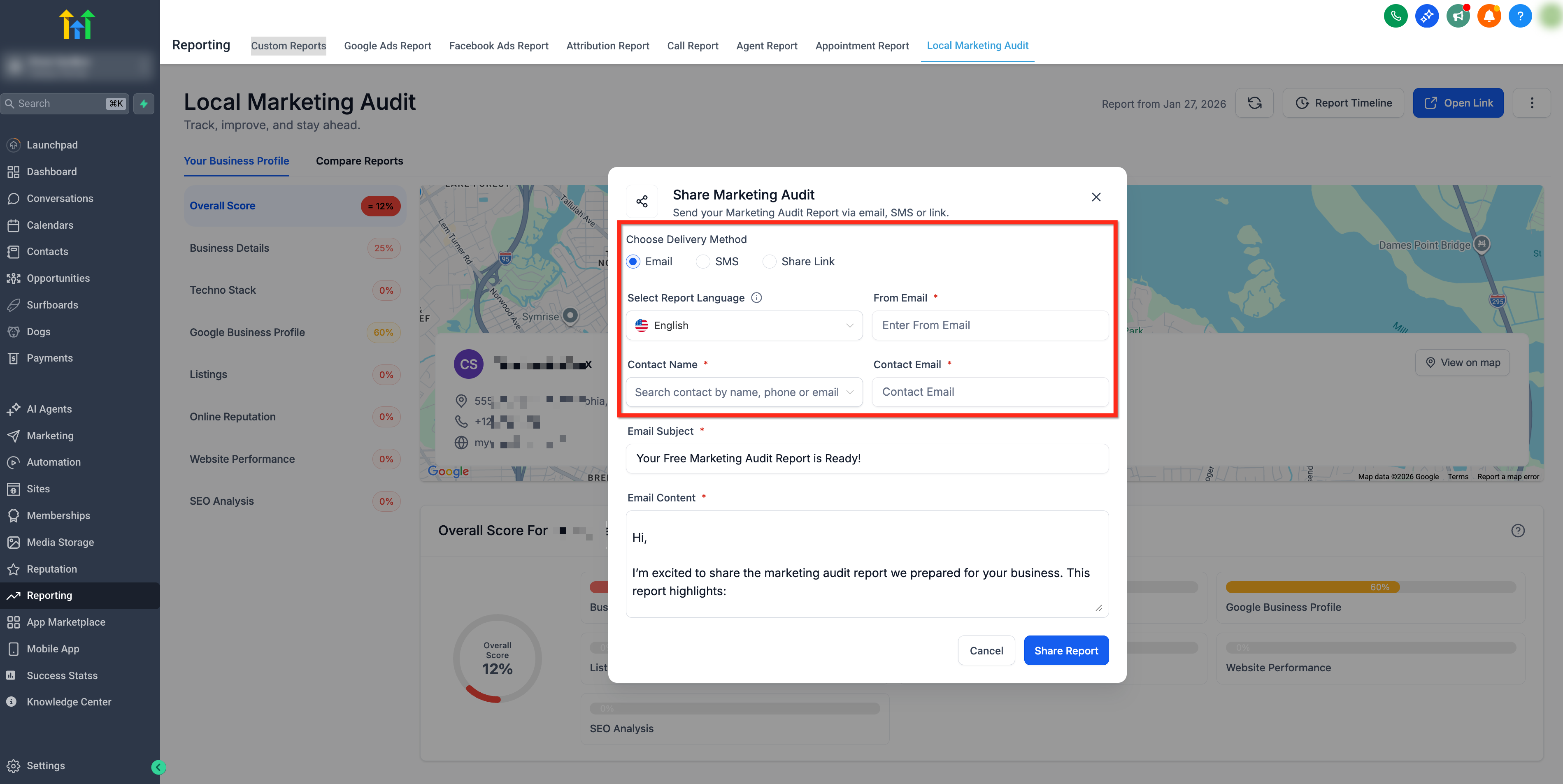
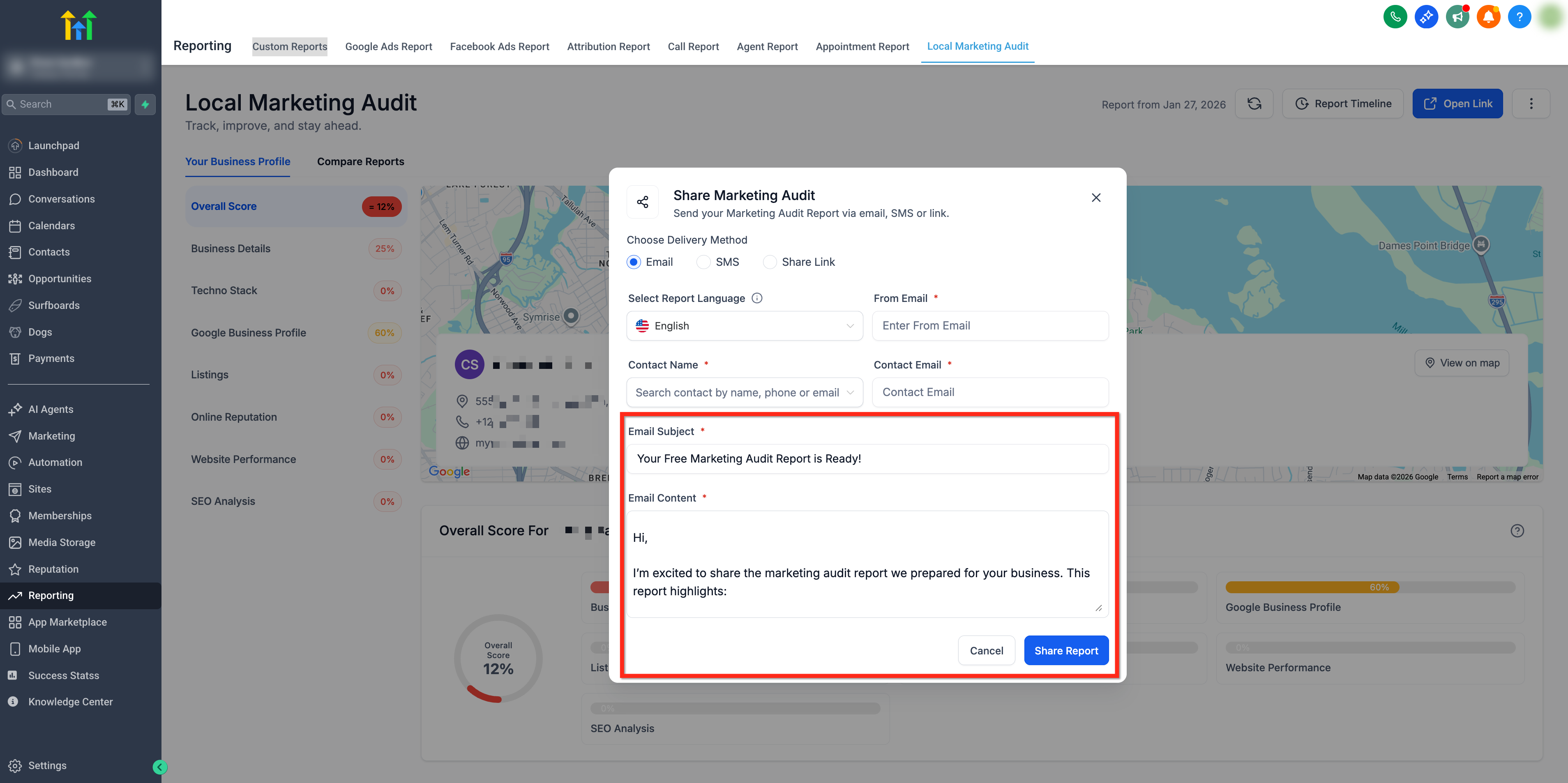
- Enter the email Subject Line and Email Content then click Share Report to send.
Frequently Asked Questions
Q: Can I refresh an audit anytime?
Yes. You can re-run the audit instantly with no waiting period and without recreating the report.
Q: Do changes in Settings affect old reports?
No. Settings changes apply to future audits only; previously generated reports remain unchanged.
Q: Can I use the Competitive Analysis Report without first generating the Local Marketing Audit?
No, the Competitor Analysis depends on the Audit Report data. You must generate the audit first.
Q: Can I export the audit in other languages?
Yes. Choose a language from Export PDF or Share Report. This does not change your account language.
Related Articles
Was this article helpful?
That’s Great!
Thank you for your feedback
Sorry! We couldn't be helpful
Thank you for your feedback
Feedback sent
We appreciate your effort and will try to fix the article