Google Forms in HighLevel Workflows lets you trigger automations from form submissions and use Google Forms actions to find forms or response data inside your workflow.
This makes it easier to automate follow-up, create contacts, assign internal work, and personalize next steps based on submitted information. With both triggers and actions available, teams can build faster, more connected workflows around Google Forms data.
TABLE OF CONTENTS
- What is Google Forms in Workflows?
- Key Benefits of Google Forms in Workflows
- Prerequisites for Using Google Forms Triggers and Actions
- Google Forms Triggers in Workflows
- Google Forms Actions in Workflows
- How To Connect and Use Google Forms in Workflows
- Frequently Asked Questions
What is Google Forms in Workflows?
Google Forms in Workflows allows you to connect Google Forms with HighLevel automations so form activity can start a workflow or provide data to later workflow steps. This helps you turn form submissions into real business actions like contact creation, internal task assignment, opportunity updates, and personalized follow-up.
Google Forms supports both triggers and actions in HighLevel Workflows. Triggers let a workflow begin when a Google Form response is detected, while actions let you search for forms or response data during an automation.
Key Benefits of Google Forms in Workflows
Google Forms integration helps teams move faster after a submission is received. Instead of manually reviewing form responses and taking action later, HighLevel can automatically route the response into the right workflow path.
- Automated follow-up: Start workflows when a new or updated Google Forms response is detected.
- Faster lead handling: Check whether the contact already exists, create a contact if needed, and send the right communication automatically.
- Better internal coordination: Pass form response data into internal tasks, pipeline updates, and team processes.
- Smarter personalization: Use submitted form details to send more relevant emails and automate the next best step.
- Flexible workflow design: Combine Google Forms with other workflow actions across CRM, email, tasks, and opportunity management.
Prerequisites for Using Google Forms Triggers and Actions
Before using Google Forms actions or triggers in HighLevel Workflows, the Google Forms integration must already be connected in the sub-account. Without this connection, Google Forms will not be available as a connected app when building workflow automations.
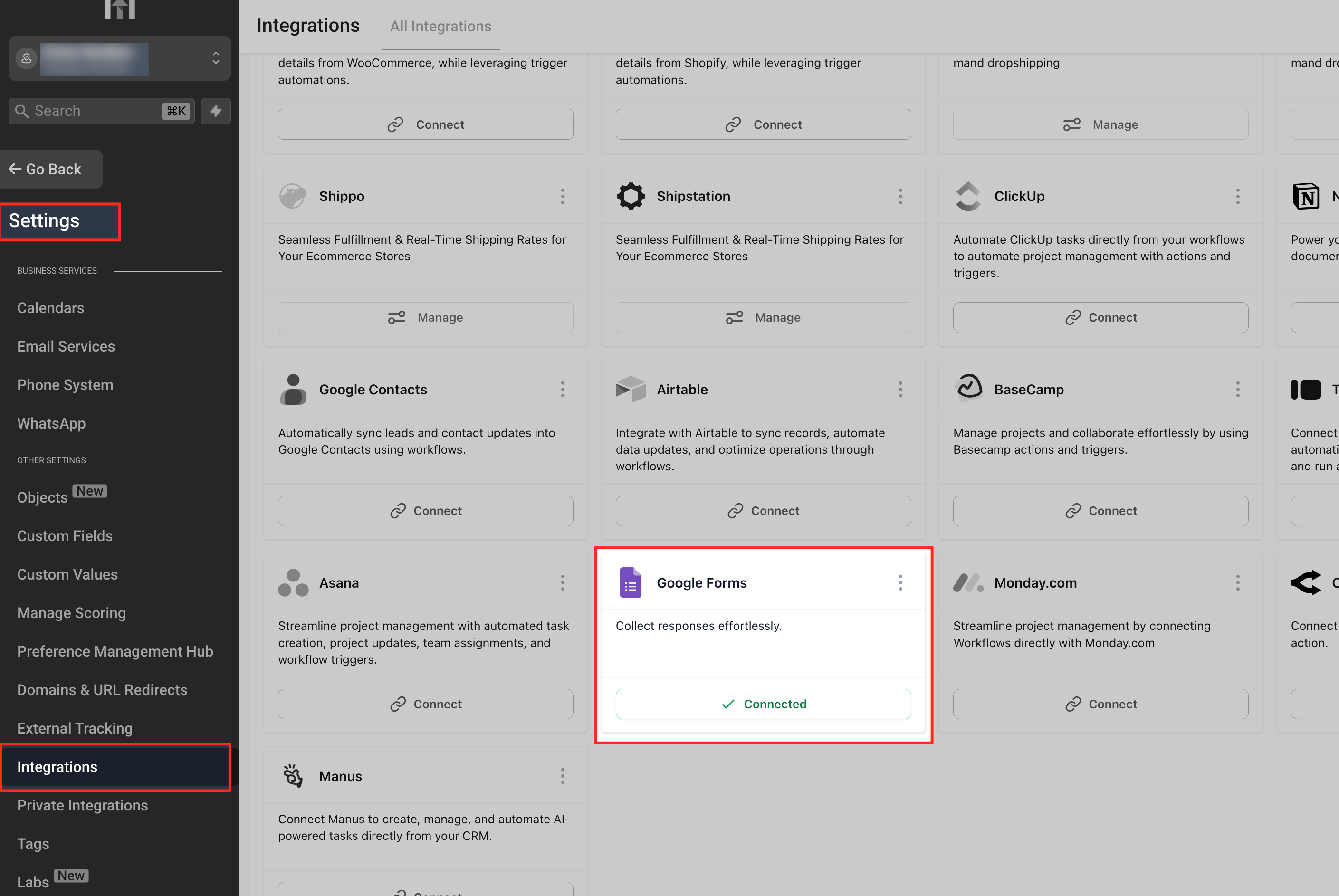
Go to Settings in your sub-account.
Click Integrations from the left-hand menu.
Stay on the All Integrations tab.
Find Google Forms in the list of available integrations.
Click Connect.
Sign in with the correct Google account.
Review the requested permissions and approve the connection.
Confirm the integration status shows Connected.
Go to Automation > Workflows and begin adding Google Forms triggers or actions to your workflow.
Google Forms Triggers in Workflows
Google Forms triggers help you start an automation when a form response is received or updated. This is useful when you want HighLevel to immediately begin a process after someone submits information through a connected Google Form.
Available Trigger
New or Updated Response
This trigger starts a workflow when a new Google Forms response is detected or when an existing response is updated. The trigger checks for changes using a polling interval of approximately 5 minutes.
Important trigger behavior
- The trigger supports both new responses and updated responses.
- The trigger works on a 5-minute polling interval, so the workflow may not start instantly.
- This trigger is best used when you want a Google Form submission to start a workflow automatically.
- Testing should be done with a real form submission or response update so you can confirm how the workflow behaves.
Google Forms Actions in Workflows
Google Forms actions let you search for forms or response data inside a workflow. These actions are helpful when you need to retrieve details from Google Forms and use them later in the automation.
Available Actions
Find Form
Use this action when you need to search for a Google Form and return form information for later workflow steps.
Find Response by ID
Use this action when you already know the response ID and want to retrieve that specific response.
Find Responses by Form Name
Use this action when you want to search responses associated with a specific Google Form by form name.
How actions are typically used
- Retrieve Google Forms data for downstream workflow logic
- Support internal processing after a trigger has already started the workflow
- Branch the workflow based on whether data is found or not found
- Pass returned values into later actions such as email, contact management, notes, or opportunity updates
How To Connect and Use Google Forms in Workflows
A proper setup helps make sure your workflow starts correctly, pulls the right Google Forms data, and routes contacts into the right path. This is especially important when you want to combine form submissions with contact checks, internal actions, and automated follow-up.
Connect Google Forms in the workflow builder
Navigate to Automation > Workflows.
Create a new workflow or open an existing workflow.
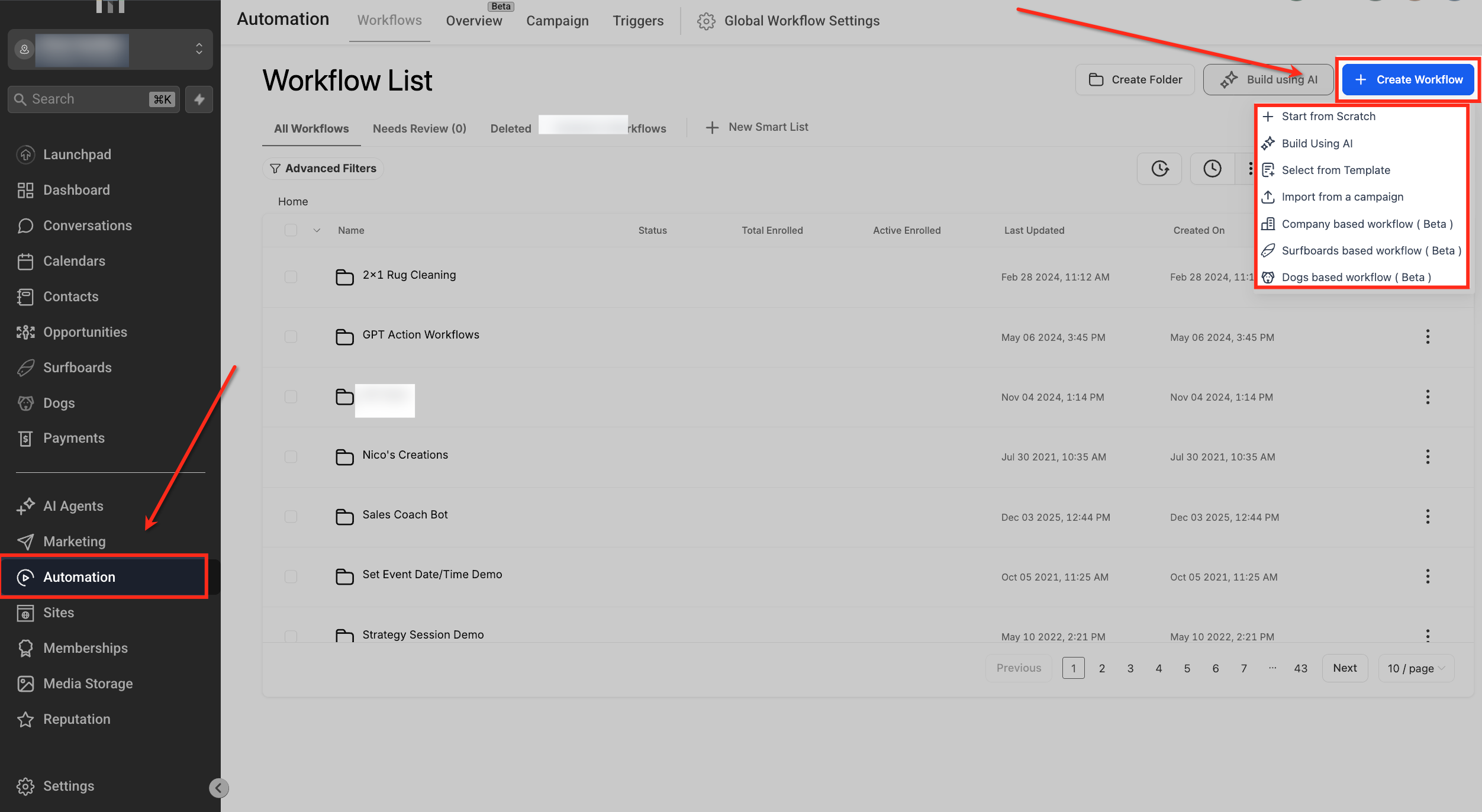
In the workflow builder, search for Google Forms.
Select the Google Forms app.
Connect the correct Google account if you have not already done so.
Choose whether you want to use a trigger or an action.
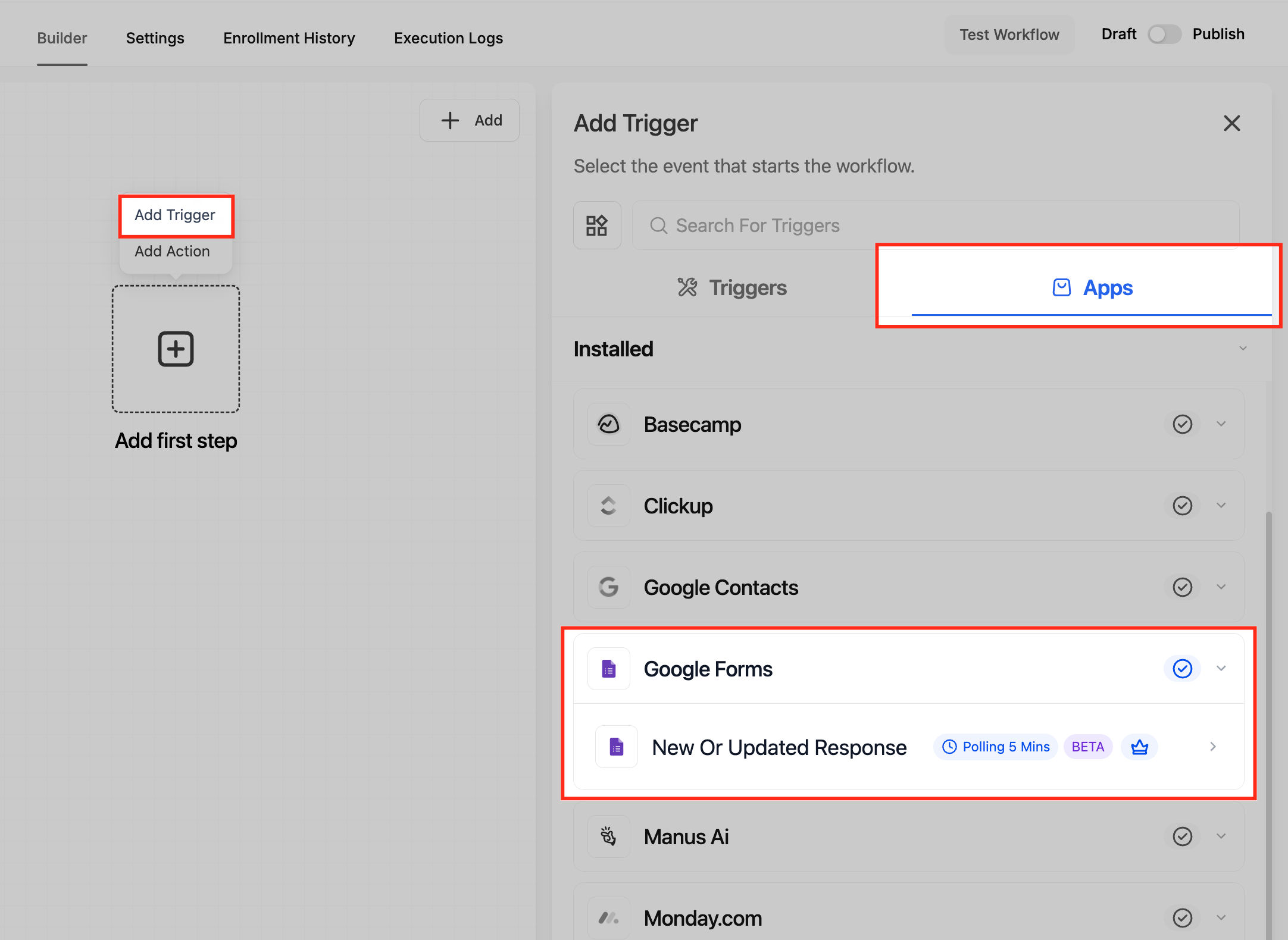
Set up a Google Forms trigger
Add the New or Updated Response trigger to the workflow.
Select the Google Form you want to monitor.
Save the trigger settings.
Publish the workflow.
Submit a test response or update an existing response in the Google Form.
Allow time for the polling interval to detect the submission.
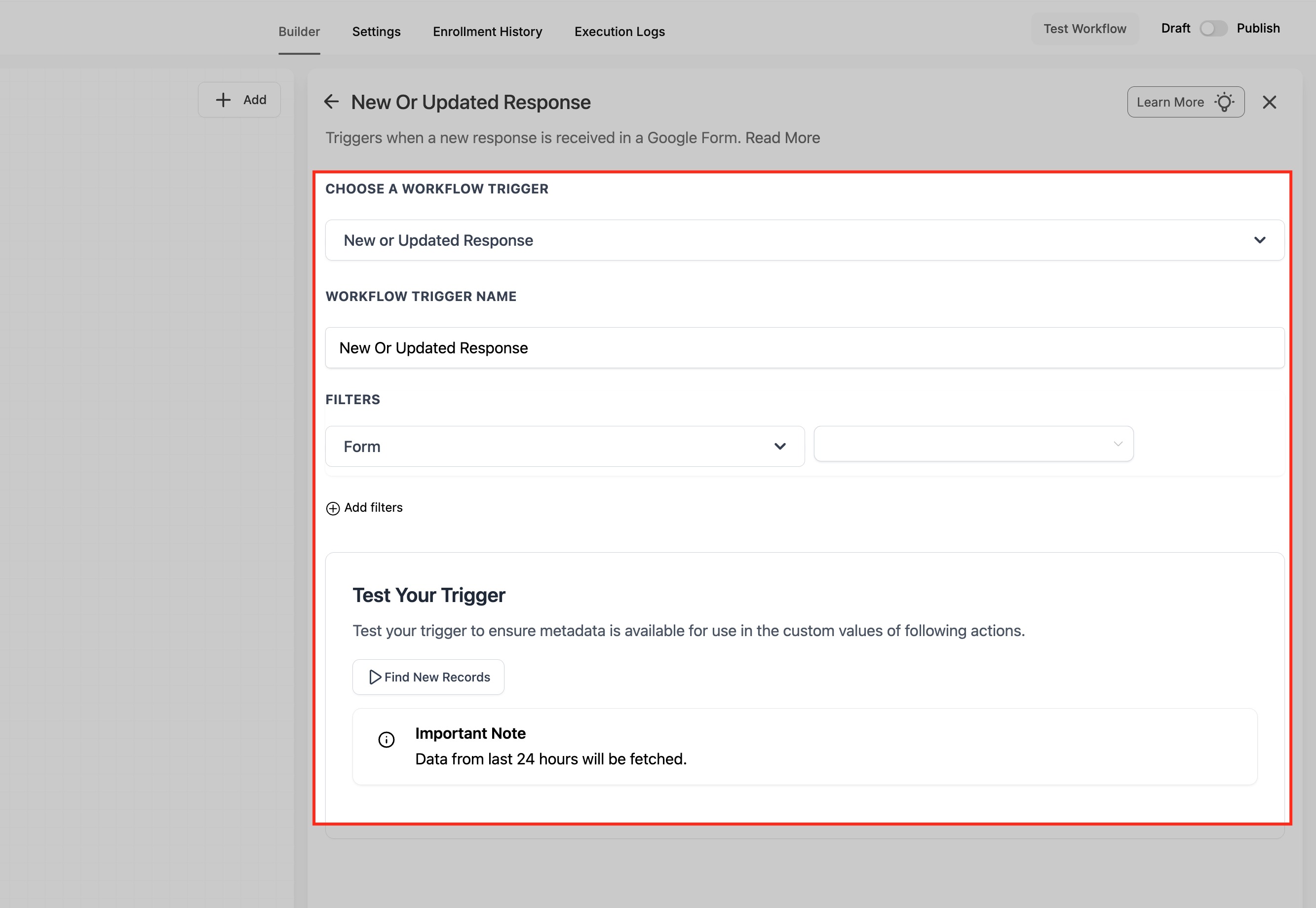
Set up a Google Forms action
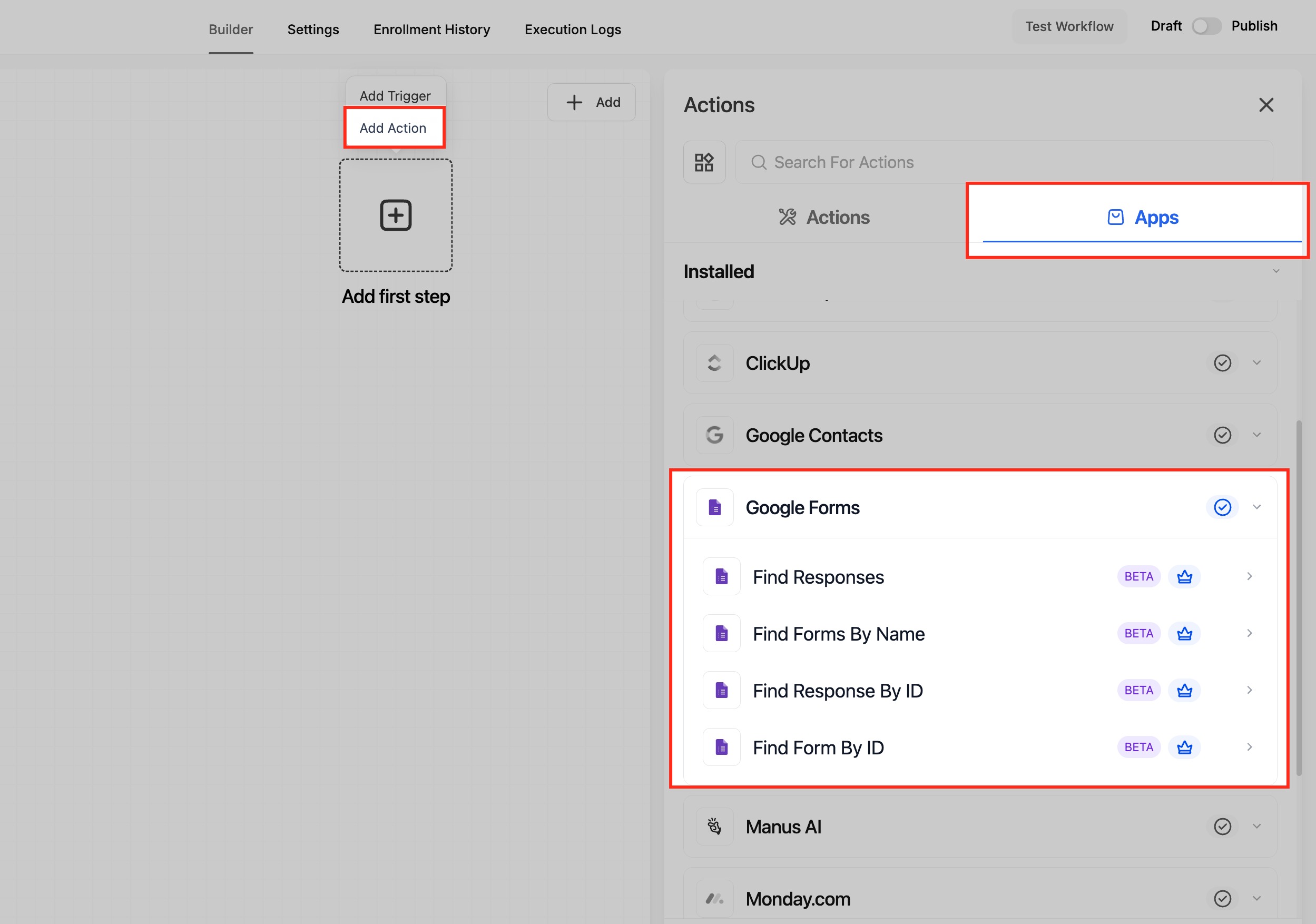
Inside the workflow, click the + icon to add an action.
Search for Google Forms.
Choose the action you want to use:
Find Responses
Find Forms By Name
Find Response by ID
Find Form By ID
Configure the required fields for that action.
Save the action.
Use the returned output in later workflow steps such as contact updates, email, tasks, or opportunity management.
Frequently Asked Questions
Q: Does Google Forms support both triggers and actions in HighLevel Workflows?
Yes. Google Forms supports both triggers and actions in HighLevel Workflows.
Q: What trigger is currently available for Google Forms?
The available trigger is New or Updated Response.
Q: How often does the trigger check for responses?
The trigger checks for new or updated responses on an approximate 5-minute polling interval.
Q: Will the workflow start instantly after a form submission?
Not always. Because the trigger uses polling, there can be a short delay before the workflow starts.
Q: What is the difference between a trigger and an action?
A trigger starts the workflow when Google Forms activity is detected. An action is used later in the workflow to search for forms or response data.
Q: Can I use Google Forms to create or update contacts in HighLevel?
Yes. A Google Forms submission can start a workflow, and later workflow steps can check for an existing contact, create a contact, or continue follow-up based on the result.
Q: What happens if the contact does not already exist?
You can use workflow actions such as Create Contact after checking with Find Contact.
Q: Can I use Google Forms data in later workflow steps?
Yes. Google Forms actions can return data that can be used in later workflow steps, depending on the action and the workflow design.
Q: Does Google Forms support two-way sync in this workflow integration?
This workflow integration is designed for workflow triggers and actions around Google Forms data. It should not be described as a two-way sync feature.
Q: Why is my workflow not starting right after a form submission?
The most common reason is the polling interval. The trigger checks approximately every 5 minutes, so execution may not happen immediately.
Related Articles
Was this article helpful?
That’s Great!
Thank you for your feedback
Sorry! We couldn't be helpful
Thank you for your feedback
Feedback sent
We appreciate your effort and will try to fix the article