Create and manage Custom Objects in HighLevel to model data beyond Contacts and Opportunities—like Properties, Pets, Cases, or Vehicles. This guide shows where Custom Objects are supported across the app, how to set them up step-by-step, plus FAQs and links to related features such as SmartLists, Workflows, and Dashboards.
TABLE OF CONTENTS
- What is a Custom Object?
- Key Benefits of Custom Objects
- Field Types & Unique Fields
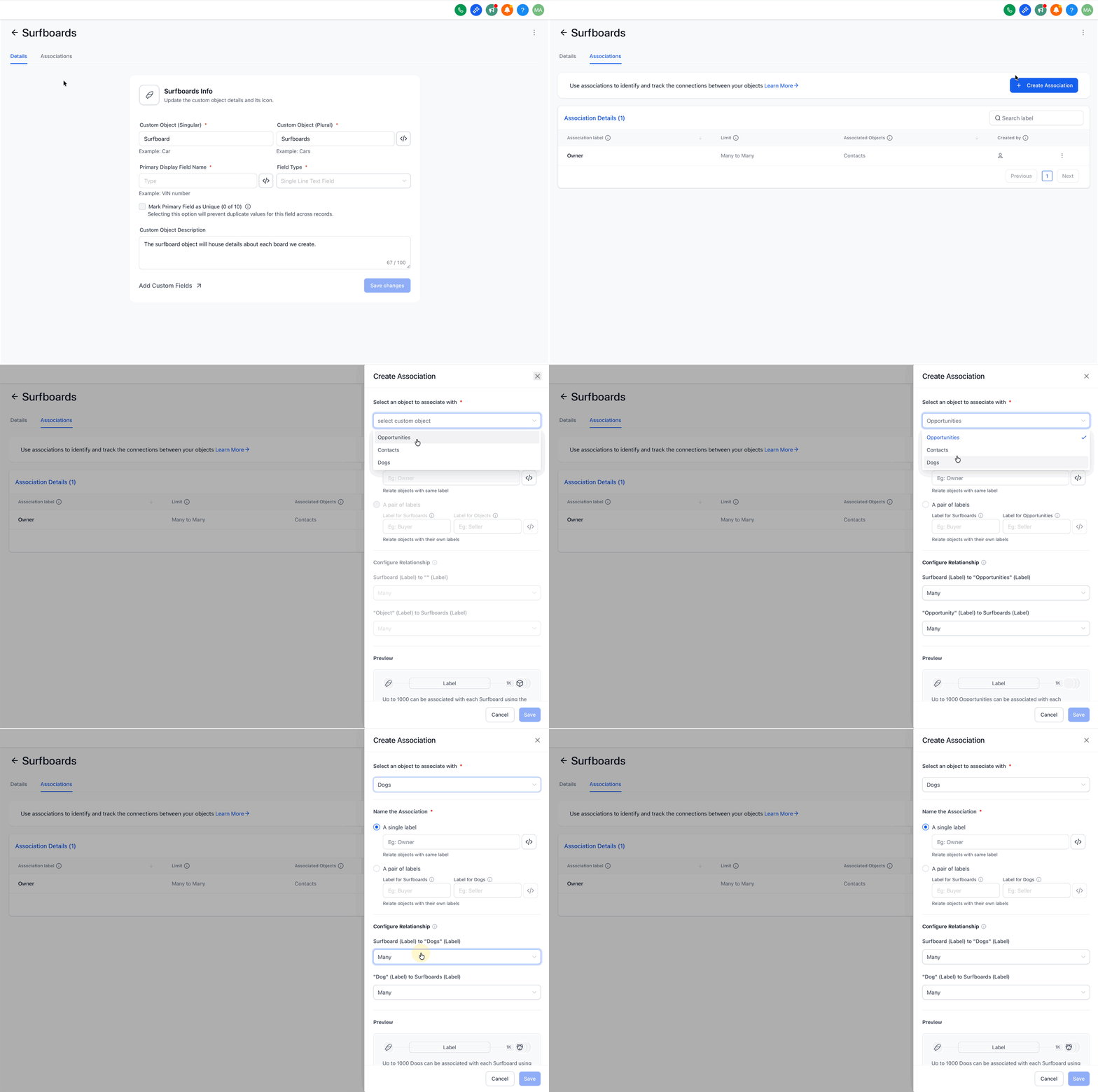
- Associations & Labels
- Where You Can Use Custom Objects
- How To Set Up Custom Objects
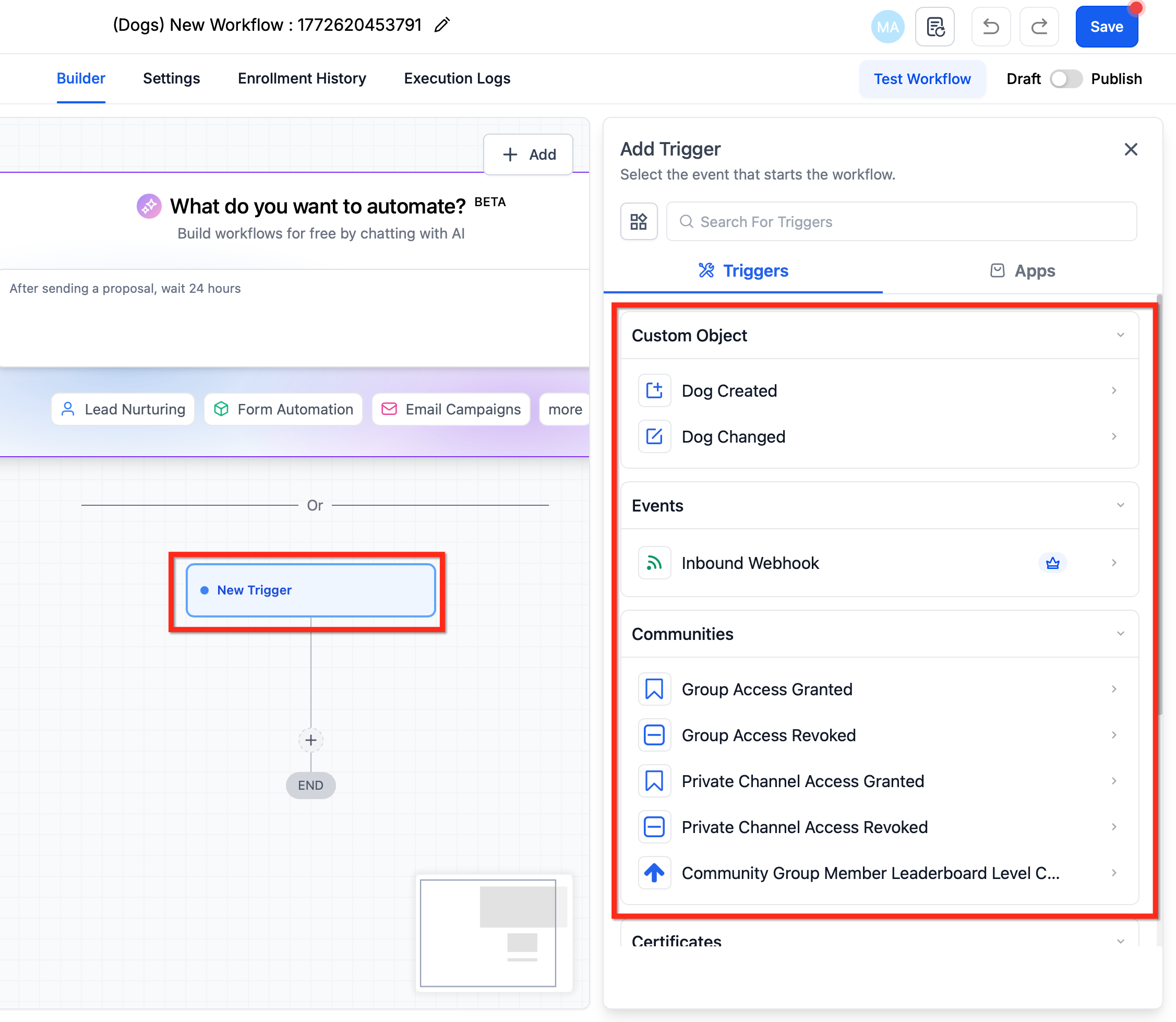
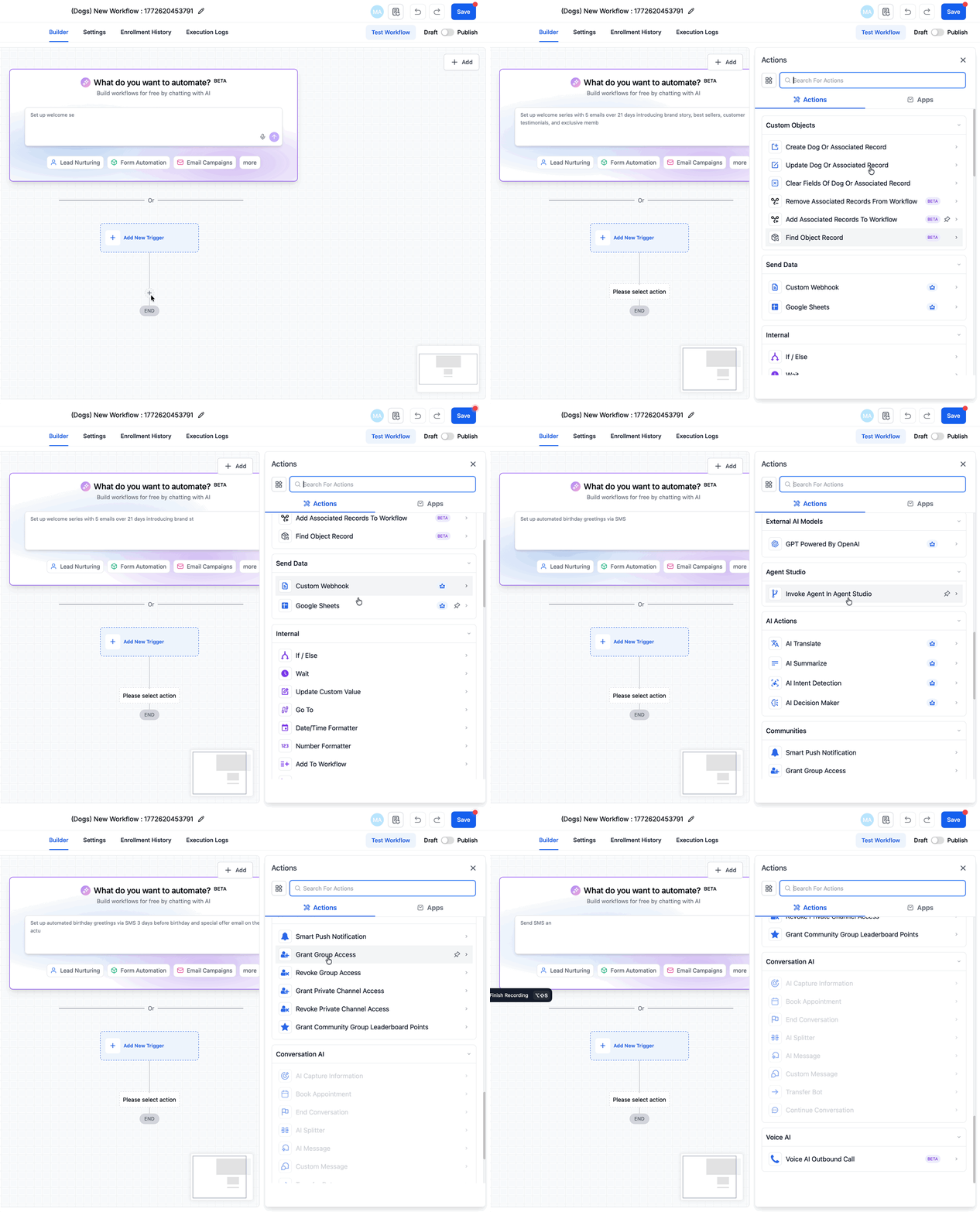
- Using Custom Objects in Workflows (Automation)
- Frequently Asked Questions
- Related Articles
What is a Custom Object?
Custom Objects let you define brand-new record types—each with its own fields, associations, and automations—so your CRM mirrors your real-world processes. They’re ideal when standard objects aren’t enough (e.g., tracking a “Property” with MLS, Bedrooms, Status; or a “Pet” with Breed, Vaccinations). After you create an object, you can use it across views, filters, and automations.
Key Benefits of Custom Objects
Understanding the practical upside helps you design data models that stay flexible and future-proof.
Flexibility: define any entity with custom fields, labels, and associations.
Automation: trigger workflows on create/update and run object-specific actions.
Insights: analyze object data via SmartLists and List View, then filter precisely with Advanced Filters.
Governance: maintain integrity with clear ownership—admins manage object definitions.
Plan access & limits: available on all plans; up to 10 Custom Objects per location.
Field Types & Unique Fields
Choosing the right field types and uniqueness rules keeps your data clean and merge-friendly.
Supported unique field types today: Single Line Text, Multi Line Text, Number, Phone.
Limit: up to 10 unique fields per object.
Scope: uniqueness is enforced across the sub-account and across all entry points (UI, Workflows, Forms, API).
Irreversible change: if you downgrade a unique field to non-unique, you cannot make it unique again.
Associations & Labels
Associations connect records (e.g., Opportunity ↔ Property) to reflect real-world relationships and power cross-object views.
Define many-to-many or one-to-many links between objects.
Use associations in SmartLists, filters, and automations.
Label limits: up to 10 unique labels between any two objects (for clarity like “Buyer Of,” “Listed On”).
Opportunities now support flexible associations to Custom Objects for a unified pipeline context.
Where You Can Use Custom Objects
Choosing the right surfaces for Custom Objects ensures your build is both powerful and compatible. Use this matrix to see current availability and plan implementations confidently.
| Availability | Features |
|---|---|
| Supported | Contacts & Opportunities (associations), Workflows (triggers & actions), Forms, Surveys & Quizzes, SmartLists, List View, Advanced Filters, Reporting/Dashboards, APIs, Webhooks, Tasks |
| Not supported | Email Campaigns, Bulk Email, Bulk SMS, Conversations UI, Funnels & Websites (dynamic CO data), Calendars & Scheduling, Reputation/Reviews, Payments & Invoicing, Company object internals |
| Coming soon | Notes, Funnels & Websites (dynamic binding), AI Knowledgebase, Emails via Workflow to associated contacts |
How To Set Up Custom Objects
A clean initial setup ensures stable automation and reporting as your model grows. The steps below are sourced from Creating and Editing Custom Objects and lightly clarified for readability.
Step 1 — Create the Object
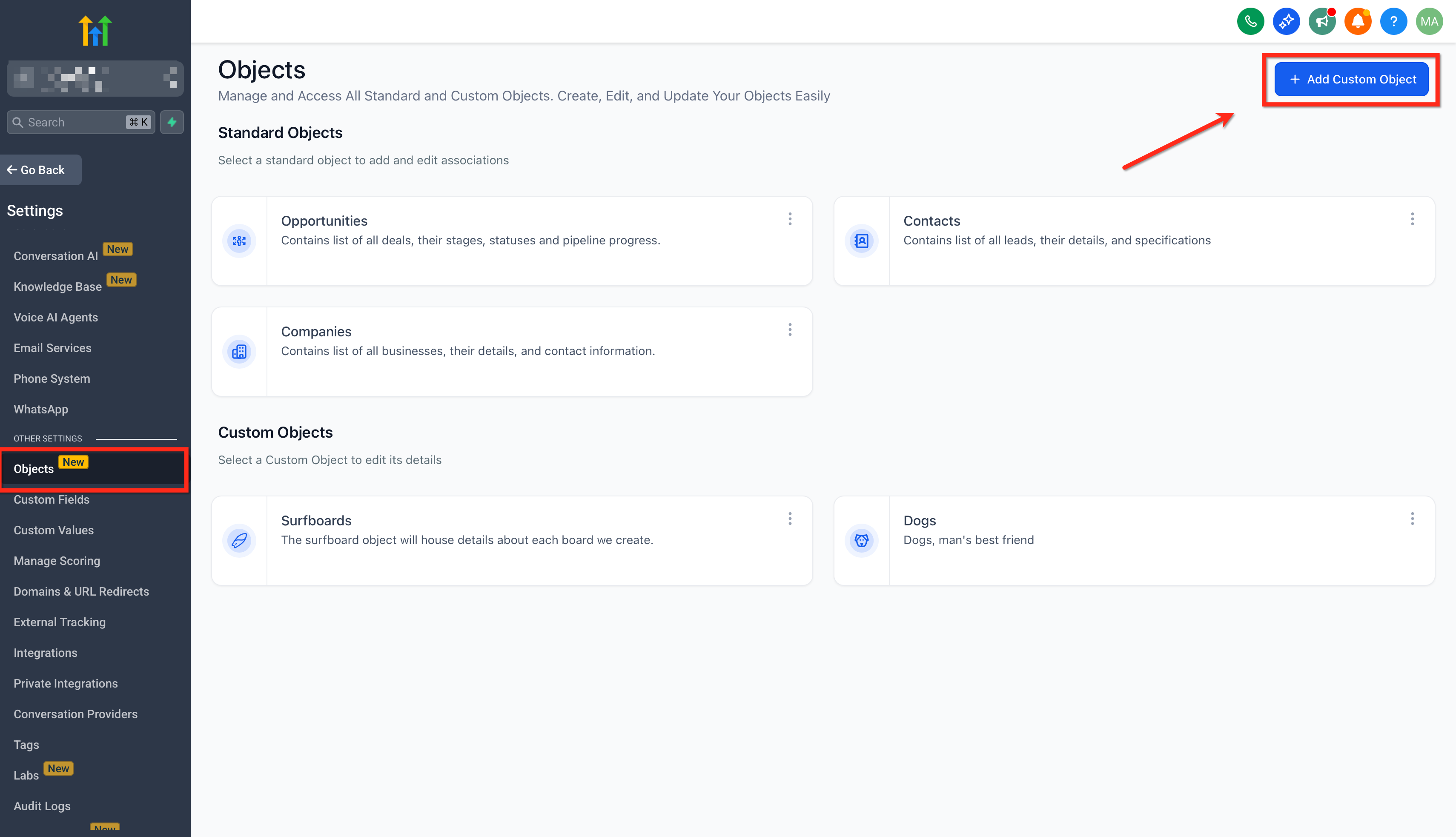
Go to Sub-account → Settings → Objects.
Click Add Custom Object.
Step 2 — Add Details about the Object
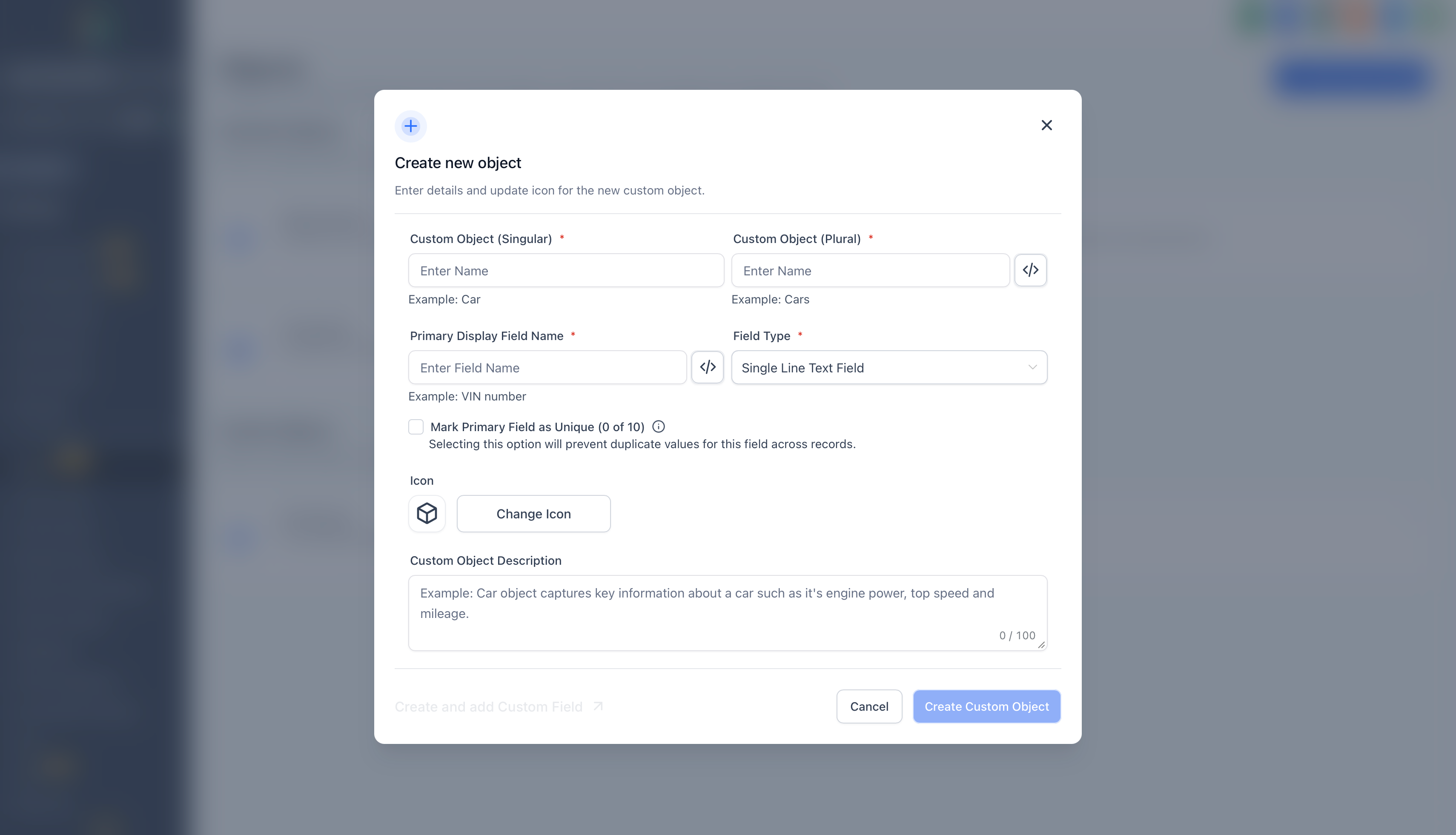
Enter the Singular name (e.g., Pet).
Enter the Plural name (e.g., Pets).
Review the Internal Name and Primary field (created by default). You can adjust the internal name during creation by clicking </>.
Provide a label for the Primary display field (e.g., Pet Name, Pet Identification Number).
Choose an Icon and add a Description to help your team understand the object’s purpose.
Click Create Custom Object.
Step 3 — Edit Object Details
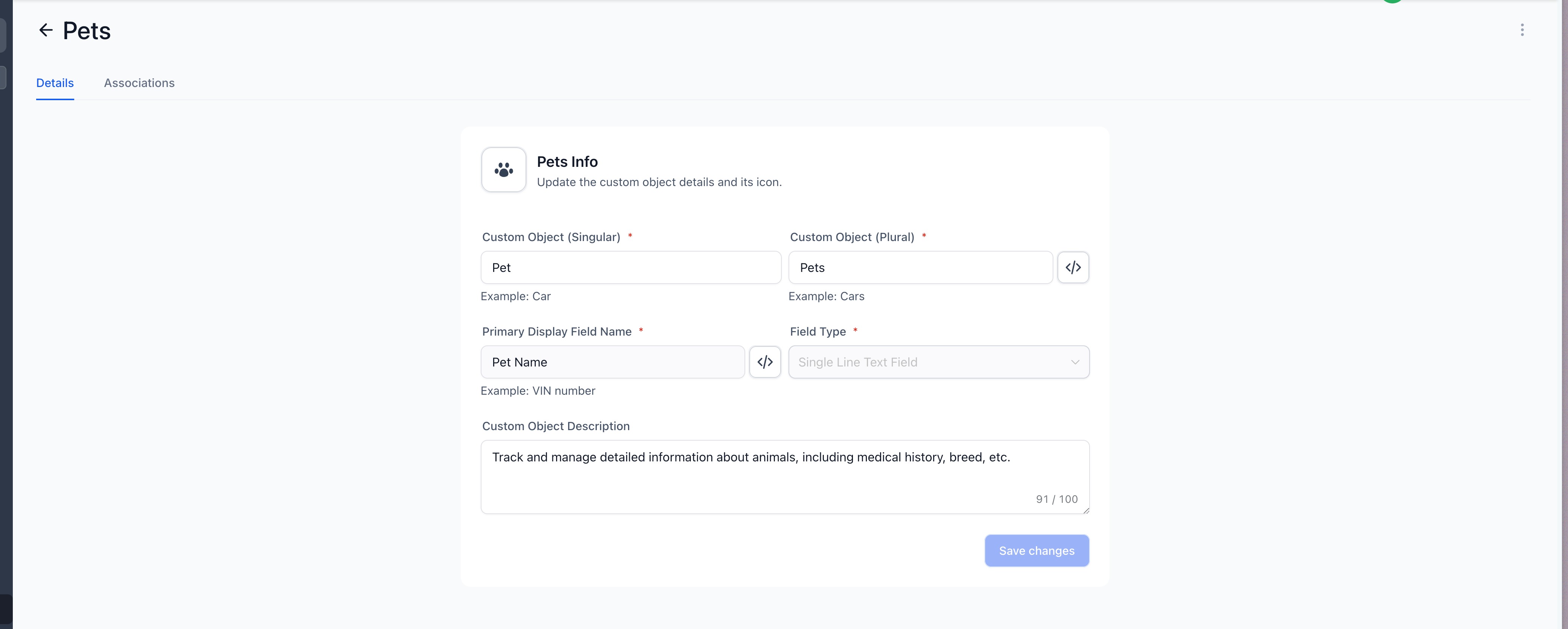
After creation, the object appears on the Objects page.
Click the object to open and adjust its details.
Optional — Delete a Custom Object (Irreversible)
Click the ⋯ (three dots) next to the object’s name.
Choose Delete.
Type DELETE to confirm.
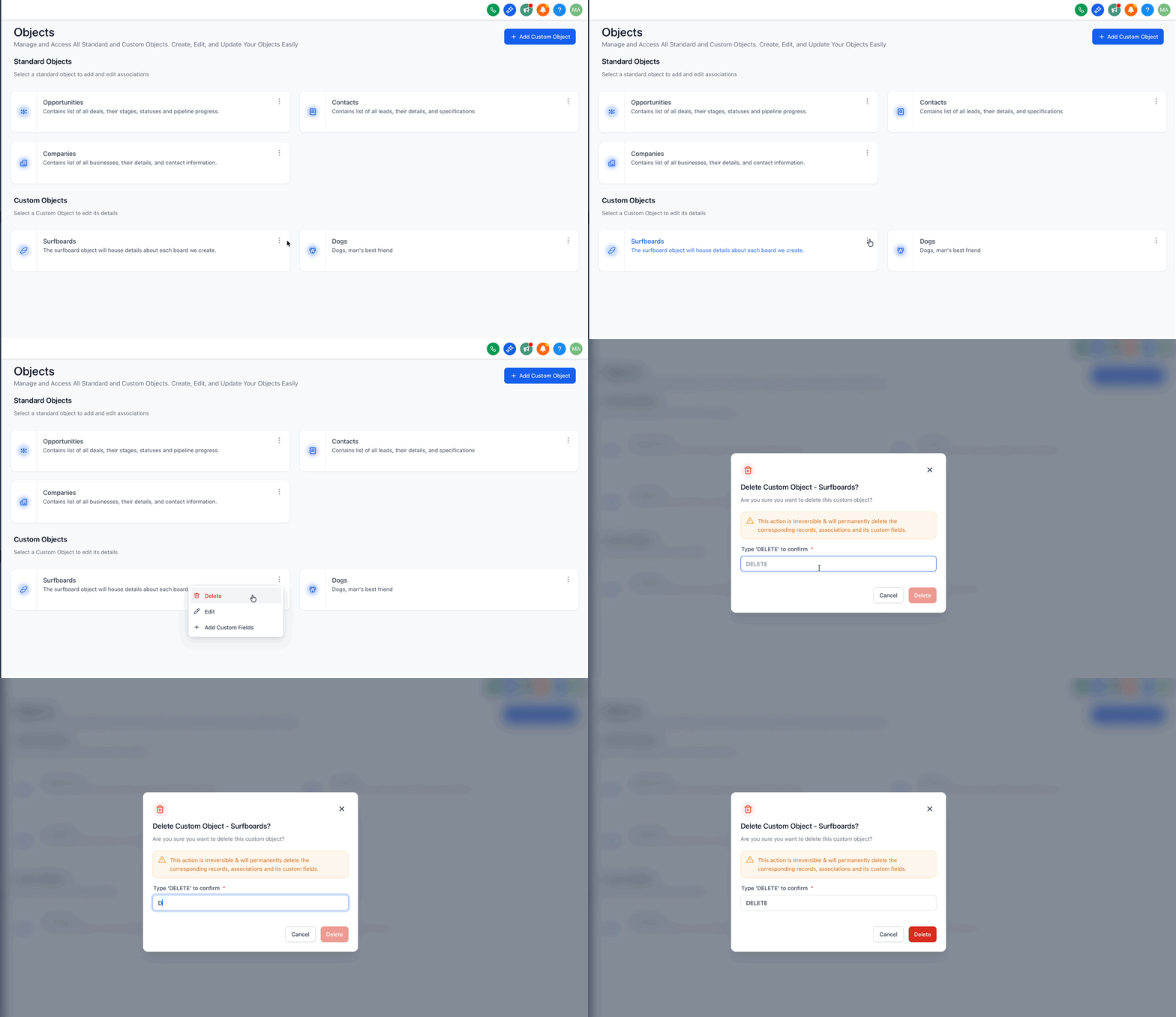
Imp: Deletion removes the object and all records, associations, workflows, and custom fields linked to it; this cannot be recovered.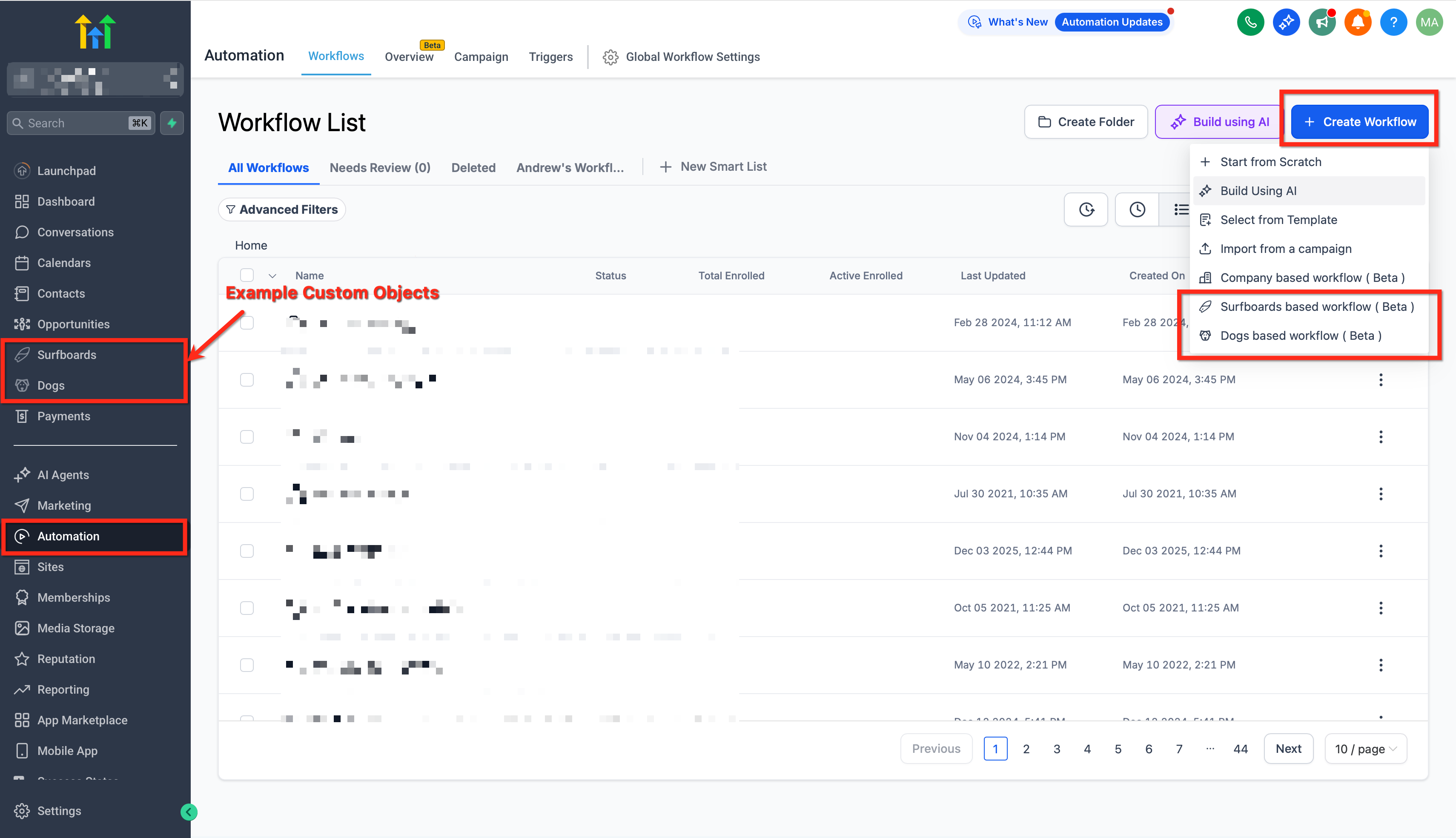
Frequently Asked Questions
Q. Who can create or edit Custom Objects?
Only admins at the location level. Regular users have read-only access.
Q. How many Custom Objects can I create?
Up to 10 per location across all plans.
Q. Can I change the Internal Name or Primary Display Field later?
No—once the object is created, these fields are not editable.
Q. Where are Custom Objects supported today?
See the Support Matrix table above for current availability and planned surfaces.
Q. What happens if I delete a Custom Object?
Deletion is permanent and removes the object and all related records, associations, workflows, and custom fields.
Q. How do I automate actions when a Custom Object is created or updated?
Use Custom Object triggers and actions in Workflows (e.g., create/update/clear, find record, webhooks).
Related Articles
Was this article helpful?
That’s Great!
Thank you for your feedback
Sorry! We couldn't be helpful
Thank you for your feedback
Feedback sent
We appreciate your effort and will try to fix the article