Use Custom Dispositions to record the outcome of each voice call with a consistent label such as Follow Up, Qualified, or Requested Appointment. Dispositions help teams standardize call outcomes and can be used to trigger automated follow-up actions.
TABLE OF CONTENTS
- What Are Custom Dispositions for Voice Calls?
- Key Benefits
- How to Create and Manage Custom Dispositions
- How to Use a Custom Disposition After a Call
- Custom Dispositions on Mobile
- Use Custom Dispositions in Workflows
- Call Status vs. Custom Disposition
- Supported Calls and Limitations
- Migration from Legacy Call Status
- User Roles and Permissions
- Frequently Asked Questions
What Are Custom Dispositions for Voice Calls?
Custom Dispositions are user-defined call outcomes that team members can select after a call. For example, you can create dispositions such as Follow Up, Qualified, Requested Appointment, or Not Interested.
Each call can have one disposition. The selected disposition is stored with the call and can be used in workflows to automate the appropriate next step.
Key Benefits
- Standardize call outcomes: Give team members a consistent set of options for recording what happened on a call.
- Speed up post-call work: Select an outcome immediately after a call instead of recording it manually elsewhere.
- Automate follow-up: Use dispositions with the Call Details workflow trigger to send messages, create tasks, update opportunities, and more.
- Support web and mobile teams: Select dispositions after supported calls from both the web and mobile apps.
How to Create and Manage Custom Dispositions
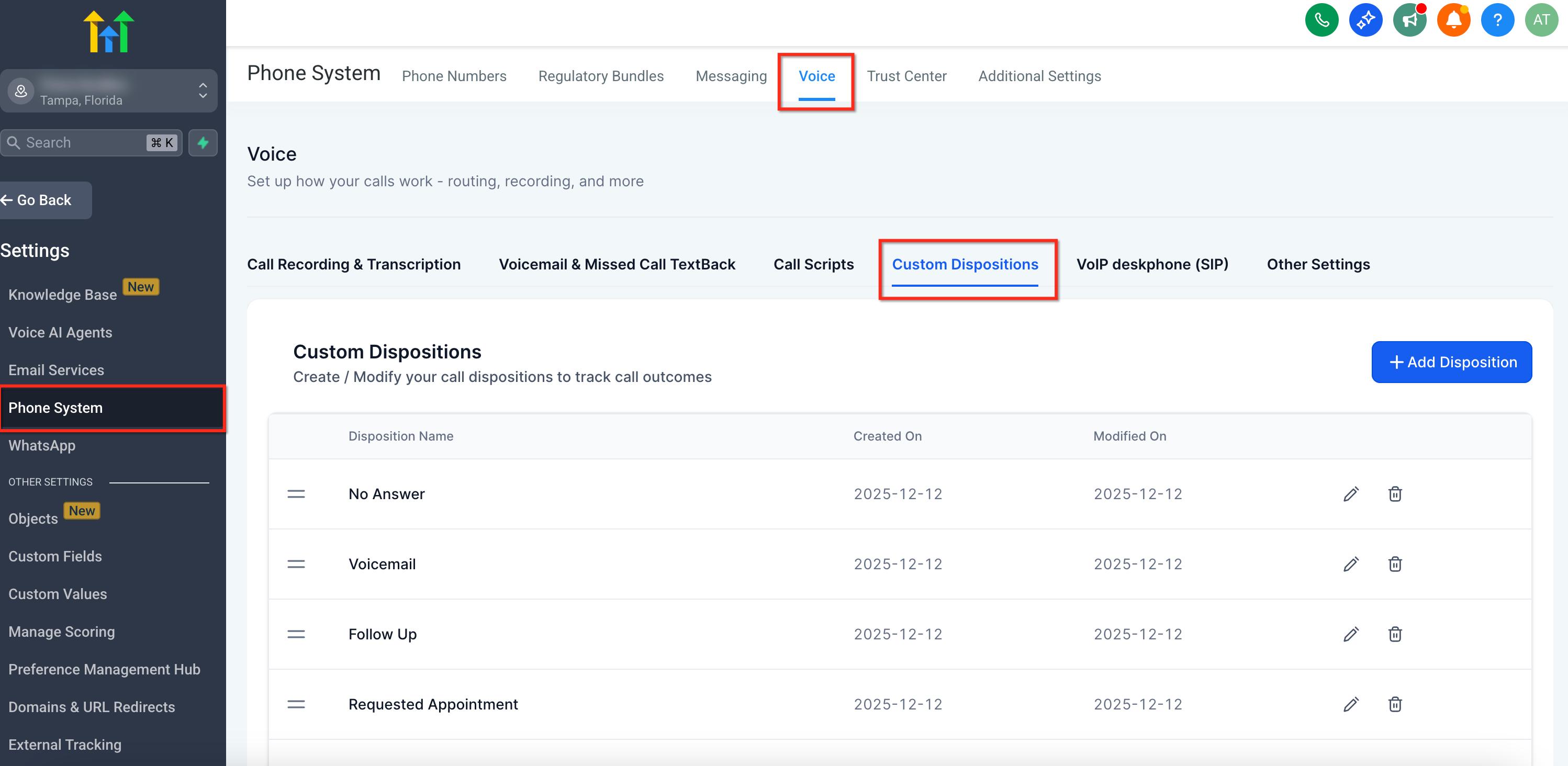
Sub-account admins control which dispositions are available to users. Each sub-account can have up to 10 dispositions.
- Go to Settings → Phone System → Voice → Call Dispositions.
- Review the existing dispositions available for the sub-account.
- Add a new disposition or edit an existing disposition as needed.
- Reorder dispositions to control how they appear to users.
- Save your changes.
Use short, action-oriented names that clearly describe the outcome of a call.
Note: Renaming a disposition does not break workflows that already use it because HighLevel tracks the disposition using its internal ID. If you delete a disposition used by a workflow, update the workflow to use a valid disposition.
How to Use a Custom Disposition After a Call
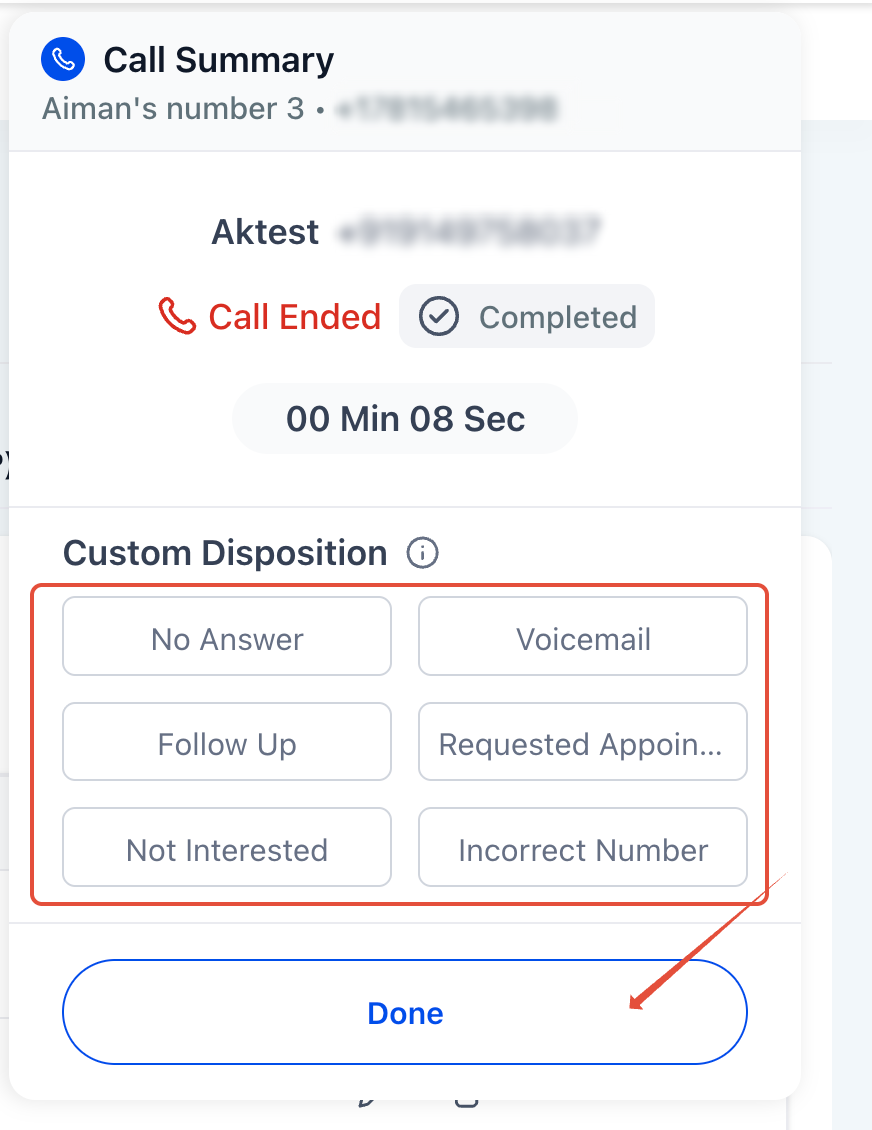
When a supported call ends, the post-call screen displays the dispositions configured for the sub-account.
- Complete the call.
- Select the disposition that best describes the outcome, such as Follow Up or Requested Appointment.
- The selected disposition is saved with the call and can be used by configured workflows.
Only one disposition can be selected for each call. Selecting a disposition is optional, but using them consistently helps teams maintain standardized call records and automation.
Custom Dispositions on Mobile
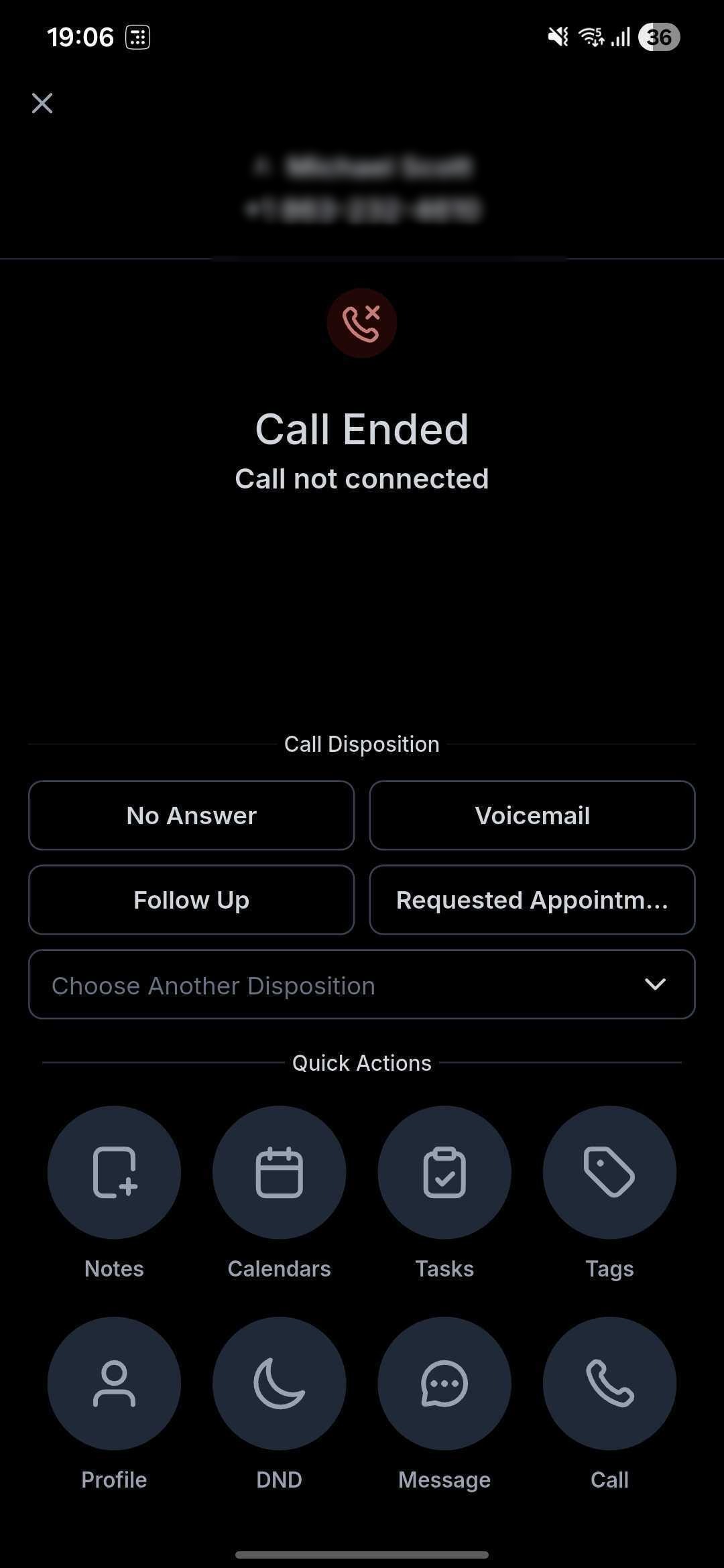
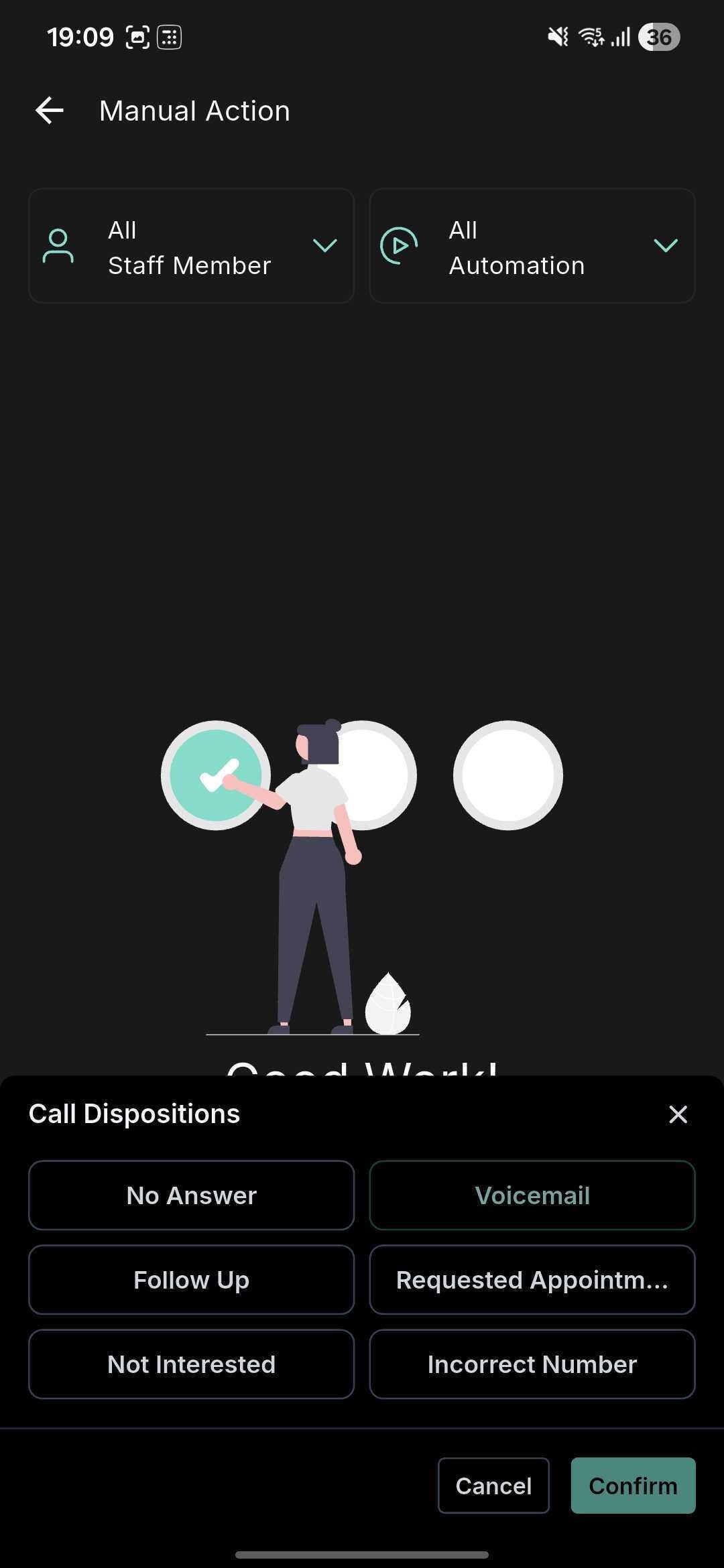
Custom Dispositions are supported in the HighLevel, LeadConnector, and whitelabeled mobile apps on both iOS and Android.
- Select after a call: Choose a disposition from the call-end or post-call screen.
- One outcome per call: Only one disposition can be recorded for each call.
- Workflow-ready: A selected disposition can trigger follow-up automation configured using the Call Details workflow trigger.
Mobile-Specific Note
Sub-account matching is required: Dispositions appear only when the active sub-account matches the location associated with the call. If the mobile app receives calls for multiple sub-accounts, use the Switch option to open the correct sub-account before selecting a disposition.
Use Custom Dispositions in Workflows
Custom Dispositions can be used with the Call Details workflow trigger to automate actions based on the outcome selected after a call.
For example, a workflow can:
- Send a follow-up SMS or email.
- Create a task.
- Update or create an opportunity.
- Add or remove tags.
- Re-enqueue a contact in the Power Dialer.
- Trigger other follow-up actions based on the selected disposition.
For complete instructions on configuring the trigger and the Custom Disposition filter, see Workflow Trigger – Call Details .
Call Status vs. Custom Disposition
Call Status and Custom Disposition describe different information about a call.
| Field | What It Represents | Examples |
|---|---|---|
| Call Status | A system-recorded result based on what happened technically during the call. | Busy, Voicemail, No Answer, Completed |
| Custom Disposition | A user-defined classification selected after the call to describe its business outcome. | Follow Up, Qualified, Requested Callback |
Both can be used as filters in the Call Details workflow trigger when you need automation based on either the technical call result or the team's selected outcome.
Supported Calls and Limitations
| Supported | Limitations |
|---|---|
| Calls made or received through the HighLevel web app | Only one disposition can be selected per call |
| Calls made or received through supported mobile apps | Maximum of 10 dispositions per sub-account |
| LC Phone and Twilio sub-accounts | Nested or sub-dispositions are not supported |
| Supported WhatsApp calls made through HighLevel | Calls answered through a personal number or desk phone do not support disposition selection |
For information about dispositions with WhatsApp calls, see WhatsApp Calling in HighLevel .
Migration from Legacy Call Status
If you previously used the manual Call Status selection available in Power Dialer Manual Actions, that manual classification has been replaced by Call Disposition.
- Use Custom Dispositions for user-selected post-call outcomes.
- Historical Call Status information remains available.
- Review older workflows that depended on the legacy manually selected status and update them to use the Custom Disposition filter where appropriate.
Important: System-generated Call Status values such as Busy, Voicemail, No Answer, and Completed are still supported in the Call Details workflow trigger. Do not replace those filters when your automation intentionally depends on the system-recorded call result.
User Roles and Permissions
| Role | Available Action |
|---|---|
| Admin | Create, edit, delete, and manage dispositions |
| User | Select an available disposition after a supported call |
Frequently Asked Questions
Q: Do users have to select a disposition after every call?
No. Selecting a disposition is optional, but consistently using dispositions helps standardize call outcomes and ensures disposition-based workflows can run when configured.
Q: What happens if I rename a disposition used in a workflow?
The workflow continues to use the disposition because HighLevel tracks it using its internal ID.
Q: What happens if I delete a disposition used in a workflow?
Update the affected workflow to remove or replace the deleted disposition before testing the workflow again.
Q: Can I select multiple dispositions for one call?
No. Only one Custom Disposition can be selected for each call.
Q: What is the difference between Call Status and Custom Disposition?
Call Status is recorded automatically by HighLevel and represents a technical call result such as Busy, Voicemail, No Answer, or Completed. Custom Disposition is a user-defined business outcome selected after the call, such as Qualified or Follow Up.
Q: Can Custom Dispositions trigger workflows?
Yes. Add the Call Details workflow trigger and use the Custom Disposition filter to start a workflow when a specific disposition is recorded.
Q: Will historical Call Status data remain available?
Yes. Historical Call Status information remains available. Use Custom Dispositions for new user-selected post-call classifications.
Related Articles
Was this article helpful?
That’s Great!
Thank you for your feedback
Sorry! We couldn't be helpful
Thank you for your feedback
Feedback sent
We appreciate your effort and will try to fix the article