Manage and apply different watermarks for each social account, saving time, ensuring brand consistency, and simplifying multi-brand management for agencies and businesses.
TABLE OF CONTENTS
- What is the Multiple Watermark Feature?
- Why Use Multiple Watermarks?
- How to Upload & Manage Watermarks
- How to Assign Watermarks
- Important Notes
- FAQ
What is the Multiple Watermark Feature?
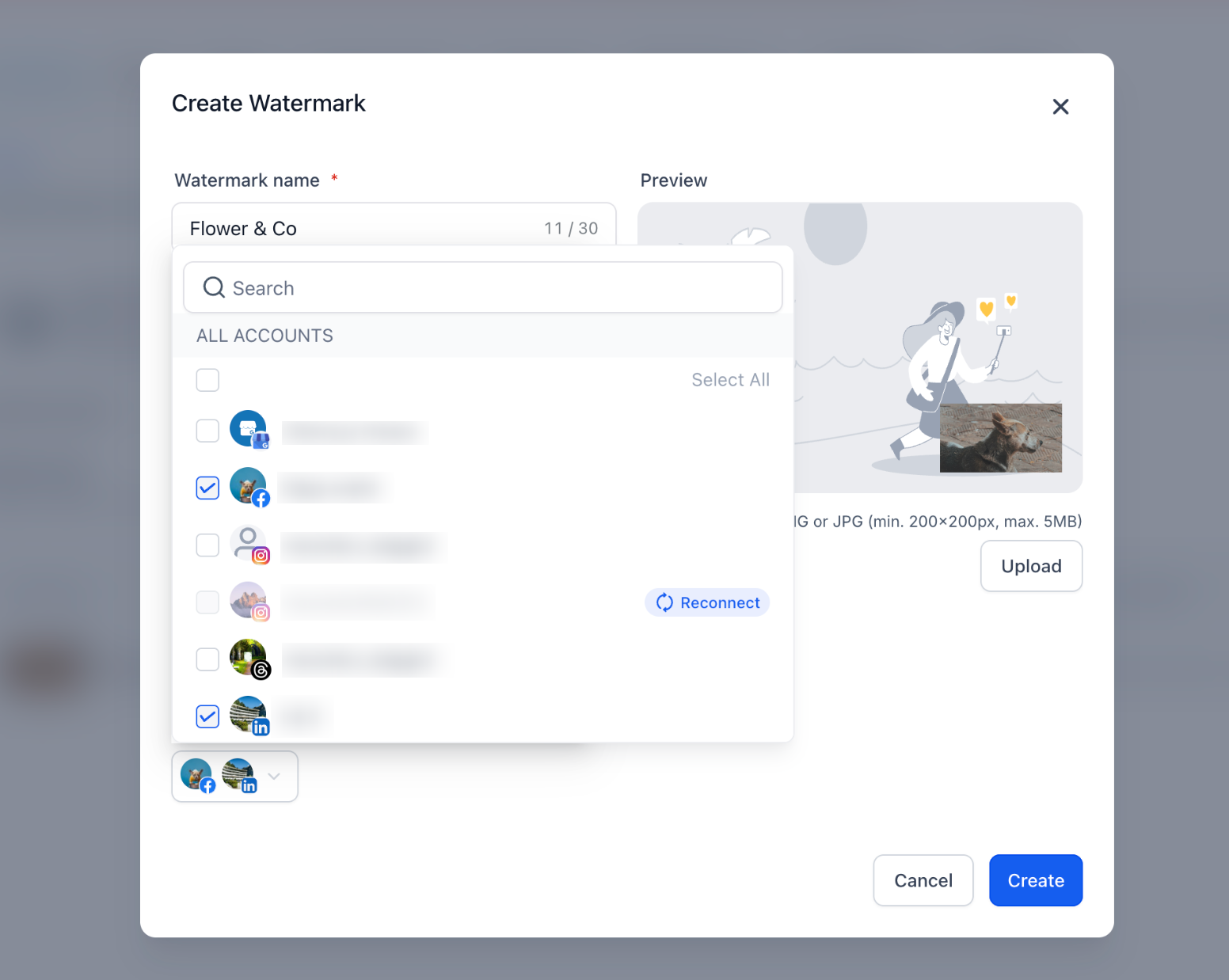
The Multiple Watermark feature in Social Planner allows you to upload and manage different watermarks for each social account , which means one watermark = one Social Account. This is especially useful for agencies managing multiple brands or users posting varied content themes under a single HighLevel account.
Note:
You can assign one watermark per social account.
To use the same watermark for all socials, check “Select All”.
Why Use Multiple Watermarks?
Previously, you could only apply one watermark across all social accounts.
With this update, you can now:
Upload separate watermarks for each social account.
Reuse or switch between watermarks easily.
Maintain consistent branding across posts and clients.
Save time, no need for repetitive uploads or external tools.
This feature helps you reflect unique brand identities while improving workflow efficiency in your content publishing process.
How to Upload & Manage Watermarks
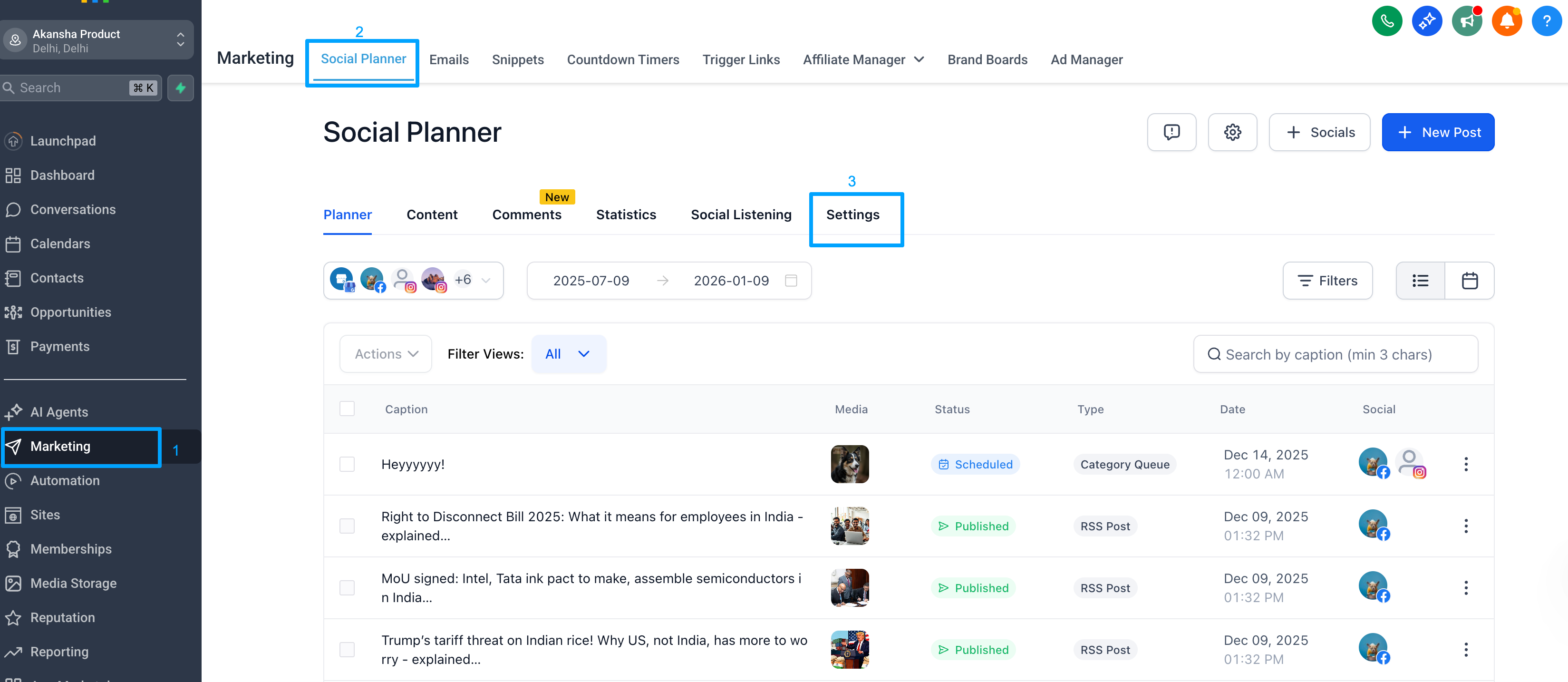
Step 1: Go to Settings
Navigate to Marketing → Social Planner → Settings → Watermark.
Step 2: Upload a Watermark
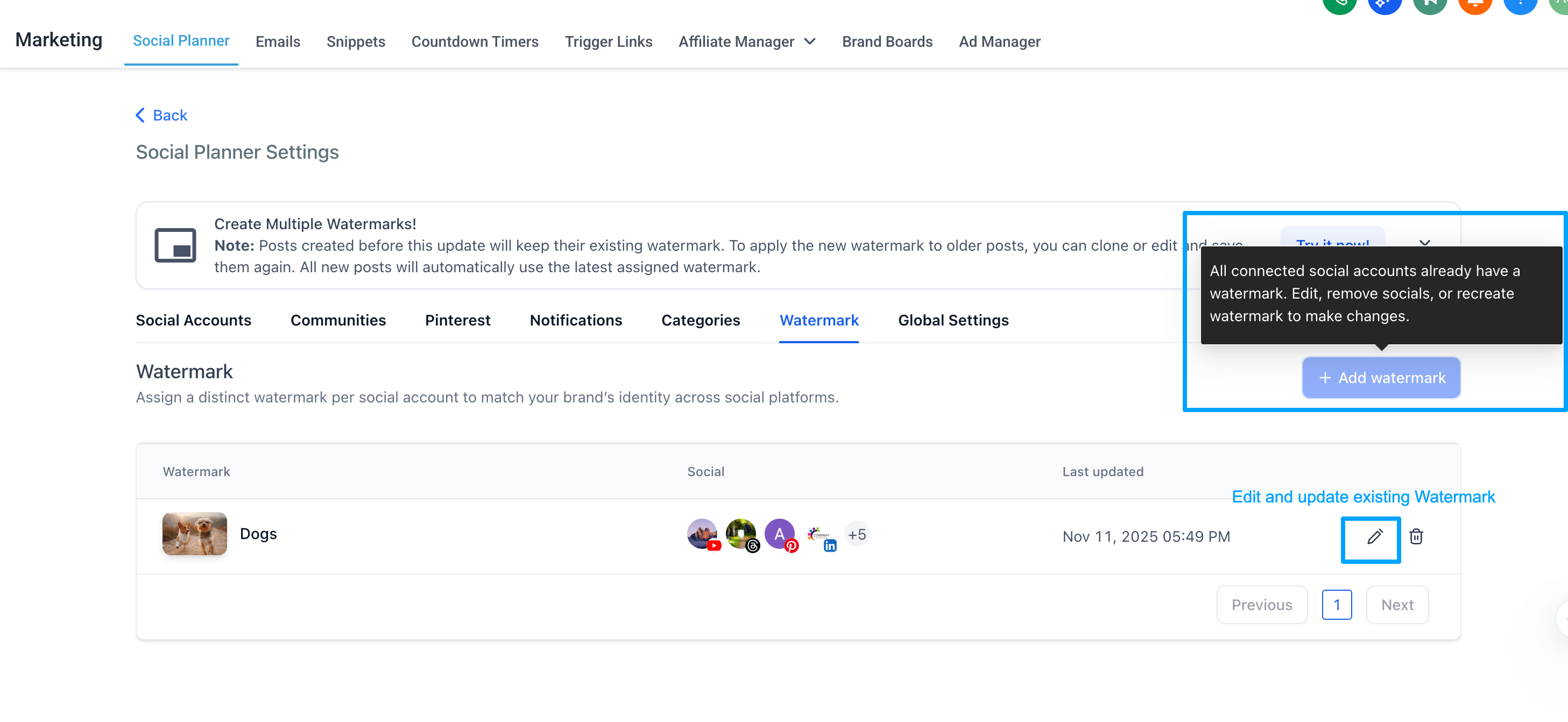
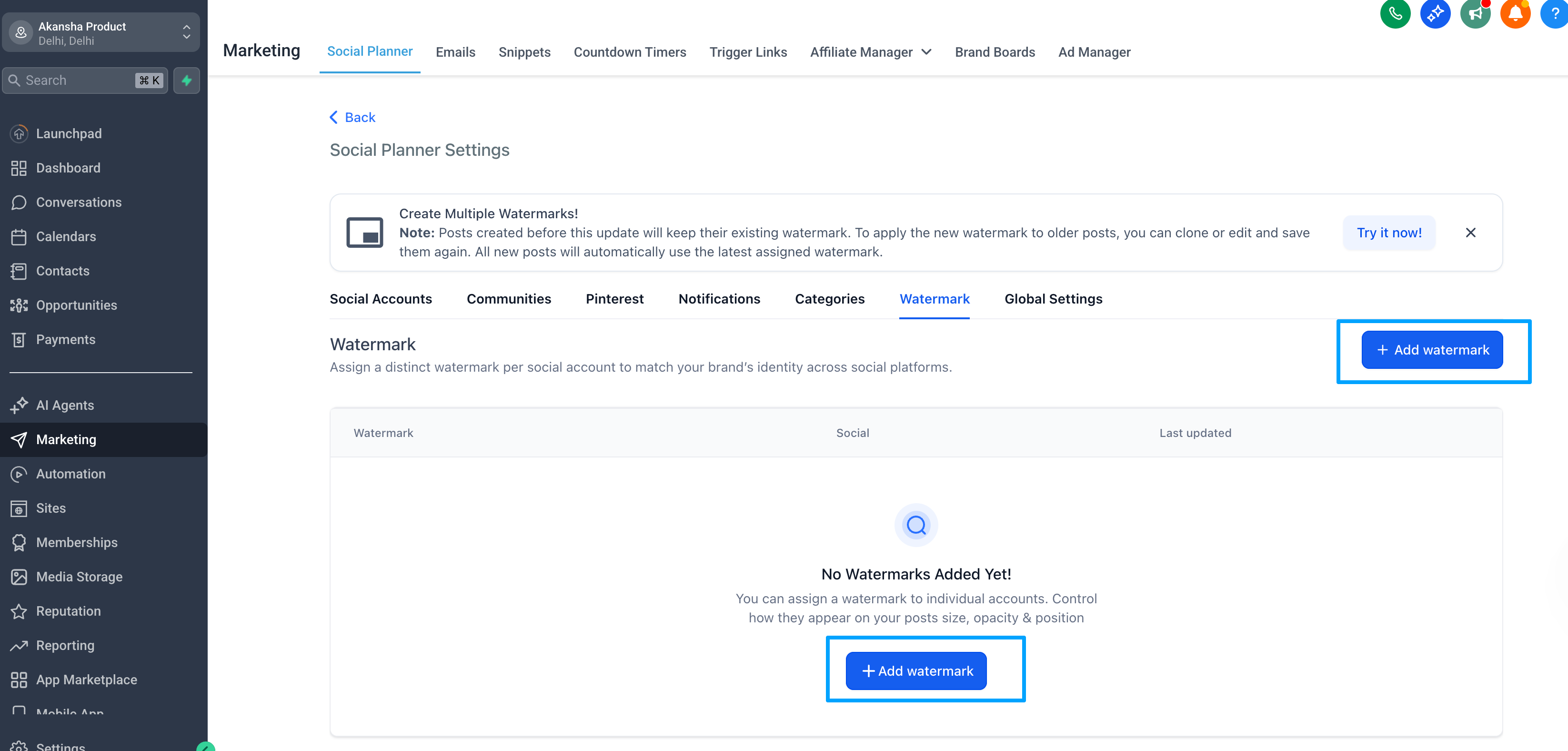
Click “Add Watermark”.
Upload a PNG file (max 5MB).
Give your watermark a name for easy identification.
Preview before saving.
Note: If you haven’t added a watermark yet, you’ll see an “Add Watermark” nudge prompting you to create one. And if you already had watermark assigned than your existing single watermark will automatically appear in the list view as “All Socials”. You can choose to edit this setup and assign specific watermarks to each account later.
Step 3: Manage Uploaded Watermarks
Once uploaded, you can:
View all watermarks in a list.
Edit (rename or replace) any watermark.
Delete a watermark.
Important Notes:
1. New posts created after the release will use the latest assigned watermark.
2. When you edit or clone an older post, you will see the original (non-watermarked) image, and the new watermark will apply only after saving.
3. New Category Queue posts will have new assigned watermark.
4.  RSS and Review Posts does not support watermark.
5. Video watermarking is not supported (API restriction)
6. For automated posts (Category Queue & Recurring Post) the new watermark will start applying from the next scheduled post onwards.
FAQ
Q: Can I upload multiple watermarks for the same social account?
A: No, each social account can have only one active watermark at a time.
Q: Can I still use one watermark for all socials?
A: Yes! Just use the Select All checkbox while assigning watermarks.
Q: Will my old scheduled posts get the new watermark?
A: No. All posts scheduled before the new release will publish with their existing (old) watermark. No changes will be applied automatically.
Q: Will my existing watermark be lost?
A: No, your current watermark will appear as “All Socials” when the feature goes live. You can reassign/edit/delete it anytime.
Q: Do RSS or Review posts get watermarks?
A: No. RSS and Review posts currently do not support watermarking since images come from external sources.
Was this article helpful?
That’s Great!
Thank you for your feedback
Sorry! We couldn't be helpful
Thank you for your feedback
Feedback sent
We appreciate your effort and will try to fix the article