The FAQ Element in HighLevel's Email Builder lets you add organized questions and answers directly to an email. Use it to address common customer questions without turning the message into a long block of text. You can customize the content, styling, and visibility of the FAQ block. Because interactive behavior can vary between email clients, preview and test the email before sending.
TABLE OF CONTENTS
- What Is the FAQ Element in Email Builder?
- Key Benefits of the FAQ Element
- FAQ Element Customization Options
- Visibility and Conditional Sending
- Email Client Compatibility
- How to Add and Test the FAQ Element
- Frequently Asked Questions
- Related Articles
What Is the FAQ Element in Email Builder?
The FAQ Element is a drag-and-drop block available in the Design Editor for adding questions and answers to an email. It helps organize information into a compact format that recipients can quickly scan.
In email clients that support the interaction, recipients can expand and collapse FAQ answers. When interactive behavior is not supported, the answers remain visible in an expanded static format.
Key Benefits of the FAQ Element
The FAQ Element helps keep commonly requested information organized while giving you control over how the content appears and who can see it.
- Easier Scanning: Organize questions and answers into a consistent structure instead of long paragraphs.
- Common Questions: Address recurring customer questions directly within newsletters, onboarding messages, and promotional emails.
- Flexible Styling: Adjust supported text formatting, spacing, icons, and other FAQ settings to fit the email design.
- Visibility Controls: Control FAQ display by device or supported Conditional Sending rules.
- Readable Fallback: Keep answers available when an email client does not support expandable FAQ interactions.
FAQ Element Customization Options
Select the FAQ block in the Design Editor to update its questions, answers, appearance, and layout.
- Questions and Answers: Edit existing FAQ items and use Add Item to add additional entries.
- Text Formatting: Use the available inline controls to format supported question and answer text.
- Icon Controls: Use the available controls to configure the expand/collapse indicator and its position.
- Padding: Adjust spacing around the FAQ content to fit the surrounding email layout.
The exact icon choices can vary with the current Email Builder interface, so review the available options in the editor when configuring the block.
Visibility and Conditional Sending
The Visibility settings let you control when the FAQ Element appears based on the recipient or device.
- Device-Based Visibility: Control whether the FAQ appears on supported desktop or mobile views.
- Conditional Sending: Show or hide the FAQ using supported contact-related conditions.
Conditional Sending supports operators including Is, Is Not, Is Empty, and Is Present.
Important: A hidden parent layout also hides the FAQ Element inside it. Check both the element's visibility settings and the visibility of its containing layout when troubleshooting missing content.
Email Client Compatibility
Interactive email content does not behave identically in every inbox. Some email clients, including certain versions of Outlook, may not support expanding and collapsing FAQ answers.
When the interaction is unsupported, the FAQ answers remain expanded so recipients can still read the content.
Responsive styling can also render differently between email clients. Preview the email on supported device views and send a real test email to the inboxes your audience commonly uses.
How to Add and Test the FAQ Element
Add the FAQ Element from the Design Editor, configure its content and visibility, then preview and test the email before using the template in a campaign.
- Go to Marketing → Emails → Templates.
- Open an existing email template or select + New to create one. Use the Design Editor.
- Open Add Elements (+) and locate the FAQ Element. Drag it into the desired location in the email.
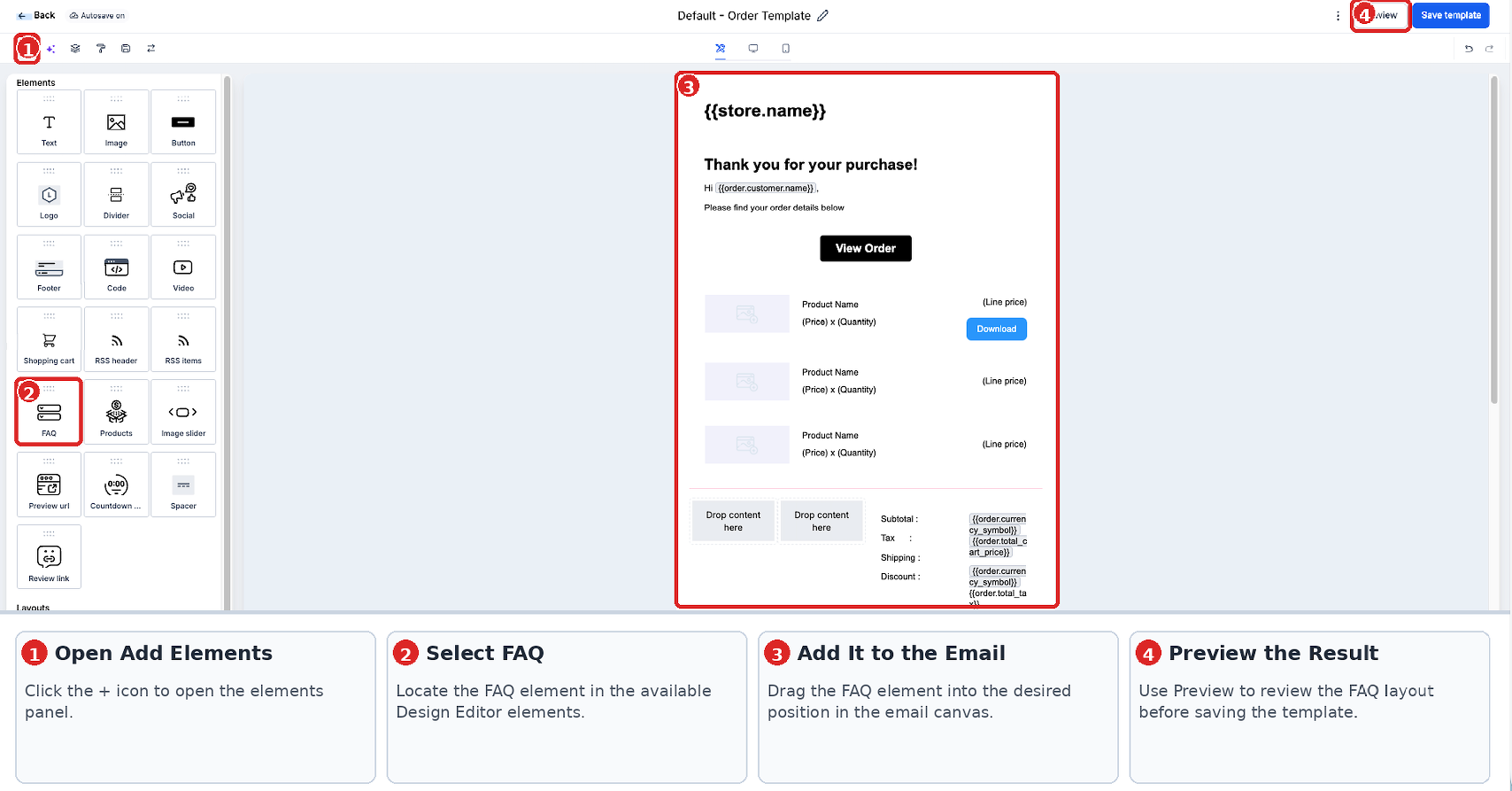
4. Select the FAQ block and edit the questions and answers. Add additional items when needed.
5. Configure the available text formatting, icon controls, and padding.
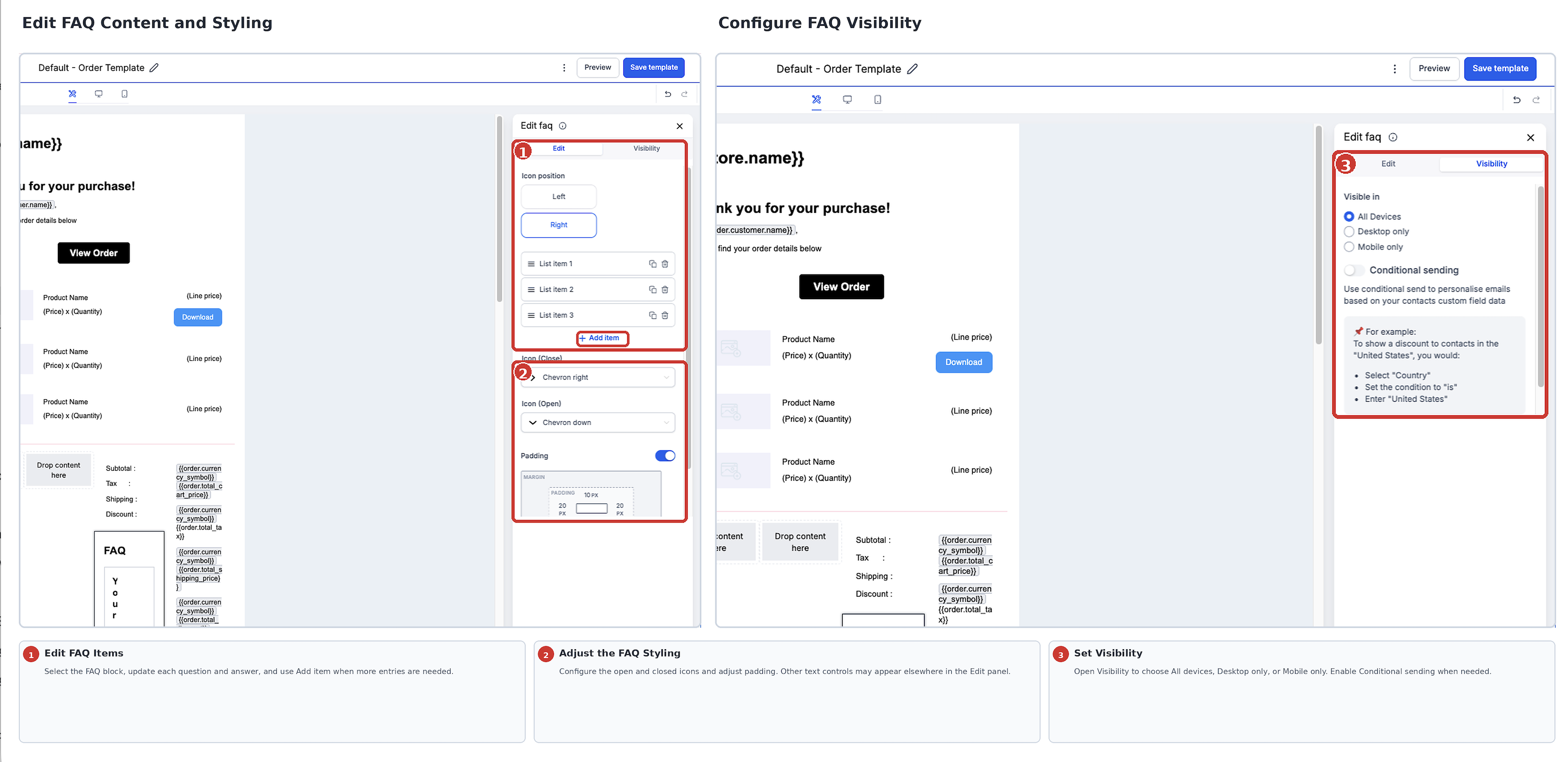
6. If needed, open the Visibility settings and configure Device-Based Visibility or Conditional Sending.
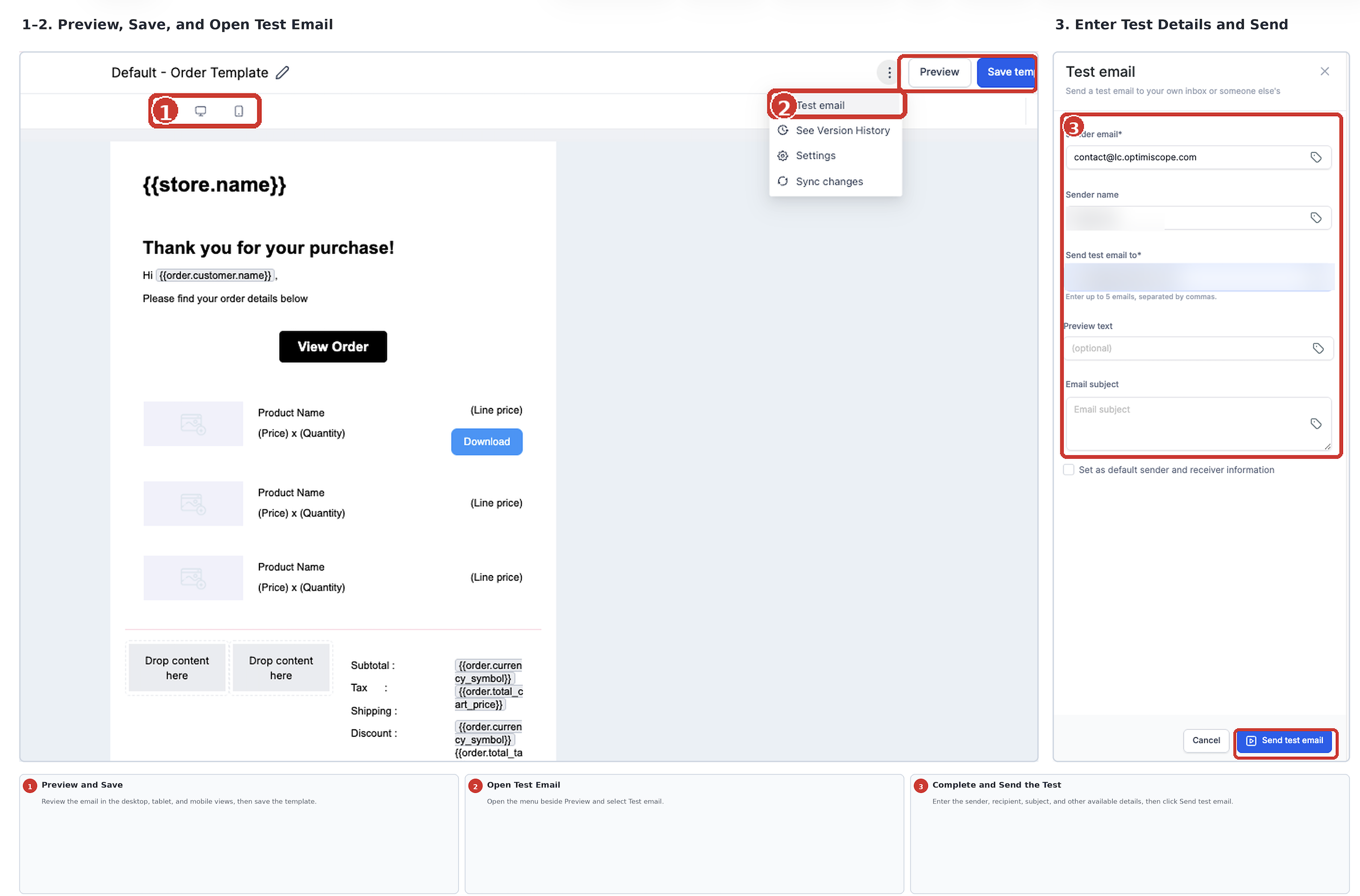
7. Save the email and preview it using the available desktop, tablet, and mobile views.
8. Open Test Email from the menu beside Preview. Enter the required sender, recipient, subject, and other available test-email details, then send the test and review it in an actual inbox.
Frequently Asked Questions
Q: Is there a maximum number of FAQ questions?
The documentation reviewed does not specify a fixed maximum number of FAQ items. Keep the section focused for readability and test the finished email when using a larger FAQ list.
Q: Can I reuse an FAQ block in another HighLevel location?
Saved Items created in the Design Editor are available within the location where they were created. They are not automatically shared across other HighLevel locations.
Q: Why can't I find Saved Items in the AI Editor?
Saved Items are supported in the Design Editor and are not available in the AI Editor.
Q: Why is the FAQ missing for some recipients?
Check the FAQ Element's desktop/mobile visibility settings, Conditional Sending rules, and the visibility of its parent layout. A hidden parent layout prevents the FAQ from displaying, even when the element itself is enabled. Conditional rules can also hide the FAQ for recipients who do not meet the selected criteria.
Q: Why does the FAQ look different in Preview versus a received email?
Email clients can render responsive and interactive content differently. Previewing helps you review the layout, but a test email shows how the FAQ actually appears in a real inbox.
Related Articles
Was this article helpful?
That’s Great!
Thank you for your feedback
Sorry! We couldn't be helpful
Thank you for your feedback
Feedback sent
We appreciate your effort and will try to fix the article