Setting up your booking calendar is like hiring an assistant who's available 24/7. Imagine waking up to a full schedule without lifting a finger. Sounds great, right? Let's walk you through getting this set up so you can easily secure up to 20 appointments in your very first week and cut no-shows down by at least 25%!
TABLE OF CONTENTS
- Setup Personal Booking Calendar
- Add Yourself As A Team Member
- Setup Automated Reminders
- Integrate Personal Calendar
- Share from the Calendar Header
- Frequently Asked Questions
- Related Articles
Setup Personal Booking Calendar
Your personal booking calendar is your best friend when it comes to managing appointments. Once it's up, you'll wonder how you ever managed without it.
To use Google Calendar for scheduling appointments, it's essential to first create a HighLevel Personal Booking Calendar. This booking calendar serves as the foundation for your scheduling rules—allowing you to configure availability, buffer times, meeting durations, and reminders. Even if you use Google Calendar daily, this calendar is required to manage how bookings are accepted and displayed within HighLevel.
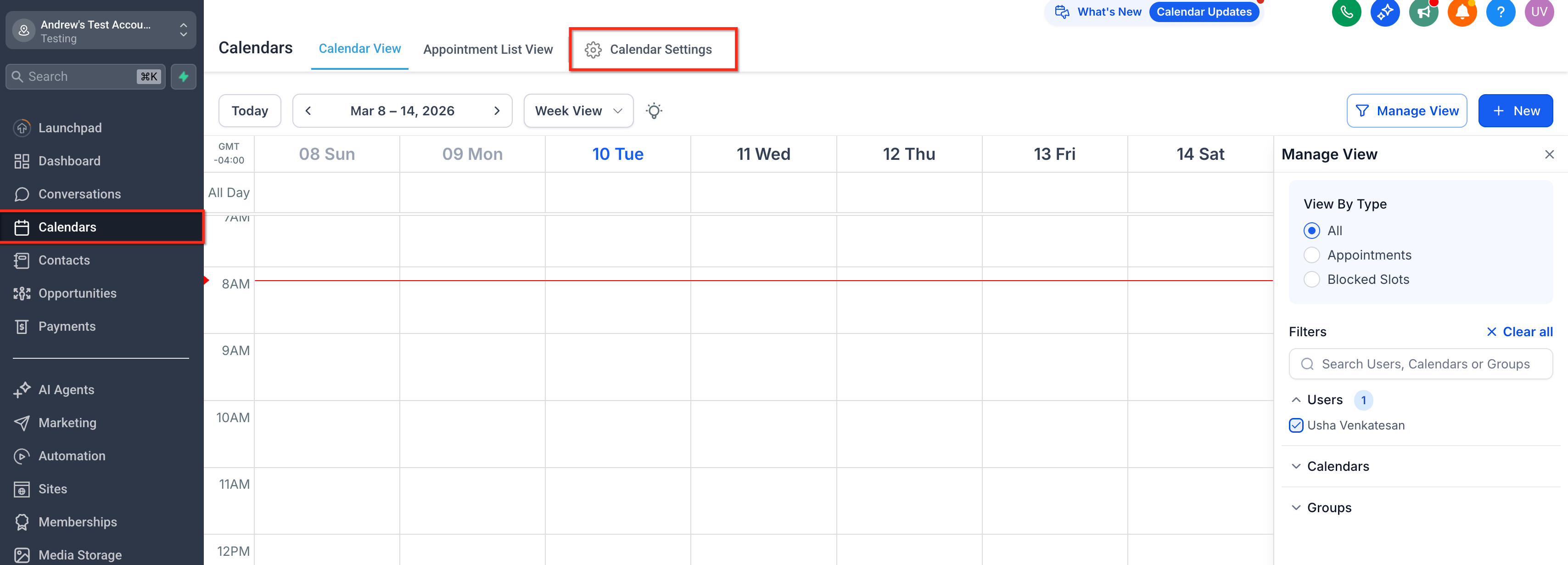
- Navigate to Calendar > Calendar Settings.
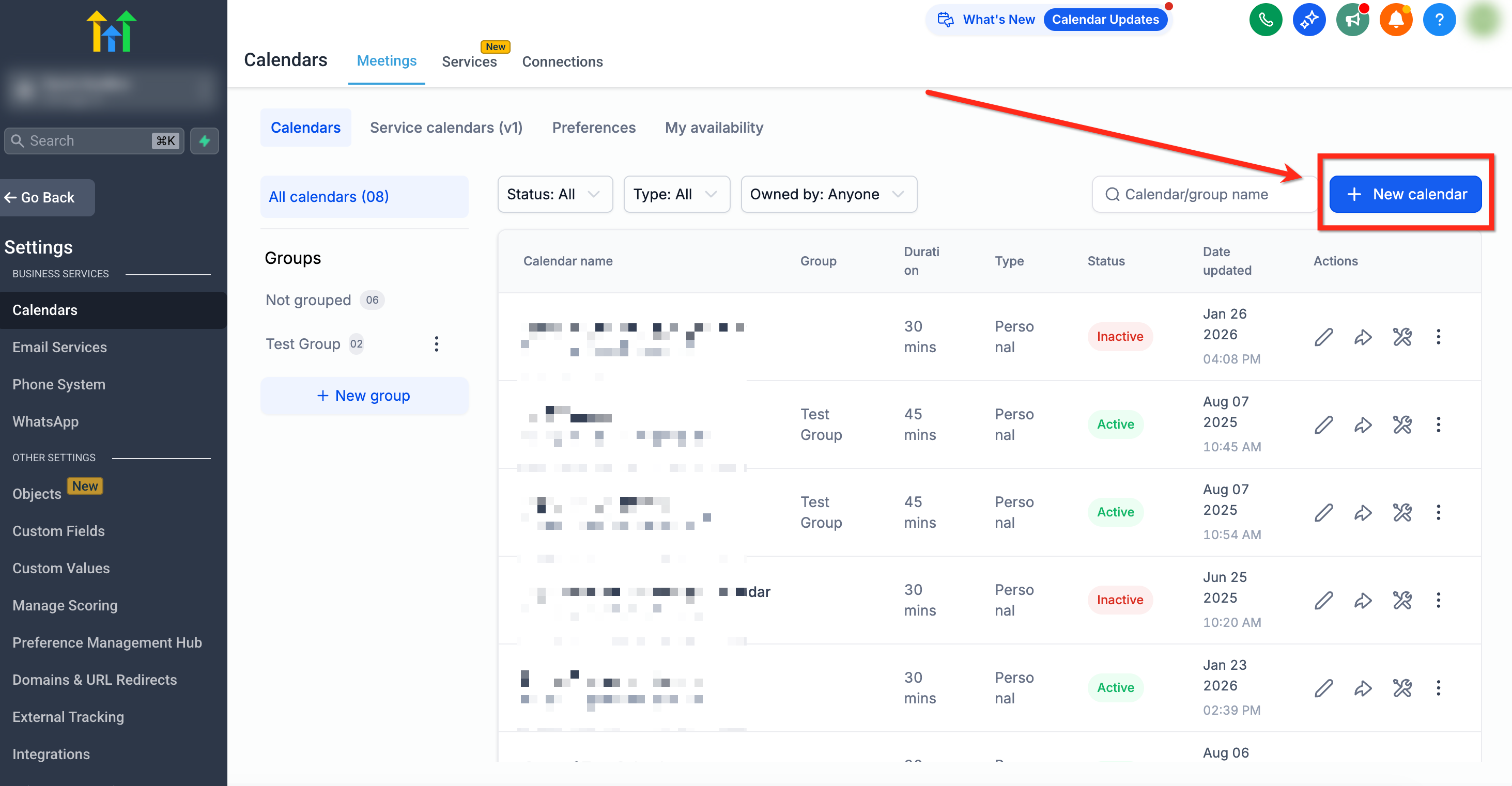
- Click + New Calendar.
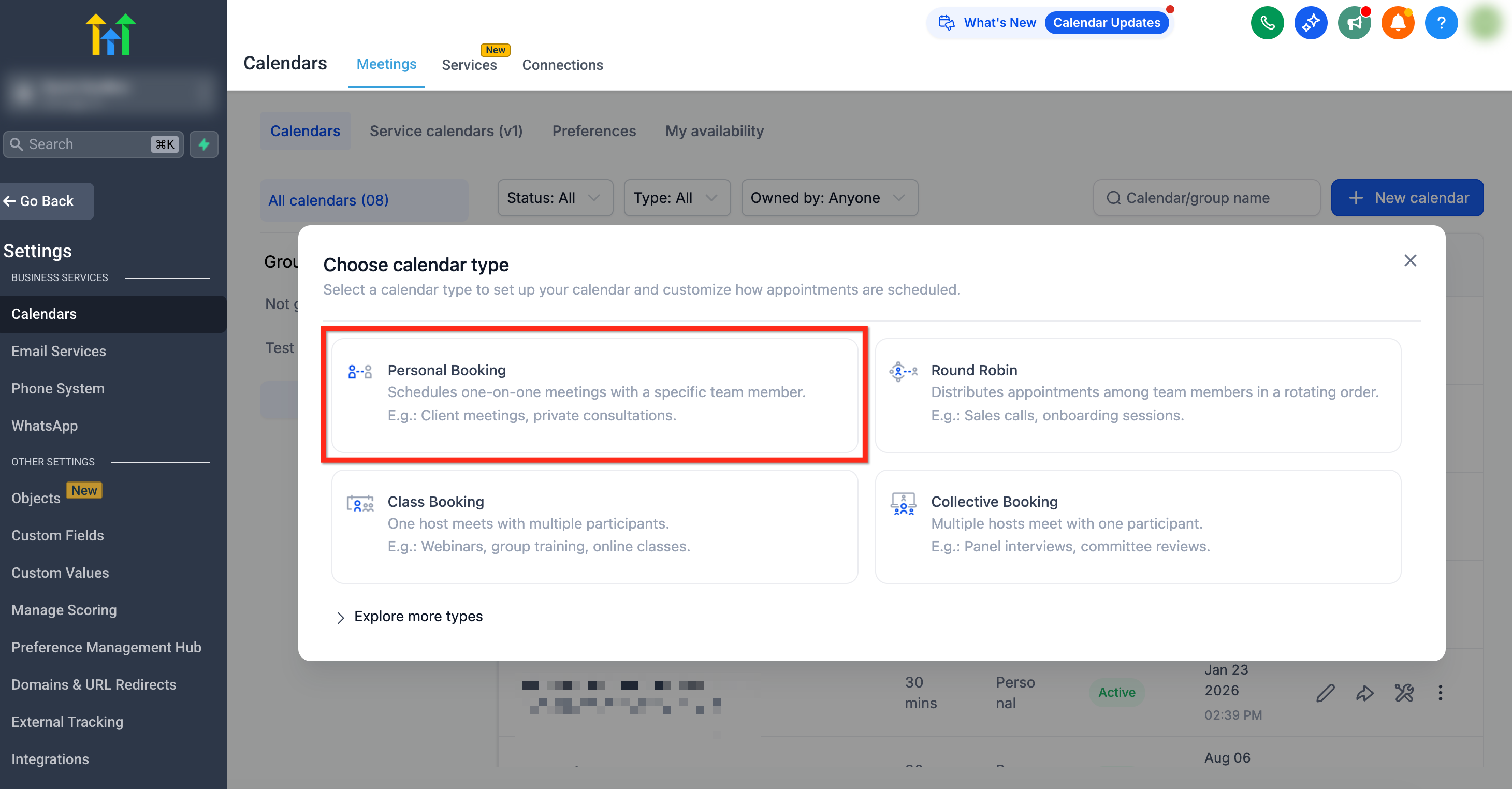
- Select calendar type (for 1-on-1 meetings, choose Personal Booking).
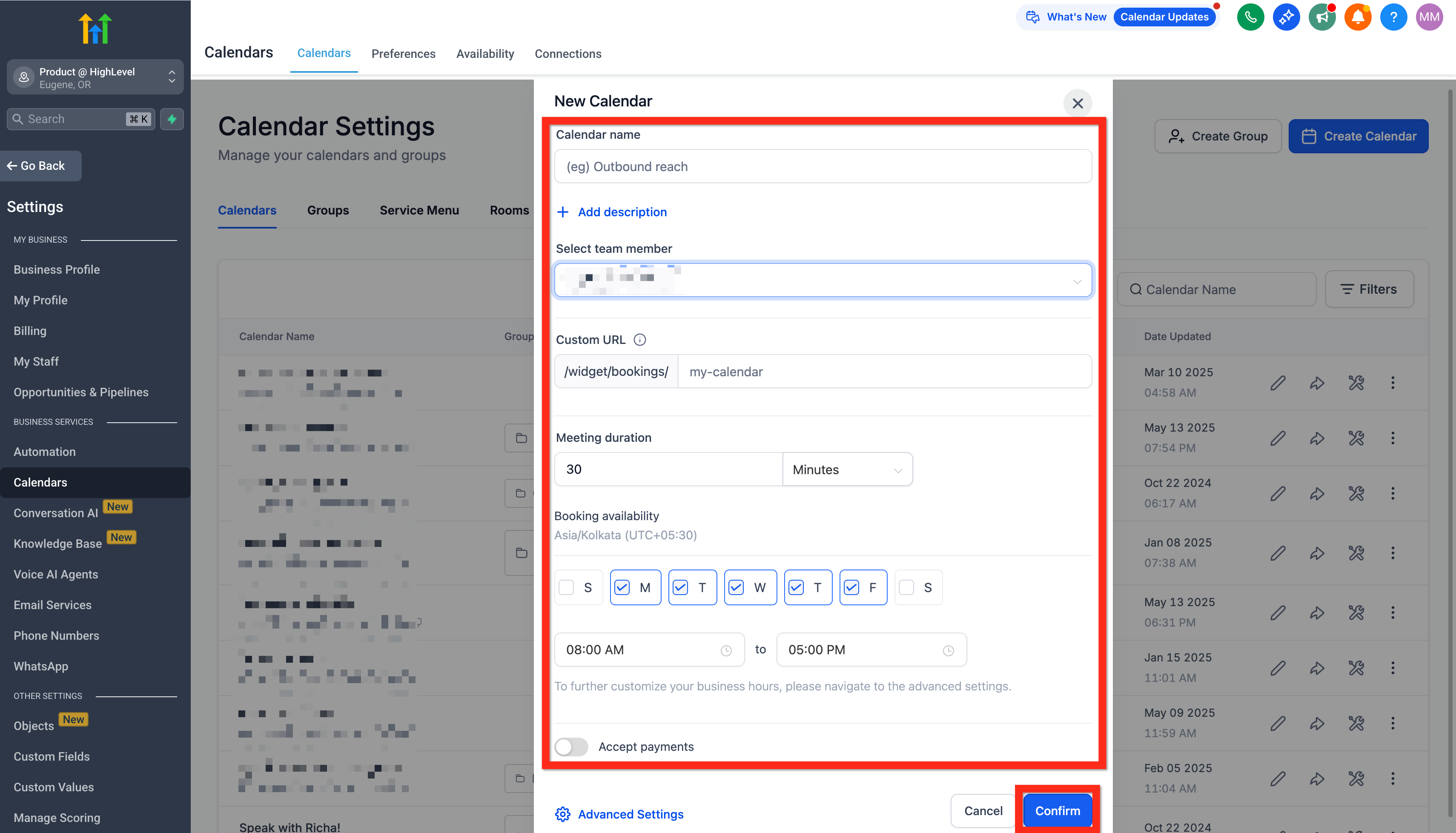
- Fill in your calendar details (give it a friendly name, select yourself as the host, review your custom URL, specify appointment duration, and set your available hours). Then Click Confirm.
Calendar Settings are now grouped into sections to help you move faster: Basic details, Staff & location, Availability, Booking rules, and Advanced settings.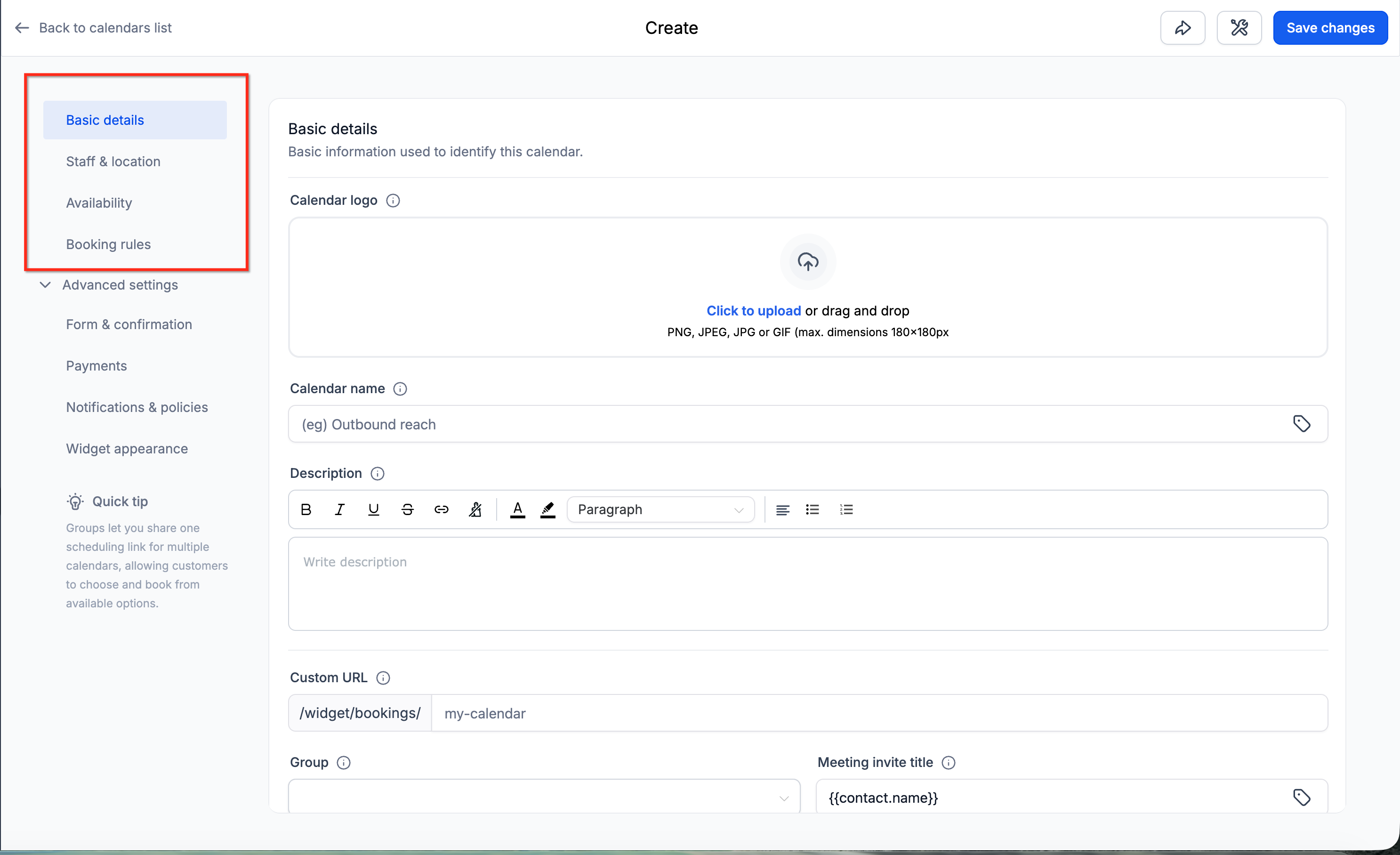
- Copy the calendar link or embed code.
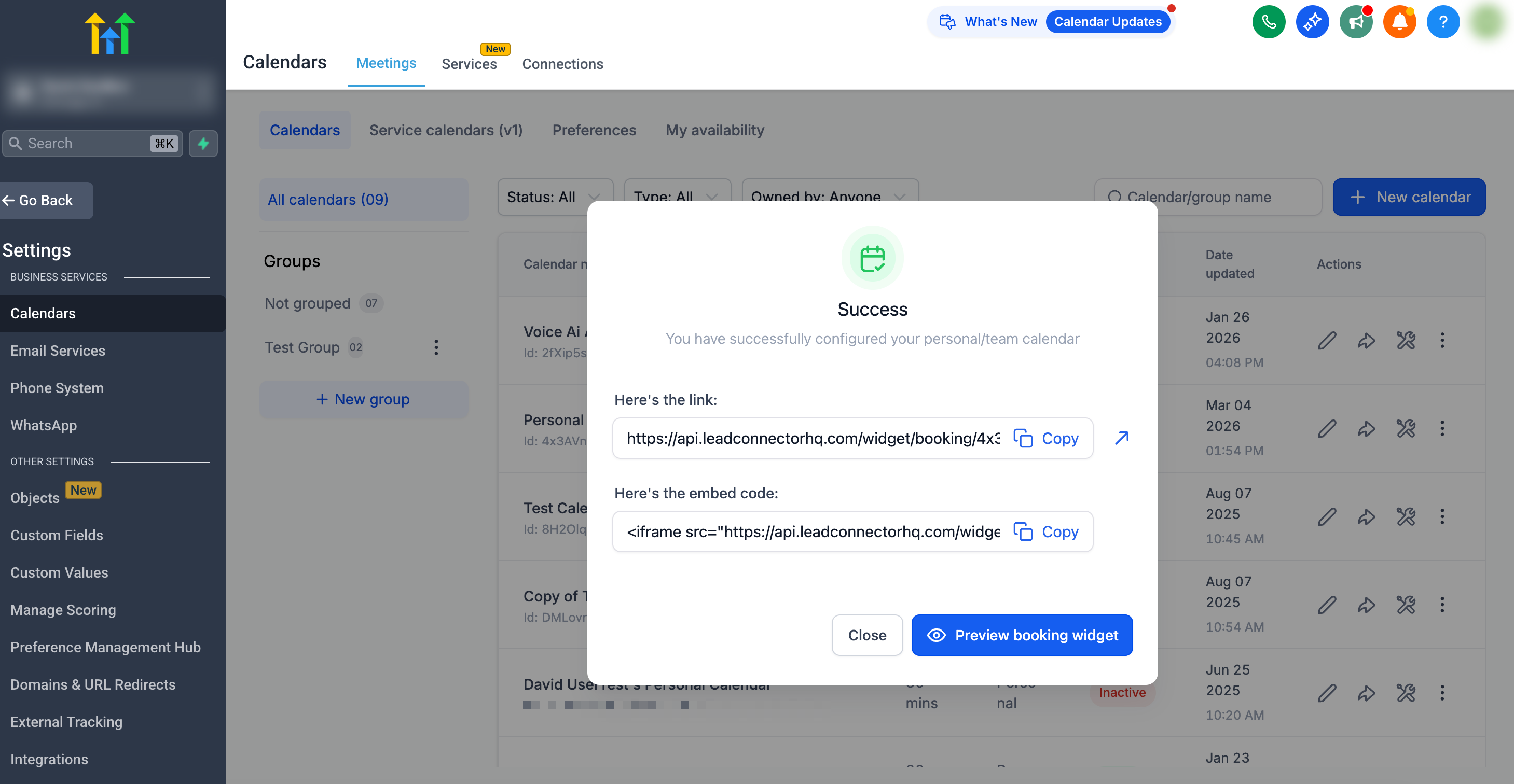
- Share the calendar link to start booking appointments!
Next, you can customize your calendar appearance to match your branding, making it even more inviting.
When using a custom form in your booking flow, you can manage the post-submission experience under Advanced settings → Form & confirmation → Confirmation page. Select Use custom form rules to follow the form’s redirect or custom message behavior after submission.
Add Yourself As A Team Member
Even if you're working solo, adding yourself as a team member ensures everything runs smoothly. Think of it as giving yourself VIP access to your own scheduling system.
- Navigate to Settings > My Staff.
- Click Add User.
- Add yourself and save the details.
Next, you can set specific permissions for yourself or additional team members, streamlining your workflow.
Setup Automated Reminders
Automated reminders mean fewer missed appointments and happier clients. They’re like your calendar gently tapping clients on the shoulder to remind them you're meeting soon.
- Navigate to Automation.
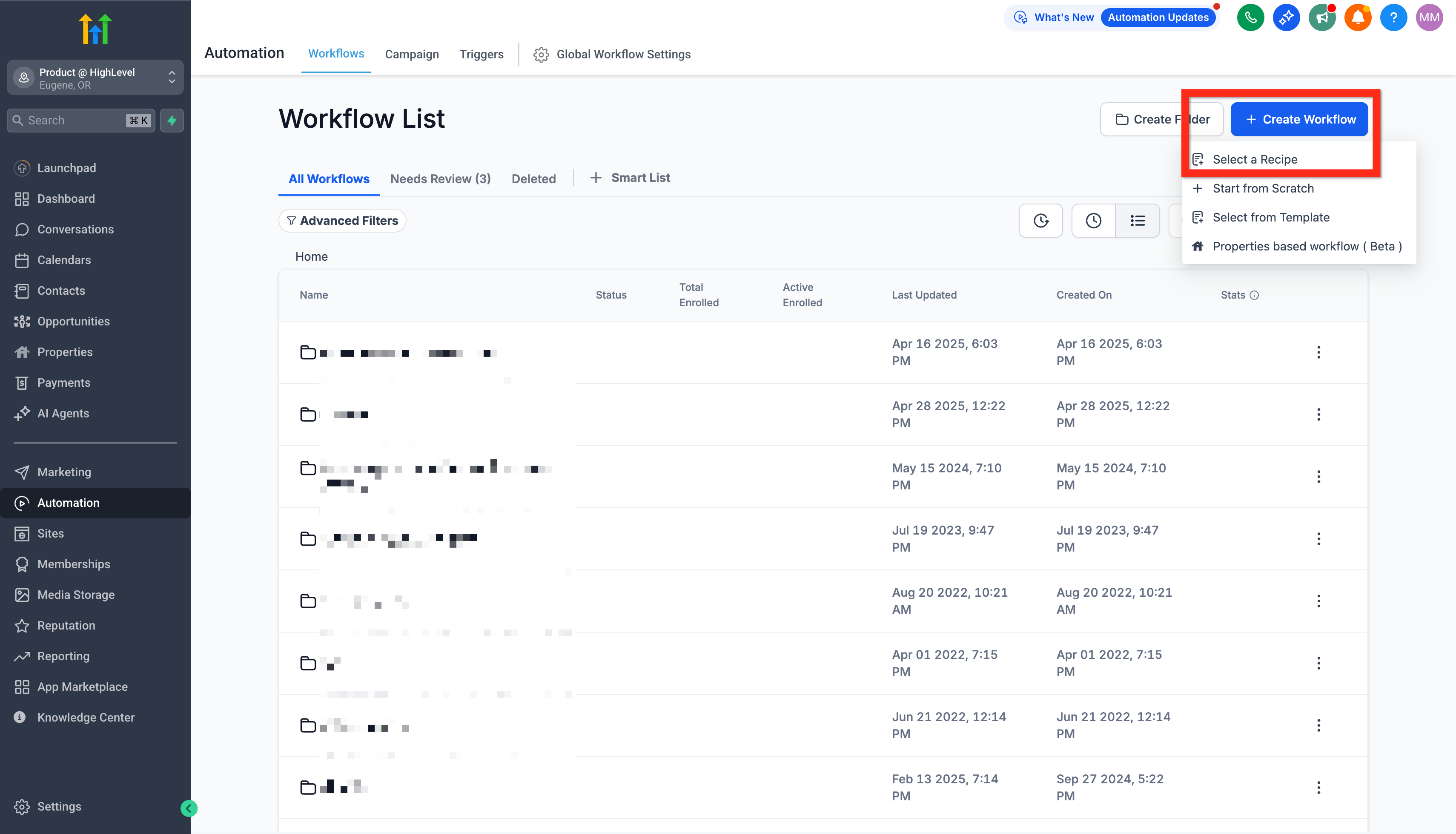
- Click Create Workflow and select Recipe.
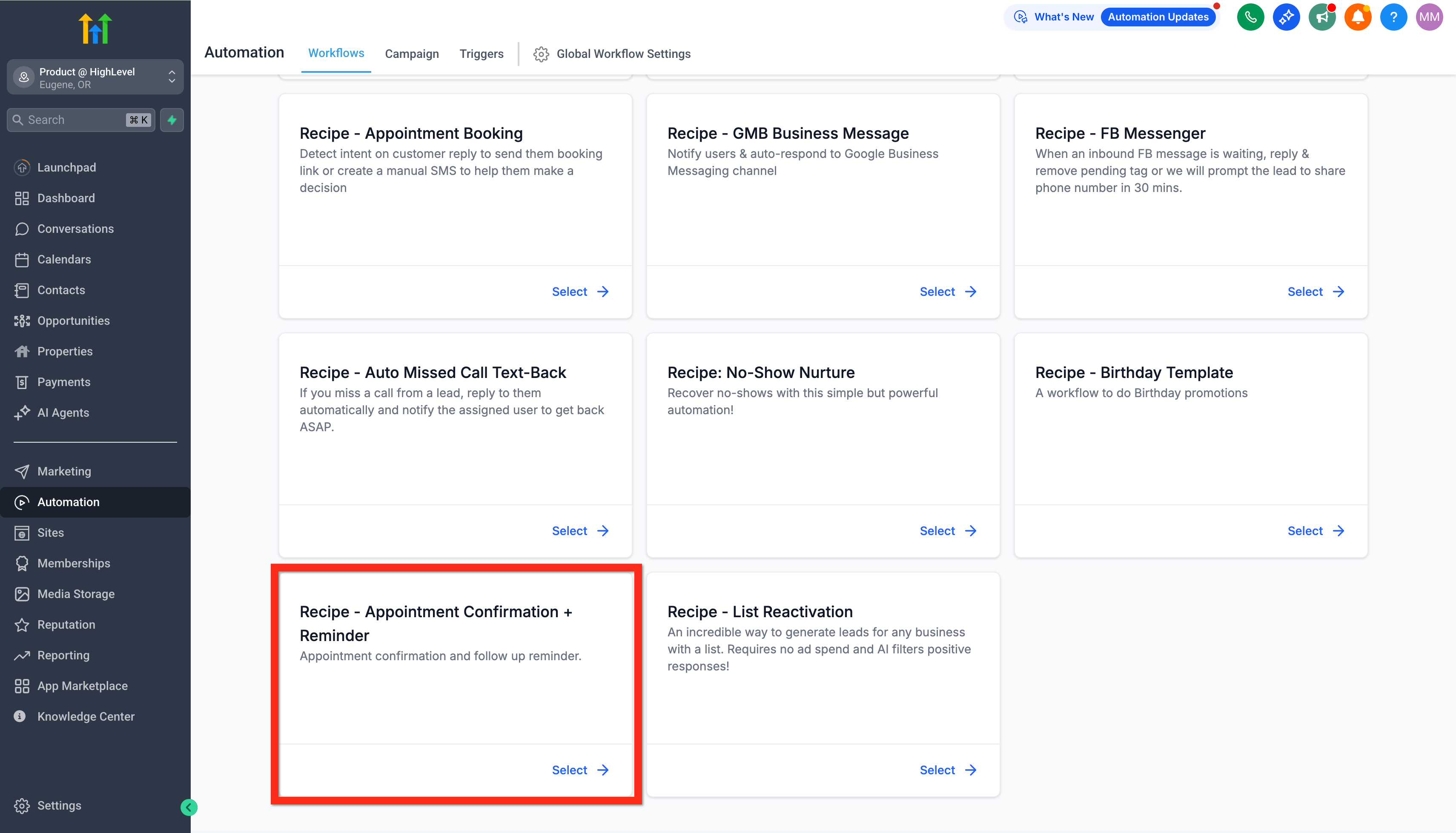
- Choose the recipe Appointment Confirmation + Reminder.
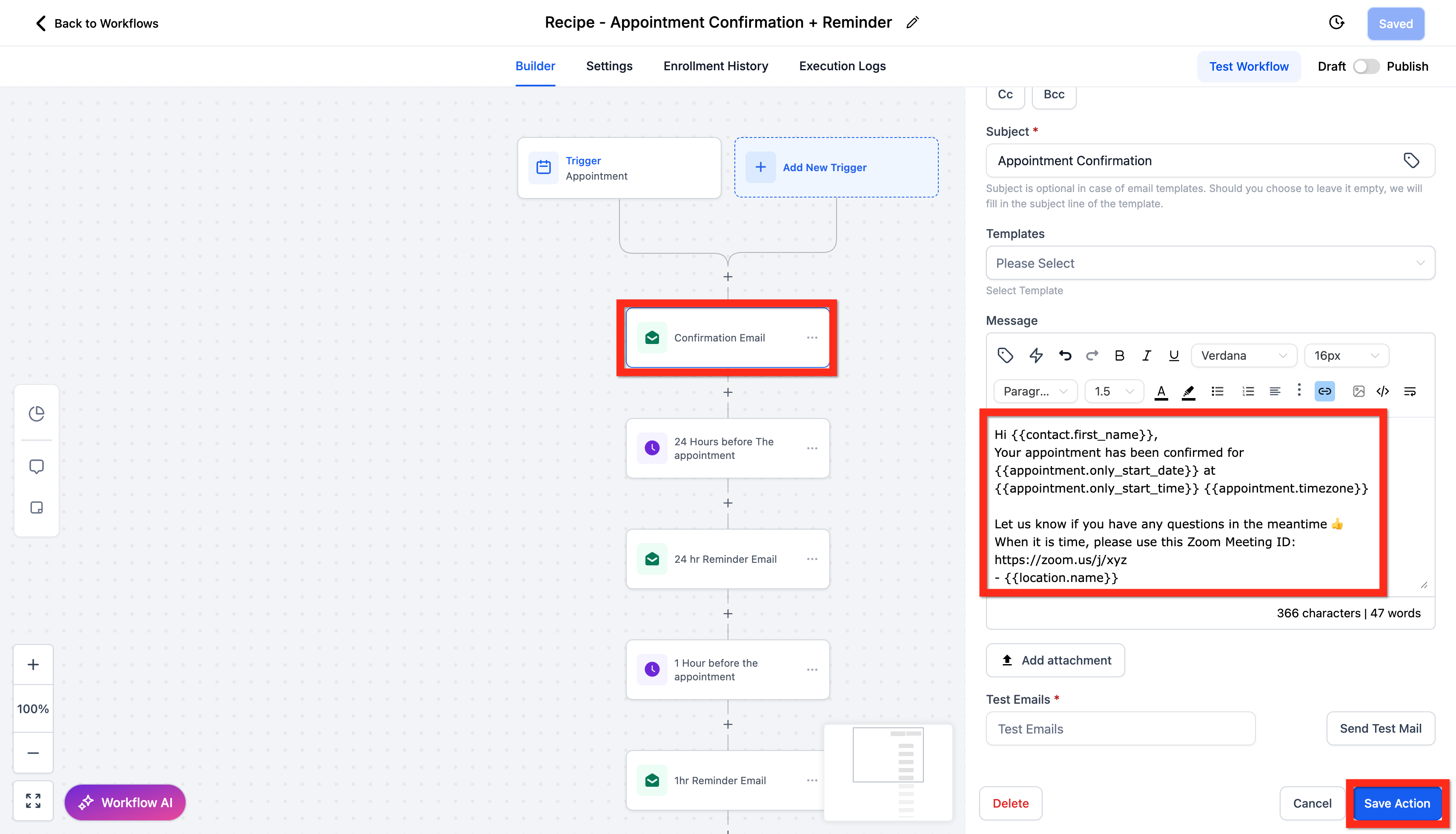
- Edit the Confirmation Email action.
- Update your meeting link (Zoom, Google Meet, etc.) and click Save Action.
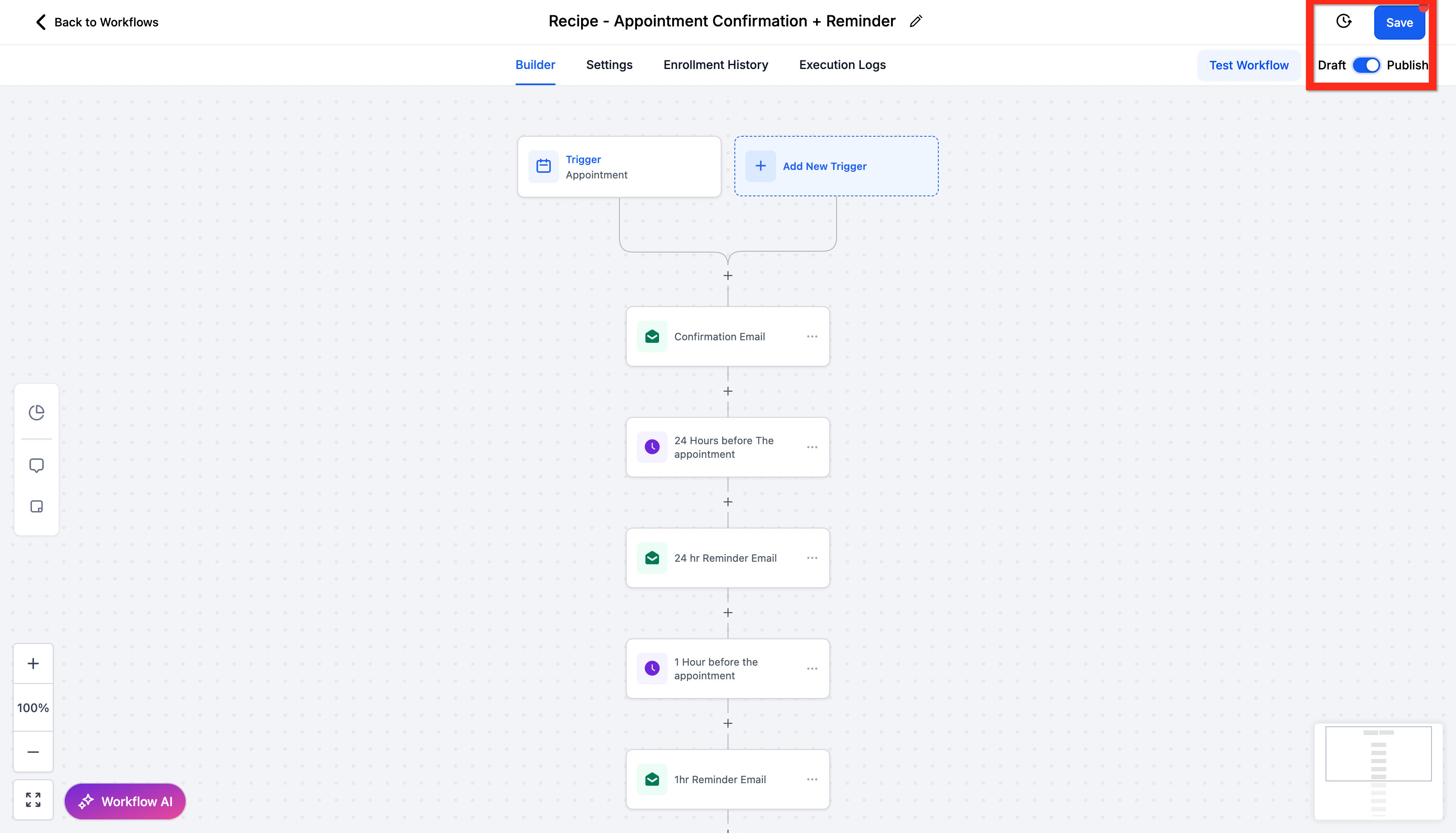
- Review all actions.
- Click Publish.
- Click Save.
Next, consider customizing your reminders with personalized messages to build stronger client relationships.
Fix missing required fields while saving
If required fields are missing when you click Save changes, HighLevel helps you find the issue automatically.
- If the missing field is in the current tab, the editor scrolls to that field and highlights it.
- If the missing field is in another tab, HighLevel opens the correct tab and highlights the field there.
This helps you fix missing details faster before saving the calendar.
Integrate Personal Calendar
Connecting your booking system with your personal calendar keeps everything in sync. No more double-booking or missed meetings, just effortless organization.
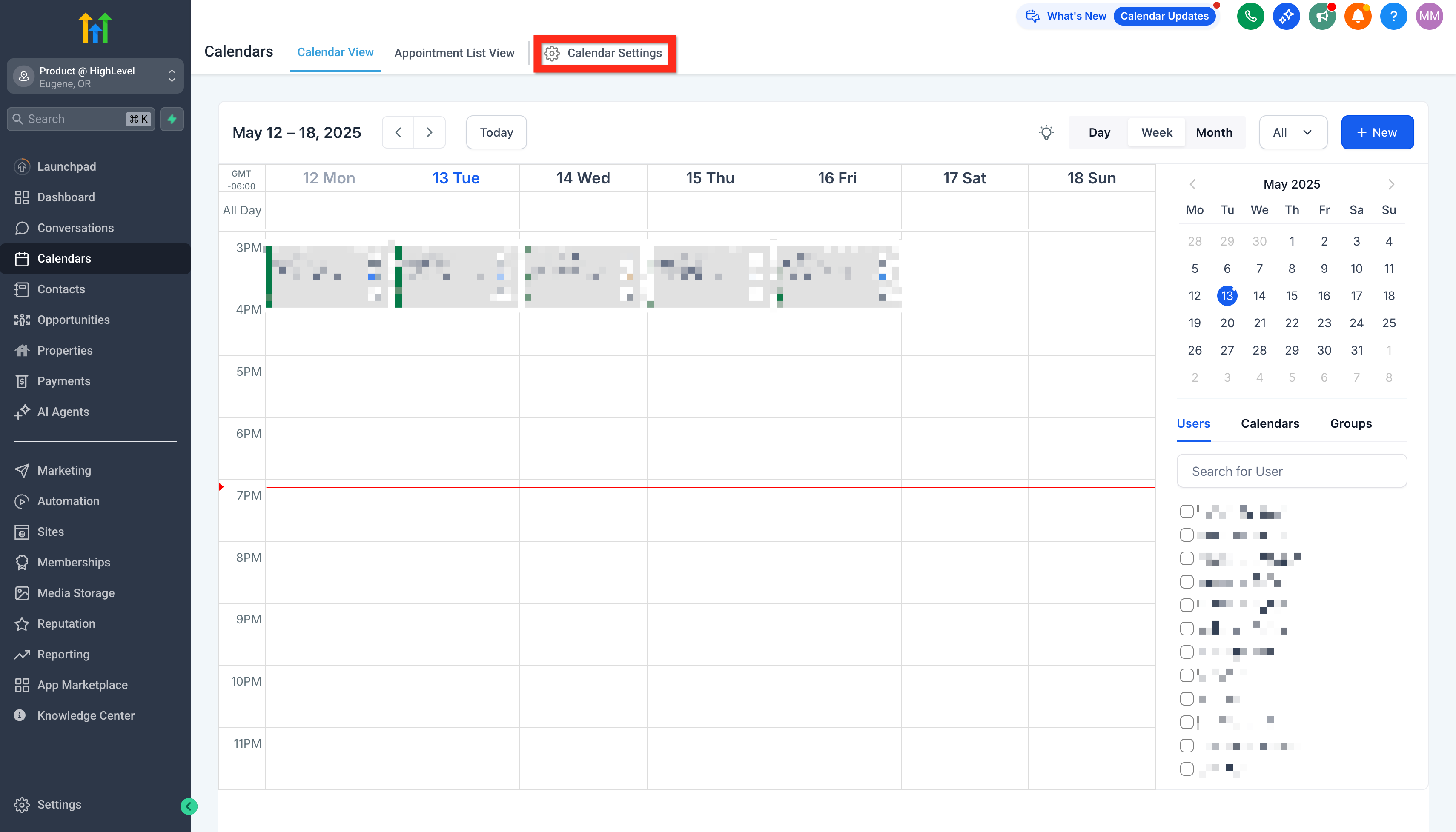
- Navigate to Calendars > Calendar Settings.
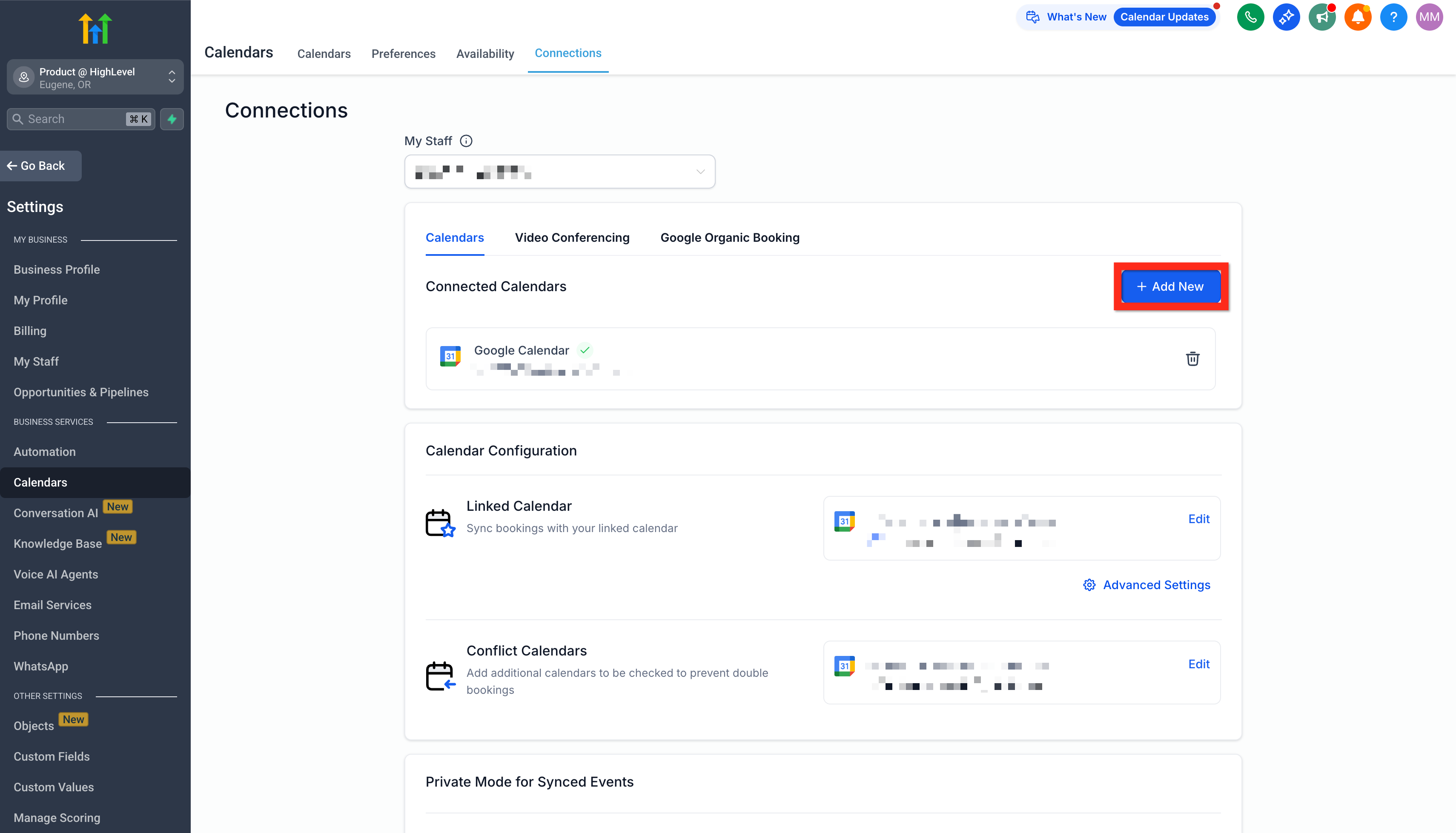
- Select the Connections tab and click Add New to connect your personal calendar.
- Then select the Video Conferencing tab and click Add New to link your preferred conferencing tool.
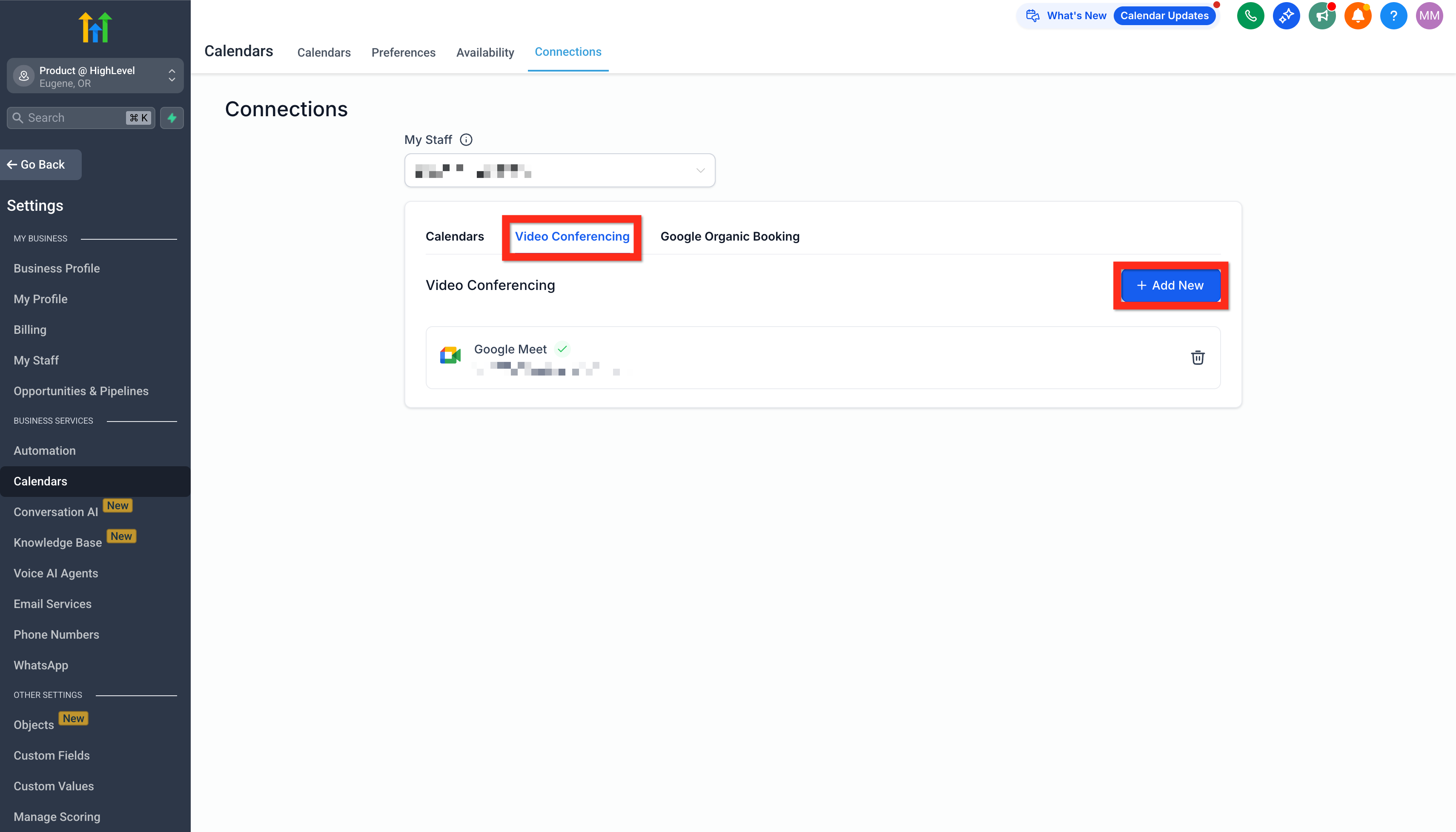
Next, double-check that your integrations are syncing properly to enjoy seamless scheduling!
Share from the Calendar Header
Sharing directly from the calendar you’re editing saves time and prevents copy-paste errors.
Use the Share button
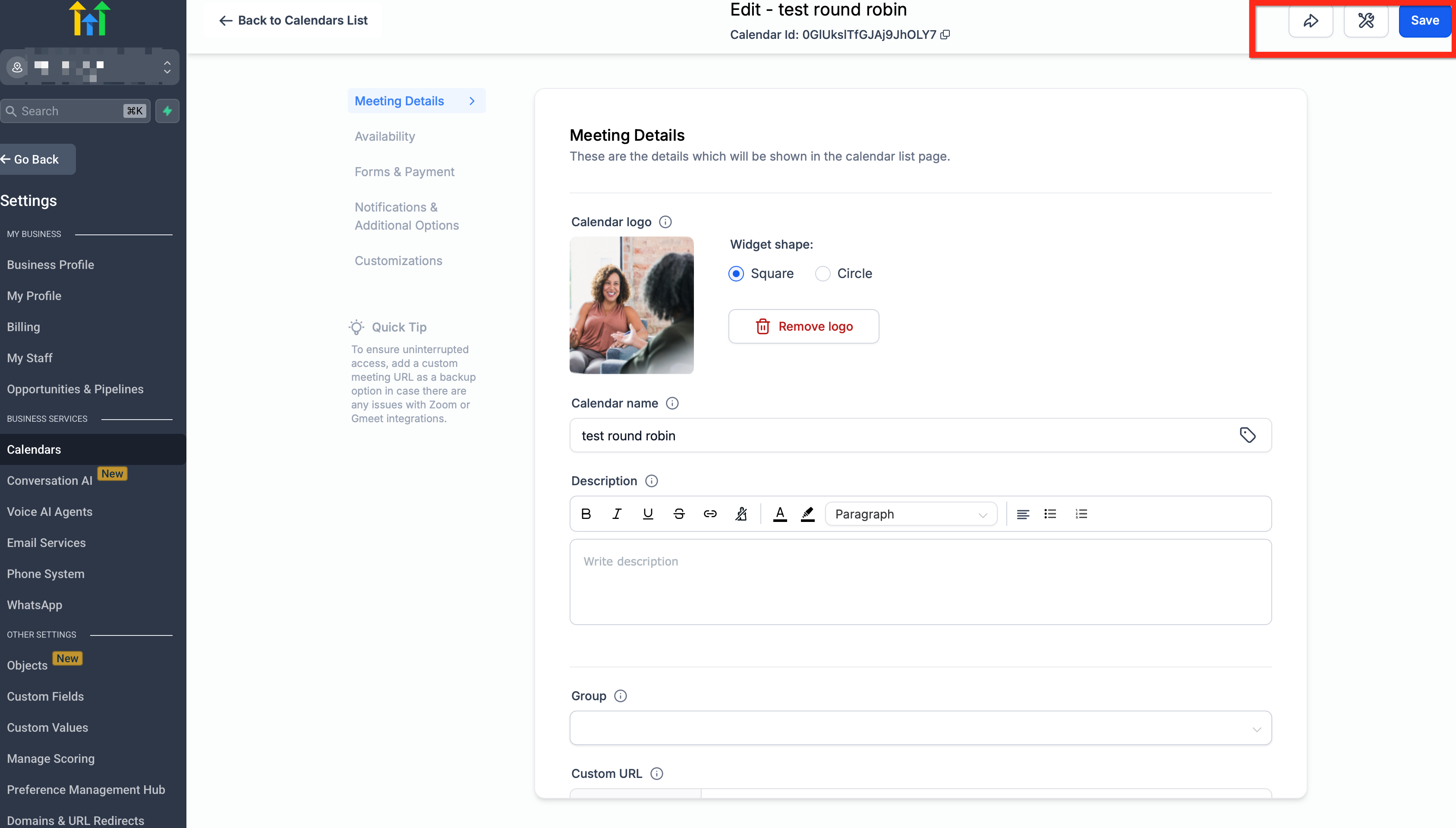
Open Settings → Calendars → [Your Calendar] and click Share in the top-right header to:
- Copy your booking link
- Create a One-Time Link
- Get the Embed code
- Preview the calendar as visitors see it
Frequently Asked Questions
Q: Where do I find my booking link now?
Open Settings → Calendars → [Your Calendar] and click Share in the top-right header. Click Copy Link.
Q: How do I generate a one-time link?
Click Share in the header and select One-Time Link, then follow the prompt to create and copy it.
Q: Where’s the embed code for my website?
Click Share in the header and choose Embed Code to copy the HTML snippet.
Q: Can I preview the calendar as a visitor?
Yes. Click Share and select Preview (or open the copied link in a private window).
Q: What does “Troubleshoot Calendar” do?
It launches diagnostics to check configuration and availability issues and guides you to fixes.
Q: Do these buttons change any existing links?
No. They surface quick actions; your booking link remains the same unless you create a new one-time link.
Related Articles
Was this article helpful?
That’s Great!
Thank you for your feedback
Sorry! We couldn't be helpful
Thank you for your feedback
Feedback sent
We appreciate your effort and will try to fix the article