Create bookable event schedules without assigning bookings to a specific user. Event Calendars are ideal for shared event experiences such as conferences, seminars, expos, and other scheduled events where a host does not need to be tied to the booking.
TABLE OF CONTENTS
What are Event Calendars?
Event Calendars in HighLevel are a calendar type designed for scheduling events that do not require a host or user association. Instead of assigning meetings to a specific team member, this calendar type allows bookings to be managed at the calendar level, which makes it a strong fit for public or shared event scheduling. This is especially helpful when availability is based on the event itself rather than an individual user's connected calendar, and it also makes Event Calendars one of the most straightforward calendar types to set up in HighLevel.
Key Benefits of Event Calendars
No Host Required: Create bookable schedules without assigning meetings to a specific user.
Simple to launch: Set up an event-based booking calendar without needing to assign a user or build the calendar around a staff member's availability.
Simple Booking Experience: Share a booking link or embed code so attendees can register through a dedicated scheduling page.
Flexible Meeting Location Options: Add a physical location or paste a static virtual meeting link into the meeting location field.
Focused External Sync: Sync bookings only with the external calendar selected for that Event Calendar.
Important Differences for Event Calendars
Event Calendars behave differently from personal, team, and other calendar types in HighLevel. Understanding these differences before setup helps prevent sync issues, unsupported meeting-link expectations, and confusion around calendar conflicts.
Event Calendars do not have users, so meetings cannot be assigned to a user.
Because no user is assigned, dynamic meeting link tools are not supported (such as Zoom, Google Meet, and Microsoft Teams)
To use online meetings, copy a static conferencing link from your meeting platform and paste it into the meeting location.
Because no user is assigned, meetings do not sync to a user's calendar from Calendar Settings > Connections.
Conflict calendars added under Calendar Settings > Connections are not considered for Event Calendars.
Meetings sync only to the calendar selected under External Sync for that Event Calendar.
Events are fetched from and pushed only to the selected external calendar.
Only one Google Calendar can be connected using External Sync.
When to Use Event Calendars
Choosing the right calendar type helps ensure your booking flow matches the experience you want to offer. Event Calendars are best when the event itself is the focus and bookings do not need to be tied to a specific staff member.
Use Event Calendars for conferences, expos, seminars, workshops, public sessions, and other shared event bookings.
Use Event Calendars when you do not want to assign meetings to a user.
Use Event Calendars when you want a faster, simpler setup that does not depend on a team member's availability settings.
Do not use Event Calendars when bookings need to rotate between users, depends on multiple staff calendars or depends on staff calendar availability.
How To Setup Event Calendars
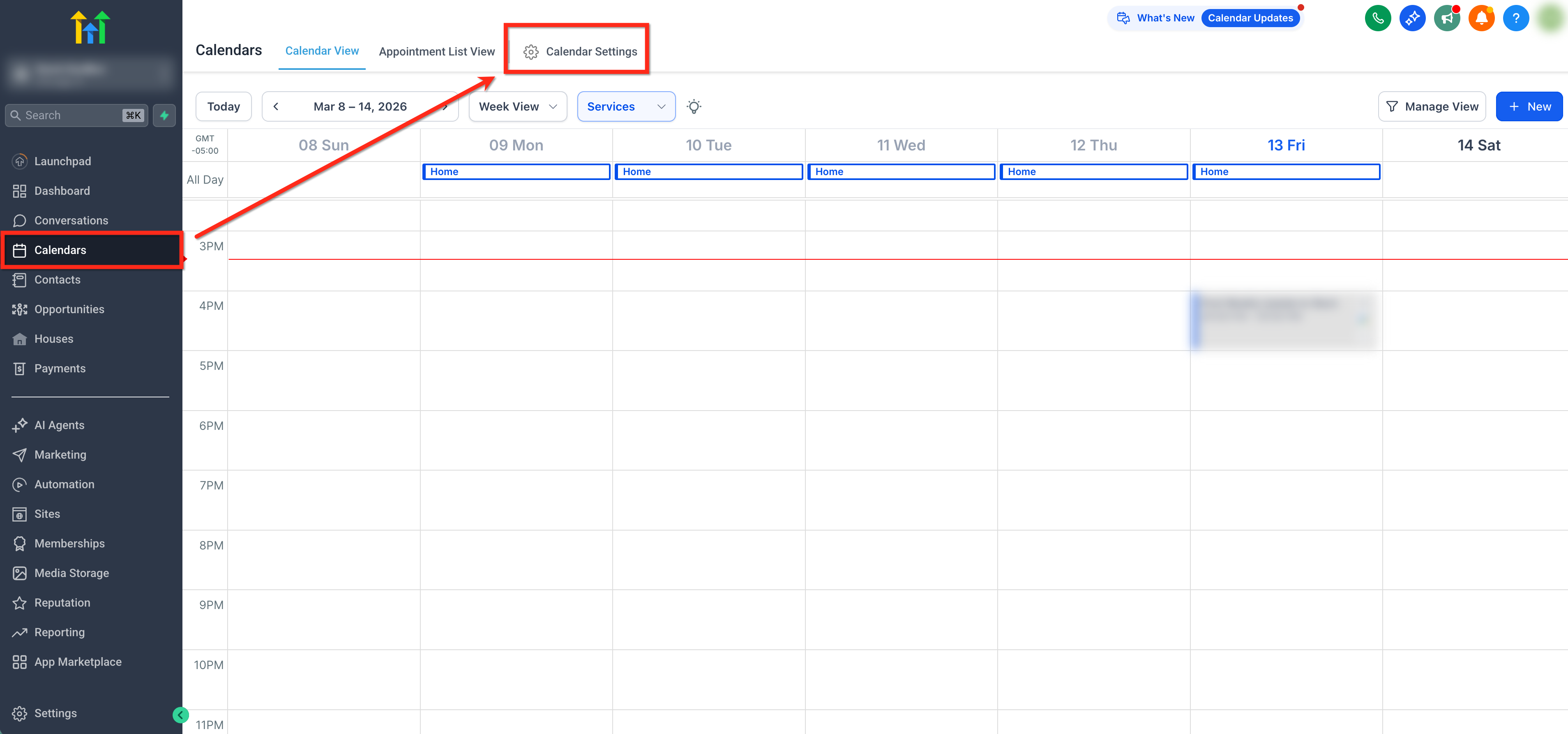
- In your sub-account, go to Calendars from the left-hand navigation menu. In the top navigation bar, click Calendar Settings.
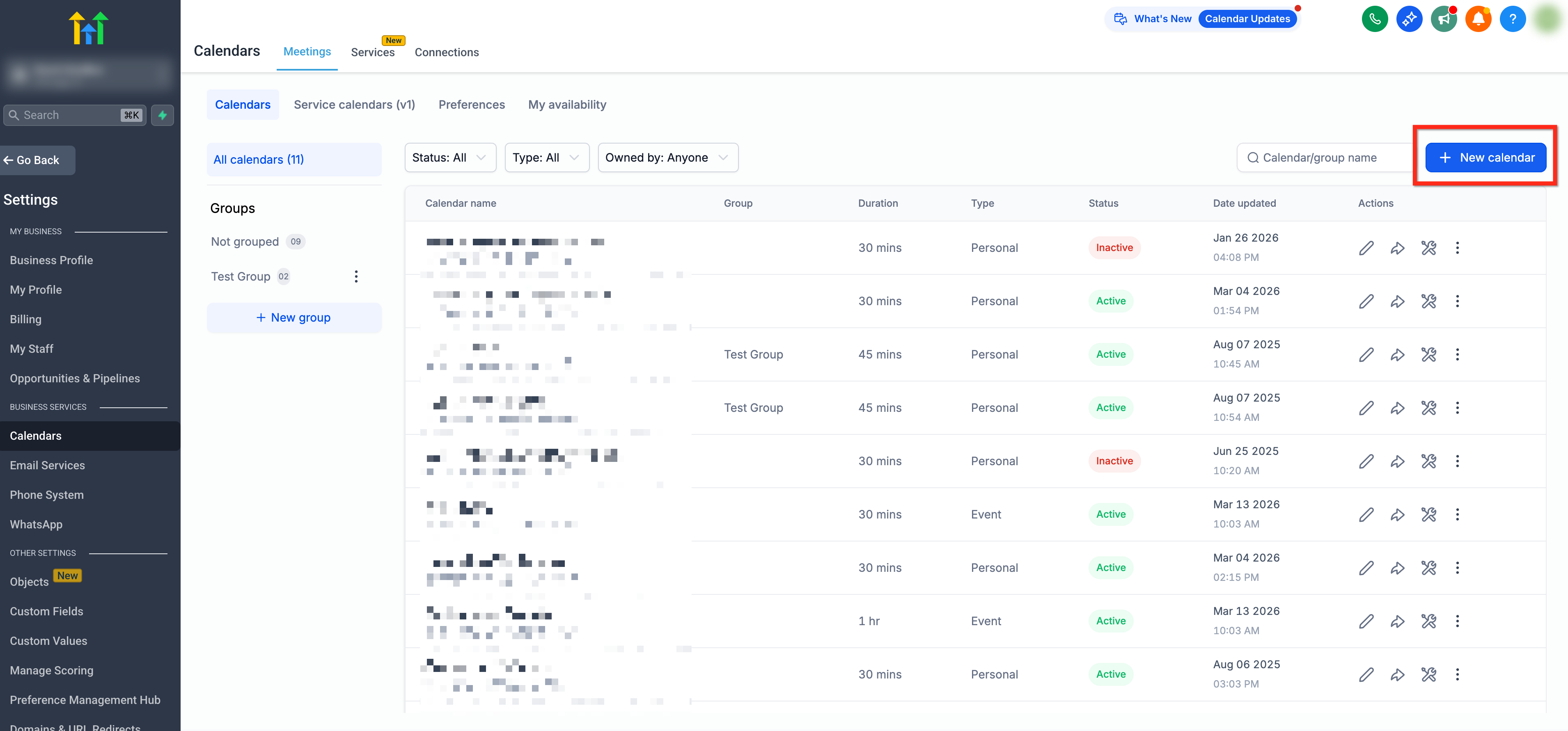
- On the Calendar Settings page, click + New Calendar in the top-right corner.
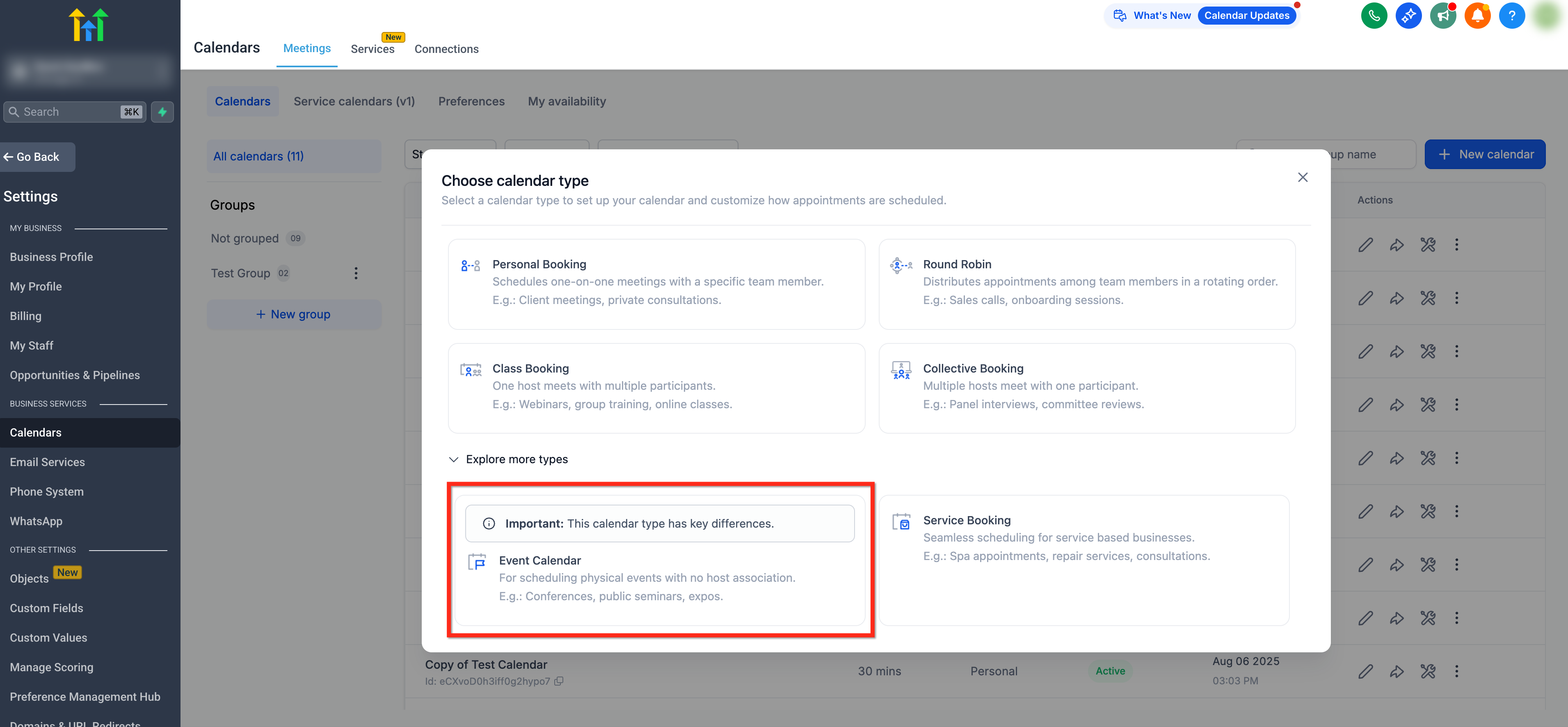
- In the calendar type pop-up, open the drop-down for more calendar types and select Event Calendar.
- Enter a Calendar Name, optionally add a Description for the calendar and Customize the Custom URL if you want to change the booking widget link.
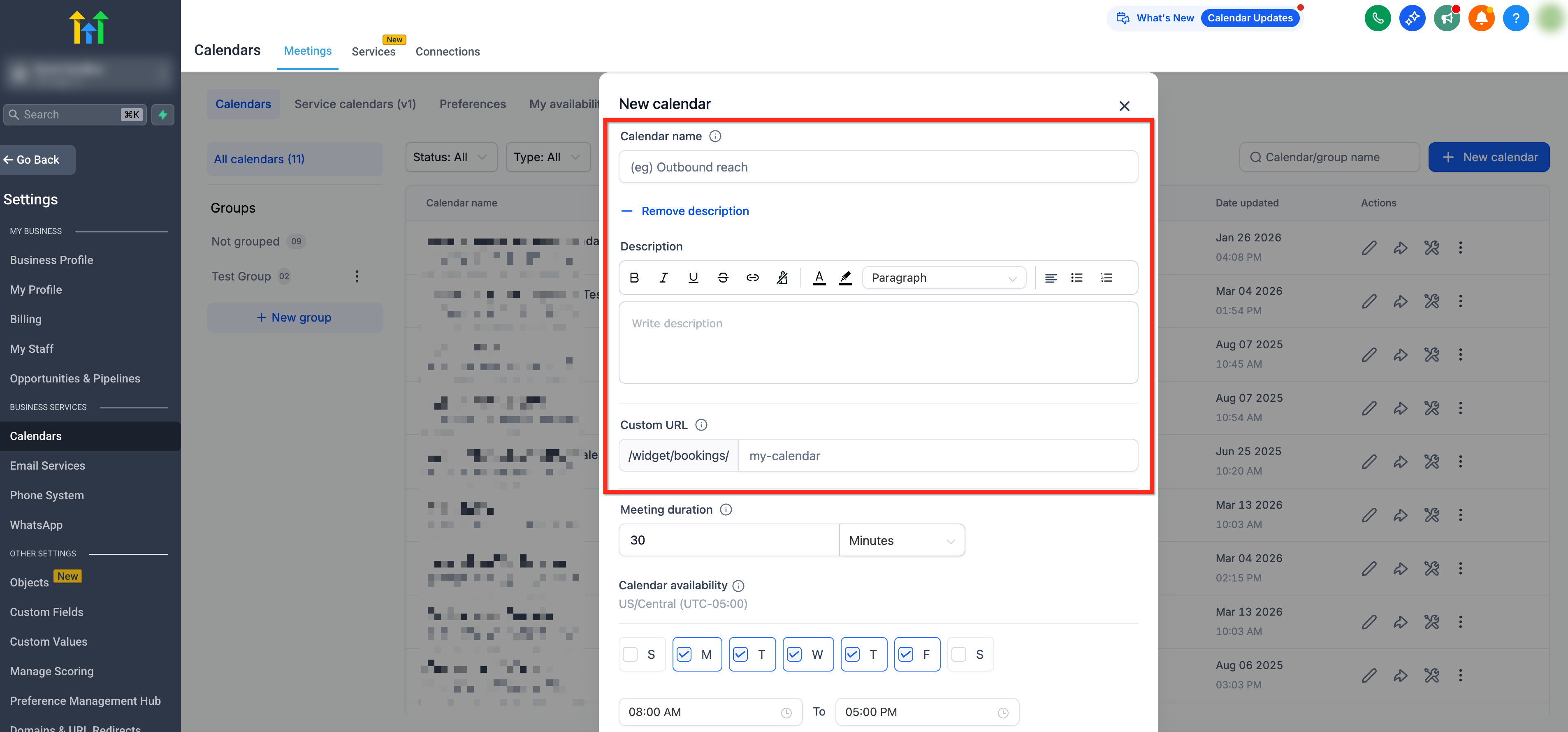
- Set the Meeting Duration and configure Availability by selecting the days and times the event can be booked.
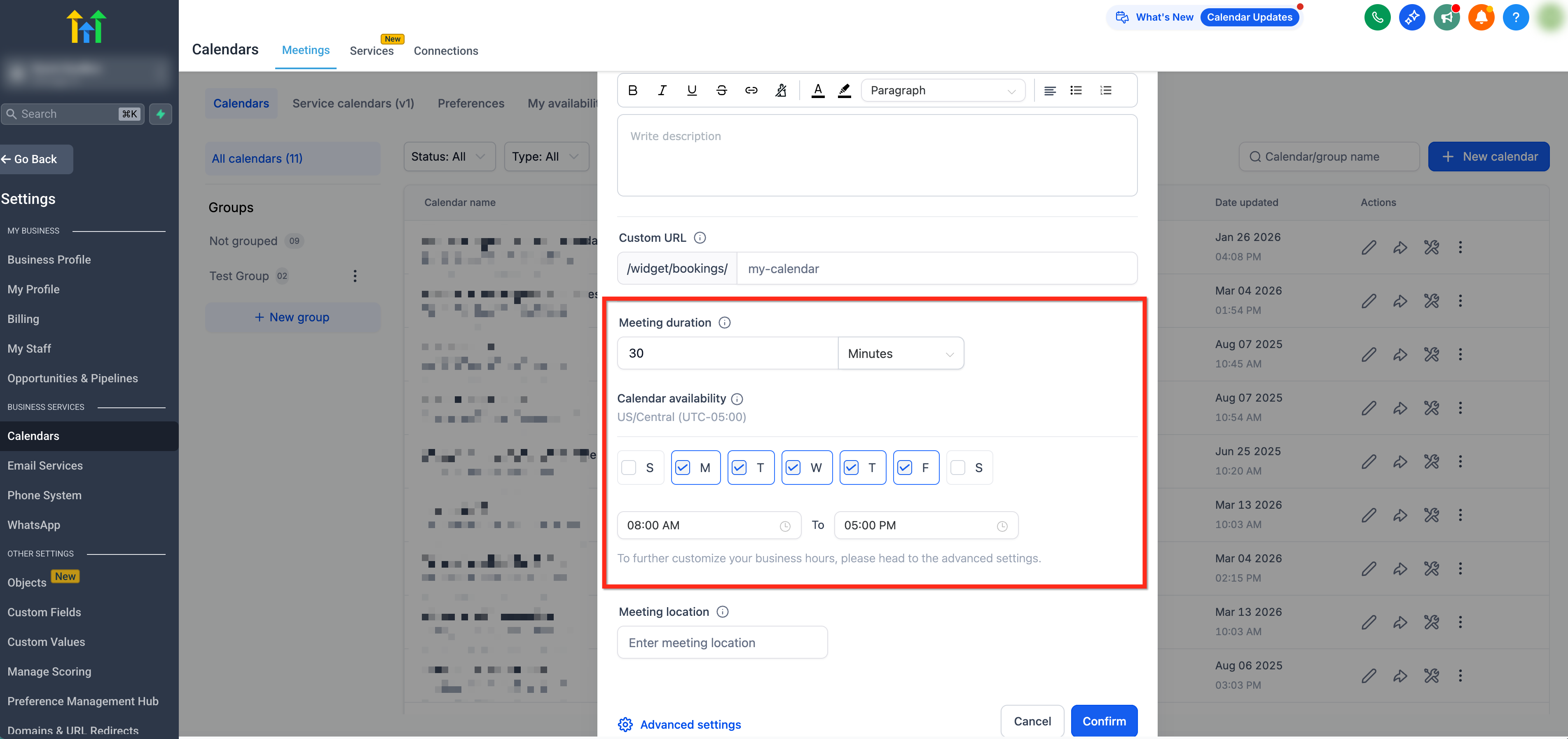
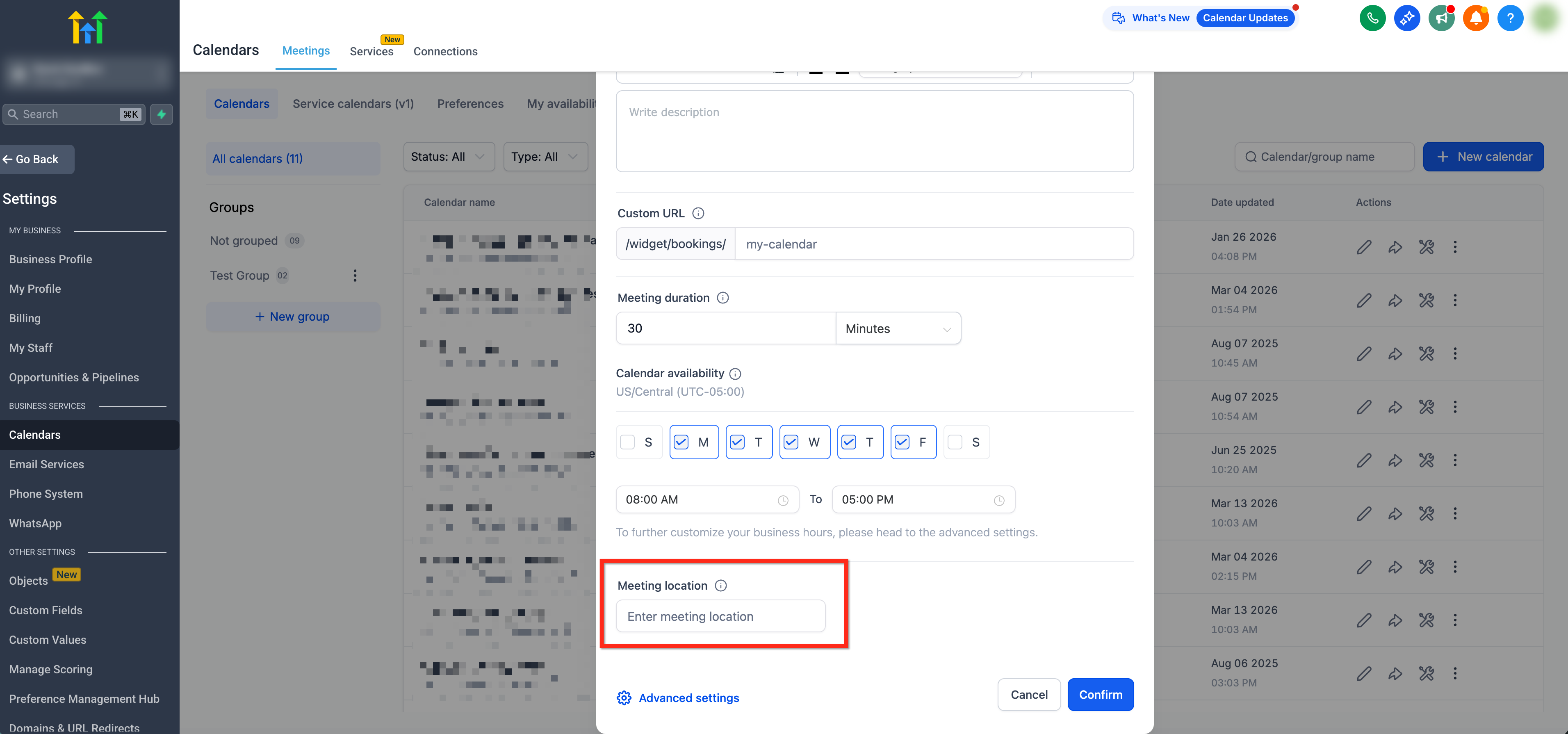
- Add the Meeting Location. For in-person events, enter the physical location. For virtual events, paste a static conferencing link.
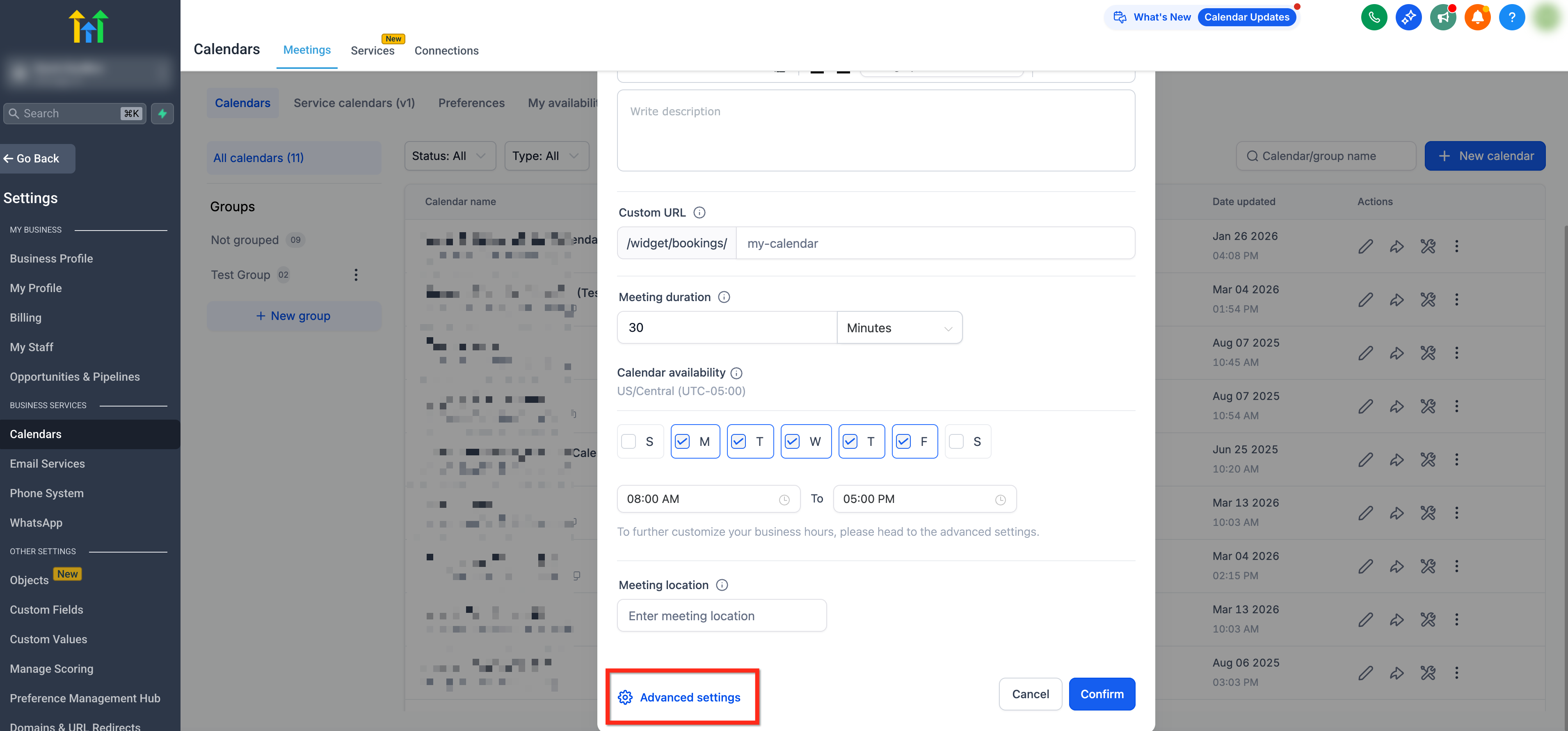
- Click Advanced Settings if you need to configure additional options.
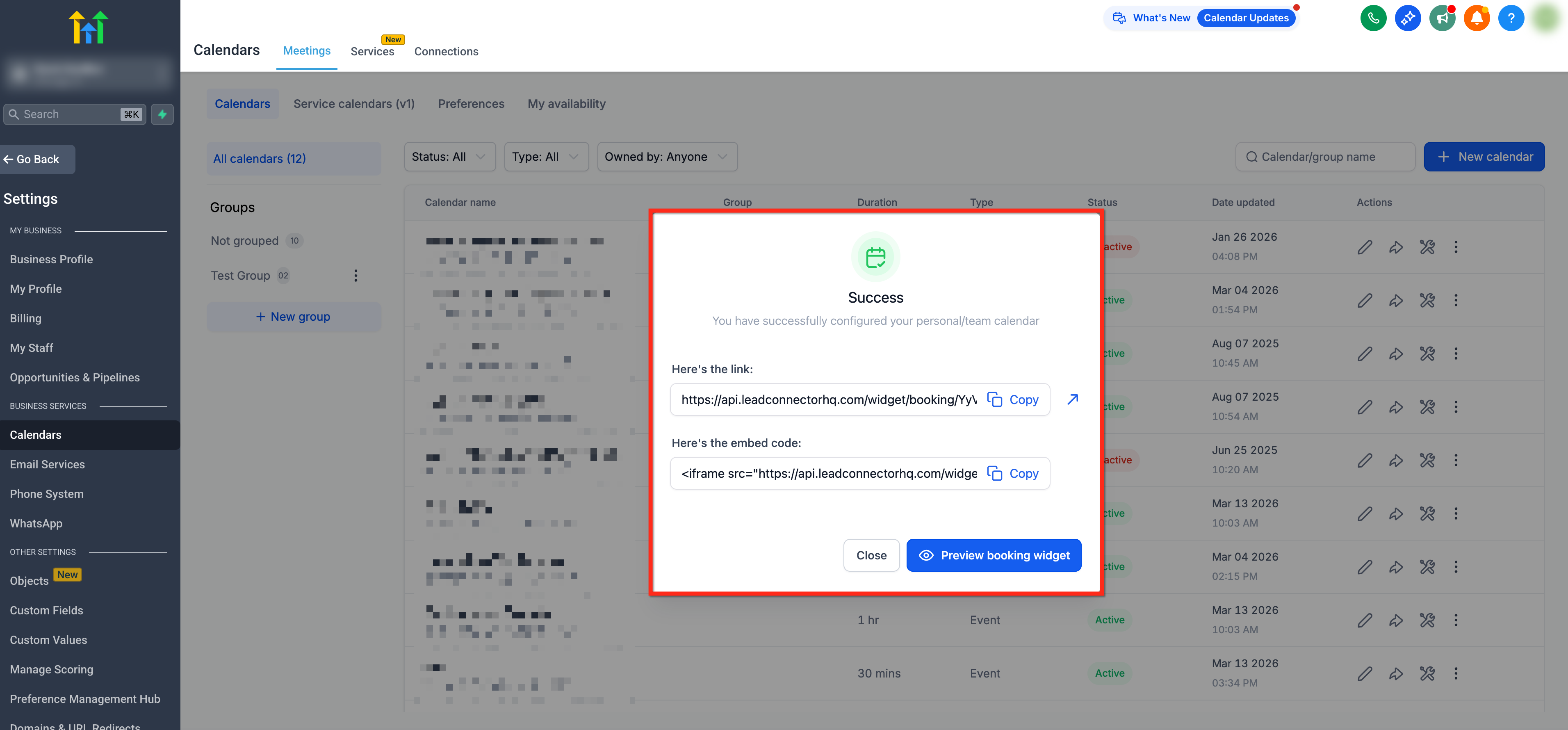
Click Confirm to create the Event Calendar. After the success message appears, copy the booking link or embed code as needed.
Frequently Asked Questions
Q: Can Event Calendars use virtual locations such as Zoom, Google Meet, or Microsoft Teams automatically?
Yes. Dynamic meeting links are not supported because Event Calendars do not have an assigned user but a static link can be use.
Q: Where do Event Calendar bookings sync?
Bookings sync only to the external calendar selected for that Event Calendar.
Q: Can Event Calendars sync with more than one Google Calendar?
No. Only one Google Calendar can be connected using External Sync.
Related Articles
Was this article helpful?
That’s Great!
Thank you for your feedback
Sorry! We couldn't be helpful
Thank you for your feedback
Feedback sent
We appreciate your effort and will try to fix the article