This article guides you through connecting your Google Account to HighLevel Calendars for seamless event syncing and efficient calendar management.
TABLE OF CONTENTS
- What is Google Integration with HighLevel Calendars?
- Key Benefits of Integrating Google Calendar
- Prerequisites for Google Calendar Integration
- Steps to Connect Google Calendar
- Frequently Asked Questions
- Related Articles
What is Google Calendar Integration?
Google Calendar integration with HighLevel enables real-time scheduling, streamlined availability management, and seamless syncing across platforms. It's ideal for booking calls, automating appointments, and coordinating with your team - all in one place.
Key Benefits of Integrating Google Calendar
- Real-time appointment syncing between Google Calendar and HighLevel.
- Two-way sync to keep both platforms aligned.
- Avoid double bookings using conflict calendars.
- Supports multi-user setups with calendar selection per profile.
- Streamlined scheduling with improved visibility and control.
- Automatic catch-up syncing: Appointments created while disconnected sync automatically after reconnect. Connecting a new calendar or switching the selected calendar resyncs upcoming appointments automatically.
- A valid Google account.
- Admin or user-level access to HighLevel Calendar settings.
- The calendar you're connecting must not be shared with conflicting permissions.
Note: Calendar integrations are tied to individual user profiles, not global company settings. Each user should connect their own Google Calendar.
Steps to Connect Google Calendar
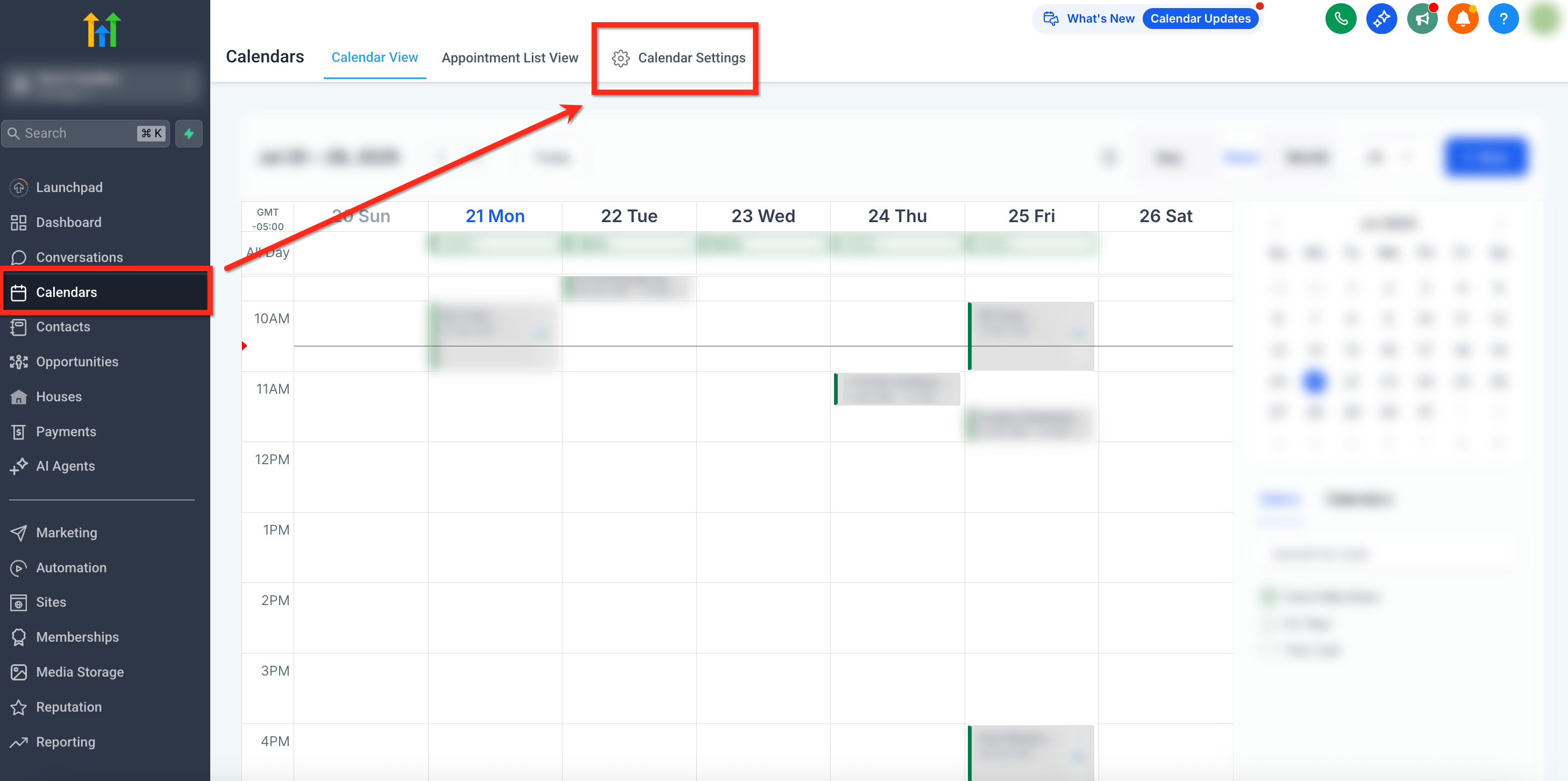
Step 1: Navigate to Calendar Connections
- Go to your sub-account and select use the left side navigation bar to select Calendars then click Calendar Settings in the upper right corner
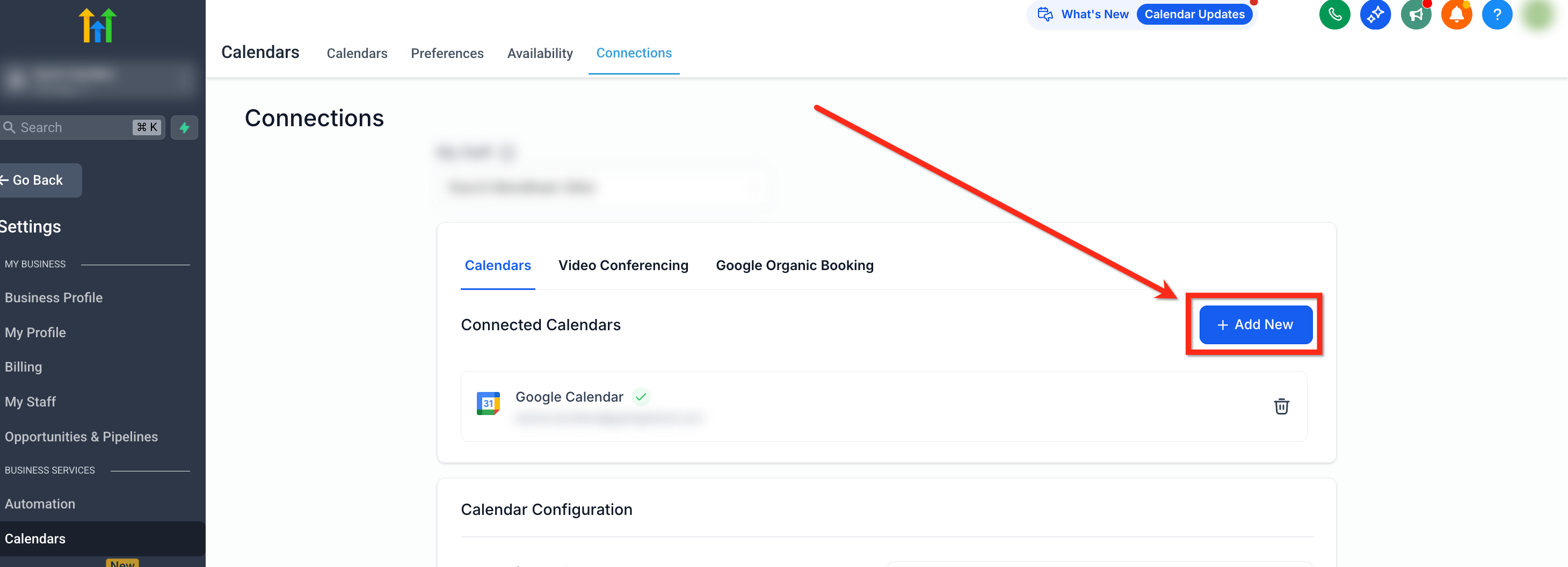
- Click on the Connections tab in the upper navigation ribbon and then + Add New button to add a new calendar.
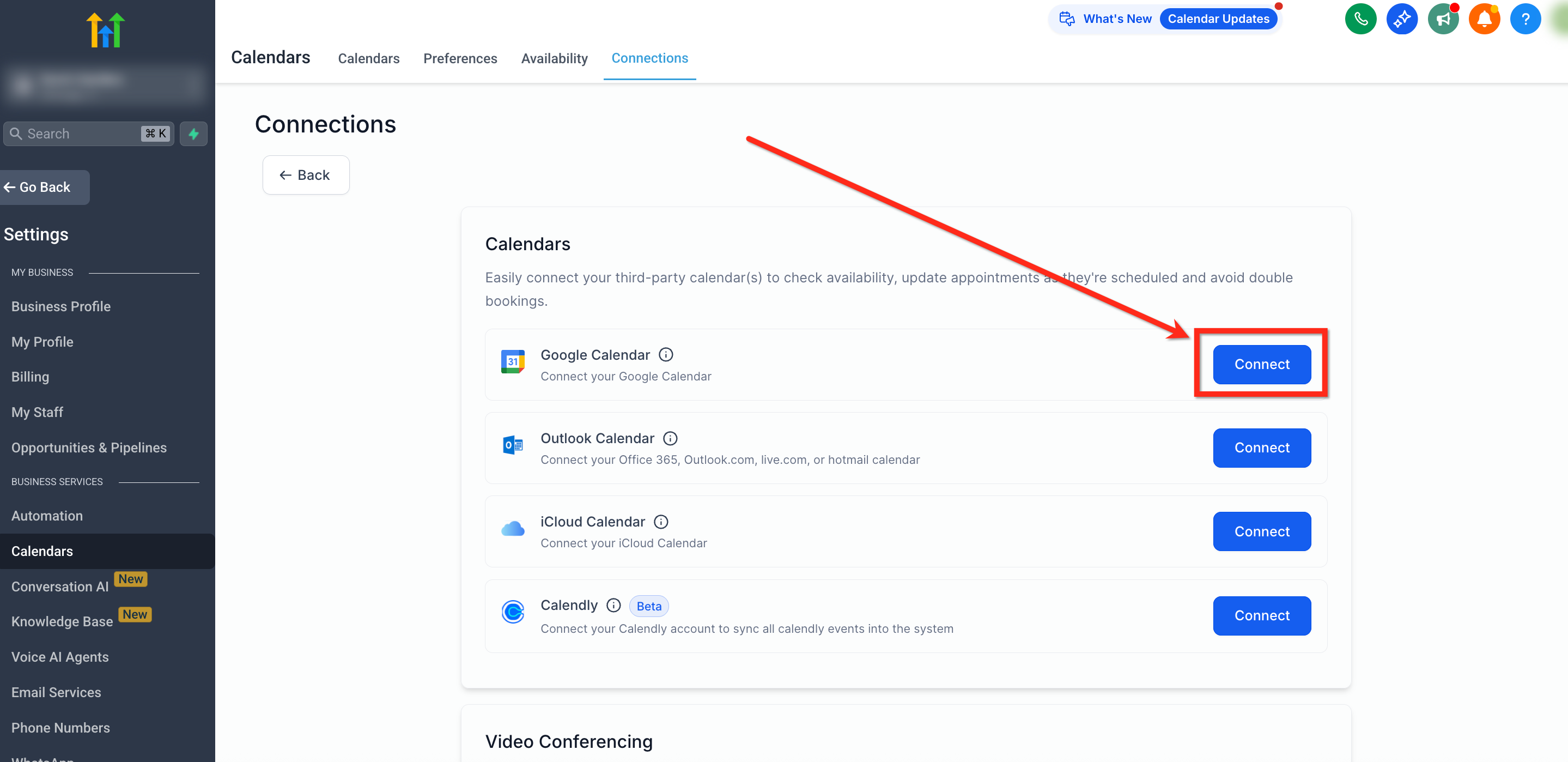
Step 2: Authenticate with Google
- From the Connections page, click on the Connect button beside Google Calendar.
- Select the Google account you want to use.
- Accept all requested permissions, including: Calendar (read/write), Profile and Email access.
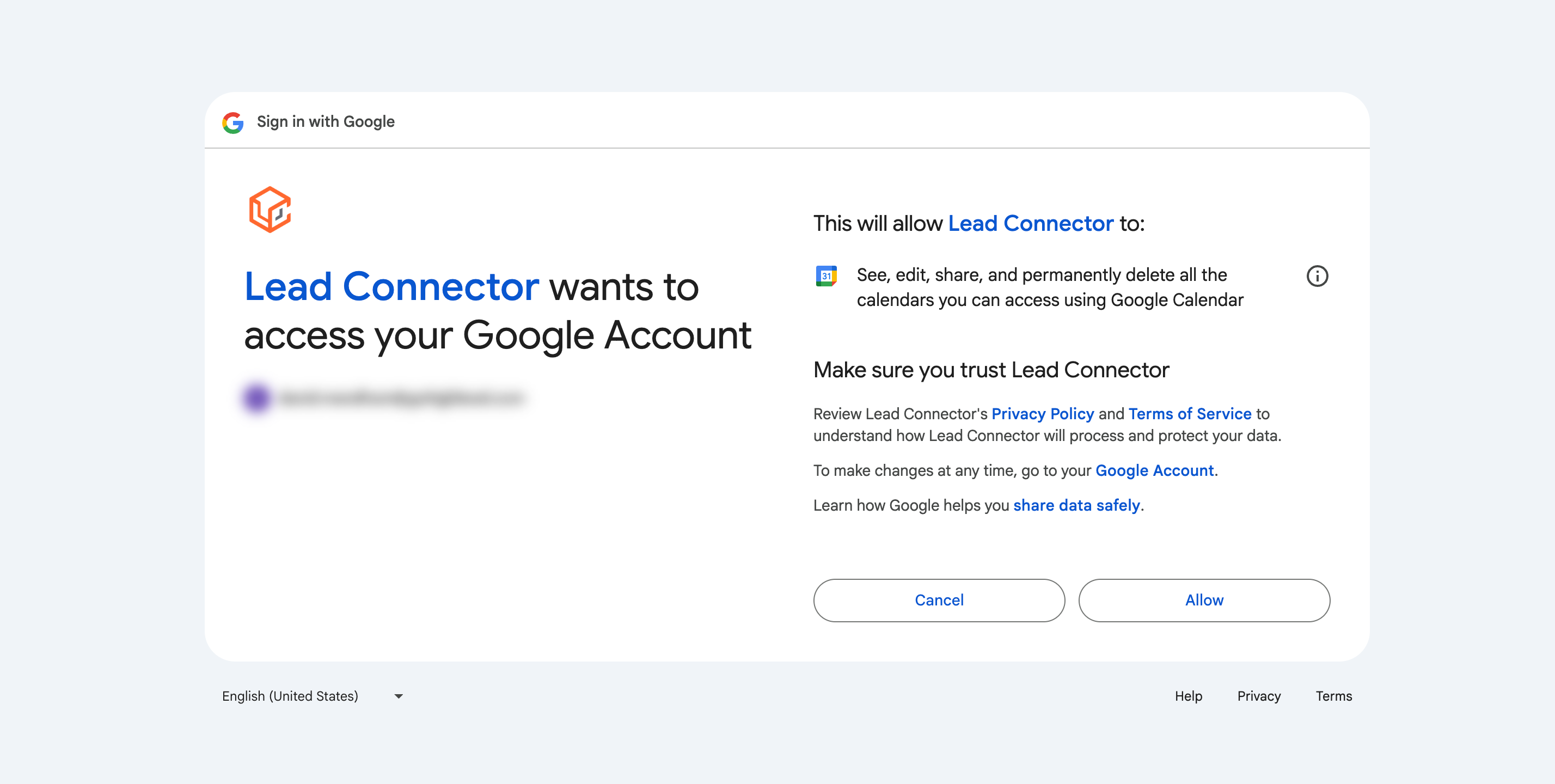
Permissions Required: You must allow full calendar access. Failure to grant "writer" access may result in sync issues.Note: Google may allow you to grant only some permissions during connection. If you do not grant all required permissions, syncing may fail. Check Settings → Integrations → Google for a missing-permissions warning and use Reconnect to grant the missing permissions.
Frequently Asked Questions
Q: Why isn’t my calendar syncing?
Also check Settings → Integrations → Google for a missing-permissions warning and click Reconnect if required permissions are missing.
Q: I don’t see my Google Calendar listed — what should I do?
Ensure that you’re logged into the correct Google account. Log out of all Google accounts and reconnect using the correct one.
Q: What causes Google Calendar sync to break?
- Token expiry
- Calendar deleted
- Permissions revoked after connection
Refer to: Why Google Calendar Integration Breaks and How to Fix it.
Q: What if a connected Google Calendar was deleted and I see an error banner?
Use the banner’s Fix This option to open a modal listing deleted calendar instances and where they’re connected in HighLevel. Click Remove Deleted Calendars to clean up the broken connections, then reconnect or select an active calendar if needed.
Q: Can I use one calendar across multiple users?
No, calendar integrations are user-specific. Each user must connect their own Google Calendar for personalized scheduling and sync.
Q. Can I sync multiple Google Calendars?
Yes, you can link multiple Google Calendars. Configure one calendar as the Linked Calendar for bookings and others as Conflict Calendars to avoid double bookings.
Q. Do I need a specific Google account type (e.g., Gmail, G Suite)?
No, both personal Gmail accounts and G Suite (Google Workspace) accounts work with this integration.
Related Articles
Was this article helpful?
That’s Great!
Thank you for your feedback
Sorry! We couldn't be helpful
Thank you for your feedback
Feedback sent
We appreciate your effort and will try to fix the article