RSS email campaigns use published content from an RSS feed to create scheduled emails in HighLevel. Instead of rebuilding a newsletter for every new post, you can reuse one email design and choose when subscribers receive updates. RSS content blocks display the feed information, while RSS Schedule controls recurring delivery. This guide explains the essentials, including setup, testing, and what happens when no new content is available.
TABLE OF CONTENTS
- What Are RSS Email Campaigns in HighLevel?
- Key Benefits of RSS Email Campaigns
- How RSS Email Campaigns Work
- Before You Begin
- How to Set Up an RSS Email Campaign
- What to Expect from Scheduled RSS Emails
- Frequently Asked Questions
- Related Articles
What Are RSS Email Campaigns in HighLevel?
RSS (Really Simple Syndication) is a format websites use to publish updates, such as blog posts or news articles. An RSS email campaign reads those updates from a feed URL and places eligible posts into an email when its scheduled send runs.
The campaign runs on the frequency you choose; it does not automatically send a separate email every time a post is published.
Key Benefits of RSS Email Campaigns
Recurring RSS emails help keep subscribers informed without manually building a new campaign for each blog update.
- Less Manual Work: Reuse one email design for multiple sends.
- Consistent Updates: Deliver new posts on a recurring schedule.
- Flexible Content: Show post titles, excerpts, images, or other supported feed details.
- Controlled Volume: Limit how many recent eligible posts appear in each email.
How RSS Email Campaigns Work
RSS campaigns combine a source feed, content blocks, and an RSS-specific sending schedule. Each component has a different purpose.
| Component | Purpose |
|---|---|
| RSS Feed URL | Supplies published posts and their available details. |
| RSS Items | Displays individual posts, such as titles, excerpts, and links. |
| RSS Header | Optionally displays feed-level information, such as the feed name or description. |
| RSS Schedule | Sets when the campaign checks for content, who receives it, and how many items to include. |
Use RSS Items for the posts themselves. RSS Header is optional; it does not replace the RSS Items block.
Before You Begin
A working RSS feed and a prepared email audience are the main requirements. Check the feed before designing the email so you know which post details are available.
- RSS Feed URL: Use a valid, accessible feed from your website or another content source. For a HighLevel blog, see RSS Feed for Blogs.
- Published Content: Confirm the feed includes posts with the titles, links, and other details you want to display. HighLevel blog RSS feeds include published posts, not drafts.
- Email Setup: Prepare your sender details and recipient audience before scheduling.
How to Set Up an RSS Email Campaign
Build the email using RSS blocks, test it with the actual feed URL, then choose RSS Schedule for recurring delivery. Using the correct sending method is essential for populating RSS content.
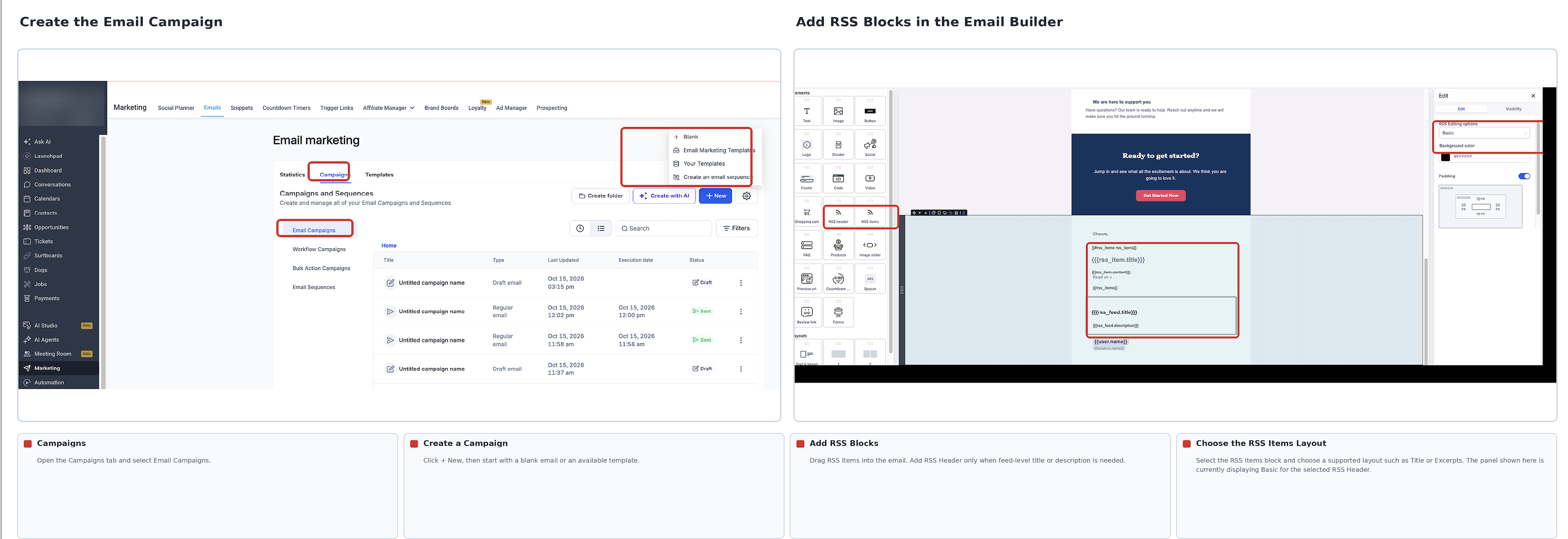
- Go to Marketing → Emails → Campaigns → Email Campaigns and create a New Campaign.
- Open a template or start a design in the Email Builder. Add an RSS Items block to display posts. Add RSS Header only if you want feed-level information.
- Choose a supported RSS Items layout, such as Title or Excerpts, and adjust its available formatting.
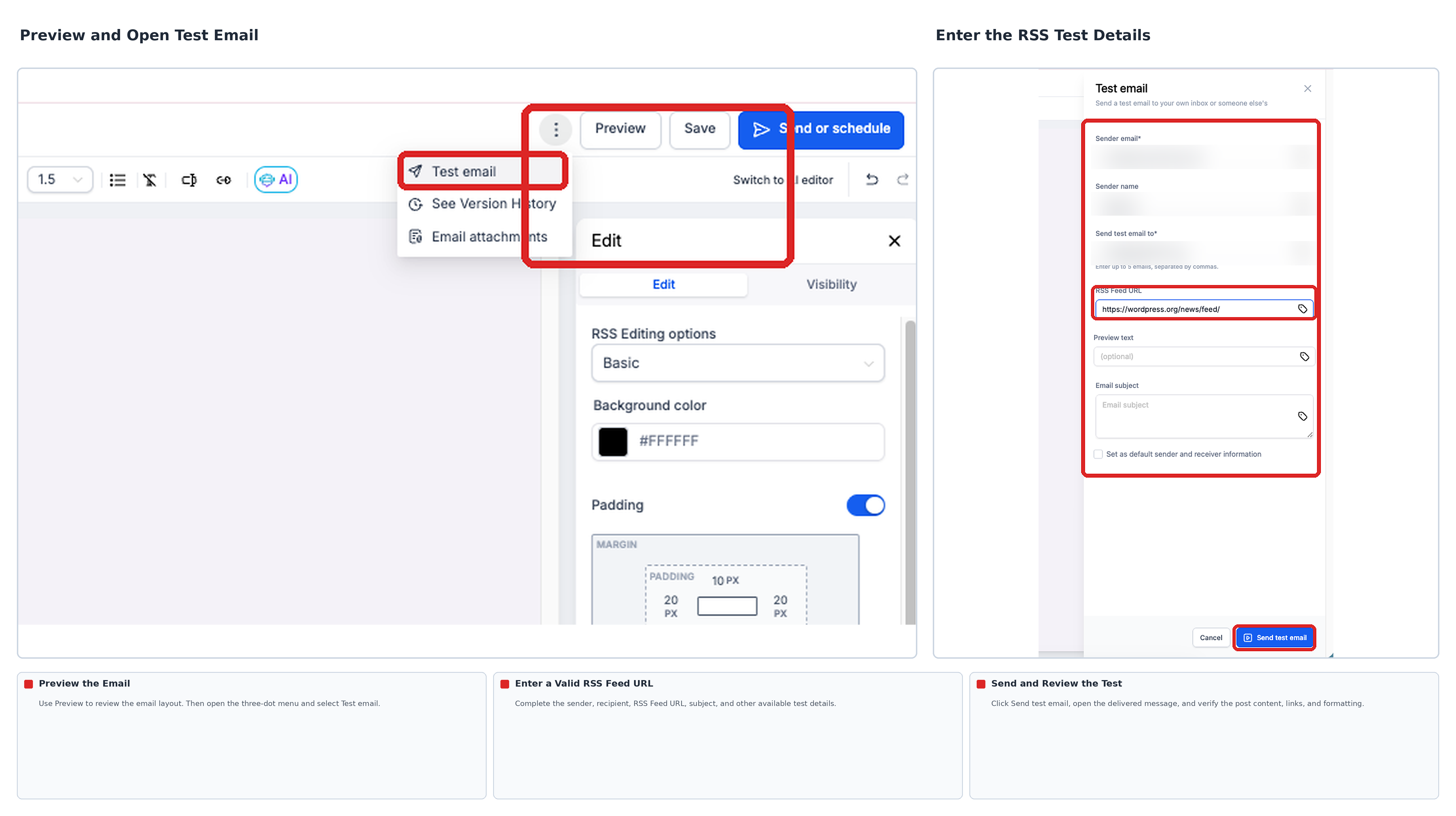
4. Preview the email. To test feed content, open the menu beside Preview, select Test Email, and enter a valid RSS Feed URL along with the requested test details. Open the received email and check its post content and links.
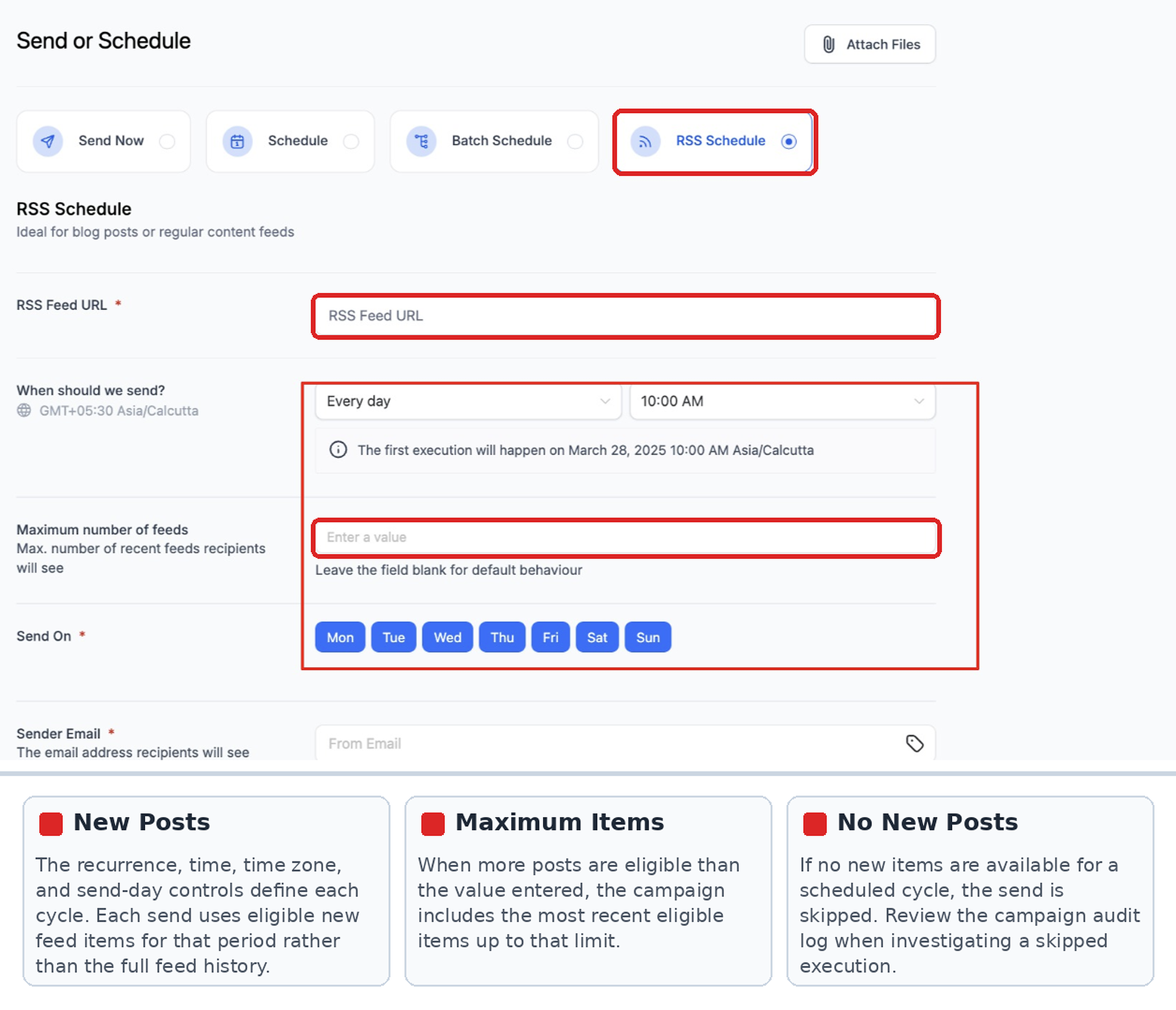
5. Click Send or Schedule and select RSS Schedule. Enter the feed URL, choose the available recurrence and send time, and set the maximum number of items.
6. Complete the sender details, subject line, and recipient selection. Review the next execution time and displayed time zone.
7. Click Schedule to confirm the recurring campaign.
Important: Use RSS Schedule for emails containing RSS variables. Standard Send Now, Schedule, and Batch Schedule delivery can leave RSS content blank. An RSS test email also needs a valid RSS Feed URL.
For detailed screenshots and campaign-management instructions, see How to Send RSS Email Campaigns.
What to Expect from Scheduled RSS Emails
The feed's available posts and your campaign settings determine what readers receive. Reviewing the first scheduled execution helps confirm that the results match your expectations.
- New Posts: Scheduled sends use eligible feed updates for the relevant period, rather than sending every past article in the feed.
- Maximum Items: If more posts are eligible than the limit you set, HighLevel includes the most recent eligible posts up to that limit.
- No New Posts: If the feed has no new items for a scheduled cycle, HighLevel skips that send. Check the campaign audit log when investigating a skipped execution.
Frequently Asked Questions
Q: Can I use RSS information in the email subject line?
Yes. HighLevel documents feed-level values such as {{rss_feed.title}} for use in an RSS campaign's subject line.
Q: Why are RSS placeholders blank in my test email?
Confirm you entered a valid RSS Feed URL when sending the test. Also check that the feed contains the fields used in your email layout.
Q: Why is an image missing from an RSS post?
The feed may not supply compatible image data, or the chosen RSS Items layout may not display images. Check the source feed and select an image-compatible layout.
Q: Can I change an RSS campaign after scheduling it?
Eligible scheduled campaigns can be edited or rescheduled using the available campaign actions. Follow the current RSS campaign management instructions; make changes before the next execution.
Q: Can I resend an RSS email to people who did not open it?
Yes. For an already-sent RSS campaign, use Resend to Unopened where available. See Resend to Unopened for RSS and Batch Scheduled Emails.
Related Articles
Was this article helpful?
That’s Great!
Thank you for your feedback
Sorry! We couldn't be helpful
Thank you for your feedback
Feedback sent
We appreciate your effort and will try to fix the article