The Tasks List View introduces a range of enhancements designed to improve how you manage and track tasks within your account. With advanced filtering, customizable views, and a more intuitive interface, managing tasks has never been easier.
TABLE OF CONTENTS
- Feature 1 - Accessing the Tasks List View
- Feature 2 - Creating a new task
- Feature 3 - Managing Tasks
- Feature 4 - Advanced Filters
- Feature 5 - Sorting Options
Feature 1 - Accessing the Tasks List View

Navigate to Contacts > Tasks from the main menu.
Explore the enhanced view with filtering, sorting, and bulk actions available at the top of the list.
Feature 2 - Creating a new task
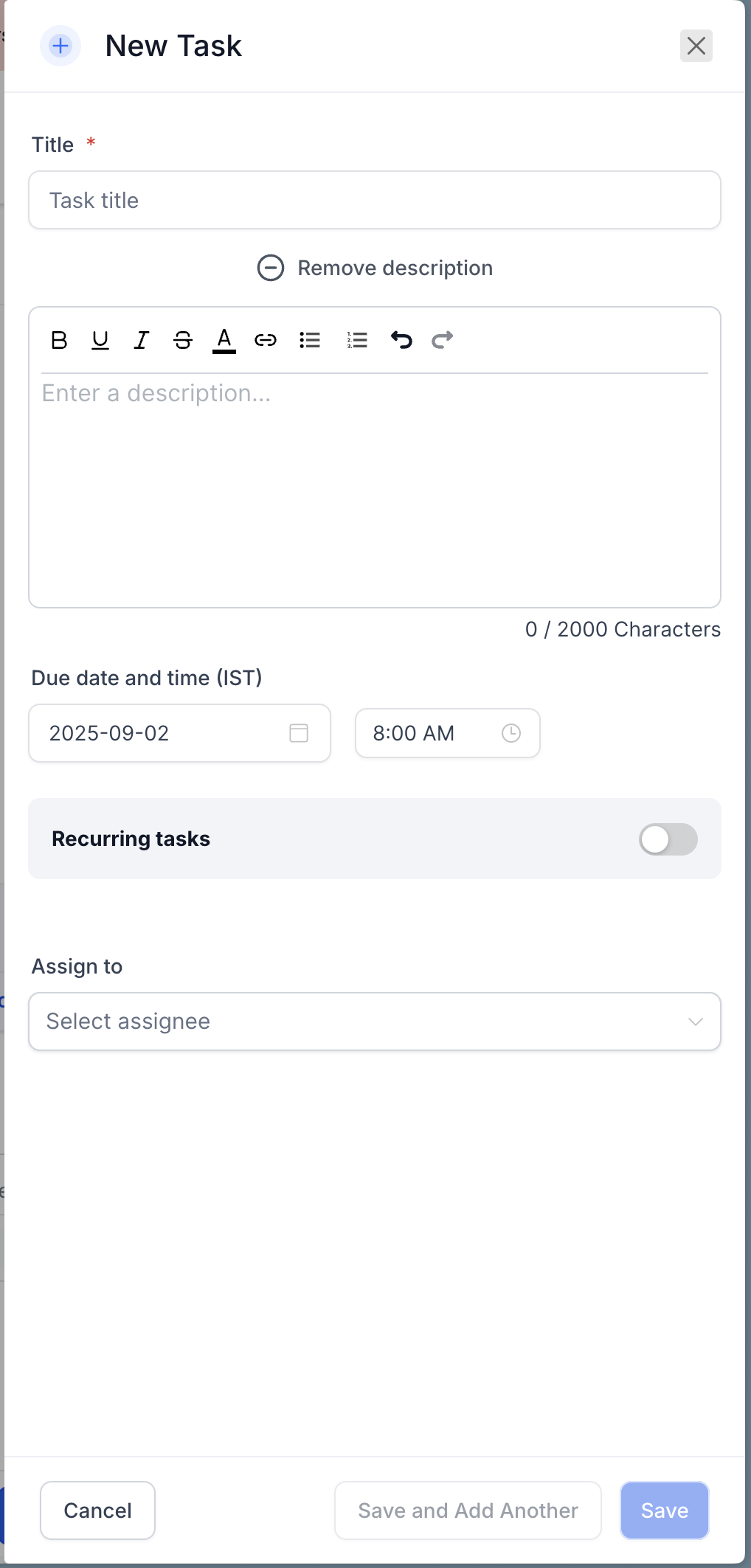
Click + Add Task in the top-right corner.
Fill in the following fields:
Title: Add a brief description of the task.
Description (optional): Provide additional details about the task. Add rich text like bold, colored text, URLs.
Due Date and Time: Set a deadline for the task.
Recurring Task (optional): Toggle on to create a task that repeats based on a custom schedule.
Contact (optional): Assign the task to a specific contact.
Assignee (optional): Assign the task to a team member.
Click Save to save and move to edit flow or Save and Add Another to continue creating tasks.
Note: Add Task creates a contact-less task when no contact exists at runtime; if a contact is present, the task automatically attaches to that contact.
Feature 3 - Managing Tasks

Edit Fields: Use the pencil icon in the Actions column or click on the title of the task to modify task details.
Delete Tasks: Select a task and click Delete. Deleted tasks can be restored within two months.
Bulk Actions: Select multiple tasks and perform bulk actions such as marking tasks as done or deleting them.
Viewing contact-less tasks
Workflows can create tasks without a contact. These display as standalone tasks in the Tasks list. Use filters to quickly find and work them.
Deleted tasks can be restored within a span of 2 months.
Feature 4 - Advanced Filters
Click Advanced Filters to narrow down tasks by:
Assignee
Status (All, Due Today, Overdue, Upcoming)
Due Date
Custom fields (if applicable)

Feature 5 - Sorting Options
Click Sort to reorder tasks based on:
Due Date
Title
Created At
Updated At

Frequently Asked Questions
How can I schedule a task due at a specific time from a workflow?
Use the “Add Task” workflow action and switch the “Due In” field to Dynamic Mode. This allows you to input a specific date and time (e.g., 05-30-2025 03:00 PM) using a custom value or dynamic variable.
Can workflows create contact-less tasks?
Yes—Add Task will create a standalone task when no contact is present.
How do I find them?
Filter by Contact = Unassigned (or the “no contact” token) and optionally add Assignee + Due.
Do reminders/notifications apply to contact-less tasks?
Yes—add them via workflows (e.g., Task Reminder trigger + Internal Notification). They’re not sent automatically unless you configure them.
Was this article helpful?
That’s Great!
Thank you for your feedback
Sorry! We couldn't be helpful
Thank you for your feedback
Feedback sent
We appreciate your effort and will try to fix the article