CRM List View lets you review records in a clean, tabular layout with quick controls to filter, sort, and customize visible columns. This makes it easier to scan large record sets, spot patterns, and take action without jumping between individual record details.
List View is available for Contacts (currently in Labs), Opportunities (via a toggle), Custom Objects, Companies, and Tasks.
TABLE OF CONTENTS
How to Access List View
Getting to List View quickly ensures you can manage records in the format that best supports bulk review, prioritization, and cleanup.
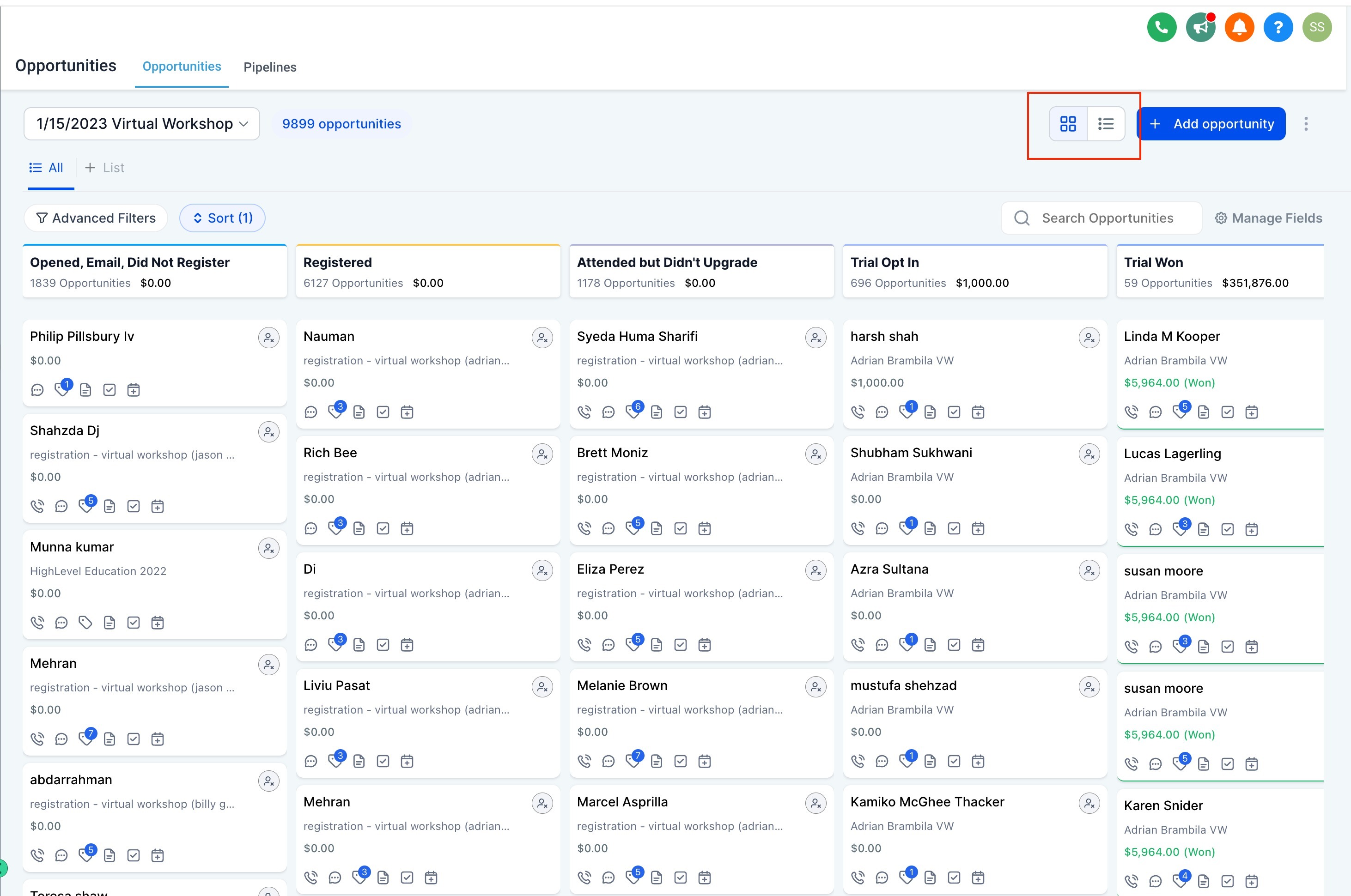
Access List View for CRM objects
For most CRM objects, List View is the default view when you open the object from the left navigation or the top bar menu.
Access List View for Opportunities
Navigate to Opportunities.
Use the List View toggle in the top-right of the page to switch views.
Feature Overview
A consistent set of table tools helps you standardize how your team views CRM records, while still allowing each user to focus on the fields that matter most.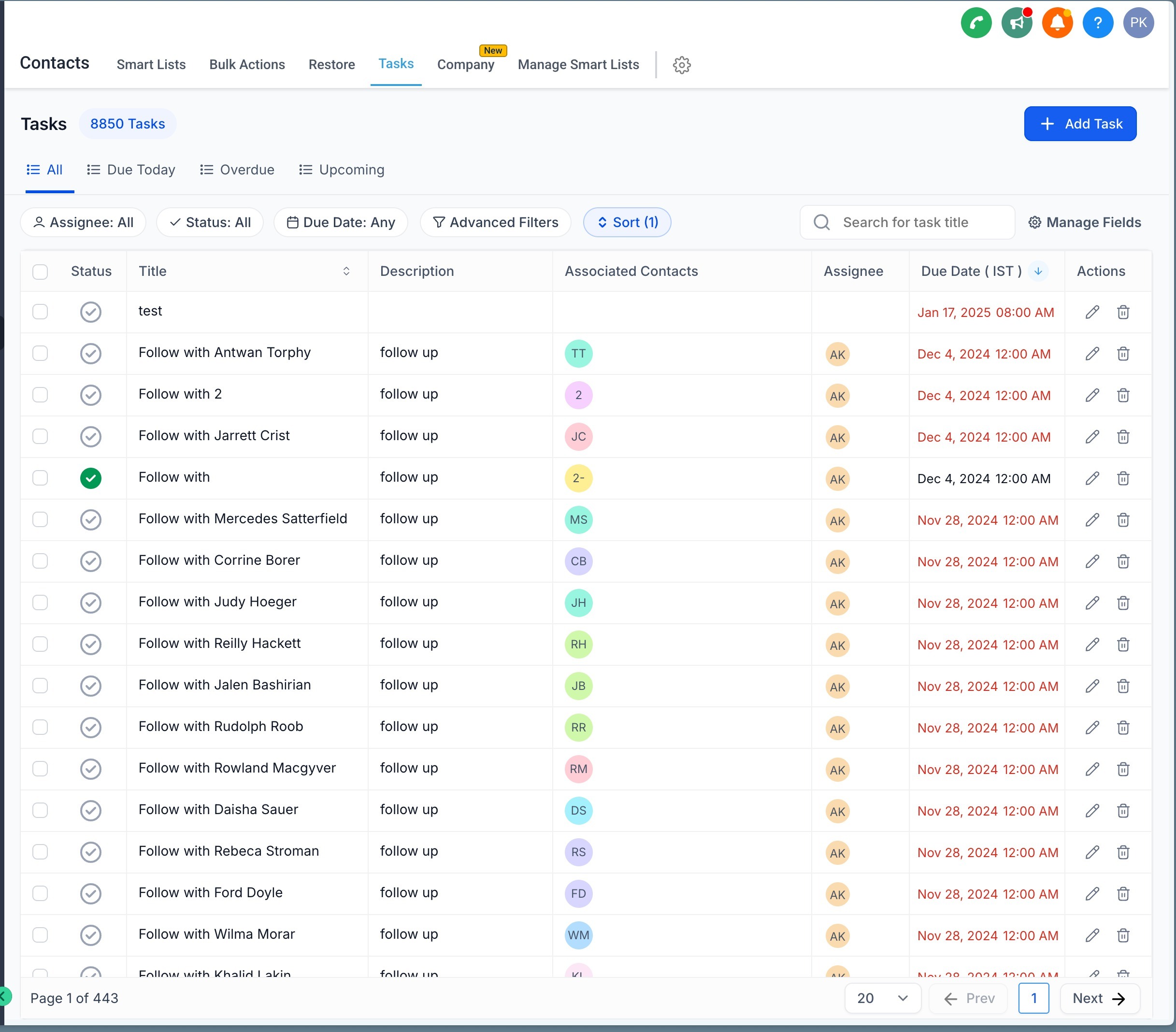
Tabular Record Layout: View CRM records organized in a clear table so key data is visible at a glance.
Filtering Options: Narrow results to the exact records you need using available filters.
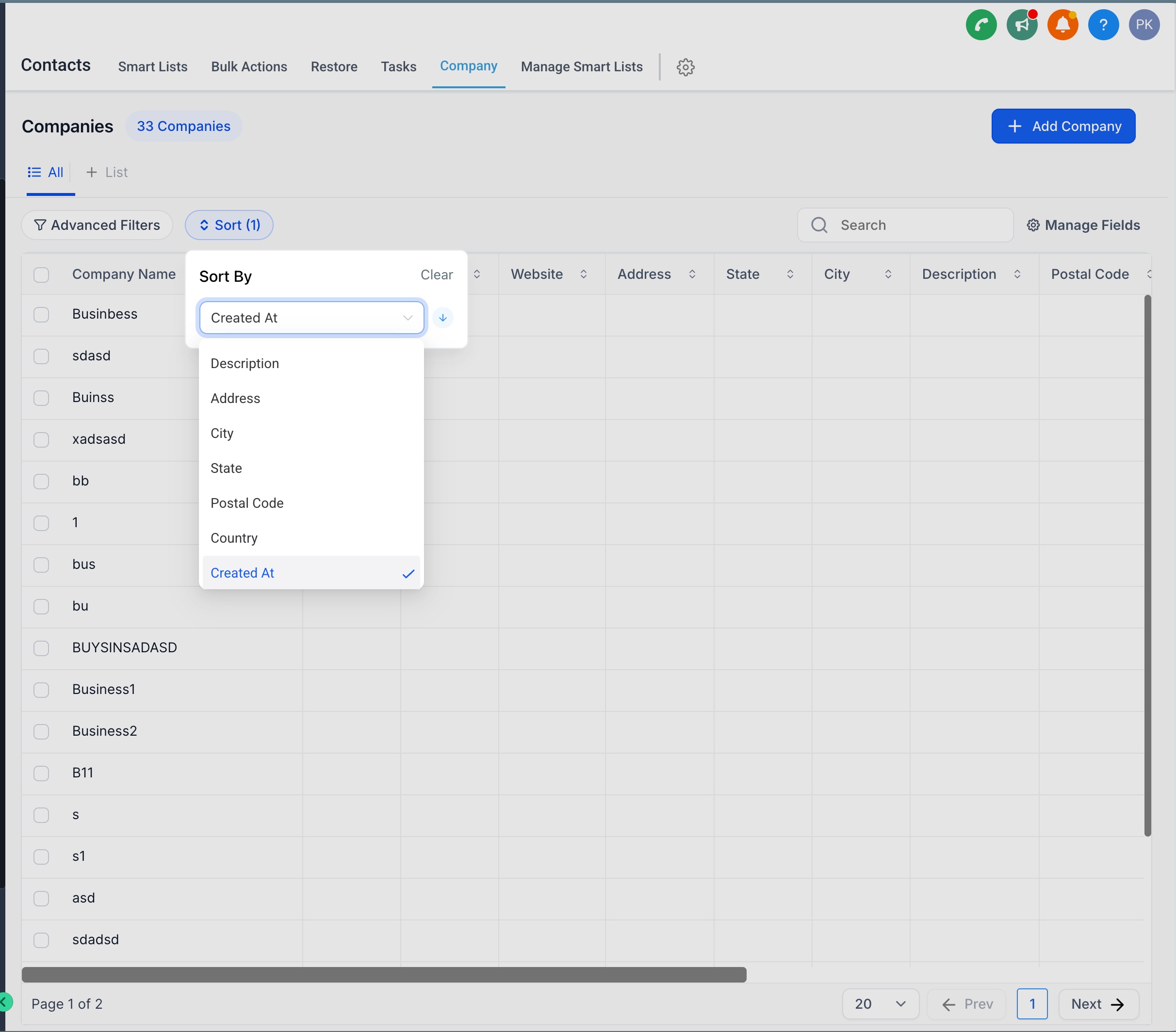
Sorting Across Fields: Prioritize records by sorting on supported fields.
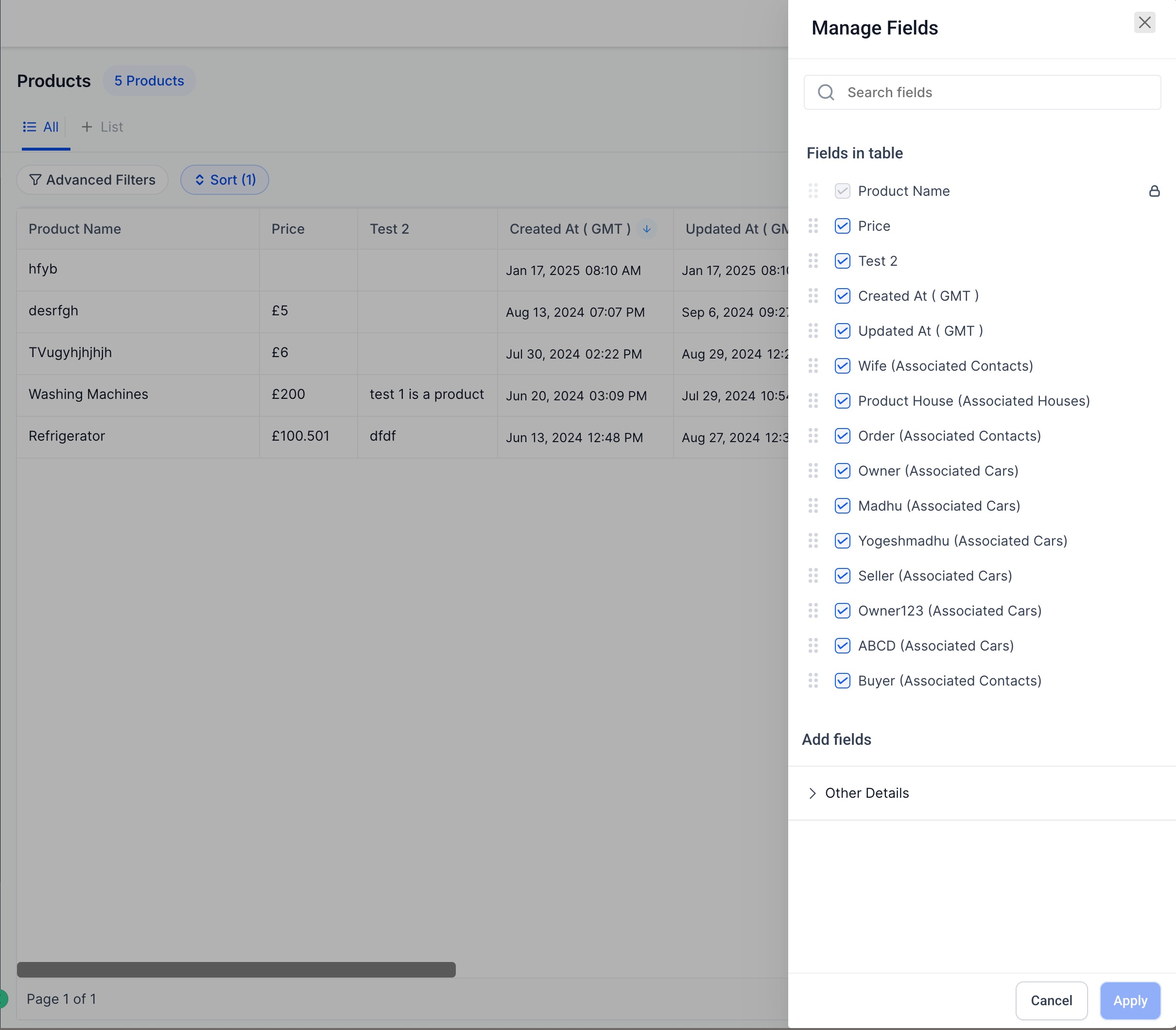
Customizable Columns: Choose which fields appear as columns, then resize and rearrange them to match your workflow.
Key Benefits of List View
A well-configured List View reduces clicks, speeds up decision-making, and keeps teams aligned by showing the right information in the right order.
Enhanced visibility: See more data in one place for faster review without switching between screens.
Increased customization: Adjust columns so the most important details are always visible for your process.
Improved efficiency: Manage records faster with filtering and sorting directly in the table view.
Frequently Asked Questions
Q: Which CRM areas support List View?
A: List View is available for Contacts (currently in Labs), Opportunities (through a toggle), Custom Objects, Companies, and Tasks.
Q: Is List View the default view for all CRM objects?
A: For most CRM objects, List View is the default when you open the object from the left navigation or top bar menu. Opportunities uses a toggle to switch to List View.
Q: Can I sort records in List View?
A: Yes—sorting is available on supported fields. Custom Objects also support sorting by custom fields from the Sort menu or by clicking a column header.
Q: Are there any sorting limitations for Custom Objects?
A: Yes. Some custom field types do not support sorting in Custom Objects List View. For steps and limitations, reference List View for Custom Objects.
Q: Can I control which columns appear in List View?
A: Yes. You can choose which fields display as columns, then resize and rearrange them.
Was this article helpful?
That’s Great!
Thank you for your feedback
Sorry! We couldn't be helpful
Thank you for your feedback
Feedback sent
We appreciate your effort and will try to fix the article