Appointment List View in HighLevel provides a powerful way to manage appointments using a list-based workspace instead of a traditional calendar layout. It allows teams to filter, sort, customize, and take action on appointments at scale using Smart Lists. This view is ideal for admins, sales teams, and support staff who need to manage appointments efficiently across multiple calendars and users.
TABLE OF CONTENTS
- What is Appointment List View (Smart Lists)
- Key Benefits of Appointment List View
- How to Manage Appointments with Appointment List View
- Frequently Asked Questions
What is Appointment List View
Appointment List View is a dedicated calendar view in HighLevel that displays appointments in a structured list rather than a date-based calendar grid. It is designed for managing appointments at scale, allowing users to work from saved Smart Lists that combine filters, sorting, and column configurations.
Smart Lists turn Appointment List View into an operational workspace rather than a passive view. Users can create, update, and manage appointments directly from the list, making it easier to prioritize work, track outcomes, and maintain consistency across teams.
Key Benefits of Appointment List View
Appointment List View helps teams move from scheduling appointments to actively managing them through flexible, repeatable workflows.
- Centralized management: View and manage appointments across calendars without navigating day-by-day views.
- Smart Lists: Save filters, sorting, and columns together as reusable appointment workflows
- Advanced filtering: Narrow appointment lists by status, owner, calendar, date range, and more
- Customizable columns: Control which appointment details are visible based on role or task
- Action-oriented workflow: Update statuses, edit, reschedule, or create appointments directly from the list
How to Manage Appointments with Appointment List View
Access Appointment List View
Appointment List View is accessed directly from the Calendars area and functions as a primary workspace alongside Calendar View.
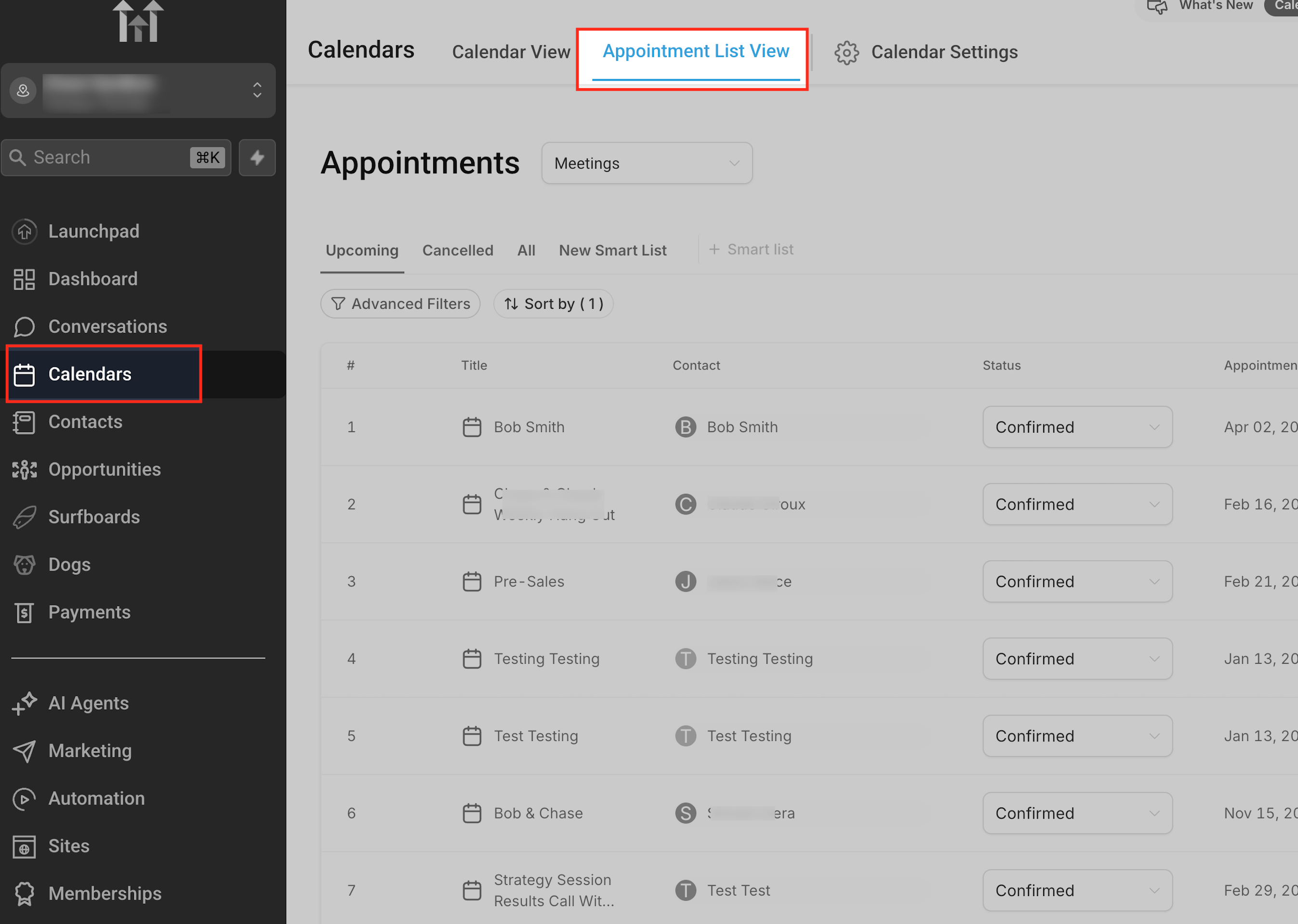
Navigate to Calendars from the left-hand menu
Select the Appointment List View tab at the top
Appointment Types
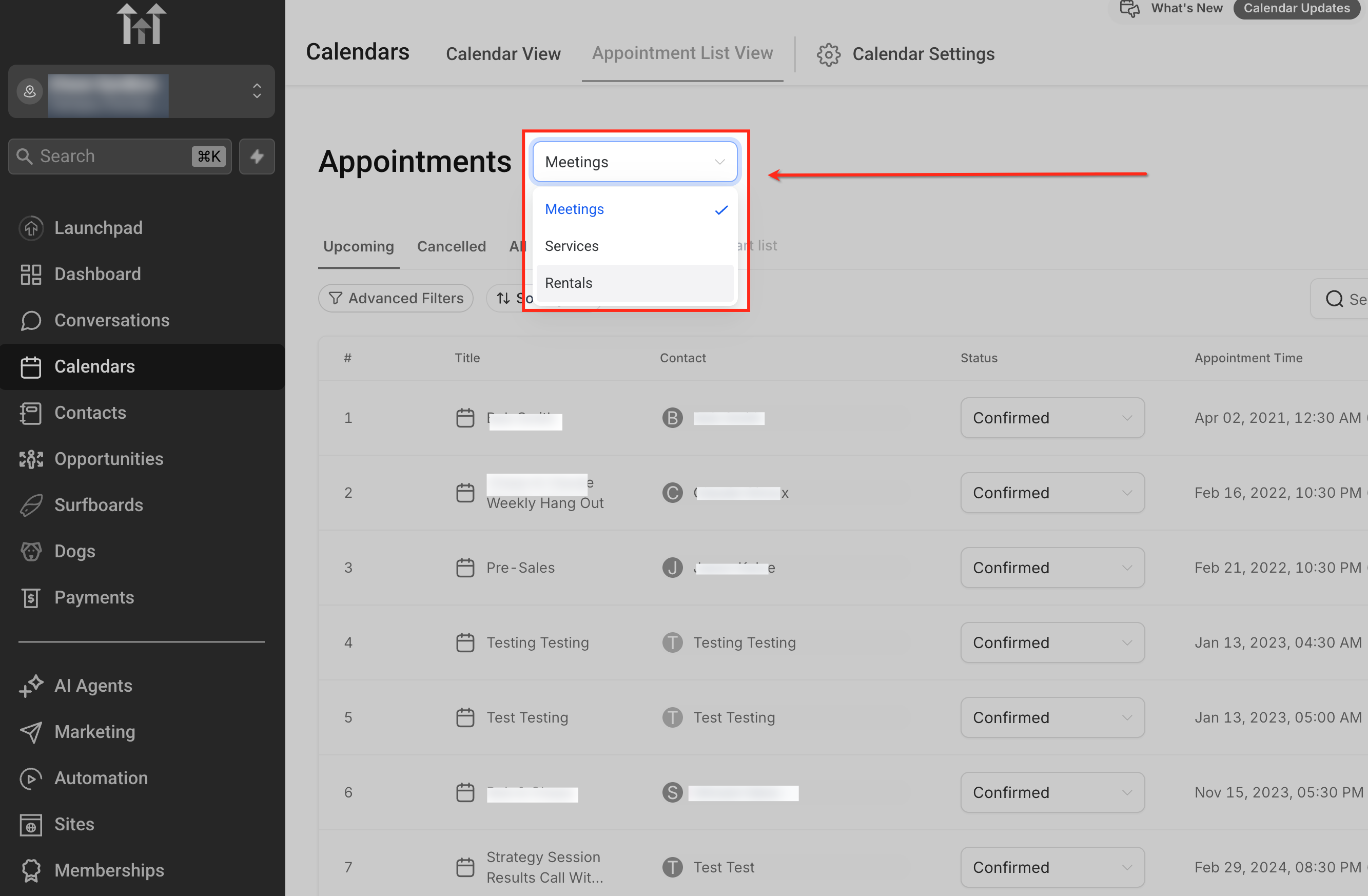
Appointment types are automatically determined by the calendar used to book the appointment. Each calendar is configured as a Meeting, Service, or Rental, and appointments inherit that type during booking.
Appointment List View displays appointments based on the selected type, so selecting the correct appointment type ensures you are viewing the intended appointments.
Creating a New Appointment
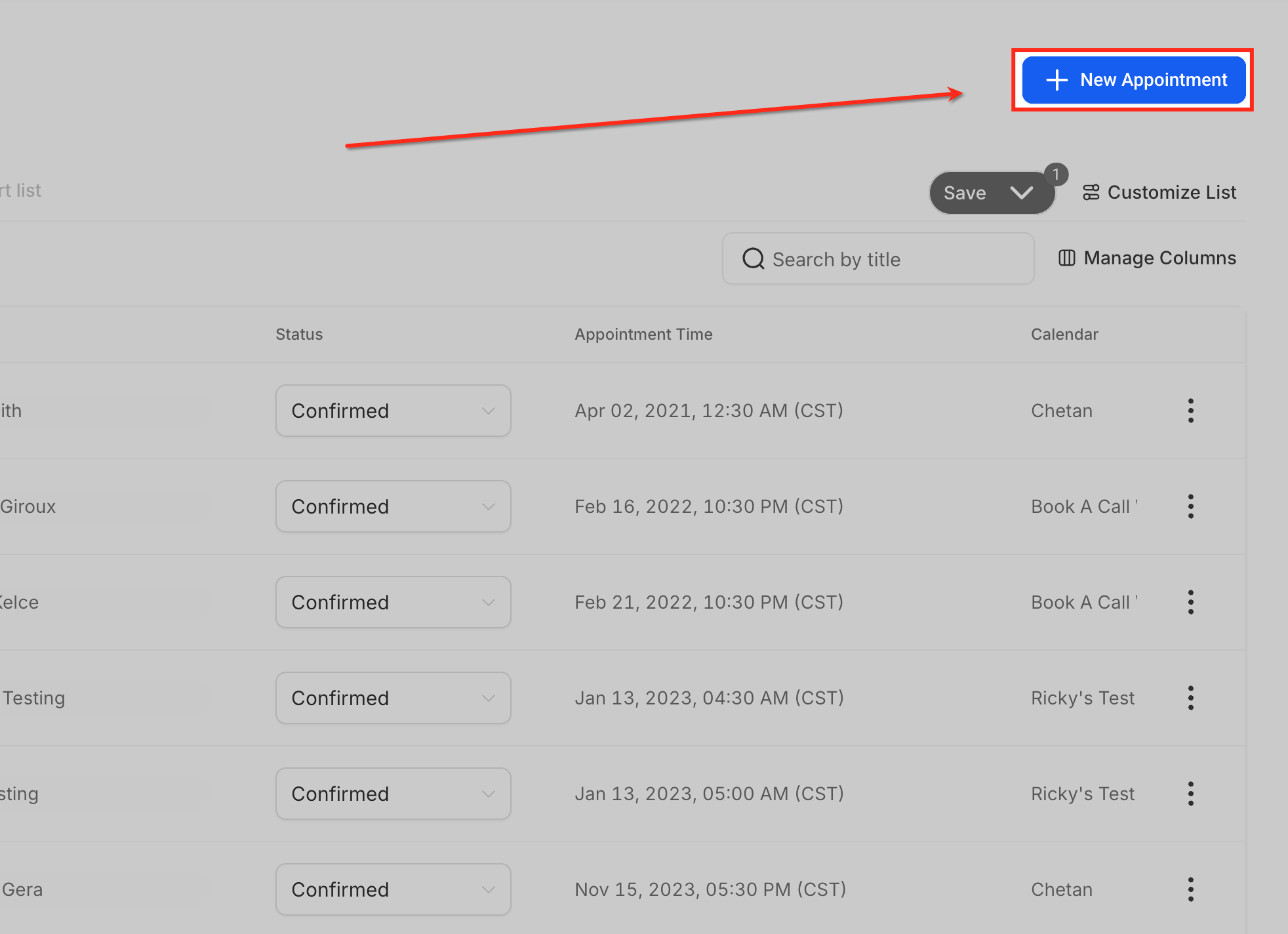
The New Appointment button allows you to manually book an appointment directly from Appointment List View. This is useful when scheduling appointments on behalf of a contact, such as after a call or during internal coordination.
Clicking New Appointment opens the manual booking flow, where you can select the appropriate calendar, choose a date and time, and associate the appointment with an existing CRM contact or create a new contact if needed. The appointment is then added to the list based on the selected appointment type and Smart List criteria.
Appointment Lists and Creating Smart Lists
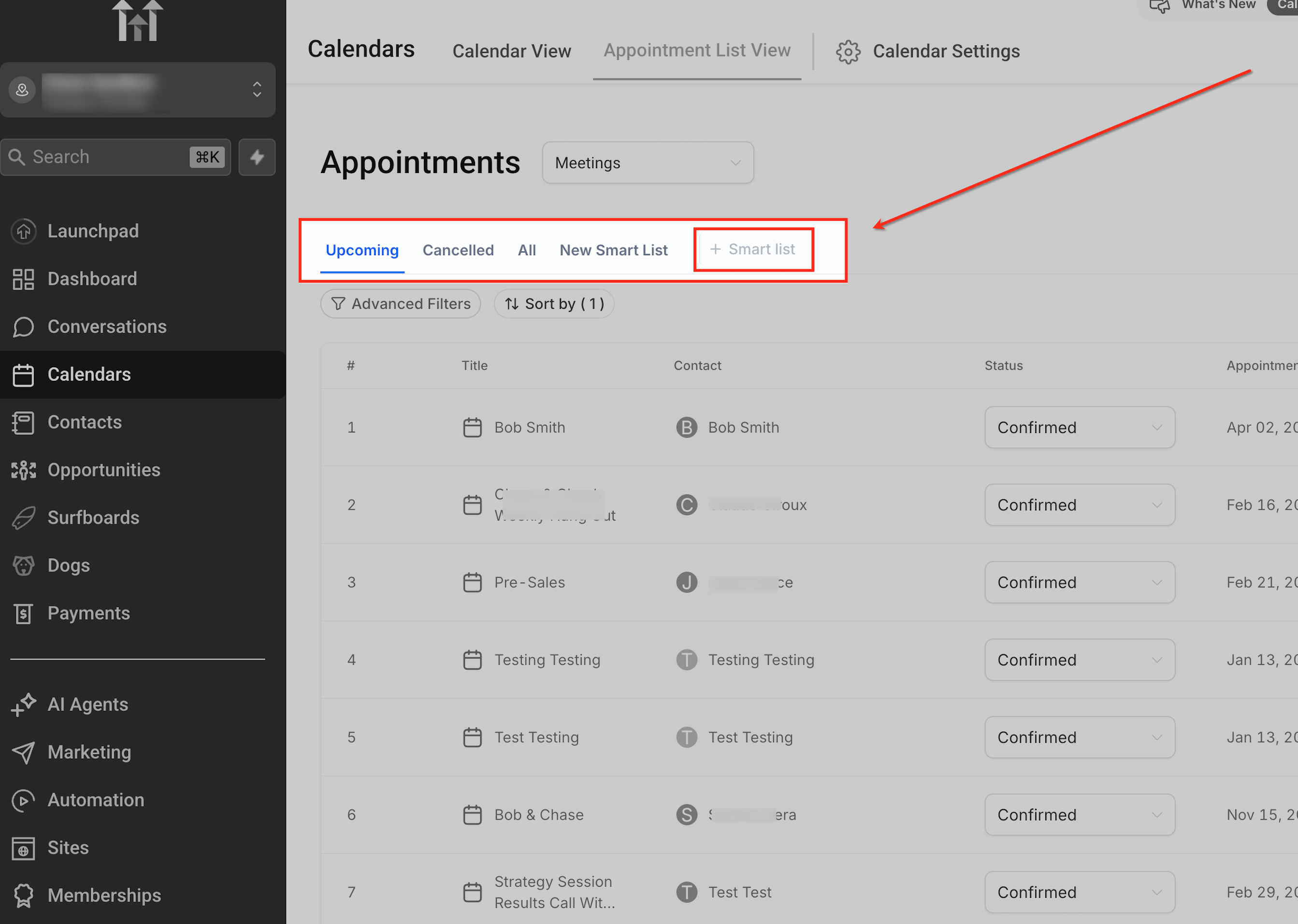
The default lists Upcoming, Cancelled, and All give you quick access to commonly used appointment views.
When you need something more specific, you can create a custom view by clicking + Smart list, allowing you to save your own filters, sorting, and column preferences. Smart Lists make it easy to switch between different ways of managing appointments without having to reconfigure the list each time.
Customize the List
Customization allows you to control which appointments appear, how they are prioritized, and what information is visible.
Open Customize List
Click Customize List to open the configuration panel
This panel serves as the control center for Smart Lists.
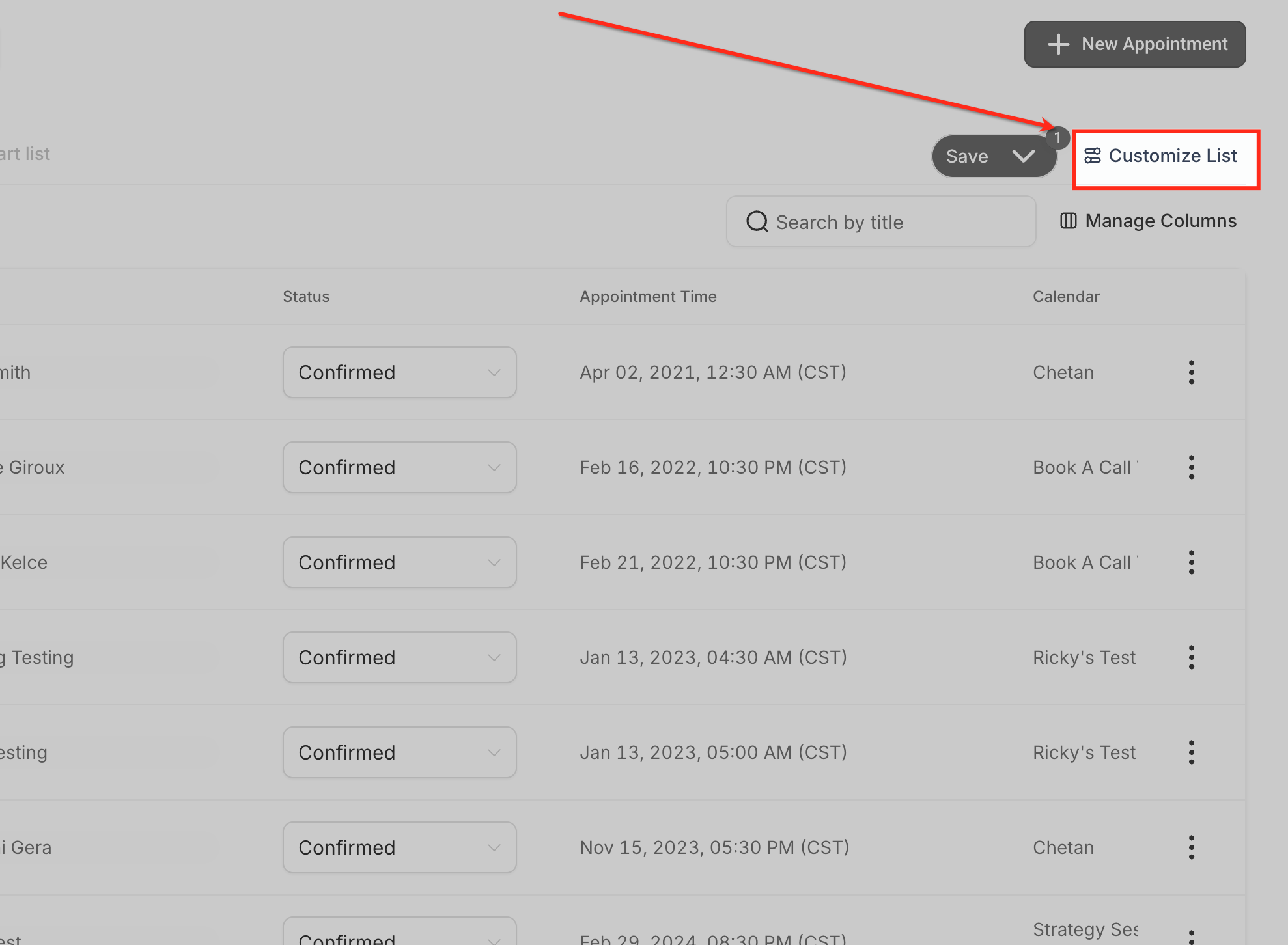
Customize List Panel
The Customize List panel is where you control how your appointment list is built and saved. From here, you can rename the current list, apply Advanced Filters to narrow which appointments appear, choose how appointments are sorted, and manage which columns are shown in the list.
Any changes made in this panel affect the current list view and can be saved as a Smart List, allowing you to reuse the same setup whenever you return to Appointment List View.
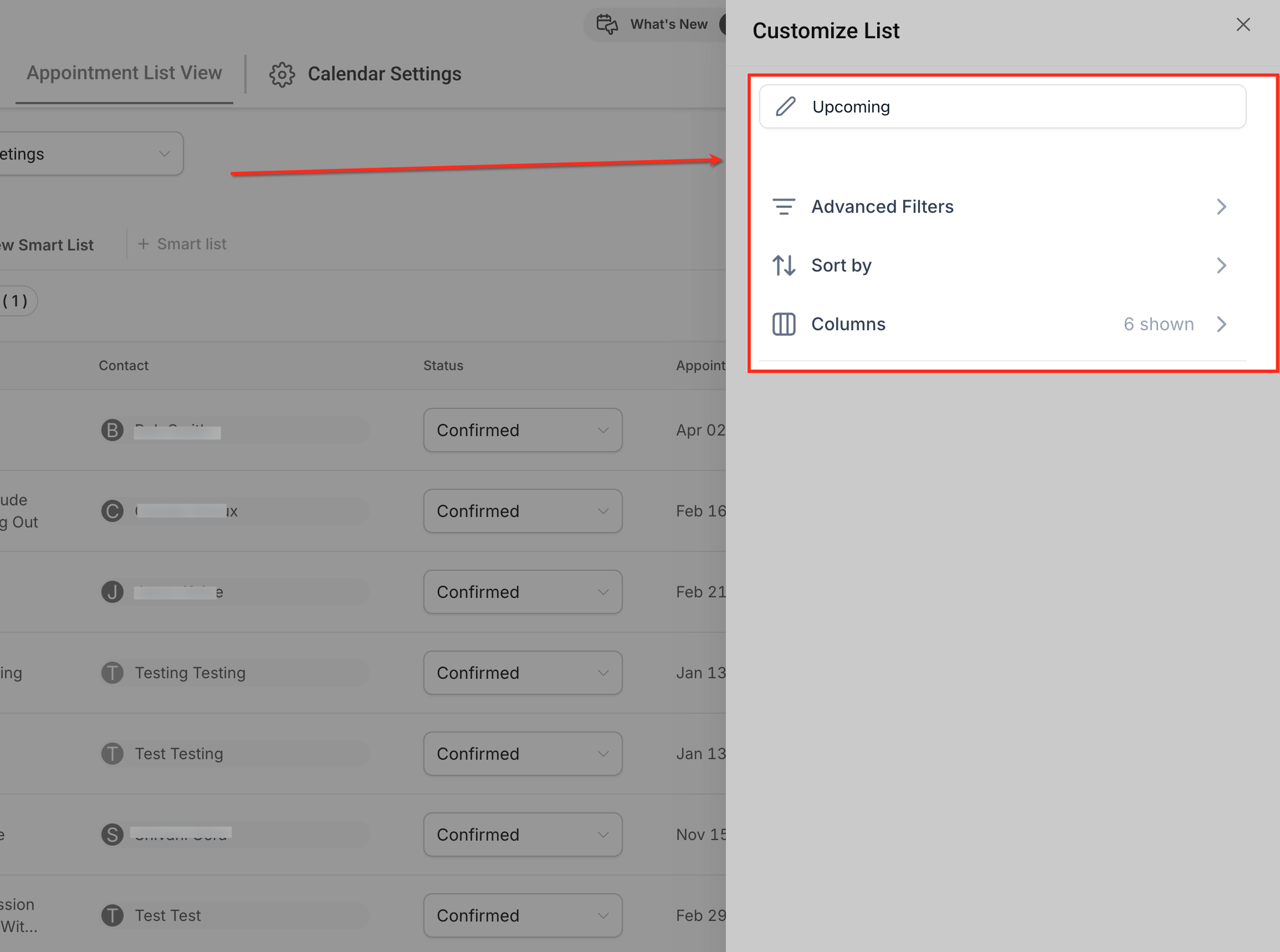
Apply Advanced Filters
Advanced Filters control which appointments appear in Appointment List View, allowing you to narrow the list to only the appointments that matter for your workflow. You can apply one or multiple conditions to focus on specific criteria such as ownership, status, timing, or calendar source.
Common filter options include:
- Appointment status (for example, Confirmed, Cancelled, No Show)
- Assigned user to view appointments for specific team members
- Calendar to limit results to one or more calendars
- Appointment date or time to focus on a specific range
- Contact details to filter by associated contacts
Filters can be combined using AND logic, meaning appointments must meet all selected conditions to appear. This makes it easy to create precise views, such as upcoming appointments for a specific user within a defined date range, and reuse them as Smart Lists for ongoing management.
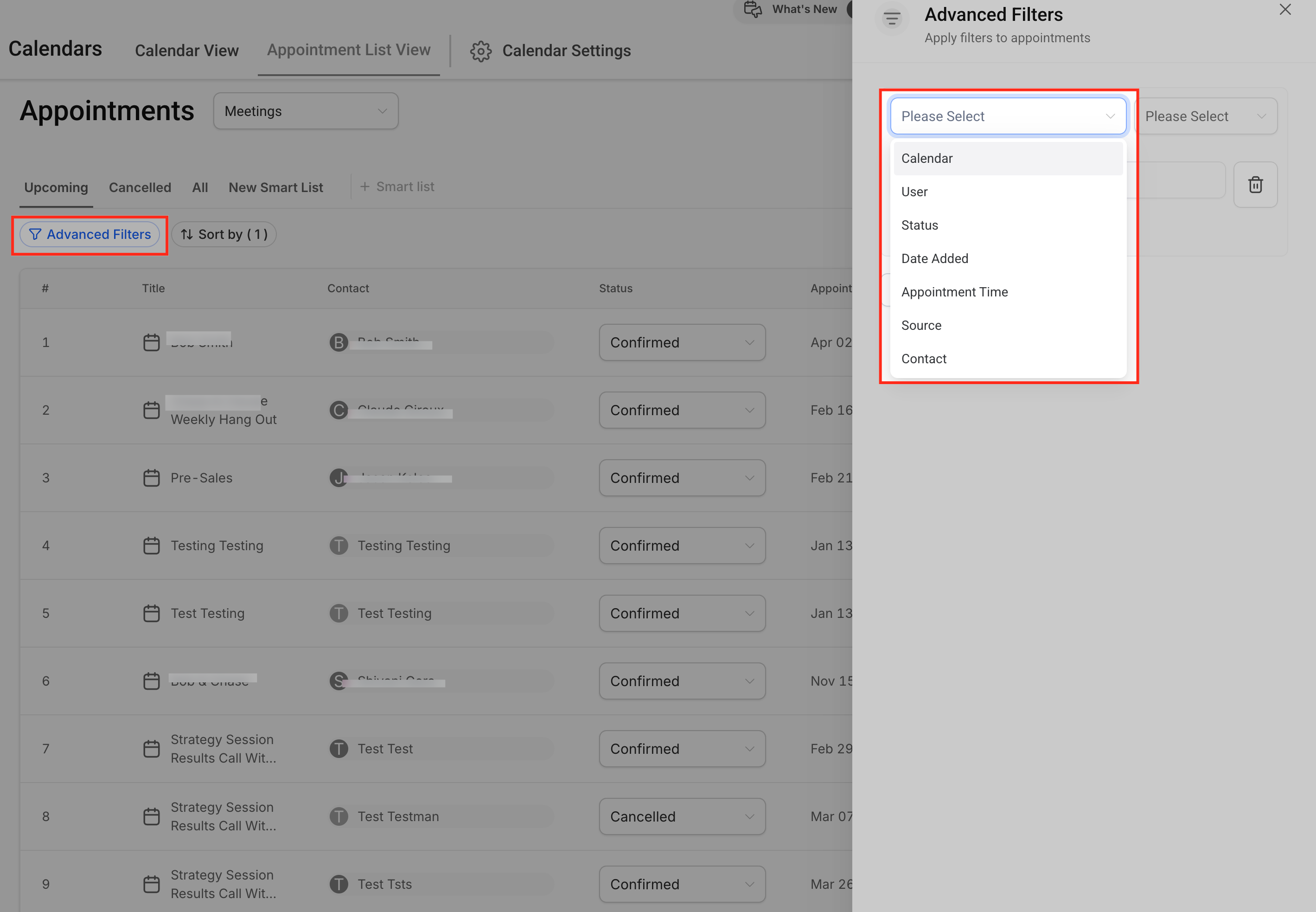
Add Filter
Use Add Filter to include additional conditions and refine the list further. Filters are combined using AND logic, meaning only appointments that meet all selected criteria will appear. This makes it easy to narrow the list to highly specific appointment sets before saving the configuration as a Smart List.
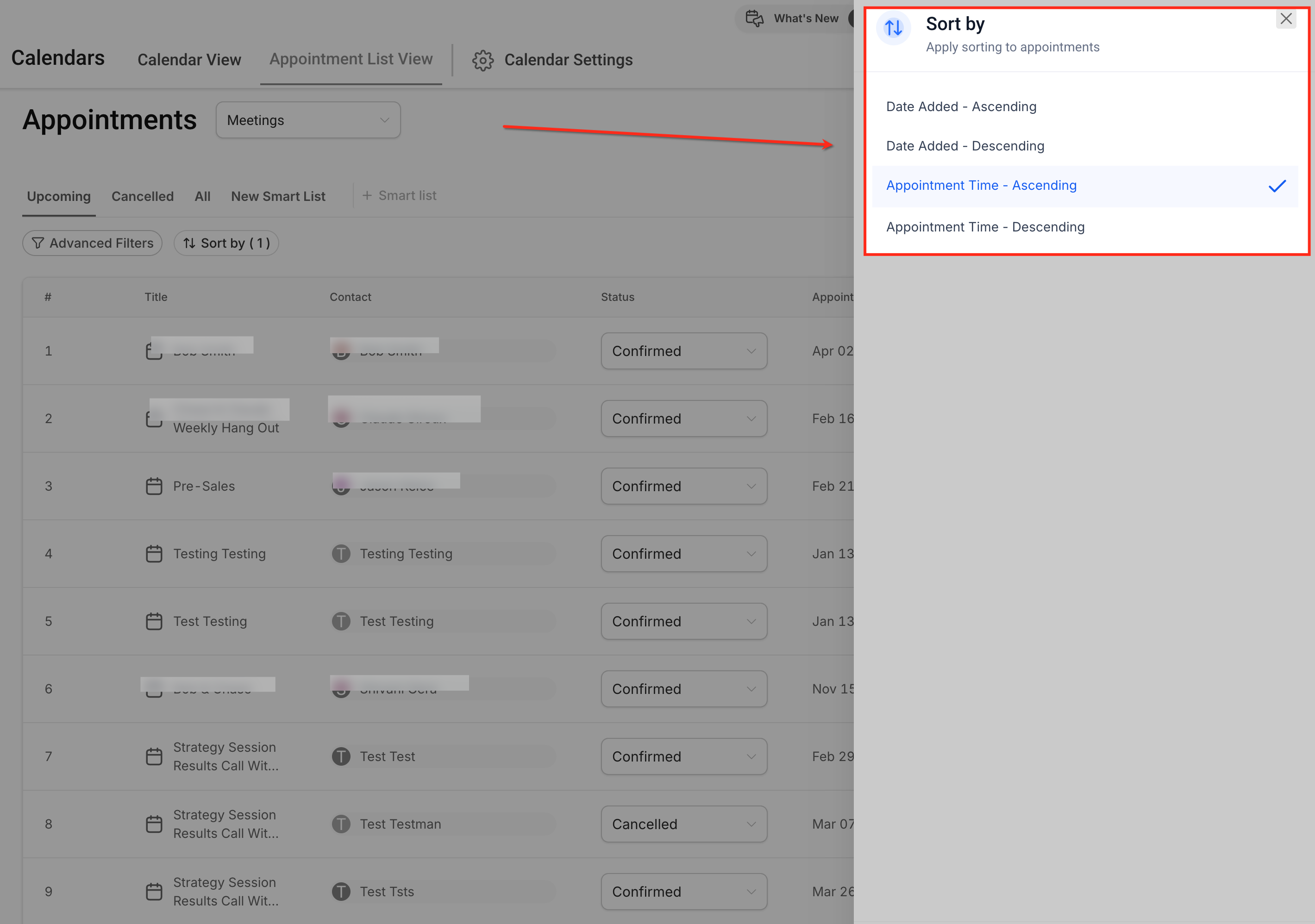
Apply Sorting
Sorting controls the order in which appointments appear in the list and is saved as part of a Smart List.
Common sorting options include:
- Appointment Time (ascending or descending)
- Date Added (ascending or descending)
Sorting helps prioritize appointments based on urgency or workflow needs.
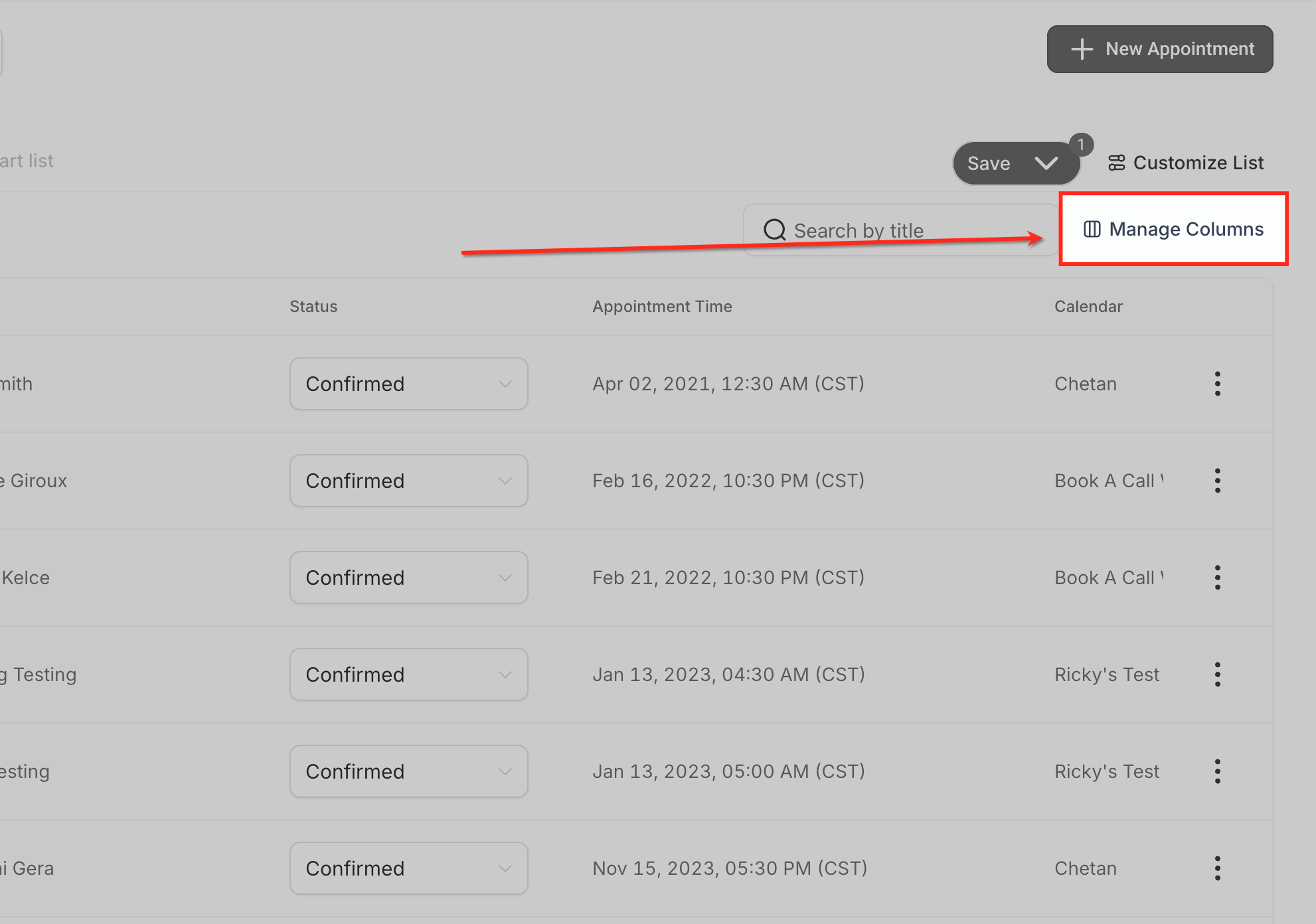
Manage Columns
Columns determine which appointment details are visible in the list.
You can:
Show or hide columns
Reorder columns using drag-and-drop
View locked system columns that cannot be removed
Column configurations are saved as part of a Smart List.
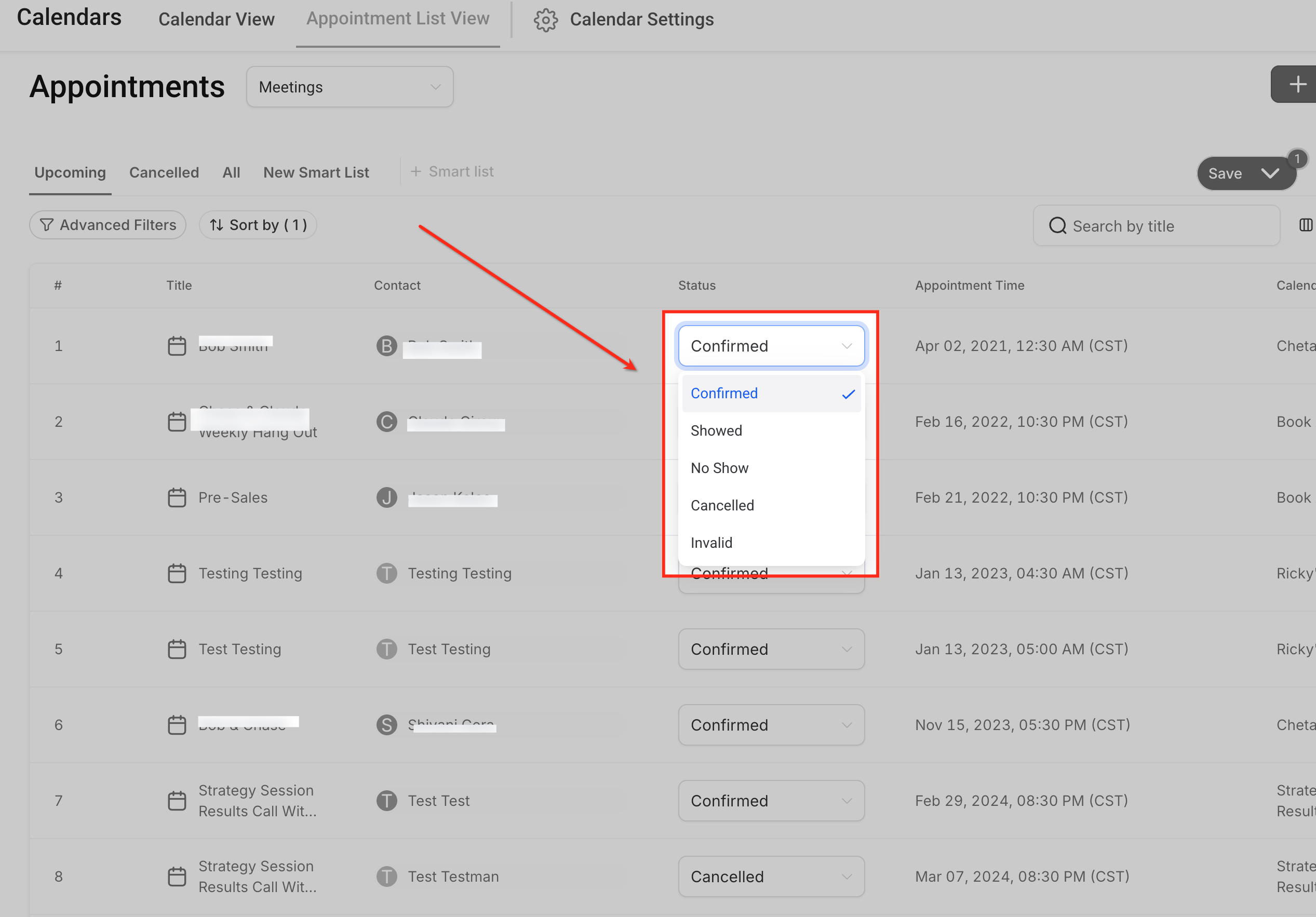
Updating Appointment Status
Appointment List View allows you to update an appointment’s status directly from the list without opening the appointment record. Click the Status dropdown in the appointment row to select the appropriate status, such as Confirmed, Showed, No Show, Cancelled, or Invalid.
Changes made here are saved immediately and reflected across HighLevel, making it easy to keep appointment outcomes accurate while managing appointments at scale.
Note: Updating an appointment to Showed or No Show updates the status inside HighLevel, but it does not push an event update to connected third-party calendars.
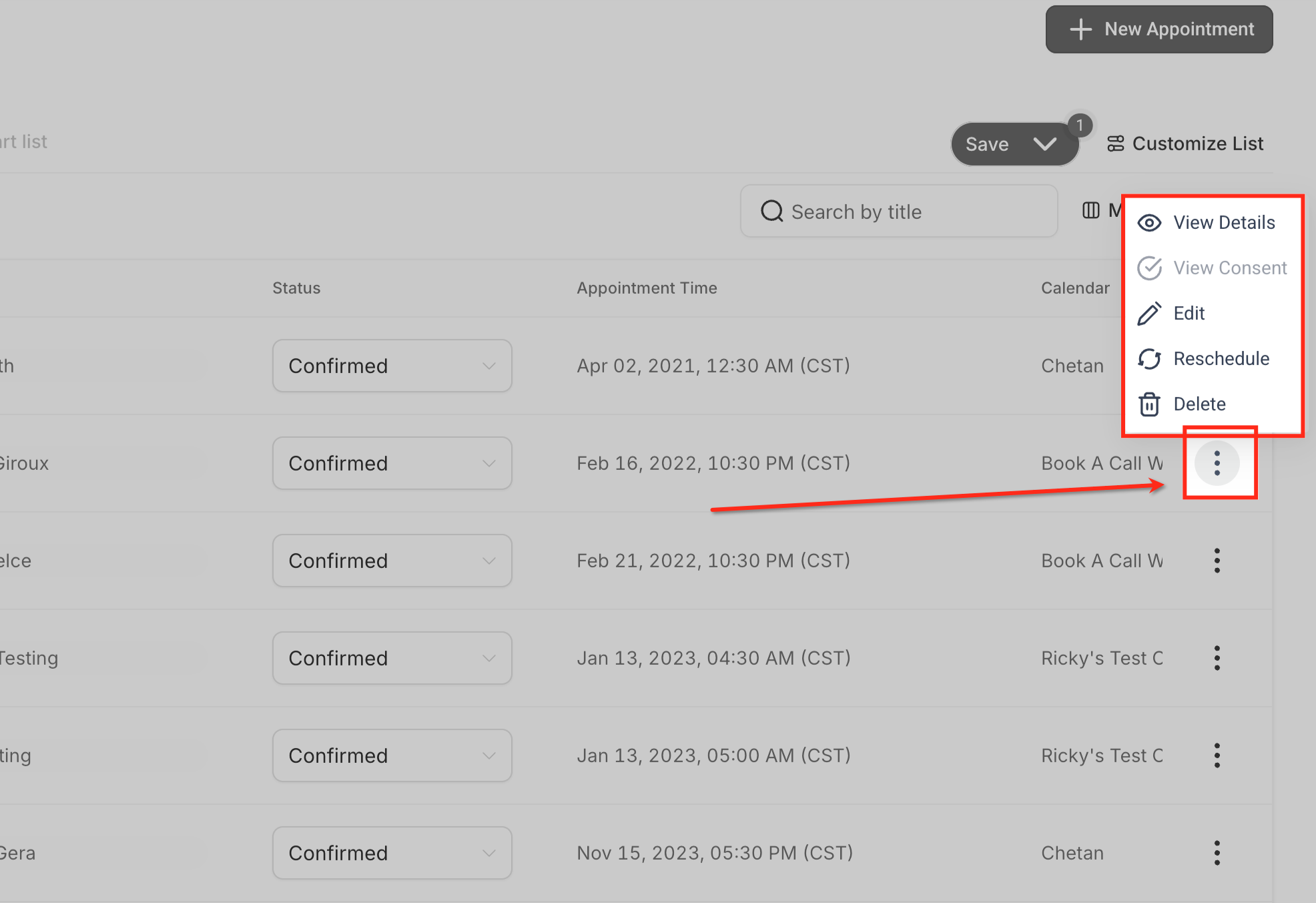
Managing Appointments Using Row Actions
Each appointment in Appointment List View includes a three-dot (⋮) menu that provides quick access to additional actions. Clicking this menu opens options to view appointment details, edit the appointment, reschedule, or delete it when necessary. If consent tracking is enabled, you may also see a View Consent option.
- View Details: Opens the full appointment record to review all appointment information and activity.
- View Consent: Displays consent details associated with the appointment, when consent tracking is enabled.
- Edit: Allows you to update appointment details such as contact, notes, or assigned calendar.
- Reschedule: Changes the appointment date and time while keeping the same appointment record.
- Delete: Permanently removes the appointment from the calendar and Appointment List View.
Frequently Asked Questions
Q: What is the difference between Appointment List View and Calendar View?
Calendar View is designed for scheduling based on dates and availability, while Appointment List View is designed for managing appointments at scale using lists, filters, and actions.
Q: What is a Smart List in Appointment List View?
A Smart List is a saved appointment view that includes filters, sorting, and column configurations, allowing users to reuse the same setup repeatedly.
Q: What’s the difference between Advanced Filters and Smart Lists?
Advanced Filters temporarily refine which appointments appear. Smart Lists save those filters along with sorting and columns for future use.
Q: Why don’t I see all my appointments?
Appointments may be hidden due to the selected appointment type, active filters, or the currently selected Smart List.
Q: Are Smart Lists shared with other users?
Smart List visibility depends on user permissions and account configuration.
Was this article helpful?
That’s Great!
Thank you for your feedback
Sorry! We couldn't be helpful
Thank you for your feedback
Feedback sent
We appreciate your effort and will try to fix the article