HighLevel gives you multiple ways to send SMS messages based on how and when you want contacts to receive them. You can send a one-time Bulk SMS to a selected group of contacts or use Workflows to send automated messages when specific events occur. Understanding the difference between these methods helps you choose the right approach, control delivery timing, and monitor message performance.
TABLE OF CONTENTS
- What Are SMS Campaigns in HighLevel?
- Key Benefits of SMS Campaigns
- Bulk SMS vs. Workflow SMS
- Before You Send an SMS Campaign
- How to Launch a Bulk SMS Campaign
- Bulk SMS Delivery Options
- Create a Reusable SMS Snippet
- Monitor Your Bulk SMS Campaign
- Automate SMS With a Workflow
- How to Set Up Your First SMS Campaign
What Are SMS Campaigns in HighLevel?
SMS campaigns in HighLevel let you communicate with contacts at scale through one-time bulk messages or automated workflow actions. Bulk SMS is useful when you want to send a message to a selected audience, while Workflow SMS is designed for event-based communication such as reminders, follow-ups, and nurture sequences.
HighLevel supports different SMS approaches depending on your goal:
- Bulk SMS: Send one message to a selected group of contacts.
- Scheduled Bulk SMS: Prepare a bulk message and send it at a future date and time.
- Bulk SMS with Drip Mode: Distribute a larger send across smaller batches over time.
- Workflow SMS: Send messages automatically when a contact meets defined trigger conditions.
Key Benefits of SMS Campaigns
Choosing the right SMS sending method helps you communicate efficiently while matching delivery behavior to your business process. Bulk actions provide fast outreach to selected audiences, while workflows support ongoing, automated communication.
- Targeted communication: Send messages to selected groups of contacts based on your audience or campaign goal.
- Flexible delivery: Send immediately, schedule messages for later, or distribute larger sends with Drip Mode.
- Automated follow-up: Use Workflows to send SMS when contacts complete actions or meet specific conditions.
- Reusable content: Save commonly used messaging as snippets to speed up future sends.
- Campaign visibility: Review Bulk Action results to understand which messages were sent, delivered, failed, or skipped.
- Scalable outreach: Use bulk sends for one-time communication and Workflows for repeatable customer journeys.
Bulk SMS vs. Workflow SMS
Bulk SMS and Workflow SMS can both send messages to contacts, but they are designed for different situations. Choosing the correct method before building your campaign makes setup simpler and prevents unnecessary automation.
Use Bulk SMS When
Bulk SMS is best for a one-time message to a defined audience.
Examples include:
- Promotional announcements
- Event reminders
- Important customer updates
- One-time notices
- Offers sent to a selected contact segment
Use Workflow SMS When
Workflow SMS is better when the message should be sent automatically because something happened or a condition was met.
Examples include:
A lead submits a form
An appointment is booked
A contact enters a follow-up sequence
An opportunity changes stage
A reminder needs to be sent after a delay
A customer begins an onboarding process
Quick Decision Guide
- One message to a selected group: Use Bulk SMS.
- One message at a future time: Use scheduled Bulk SMS.
- Large audience with controlled pacing: Use Bulk SMS with Drip Mode.
- Message sent after an event or condition: Use Workflow SMS.
- Multi-step follow-up sequence: Use a Workflow.
Before You Send an SMS Campaign
SMS readiness affects whether messages can be sent and delivered successfully. Confirming your sending setup and consent requirements before launching a campaign helps reduce skipped messages, delivery problems, and compliance issues.
Before sending SMS:
- Confirm that your sub-account has an eligible sending number configured.
- Make sure contacts have provided the appropriate consent to receive SMS messages.
- Review applicable messaging and carrier requirements for your region.
- Complete applicable A2P registration when sending application-to-person SMS using US 10DLC numbers.
- Avoid intentionally messaging contacts who have opted out or are marked DND for SMS.
- Review your message content, personalization, and intended audience before launching the send.
For more information about SMS messaging best practices, see Guide To Bulk SMS: Send Messages People Actually Want To Receive.
For US 10DLC requirements, see A2P Campaign Registration Guide.
How to Launch a Bulk SMS Campaign
Bulk SMS lets you select contacts and send a message to that audience without building a Workflow. This is useful for announcements or other one-time communications where the recipients are already known.
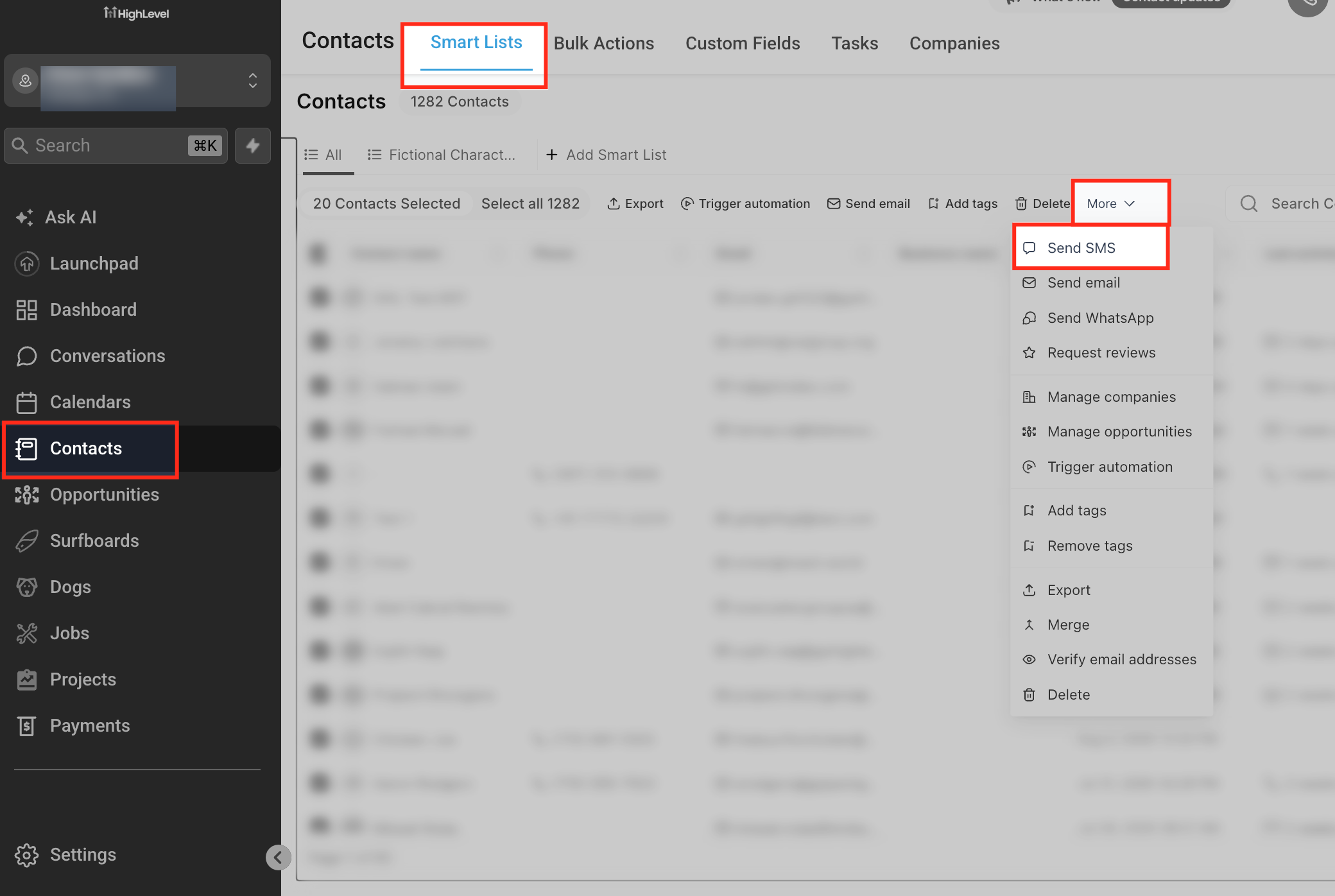
Go to Contacts.
Select the contacts you want to message.
Choose the Send SMS Bulk Action.
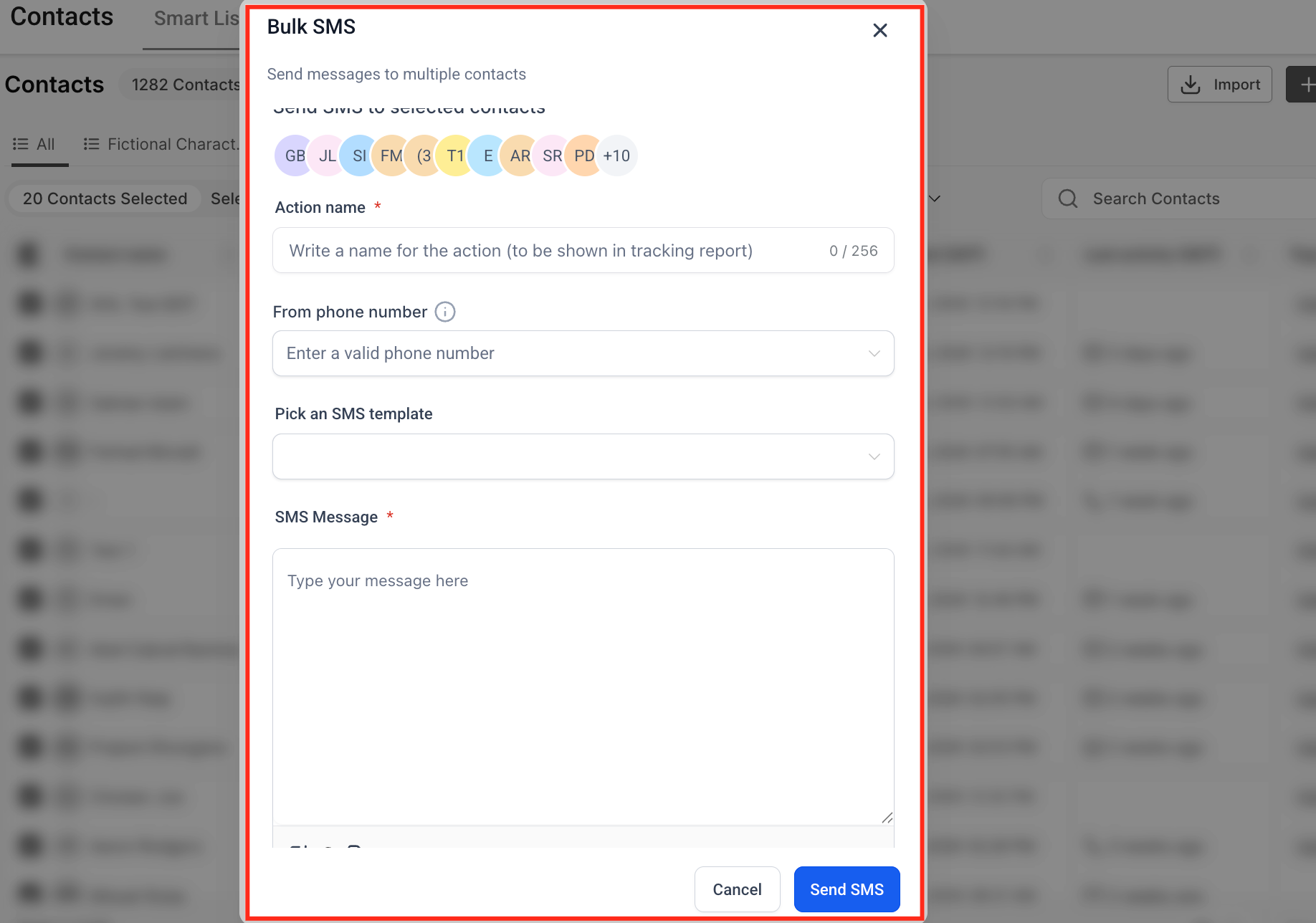
Select the sending phone number when required.
Enter your SMS message or insert reusable content if available.
Review the recipients and message.
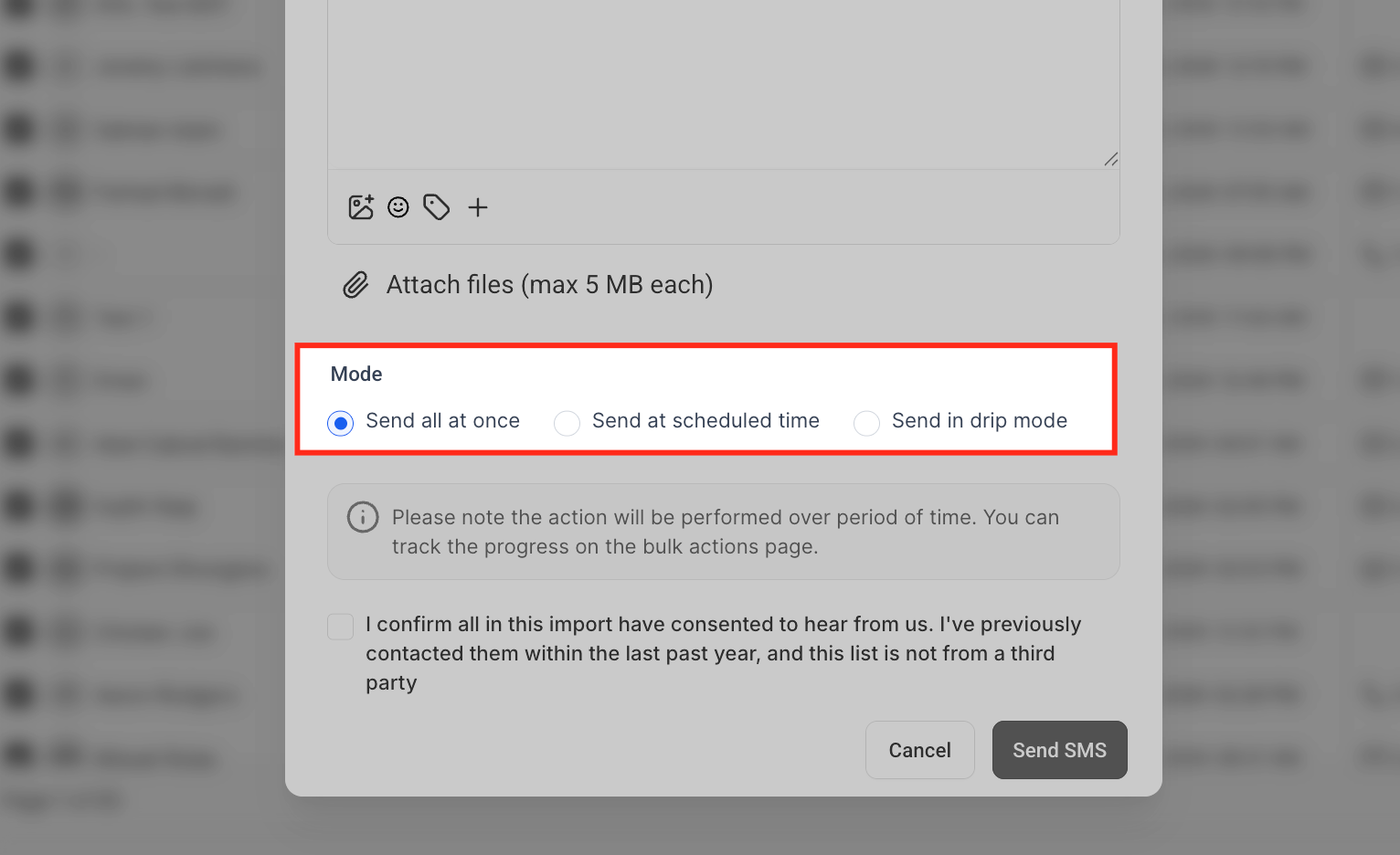
Choose how the message should be delivered:
Send immediately
Schedule for later
Use Drip Mode
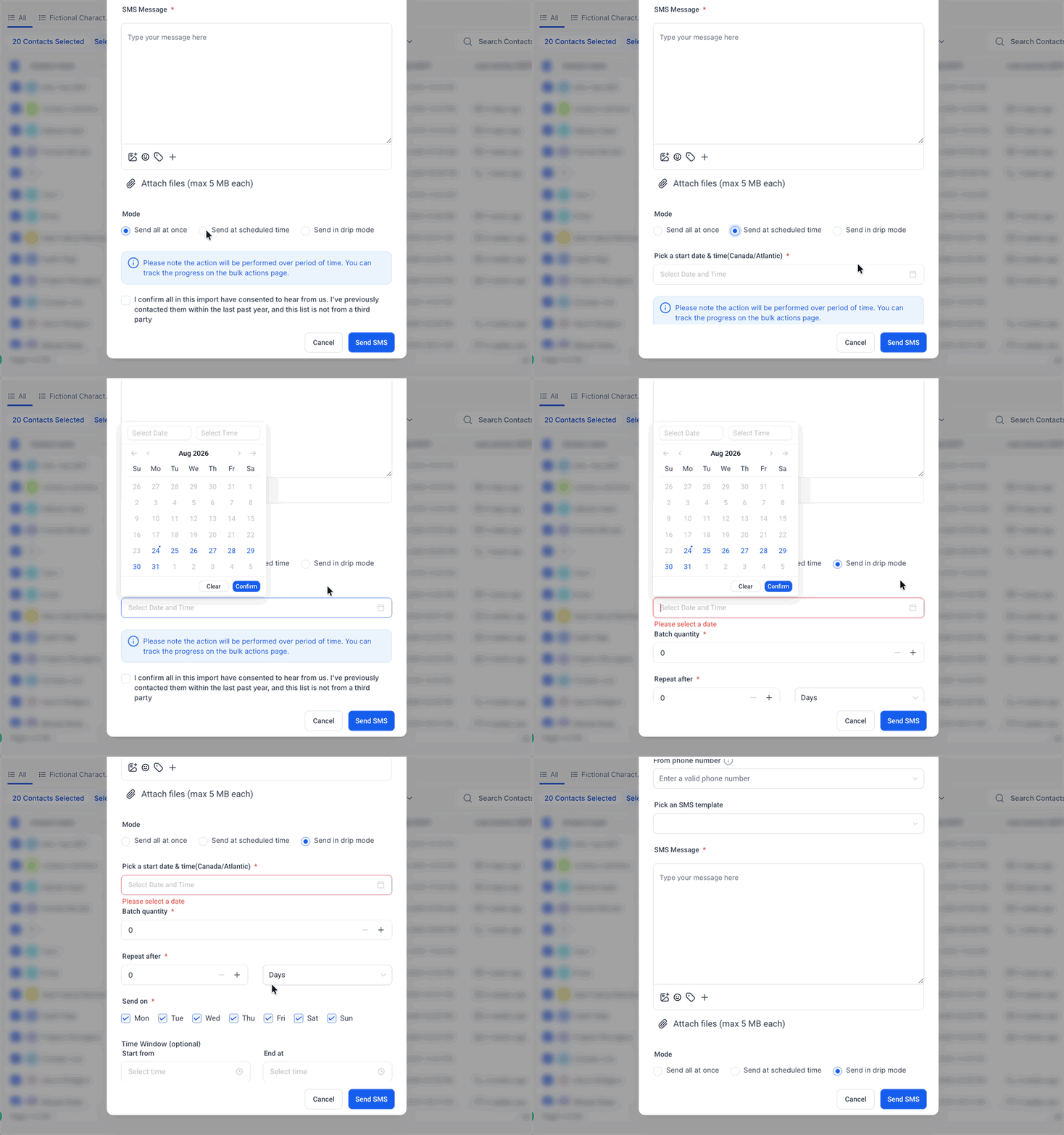
Configure any additional delivery settings.
Review the campaign before confirming the send.
HighLevel excludes contacts from supported bulk sends when they are not eligible to receive the message, such as contacts with applicable SMS opt-out or DND restrictions.
For a broader SMS setup guide, see Getting Started - Setup Email, Phone, and SMS.
Bulk SMS Delivery Options
Delivery options determine when and how quickly your Bulk SMS is processed. Selecting the right option helps you match the campaign to your audience size and timing requirements.
Send Now
Use Send Now when the entire eligible audience should begin receiving the message immediately.
This is appropriate for:
- Time-sensitive announcements
- Small or moderate contact groups
- Messages that do not require future scheduling
Schedule
Use the scheduling option when you want the campaign to begin at a specific future date or time.
This is useful for:
- Planned promotions
- Event notifications
- Messages prepared ahead of time
Drip Mode
Drip Mode breaks a large Bulk Action into smaller batches and processes those batches over time. This can help you control how quickly a large audience enters the send.
Drip Mode settings can include:
- Start On: When the bulk action should begin.
- Batch Quantity: How many contacts should be processed in each batch.
- Repeat After: How long HighLevel should wait before processing the next batch.
For detailed Drip Mode configuration, see Set Up Drip Mode for Bulk Actions in HighLevel.
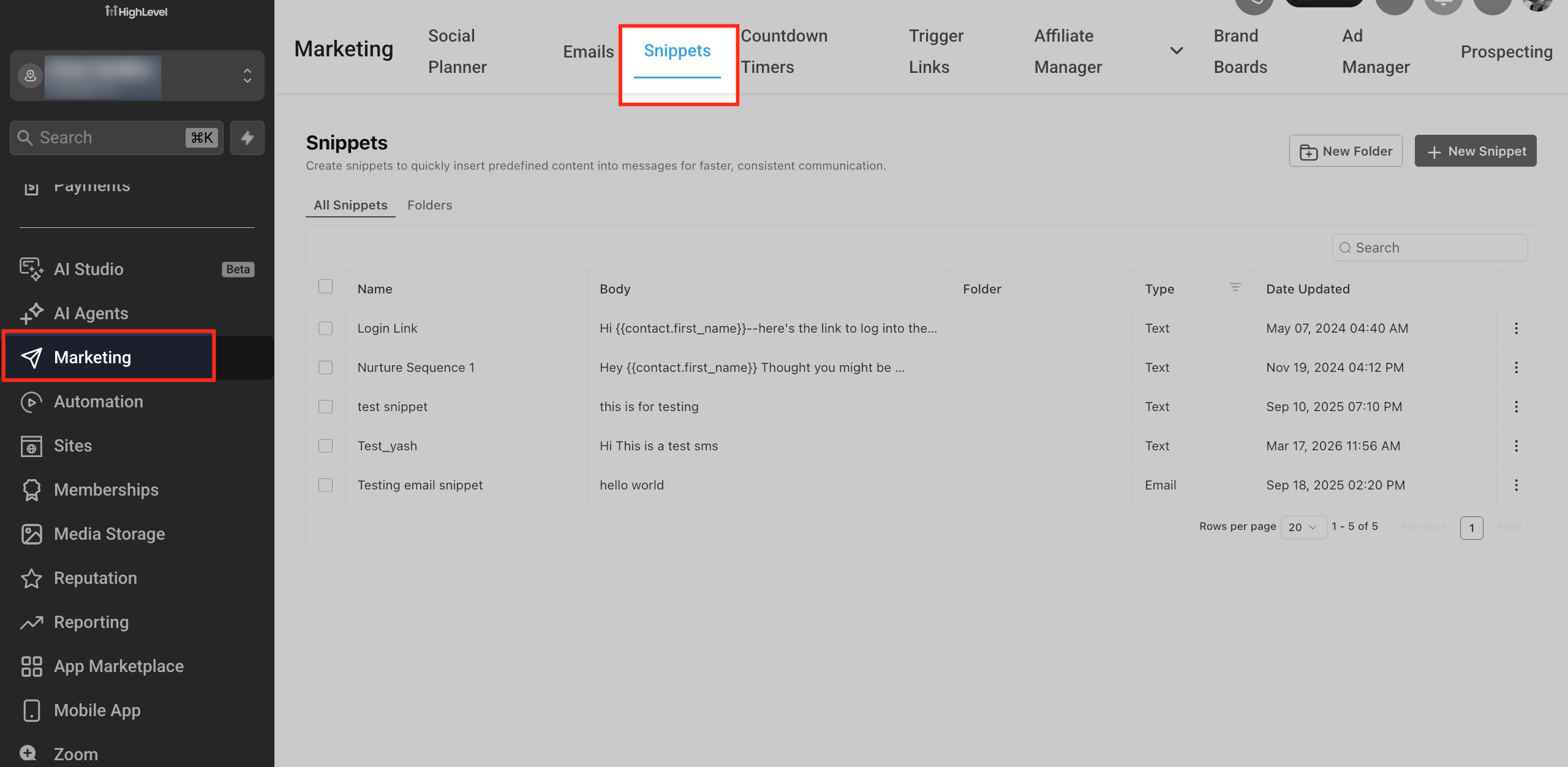
Create a Reusable SMS Snippet
SMS snippets let you save message content that your team sends repeatedly. They are optional, but they can reduce repetitive typing and help keep commonly used messages consistent.
To create a reusable SMS snippet:
Go to Marketing > Snippets.
Create a new text snippet.
Enter a recognizable name for the snippet.
Add the SMS content you want to reuse.
Add supported personalization where appropriate.
Save the snippet.
You do not need to create a snippet before every SMS campaign. Use snippets when the same or similar content is likely to be used repeatedly.
Monitor Your Bulk SMS Campaign
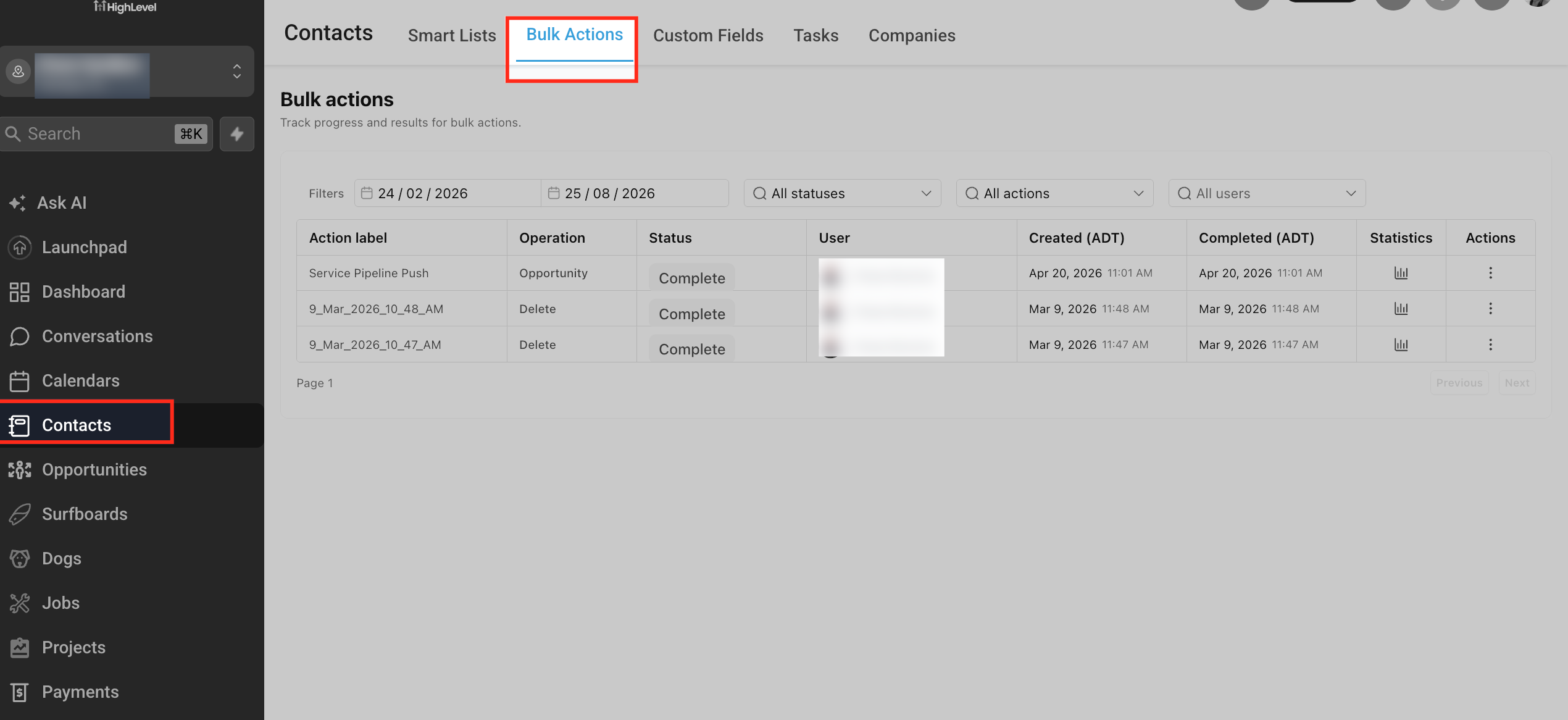
Monitoring a Bulk SMS campaign helps you understand how the send progressed and identify contacts whose messages were not processed successfully. HighLevel provides Bulk Action reporting so you can review the campaign after launch.
To review a Bulk SMS campaign:
Go to Contacts.
Open Bulk Actions.
Locate the SMS Bulk Action you want to review.
Open the available campaign details or Show Stats option.
Review the available delivery results.
Depending on the campaign and processing status, reporting can include:
Sent
Delivered
Failed
Skipped
Failure or skipped-message information can help you determine whether a contact was ineligible, whether carrier delivery failed, or whether another messaging restriction affected the send.
Messages that have already been sent cannot be changed retroactively. Available controls for pending Bulk Actions depend on the current campaign status and delivery method.
Automate SMS With a Workflow
Workflow SMS is designed for messages that should be sent automatically when a contact enters a defined process. Unlike Bulk SMS, the recipients do not have to be manually selected each time because the Workflow trigger determines who enters the automation.
To create an automated SMS process:
Go to Automation > Workflows.
Create a new Workflow or open an existing one.
Choose the trigger that should start the automation.
Add the Send SMS action.
Enter the message you want to send.
Add supported personalization or reusable content where appropriate.
Add Wait steps, conditions, or additional actions when needed.
Test the Workflow and SMS content.
Publish the Workflow when it is ready to run.
The Workflow trigger depends on your business goal. For example, you could send an SMS after a form submission, appointment booking, opportunity update, or another supported event.
For more information about the SMS action, see Workflow Action - Send SMS.
For a broader introduction to Workflow automation, see Getting Started with Workflows in HighLevel.
How to Set Up Your First SMS Campaign
A successful SMS campaign starts by choosing the correct sending method and confirming that your messaging setup is ready. Following a consistent preparation process helps you avoid building an unnecessary Workflow for a one-time campaign or using Bulk SMS for a communication that should be automated.
Identify the purpose of the message.
Determine whether the message is a one-time send or an automated follow-up.
Confirm that your SMS sending number and applicable registration are ready.
Confirm that the intended recipients are eligible to receive SMS messages.
Prepare your message content.
Choose your sending method:
Bulk SMS for a selected audience
Workflow SMS for automated communication
If using Bulk SMS, decide whether to send immediately, schedule the send, or use Drip Mode.
If using a Workflow, select the correct trigger and configure the Send SMS action.
Review the message and audience before launch.
Monitor the Bulk Action results or Workflow activity after sending.
Frequently Asked Questions
Q: What is the difference between Bulk SMS and Workflow SMS?
Bulk SMS sends a message to contacts you select for a specific campaign. Workflow SMS sends automatically when a contact meets the Workflow's trigger and conditions.
Q: Can I schedule a Bulk SMS for later?
Yes. Bulk SMS includes supported delivery options that allow you to schedule a send for a future time instead of launching it immediately.
Q: What is Drip Mode?
Drip Mode processes a Bulk Action in smaller batches over time. You can configure when it begins, how many contacts are included in each batch, and how long HighLevel waits before starting the next batch.
Q: Do I need to create an SMS snippet before sending?
No. Snippets are optional. They are useful when you want to reuse standardized SMS content across multiple sends.
Q: Why were some contacts skipped in my Bulk SMS campaign?
Contacts may be skipped when they are not eligible to receive the message, such as when applicable SMS opt-out or DND restrictions are present. Review the Bulk Action statistics for available details.
Q: Can I pause or cancel a Bulk SMS campaign?
Available controls depend on the campaign status and delivery configuration. Review the options available for the specific Bulk Action. Messages that have already been sent cannot be recalled or edited.
Q: Can a Workflow send SMS automatically after a form is submitted?
Yes. Form Submitted can be used as a Workflow trigger, but it is only one example. You can use other supported triggers depending on when the SMS should be sent.
Q: Do I need A2P registration to send SMS?
A2P requirements depend on the type of number, messaging traffic, and region. Businesses sending application-to-person SMS using US 10DLC numbers should review and complete the applicable A2P registration requirements before sending campaigns.
Related Articles
- Getting Started - Setup Email, Phone, and SMS
- Workflow Action - Send SMS
- Set Up Drip Mode for Bulk Actions in HighLevel
- Guide To Bulk SMS: Send Messages People Actually Want To Receive
- A2P Campaign Registration Guide
- Getting Started with Workflows in HighLevel
Was this article helpful?
That’s Great!
Thank you for your feedback
Sorry! We couldn't be helpful
Thank you for your feedback
Feedback sent
We appreciate your effort and will try to fix the article