Report Scheduler allows Agency users to automatically send performance reports to sub-account admins and users on a daily, weekly, or monthly basis. This feature helps teams stay informed, aligned, and proactive by delivering essential account metrics directly to email inboxes. This article will walk you through what the Report Scheduler is, which reports it sends, and how to schedule and manage automated reporting.
Agency View scheduling controls are available on $497/month and above plans.

Sub-account users without Agency View can still manage their local schedules within the sub-account.
TABLE OF CONTENTS
- What Is the Report Scheduler?
- Key Benefits of the Report Scheduler
- How to Schedule Reports
- When Reports Are Delivered
- Where to View the Report Summary
- Frequently Asked Questions
What Is the Report Scheduler?
The Report Scheduler is a HighLevel feature that automates the delivery of performance reports to sub-accounts. It consolidates key dashboard metrics into a single email and sends them at the frequency and time configured by the Agency. This allows users to monitor account health consistently without manually logging into multiple dashboards.
Understanding the Report Scheduler helps agencies streamline communication with sub-account admins and users. Instead of manually exporting or checking dashboards, automated reports provide timely insights, encourage informed decision-making, and ensure that recipients stay connected to their account performance.
Reports include data from the following dashboards:
Users
Contacts
Outreach
Submissions
SMS
Appointments
Deal Overview
Email
Tasks Overdue
Conversations (Unread + Missed)
Key Benefits of the Report Scheduler
Recognizing the advantages of automated reporting helps agencies and sub-account teams understand the value of enabling scheduled reports. These benefits highlight how the feature strengthens accountability, improves visibility, and enhances overall operational efficiency.
- Automation (bold): eliminates manual reporting and saves time for agencies and clients
- Customization: allows users to choose frequency, start date, time, and recipients
- Consistent updates: ensures stakeholders receive regular performance insights
- Centralized information: combines multiple dashboards into a single digestible report
- Improved communication: keeps admins informed and aligned with account activity
How to Schedule Reports
Correct setup ensures reports reach the intended recipients at the right time, helping teams stay informed without unnecessary delays or configuration errors.
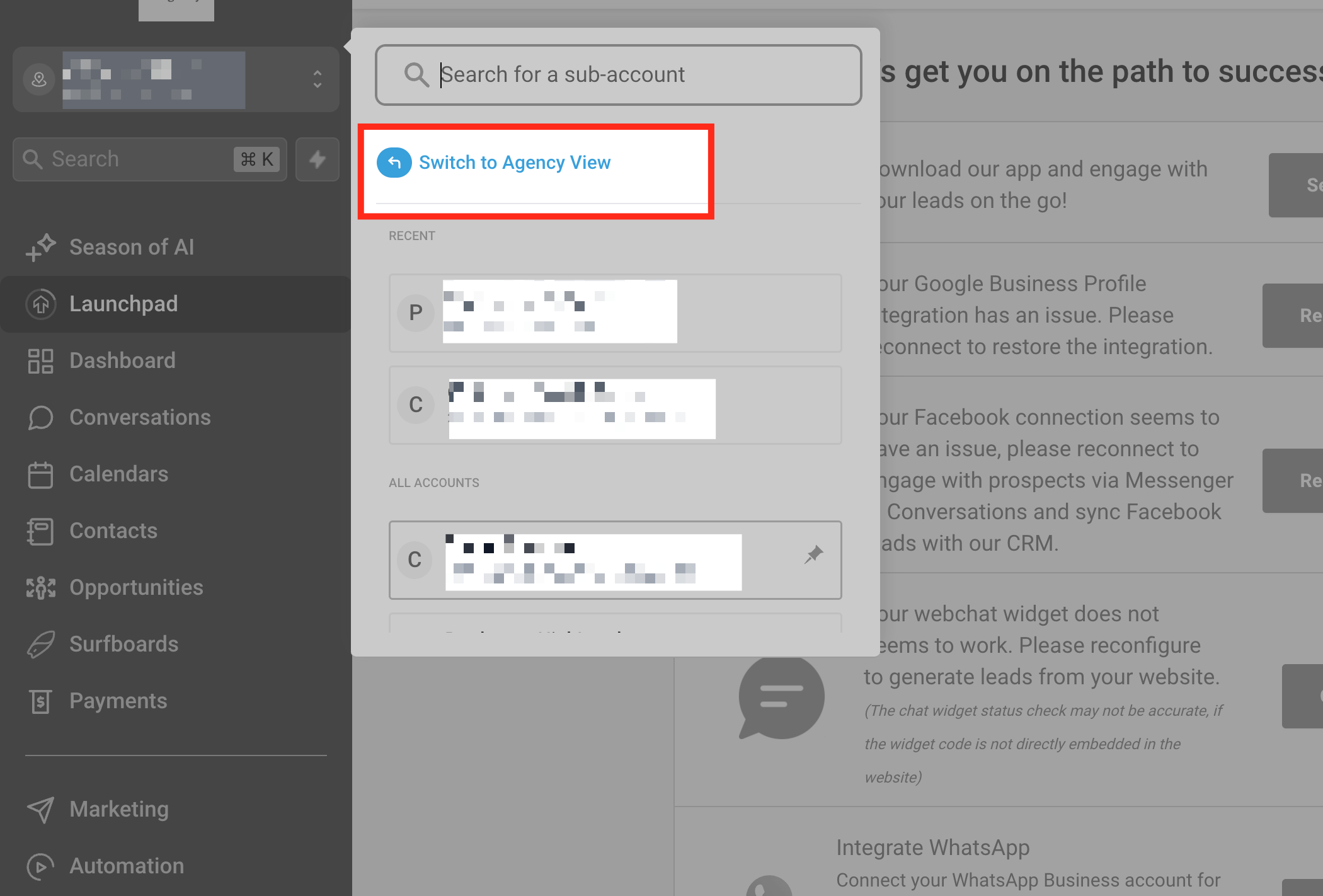
Switch to Agency View
This step shows the user how to return to the Agency-level dashboard by selecting Switch to Agency View from the account switcher. Clicking this option takes the user out of an individual sub-account and back into the main Agency interface, where report scheduling features are managed.
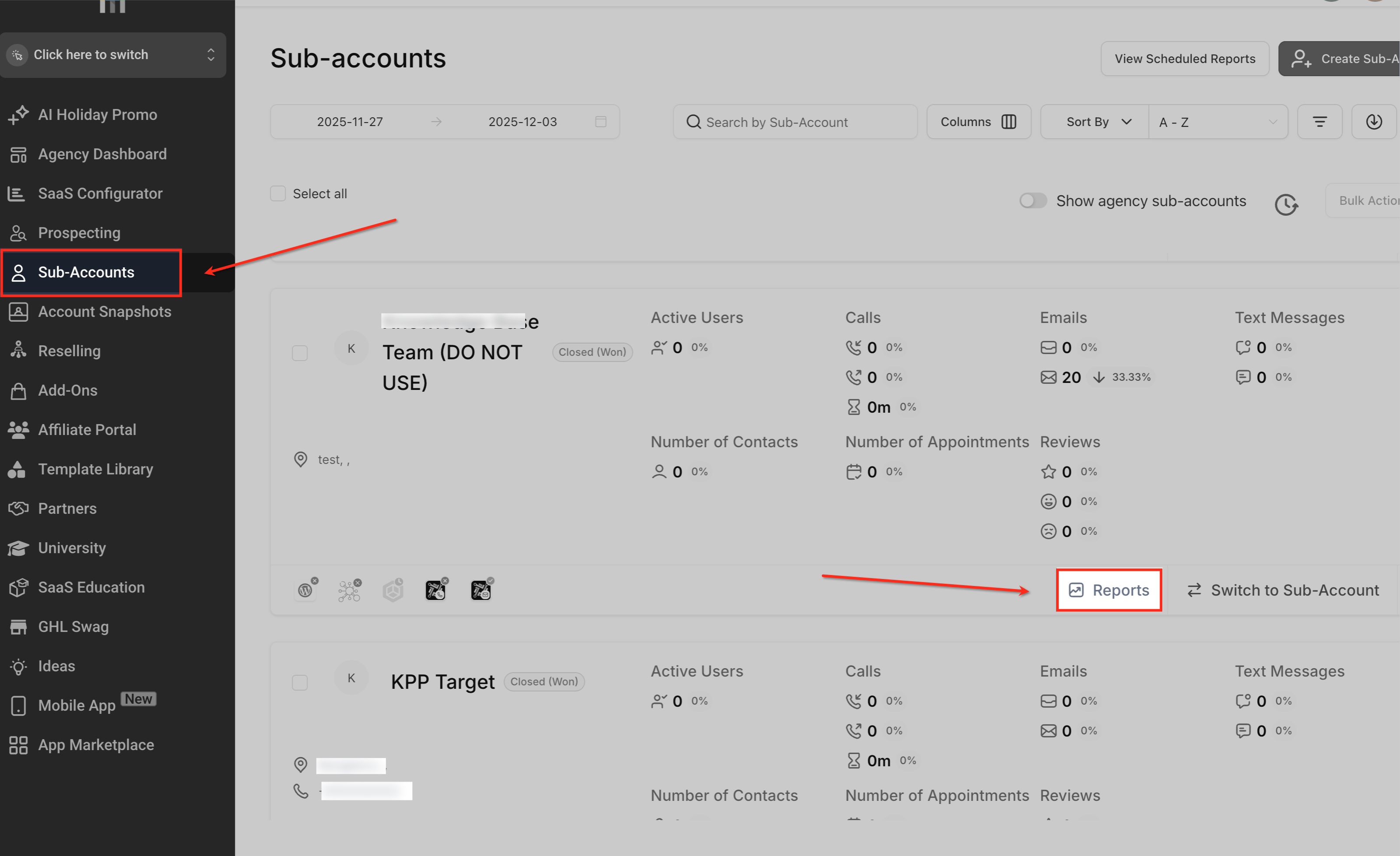
Open Sub-Accounts
From the Agency view, navigate to Sub-Accounts in the left sidebar to access all client locations managed under your agency. Once the sub-account list appears, click the Reports button for the specific location where you want to create or manage scheduled reports.
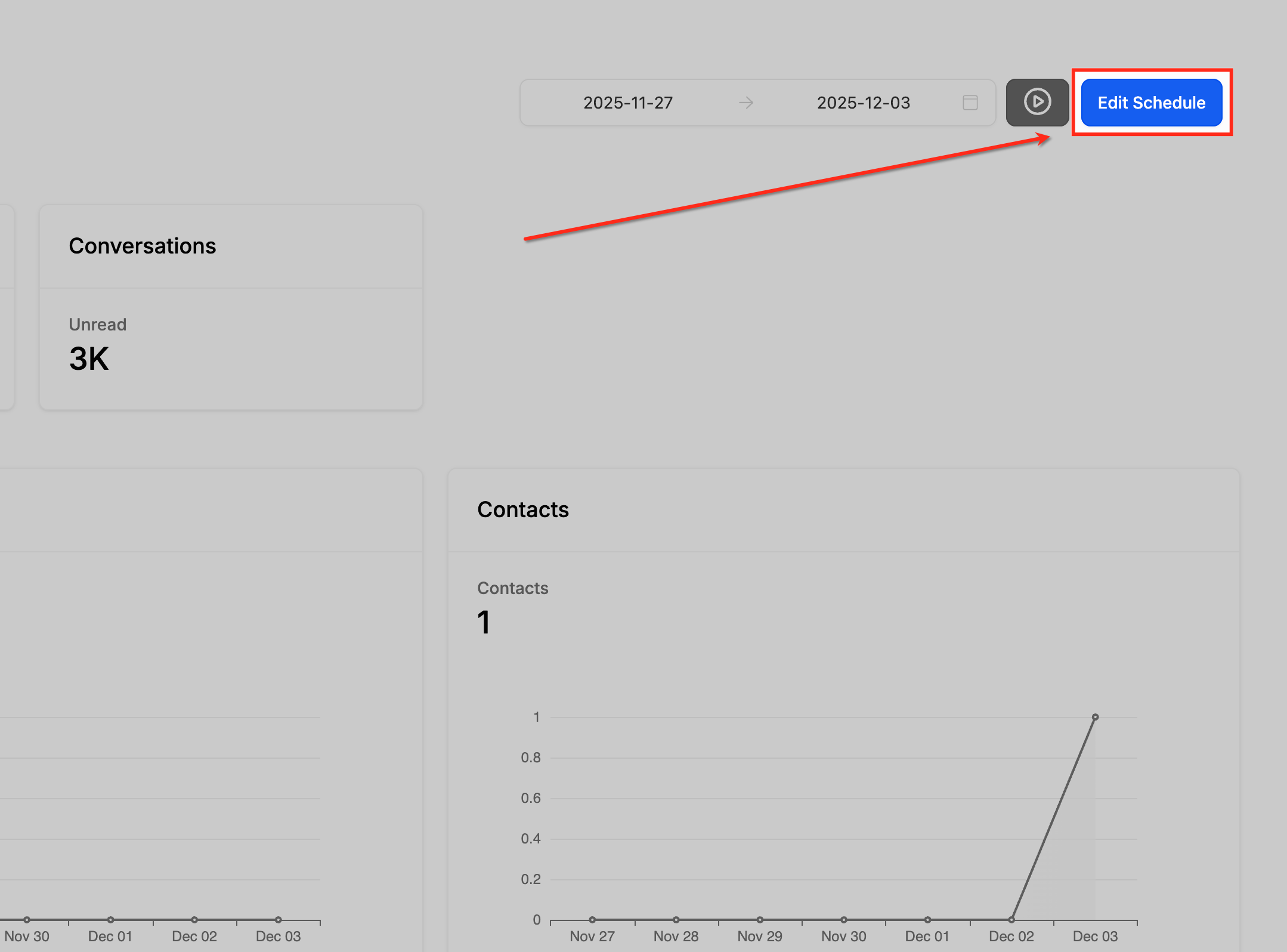
Edit Existing Schedule
Click Edit Schedule to review or update the current automated report settings for the selected sub-account. This button allows you to adjust the report frequency, timing, recipients, and included dashboards without recreating the schedule from scratch.
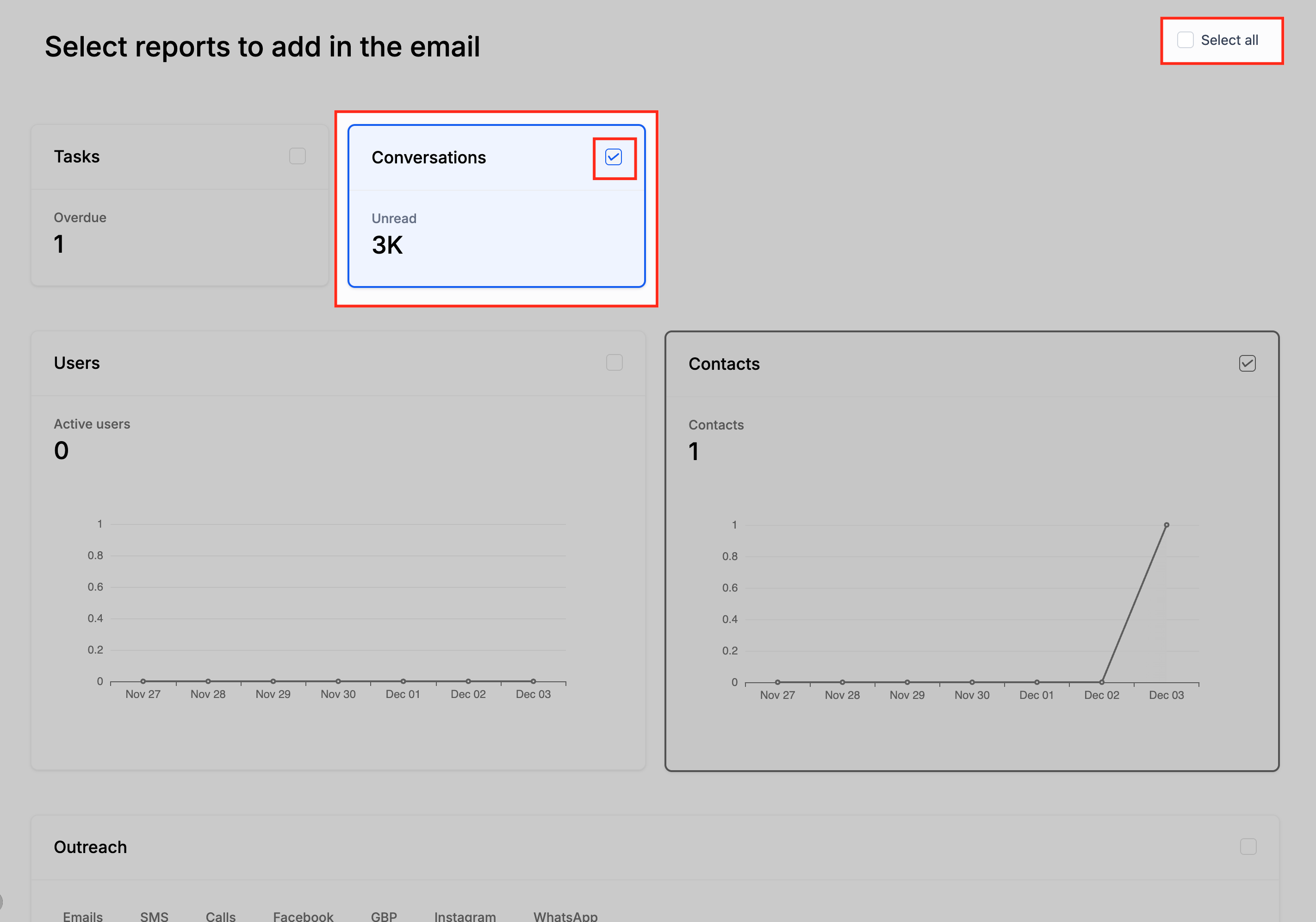
Select Report Dashboards
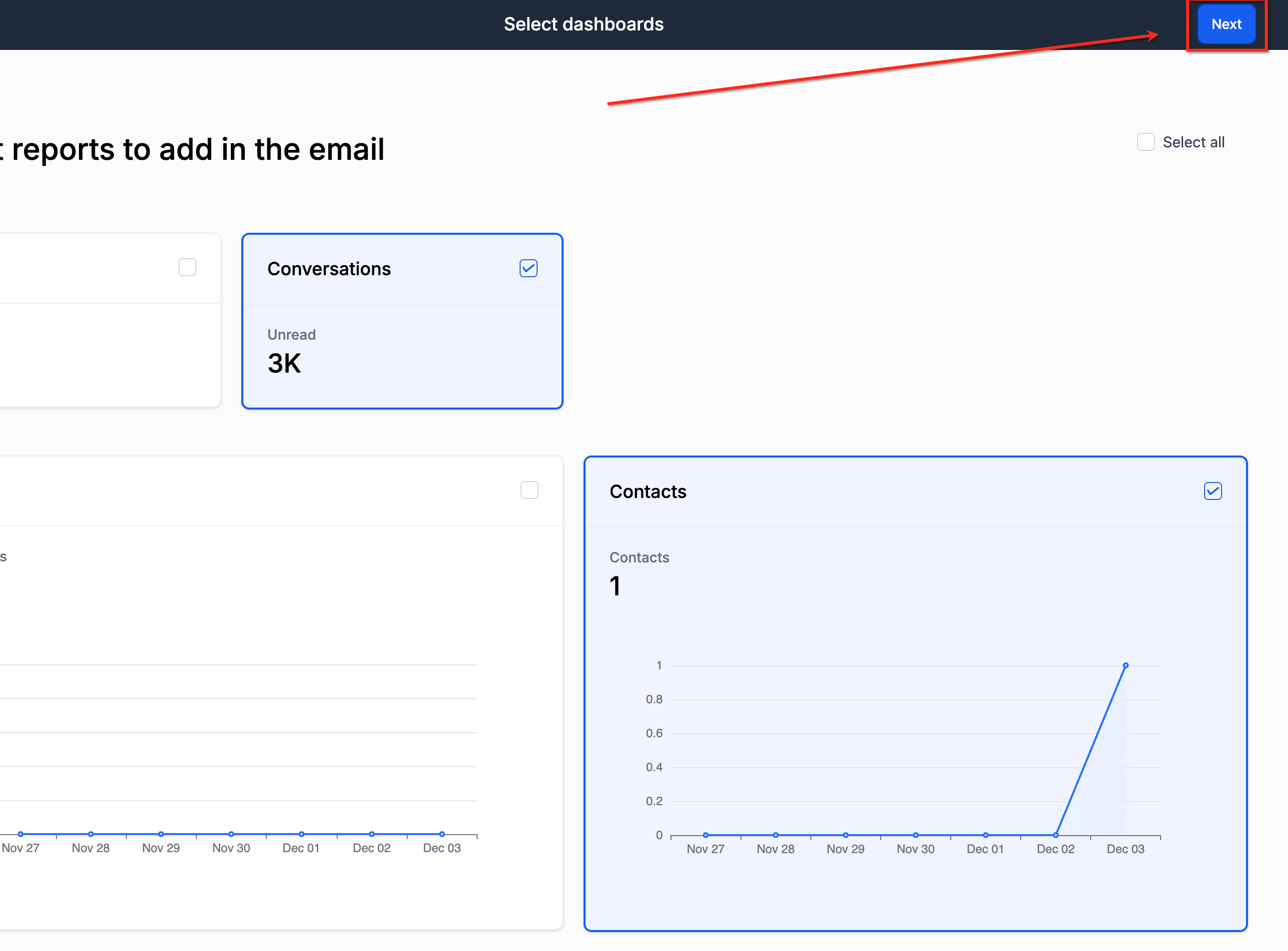
On this screen, choose the specific dashboards you want to include in the automated email report by checking the boxes on each card. You can enable individual metrics—such as Conversations or Contacts—or use the Select all option to send a full performance summary to the sub-account.
Proceed to Next Step
After selecting the dashboards you want included in the report, click the Next button in the upper-right corner to move forward in the scheduling process. This advances you to the configuration screen where you will set the email subject, frequency, timing, and recipients for the automated report.
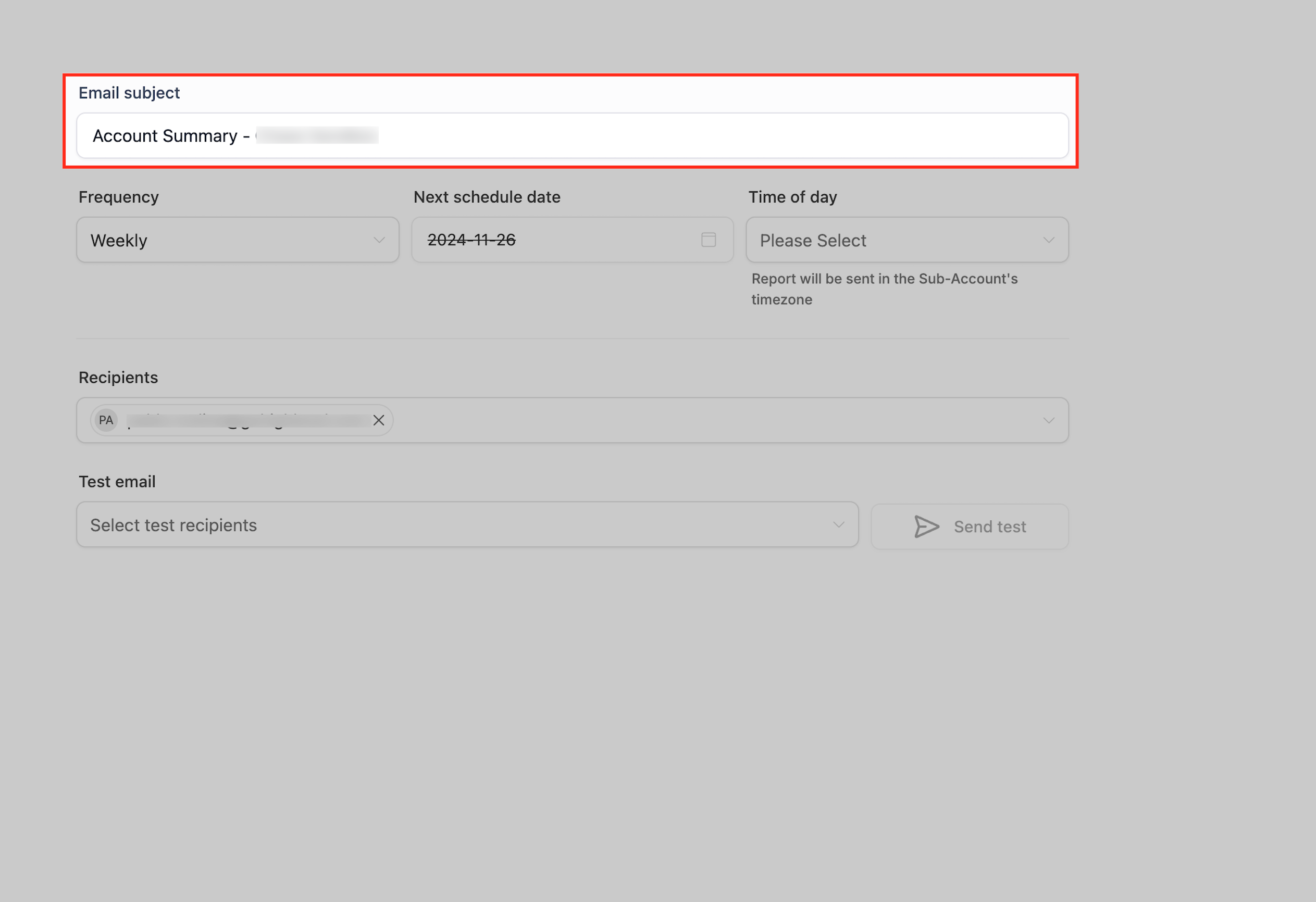
Enter Email Subject
In this step, enter the subject line that will appear on the automated report email sent to the sub-account. A clear subject helps recipients quickly identify and understand the purpose of the report when it arrives in their inbox.
When Reports Are Delivered
Report timing is critical for ensuring recipients receive insights when they expect them. Understanding how frequency, date, and timezone settings influence delivery helps create predictable reporting rhythms.
When scheduling a report, users choose:
Frequency
Start Date
Time
Frequency Logic:
- Daily: Sends every day at the configured time.
- Weekly: Sends every week on the same weekday as the chosen start date. Example, If the start date is a Tuesday, weekly reports always send on Tuesday.
- Monthly: Sends every month on the same calendar day selected as the start date. Example, If the start date is the 5th, reports send on the 5th each month.
Timezone:
Reports are delivered based on the sub-account’s timezone.
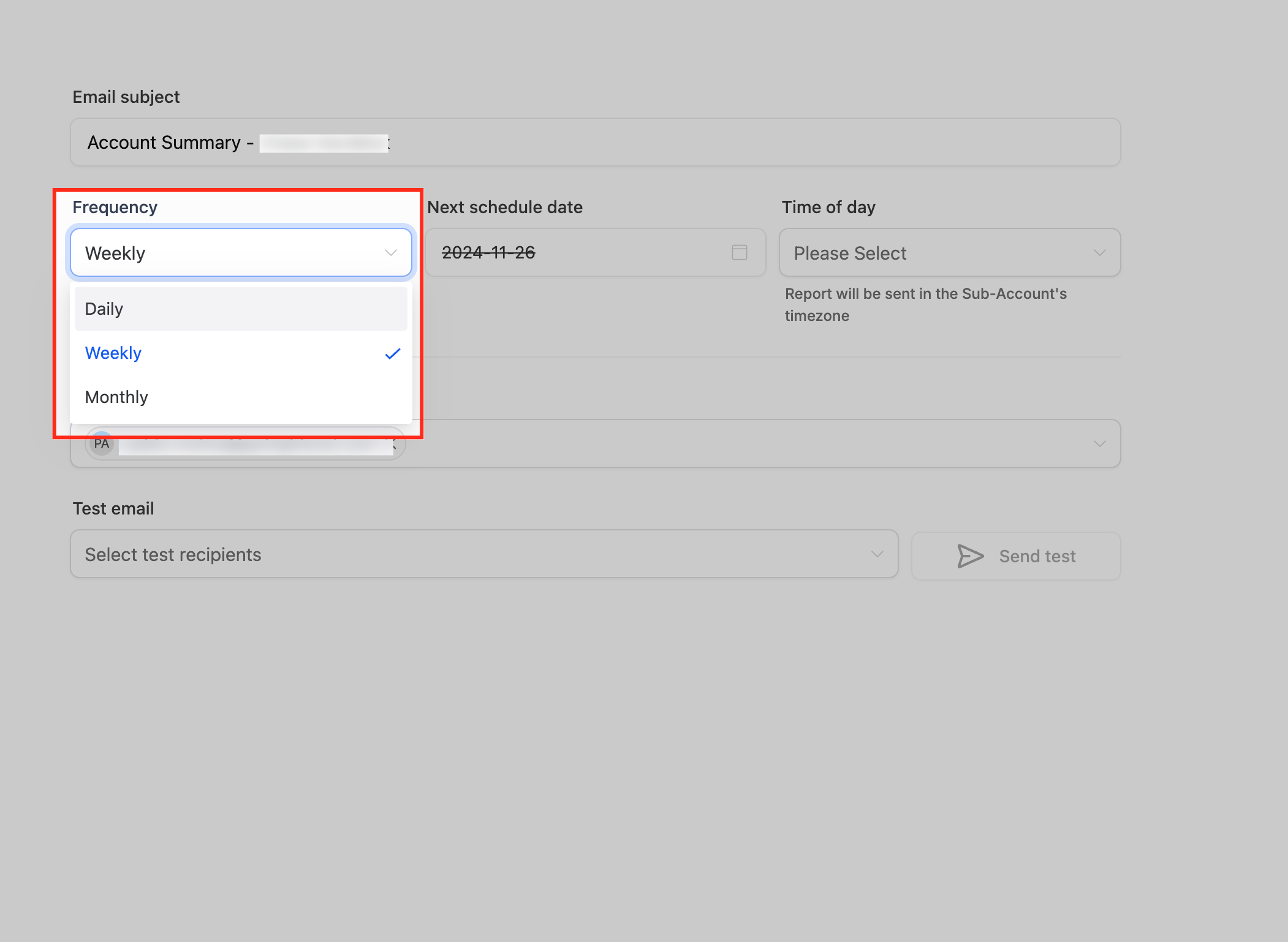
Choose Report Frequency
Select how often the report should be sent by choosing Daily, Weekly, or Monthly from the Frequency dropdown menu. Your selected frequency determines how often the sub-account will receive automated performance updates based on the dashboards included in the report.
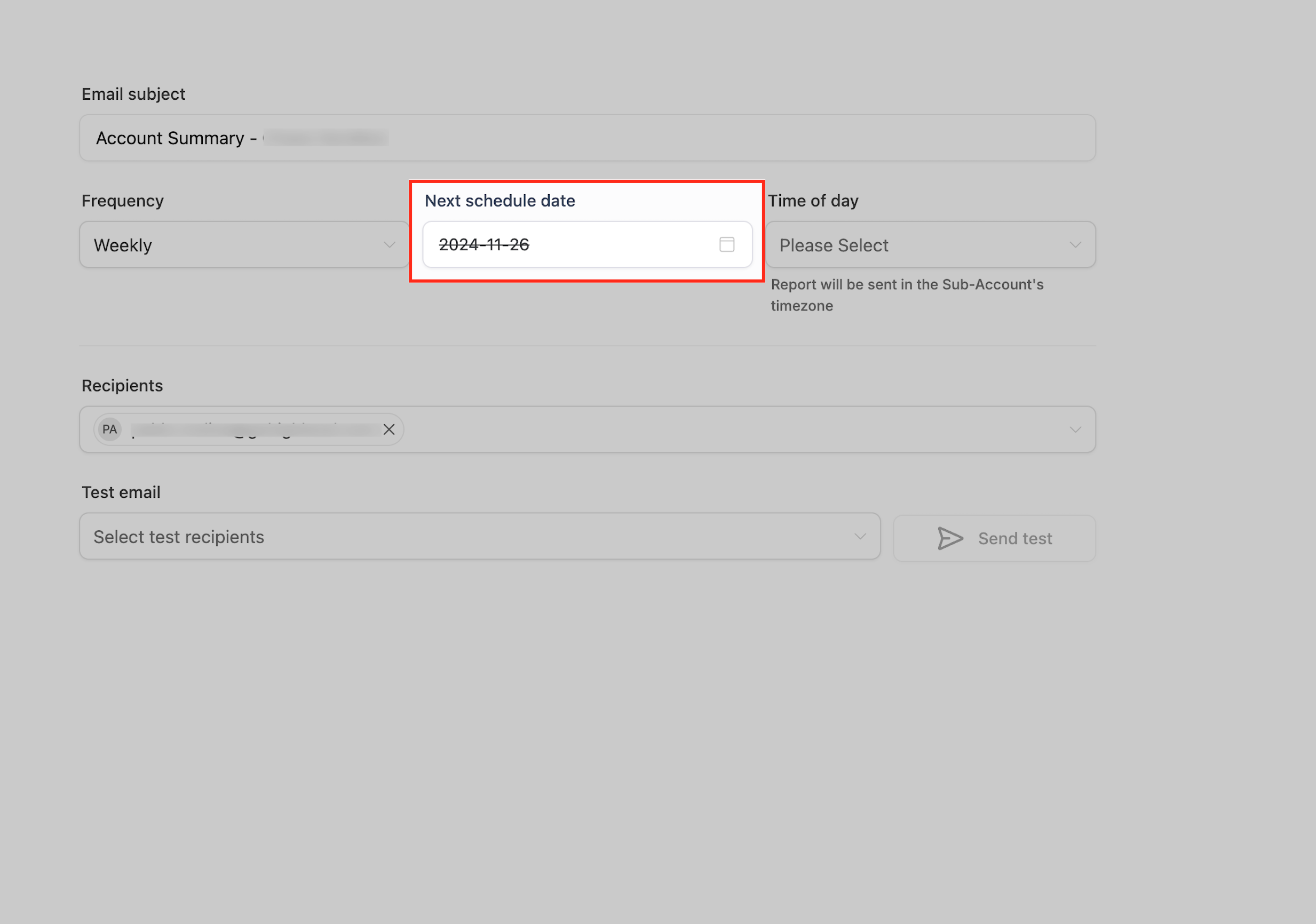
Set Next Schedule Date
Choose the date when the first report should be delivered by selecting a value in the Next schedule date field. This date also determines the recurring day for Weekly or Monthly schedules, ensuring the reports follow a consistent delivery cycle based on your selection.
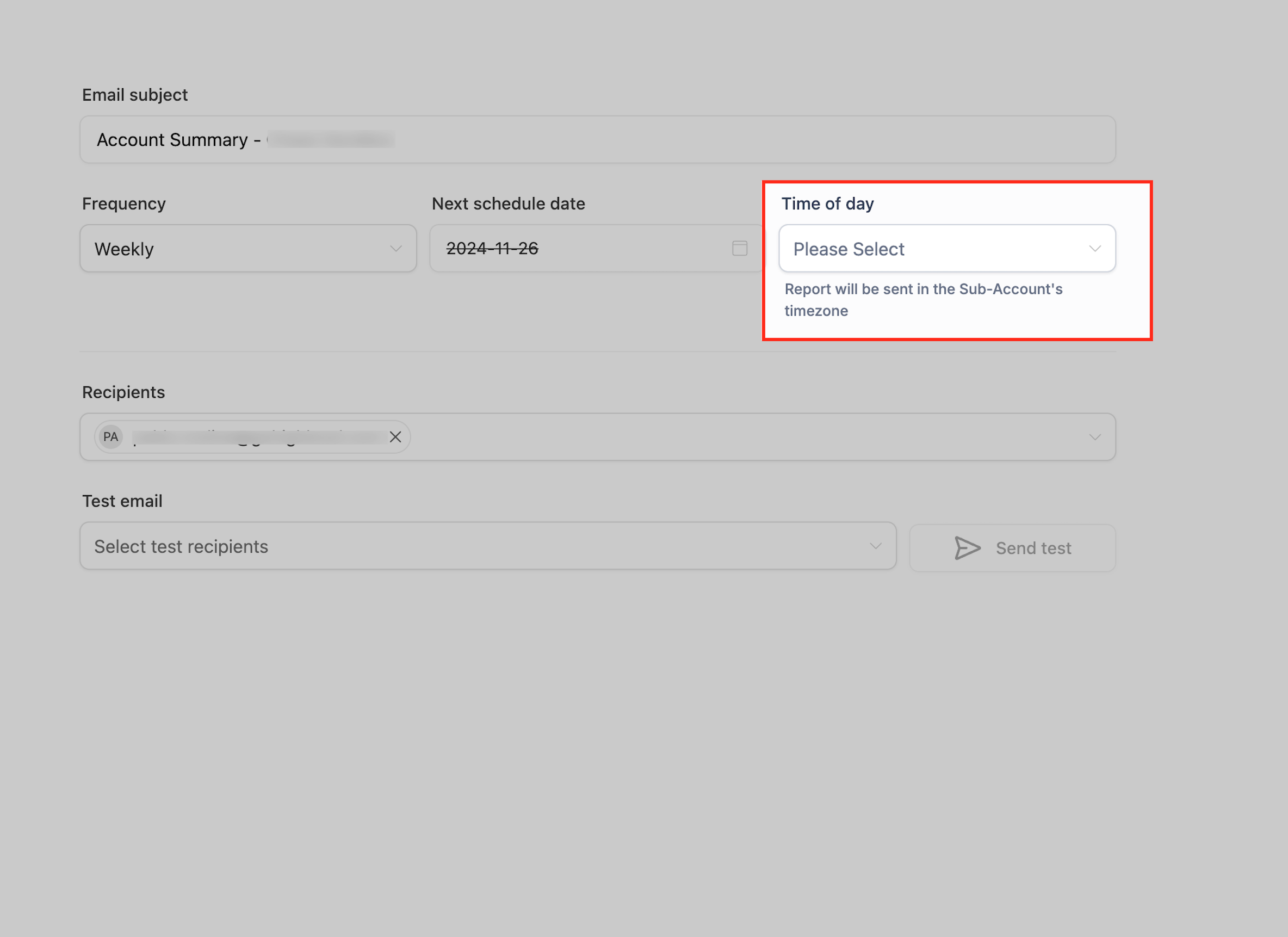
Select Delivery Time
Choose the Time of day when the report should be delivered to recipients by selecting an option from the dropdown menu. The report will be sent according to the sub-account’s timezone, ensuring consistent and accurate delivery based on the recipient’s local time.
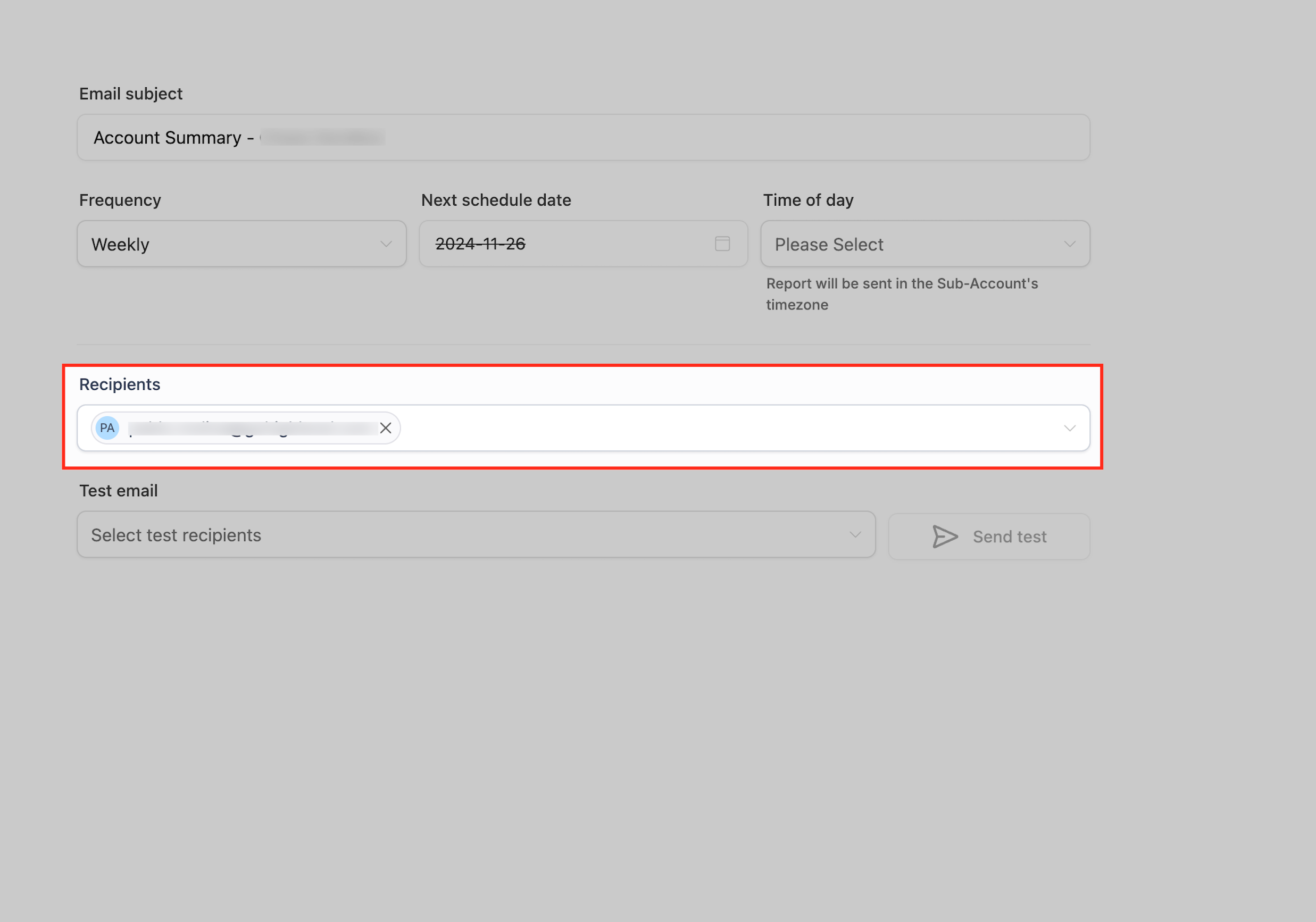
Add Report Recipients
Use the Recipients field to specify who should receive the automated report by adding one or more email addresses. You can include admins, team members, or external stakeholders, ensuring everyone who needs performance updates receives them automatically.
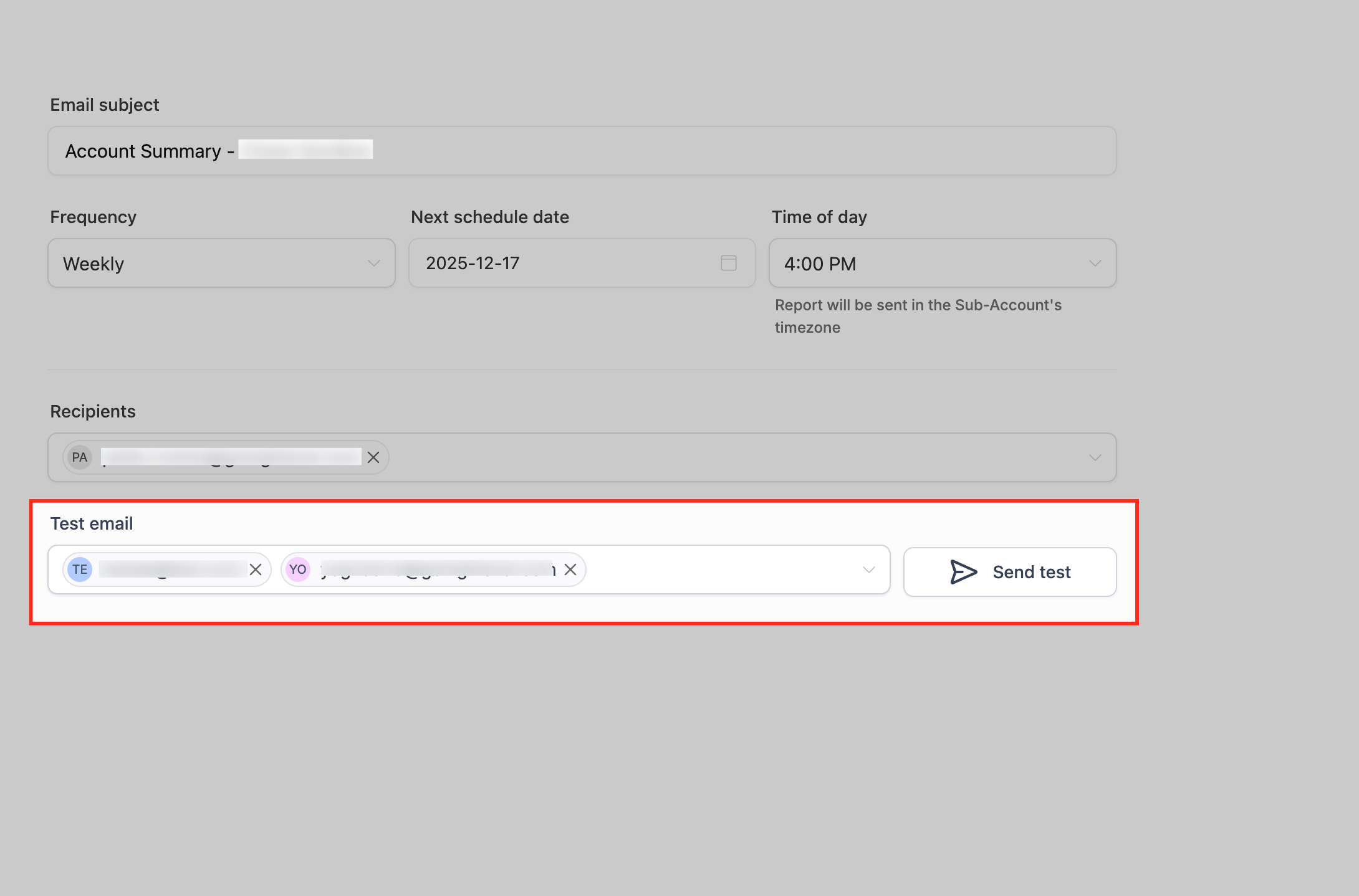
Send Test Email
Use the Test email field to add one or more addresses that should receive a preview version of the report before it is officially scheduled. Clicking Send test delivers a sample email so you can verify that the report content, formatting, and recipient visibility are correct before finalizing the schedule.
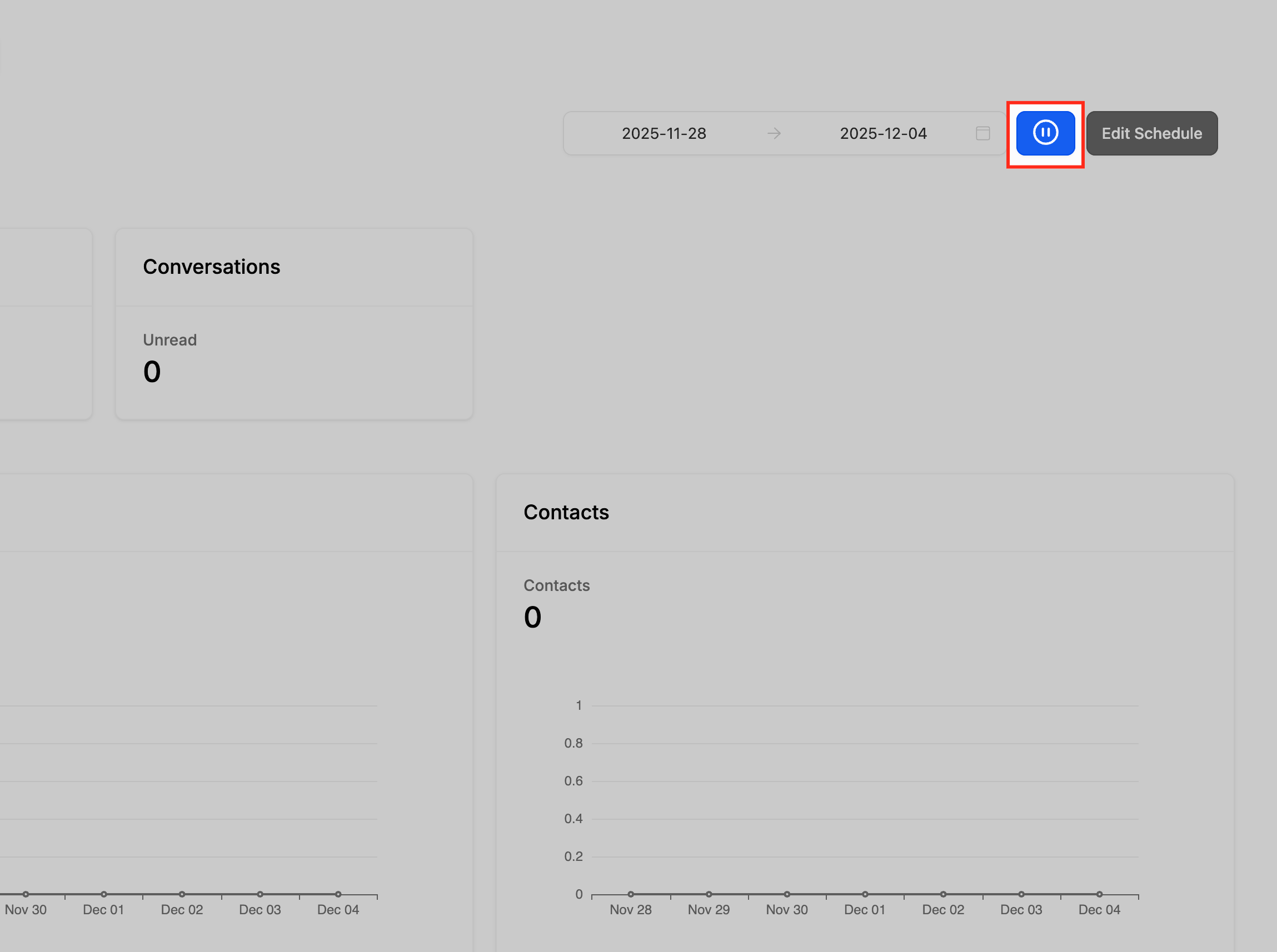
Pause or Resume Schedule
Use the Pause/Resume button to temporarily stop or restart the scheduled report delivery for a sub-account. When the icon shows a pause symbol, it means the report is currently active and clicking it will pause the schedule; when the icon displays a play symbol, the schedule is paused and clicking it will resume automatic report delivery. This control allows agencies to easily manage reporting activity without deleting or reconfiguring the existing schedule.
Where to View the Report Summary
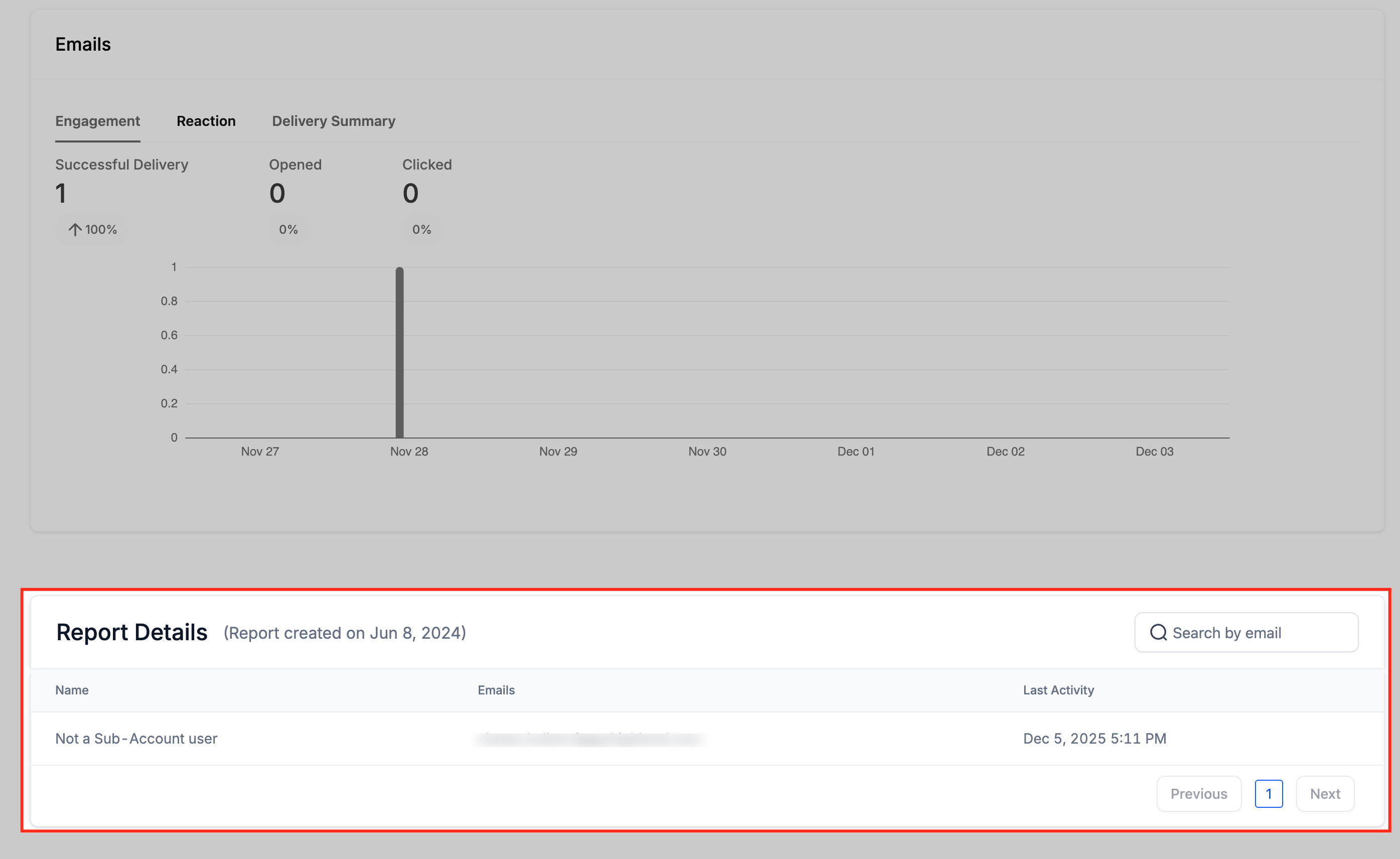
Viewing the delivery summary helps users verify report recipients, monitor delivery activity, and confirm whether emails were sent successfully. This enhances transparency and allows agencies to track engagement.
Scroll to the bottom of the Reports screen to view the delivery log, which includes the email addresses that received the report.
Frequently Asked Questions
Q: Can I schedule different reports for different sub-accounts?
Yes. Each sub-account can have its own schedule and configuration.
Q: Can I add multiple recipients to a report?
Yes, enter multiple emails separated by a comma and a space.
Q: Do sub-account users need specific permissions to receive reports?
Admins receive reports automatically; additional recipients do not require special permissions.
Q: What happens if I pause a report?
No reports will be sent until the schedule is resumed.
Q: Can I change the dashboard data included in the report?
No. The report automatically includes predefined dashboards and cannot be customized.
Q: Does editing the Business Email affect delivery?
Yes. Changes to the Business Email will affect where reports are sent unless recipients are manually adjusted.
Was this article helpful?
That’s Great!
Thank you for your feedback
Sorry! We couldn't be helpful
Thank you for your feedback
Feedback sent
We appreciate your effort and will try to fix the article